> ## Documentation Index
> Fetch the complete documentation index at: https://docs.introw.io/llms.txt
> Use this file to discover all available pages before exploring further.
# Track ROI on a fund
> Measure the return of a marketing fund from partner-reported outcomes and real-time CRM data.
A marketing fund only earns more budget if you can show what it returned. ROI on a fund comes from two places: what partners report through the ROI form, and a live figure Introw derives from your CRM by counting records or summing a property tied to the funded activity. This guide sets up both so you can tie spend to outcomes and justify the program to finance and leadership. Reach for it once a fund is running and you want measurable, defensible return.
## What you'll achieve
A fund that shows its return continuously: partners report outcomes within a defined window, and a real-time figure updates from CRM data as deals tied to the funded activity progress, so every fund has a number you can put in front of finance.
## Before you start
Create the fund first. See [Set up an MDF program](/features/mdf/funds-allocation/guides/set-up-an-mdf-program).
Real-time tracking reads from CRM records, so the object you measure must exist in your connected CRM and be created by the ROI form's automation.
## Watch it
## Steps
Go to [Marketing Funds](https://app.introw.io/marketing-funds), open the fund, and use **Configure** to open the **ROI** tab. Make sure the step is switched on and the **ROI reporting window** is enabled so partners can submit the ROI form within the deadline you set. This is the qualitative side of ROI: partners report the outcomes they saw, measured from the activity date.
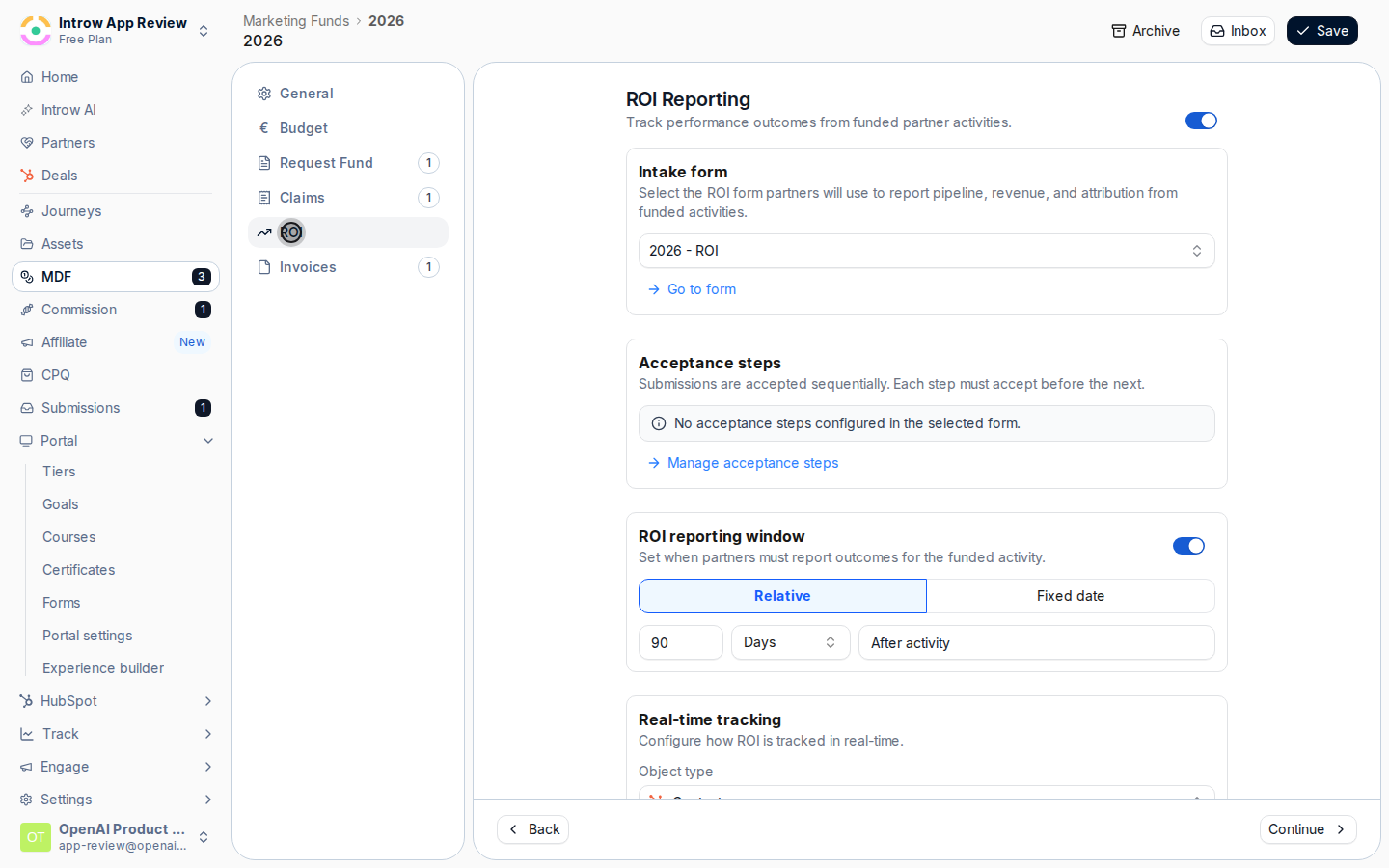 In the **Real-time tracking** section on the ROI tab, set how Introw derives ROI from CRM data automatically:
* **Object type** - the CRM record the return is read from, such as the deal record. It must be a record the ROI form's automation creates, or the fund flags a configuration error and you can fix it from the form's automations.
* **Filters** - optional conditions that limit which records count, for example only closed-won records or a specific pipeline, so only genuine results are credited to the fund.
* **Aggregation** - choose **Count** to count matching records, or **Sum of property** to total a numeric field on them. Count is the default and suits activities measured in deals or leads generated.
* **Monetary amount per object** - shown when you choose Count: the value each counted record contributes, turning a count into a monetary return.
* **Field to sum** - shown when you choose Sum of property: the numeric or currency field to total, such as deal amount, for a revenue-based return.
In the **Real-time tracking** section on the ROI tab, set how Introw derives ROI from CRM data automatically:
* **Object type** - the CRM record the return is read from, such as the deal record. It must be a record the ROI form's automation creates, or the fund flags a configuration error and you can fix it from the form's automations.
* **Filters** - optional conditions that limit which records count, for example only closed-won records or a specific pipeline, so only genuine results are credited to the fund.
* **Aggregation** - choose **Count** to count matching records, or **Sum of property** to total a numeric field on them. Count is the default and suits activities measured in deals or leads generated.
* **Monetary amount per object** - shown when you choose Count: the value each counted record contributes, turning a count into a monetary return.
* **Field to sum** - shown when you choose Sum of property: the numeric or currency field to total, such as deal amount, for a revenue-based return.
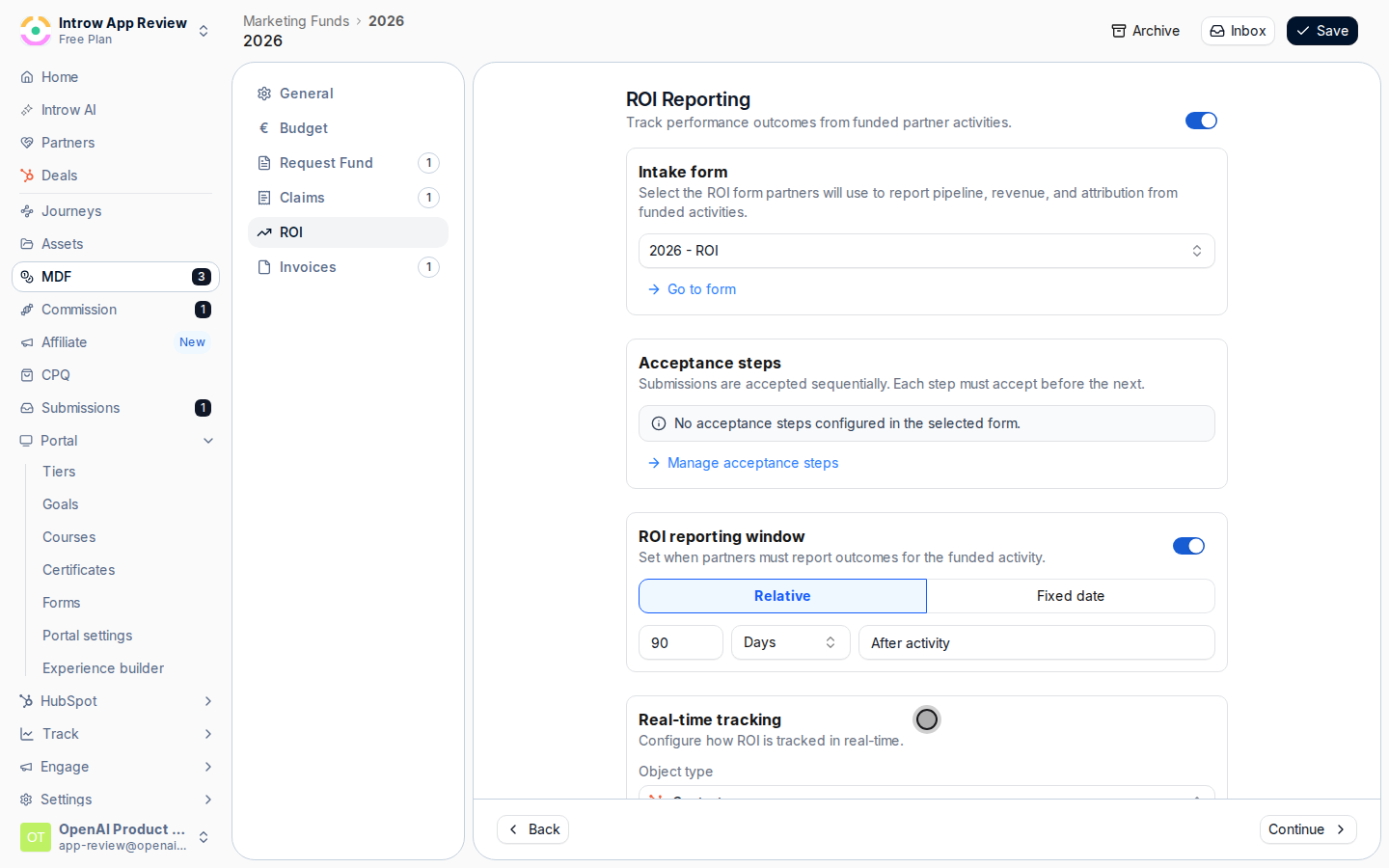 Save the fund. Review the fund's ROI as it accrues: partner-reported entries from the ROI form alongside the real-time figure that updates from CRM data as matching records progress. Use it to compare return against the budget the fund committed.
## Verify it worked
The fund shows ROI from both sources: partner-submitted ROI entries within the reporting window, and a real-time value that moves as CRM records tied to the funded activity match your object type, filters, and aggregation. You can now state a fund's return without exporting data by hand.
## Related
Review, claim, and reimburse the spend you measure here.
Report on MDF results across funds.
Full ROI and lifecycle configuration options.
Save the fund. Review the fund's ROI as it accrues: partner-reported entries from the ROI form alongside the real-time figure that updates from CRM data as matching records progress. Use it to compare return against the budget the fund committed.
## Verify it worked
The fund shows ROI from both sources: partner-submitted ROI entries within the reporting window, and a real-time value that moves as CRM records tied to the funded activity match your object type, filters, and aggregation. You can now state a fund's return without exporting data by hand.
## Related
Review, claim, and reimburse the spend you measure here.
Report on MDF results across funds.
Full ROI and lifecycle configuration options.