> ## Documentation Index
> Fetch the complete documentation index at: https://docs.introw.io/llms.txt
> Use this file to discover all available pages before exploring further.
# Run the MDF request-to-payout flow
> Operate the full MDF lifecycle: configure the request, claim, ROI, and invoice steps, then review requests, collect proof of spend, and mark requests paid.
A funded activity is governed by a lifecycle: a partner requests budget, you approve it, they submit proof of spend, they report ROI, and you reimburse against an invoice. This guide configures those steps and their deadlines, then walks the operating flow: deciding a request, collecting and checking claims, and marking the request paid so it reconciles in your CRM. Reach for it once a fund exists and you want a controlled, auditable path from ask to payout.
## What you'll achieve
A fund whose request, claim, ROI, and invoice steps are configured with clear deadlines, plus a repeatable operating flow where every partner request is reviewed with a recorded decision, claims are checked against approved budget with proof attached, and reimbursed requests are marked paid so their status syncs to the CRM and the program stays auditable.
## Before you start
Create the fund first, including its budget and currency. See [Set up an MDF program](/features/mdf/funds-allocation/guides/set-up-an-mdf-program).
You need write access to MDF to configure the lifecycle and decide submissions, and to forms if you adjust the lifecycle forms.
Partners need a way to submit requests, in the portal or by a shared link. See [Request funds by link](./request-by-link).
## Watch it
## Steps
### Configure the lifecycle steps
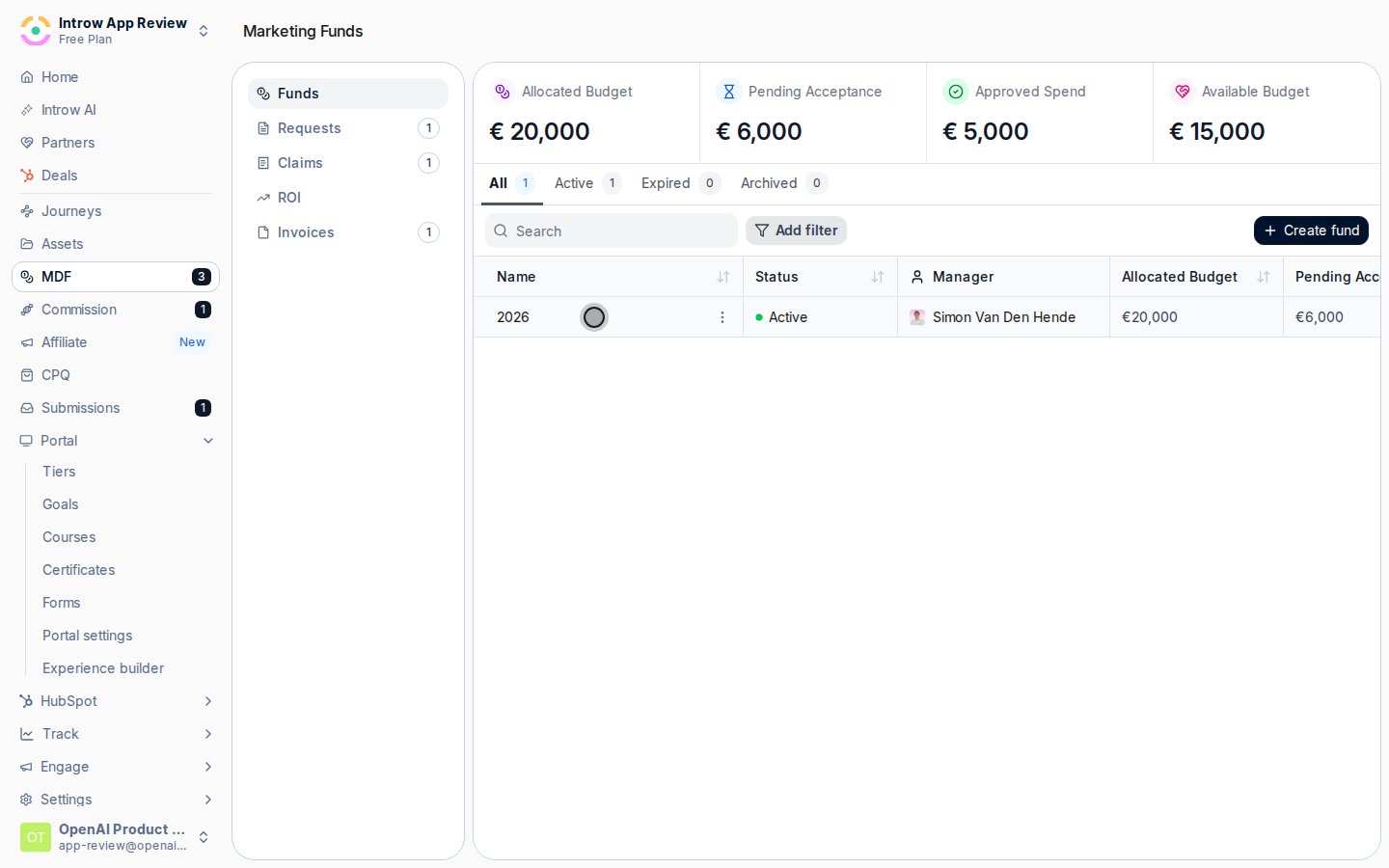
Go to [Marketing Funds](https://app.introw.io/marketing-funds), open the fund, and use **Configure** to enter edit mode. The left navigation lists the four lifecycle steps as tabs: **Request Fund**, **Claims**, **ROI**, and **Invoices**.
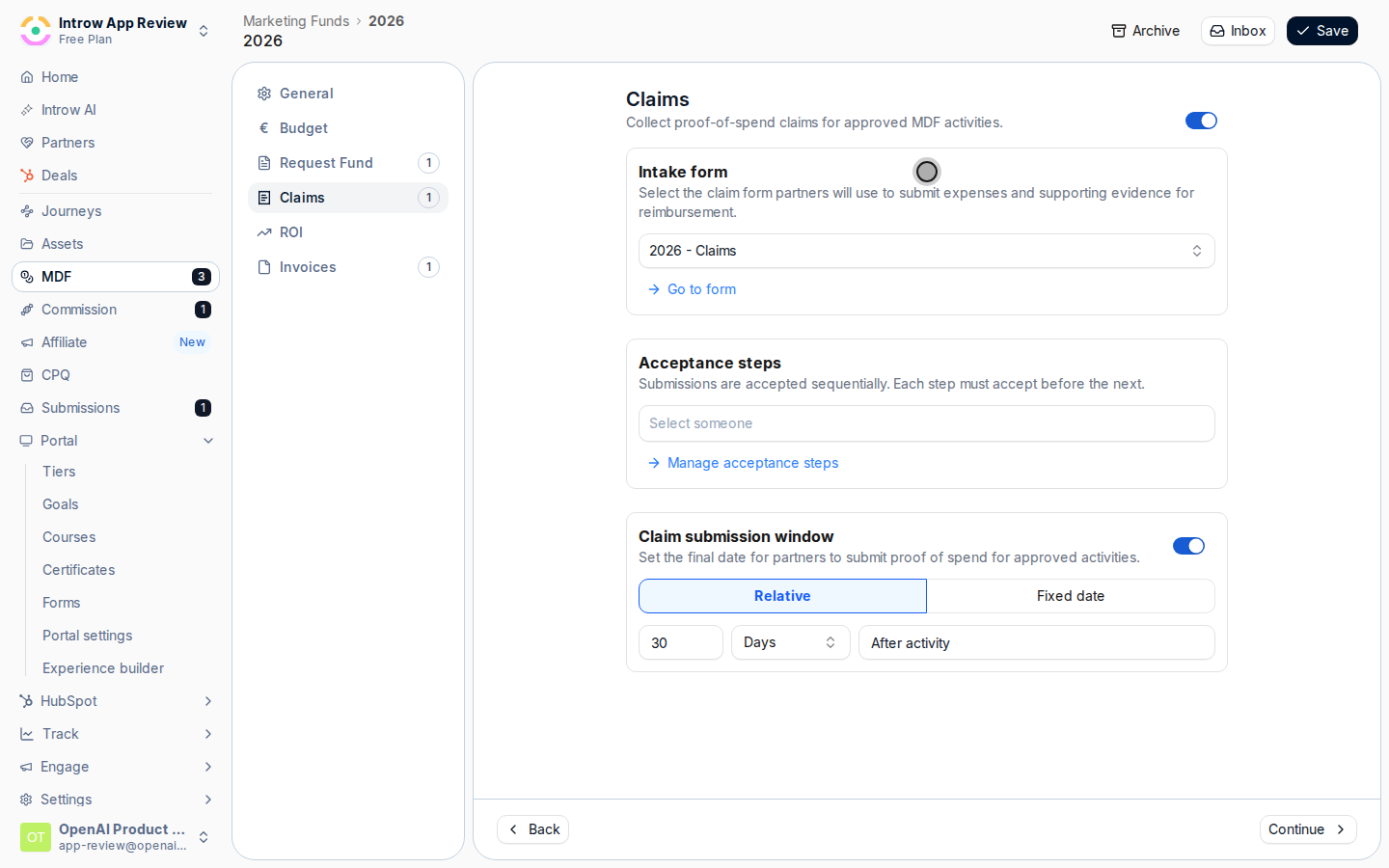
 On each tab, the **Intake form** section shows the form partners complete for that step, already provisioned with the fund. Use **Go to form** if you need to change fields, layout, or who approves; otherwise leave the default in place. The request step captures the activity plan and budget ask, the claim step captures proof of spend, the ROI step captures outcomes, and the invoice step captures billing details for payout.
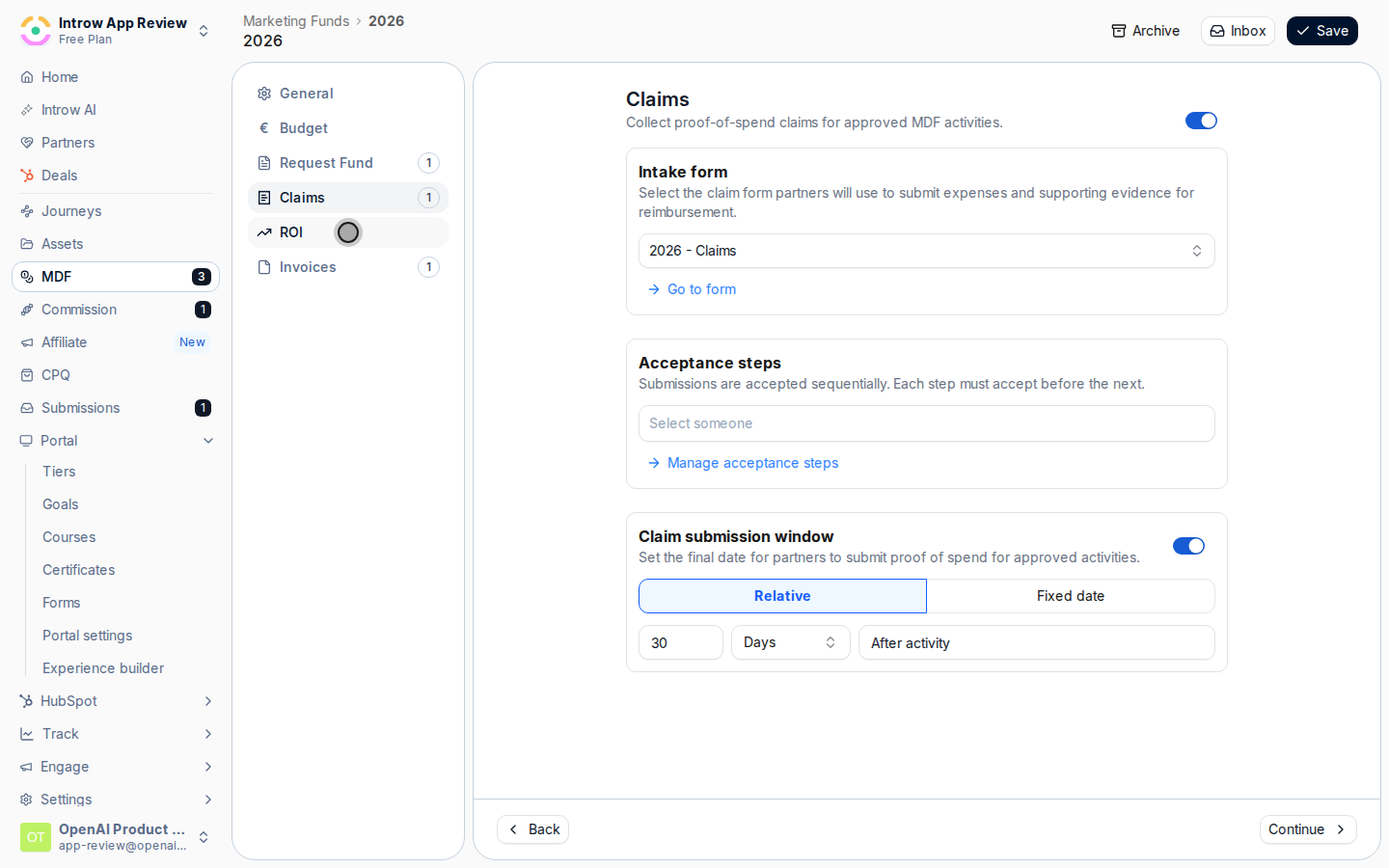
 The **Claims**, **ROI**, and **Invoices** tabs each have a switch at the top to turn the step off. Disable any step your program does not need, so partners are never asked for something you will not act on. The request step is always part of the flow.
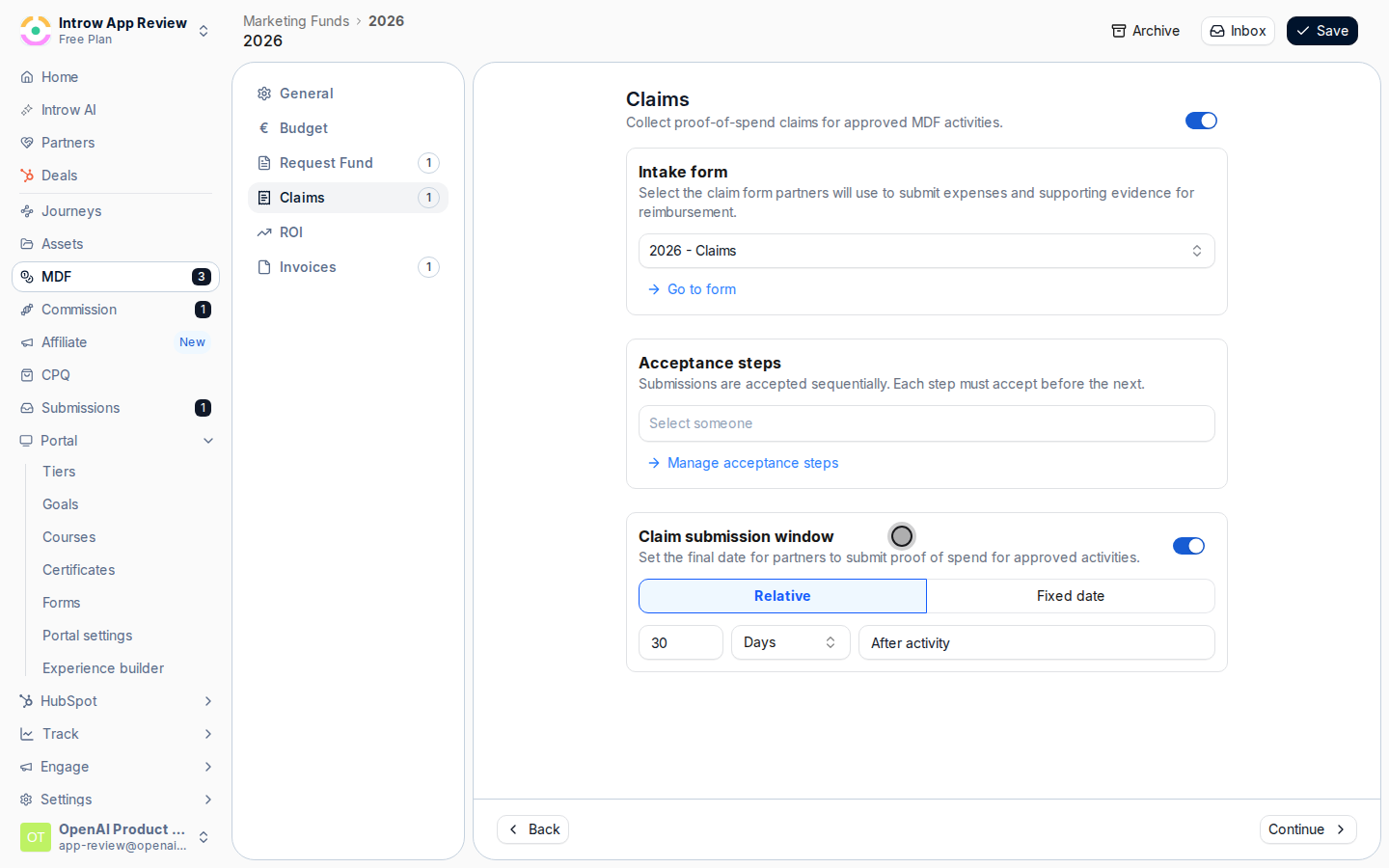 Each tab has a timeline you can enable so expectations are explicit:
* **Request decision timeline** - your team's SLA to decide a request, measured from when it is submitted.
* **Claim submission window** - how long partners have to submit proof of spend, measured from the activity date.
* **ROI reporting window** - when partners must report outcomes, measured from the activity date.
* **Invoice reimbursement deadline** - the last date to submit an invoice for payout, measured from the activity date.
For each, choose **Relative** (a number of Days, Weeks, Months, or Years) or **Fixed date** (a specific date), then **Save**.
Each tab has a timeline you can enable so expectations are explicit:
* **Request decision timeline** - your team's SLA to decide a request, measured from when it is submitted.
* **Claim submission window** - how long partners have to submit proof of spend, measured from the activity date.
* **ROI reporting window** - when partners must report outcomes, measured from the activity date.
* **Invoice reimbursement deadline** - the last date to submit an invoice for payout, measured from the activity date.
For each, choose **Relative** (a number of Days, Weeks, Months, or Years) or **Fixed date** (a specific date), then **Save**.
 ### Review and decide a request
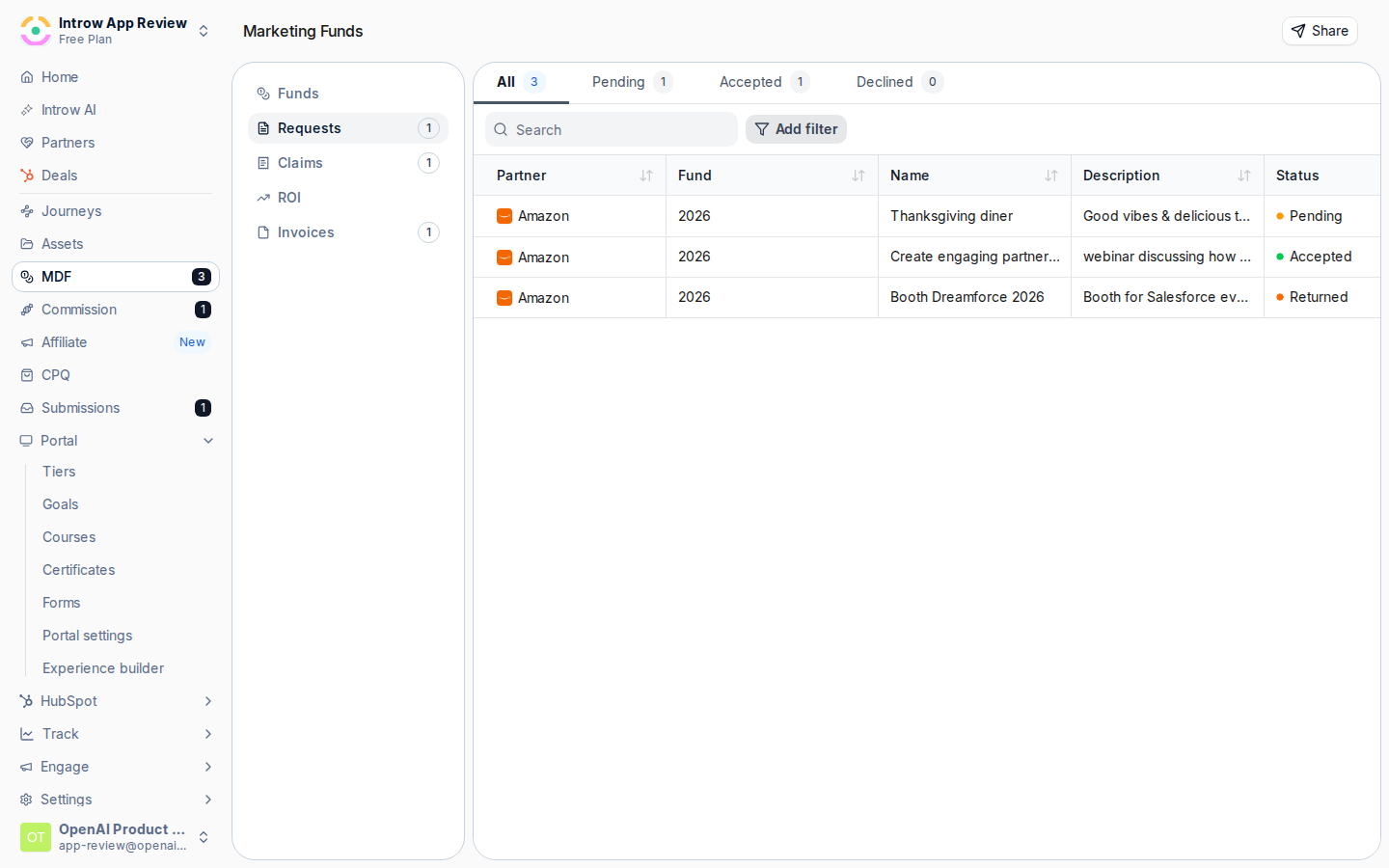
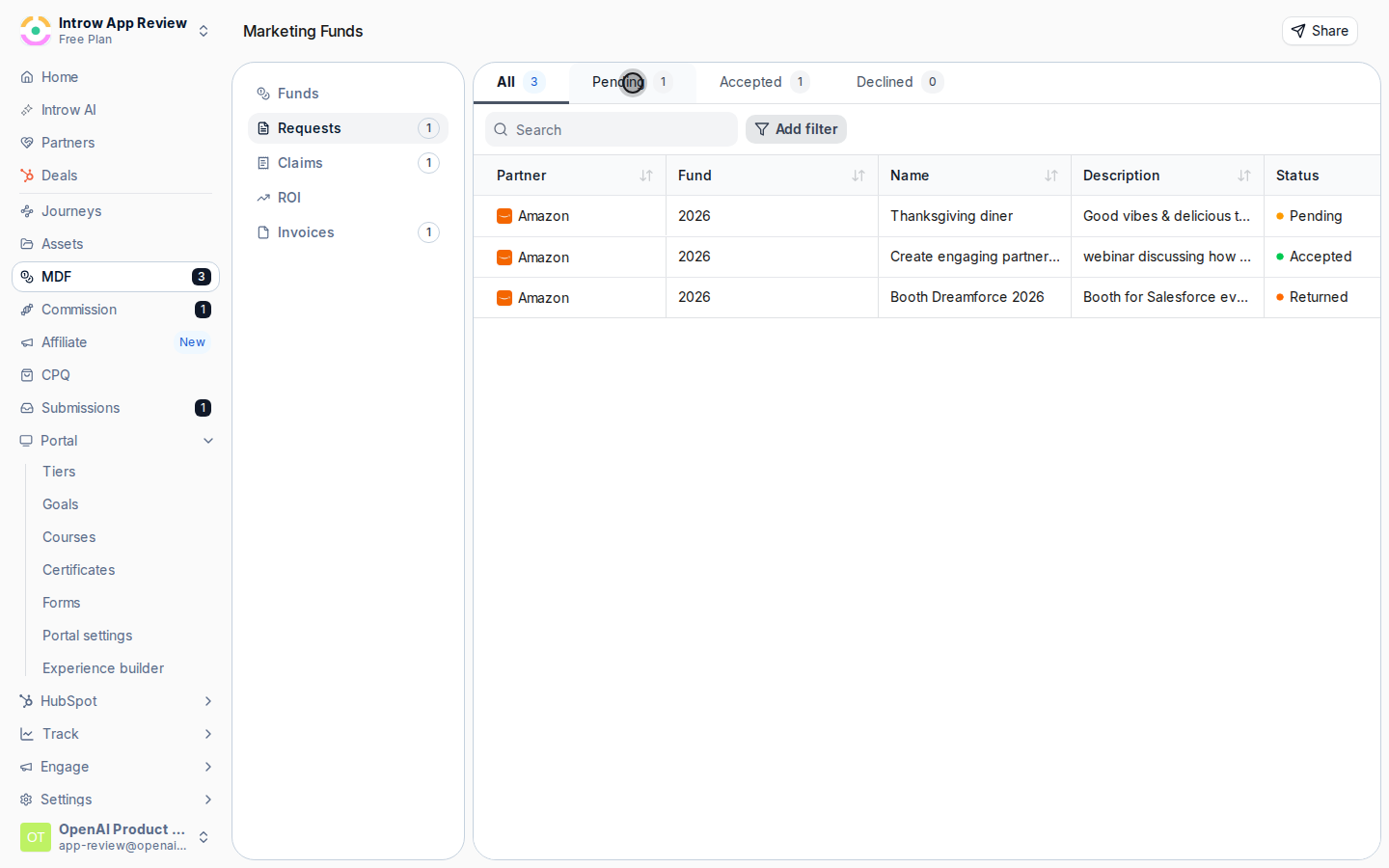
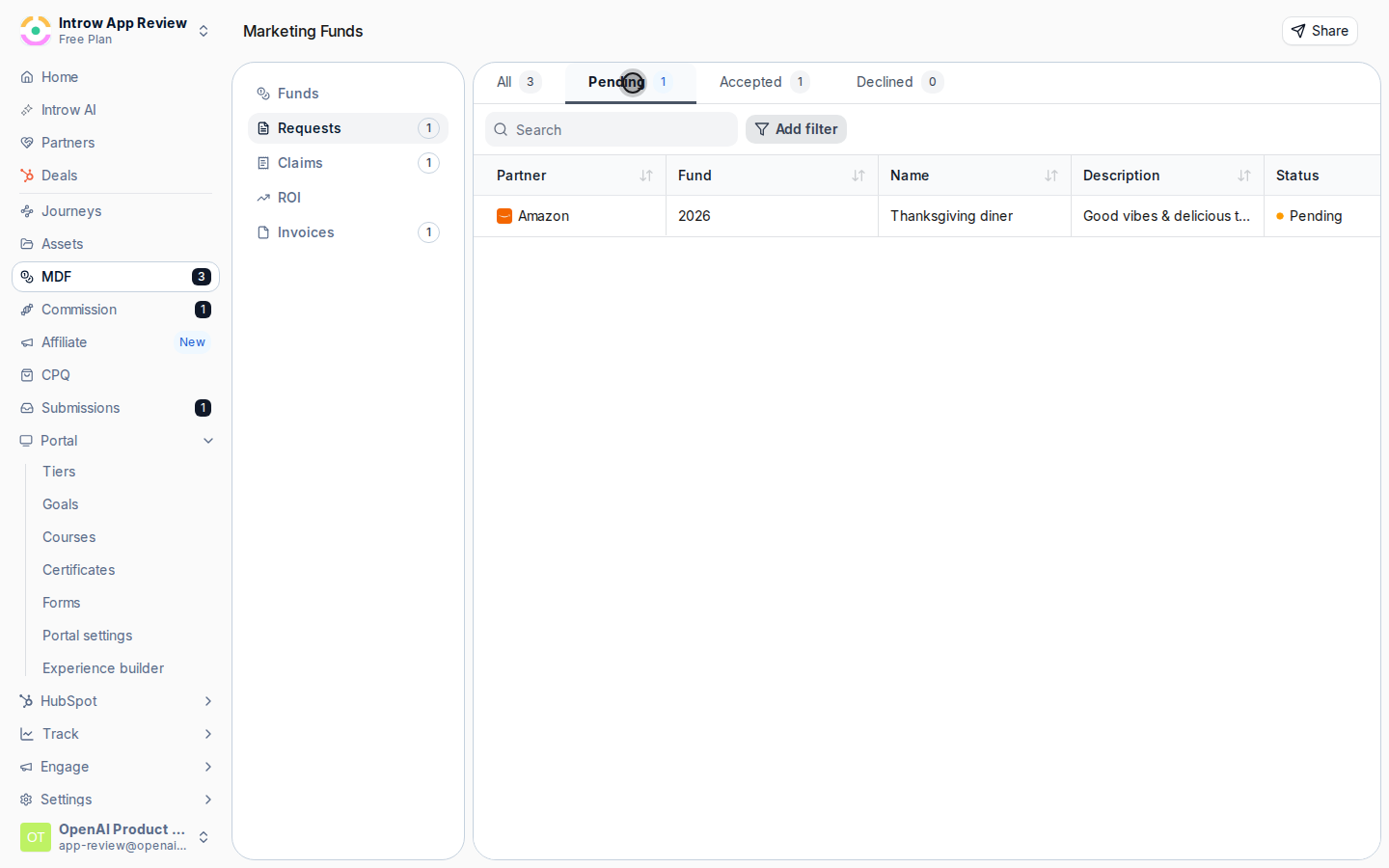
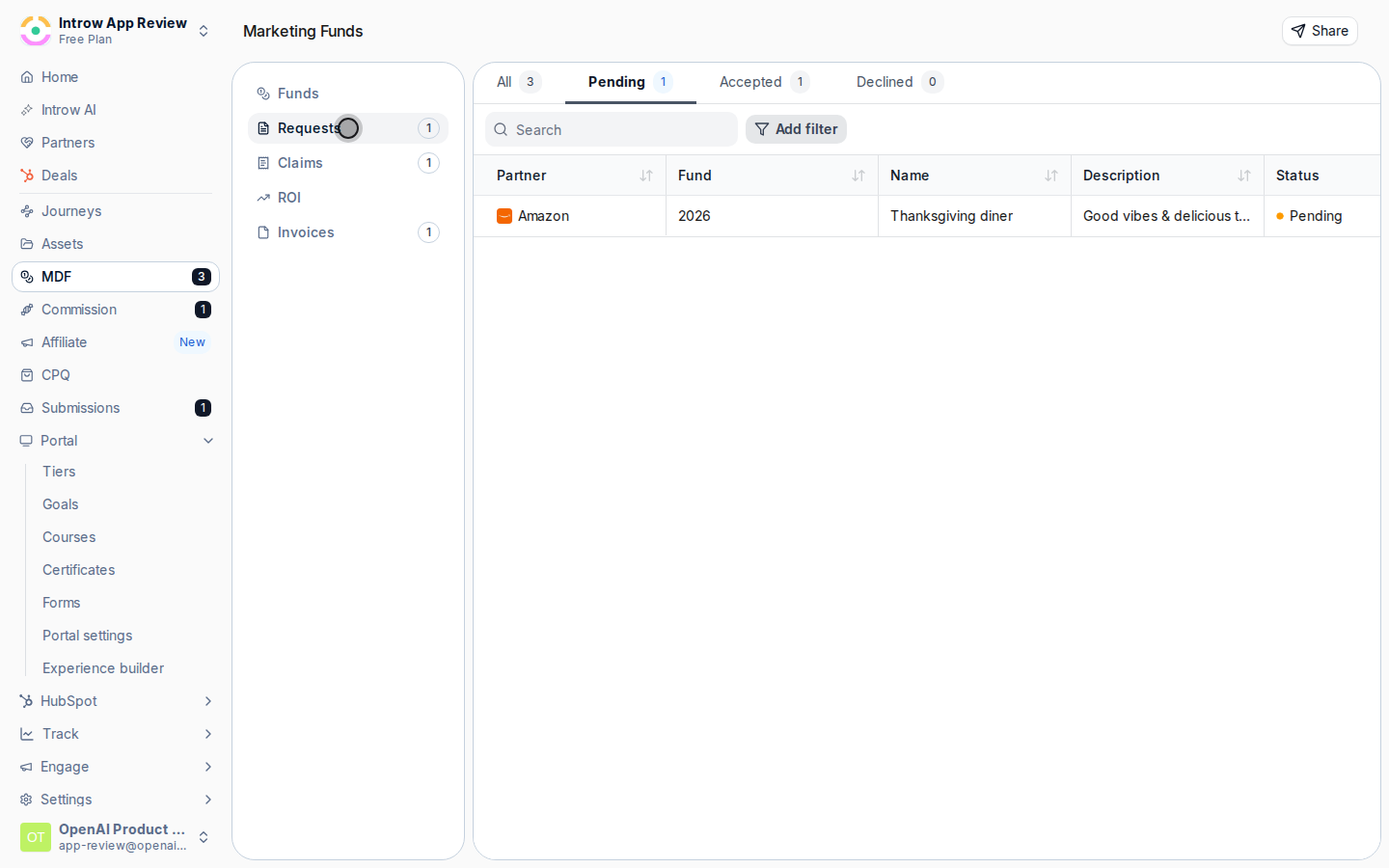
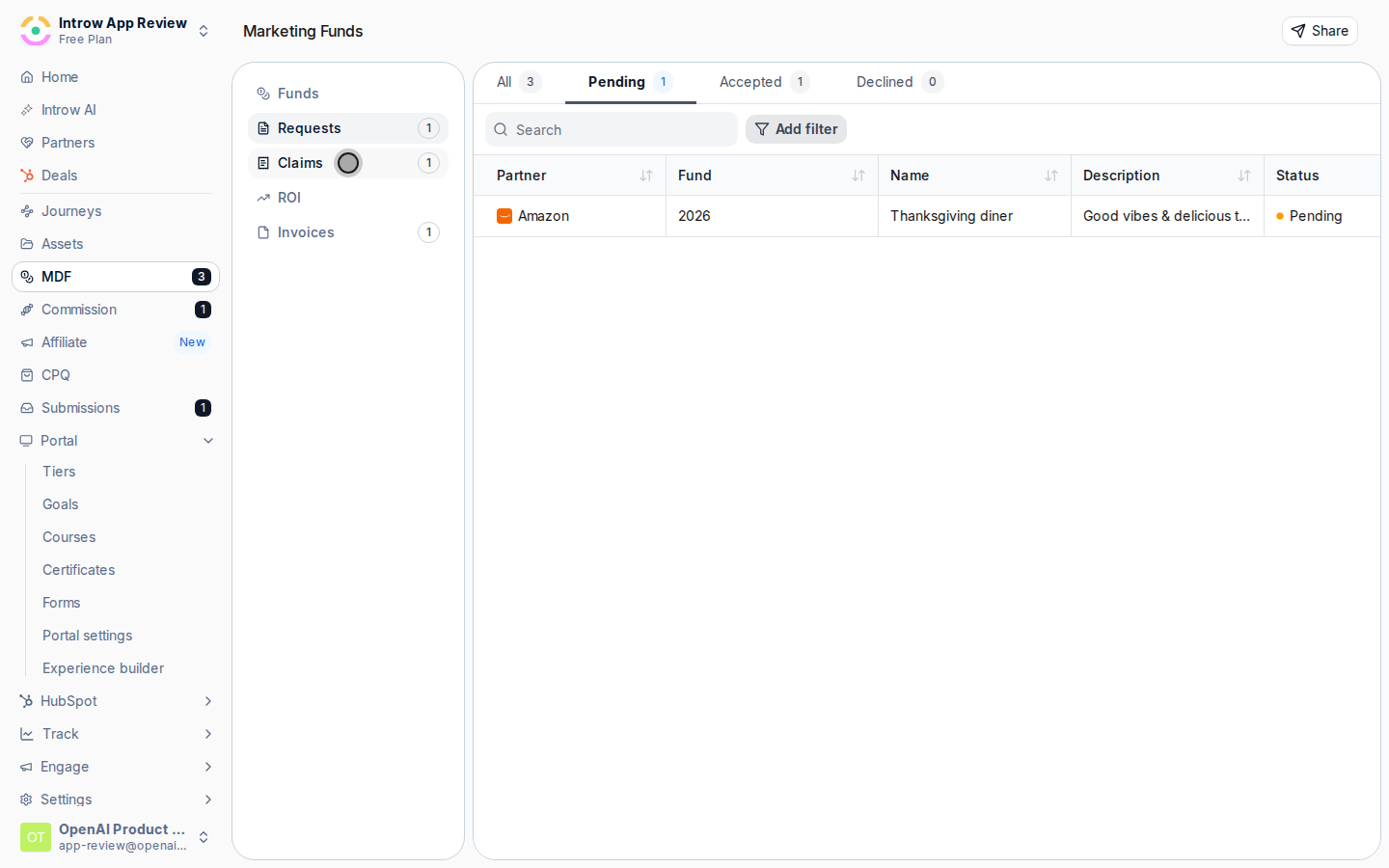
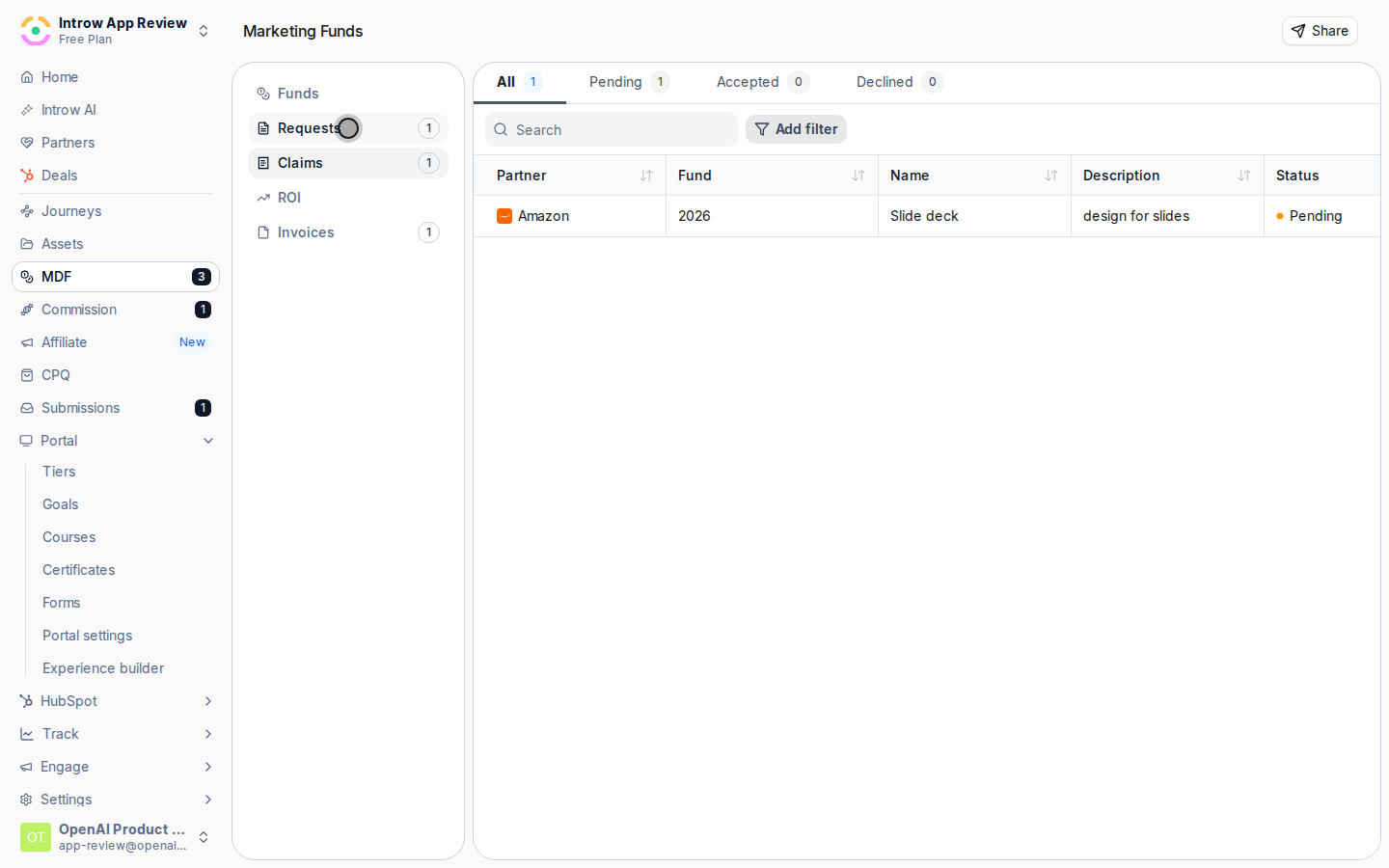
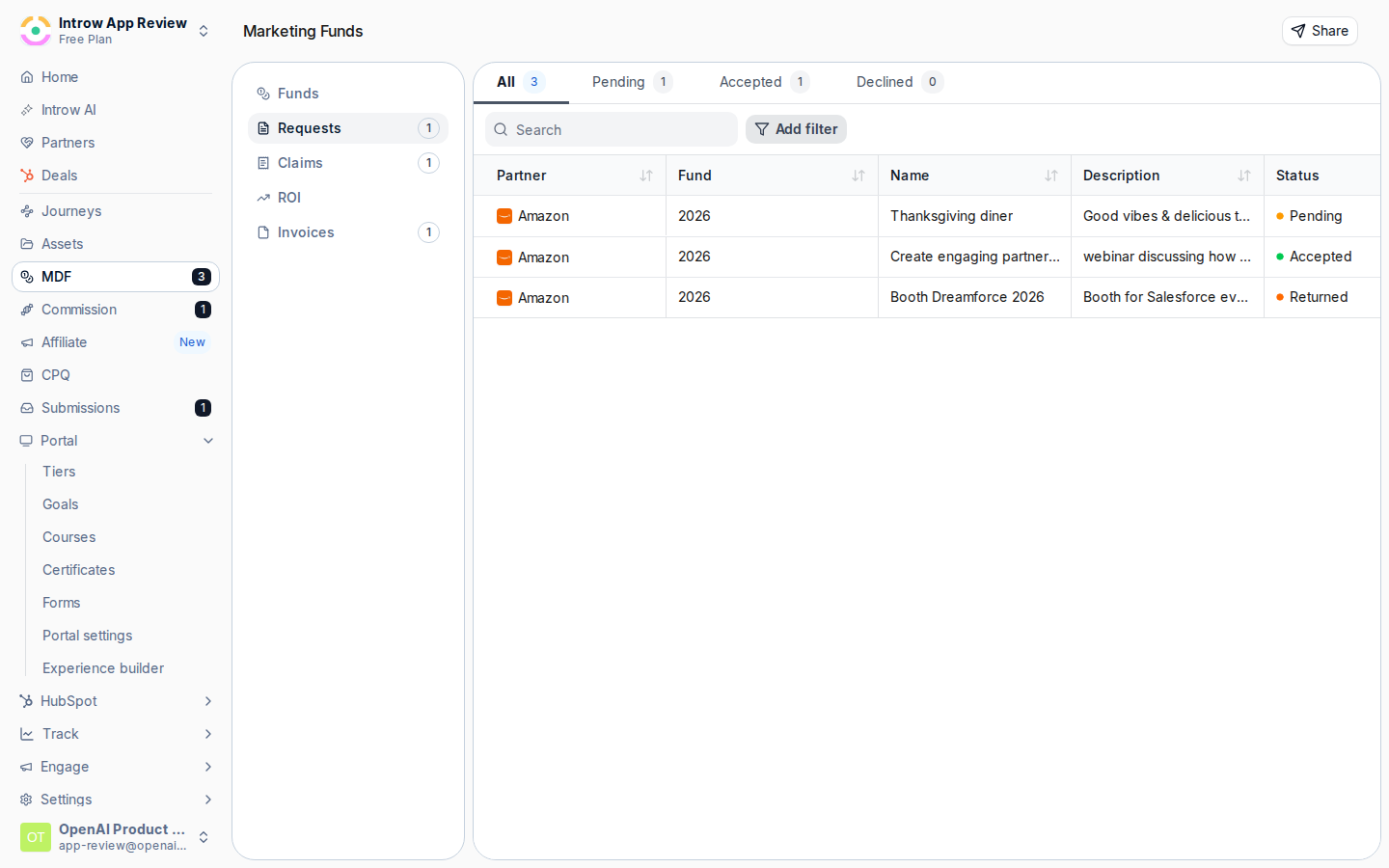
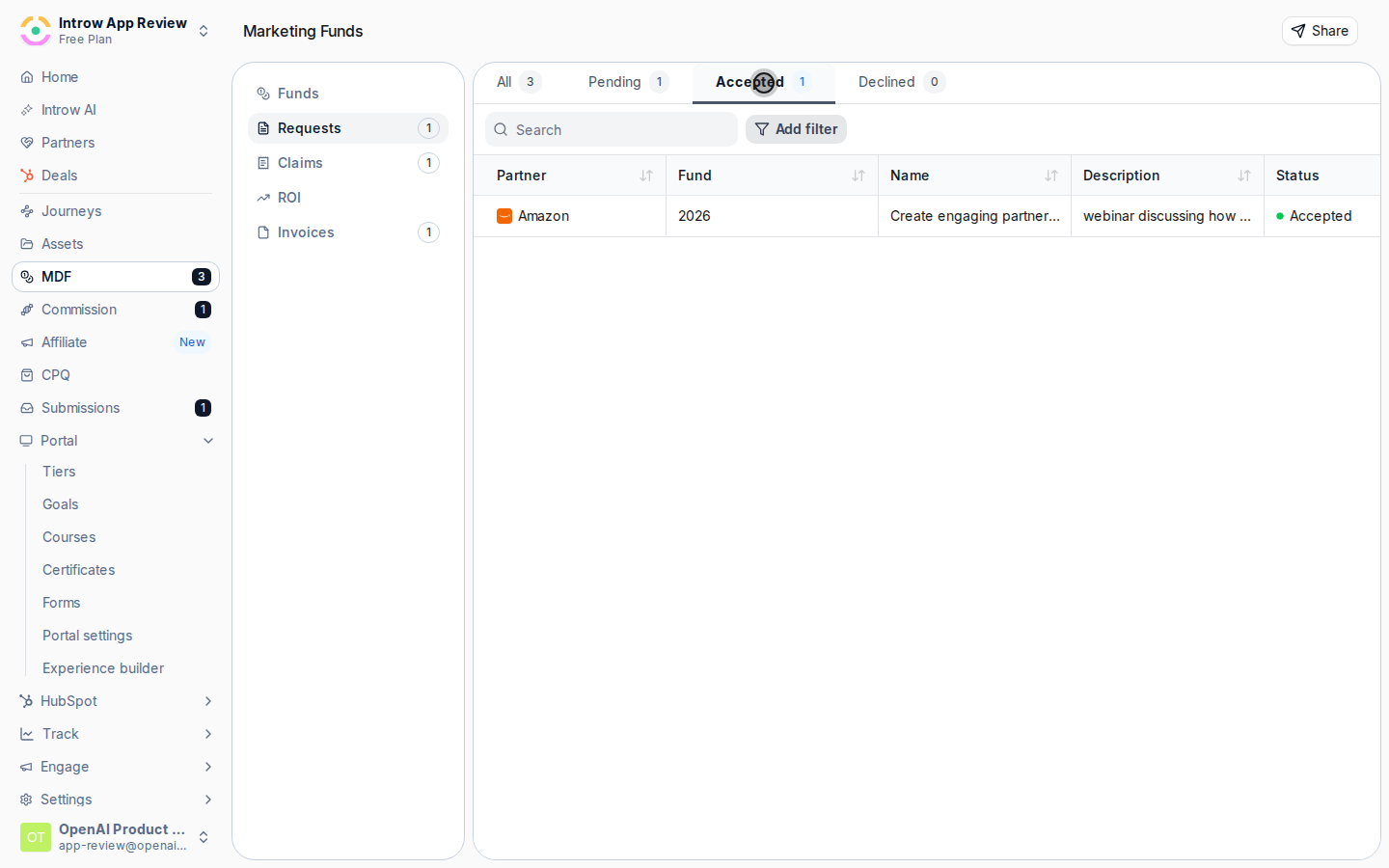
On [Marketing Funds](https://app.introw.io/marketing-funds), open the **Requests** tab for every fund, or open the fund and use **Inbox** to see just its requests. The status sub-tabs (**All**, **Pending**, **Accepted**, **Declined**) let you focus on what still needs a decision. You can also work requests from the central [Submissions](https://app.introw.io/submissions) inbox.
### Review and decide a request
On [Marketing Funds](https://app.introw.io/marketing-funds), open the **Requests** tab for every fund, or open the fund and use **Inbox** to see just its requests. The status sub-tabs (**All**, **Pending**, **Accepted**, **Declined**) let you focus on what still needs a decision. You can also work requests from the central [Submissions](https://app.introw.io/submissions) inbox.
 Open a pending request and check what you are funding: the requested amount against the fund's available budget, the planned activity, and the expected outcomes. This is where you decide whether the spend is worth the budget it draws down.
 Give the request a decision using the standard submission actions:
* **Accept** - approve the request so the partner can proceed and later claim against it.
* **Decline** - reject the request when it should not be funded.
* **Return** - send it back for more information when the plan or amount is unclear, so the partner can revise and resubmit.
Add a message with your decision so the partner understands why, then submit it. The partner is notified, and the request moves to the next step. See [Run a submission approval workflow](/features/forms/submissions-approvals/guides/run-a-submission-approval-workflow).
Give the request a decision using the standard submission actions:
* **Accept** - approve the request so the partner can proceed and later claim against it.
* **Decline** - reject the request when it should not be funded.
* **Return** - send it back for more information when the plan or amount is unclear, so the partner can revise and resubmit.
Add a message with your decision so the partner understands why, then submit it. The partner is notified, and the request moves to the next step. See [Run a submission approval workflow](/features/forms/submissions-approvals/guides/run-a-submission-approval-workflow).
 ### Collect claims and proof
Once a request is approved, the partner submits the claim form to prove spend, in the portal or via a shared link. Claims are accepted only while the claim window is open, so confirm the window covers the activity.
### Collect claims and proof
Once a request is approved, the partner submits the claim form to prove spend, in the portal or via a shared link. Claims are accepted only while the claim window is open, so confirm the window covers the activity.
 Claims arrive on the fund's **Claims** tab and in the central Submissions inbox. Open each claim to see the amount claimed against the approved budget and the attached proof of spend.
 Verify the documentation supports the amount, then accept valid claims or return ones that need more evidence. Accepting records the claim against the request so reimbursement is based on real, documented spend rather than trust.
 ### Mark the request paid
Once claims are approved and you have reimbursed the partner, open the request's record, from the fund's inbox or its CRM record.
### Mark the request paid
Once claims are approved and you have reimbursed the partner, open the request's record, from the fund's inbox or its CRM record.
 Use the record's actions menu and choose **Mark as paid**, then confirm. This sets the request's status to Paid and logs the change as an activity, closing the loop on the funded activity.
 Check that the request shows Paid and that the status is reflected on its CRM record, so finance and ops have a complete, auditable trail.
## Verify it worked
Every request carries a clear decision, approved claims are recorded with their proof against the right request, and reimbursed requests show as Paid with the status synced to the CRM. The fund's lifecycle tabs show submissions moving from pending through accepted, and partners are notified at each decision so the program runs without manual chasing.
## Related
Create the fund, budget, and timelines this flow runs on.
Measure the return from the spend you reimburse.
Give partners a way to submit the requests you review.
Full lifecycle and submission configuration options.
Check that the request shows Paid and that the status is reflected on its CRM record, so finance and ops have a complete, auditable trail.
## Verify it worked
Every request carries a clear decision, approved claims are recorded with their proof against the right request, and reimbursed requests show as Paid with the status synced to the CRM. The fund's lifecycle tabs show submissions moving from pending through accepted, and partners are notified at each decision so the program runs without manual chasing.
## Related
Create the fund, budget, and timelines this flow runs on.
Measure the return from the spend you reimburse.
Give partners a way to submit the requests you review.
Full lifecycle and submission configuration options.