> ## Documentation Index
> Fetch the complete documentation index at: https://docs.introw.io/llms.txt
> Use this file to discover all available pages before exploring further.
# Submit an invoice
> How a partner submits an MDF invoice against an approved project - via the invoice form, email, or team request - within the reimbursement window.
> The invoice closes the loop: the partner submits it for reimbursement against their approved project, and Introw turns the approved amounts into a reimbursement statement you can approve and pay. The invoice files against the project, so what gets reimbursed always ties back to the budget and claims already approved.
An invoice is submitted against an **approved project**, within the fund's **reimbursement window**. From the approved amounts, Introw generates the reimbursement statement (line items from the approved budget or the sum of approved claims, a PO number, and a PDF) - see [Configure the invoice step](./configure-the-invoice-form).
## Before you start
The invoice form, the reimbursement statement, and the reimbursement window are set up in [Configure the invoice step](./configure-the-invoice-form). The invoice step must be enabled on the fund's timeline.
Invoices reimburse an approved project; if your statement draws from claims, approve those first. See [Submit a claim](/features/mdf/claims/guides/submit-a-claim).
## Ways to submit
The invoice files against the project it belongs to, so reimbursement ties back to the right budget whichever way it arrives.
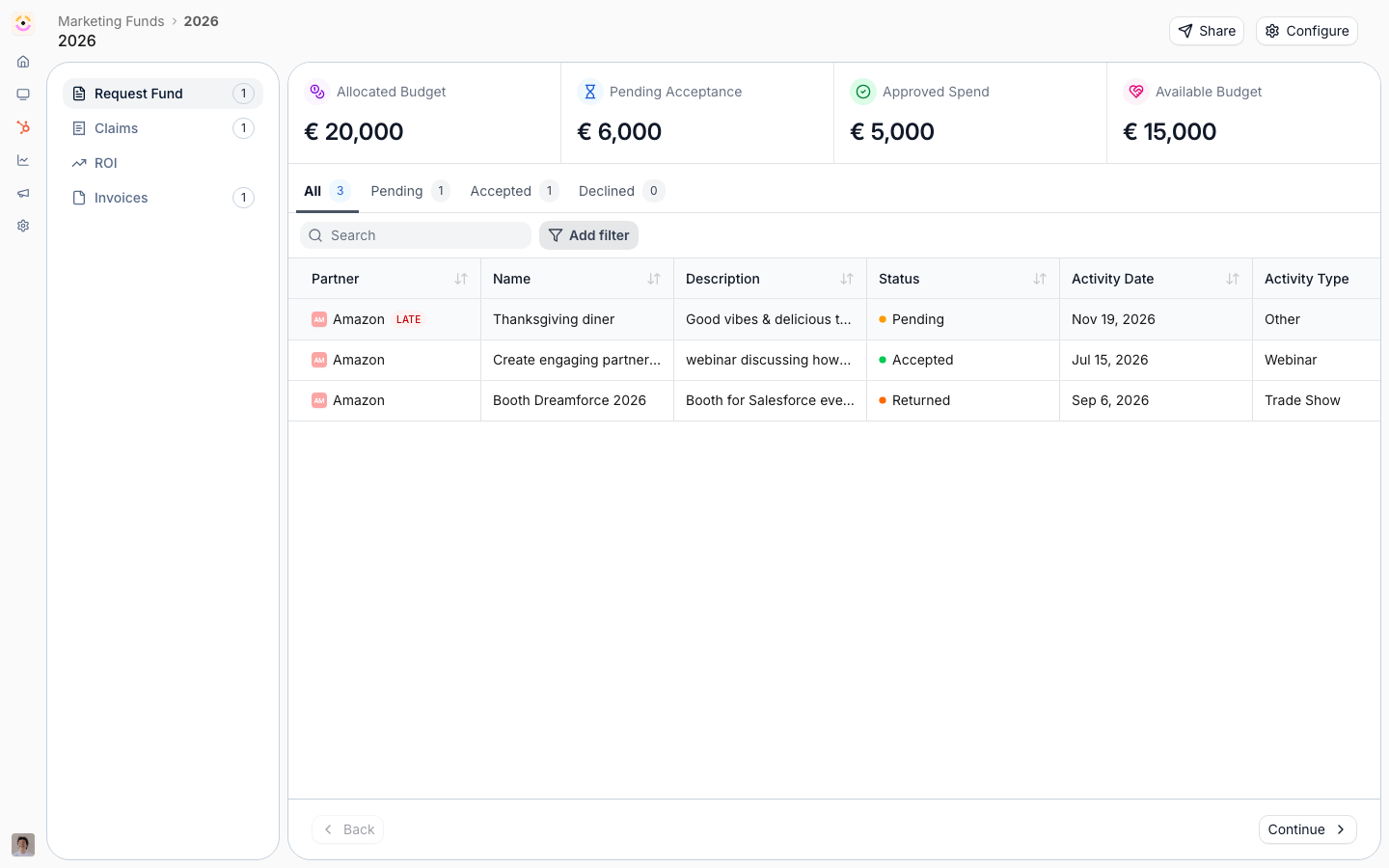 The partner opens their approved project and submits the invoice form there, so the invoice files against the project and feeds its reimbursement statement.
The partner forwards their invoice to your partner support address and it is attached to the project for reimbursement, so a partner who invoices from their own finance tooling doesn't have to open a form.
When you are ready to reimburse, request the invoice from the partner directly, prompting them to submit it against the project so the statement can be finalized.
## Verify it worked
Submit a test invoice against an approved project and confirm it lands on the project. Then generate the reimbursement statement, confirm its line items match the approved budget or approved claims, run it through approval, and mark the project paid.
## Related
Set up the invoice form, reimbursement statement, and window.
Process the full request-to-payout flow and mark projects paid.
Full invoice and reimbursement configuration options.
The partner opens their approved project and submits the invoice form there, so the invoice files against the project and feeds its reimbursement statement.
The partner forwards their invoice to your partner support address and it is attached to the project for reimbursement, so a partner who invoices from their own finance tooling doesn't have to open a form.
When you are ready to reimburse, request the invoice from the partner directly, prompting them to submit it against the project so the statement can be finalized.
## Verify it worked
Submit a test invoice against an approved project and confirm it lands on the project. Then generate the reimbursement statement, confirm its line items match the approved budget or approved claims, run it through approval, and mark the project paid.
## Related
Set up the invoice form, reimbursement statement, and window.
Process the full request-to-payout flow and mark projects paid.
Full invoice and reimbursement configuration options.