> ## Documentation Index
> Fetch the complete documentation index at: https://docs.introw.io/llms.txt
> Use this file to discover all available pages before exploring further.
# Store MDF requests and claims in your CRM
> Back Introw's MDF request and claim objects with your own HubSpot or Salesforce objects, link them to partners for attribution, and map the fields Introw calculates budgets and ROI from.
By default, MDF requests and claims are Introw's own objects. If your finance or RevOps team already tracks marketing funding on a CRM object of their own, you can point Introw at that object instead, and the records partners submit land straight in your CRM.
Once an MDF object type is CRM-backed, your object owns it end to end: its schema, its properties, its record creation, and its label. Introw still runs the program on top, which is why a CRM-backed object needs two extra pieces of configuration: how its records link to partners, and which of its properties carry the amounts, status, and dates Introw calculates with.
## What you'll achieve
MDF requests, claims, or both stored on your own CRM object, attributed to the submitting partner, with fund budgets, the ROI and Claims progress bars, and the timeline deadlines all reading the right properties. Partners see no difference; your team works the records in the CRM they already use.
## Before you start
The mapping screen only appears once a CRM is connected. Until then, MDF requests and claims stay Introw-native. See [Connect HubSpot](/features/integrations/crm/guides/connect-hubspot) or [Connect Salesforce](/features/integrations/crm/guides/connect-salesforce).
Introw does not create the object for you. Build (or pick) the standard or custom object in your CRM, with the properties you want to keep the amounts, status, and dates on, before you map it.
You need permission to manage integrations in Introw. Without it you can read the mapping but not change it.
Decide this before partners start submitting. Switching an object type later does not move records that already exist: requests and claims created while it was Introw-native stay Introw-native.
## Steps
Go to [Marketing Funds](https://app.introw.io/marketing-funds) and select **HubSpot mapping** (or **Salesforce mapping**, named after the CRM you connected) in the left navigation. It sits under the Funds, Requests, Claims, ROI, and Invoices tabs, and only shows once a CRM is connected.
The screen has a tab per MDF object type: **Requests** and **Claims**. Each is configured independently, so you can back requests with your own object and leave claims with Introw, or the other way round.
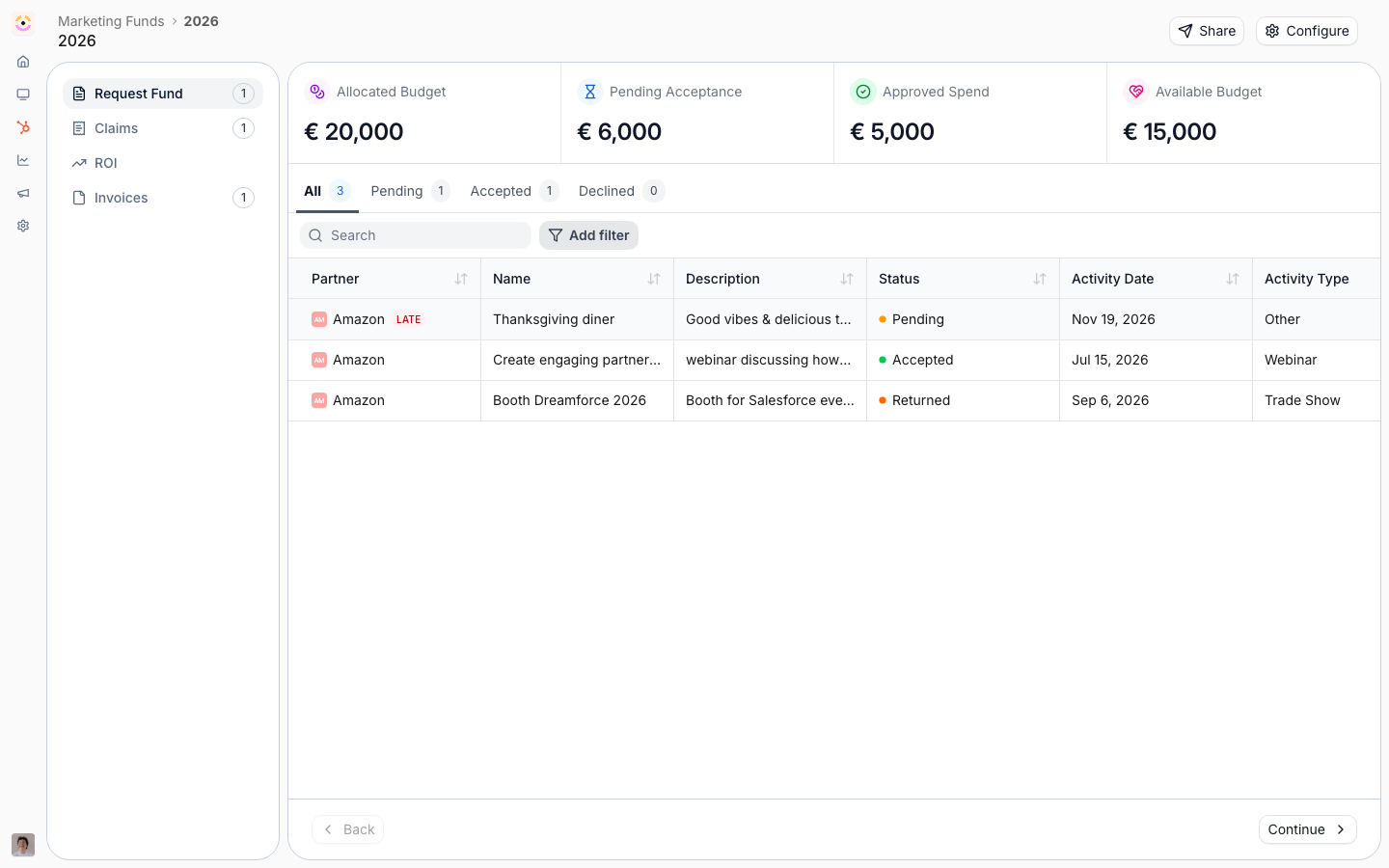 On the **Requests** tab, answer **Where do you store MDF requests?** by picking one of your CRM objects from the dropdown. The placeholder reads **Introw (default)**, which is the state you are leaving.
Any standard or custom object is eligible. Pick the one your team already treats as the funding record, because from here on that object's label is what Introw shows: an object called "Partner Fund Request" replaces "MDF Request" everywhere requests are picked.
Repeat on the **Claims** tab for the object that stores claims made against a request.
Selecting an object reveals an **Object linking** card. This is the same partner attribution model as the CRM integration's Object Linking step, scoped to this one object, so you can wire it without leaving the MDF screen.
Select **Add object linking** and choose how a record points at a partner: a **custom property**, an **association**, or a **relation table**, depending on your CRM. Until you do, the card warns that records on this object will not be attributed to partners, and an unattributed request never counts against a partner's allocation.
The **Field mapping** card is the one that matters most. Introw's own property names mean nothing on your object, so every property you leave as **Not mapped** reads as empty or zero.
On **Requests**, map:
| Field | What Introw uses it for |
| -------------------- | -------------------------------------------------------------------------- |
| Requested amount | Shown as pending budget in the MDF Budget breakdown |
| Approved amount | Drives the ROI and Claims progress bars and the fund's spent budget |
| Total claimed amount | The rolled-up value of the claims made against the request |
| Total ROI | The rolled-up return attributed to the request |
| Status | Only approved requests count towards a fund's spent budget |
| Activity date | The reference date for the claim and ROI deadlines on the request timeline |
On **Claims**, map **Amount** (summed into the claimed total), **Status** (pending versus approved), and **Date** (used for the claim deadline warning).
Each row only offers properties of a sensible type: currency or number for the amounts, dropdown or text for status, date or datetime for the dates. If a property you expect is missing from a dropdown, its type in the CRM is the reason.
Every unmapped field costs you a detail, but one per object type zeroes out a whole bar, so Introw calls those out explicitly:
* On a request, an unmapped **Approved amount** makes the fund budget and the ROI and Claims progress bars read 0.
* On a claim, an unmapped **Amount** makes every claim count as 0 towards the claimed total.
Map those two first. The warning on the card disappears once you do.
### Reverting to Introw
Select **Reset to Introw default** under the object picker, or clear the dropdown. The object type goes back to Introw-native and its configuration cards disappear. Records already created on your CRM object stay in your CRM, and Introw stops treating that object as the MDF object type.
## Verify it worked
Have a partner submit a request, then open the record in your CRM: it exists on your object, carries the properties the form mapped, and is linked to the submitting partner by whichever attribution method you configured. Back in Introw, the request appears under **Requests** with its label taken from your object, and after you approve it the fund's spent budget and the ROI and Claims bars move by the approved amount rather than staying at 0.
## Limits and gotchas
* **The backing object disappears from other pickers.** Once your object backs an MDF type, Introw hides the raw CRM object everywhere else, so you never see the same thing listed twice. The Introw MDF object stands in for it, under your object's label. The mapping screen re-adds it so you can still change or reset the selection.
* **A mapping is not a migration.** Switching object types affects new records only.
* **Introw never creates the object.** If the object or a property does not exist in the CRM, create it there first.
* **Attribution is per object.** Linking your deal object to partners does nothing for your MDF object; it needs its own object linking.
## Related
Create the fund, allocate budget by segment, and bind the lifecycle forms.
The attribution methods the Object linking card offers, per CRM.
The claim step that writes to whichever object stores claims.
Full configuration options for funds and allocation.
On the **Requests** tab, answer **Where do you store MDF requests?** by picking one of your CRM objects from the dropdown. The placeholder reads **Introw (default)**, which is the state you are leaving.
Any standard or custom object is eligible. Pick the one your team already treats as the funding record, because from here on that object's label is what Introw shows: an object called "Partner Fund Request" replaces "MDF Request" everywhere requests are picked.
Repeat on the **Claims** tab for the object that stores claims made against a request.
Selecting an object reveals an **Object linking** card. This is the same partner attribution model as the CRM integration's Object Linking step, scoped to this one object, so you can wire it without leaving the MDF screen.
Select **Add object linking** and choose how a record points at a partner: a **custom property**, an **association**, or a **relation table**, depending on your CRM. Until you do, the card warns that records on this object will not be attributed to partners, and an unattributed request never counts against a partner's allocation.
The **Field mapping** card is the one that matters most. Introw's own property names mean nothing on your object, so every property you leave as **Not mapped** reads as empty or zero.
On **Requests**, map:
| Field | What Introw uses it for |
| -------------------- | -------------------------------------------------------------------------- |
| Requested amount | Shown as pending budget in the MDF Budget breakdown |
| Approved amount | Drives the ROI and Claims progress bars and the fund's spent budget |
| Total claimed amount | The rolled-up value of the claims made against the request |
| Total ROI | The rolled-up return attributed to the request |
| Status | Only approved requests count towards a fund's spent budget |
| Activity date | The reference date for the claim and ROI deadlines on the request timeline |
On **Claims**, map **Amount** (summed into the claimed total), **Status** (pending versus approved), and **Date** (used for the claim deadline warning).
Each row only offers properties of a sensible type: currency or number for the amounts, dropdown or text for status, date or datetime for the dates. If a property you expect is missing from a dropdown, its type in the CRM is the reason.
Every unmapped field costs you a detail, but one per object type zeroes out a whole bar, so Introw calls those out explicitly:
* On a request, an unmapped **Approved amount** makes the fund budget and the ROI and Claims progress bars read 0.
* On a claim, an unmapped **Amount** makes every claim count as 0 towards the claimed total.
Map those two first. The warning on the card disappears once you do.
### Reverting to Introw
Select **Reset to Introw default** under the object picker, or clear the dropdown. The object type goes back to Introw-native and its configuration cards disappear. Records already created on your CRM object stay in your CRM, and Introw stops treating that object as the MDF object type.
## Verify it worked
Have a partner submit a request, then open the record in your CRM: it exists on your object, carries the properties the form mapped, and is linked to the submitting partner by whichever attribution method you configured. Back in Introw, the request appears under **Requests** with its label taken from your object, and after you approve it the fund's spent budget and the ROI and Claims bars move by the approved amount rather than staying at 0.
## Limits and gotchas
* **The backing object disappears from other pickers.** Once your object backs an MDF type, Introw hides the raw CRM object everywhere else, so you never see the same thing listed twice. The Introw MDF object stands in for it, under your object's label. The mapping screen re-adds it so you can still change or reset the selection.
* **A mapping is not a migration.** Switching object types affects new records only.
* **Introw never creates the object.** If the object or a property does not exist in the CRM, create it there first.
* **Attribution is per object.** Linking your deal object to partners does nothing for your MDF object; it needs its own object linking.
## Related
Create the fund, allocate budget by segment, and bind the lifecycle forms.
The attribution methods the Object linking card offers, per CRM.
The claim step that writes to whichever object stores claims.
Full configuration options for funds and allocation.