> ## Documentation Index
> Fetch the complete documentation index at: https://docs.introw.io/llms.txt
> Use this file to discover all available pages before exploring further.
# Keep your brand correct in every language
> Define protected terms so product names and trademarks are never mistranslated.
{/* Why */}
Automatic translation is fast, but product names, feature names, and trademarks should never be translated, or should always use one approved wording. The brand glossary enforces that across every language at once, so partners never see a mangled product name and your brand reads the way you intend in each locale. Set it up once and it applies to all future translations.
## What you'll achieve
A list of protected terms that automatic translation always honors: each term is either kept exactly as-is in every language, or replaced with the specific wording you supply per language. Your brand stays consistent everywhere partners read it.
## Before you start
Glossary rules apply across your active languages, so add them under [Languages](https://app.introw.io/settings/languages) first (see [Set up portal languages](./set-up-portal-languages)).
Gather the product names, feature names, and trademarks that must stay consistent, plus any term that needs a specific approved translation per language.
## Watch it
## Steps
Go to [Languages](https://app.introw.io/settings/languages) and find the **Brand glossary and protected terms** section below **Manage translations**. It lists any terms you have already protected, with their rule and description.
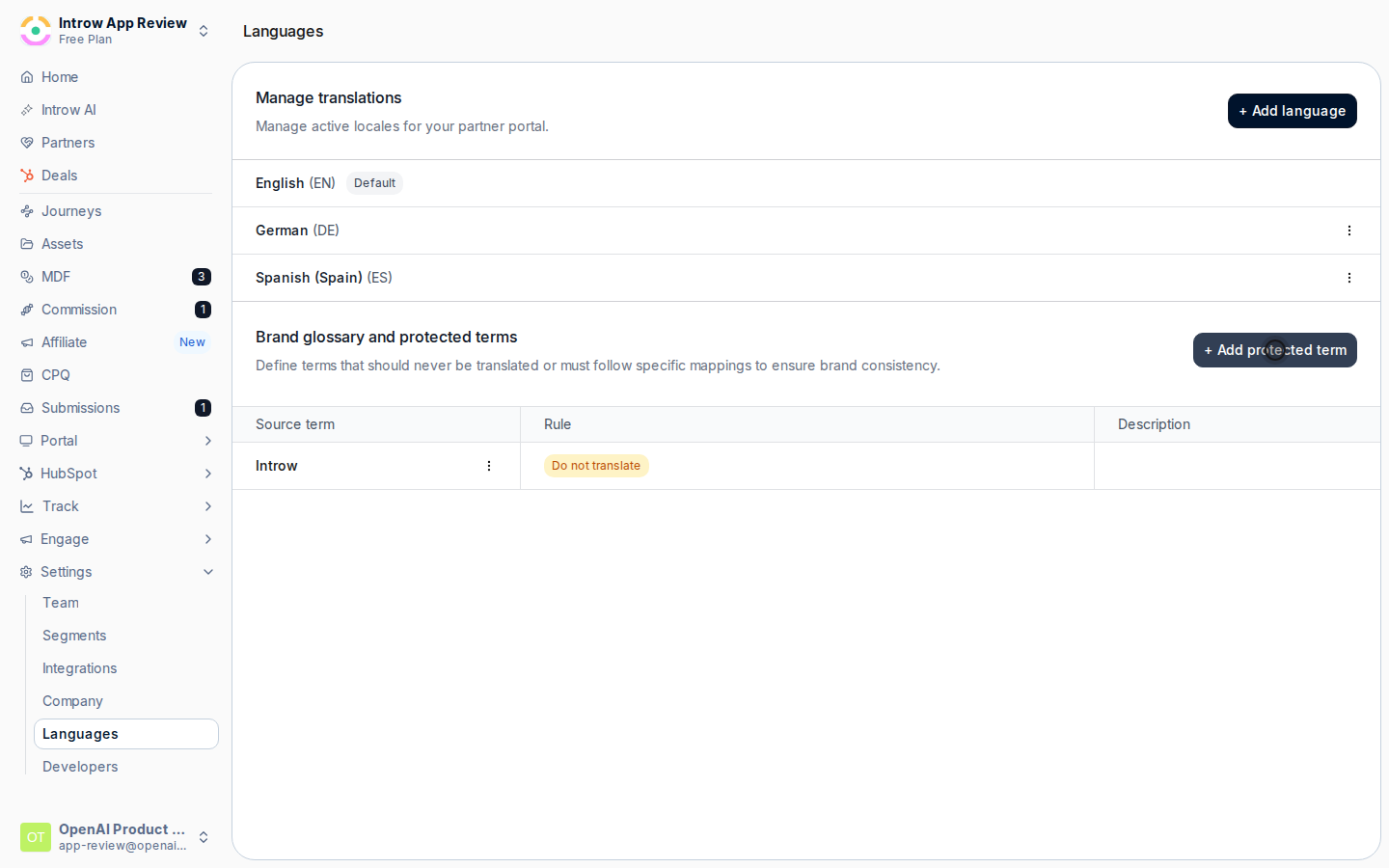
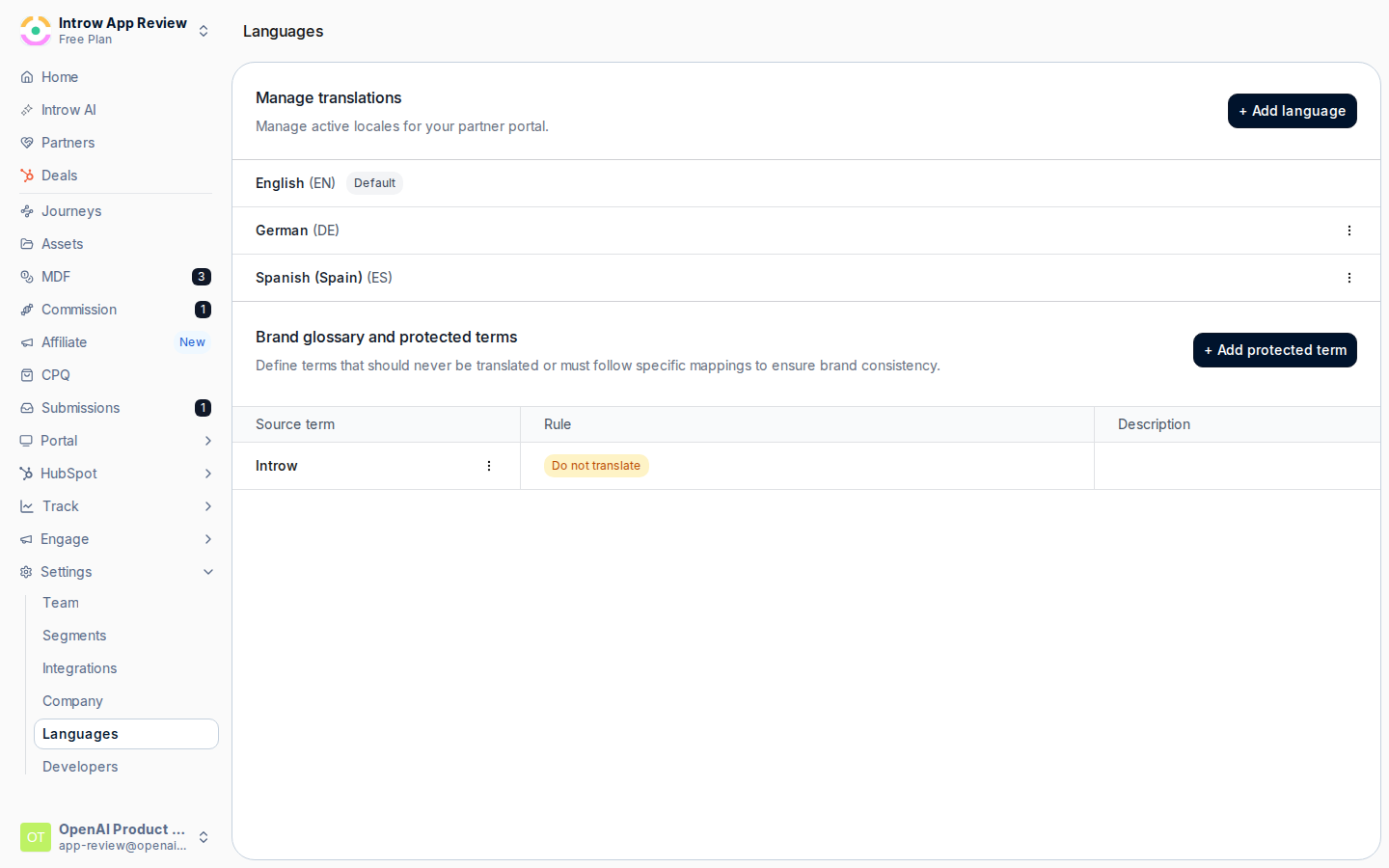 Select **Add protected term** to open the entry form, then fill it in.
* **Source term** - the exact word or phrase to protect (for example your product or feature name). This is what translation looks for in your content. Enter it as it appears in your source language.
* **Description** - an optional note explaining the term, shown alongside it in the list to help your team keep entries clear.
Select **Add protected term** to open the entry form, then fill it in.
* **Source term** - the exact word or phrase to protect (for example your product or feature name). This is what translation looks for in your content. Enter it as it appears in your source language.
* **Description** - an optional note explaining the term, shown alongside it in the list to help your team keep entries clear.
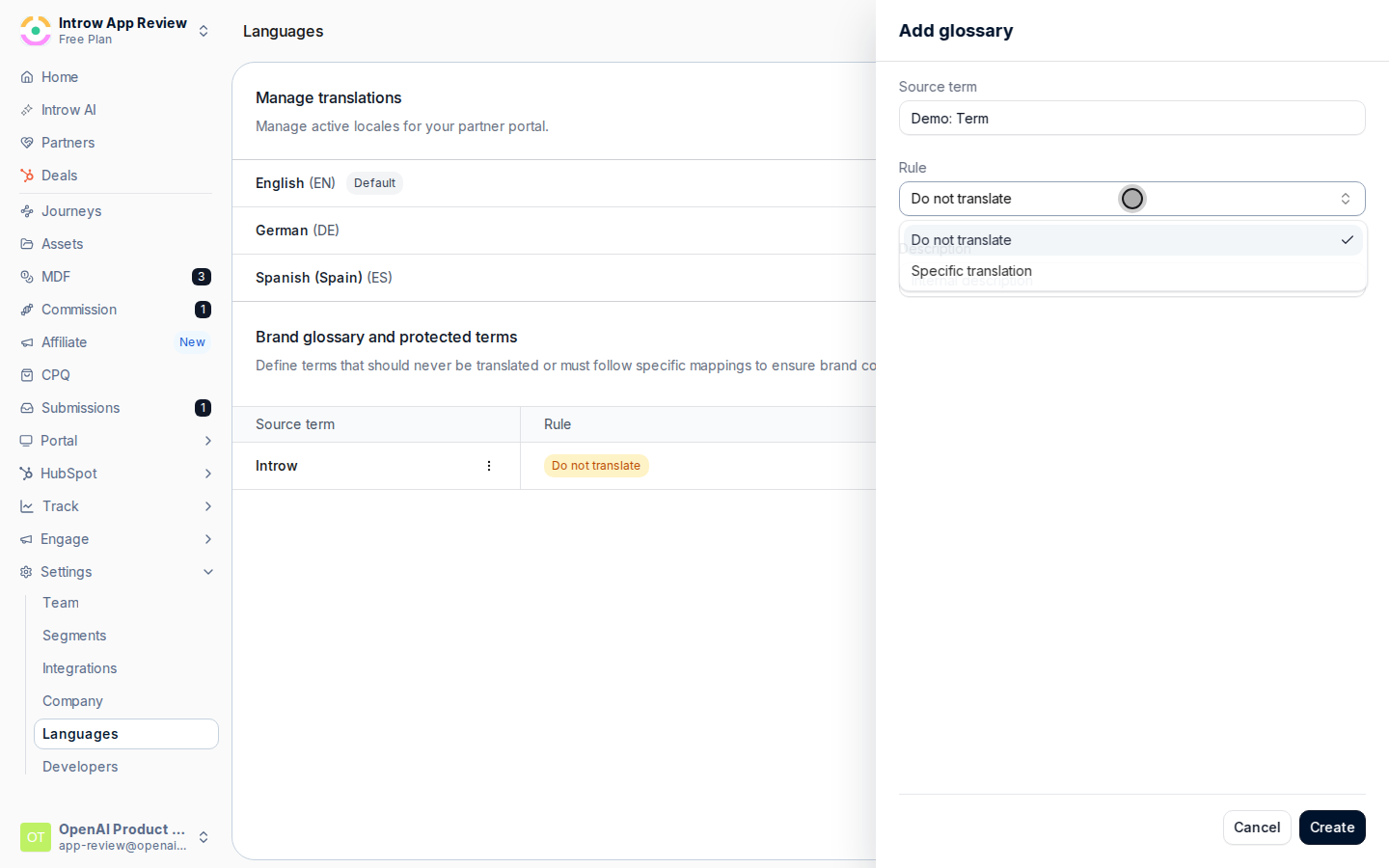
 Pick the rule that governs the term in every language.
* **Do not translate** - keeps the source term exactly as written everywhere. Use this for trademarks and product names that must read identically in all languages.
* **Specific translation** - lets you supply the exact approved wording per active language, instead of letting translation decide. Use this when a term should be localized, but only to wording your brand has signed off on. Fill in the wording for each language you want to control; languages you leave blank fall back to the source term.
Pick the rule that governs the term in every language.
* **Do not translate** - keeps the source term exactly as written everywhere. Use this for trademarks and product names that must read identically in all languages.
* **Specific translation** - lets you supply the exact approved wording per active language, instead of letting translation decide. Use this when a term should be localized, but only to wording your brand has signed off on. Fill in the wording for each language you want to control; languages you leave blank fall back to the source term.
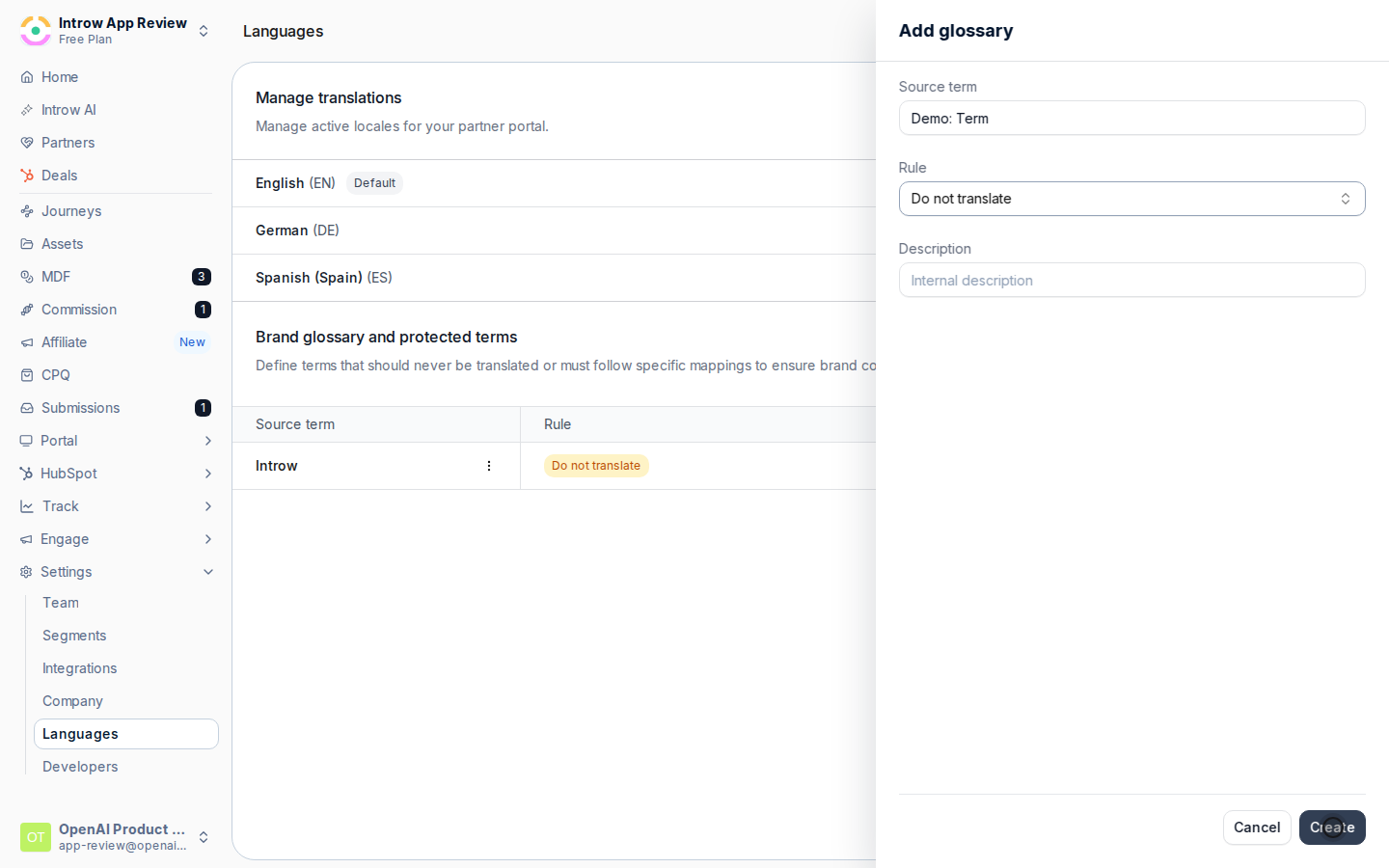
 Save the entry. It appears in the glossary list with its rule, and applies to all future translations. Repeat for each term you need to protect; you can edit or delete any entry later from its row menu.
 ## Verify it worked
The protected term appears in the **Brand glossary and protected terms** list with the rule you set. Newly translated partner-facing content keeps "Do not translate" terms unchanged and uses your approved wording for "Specific translation" terms.
## Related
Add the languages your glossary protects.
Localize files in the library.
Full configuration options.
## Verify it worked
The protected term appears in the **Brand glossary and protected terms** list with the rule you set. Newly translated partner-facing content keeps "Do not translate" terms unchanged and uses your approved wording for "Specific translation" terms.
## Related
Add the languages your glossary protects.
Localize files in the library.
Full configuration options.