> ## Documentation Index
> Fetch the complete documentation index at: https://docs.introw.io/llms.txt
> Use this file to discover all available pages before exploring further.
# Run your program in multiple currencies
> Set your base currency, turn on multi-currency, confirm CRM-synced rates, and give each partner the currency they work in.
{/* Why */}
International programs hit the same friction: your team reports in one currency, but partners invoice and get paid in their own. Multi-currency closes that gap end to end - you set the base your team reports in, turn conversion on, confirm the rates Introw pulls from your CRM, then assign each partner the currency they actually use. The result is dual display across pipeline, commissions, and analytics, so every audience sees the number that makes sense to them, all reconciling back to one base.
## What you'll achieve
A program where monetary values show in your base currency and, wherever a partner's currency differs, in the partner's currency too. Conversions use the rates synced from your connected CRM, and each partner sees their pipeline and earnings in the currency they work in.
## Before you start
You need company write access to change the base currency and the multi-currency setting.
Conversion rates are synced from your connected CRM, not entered by hand. Without a connected CRM there are no rates to convert with.
Choose the currency your finance team reports and reconciles in. It is the basis for every conversion, so settle it before turning conversion on.
## Watch it
## Steps
### Set your base currency
Go to the **General** tab of [Company settings](https://app.introw.io/settings/company).
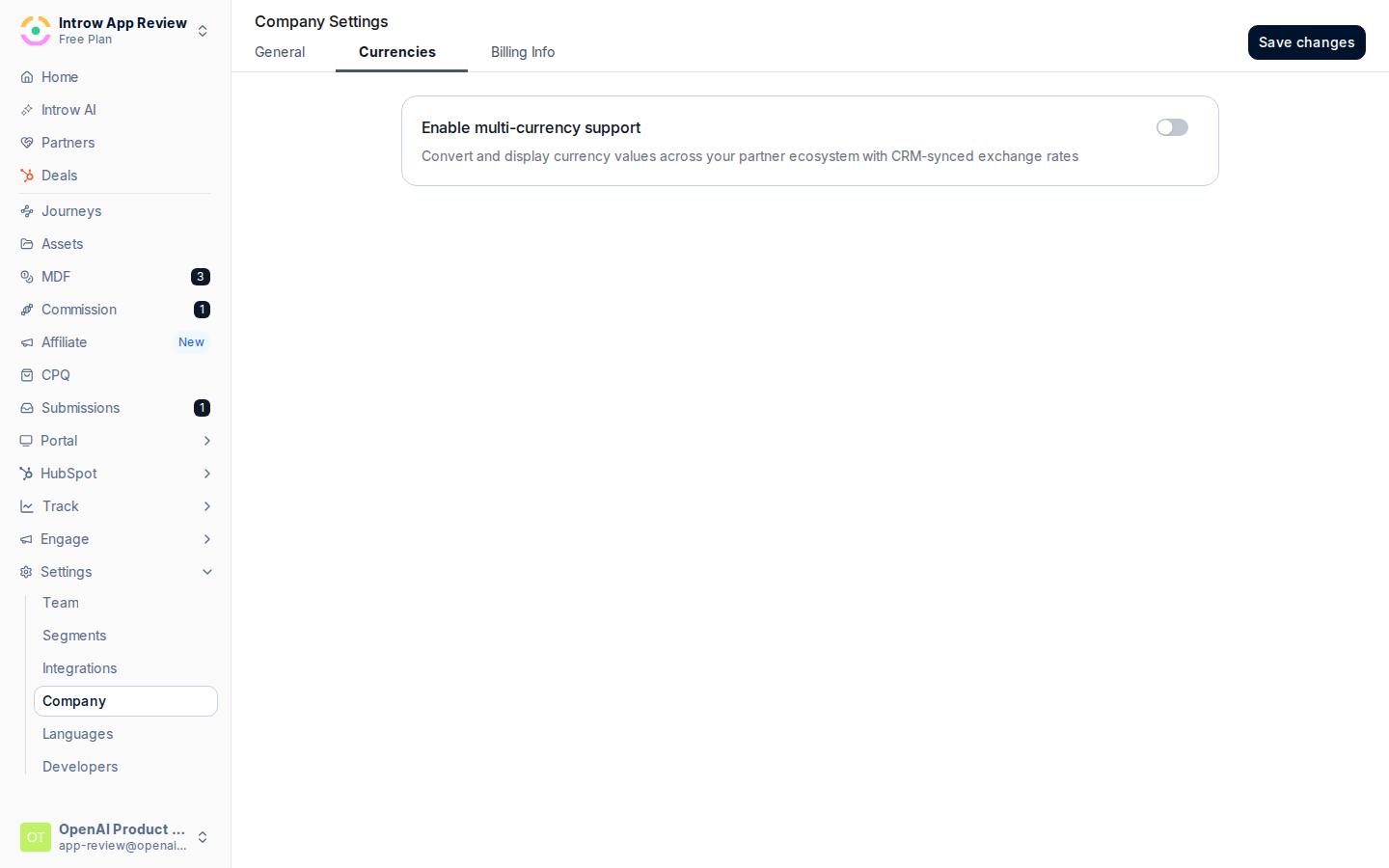 Choose your base under **Company currency**.
* **What it is** - the default currency your program reports in and the basis for every conversion. It anchors analytics and commission rollups.
* **Why it matters** - changing it later changes the basis for all conversions, so it should be the currency your finance team closes the books in.
* **How to set it** - pick the reporting currency and save. You can also change the base later from the **Currencies** tab by opening a currency's row menu and choosing **Set as company currency**; the **Default** pill marks whichever currency is current.
Choose your base under **Company currency**.
* **What it is** - the default currency your program reports in and the basis for every conversion. It anchors analytics and commission rollups.
* **Why it matters** - changing it later changes the basis for all conversions, so it should be the currency your finance team closes the books in.
* **How to set it** - pick the reporting currency and save. You can also change the base later from the **Currencies** tab by opening a currency's row menu and choosing **Set as company currency**; the **Default** pill marks whichever currency is current.
 ### Turn on conversion
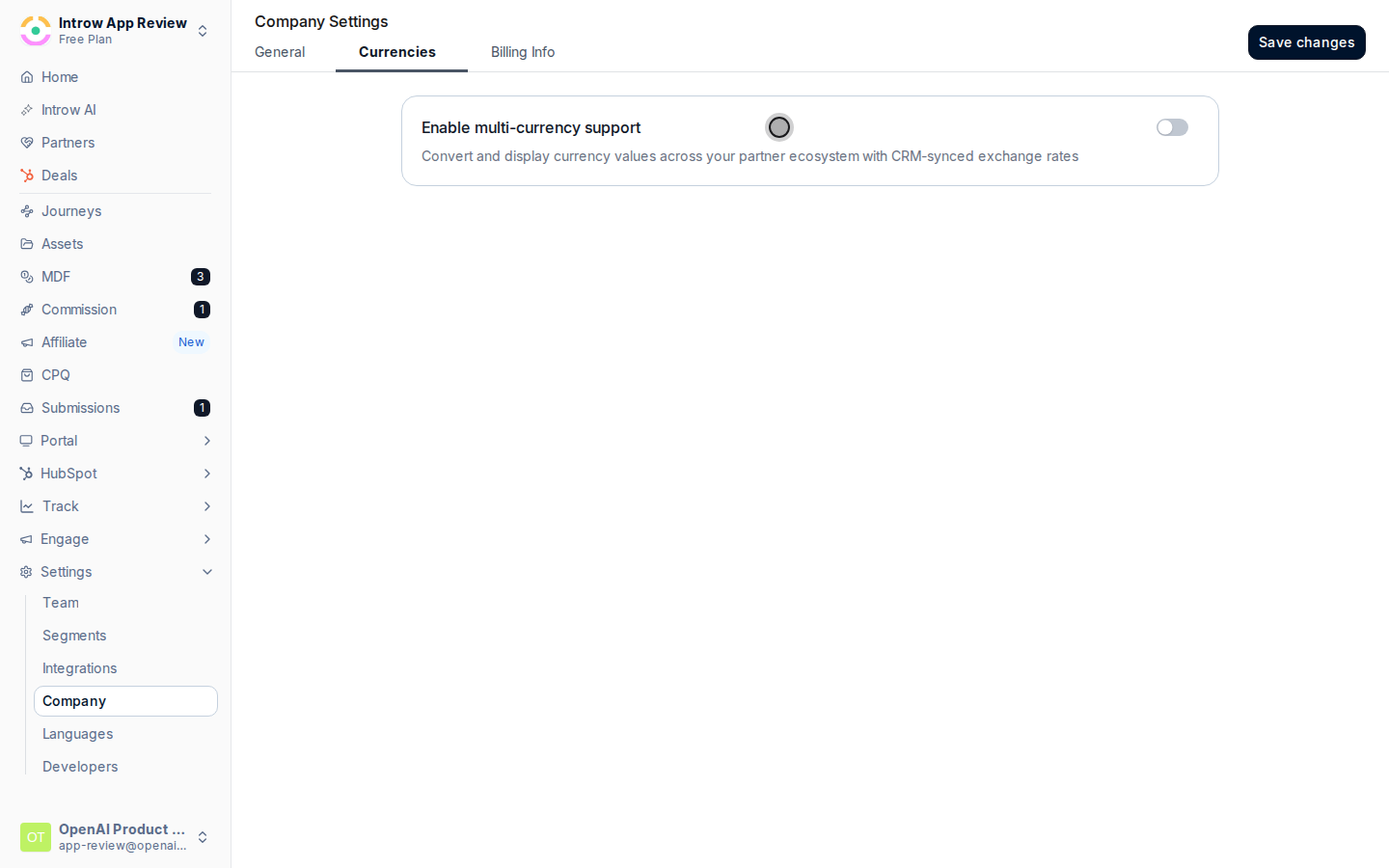
From Company settings, open the **Currencies** tab.
Turn on **Enable multi-currency support**, then choose **Save changes**.
* **What it is** - the switch that turns on currency conversion and dual-currency display across your program.
* **Why it matters** - with it off, every value shows in your base currency only; with it on, values also show in a partner's currency wherever it differs from the base.
* **How to set it** - enable it once your base currency is correct. The setting only persists when you choose **Save changes**.
### Confirm the CRM-synced rates
With multi-currency on, the **Currencies** tab shows a rate table. Each row lists a **Currency**, its **Conversion rate** from your base, and **Last updated**.
* **Conversion rate** - the rate Introw uses to convert that currency from your base. It is synced from your connected CRM and is read-only here, so any converted value traces back to the same rate your CRM uses. Hover a rate to see it expressed as one unit of base to the target currency.
* **Last updated** - when that rate last refreshed from the CRM, so you can judge how current a converted figure is.
* **Availability** - only currencies that have a rate from your base appear here, and only those can be assigned to partners. A missing currency means your CRM has no rate for it yet.
### Assign each partner a currency
Open a partner from [Partners](https://app.introw.io/partners) and use the **Currency** field on the **Partner Details** card.
* **What it is** - the currency this partner sees across their pipeline and earnings. The choices are the currencies that have a conversion rate from your base.
* **Why it matters** - it lets a partner review deals and commissions in the currency they invoice and get paid in, removing guesswork and building trust in the numbers.
* **How to set it** - choose the partner's currency, or clear it to leave them on the base. When a partner's currency matches the base, no separate partner-currency value is shown.
To assign many partners at once, select partners on the **Partners** list and open the bulk editor, then choose the **Currency** property and the currency to apply.
* **What it is** - the same partner-currency assignment applied to every selected partner in one action.
* **Why it matters** - it saves setting each partner individually when a group shares a currency (for example all partners in one region).
* **How to set it** - pick **Currency** as the property to edit, choose the value, and confirm. The choices are again limited to currencies that have a rate from your base.
## Verify it worked
On the **Currencies** tab, the toggle is on and the rate table lists your available currencies with recent **Last updated** times. Open a partner whose currency differs from the base: their deals and commissions now display in their assigned currency alongside your base currency, and aggregated figures like revenue and commission totals show the converted amount.
## Related
Serve partners in their language too.
Full configuration options, rates, and limits.
### Turn on conversion
From Company settings, open the **Currencies** tab.
Turn on **Enable multi-currency support**, then choose **Save changes**.
* **What it is** - the switch that turns on currency conversion and dual-currency display across your program.
* **Why it matters** - with it off, every value shows in your base currency only; with it on, values also show in a partner's currency wherever it differs from the base.
* **How to set it** - enable it once your base currency is correct. The setting only persists when you choose **Save changes**.
### Confirm the CRM-synced rates
With multi-currency on, the **Currencies** tab shows a rate table. Each row lists a **Currency**, its **Conversion rate** from your base, and **Last updated**.
* **Conversion rate** - the rate Introw uses to convert that currency from your base. It is synced from your connected CRM and is read-only here, so any converted value traces back to the same rate your CRM uses. Hover a rate to see it expressed as one unit of base to the target currency.
* **Last updated** - when that rate last refreshed from the CRM, so you can judge how current a converted figure is.
* **Availability** - only currencies that have a rate from your base appear here, and only those can be assigned to partners. A missing currency means your CRM has no rate for it yet.
### Assign each partner a currency
Open a partner from [Partners](https://app.introw.io/partners) and use the **Currency** field on the **Partner Details** card.
* **What it is** - the currency this partner sees across their pipeline and earnings. The choices are the currencies that have a conversion rate from your base.
* **Why it matters** - it lets a partner review deals and commissions in the currency they invoice and get paid in, removing guesswork and building trust in the numbers.
* **How to set it** - choose the partner's currency, or clear it to leave them on the base. When a partner's currency matches the base, no separate partner-currency value is shown.
To assign many partners at once, select partners on the **Partners** list and open the bulk editor, then choose the **Currency** property and the currency to apply.
* **What it is** - the same partner-currency assignment applied to every selected partner in one action.
* **Why it matters** - it saves setting each partner individually when a group shares a currency (for example all partners in one region).
* **How to set it** - pick **Currency** as the property to edit, choose the value, and confirm. The choices are again limited to currencies that have a rate from your base.
## Verify it worked
On the **Currencies** tab, the toggle is on and the rate table lists your available currencies with recent **Last updated** times. Open a partner whose currency differs from the base: their deals and commissions now display in their assigned currency alongside your base currency, and aggregated figures like revenue and commission totals show the converted amount.
## Related
Serve partners in their language too.
Full configuration options, rates, and limits.