> ## Documentation Index
> Fetch the complete documentation index at: https://docs.introw.io/llms.txt
> Use this file to discover all available pages before exploring further.
# Connect Crossbeam and map your partners
> Authorize Crossbeam, align each Crossbeam partner with its Introw partner, and track your record export usage so ecosystem overlap attaches to the right partner.
Crossbeam overlap is only useful once your two partner lists are matched, so this guide takes the whole job end to end: connect Crossbeam, align each Crossbeam partner with its Introw partner, and confirm your record export usage. Do this once and shared accounts and prospects attach to the right partner in Introw, ready to drive co-sell from inside your collaboration views. Crossbeam is a paid add-on layered onto Introw, not a CRM sync, so it sits alongside your CRM rather than replacing it.
## What you'll achieve
A connected Crossbeam account where each Crossbeam partner is mapped to its Introw partner and your record export usage is visible, so ecosystem overlap is attributed to the correct partner and your team can act on it.
## Before you start
Crossbeam is a paid add-on. If the Crossbeam tile shows an upgrade prompt instead of **Connect**, the module is not enabled on your plan; contact Introw to add it.
You need admin access to the Crossbeam account you are connecting so you can authorize the integration.
You need permission to connect integrations in Introw to authorize Crossbeam and edit the partner mapping.
## Watch it
## Steps
### Connect the account
Go to [Integrations](https://app.introw.io/settings/integrations?category=crm) and stay on the **CRM & Data** category, where the Crossbeam tile lives alongside your CRM tiles.
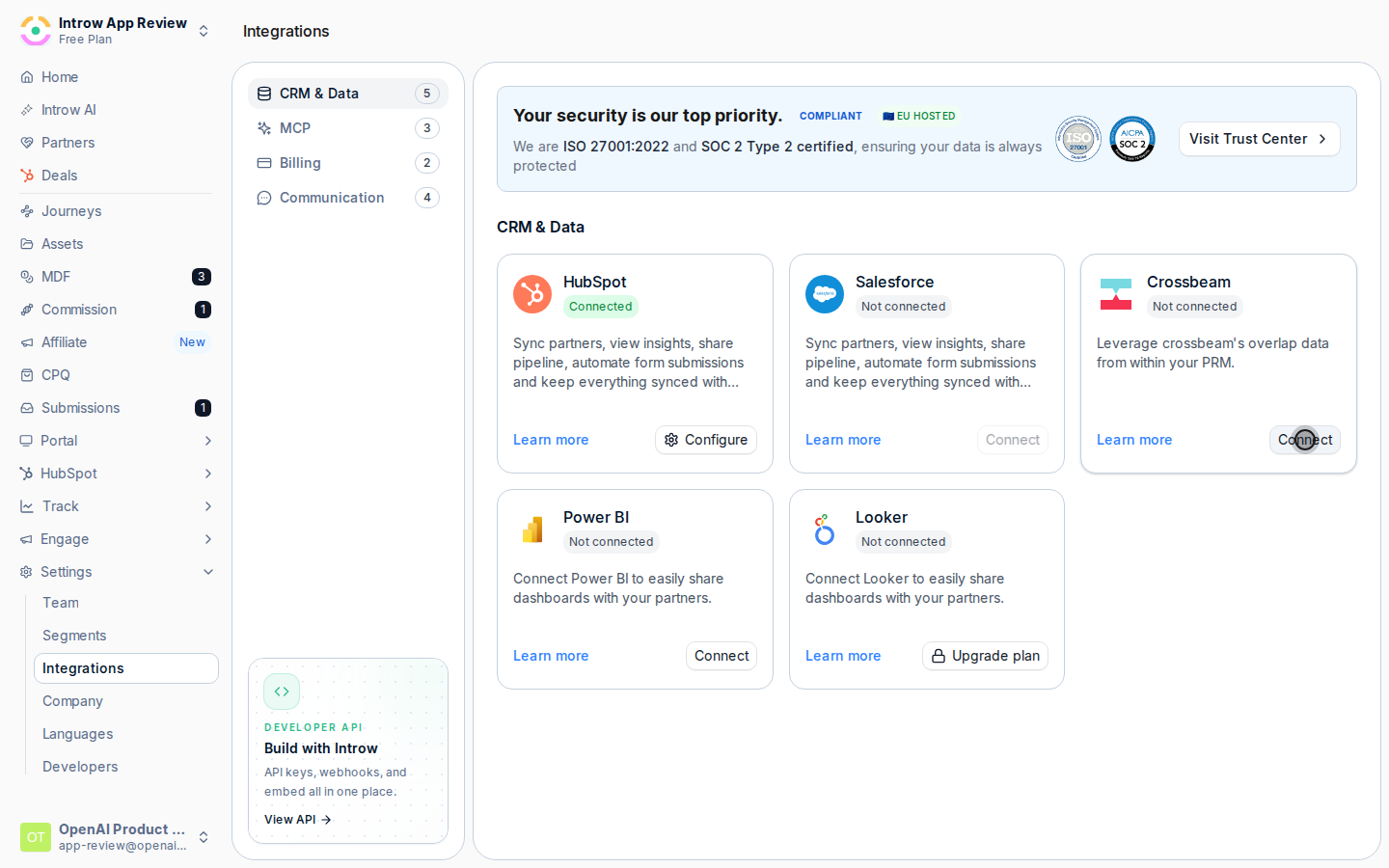
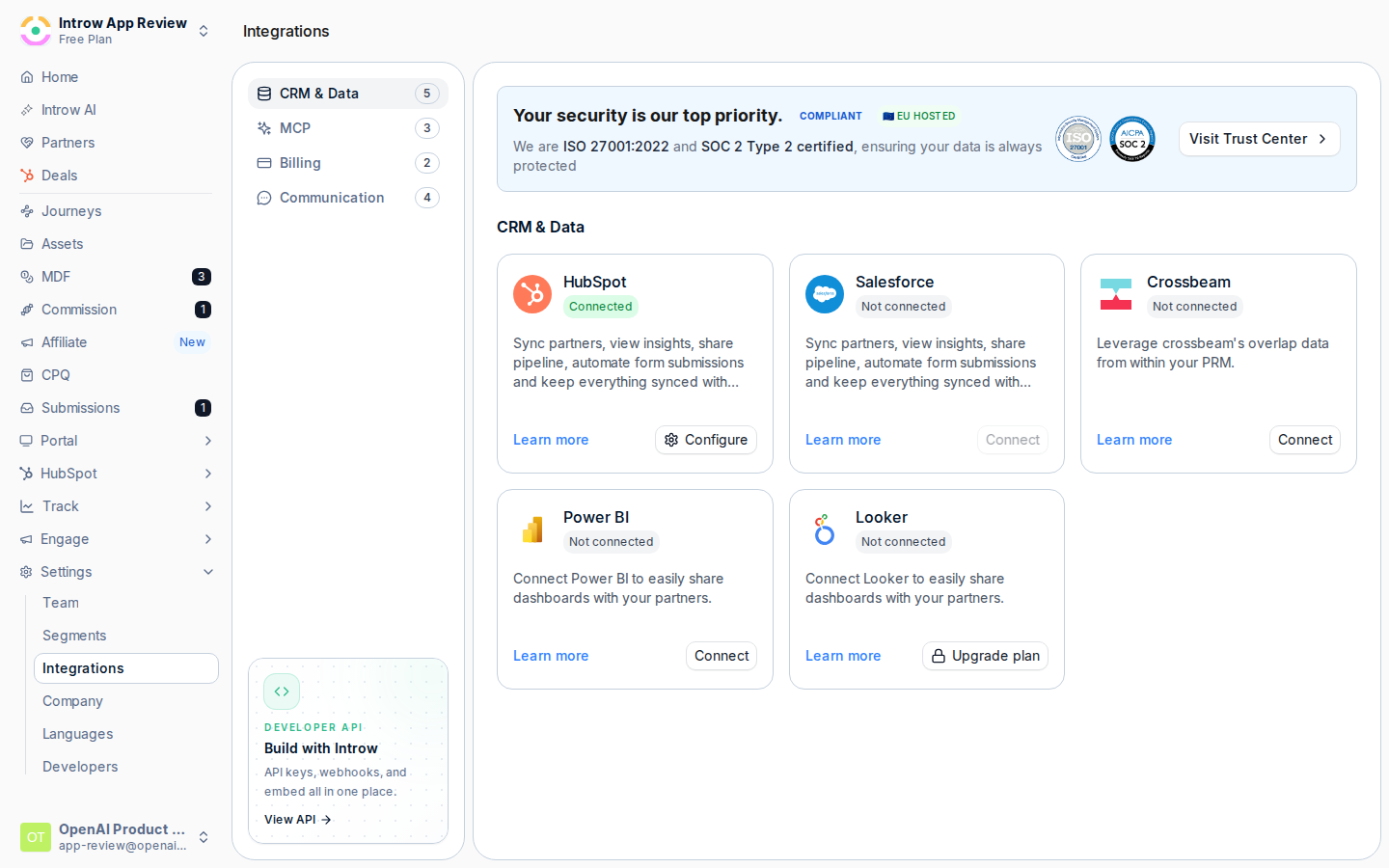 On the **Crossbeam** tile select **Connect** to open Crossbeam's authorization screen.
 Sign in to Crossbeam, choose the account, and approve access. Introw returns with Crossbeam shown as **Connected by** you, with the connection date, and opens the Crossbeam page.
### Map Crossbeam partners to Introw partners
On the Crossbeam page, find the **Partners** section. It lists your Crossbeam partners in one column with an **Introw partner** picker beside each, so you can align the two lists.
For every Crossbeam partner that exists in Introw, use the **Introw partner** picker to select its counterpart. This is what lets shared accounts and prospects attach to the right partner. Leave a row unset if a Crossbeam partner has no match in Introw yet; you can map it later once the partner exists in Introw. Each selection saves automatically, with a success message on each change.
### Check your usage and quota
At the top of the Crossbeam page, the **Overview** shows your **Crossbeam Plan** and **Record Export Usage**: how many of your record exports are consumed against your limit, the percentage used, and how many days until the term resets. Watch this so you do not exhaust your Crossbeam quota; the bar turns orange as you approach the limit and red when it is reached. Use **View in Crossbeam** to manage the plan itself in Crossbeam.
## Verify it worked
Crossbeam shows as **Connected** on the integrations page. On the Crossbeam page, your mapped partners show their Introw counterpart selected, and a mapped partner now surfaces shared accounts and prospects in Introw's collaboration views and as a partner filter. The **Overview** shows your current plan and record export usage.
## Related
Act on overlap in your collaboration views and co-sell.
Full configuration options.
Sign in to Crossbeam, choose the account, and approve access. Introw returns with Crossbeam shown as **Connected by** you, with the connection date, and opens the Crossbeam page.
### Map Crossbeam partners to Introw partners
On the Crossbeam page, find the **Partners** section. It lists your Crossbeam partners in one column with an **Introw partner** picker beside each, so you can align the two lists.
For every Crossbeam partner that exists in Introw, use the **Introw partner** picker to select its counterpart. This is what lets shared accounts and prospects attach to the right partner. Leave a row unset if a Crossbeam partner has no match in Introw yet; you can map it later once the partner exists in Introw. Each selection saves automatically, with a success message on each change.
### Check your usage and quota
At the top of the Crossbeam page, the **Overview** shows your **Crossbeam Plan** and **Record Export Usage**: how many of your record exports are consumed against your limit, the percentage used, and how many days until the term resets. Watch this so you do not exhaust your Crossbeam quota; the bar turns orange as you approach the limit and red when it is reached. Use **View in Crossbeam** to manage the plan itself in Crossbeam.
## Verify it worked
Crossbeam shows as **Connected** on the integrations page. On the Crossbeam page, your mapped partners show their Introw counterpart selected, and a mapped partner now surfaces shared accounts and prospects in Introw's collaboration views and as a partner filter. The **Overview** shows your current plan and record export usage.
## Related
Act on overlap in your collaboration views and co-sell.
Full configuration options.