> ## Documentation Index
> Fetch the complete documentation index at: https://docs.introw.io/llms.txt
> Use this file to discover all available pages before exploring further.
# Troubleshoot a CRM connection
> Diagnose and fix a CRM sync that shows a needs-attention status, from expired authorization to missing scopes and over-tight filters.
When a CRM connection shows a needs-attention status, records can stop flowing or attribution can break, which quietly affects partner reporting and commissions. Most issues come down to one of three things: authorization that expired, a new permission scope HubSpot or Salesforce now requires, or a sync filter that excludes the records you expect. This guide walks the checks in order so you can restore a healthy sync fast.
## What you'll achieve
A healthy, syncing CRM connection: the status returns to connected, the records you expect appear as partners again, and attribution resumes flowing to the CRM.
## Before you start
On the Integrations page, note the tile's status pill: **Connected**, **Update available**, **Needs attention**, **Rate limited**, **Interrupted**, or **Not connected**. The pill points you at the likely cause.
You need permission to manage integrations in Introw to re-authorize or change sync settings.
## Watch it
## Steps
Go to [Integrations](https://app.introw.io/settings/integrations?category=crm), then open the CRM via **Configure** to see the detail header. A red **Connection has been interrupted** banner means authorization broke; an amber **Syncing** state is normal and just means a sync is running.
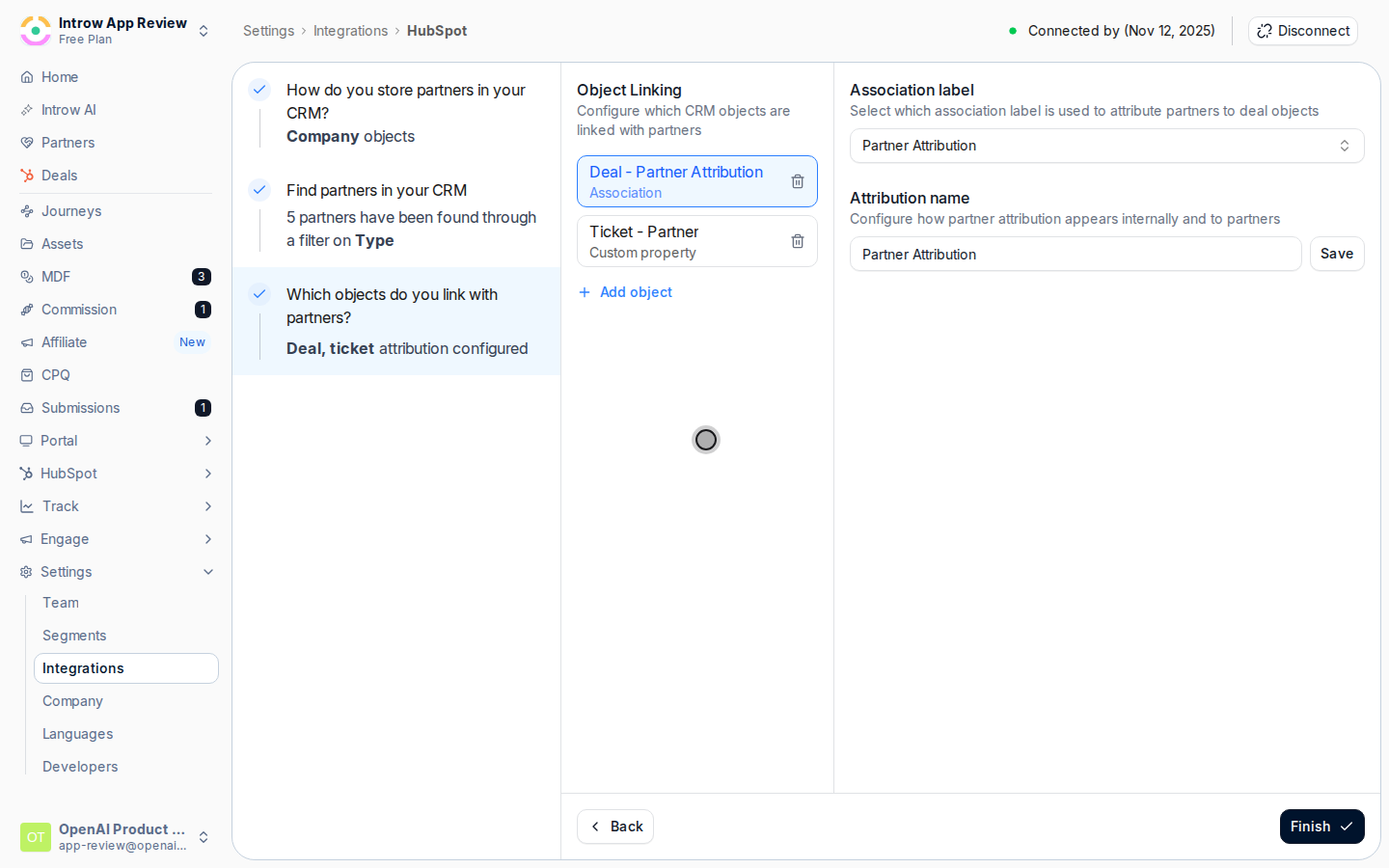 If the connection is interrupted, select **Reconnect** and complete the OAuth flow again, accepting every requested scope. If the tile instead shows **Update available** or the header shows **Install update** (HubSpot) or **Install package / Install update** (Salesforce), run that: HubSpot needs you to re-authorize for new scopes such as quotes or certificates, and Salesforce needs the latest managed package. Missing scopes are the most common reason a specific object stops syncing.
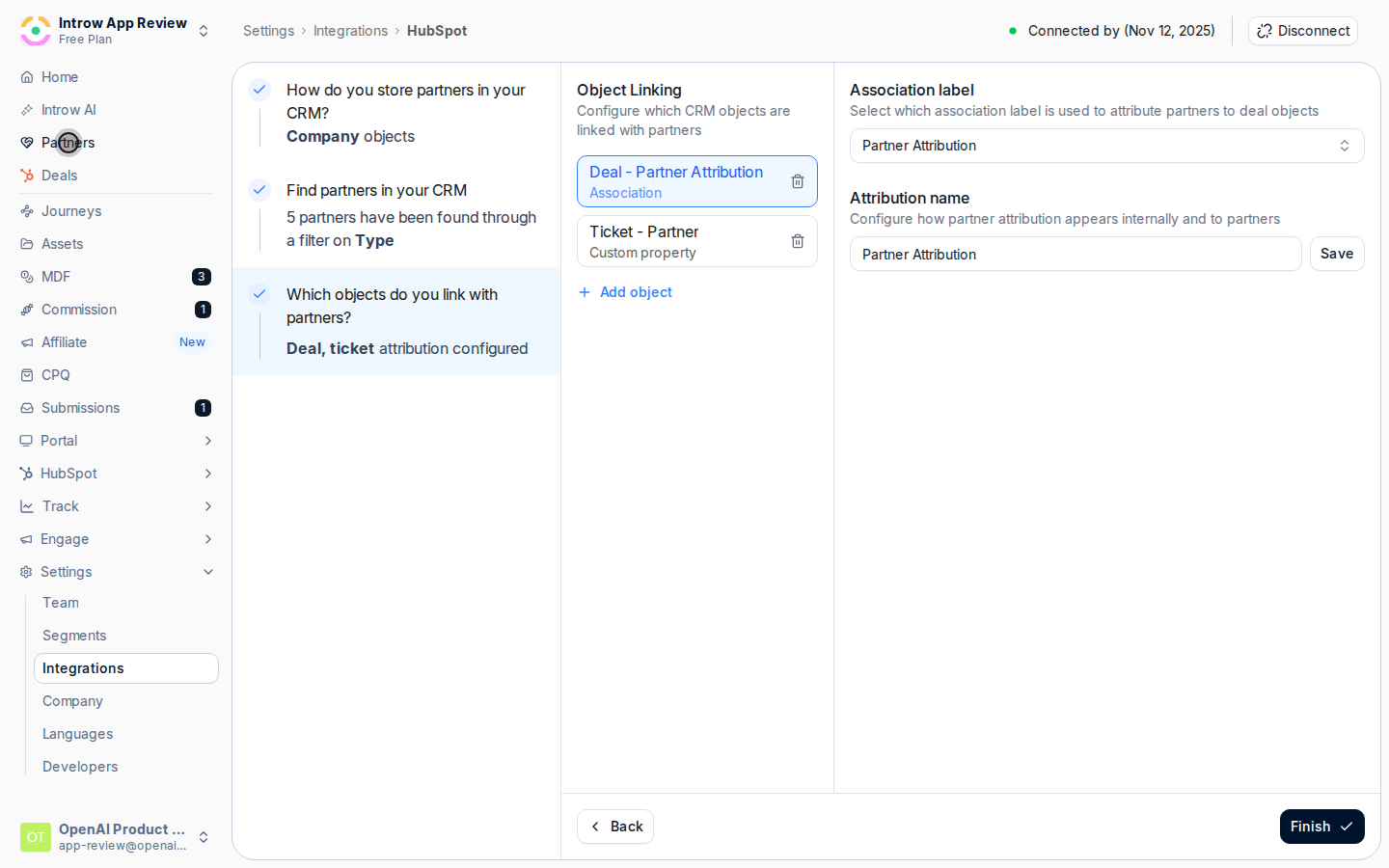 If authorization is healthy but specific records are missing, the sync scope is usually the cause. Open the connection's setup and confirm the **partner object** is the one those records live on, and that your **filters** actually include them - a too-narrow property filter or a hand-picked selection silently leaves matching records out. Widen the filter or select the missing records.
A **Rate limited** pill means the CRM temporarily throttled the sync; no action is needed beyond waiting for it to clear and watching the status return to connected. If it persists, contact support.
Watch the status pill return to **Connected** and confirm the previously missing records now appear as partners.
## Verify it worked
The integration shows a healthy **Connected** status, the records you expected appear as partners, and attribution resumes syncing to the CRM.
## Related
Review the connect flow, scopes, and attribution setup.
Reset a connection that cannot be recovered.
Full configuration options.
If authorization is healthy but specific records are missing, the sync scope is usually the cause. Open the connection's setup and confirm the **partner object** is the one those records live on, and that your **filters** actually include them - a too-narrow property filter or a hand-picked selection silently leaves matching records out. Widen the filter or select the missing records.
A **Rate limited** pill means the CRM temporarily throttled the sync; no action is needed beyond waiting for it to clear and watching the status return to connected. If it persists, contact support.
Watch the status pill return to **Connected** and confirm the previously missing records now appear as partners.
## Verify it worked
The integration shows a healthy **Connected** status, the records you expected appear as partners, and attribution resumes syncing to the CRM.
## Related
Review the connect flow, scopes, and attribution setup.
Reset a connection that cannot be recovered.
Full configuration options.