> ## Documentation Index
> Fetch the complete documentation index at: https://docs.introw.io/llms.txt
> Use this file to discover all available pages before exploring further.
# Sync partner tiers, programs, and roles to your CRM
> Push partner tiers, tier programs, partnership managers, and team roles back to CRM properties so sales sees them without leaving the CRM.
Your sales team works in the CRM, so a partner's tier, program, partnership manager, and team roles should be visible there too. Mapping each to a CRM property pushes the value back automatically, so reps see who is Gold or Silver and who owns the relationship without opening Introw, and any tier-based or owner-based logic in the CRM has the data it needs. This guide covers the full set of partner-to-CRM mappings end to end, including the one-click property creation HubSpot offers.
## What you'll achieve
Changing a partner's tier, program, manager, or team role in Introw writes the mapped value back to the partner record in your CRM, so sales and CRM automations always see current partner standing without anyone maintaining it by hand.
## Before you start
A CRM must be connected, and you need at least one tier program defined. For tier sync you also need both Tiers and Integrations permission in Introw.
Each value writes to a property on the partner object in the CRM, so those properties must exist and be writable. On HubSpot, Introw can create the dedicated tier, manager, and role fields for you in one click, so you can skip manual setup there.
## Watch it
## Steps
### Sync tiers and programs
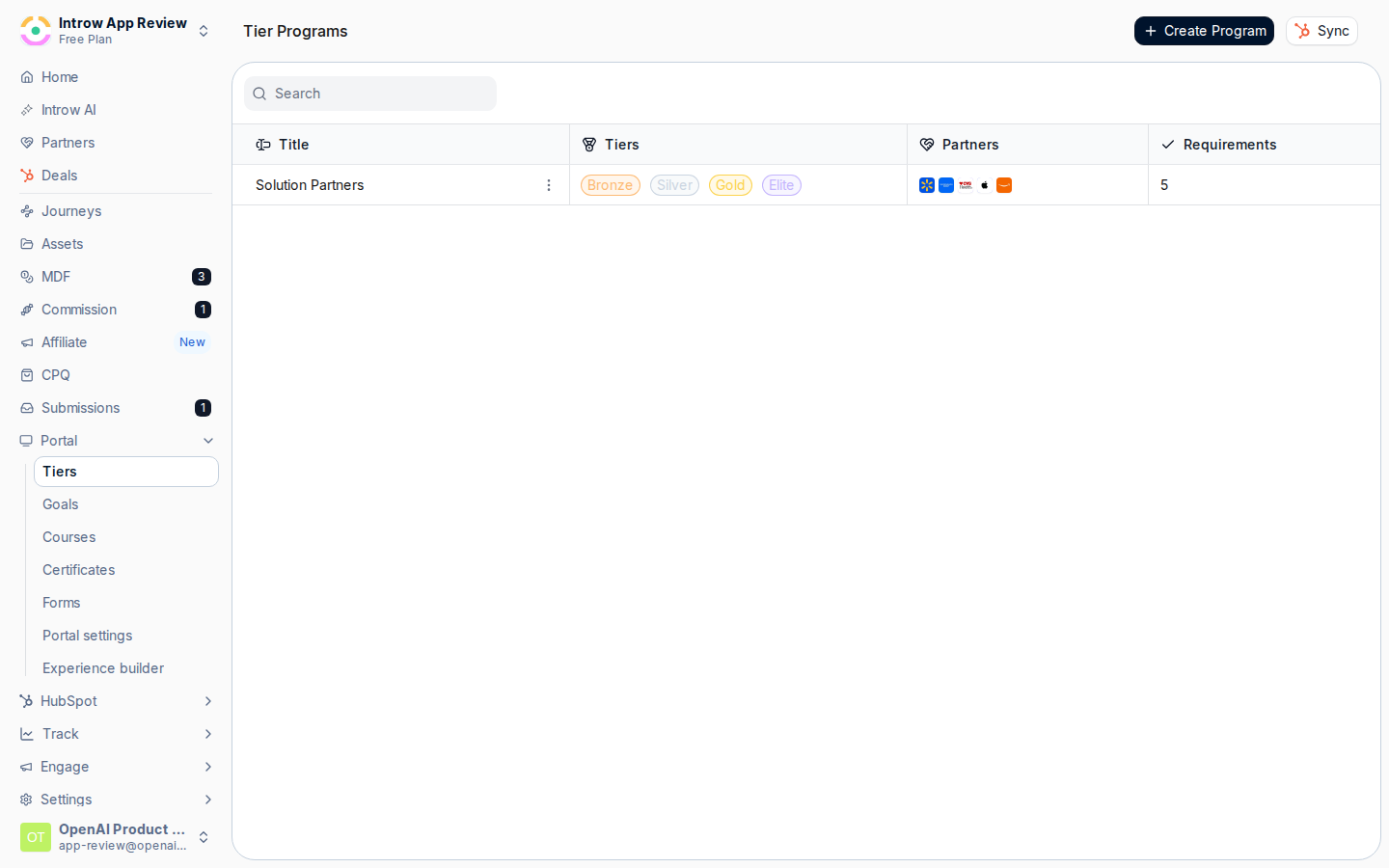
Go to [Tier Programs](https://app.introw.io/settings/tiers). In the header, select **Sync** (the CRM logo button). It reads **In Sync** once a mapping exists. This opens **Sync tiers with \[your CRM]**.
 Choose the CRM properties that hold partner standing:
* **Tier property** - the CRM property that stores a partner's tier (for example Gold or Silver). This is the core mapping and is always shown.
* **Tier program property** - shown only if you run more than one tier program. Map it so the CRM also records which program a partner belongs to, which keeps tiers meaningful when several programs share the same tier names.
Choose the CRM properties that hold partner standing:
* **Tier property** - the CRM property that stores a partner's tier (for example Gold or Silver). This is the core mapping and is always shown.
* **Tier program property** - shown only if you run more than one tier program. Map it so the CRM also records which program a partner belongs to, which keeps tiers meaningful when several programs share the same tier names.
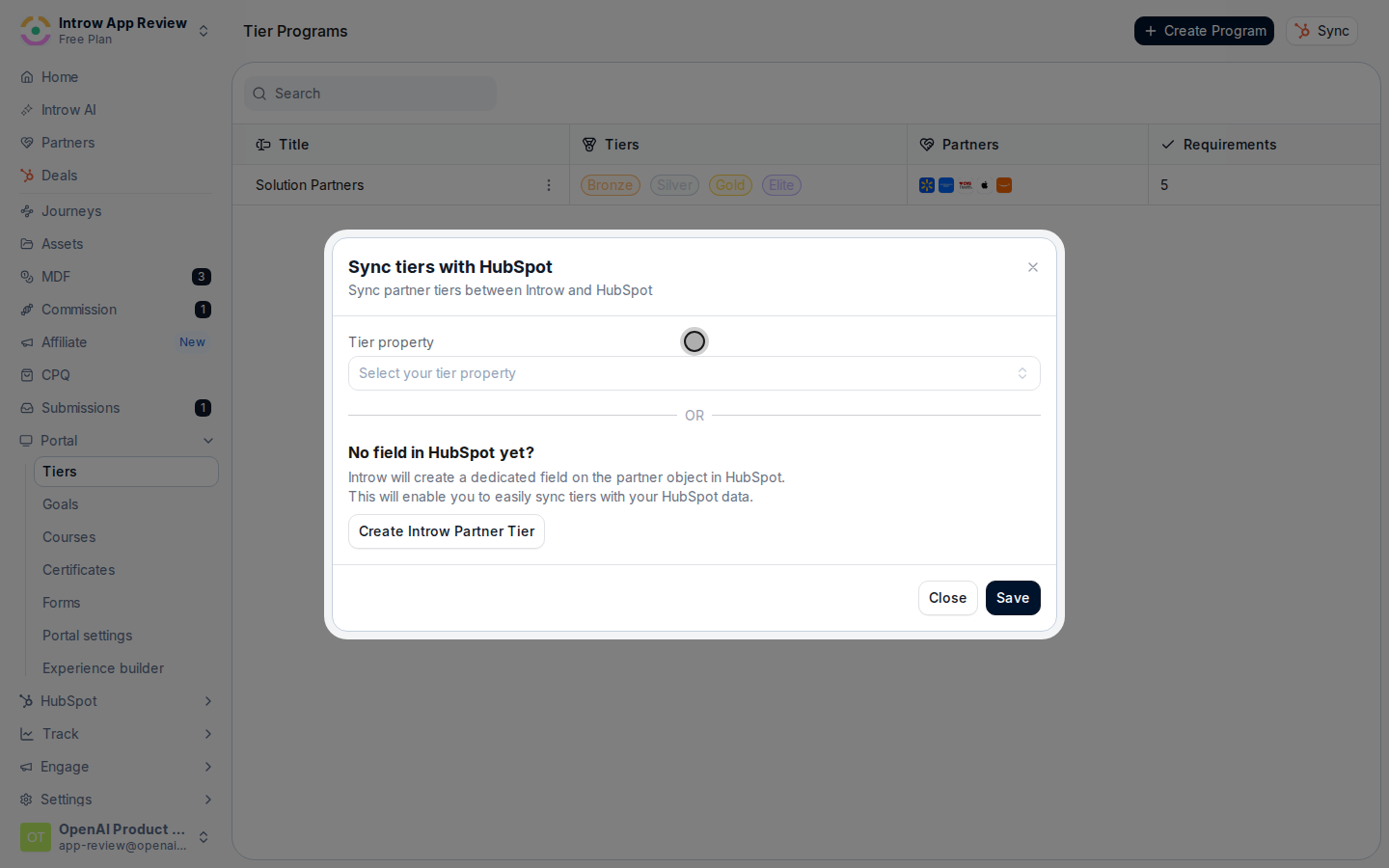 On HubSpot, if you have not created the properties yet, the dialog shows **No field in \[your CRM] yet?**. Select **Create Introw Partner Tier** and Introw adds the dedicated tier and tier-program fields to the partner object for you, then maps to them automatically.
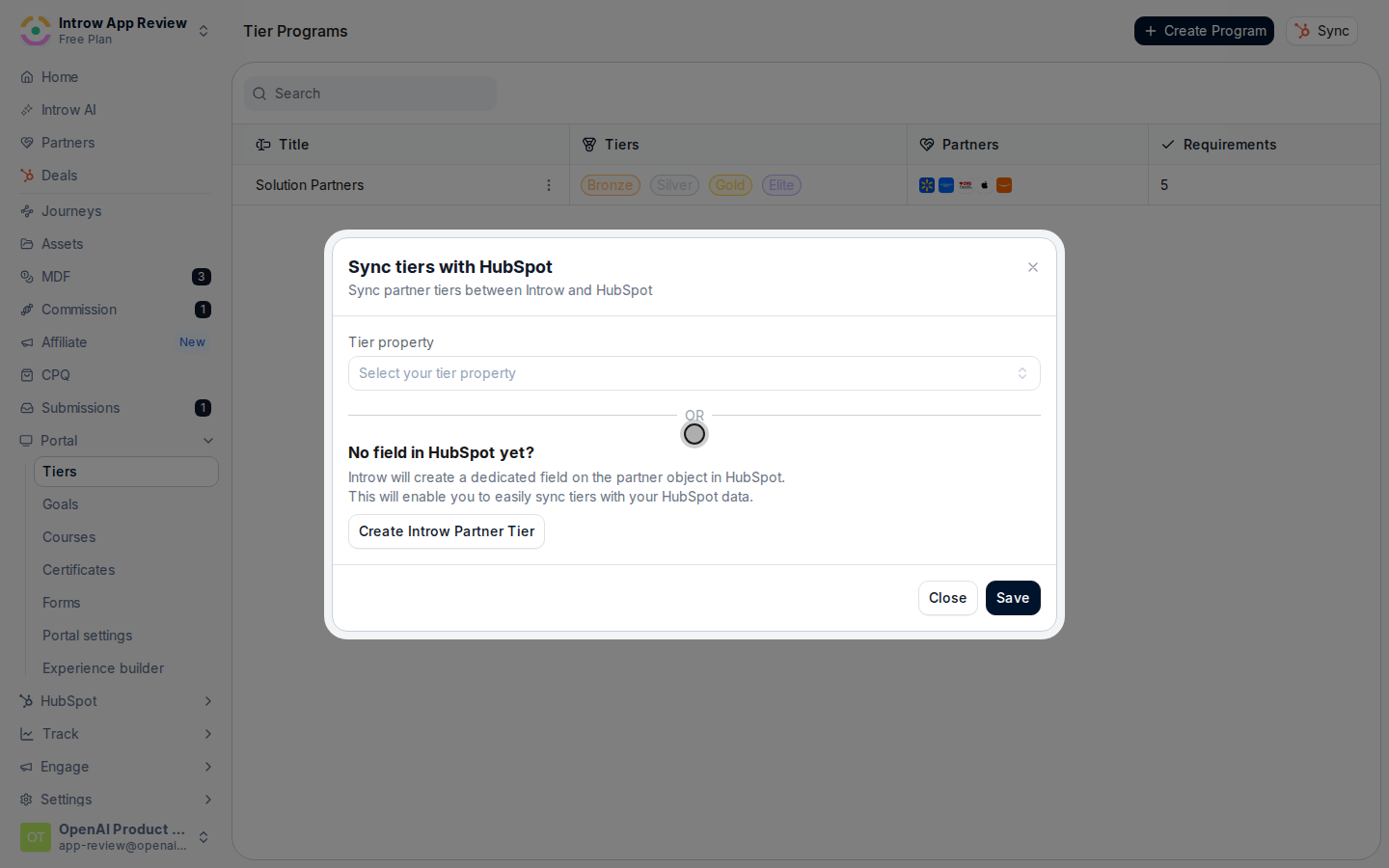 Once a property is selected, a table maps **Tier** to **CRM Value**. For each tier (and each program, if mapped), set the value to write into the CRM: pick an option for a dropdown property, or type the value for a text property. Introw pre-fills sensible values (the tier or program name) that you can adjust.
 Select **Save**. Introw confirms the tier CRM sync is updated and writes current tier values back to the partner records.
 ### Sync managers and team roles
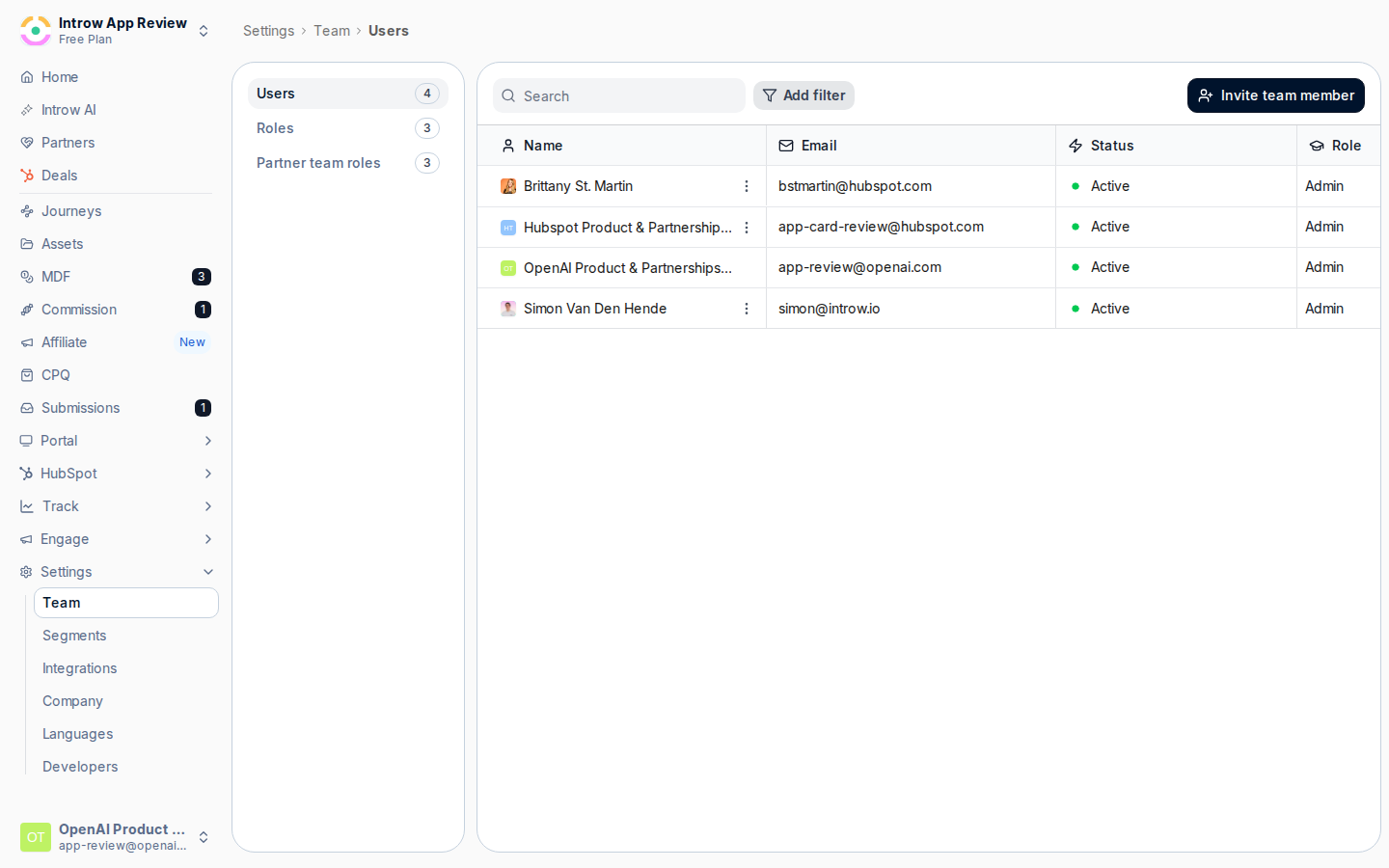
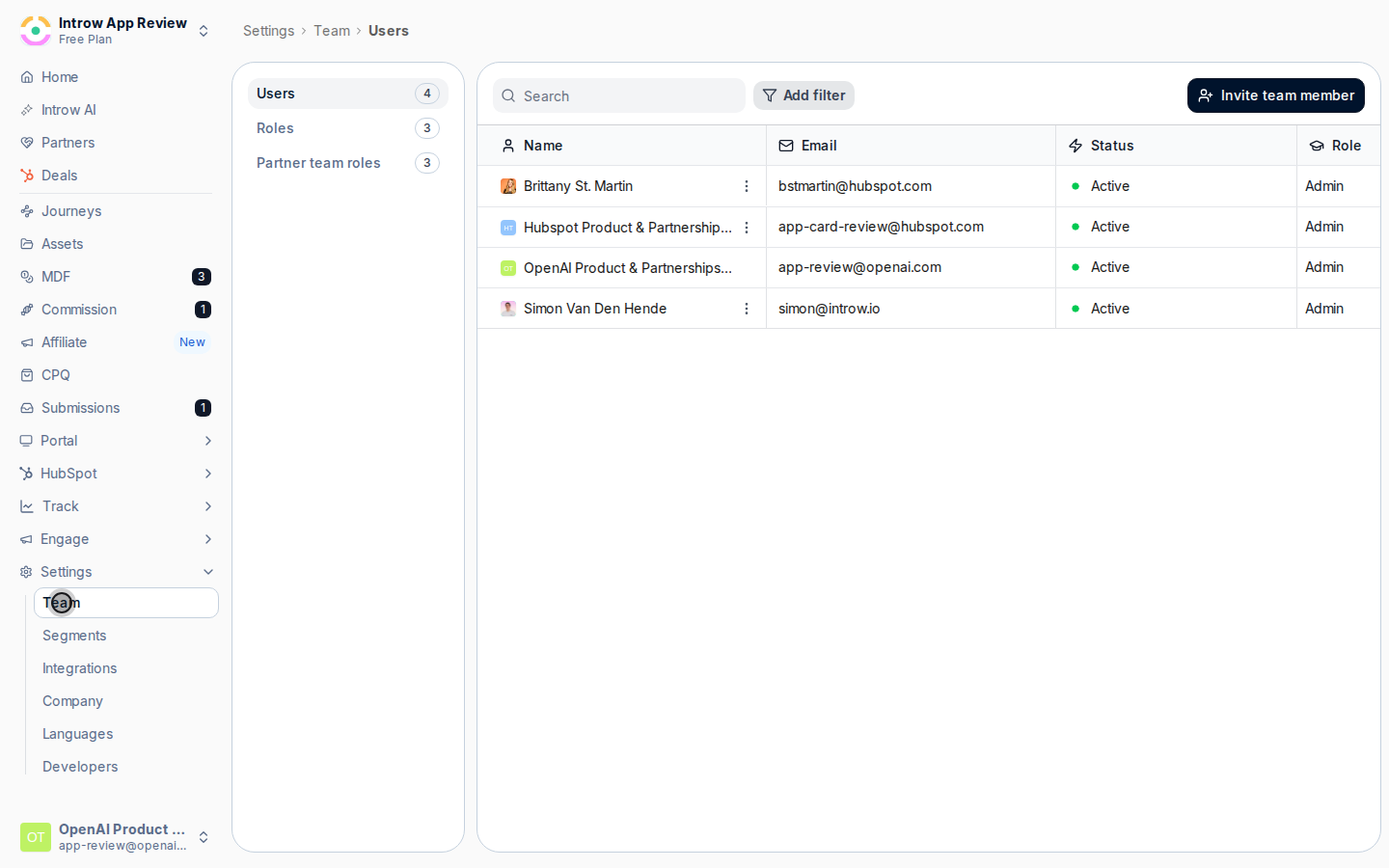
In Introw, go to **Settings**, then **Team**, then **Partner team roles**. Open a role to see its detail panel. The partnership manager is the primary partner team role, so mapping that role is how the partner's owner flows to the CRM; map any other roles you want reflected too.
In the role's detail header, select **Sync** (the CRM logo button), which opens **Sync \[role name] with \[your CRM]**. The button reads **In Sync** once mapped, and only appears when a CRM is connected.
Set the **\[role name] property** to the CRM field that should hold this role's members. Only owner or user-type CRM fields are eligible, since roles map to people. On HubSpot, if no field exists, select **Create Introw \[role name] field** and Introw creates a dedicated multi-select field on the partner object and maps to it.
Select **Save**. Introw confirms the role CRM sync is updated. Repeat for each role you want in the CRM; saving the primary role also keeps the partnership manager value in sync.
## Verify it worked
Change a partner's tier in Introw and the mapped CRM property updates on the partner record after the sync. Assign a partnership manager or team role and the mapped CRM field reflects it, so reps see current tier, program, and ownership directly on the CRM record.
## Related
Let the CRM govern who logs in and how contacts are grouped.
Define your tiers and programs first.
Full configuration options.
### Sync managers and team roles
In Introw, go to **Settings**, then **Team**, then **Partner team roles**. Open a role to see its detail panel. The partnership manager is the primary partner team role, so mapping that role is how the partner's owner flows to the CRM; map any other roles you want reflected too.
In the role's detail header, select **Sync** (the CRM logo button), which opens **Sync \[role name] with \[your CRM]**. The button reads **In Sync** once mapped, and only appears when a CRM is connected.
Set the **\[role name] property** to the CRM field that should hold this role's members. Only owner or user-type CRM fields are eligible, since roles map to people. On HubSpot, if no field exists, select **Create Introw \[role name] field** and Introw creates a dedicated multi-select field on the partner object and maps to it.
Select **Save**. Introw confirms the role CRM sync is updated. Repeat for each role you want in the CRM; saving the primary role also keeps the partnership manager value in sync.
## Verify it worked
Change a partner's tier in Introw and the mapped CRM property updates on the partner record after the sync. Assign a partnership manager or team role and the mapped CRM field reflects it, so reps see current tier, program, and ownership directly on the CRM record.
## Related
Let the CRM govern who logs in and how contacts are grouped.
Define your tiers and programs first.
Full configuration options.