> ## Documentation Index
> Fetch the complete documentation index at: https://docs.introw.io/llms.txt
> Use this file to discover all available pages before exploring further.
# Disconnect a CRM
> Safely disconnect a HubSpot, Salesforce, or Pipedrive connection and understand exactly what stops flowing.
Disconnecting stops the two-way sync between Introw and your CRM and removes the CRM data Introw has imported. You do this when you are switching CRMs, decommissioning an org, or pausing the program. Because the CRM is the source of truth, it is worth understanding precisely what disconnecting removes before you confirm, so you do not lose partner context you still need.
## What you'll achieve
A cleanly disconnected CRM: the sync stops, imported CRM data is removed from Introw, and the tile returns to a connectable state so you can link a different CRM when you are ready. Only one CRM can be connected at a time, so disconnecting is also the prerequisite for switching CRMs.
## Before you start
You need permission to manage integrations in Introw.
Disconnecting removes the data Introw imported from the CRM and stops any new updates from syncing in either direction. Partners and attribution that depend on the CRM sync will no longer update. Export or note anything you need before continuing.
## Watch it
## Steps
Go to [Integrations](https://app.introw.io/settings/integrations?category=crm) and open the connected CRM by selecting **Configure** on its tile to reach the connection detail page.
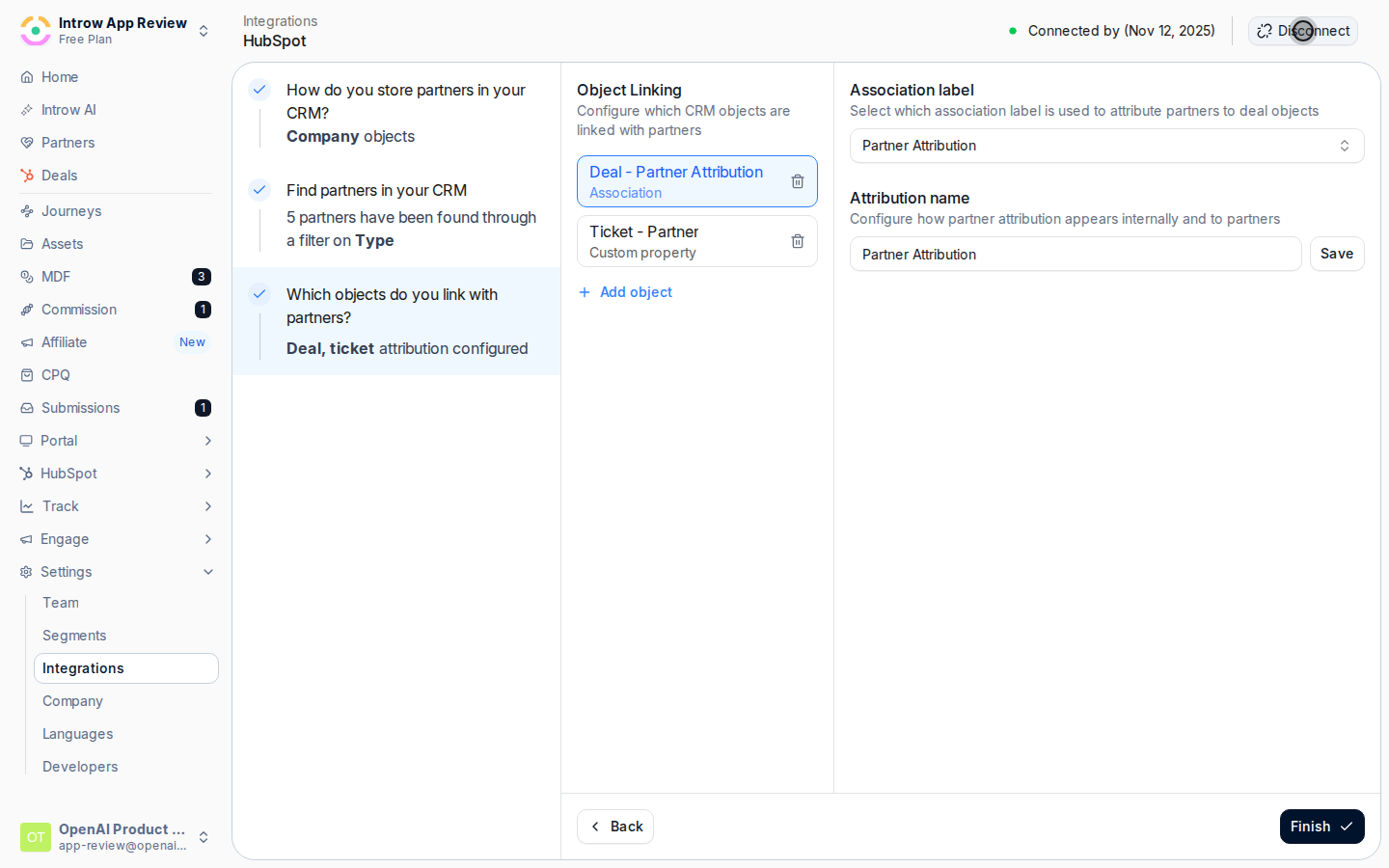
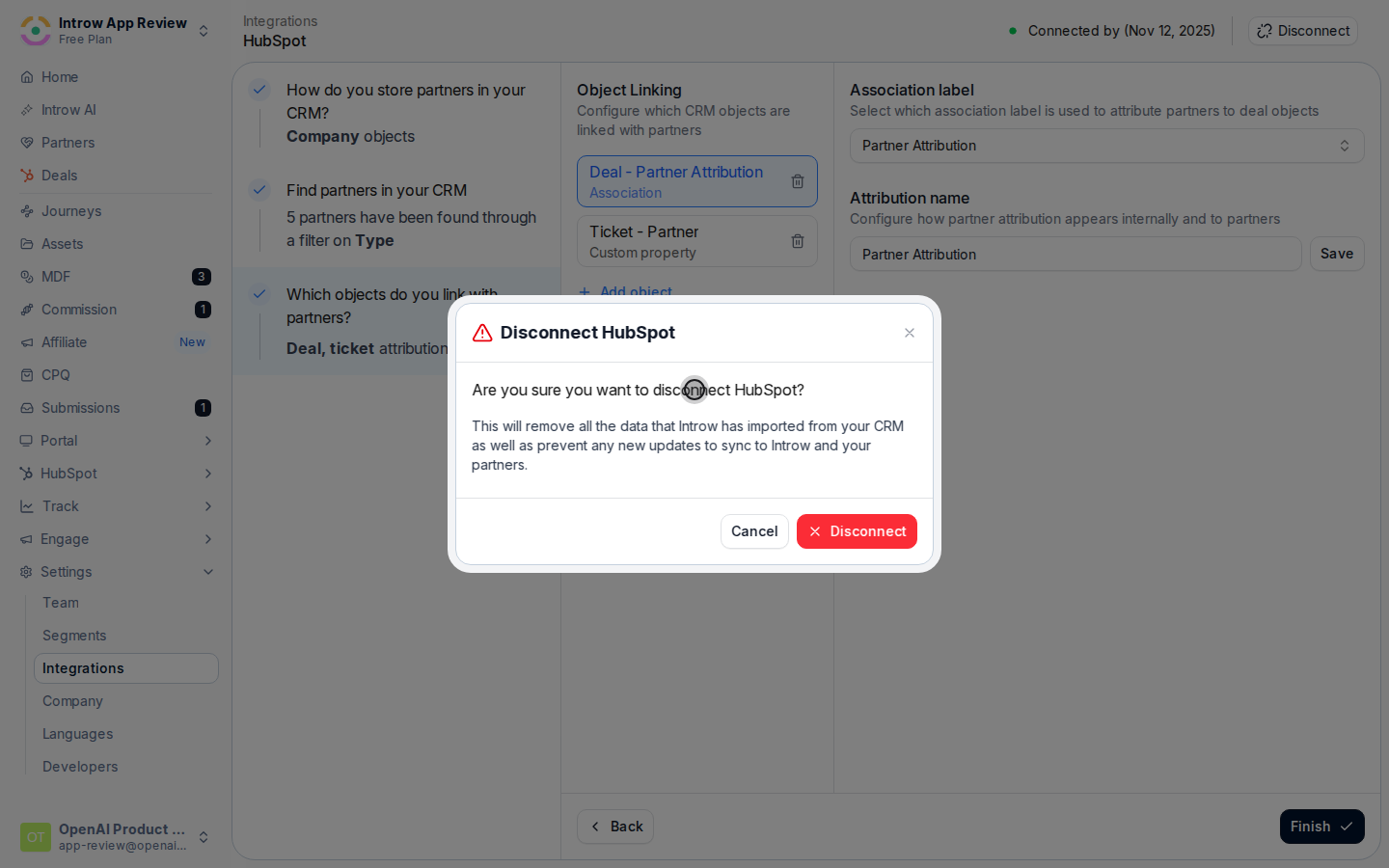
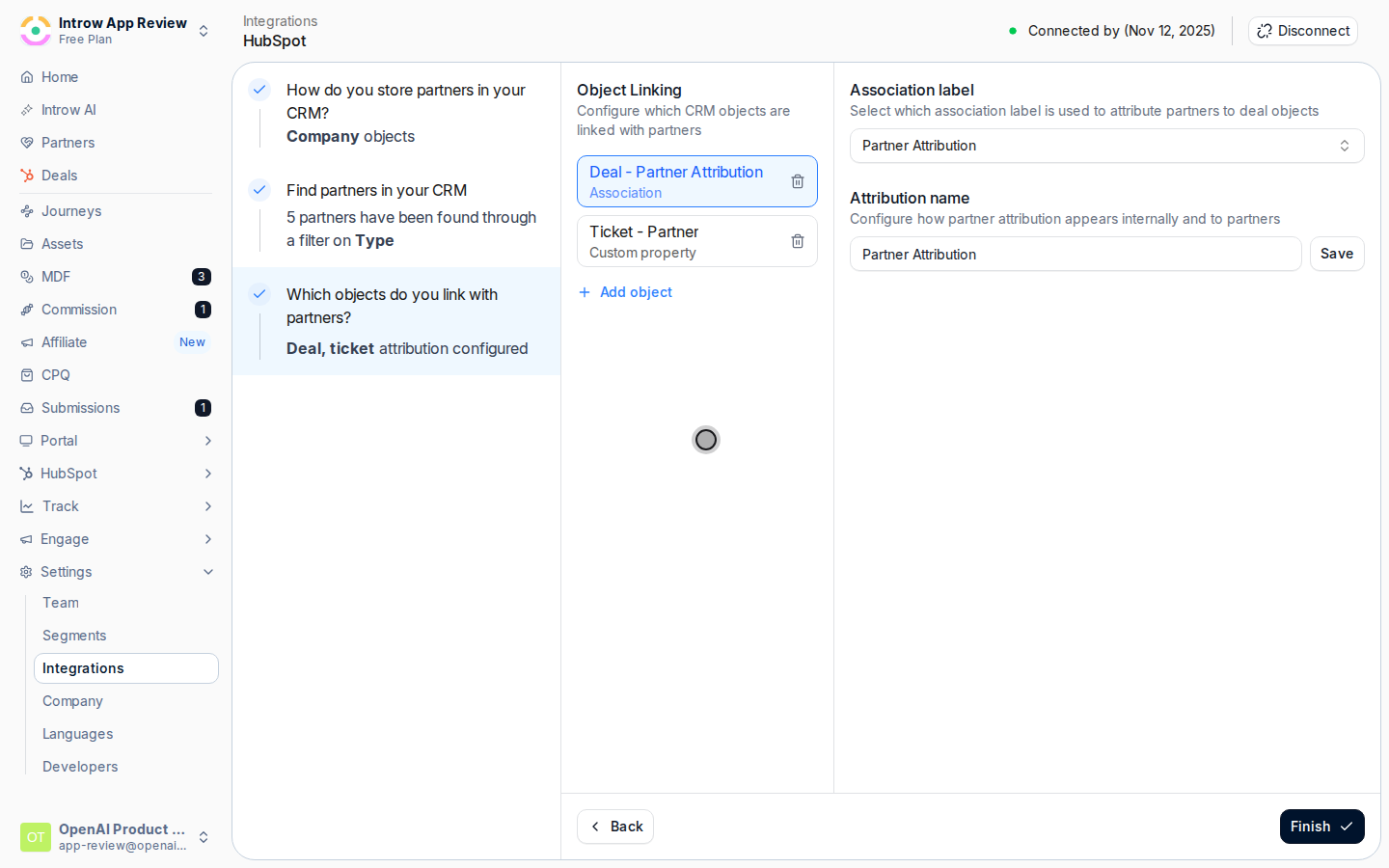 In the detail header, select **Disconnect**. Introw opens a confirmation dialog titled **Disconnect \[HubSpot / Salesforce / Pipedrive]** that spells out the impact: it will remove all the data Introw has imported from your CRM and prevent any new updates from syncing to Introw and your partners.
 Read the warning, then confirm the disconnect. Introw shows a success message and the tile returns to a **Connect** state.
 ## Verify it worked
The CRM tile on the Integrations page shows **Not connected**, the sync has stopped, and you can now connect a different CRM if you are switching.
## Related
Try fixing a connection before you disconnect it.
Reconnect or switch to a new CRM.
Full configuration options.
## Verify it worked
The CRM tile on the Integrations page shows **Not connected**, the sync has stopped, and you can now connect a different CRM if you are switching.
## Related
Try fixing a connection before you disconnect it.
Reconnect or switch to a new CRM.
Full configuration options.