> ## Documentation Index
> Fetch the complete documentation index at: https://docs.introw.io/llms.txt
> Use this file to discover all available pages before exploring further.
# Connect HubSpot as your source of truth
> Connect HubSpot, choose how partners are stored, filter which records sync, and link deals to partners so attribution flows both ways.
Connecting HubSpot is the first thing you do in Introw: it makes your CRM the single source of truth so partner companies, deals, and contacts sync in, and tiers, managers, and attribution sync back. This guide takes you through the whole connect flow, including the setup wizard (how partners are stored, which records sync, and which objects link to partners), so the integration is not just authorized but actually delivering accurate partner attribution in HubSpot.
## What you'll achieve
A live HubSpot connection where the right companies appear as partners in Introw, new matching records sync automatically, and deals are attributed to the partner who influenced them, so revenue reporting and commissions run on real CRM data. You will also know how to keep the connection healthy when HubSpot adds new scopes.
## Before you start
You need permission to authorize an app in HubSpot and accept all requested permission scopes during the OAuth flow.
You need permission to connect integrations in Introw. Only one CRM can be connected at a time, so disconnect any existing CRM first.
Decide which HubSpot object represents your partners (companies for most programs, or a custom object if you manage partners at scale) and how you currently mark them (a property value, a list, or specific records).
## Watch it
## Steps
### Connect the account
Go to [Integrations](https://app.introw.io/settings/integrations?category=crm) and stay on the **CRM & Data** category. The CRM tiles (HubSpot, Salesforce) sit here. If a tile shows **Connect** it is available; a greyed tile with the note that you can only have a single CRM connected means another CRM is already linked.
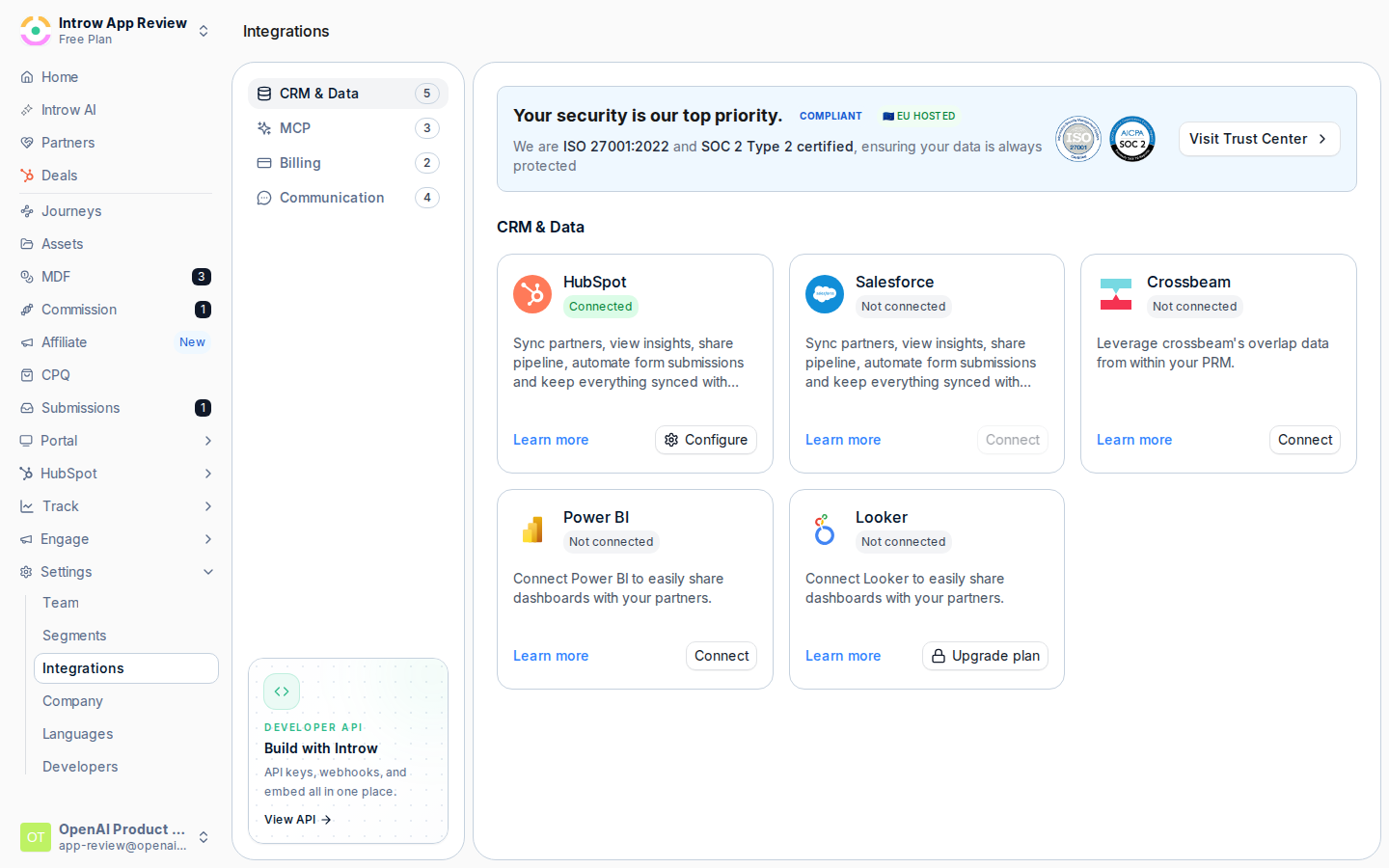 On the **HubSpot** tile, select **Connect**. This opens HubSpot's OAuth screen.
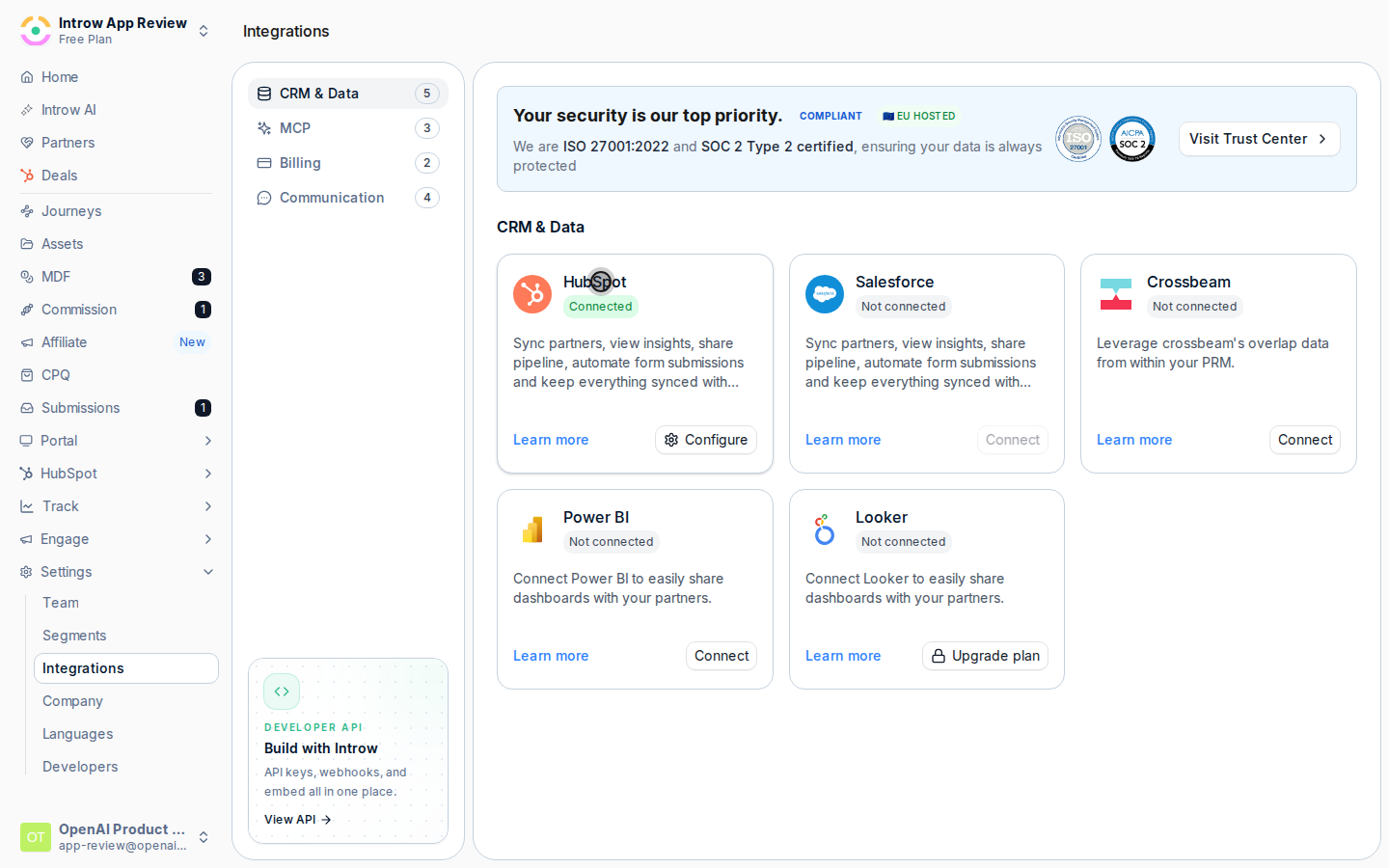 Sign in to HubSpot if prompted, pick the account, and approve the connection. **Accept all requested permission scopes** - if you decline any, HubSpot returns you with a message that all permissions are required and the connection will not complete. After you approve, Introw shows HubSpot as **Connected** and opens the setup wizard.
 ### Tell Introw how partners are stored
The wizard opens on **How do you store partners in your CRM?**. This tells Introw which CRM object is a partner, which is what lets it sync the right records and attribute deals correctly.
* **Partner object** - the CRM object that represents a partner. For HubSpot the default is **Company**; you can also choose **Account**, **Partner**, or any custom object you use to manage partners at scale. Pick the object you actually mark partners on. If you run a large program on a dedicated custom object, choose it here so Introw never treats ordinary customer companies as partners.
### Tell Introw how partners are stored
The wizard opens on **How do you store partners in your CRM?**. This tells Introw which CRM object is a partner, which is what lets it sync the right records and attribute deals correctly.
* **Partner object** - the CRM object that represents a partner. For HubSpot the default is **Company**; you can also choose **Account**, **Partner**, or any custom object you use to manage partners at scale. Pick the object you actually mark partners on. If you run a large program on a dedicated custom object, choose it here so Introw never treats ordinary customer companies as partners.
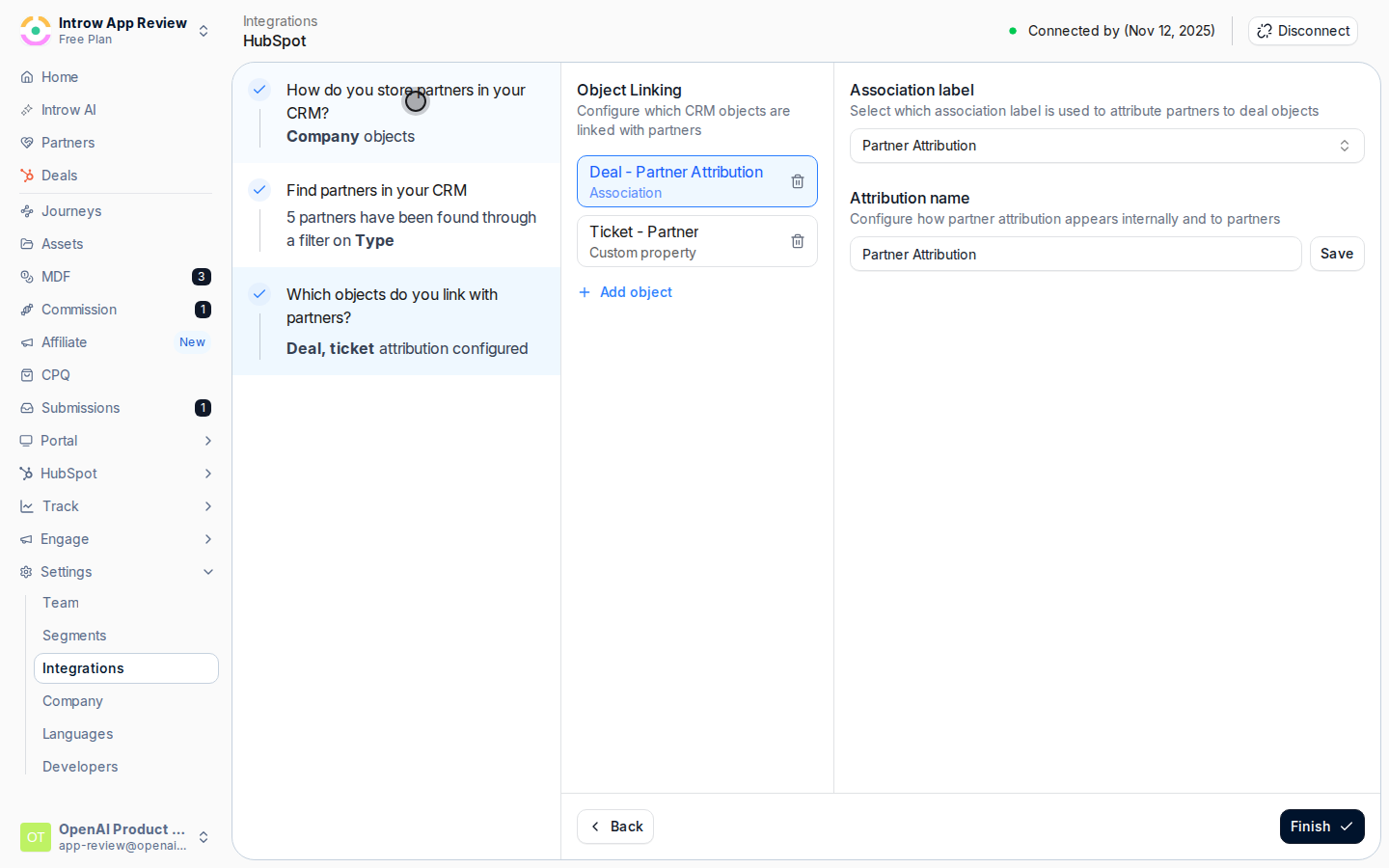 Introw asks you to confirm with **Please confirm the following info is correct** and shows your selection as "\[object] objects". Review it and select **Yes, that is correct**, then **Next**. Changing this later re-scopes which records are partners, so get it right before you move on.
 ### Find the partners that should sync
The wizard moves to **Find partners in your CRM**. Not every company in HubSpot is a partner, so here you scope exactly which records import as partners and avoid pulling in customer noise.
* **Filters** - narrow the partner object by a CRM property (for example a partner-type or lifecycle property). Add one or more property filters so only records that match are treated as partners. The count at the top updates to show how many partners were found.
* **Selection** - choose to bring in **all** matching records or hand-pick **specific** ones. Use the select-all banner to select every matching partner, or tick individual rows when you only want a subset.
### Find the partners that should sync
The wizard moves to **Find partners in your CRM**. Not every company in HubSpot is a partner, so here you scope exactly which records import as partners and avoid pulling in customer noise.
* **Filters** - narrow the partner object by a CRM property (for example a partner-type or lifecycle property). Add one or more property filters so only records that match are treated as partners. The count at the top updates to show how many partners were found.
* **Selection** - choose to bring in **all** matching records or hand-pick **specific** ones. Use the select-all banner to select every matching partner, or tick individual rows when you only want a subset.
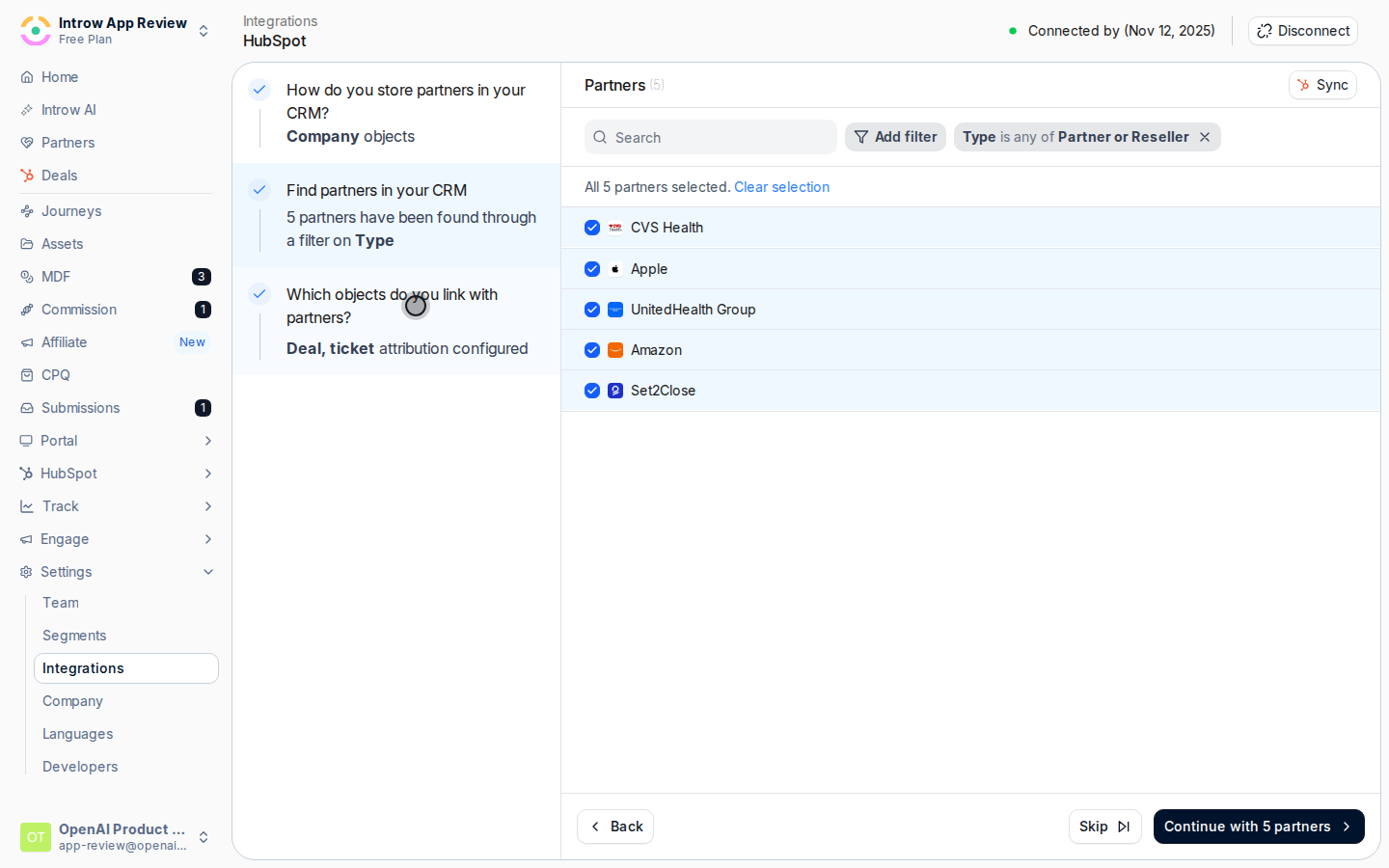 When you have selected all matching records behind a filter, Introw offers **Automatically sync new partners** in the confirmation step. Enable it so any new HubSpot record that later matches your filter becomes a partner without anyone re-importing. This option only appears once everything matching the filter is selected; without a filter, automatic sync stays off and you import a fixed set.
 Select **Continue with \[N] partner(s)** and confirm. Introw imports the partners from HubSpot; for large selections the import can take up to a minute. If you hit the maximum number of partners, tighten the filter before continuing.
### Link objects to partners (attribution)
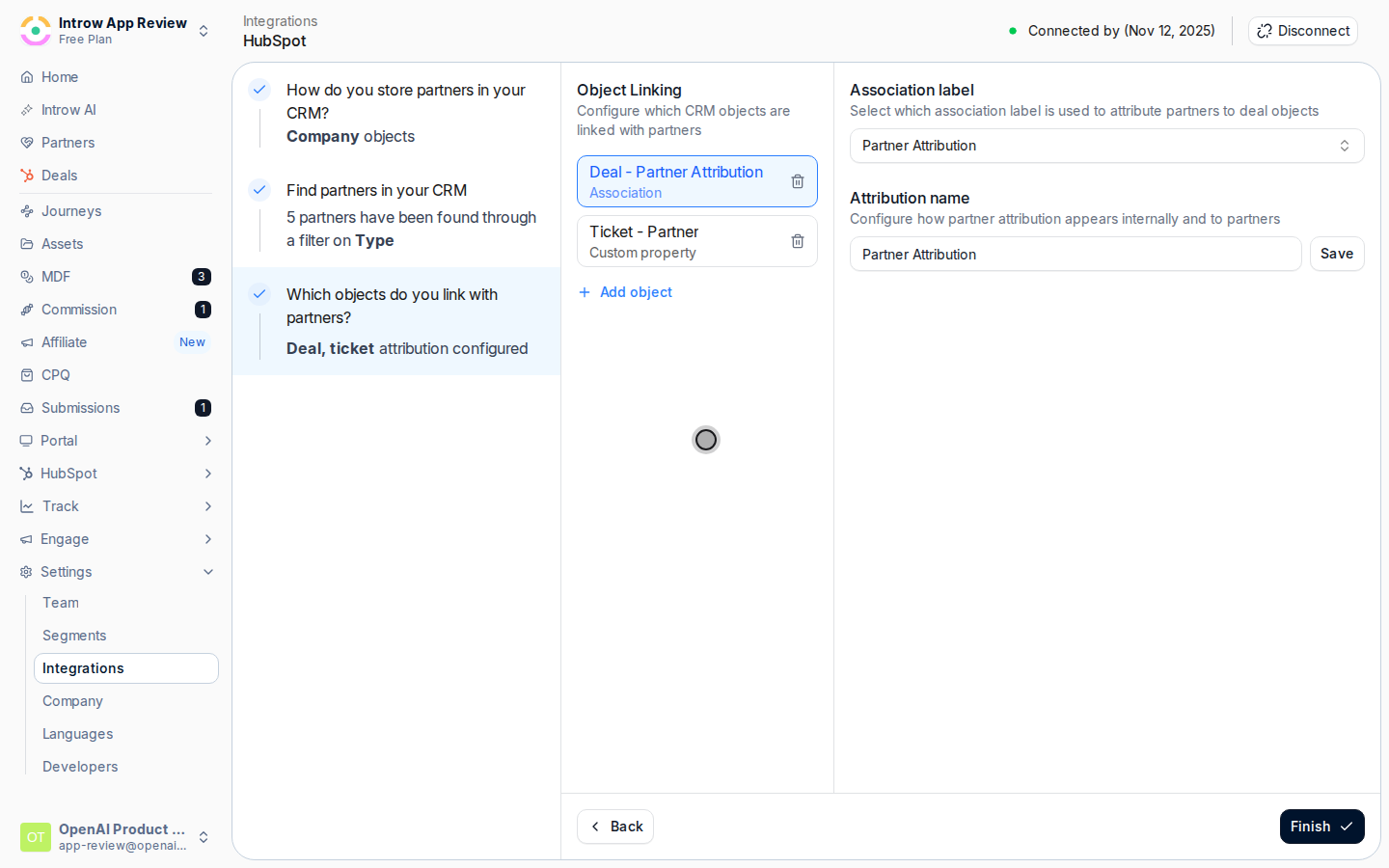
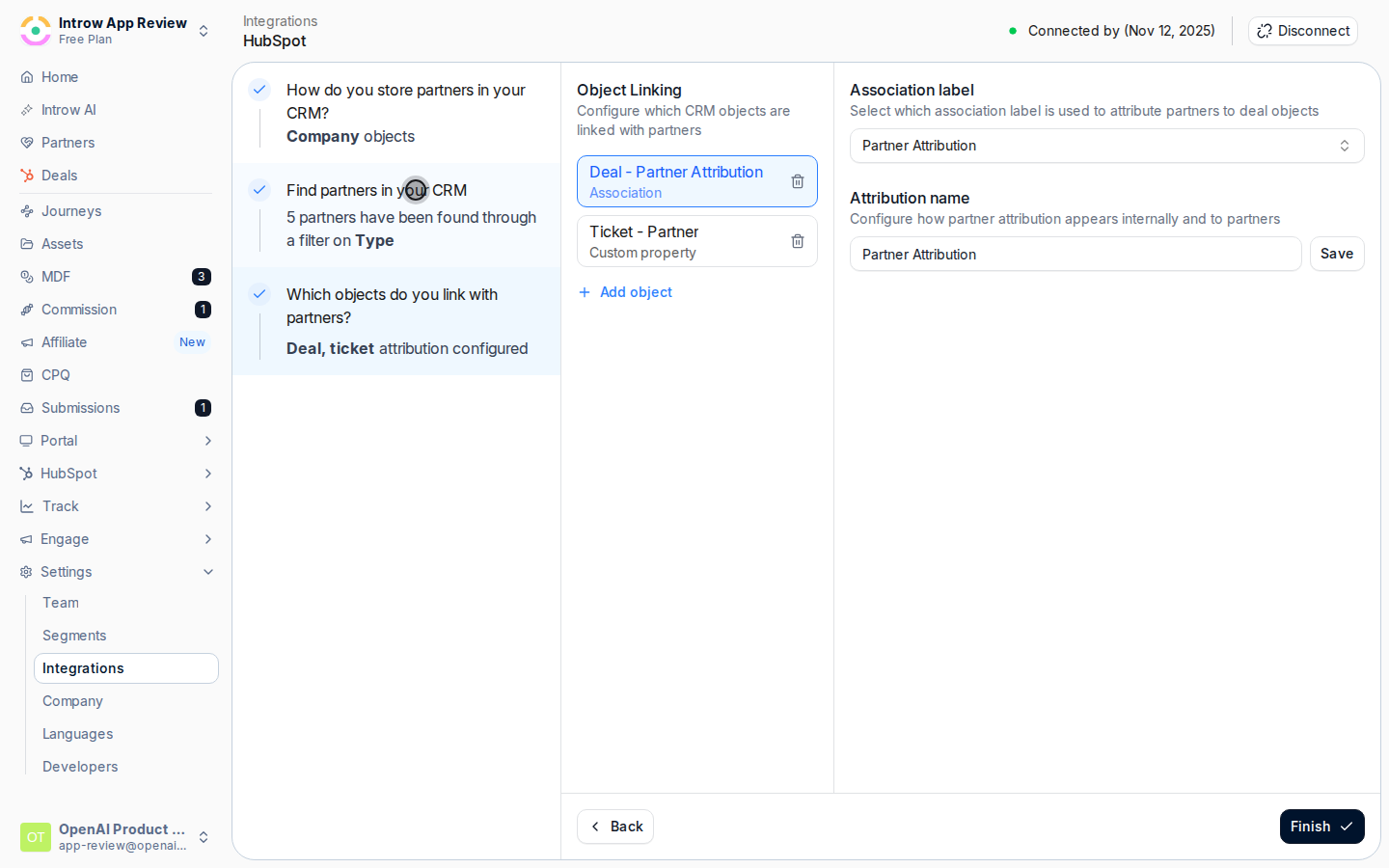
The wizard moves to **Which objects do you link with partners?** (the **Object Linking** screen). This is where deals and other records get credited to the partner who influenced them, which is what makes partner revenue reporting and commissions accurate. Select **Add object** to configure your first mapping.
For each object you choose **Which object do you link with partners?** and then **How do you attribute partners to \[object] objects?**:
* **Object** - the CRM object to attribute, such as **Deal**, **Contact**, or **Company**. Configure **Deal** at minimum: deal attribution is what the rest of the program (reporting, commissions) runs on, and the wizard treats it as the completion step.
* **Custom properties** - link records to a partner through a property you already use. Choose this when partners are recorded on a custom property on the object.
* **Associations** - link records through a HubSpot association between the deal and the partner company or custom object. Choose this when you already associate partners to deals natively in HubSpot.
* **No attribution yet** - if you have no existing link, Introw sets up attribution for you in one click by creating a dedicated partner property on the object in HubSpot. Pick this when you are starting fresh and want Introw to wire the link.
Set **What name do you want to use for this attribution?** so the link reads clearly to your team and to partners (for example "Influencing partner"), then select **Add \[object] attribution**. Repeat **Add object** for any other records you want credited (contacts, companies, tickets).
Once a Deal mapping exists, select **Finish**. Introw lands you on your partners or home view, and the integration is fully configured.
### Keep the connection healthy
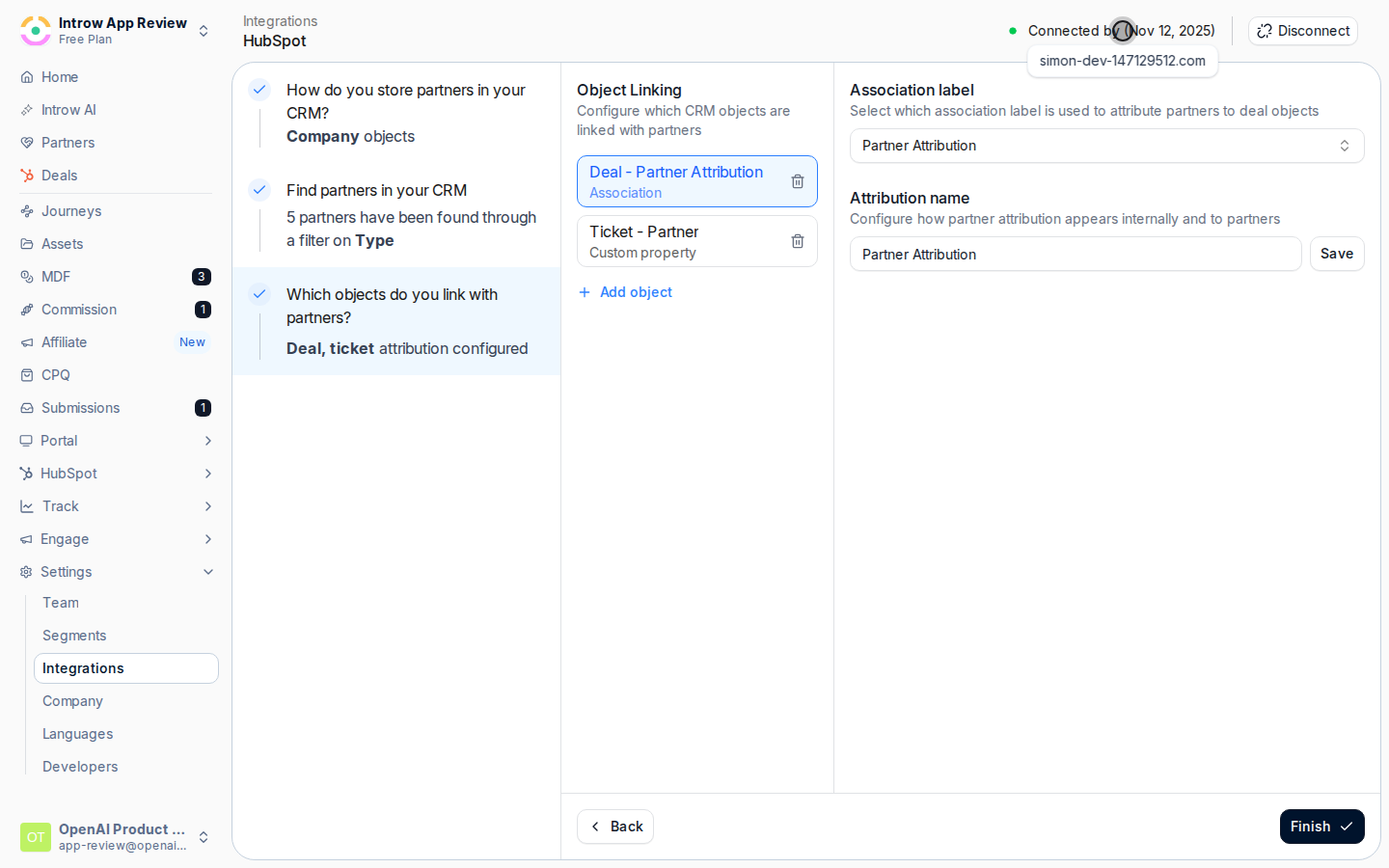
On the connected HubSpot detail page, the header shows the live state: a green dot with **Connected by \[name]** when healthy, an amber **Syncing** state during a sync, or a red **Connection has been interrupted** when it needs attention. If it shows interrupted, select **Reconnect** and re-authorize.
HubSpot periodically needs new permissions (for example for quotes or certificate objects). When that happens, the tile shows **Update available** and the detail header shows **Install update**. Select it and re-authorize to grant the new scopes so the affected data keeps syncing.
## Verify it worked
HubSpot shows as **Connected** on the Integrations page, your filtered companies appear as partners, and opening a partner-influenced deal shows it attributed to the right partner. New HubSpot records matching your filter sync in automatically (if you enabled automatic sync), and partner tiers and managers you set in Introw flow back to HubSpot.
## Related
Go deeper on deal attribution by property, association, or custom object.
The same end-to-end flow for Salesforce.
Fix a sync that shows a needs-attention status.
Full configuration options.
Select **Continue with \[N] partner(s)** and confirm. Introw imports the partners from HubSpot; for large selections the import can take up to a minute. If you hit the maximum number of partners, tighten the filter before continuing.
### Link objects to partners (attribution)
The wizard moves to **Which objects do you link with partners?** (the **Object Linking** screen). This is where deals and other records get credited to the partner who influenced them, which is what makes partner revenue reporting and commissions accurate. Select **Add object** to configure your first mapping.
For each object you choose **Which object do you link with partners?** and then **How do you attribute partners to \[object] objects?**:
* **Object** - the CRM object to attribute, such as **Deal**, **Contact**, or **Company**. Configure **Deal** at minimum: deal attribution is what the rest of the program (reporting, commissions) runs on, and the wizard treats it as the completion step.
* **Custom properties** - link records to a partner through a property you already use. Choose this when partners are recorded on a custom property on the object.
* **Associations** - link records through a HubSpot association between the deal and the partner company or custom object. Choose this when you already associate partners to deals natively in HubSpot.
* **No attribution yet** - if you have no existing link, Introw sets up attribution for you in one click by creating a dedicated partner property on the object in HubSpot. Pick this when you are starting fresh and want Introw to wire the link.
Set **What name do you want to use for this attribution?** so the link reads clearly to your team and to partners (for example "Influencing partner"), then select **Add \[object] attribution**. Repeat **Add object** for any other records you want credited (contacts, companies, tickets).
Once a Deal mapping exists, select **Finish**. Introw lands you on your partners or home view, and the integration is fully configured.
### Keep the connection healthy
On the connected HubSpot detail page, the header shows the live state: a green dot with **Connected by \[name]** when healthy, an amber **Syncing** state during a sync, or a red **Connection has been interrupted** when it needs attention. If it shows interrupted, select **Reconnect** and re-authorize.
HubSpot periodically needs new permissions (for example for quotes or certificate objects). When that happens, the tile shows **Update available** and the detail header shows **Install update**. Select it and re-authorize to grant the new scopes so the affected data keeps syncing.
## Verify it worked
HubSpot shows as **Connected** on the Integrations page, your filtered companies appear as partners, and opening a partner-influenced deal shows it attributed to the right partner. New HubSpot records matching your filter sync in automatically (if you enabled automatic sync), and partner tiers and managers you set in Introw flow back to HubSpot.
## Related
Go deeper on deal attribution by property, association, or custom object.
The same end-to-end flow for Salesforce.
Fix a sync that shows a needs-attention status.
Full configuration options.