> ## Documentation Index
> Fetch the complete documentation index at: https://docs.introw.io/llms.txt
> Use this file to discover all available pages before exploring further.
# Connect Chargebee billing
> Connect Chargebee with your site name and API key so Introw can import subscriptions, customers, and invoices to power partner commissions.
Connecting Chargebee brings subscription, customer, and invoice data into Introw so commissions calculate on what customers are actually billed, not just CRM deal amounts. This is the right source when recurring revenue drives partner payouts. Unlike Stripe's OAuth, Chargebee connects with your site name and an API key. This guide gets Chargebee importing and points you to mapping and linking the data so commissions can use it. The integration is import-only and never charges customers.
## What you'll achieve
A connected Chargebee site importing billing data into Introw, ready to map and link to partners so commission plans can pay on actual recurring revenue.
## Before you start
Billing integrations are a paid add-on. If the Chargebee tile shows **Upgrade plan**, the billing integrations module is not enabled on your plan; contact Introw to add it.
Have your Chargebee site name (the subdomain in your-site-name.chargebee.com) and a Chargebee API key. You need permission to connect integrations in Introw; credentials are stored encrypted.
## Watch it
## Steps
Go to [Integrations](https://app.introw.io/settings/integrations?category=billing) and stay on the **Billing** category.
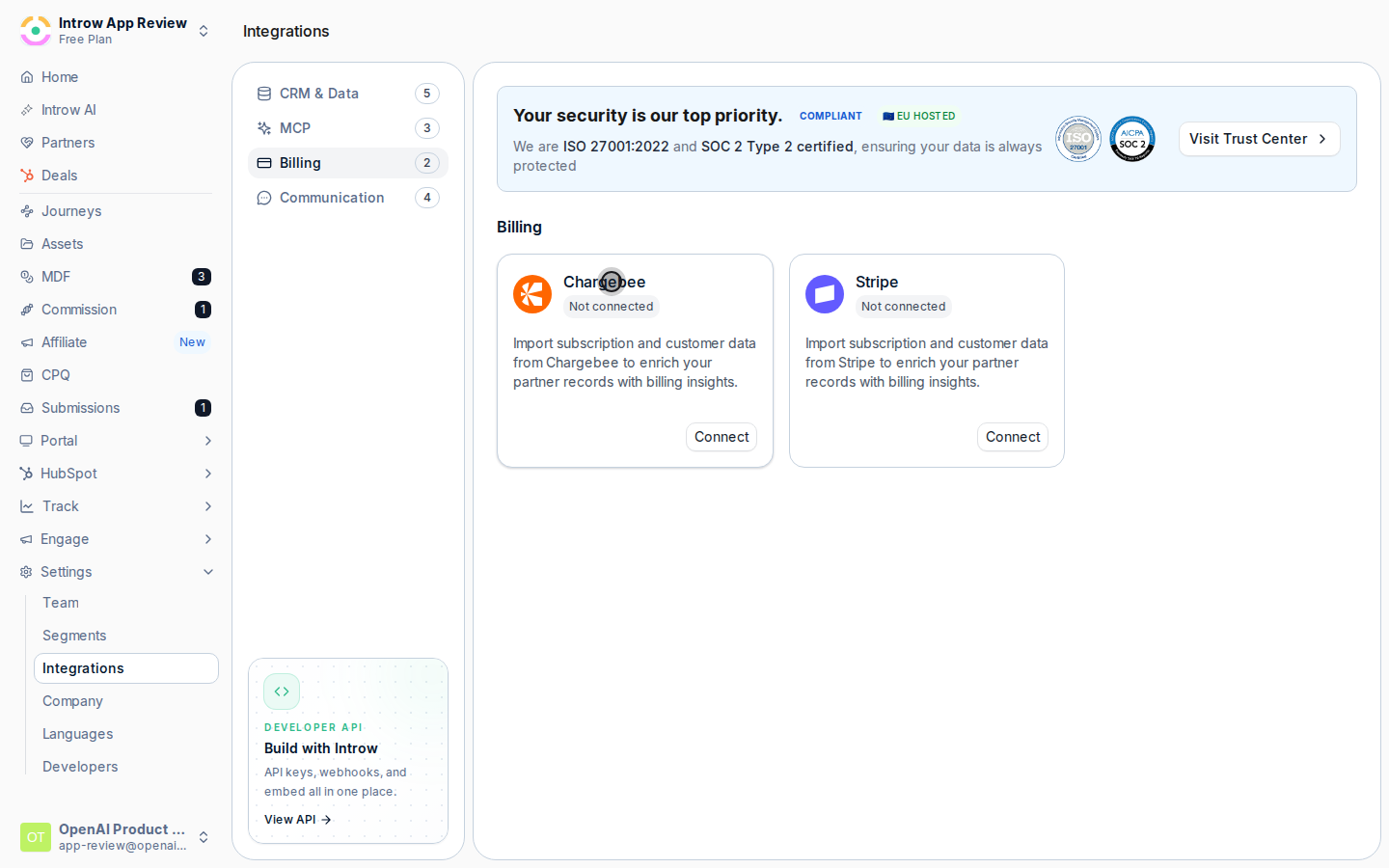
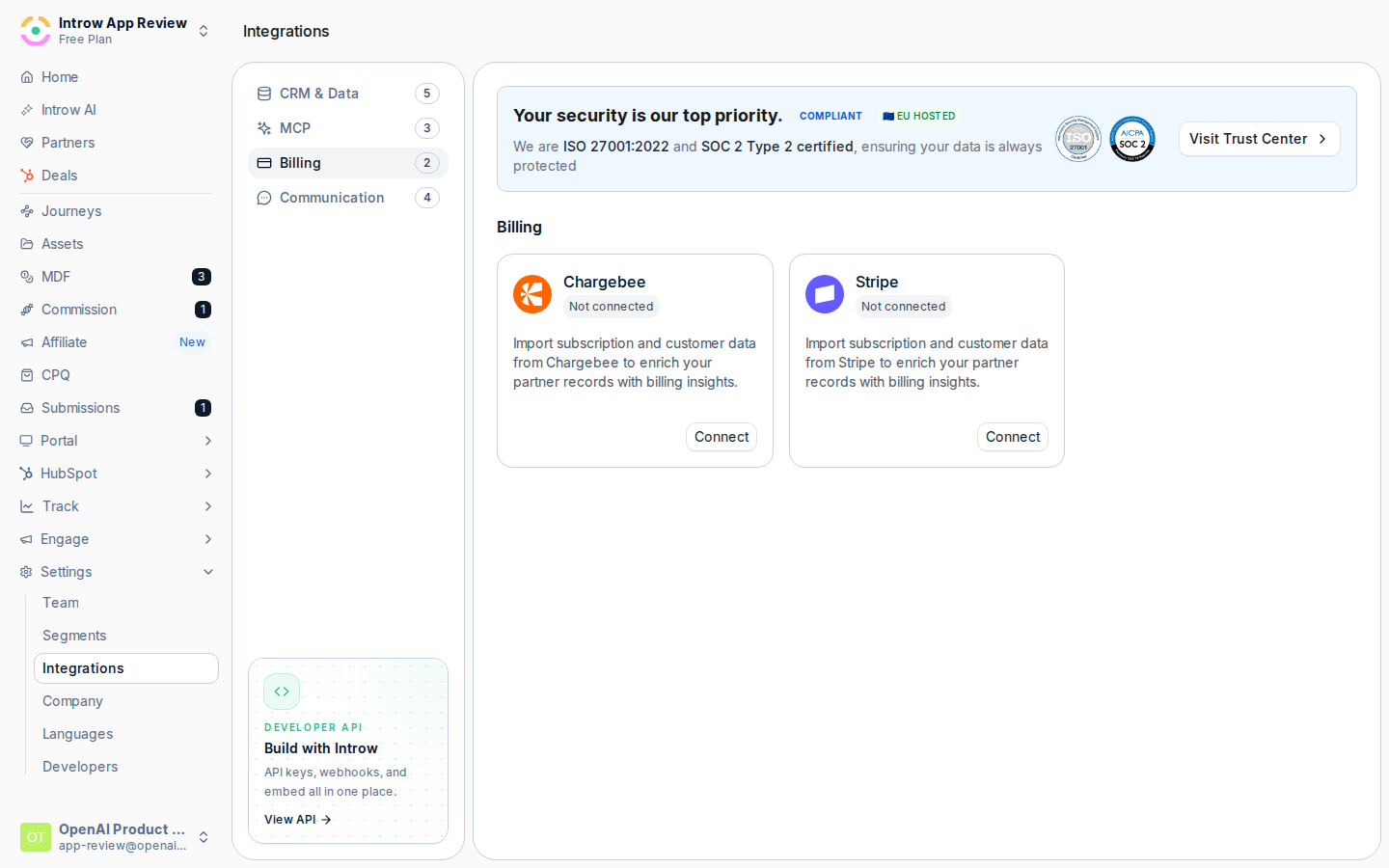 On the **Chargebee** tile select **Connect** to open the **Chargebee Integration** dialog, then fill in the **Credentials**:
* **Chargebee Site** - your Chargebee site name, entered between the shown https\:// and .chargebee.com (for example "your-site-name"). This tells Introw which Chargebee account to read from.
* **API Key** - a Chargebee API key with read access. Introw uses it to import billing data; it is stored encrypted.
On the **Chargebee** tile select **Connect** to open the **Chargebee Integration** dialog, then fill in the **Credentials**:
* **Chargebee Site** - your Chargebee site name, entered between the shown https\:// and .chargebee.com (for example "your-site-name"). This tells Introw which Chargebee account to read from.
* **API Key** - a Chargebee API key with read access. Introw uses it to import billing data; it is stored encrypted.
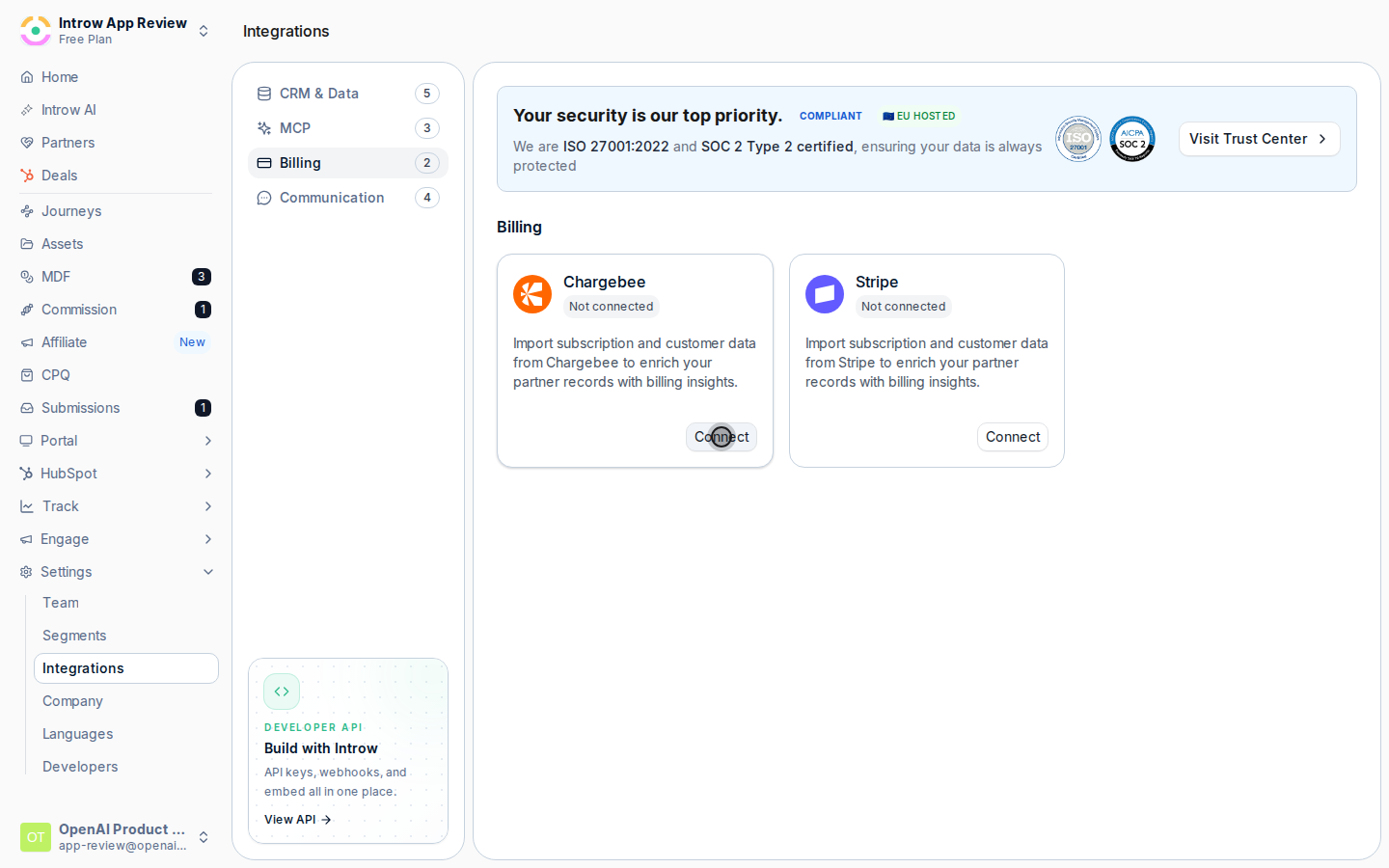
 Select **Connect**. Introw validates the credentials and confirms Chargebee is connected. If you see an invalid-key or site-not-found message, recheck the site name and API key; if the site is already linked to another organisation, it cannot be connected twice.
 Connecting only brings Chargebee in; next, choose which billing objects to import and link them to partners. Follow [Connect your billing data](./connect-billing-data) to finish, then the data is available to commission plans.
## Verify it worked
Chargebee shows as **Connected** on the Billing integrations page and the billing configuration page opens. After you map and link records, the Chargebee source becomes selectable when [building a commission plan](/features/commissions/commission-plans/guides/build-and-launch-a-commission-plan).
## Related
Map billing objects and link records to partners.
Use Stripe instead of Chargebee.
Pay partners on the imported billing data.
Full configuration options.
Connecting only brings Chargebee in; next, choose which billing objects to import and link them to partners. Follow [Connect your billing data](./connect-billing-data) to finish, then the data is available to commission plans.
## Verify it worked
Chargebee shows as **Connected** on the Billing integrations page and the billing configuration page opens. After you map and link records, the Chargebee source becomes selectable when [building a commission plan](/features/commissions/commission-plans/guides/build-and-launch-a-commission-plan).
## Related
Map billing objects and link records to partners.
Use Stripe instead of Chargebee.
Pay partners on the imported billing data.
Full configuration options.