> ## Documentation Index
> Fetch the complete documentation index at: https://docs.introw.io/llms.txt
> Use this file to discover all available pages before exploring further.
# Connect your billing data to partners
> Choose which billing objects to import from Stripe or Chargebee, identify the partner on each, and auto-link records so revenue attributes correctly.
A connected billing system only powers commissions once the right records are imported and tied to partners. This guide takes a connected Stripe or Chargebee integration the rest of the way: choose which billing objects to import, tell Introw which property identifies the partner on each, and auto-link records to partners in bulk so revenue attributes correctly. Do this once and your commission plans have clean, partner-attributed billing data to calculate against. The steps are the same for Stripe and Chargebee; only the object and field names differ.
## What you'll achieve
Imported billing objects (customers, subscriptions, invoices, and more) linked to the right partners, so partner-attributed revenue is available as a source for commission plans and partner insights.
## Before you start
Stripe or Chargebee must be connected. See [Connect Stripe billing](./connect-stripe) or [Connect Chargebee billing](./connect-chargebee).
Decide which billing field tells you the partner, for example a custom field or metadata value that holds a partner id, so Introw can match records to partners.
## Watch it
## Steps
### Import the billing objects
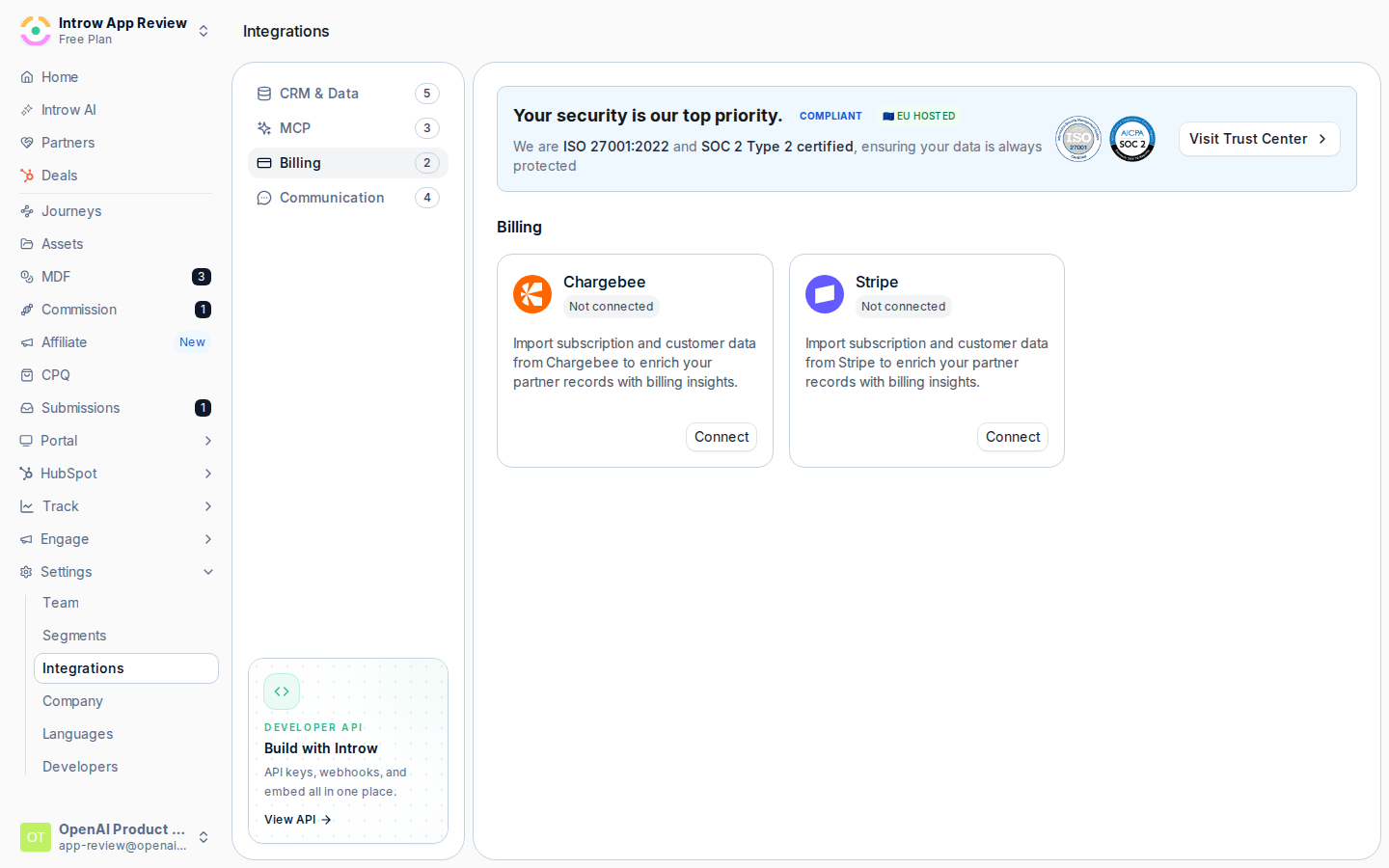
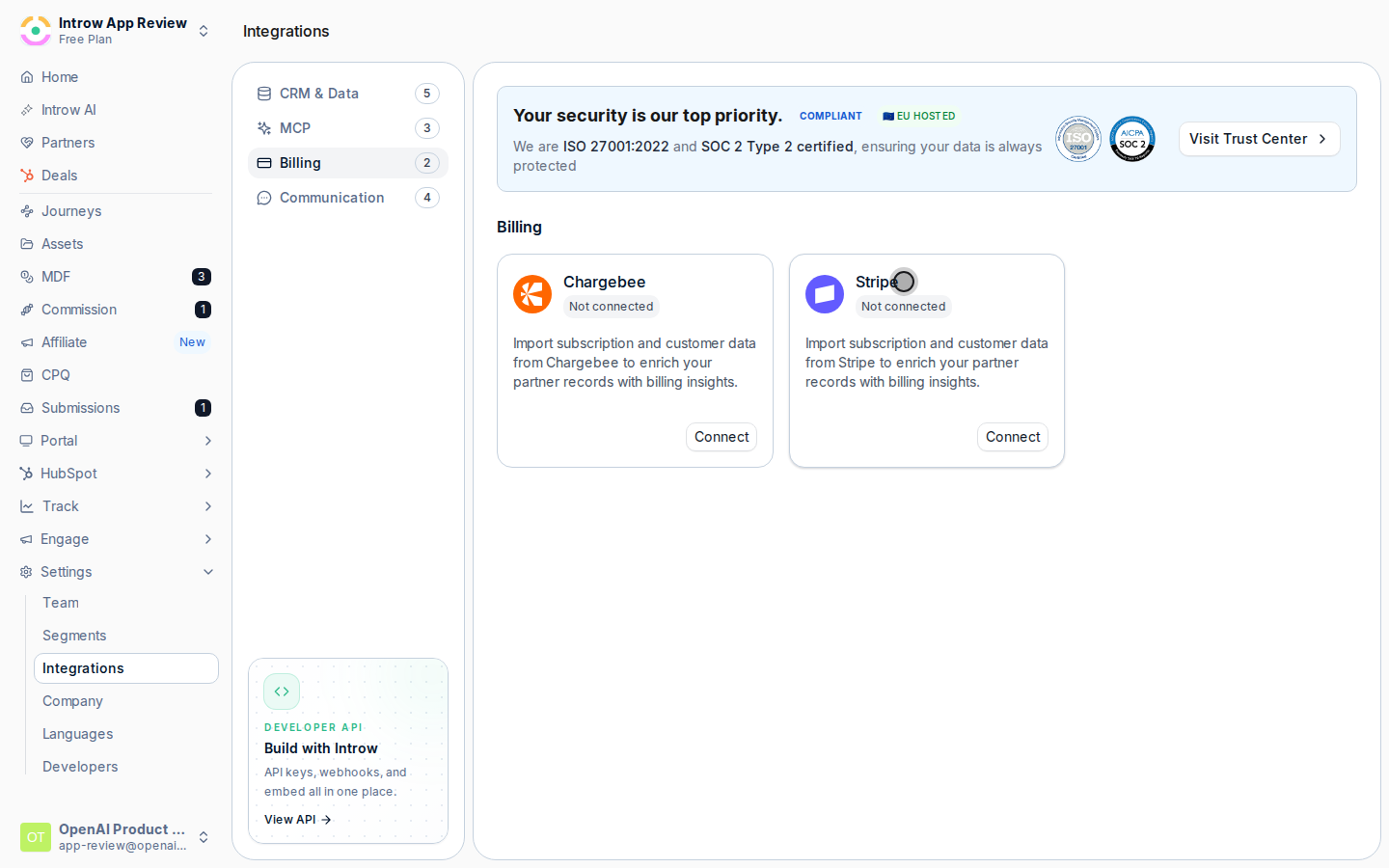
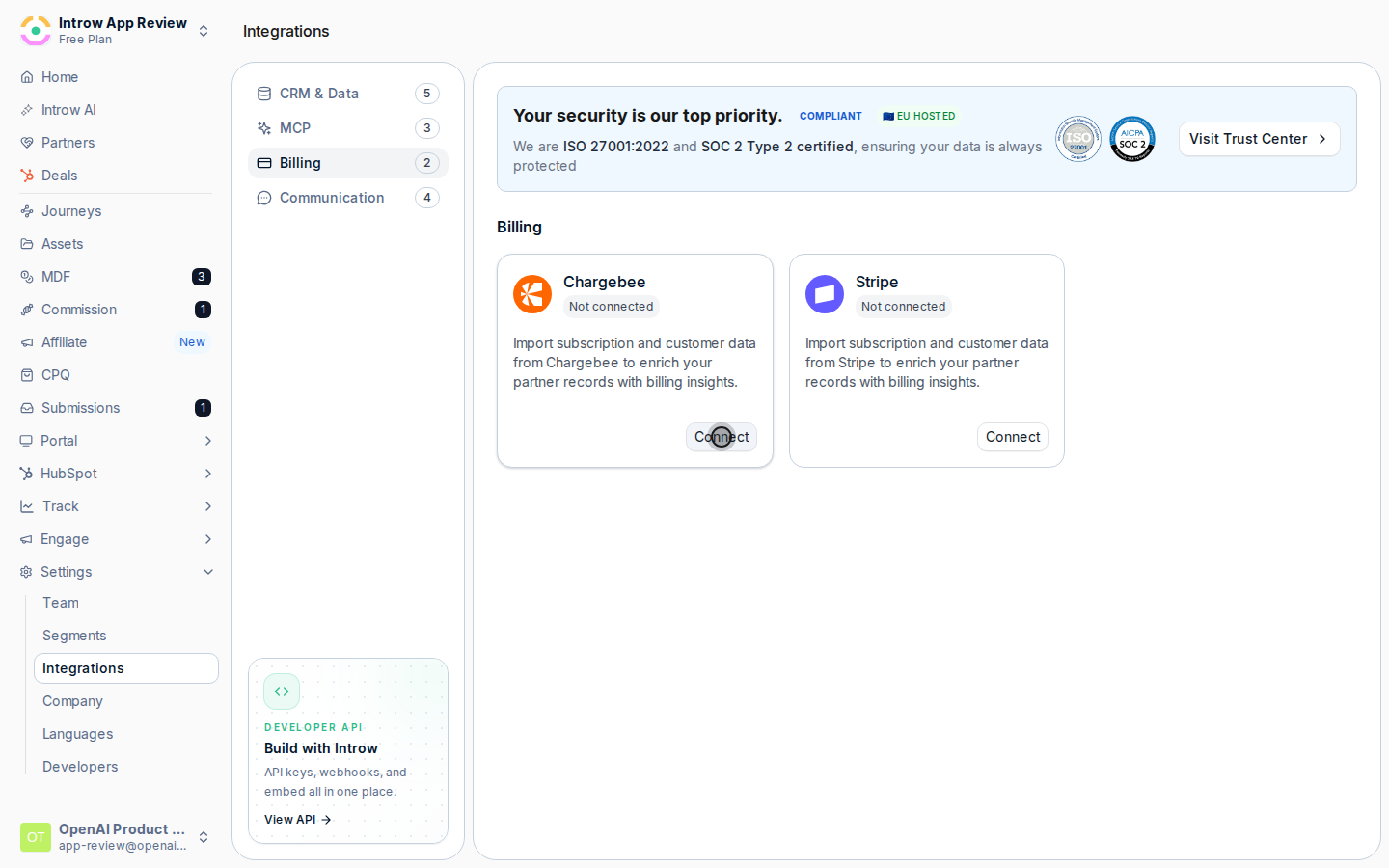
Go to [Integrations](https://app.introw.io/settings/integrations?category=billing) and open the connected provider with **Configure** to reach its billing configuration page. The **Object Linking** panel lists which billing objects are imported; it starts empty.
 Select **Add object** and complete the modal:
* **Which object do you want to import?** - the billing object to bring in. Stripe offers Customer, Subscription, Invoice, Product, and Price; Chargebee offers Subscription, Customer, and Invoice (plus Plan or Item and Item Price depending on your product catalog version). Add the objects your commissions need, usually invoices or subscriptions for revenue.
* **Which property identifies the partner?** - the billing API field used to match the record to a partner. Pick it from the list, or select **Can't find your field? Use manual input** and type the exact field name (for example a metadata or custom field that holds a partner id).
* **Display label** - how this property appears in Introw, so your team recognizes it (for example "Partner ID").
Select **Add object** and complete the modal:
* **Which object do you want to import?** - the billing object to bring in. Stripe offers Customer, Subscription, Invoice, Product, and Price; Chargebee offers Subscription, Customer, and Invoice (plus Plan or Item and Item Price depending on your product catalog version). Add the objects your commissions need, usually invoices or subscriptions for revenue.
* **Which property identifies the partner?** - the billing API field used to match the record to a partner. Pick it from the list, or select **Can't find your field? Use manual input** and type the exact field name (for example a metadata or custom field that holds a partner id).
* **Display label** - how this property appears in Introw, so your team recognizes it (for example "Partner ID").
 Select **Add object**. Introw triggers a full sync to import that object. Add each object you need; use **Sync now** in the header any time to refresh on demand.
 ### Link records to partners
Select an imported object to open its mapping panel. The **Attribution property** shows the field used to attribute partners, and **Match property values to Introw partners** lets you set, per partner, the billing value that should resolve to them, so imported records attribute to the correct partner.
Select **Auto-detect** to open **Auto-detect partner links**. Introw scans your imported billing data and proposes confident matches, showing how many records were **Scanned**, the **Candidates** and **Missing**, and the links **Found**. This saves mapping each value by hand.
Review the proposed links, then select **Apply selected** to create them in bulk. Introw confirms how many partner links were added. If a partner is not linked to a CRM object, the panel flags it so you can fix the partner record first. Set any remaining values manually in the match table.
## Verify it worked
Each imported billing record shows its linked partner, the **Object Linking** panel lists your imported objects with their partner property, and the billing source can be selected when [building a commission plan](/features/commissions/commission-plans/guides/build-and-launch-a-commission-plan), so partners are credited for the revenue they drove.
## Related
Connect Stripe before mapping.
Connect Chargebee before mapping.
Pay partners on the linked billing data.
Full configuration options.
### Link records to partners
Select an imported object to open its mapping panel. The **Attribution property** shows the field used to attribute partners, and **Match property values to Introw partners** lets you set, per partner, the billing value that should resolve to them, so imported records attribute to the correct partner.
Select **Auto-detect** to open **Auto-detect partner links**. Introw scans your imported billing data and proposes confident matches, showing how many records were **Scanned**, the **Candidates** and **Missing**, and the links **Found**. This saves mapping each value by hand.
Review the proposed links, then select **Apply selected** to create them in bulk. Introw confirms how many partner links were added. If a partner is not linked to a CRM object, the panel flags it so you can fix the partner record first. Set any remaining values manually in the match table.
## Verify it worked
Each imported billing record shows its linked partner, the **Object Linking** panel lists your imported objects with their partner property, and the billing source can be selected when [building a commission plan](/features/commissions/commission-plans/guides/build-and-launch-a-commission-plan), so partners are credited for the revenue they drove.
## Related
Connect Stripe before mapping.
Connect Chargebee before mapping.
Pay partners on the linked billing data.
Full configuration options.