> ## Documentation Index
> Fetch the complete documentation index at: https://docs.introw.io/llms.txt
> Use this file to discover all available pages before exploring further.
# Customize the submissions inbox
> Choose the columns you review submissions by, including custom and CRM fields.
> For partner ops who triage submissions at a glance instead of opening each one.
The right columns make review fast. Surfacing the fields you actually decide on - including custom fields and CRM data - lets you scan and act on a queue without opening every submission, which keeps the inbox moving. This is a quick, one-time setup that pays off on every review session.
## What you'll achieve
A **Submissions** inbox that shows the columns most useful to your review - status, partner, the dates you track, and any custom or CRM fields you decide by - so you can prioritize and triage at a glance.
## Before you start
You need access to the **Submissions** inbox.
Decide which fields drive your triage (deal value, region, a qualifying field) so you know which columns to add.
## Watch it
## Steps
Go to [Submissions](https://app.introw.io/submissions). By default the inbox shows core columns such as the form, partner, dates, status, and who submitted.
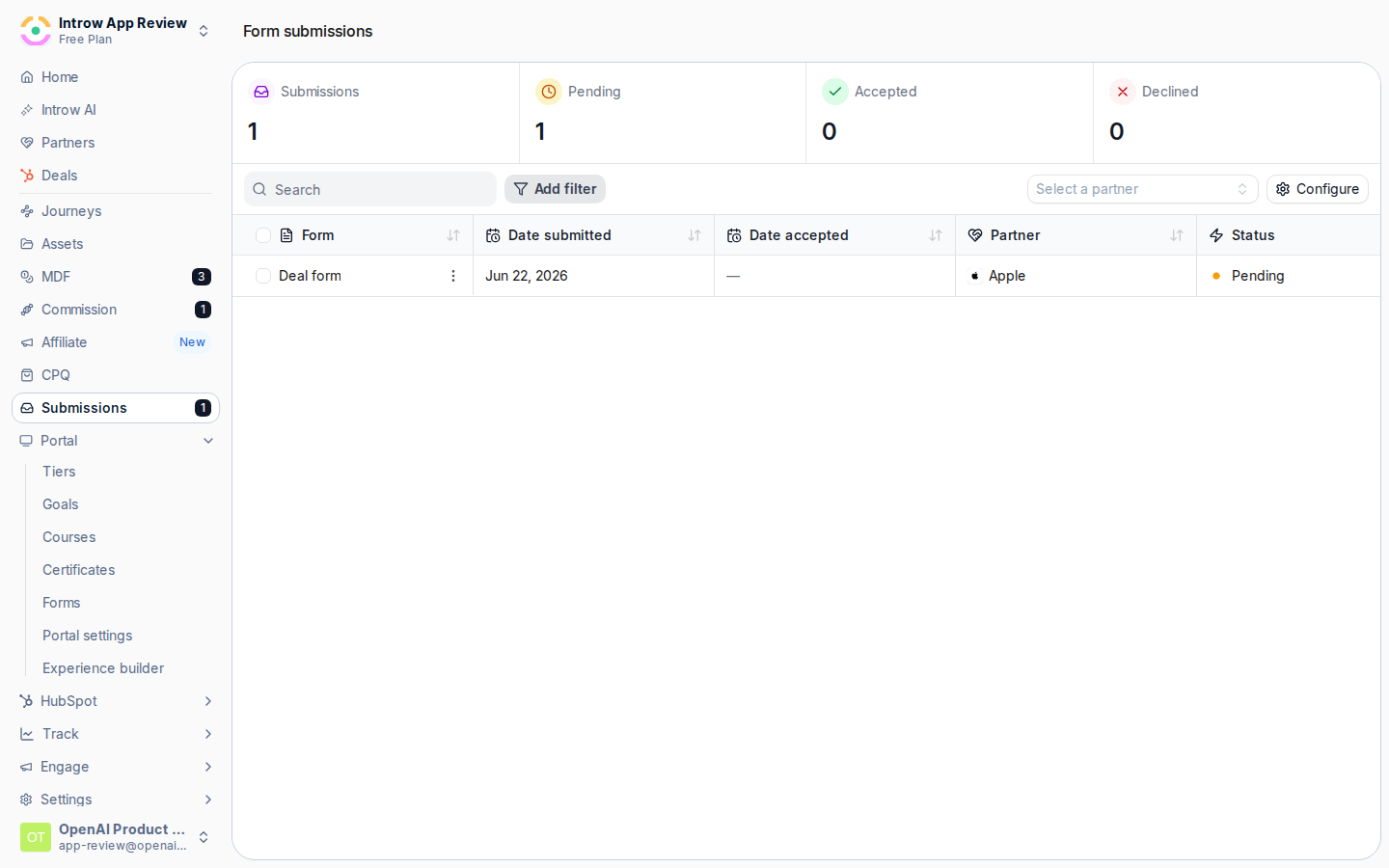 Choose **Configure** to open the column configuration. This is where you decide which properties appear as columns across every submission in the inbox.
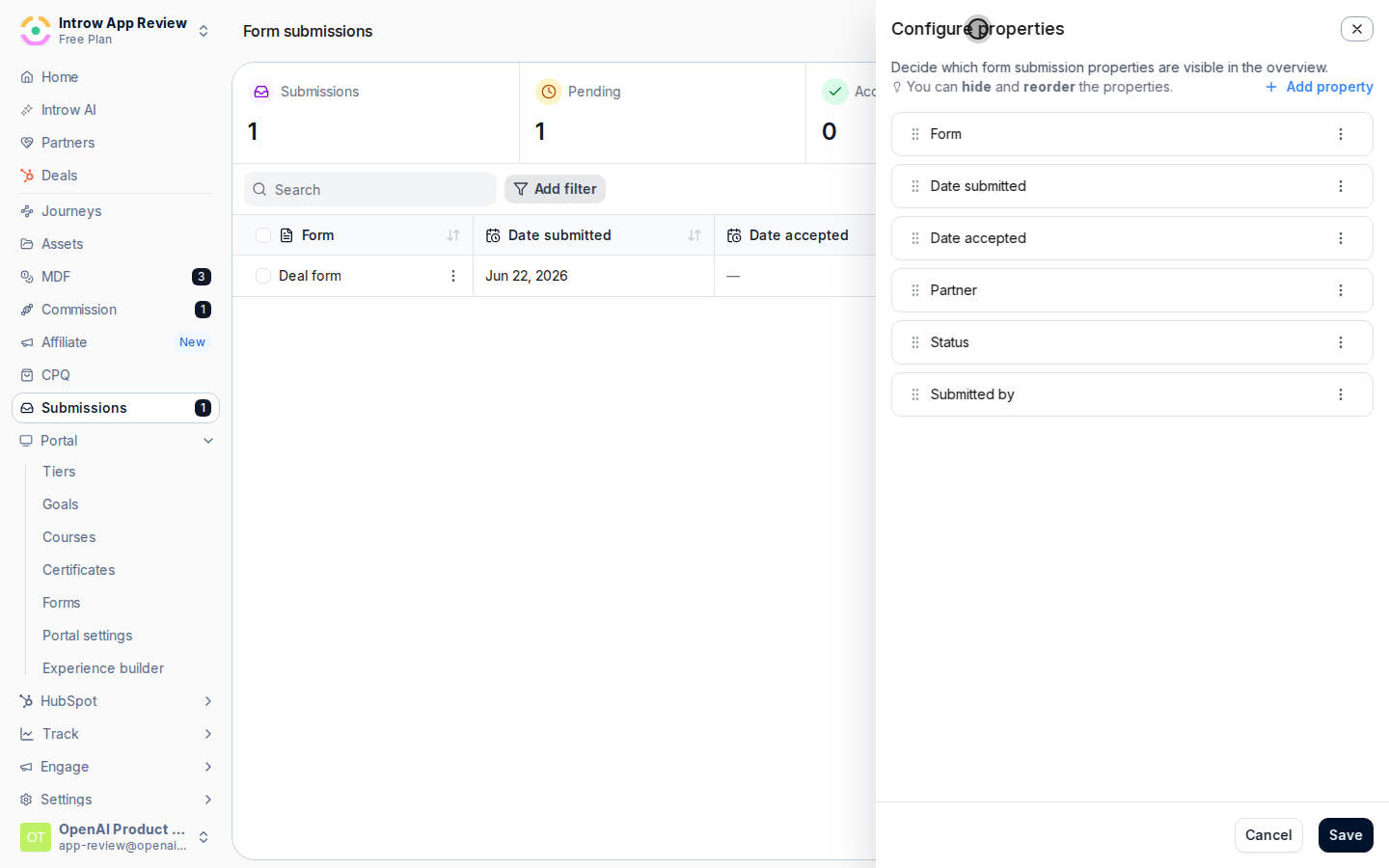
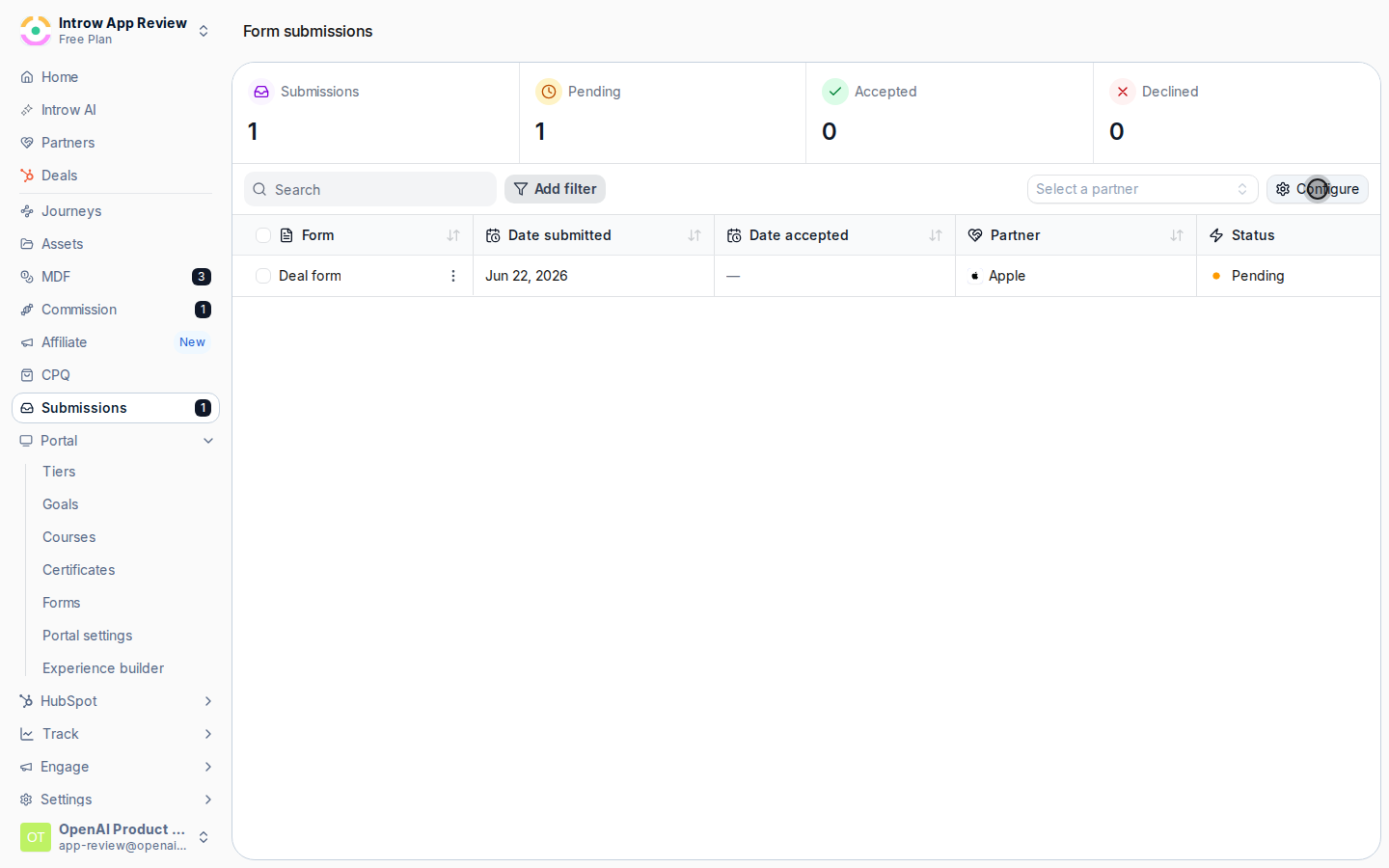 Add the columns you review by and remove the ones you do not need:
* Core fields - form, partner, the submitted and accepted dates, status, and submitter - keep the ones that drive your triage.
* Custom and CRM fields - add fields captured by the form or synced from your CRM, so values like deal size or region show inline. These are the columns that let you decide without opening a submission.
Order them so the most important sits left, where you read first.
Add the columns you review by and remove the ones you do not need:
* Core fields - form, partner, the submitted and accepted dates, status, and submitter - keep the ones that drive your triage.
* Custom and CRM fields - add fields captured by the form or synced from your CRM, so values like deal size or region show inline. These are the columns that let you decide without opening a submission.
Order them so the most important sits left, where you read first.
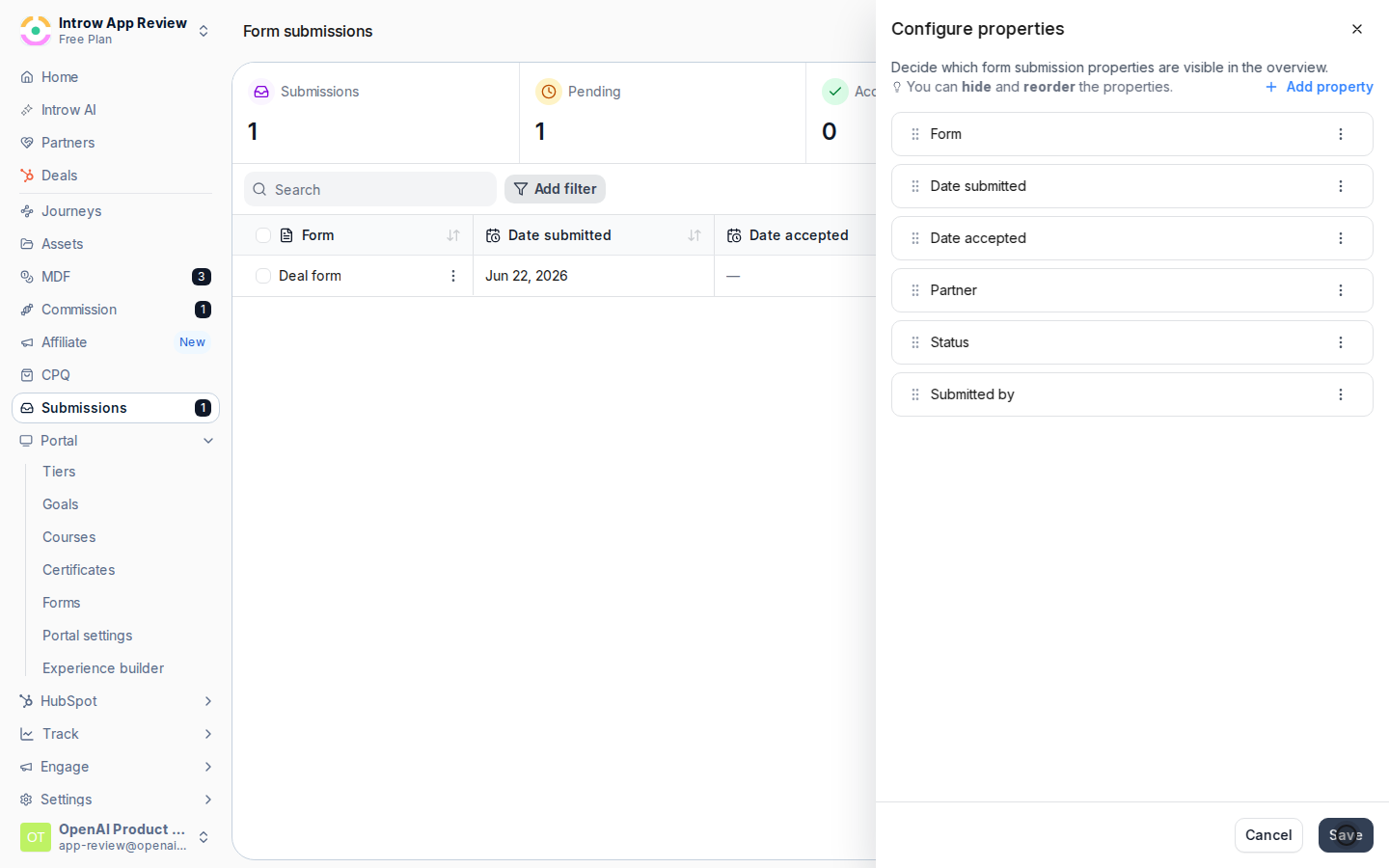
 Save so the inbox shows your chosen columns for every submission going forward.
 ## Verify it worked
The inbox shows your chosen columns - including any custom or CRM fields - for every submission, so you can triage and prioritize without opening each one.
## Related
Review and resolve the submissions you triage.
Surface CRM data in the inbox columns.
Full configuration options.
## Verify it worked
The inbox shows your chosen columns - including any custom or CRM fields - for every submission, so you can triage and prioritize without opening each one.
## Related
Review and resolve the submissions you triage.
Surface CRM data in the inbox columns.
Full configuration options.