> ## Documentation Index
> Fetch the complete documentation index at: https://docs.introw.io/llms.txt
> Use this file to discover all available pages before exploring further.
# Ways to submit a form
> Every way a partner can submit an Introw form: share link, website embed, email, Slack, Teams, AI assistant, bulk CSV upload, or API from your own systems.
> Every step between a partner's intent and the data landing in your CRM costs you submissions. Build the form once, then let partners submit through whichever entry point fits how they work: a link, an embed, email, Slack, Teams, an AI assistant, a bulk CSV, or a call from their own systems. Every channel feeds the same form and the same CRM automation, so the submission always lands attributed and clean.
You build one form, with its CRM automation, attribution, and duplicate checks, and then expose it through as many channels as you like. This guide covers each one. Pick the channels where your partners already are; you don't need all of them. Deal registration, lead sharing, and MDF have their own channel guides that reuse these same routes for those specific motions.
## What you'll achieve
The same form reachable through every channel your partners use, so participation no longer depends on a portal login. Each submission, wherever it started, runs through the form's automation and lands attributed to the right partner in your CRM.
## Before you start
Batch upload is a plan feature. If the option is missing from the share dialog, it is not on your plan yet - check what yours includes at [introw.io/pricing](https://introw.io/pricing).
A published form with its CRM automation, attribution, and duplicate checks should already exist, and every channel below feeds it. Build it in [Build and publish a form](/features/forms/form-builder/guides/build-and-publish-a-form) and map it in [Connect a form to your CRM](/features/forms/crm-automations/guides/connect-a-form-to-your-crm).
## Choose a channel
The lowest-friction way to submit is a link the partner opens and fills in anywhere. A **partner-specific link** attributes every submission to that partner automatically, so credit is never in question; a **general link** is open to anyone and arrives unattributed. Prefer the partner link whenever you send the form to a known partner.
In [Forms](https://app.introw.io/forms), open your form and choose **Share form**.
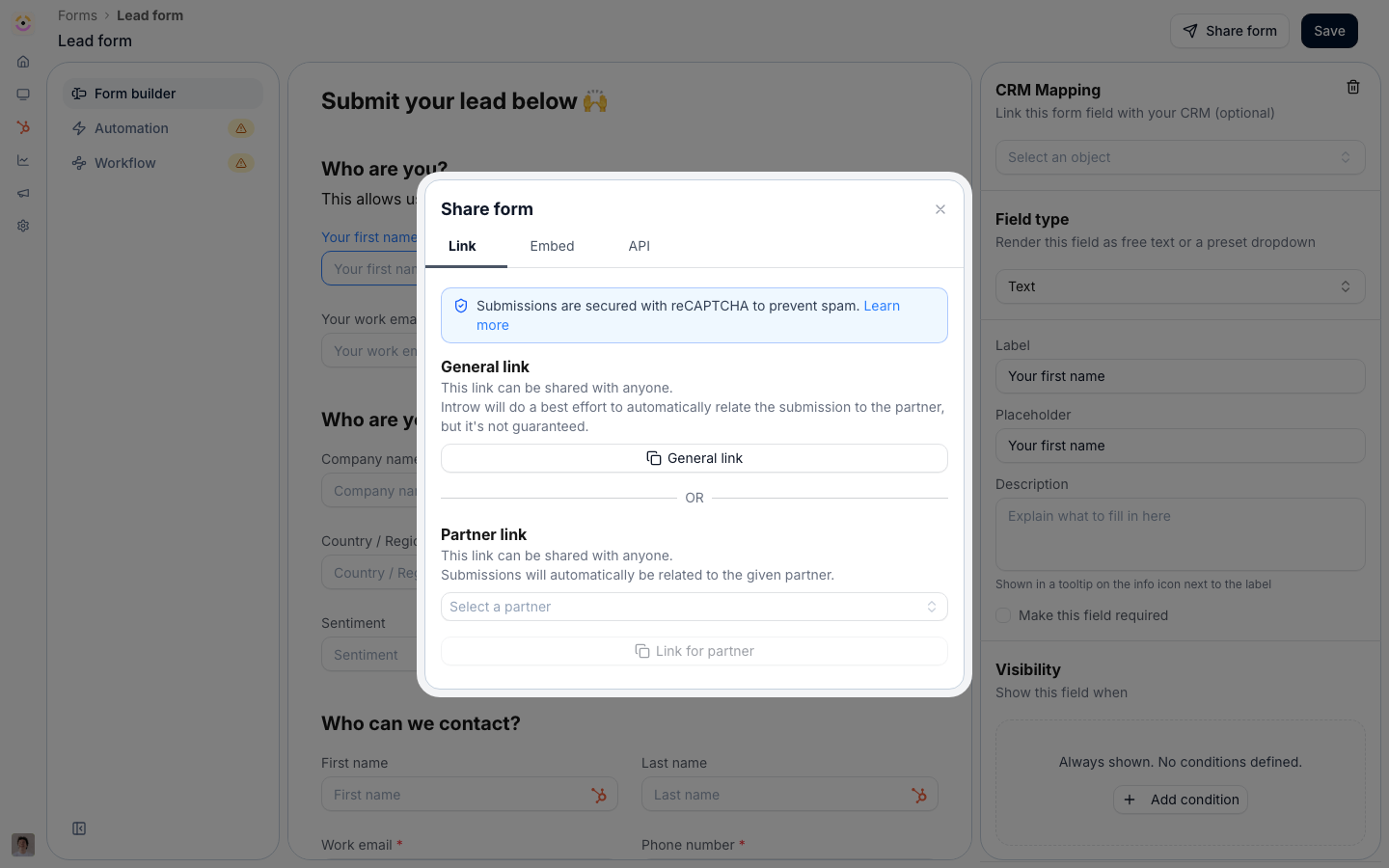 On the **Link** area, copy the **General link** to share with anyone, or the **Partner link** to attribute every submission to a specific partner.
Drop the link into an email, a portal message, or a Slack channel - anywhere your partners already are.
Some partners and prospects arrive on your own pages. Embedding the form there captures submissions in context, with your branding. Where the page is partner-specific, use an attributed embed so each submission credits the right partner. Embedding requires a custom domain; without one, share the link instead.
In the **Share form** dialog, switch to the **Embed** tab and copy the generated snippet.
Add the snippet to the page where you want partners to submit, such as a partner landing page or a website footer.
A partner often has the details mid email thread. Letting them forward that email captures the submission, with the AI agent reading it and filling in the form so it still lands attributed and CRM-ready. The [AI agent](/features/ai/partner-support) must be enabled for your program.
If your partners live in Slack, bringing the Introw agent into the channel lets them submit in the same place they already talk to your team: they give the agent the details in a message and it submits the form for them. Connect your workspace first, see [Connect Slack](/features/integrations/chat/guides/connect-slack).
On the **Link** area, copy the **General link** to share with anyone, or the **Partner link** to attribute every submission to a specific partner.
Drop the link into an email, a portal message, or a Slack channel - anywhere your partners already are.
Some partners and prospects arrive on your own pages. Embedding the form there captures submissions in context, with your branding. Where the page is partner-specific, use an attributed embed so each submission credits the right partner. Embedding requires a custom domain; without one, share the link instead.
In the **Share form** dialog, switch to the **Embed** tab and copy the generated snippet.
Add the snippet to the page where you want partners to submit, such as a partner landing page or a website footer.
A partner often has the details mid email thread. Letting them forward that email captures the submission, with the AI agent reading it and filling in the form so it still lands attributed and CRM-ready. The [AI agent](/features/ai/partner-support) must be enabled for your program.
If your partners live in Slack, bringing the Introw agent into the channel lets them submit in the same place they already talk to your team: they give the agent the details in a message and it submits the form for them. Connect your workspace first, see [Connect Slack](/features/integrations/chat/guides/connect-slack).
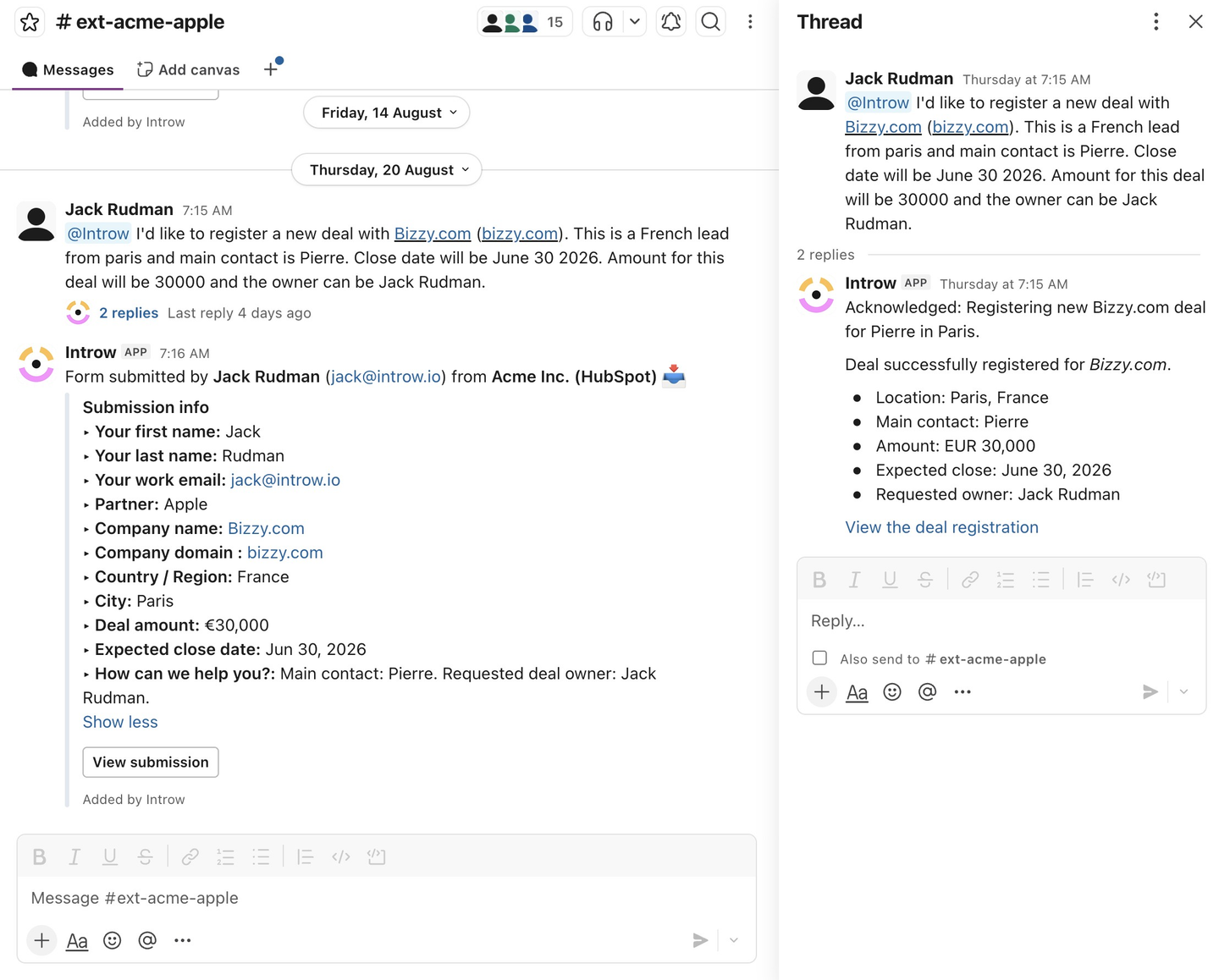 Same as Slack, for Teams-first partners. Connect your tenant first, see [Connect Microsoft Teams](/features/integrations/chat/guides/connect-microsoft-teams).
When a partner already works in an AI assistant, the lowest-friction path is to just ask it. An assistant connected to Introw over MCP fills in the form and submits it, attributed to the partner, without switching tools. See [Connect an MCP client](/features/developer/mcp/guides/connect-an-mcp-client) and, for partners running their own assistant, [Partner Connect](/features/partner-connect).
When a partner has a whole list rather than a single record, a batch upload field takes up to 1000 rows from one CSV. Partners download a template that already lists your allowed values, and a preview validates every row before submission. See [Bulk upload multiple records](./bulk-upload-multiple-records).
Sometimes no human should be filling in a form at all: a large partner's own portal already holds the deal, an internal tool has the lead, a script is backfilling history, or an agent has just gathered the details. The API submits the same form directly, attributed to the partner you name, and runs the same automation and approval flow. Get the form id and field ids from the **API** tab of the **Share form** dialog. See [Submit a form via the API](./submit-a-form-via-the-api).
## Verify it worked
Use whichever channel you set up to submit a test entry, then confirm it appears in [Submissions](https://app.introw.io/submissions) under **Form submissions**, attributed to the right partner, with the matching record synced to your CRM.
## Related
Submit a whole list at once from a validated CSV.
Set up the automation, attribution, and checks every channel feeds.
Let your own systems or an agent submit the form directly.
The same channels, applied to the referral motion.
Let assistants submit through Introw's MCP server.
Same as Slack, for Teams-first partners. Connect your tenant first, see [Connect Microsoft Teams](/features/integrations/chat/guides/connect-microsoft-teams).
When a partner already works in an AI assistant, the lowest-friction path is to just ask it. An assistant connected to Introw over MCP fills in the form and submits it, attributed to the partner, without switching tools. See [Connect an MCP client](/features/developer/mcp/guides/connect-an-mcp-client) and, for partners running their own assistant, [Partner Connect](/features/partner-connect).
When a partner has a whole list rather than a single record, a batch upload field takes up to 1000 rows from one CSV. Partners download a template that already lists your allowed values, and a preview validates every row before submission. See [Bulk upload multiple records](./bulk-upload-multiple-records).
Sometimes no human should be filling in a form at all: a large partner's own portal already holds the deal, an internal tool has the lead, a script is backfilling history, or an agent has just gathered the details. The API submits the same form directly, attributed to the partner you name, and runs the same automation and approval flow. Get the form id and field ids from the **API** tab of the **Share form** dialog. See [Submit a form via the API](./submit-a-form-via-the-api).
## Verify it worked
Use whichever channel you set up to submit a test entry, then confirm it appears in [Submissions](https://app.introw.io/submissions) under **Form submissions**, attributed to the right partner, with the matching record synced to your CRM.
## Related
Submit a whole list at once from a validated CSV.
Set up the automation, attribution, and checks every channel feeds.
Let your own systems or an agent submit the form directly.
The same channels, applied to the referral motion.
Let assistants submit through Introw's MCP server.