> ## Documentation Index
> Fetch the complete documentation index at: https://docs.introw.io/llms.txt
> Use this file to discover all available pages before exploring further.
# Submit a form via the API
> Submit any Introw form from your own systems: fetch its schema for field ids and picklists, post with a scoped API key, and run the same automations.
> Some submissions should never require a human to open a form. A partner's own portal writes a deal into your system, an internal tool has the lead already, a script backfills 400 registrations, an agent has just gathered the details. The API makes those a first-class submission: same automation, same attribution, same approval queue as a partner filling in the form by hand.
This guide takes you from a form you already built to your first API submission, and shows you where the ids come from so you never have to guess them.
## What you'll achieve
Any of your systems able to submit an Introw form over HTTP, from anywhere, with no browser and no portal login. The submission is attributed to the right partner, runs through the form's CRM automation, and, when the form has an approval step, waits in your submissions inbox exactly like a portal submission.
## Before you start
The API submits an existing form, it does not define one. Build it in [Build and publish a form](/features/forms/form-builder/guides/build-and-publish-a-form) and map its automation in [Connect a form to your CRM](/features/forms/crm-automations/guides/connect-a-form-to-your-crm).
Every plan includes API access with a monthly allowance of [API credits](/general/api-credits). One submission spends one credit, and the allowance resets on the first of the month.
Create an API key with the **Forms - Write** permission and copy the secret once. Add **Forms - Read** too if you want to fetch the form's schema from code (see the next section). See [Create and manage API keys](/features/developer/api/guides/create-and-manage-api-keys).
## Watch it
## Steps
### Get the form id and its field ids
You have two ways to discover a form's fields: fetch its schema from the API (recommended when your code needs to react to form changes), or copy them out of the Share dialog (fine for a one-off script).
#### Option A: fetch the schema from the API
Open [Forms](https://app.introw.io/forms), open the form, and copy the form id from its URL or from **Share form → API**.
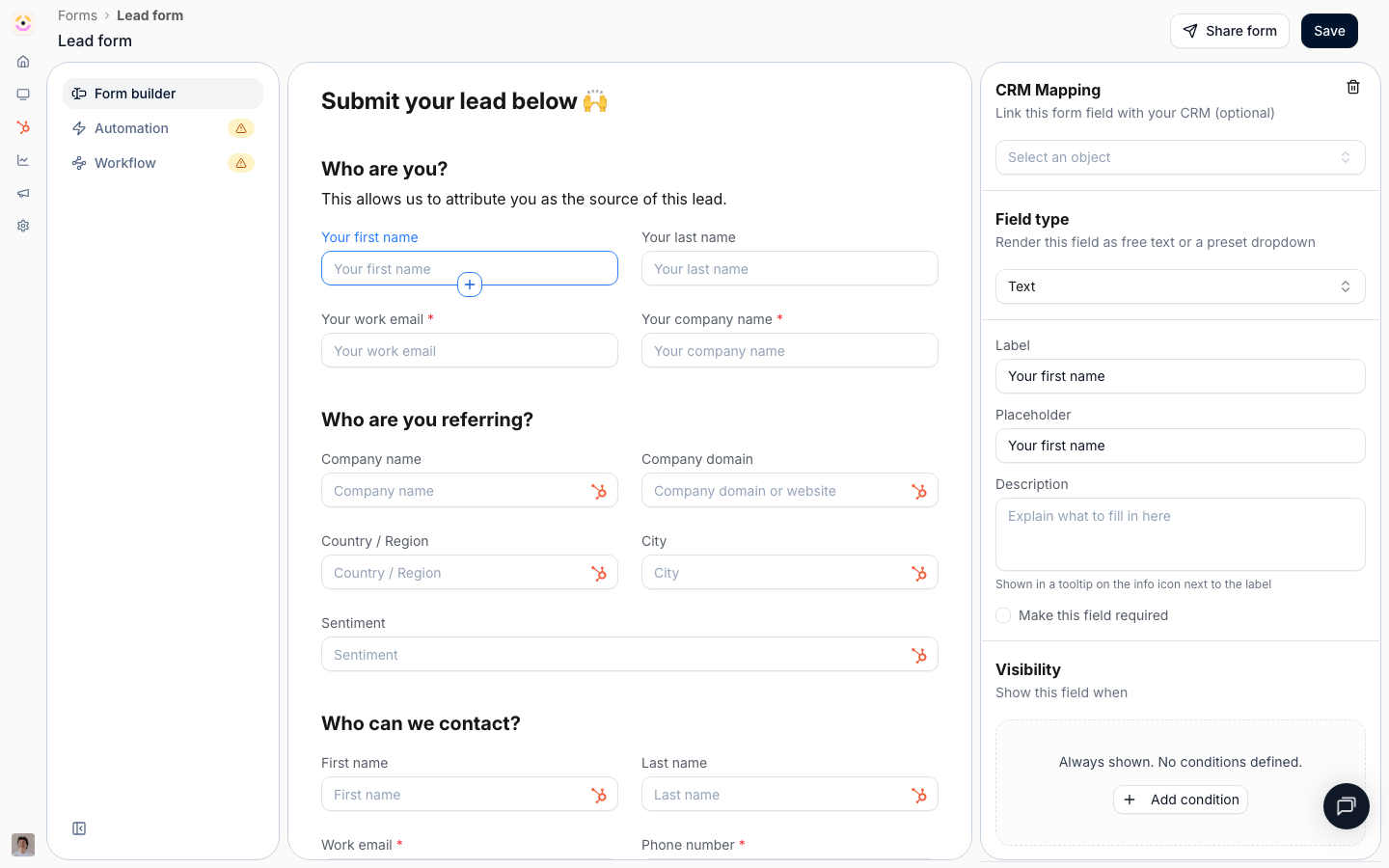 Use a key with the `forms:read` scope (or `forms:write`), and call `GET /api/v1/forms/{formId}/schema` to read the field ids.
```bash theme={"theme":{"light":"github-light","dark":"github-dark"}}
curl "https://api.introw.io/api/v1/forms/$FORM_ID/schema" \
-H "x-api-key: $INTROW_API_KEY"
```
The response lists every submittable field with its `id` (the key to use in the submission's `fields` map), `label`, `isRequired`, `dataType` (what value shape to send: `STRING`, `NUMBER`, `EMAIL`, `DATE`, `DROPDOWN`, `PARTNER_SELECT`, and so on), and, for `DROPDOWN`, `DROPDOWN_MULTI`, and `PARTNER_SELECT`, the resolved `options` you can send as `value`. Field ids are opaque strings like `qkzv8h2m4t6r1yc9pd3sxf70` and stable across form edits. The full value-shape table is in [Form submissions](/general/forms-overview#what-to-send-per-field).
The Share dialog spells out this call for the form you are looking at, so you can copy the exact path:
Use a key with the `forms:read` scope (or `forms:write`), and call `GET /api/v1/forms/{formId}/schema` to read the field ids.
```bash theme={"theme":{"light":"github-light","dark":"github-dark"}}
curl "https://api.introw.io/api/v1/forms/$FORM_ID/schema" \
-H "x-api-key: $INTROW_API_KEY"
```
The response lists every submittable field with its `id` (the key to use in the submission's `fields` map), `label`, `isRequired`, `dataType` (what value shape to send: `STRING`, `NUMBER`, `EMAIL`, `DATE`, `DROPDOWN`, `PARTNER_SELECT`, and so on), and, for `DROPDOWN`, `DROPDOWN_MULTI`, and `PARTNER_SELECT`, the resolved `options` you can send as `value`. Field ids are opaque strings like `qkzv8h2m4t6r1yc9pd3sxf70` and stable across form edits. The full value-shape table is in [Form submissions](/general/forms-overview#what-to-send-per-field).
The Share dialog spells out this call for the form you are looking at, so you can copy the exact path:
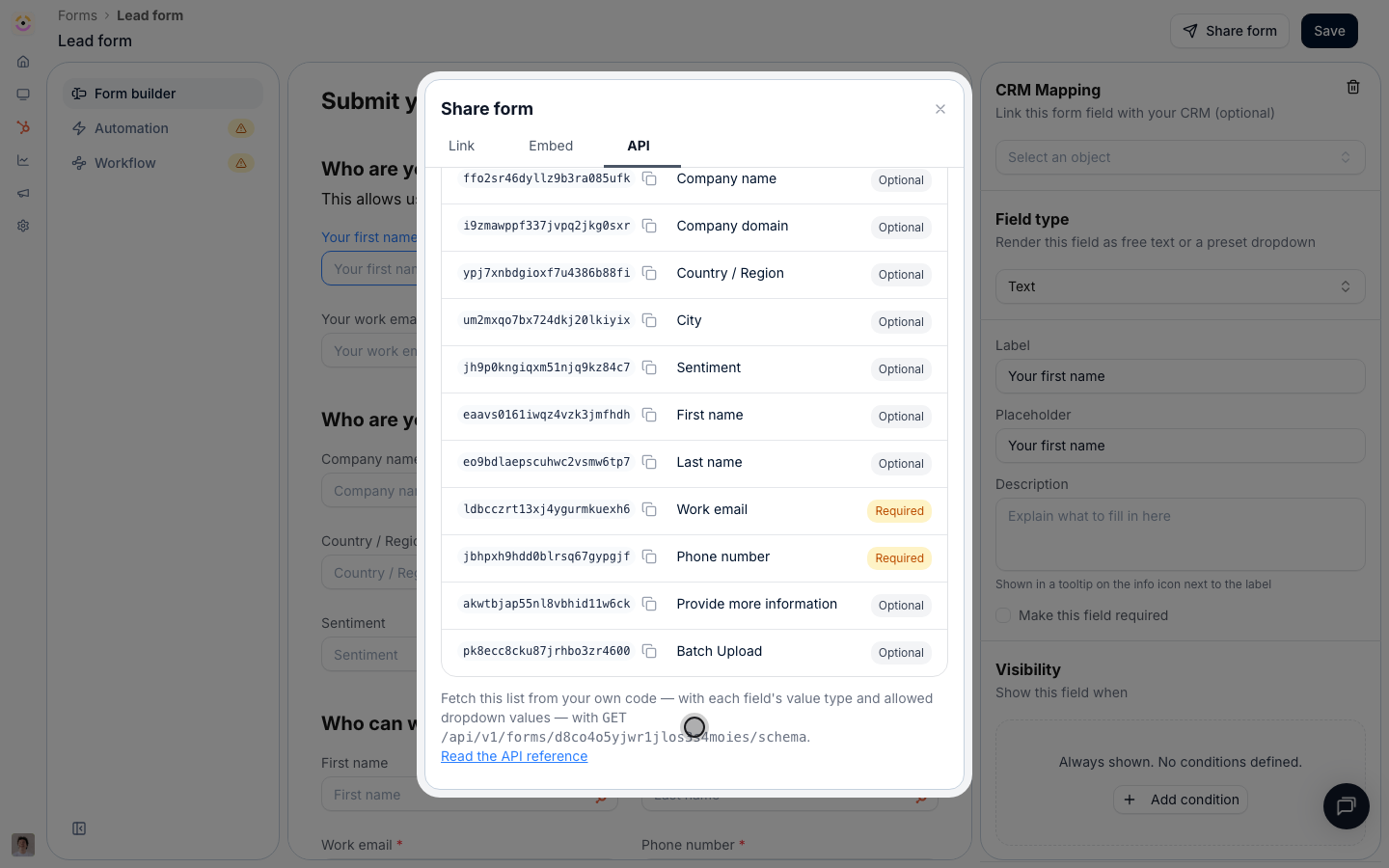 The schema is resolved live, so don't cache it indefinitely. Re-fetch it whenever the form's fields might have changed, or whenever a picklist behind a `DROPDOWN` has been synced from the CRM. Both change what a valid submission looks like.
Do not hand-write field ids from labels. Read them from the schema (or the Share dialog), and re-check them whenever the form changes.
#### Option B: copy from the Share dialog
Go to [Forms](https://app.introw.io/forms), open the form, and select **Share form**.
The schema is resolved live, so don't cache it indefinitely. Re-fetch it whenever the form's fields might have changed, or whenever a picklist behind a `DROPDOWN` has been synced from the CRM. Both change what a valid submission looks like.
Do not hand-write field ids from labels. Read them from the schema (or the Share dialog), and re-check them whenever the form changes.
#### Option B: copy from the Share dialog
Go to [Forms](https://app.introw.io/forms), open the form, and select **Share form**.
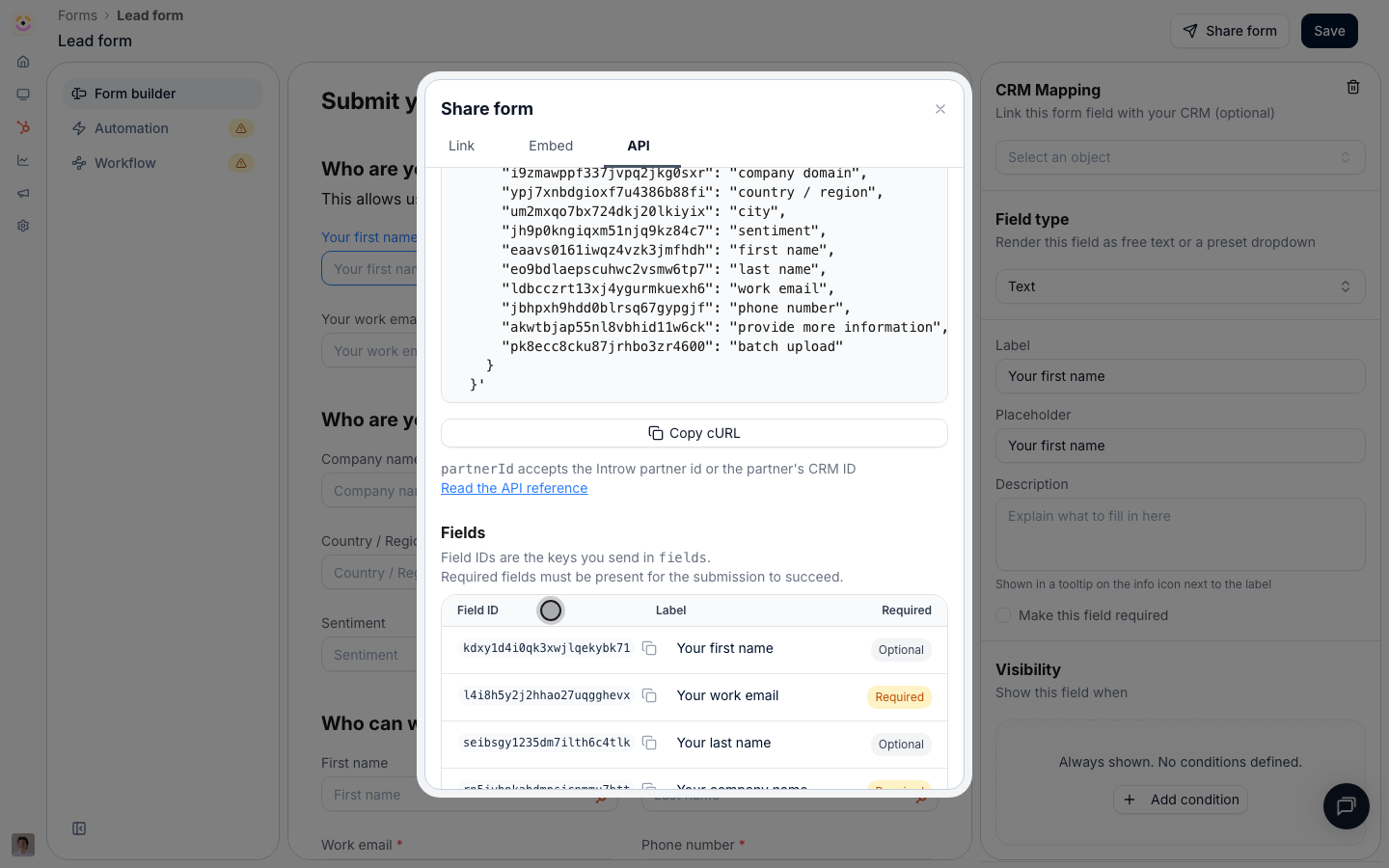
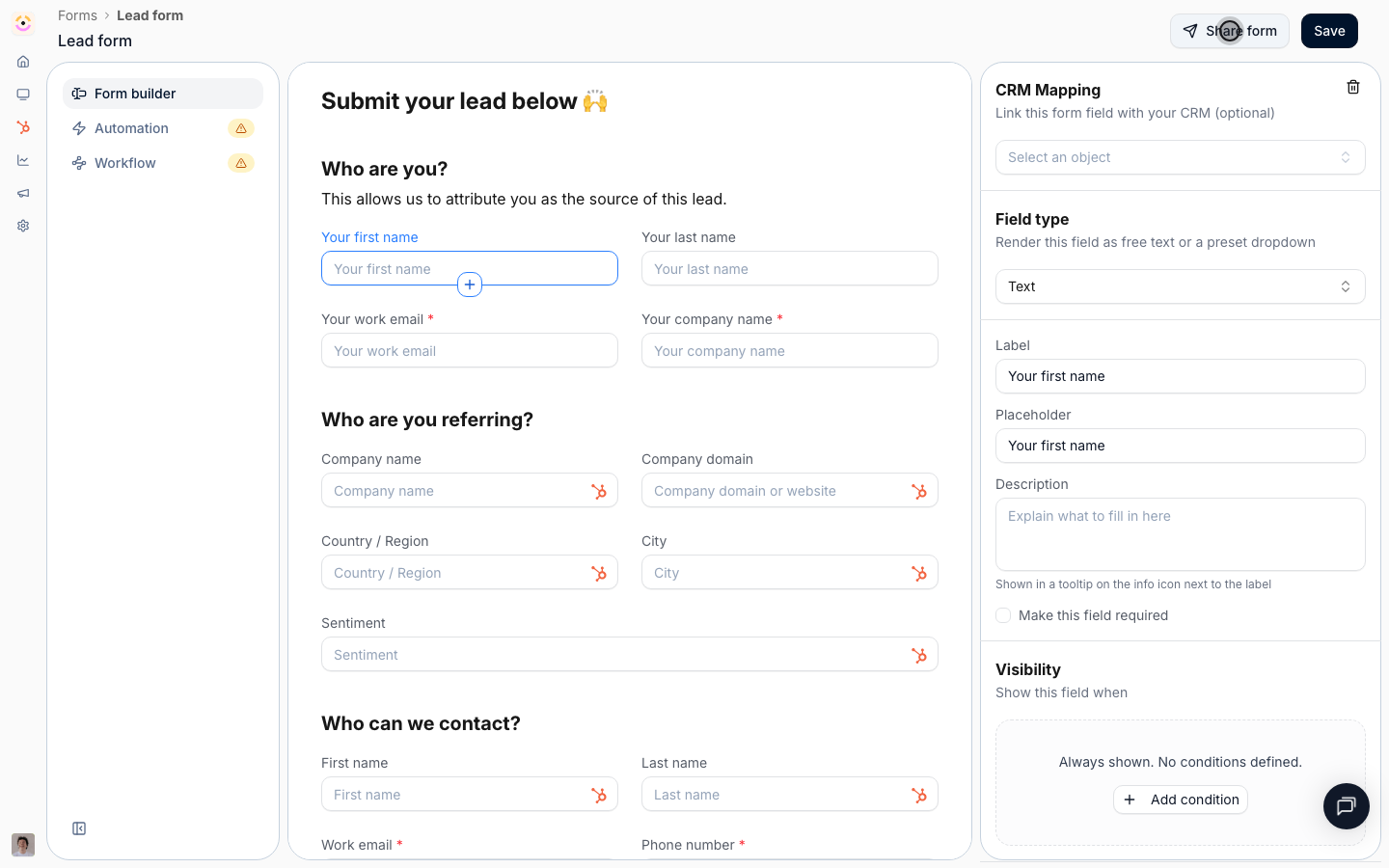 Select **API**. This tab turns the form into a request: it shows the endpoint, the header to authenticate with, and a runnable cURL snippet already carrying this form's id and every one of its field ids. **Manage API keys** links straight to where you create the key.
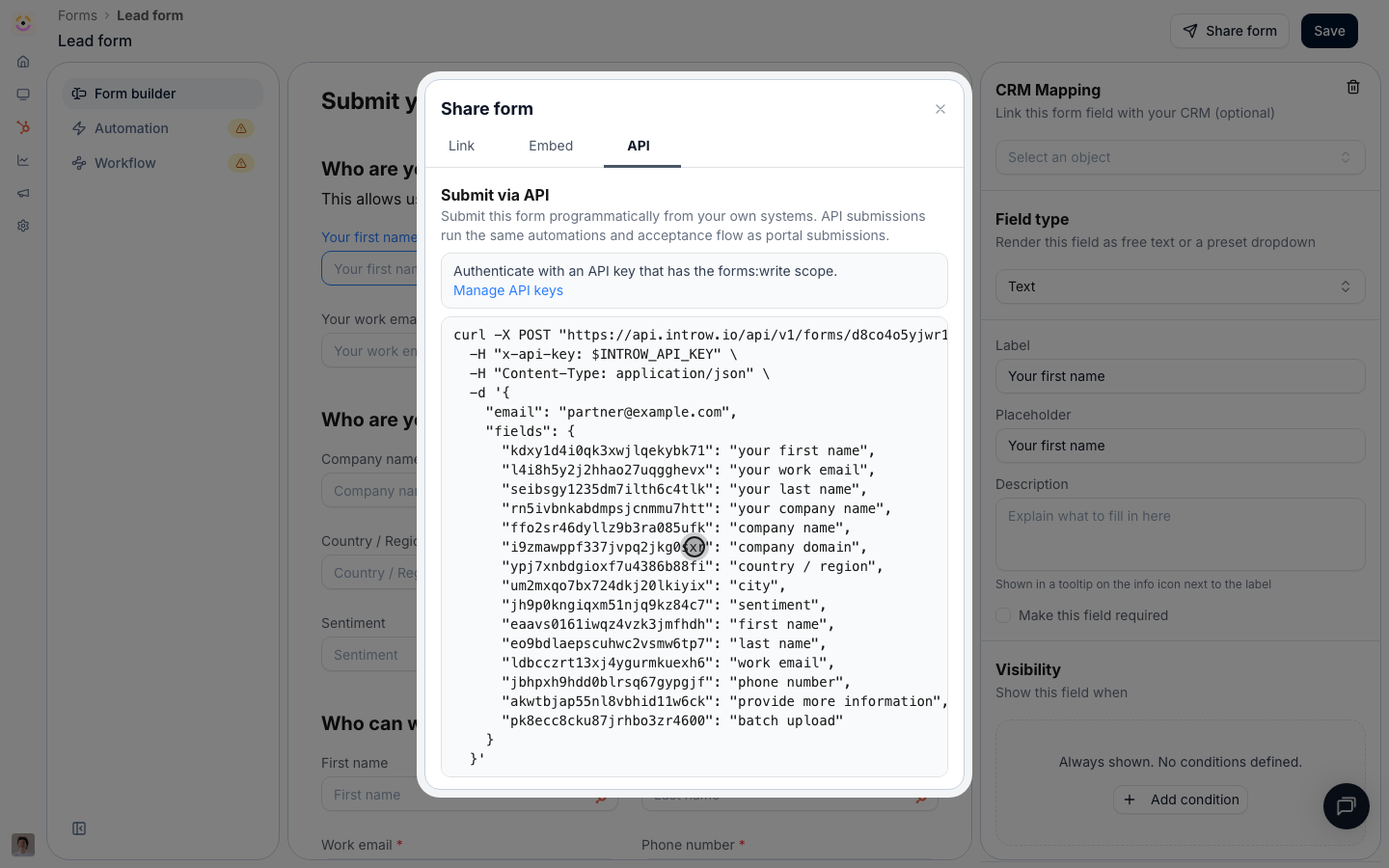
 Below the snippet, the **Fields** table lists each field's **id**, its **label**, and whether it is **required**, the same information the schema endpoint returns. Each id has a copy button. The note under the table points at `GET /api/v1/forms/{formId}/schema` for the same list in code, with value types and allowed dropdown values.
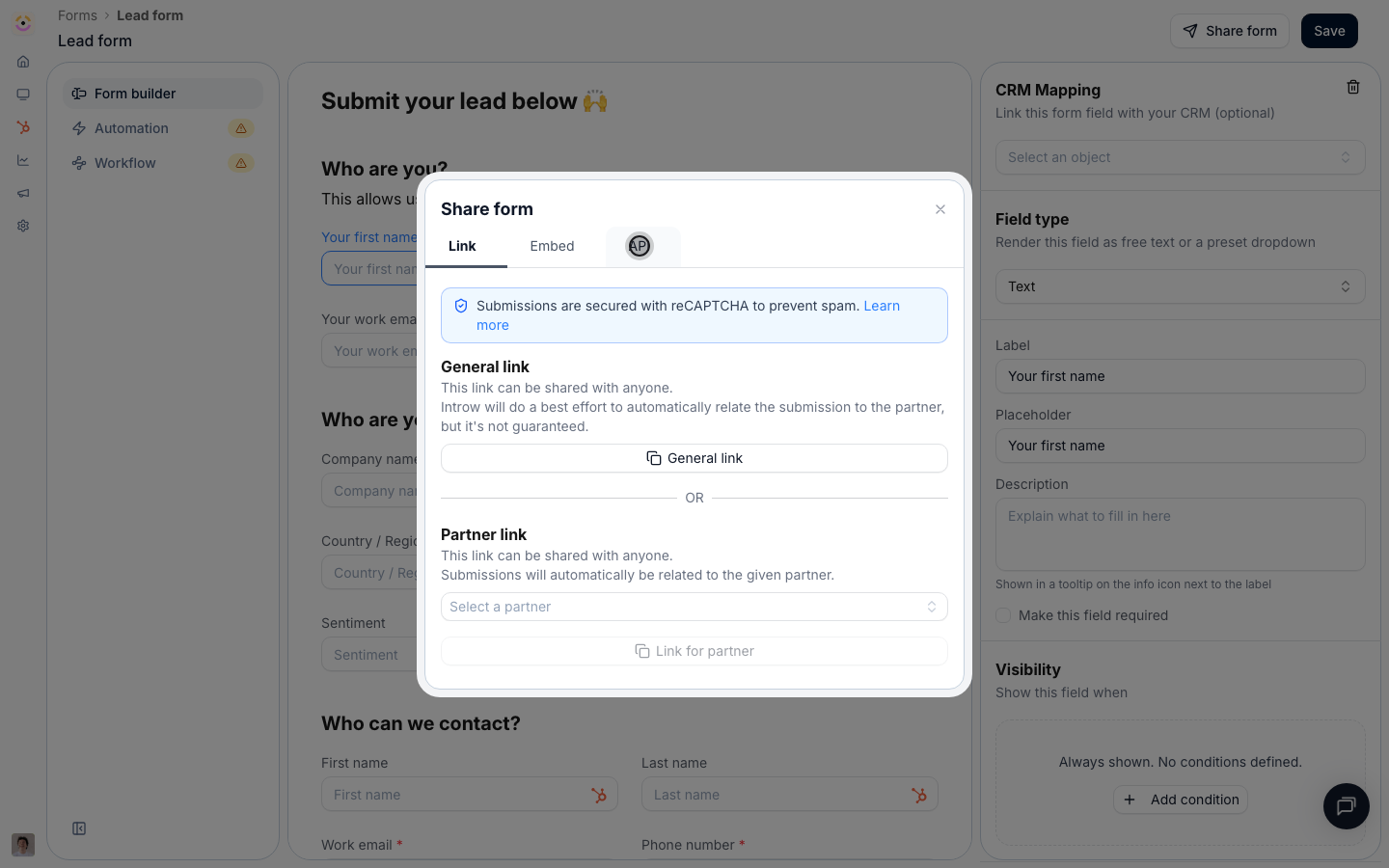
 Pick a partner on the **Link** tab before switching back, and the snippet comes back with that partner's `partnerId` already filled in. Handy for testing against a real partner.
### Post your first submission
Select **Copy cURL**, then set `INTROW_API_KEY` to the key you created. Swap the placeholder values for real ones.
```bash theme={"theme":{"light":"github-light","dark":"github-dark"}}
curl -X POST "https://api.introw.io/api/v1/forms/$FORM_ID/submissions" \
-H "x-api-key: $INTROW_API_KEY" \
-H "Content-Type: application/json" \
-d '{
"email": "jamie@partner.example",
"partnerId": "ptn_01HVK6Y8Z8Q7J8J8J8J8J8J8J8",
"fields": {
"qkzv8h2m4t6r1yc9pd3sxf70": "Globex Corporation",
"b3n7wq1k5rt9x2ycp8ds4hf6": "45000"
}
}'
```
Send `partnerId` whenever your system knows which partner it is acting for. It takes the Introw partner id **or** the partner's CRM external id, so pass whichever you already store; an unknown value comes back as `404` instead of quietly landing unattributed. With only `email`, Introw resolves the submitter and applies the form's identification automations. With neither, the submission is accepted but unattributed, just like a general share link.
A `201` returns the submission id and its status. `AUTO_ACCEPTED` means the form has no approval step and the automation has already run. `PENDING` means it is waiting in your inbox for review. Keep the returned `id` if you want to comment on the submission later.
### Link the partner's own CRM records
When the submitting partner runs their own CRM and you have the record ids, attach them so both sides point at the same deal:
```json theme={"theme":{"light":"github-light","dark":"github-dark"}}
{
"partnerObjects": [
{ "objectType": "deal", "objectId": "9840193344" }
]
}
```
## Verify it worked
Open [Submissions](https://app.introw.io/submissions). The submission appears under **Form submissions** with the partner you attributed it to, indistinguishable from a portal submission apart from its source. If the form auto-accepts, the mapped record already exists in your CRM. If it has an approval step, the submission sits as **Pending** and your reviewers are notified as usual.
## Limits & gotchas
Keep the call server-side: it authenticates with a secret key, and the reCAPTCHA that protects the public link and embed does not apply here. Unknown keys in `fields` are ignored, but a missing required field returns `422`. A `404` on the form itself usually means the form has no CRM automation configured yet, not that the id is wrong.
* **120 requests per minute per key.** Every response carries `x-ratelimit-remaining-minute`; over the limit you get `429`. For a backfill, submit sequentially with a small delay and retry after the minute rolls over.
* **One request per submission.** A batch upload field is the portal's bulk-CSV control and carries no value over the API, so loop instead. See [Bulk upload multiple records](./bulk-upload-multiple-records) for the partner-facing path.
* **Picklist labels are tolerated.** `"Qualified to buy"` resolves to `qualifiedtobuy` case-insensitively, and a `PARTNER_SELECT` field accepts a partner name, but send `value` when you have it. A value matching no option is passed through as sent.
* **Nothing is deduplicated by the API.** Keep the returned submission id against your source record so a retried run does not submit twice.
## Troubleshooting
* **`403 Forbidden`** - the key is valid but lacks `forms:write`, or the submitter is not allowed to process quotes on this form.
* **`404 FORM_NOT_FOUND`** - the id is wrong, or the form has no automation configured.
* **`404 PARTNER_NOT_FOUND`** - `partnerId` matched neither an Introw id nor a CRM external id.
* **`422 VALIDATION_ERROR`** - a value failed the form's own validation, or a required field was missing. Re-check the **Fields** table.
* **`422 MDF_FUND_EXPIRED`** - the marketing fund behind this form is no longer active.
* **`429 RATE_LIMIT_EXCEEDED`** - more than 120 requests in the current minute on this key.
* **The submission arrived unattributed** - you sent neither `partnerId` nor a resolvable `email`.
## Related
The full reference: value shapes, attribution, statuses, errors, rate limits, and code samples.
Every other channel the same form is reachable through.
Create the scoped key this guide uses.
Pick a partner on the **Link** tab before switching back, and the snippet comes back with that partner's `partnerId` already filled in. Handy for testing against a real partner.
### Post your first submission
Select **Copy cURL**, then set `INTROW_API_KEY` to the key you created. Swap the placeholder values for real ones.
```bash theme={"theme":{"light":"github-light","dark":"github-dark"}}
curl -X POST "https://api.introw.io/api/v1/forms/$FORM_ID/submissions" \
-H "x-api-key: $INTROW_API_KEY" \
-H "Content-Type: application/json" \
-d '{
"email": "jamie@partner.example",
"partnerId": "ptn_01HVK6Y8Z8Q7J8J8J8J8J8J8J8",
"fields": {
"qkzv8h2m4t6r1yc9pd3sxf70": "Globex Corporation",
"b3n7wq1k5rt9x2ycp8ds4hf6": "45000"
}
}'
```
Send `partnerId` whenever your system knows which partner it is acting for. It takes the Introw partner id **or** the partner's CRM external id, so pass whichever you already store; an unknown value comes back as `404` instead of quietly landing unattributed. With only `email`, Introw resolves the submitter and applies the form's identification automations. With neither, the submission is accepted but unattributed, just like a general share link.
A `201` returns the submission id and its status. `AUTO_ACCEPTED` means the form has no approval step and the automation has already run. `PENDING` means it is waiting in your inbox for review. Keep the returned `id` if you want to comment on the submission later.
### Link the partner's own CRM records
When the submitting partner runs their own CRM and you have the record ids, attach them so both sides point at the same deal:
```json theme={"theme":{"light":"github-light","dark":"github-dark"}}
{
"partnerObjects": [
{ "objectType": "deal", "objectId": "9840193344" }
]
}
```
## Verify it worked
Open [Submissions](https://app.introw.io/submissions). The submission appears under **Form submissions** with the partner you attributed it to, indistinguishable from a portal submission apart from its source. If the form auto-accepts, the mapped record already exists in your CRM. If it has an approval step, the submission sits as **Pending** and your reviewers are notified as usual.
## Limits & gotchas
Keep the call server-side: it authenticates with a secret key, and the reCAPTCHA that protects the public link and embed does not apply here. Unknown keys in `fields` are ignored, but a missing required field returns `422`. A `404` on the form itself usually means the form has no CRM automation configured yet, not that the id is wrong.
* **120 requests per minute per key.** Every response carries `x-ratelimit-remaining-minute`; over the limit you get `429`. For a backfill, submit sequentially with a small delay and retry after the minute rolls over.
* **One request per submission.** A batch upload field is the portal's bulk-CSV control and carries no value over the API, so loop instead. See [Bulk upload multiple records](./bulk-upload-multiple-records) for the partner-facing path.
* **Picklist labels are tolerated.** `"Qualified to buy"` resolves to `qualifiedtobuy` case-insensitively, and a `PARTNER_SELECT` field accepts a partner name, but send `value` when you have it. A value matching no option is passed through as sent.
* **Nothing is deduplicated by the API.** Keep the returned submission id against your source record so a retried run does not submit twice.
## Troubleshooting
* **`403 Forbidden`** - the key is valid but lacks `forms:write`, or the submitter is not allowed to process quotes on this form.
* **`404 FORM_NOT_FOUND`** - the id is wrong, or the form has no automation configured.
* **`404 PARTNER_NOT_FOUND`** - `partnerId` matched neither an Introw id nor a CRM external id.
* **`422 VALIDATION_ERROR`** - a value failed the form's own validation, or a required field was missing. Re-check the **Fields** table.
* **`422 MDF_FUND_EXPIRED`** - the marketing fund behind this form is no longer active.
* **`429 RATE_LIMIT_EXCEEDED`** - more than 120 requests in the current minute on this key.
* **The submission arrived unattributed** - you sent neither `partnerId` nor a resolvable `email`.
## Related
The full reference: value shapes, attribution, statuses, errors, rate limits, and code samples.
Every other channel the same form is reachable through.
Create the scoped key this guide uses.