> ## Documentation Index
> Fetch the complete documentation index at: https://docs.introw.io/llms.txt
> Use this file to discover all available pages before exploring further.
# Bulk upload multiple records
> Let partners submit many records in one form with a CSV batch upload.
> For partner ops collecting batches of records - lists of leads, end customers, or assets - from partners.
Sometimes a partner needs to hand over many records at once rather than filling out a form repeatedly. A batch upload field lets them submit a whole list in one CSV pass, and each row flows into your CRM like any other submission. This is the right tool when the unit of work is a spreadsheet, not a single entry.
## What you'll achieve
A form with a batch upload field where partners download a pre-built CSV template, fill in up to 1000 rows, and submit them all in one go - each row mapped to the right CRM object and properties so it lands as a clean record.
## Before you start
You need write access to forms.
Know the fields each record needs and how they should map to your CRM. The mapping model is covered in [Connect a form to your CRM](/features/forms/crm-field-mapping/guides/connect-a-form-to-your-crm).
## Watch it
## Steps
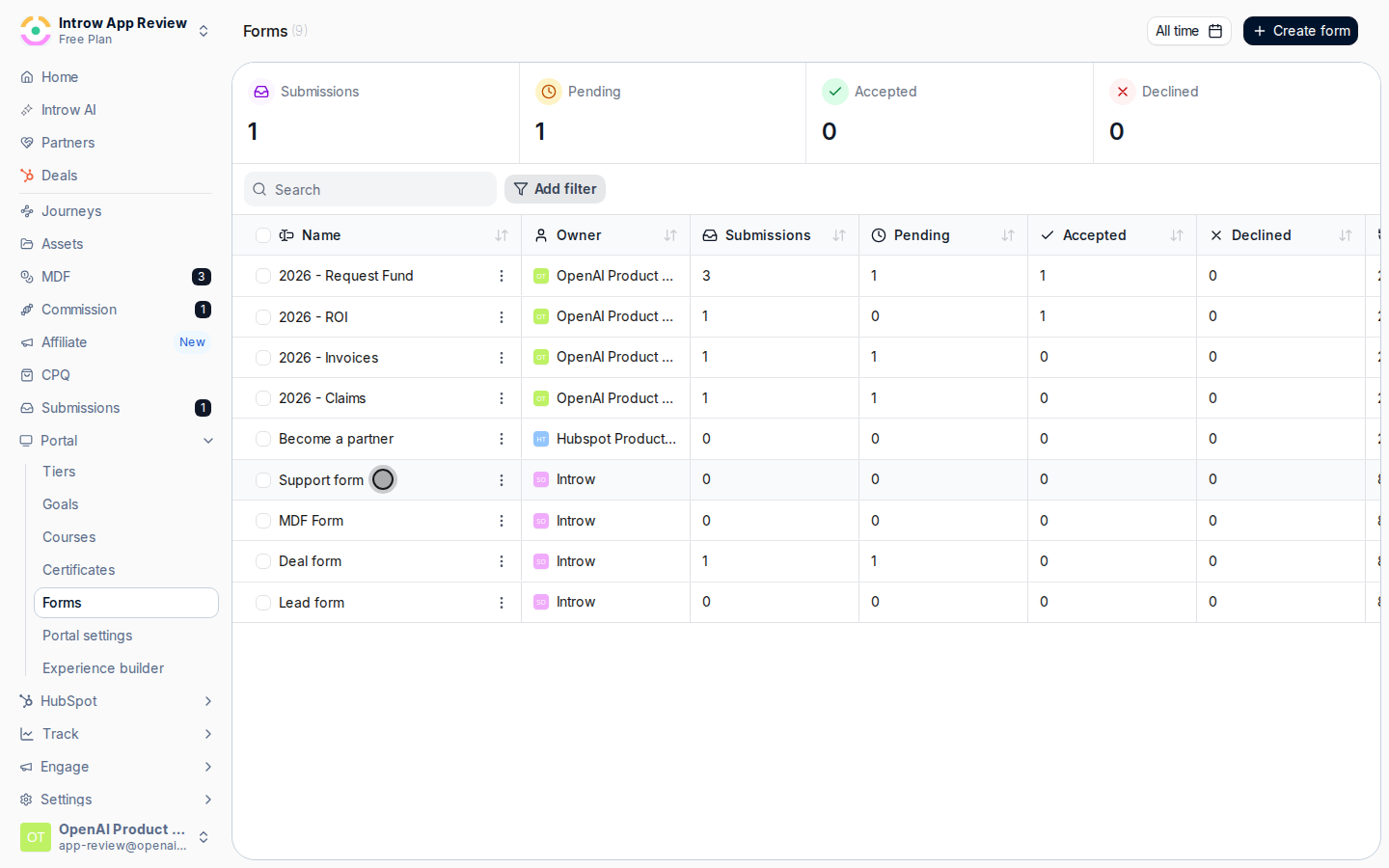
Go to [Forms](https://app.introw.io/forms) and open the form on its **Form builder** tab. Use an existing form or build a new one first (see [Build and publish a form](./build-and-publish-a-form)).
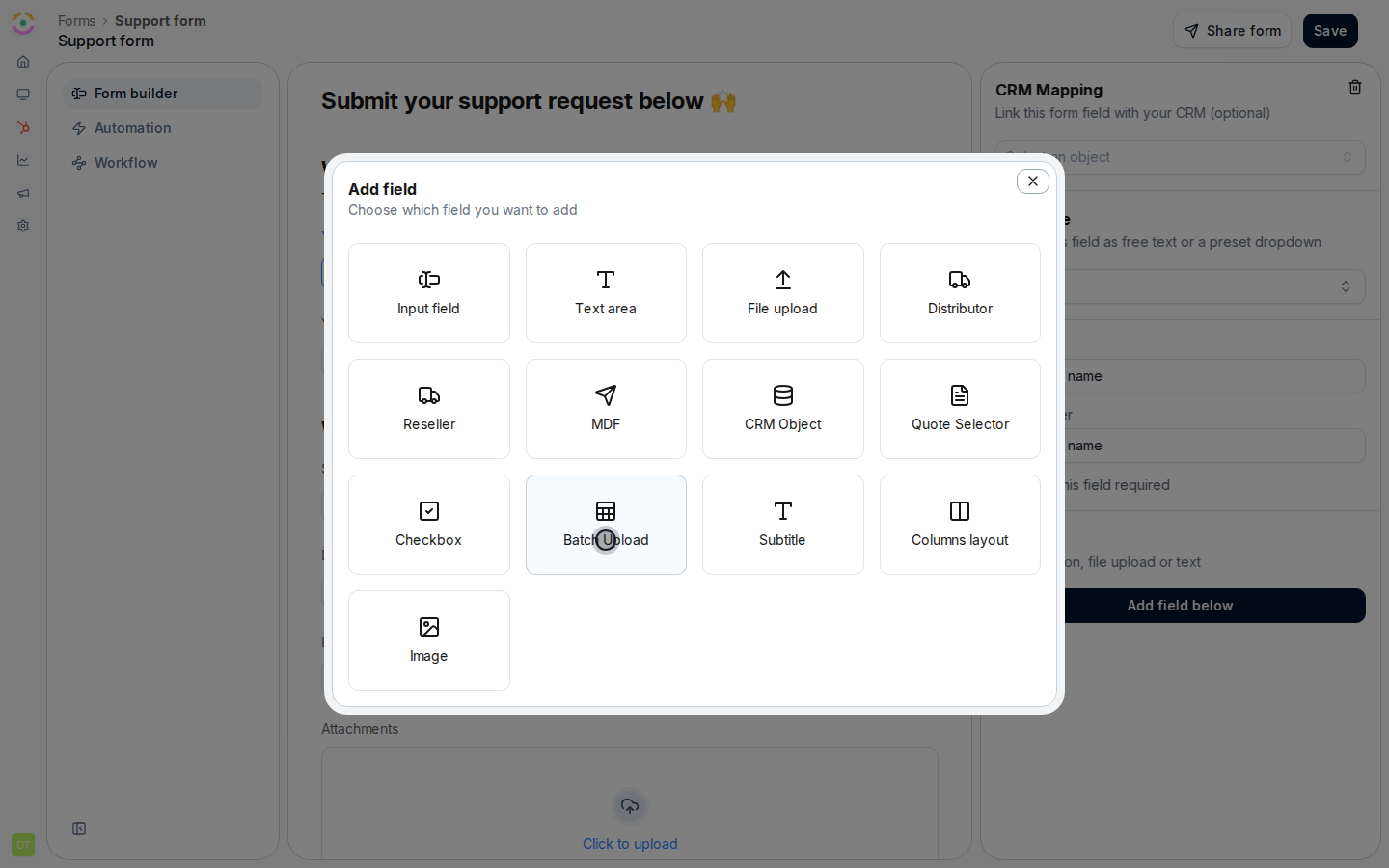
 Use **Add field** and choose **Batch Upload**. This replaces single-entry inputs with one control that accepts a CSV of many rows, so a partner submits a list instead of one record at a time.
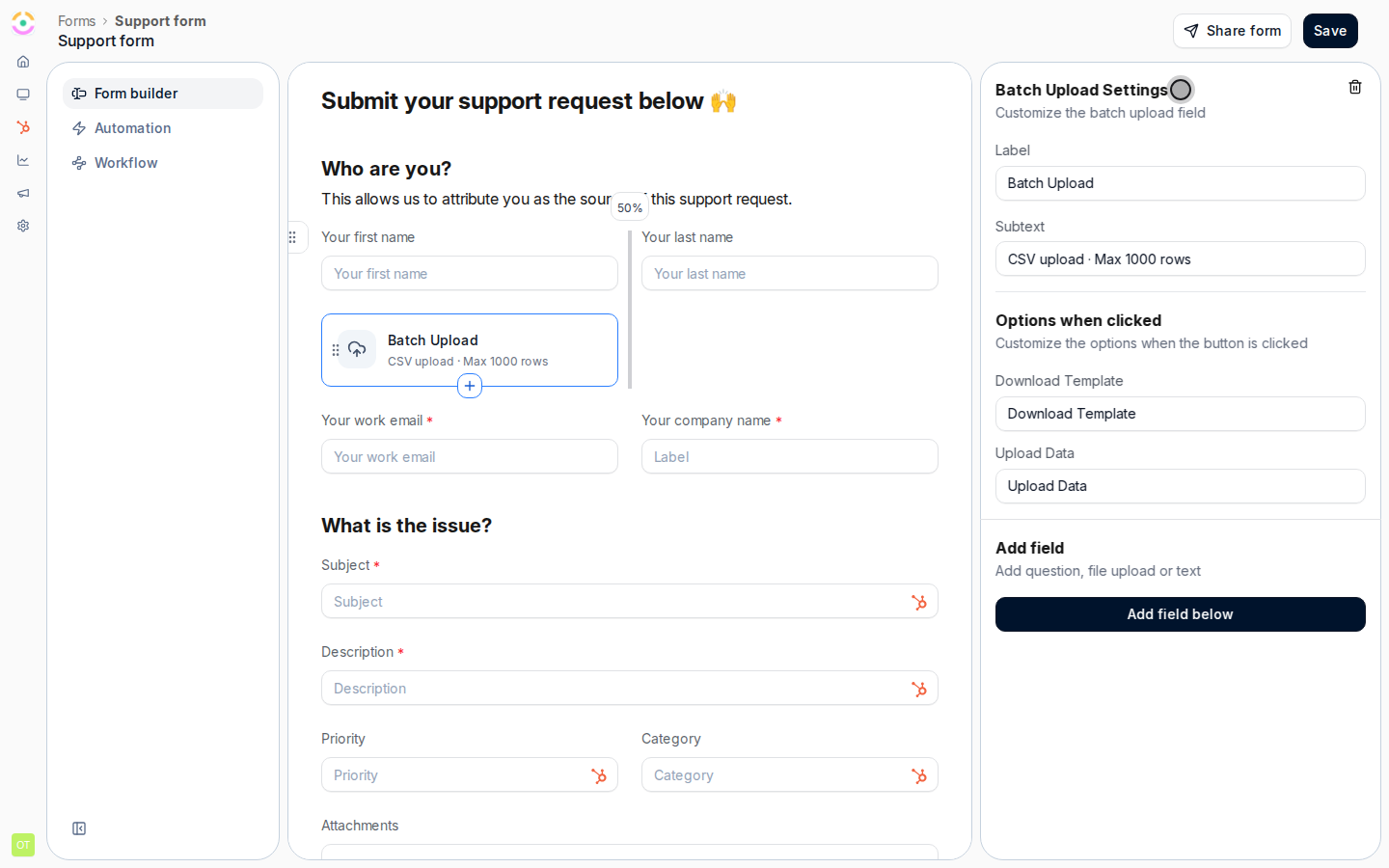
 Open **Batch Upload Settings** for the field and set how it presents to partners:
* **Label** - the text on the upload button. Make it action-led, for example "Upload your leads".
* **Subtext** - the helper line under the button. Use it to set expectations on format and size; the default notes a CSV upload with a maximum of 1000 rows.
* **Download Template** - the label for the action that gives partners a ready-made CSV. The template's columns come from the fields you configured, so partners fill in the right columns in the right order.
* **Upload Data** - the label for the action where partners choose their completed CSV file.
Open **Batch Upload Settings** for the field and set how it presents to partners:
* **Label** - the text on the upload button. Make it action-led, for example "Upload your leads".
* **Subtext** - the helper line under the button. Use it to set expectations on format and size; the default notes a CSV upload with a maximum of 1000 rows.
* **Download Template** - the label for the action that gives partners a ready-made CSV. The template's columns come from the fields you configured, so partners fill in the right columns in the right order.
* **Upload Data** - the label for the action where partners choose their completed CSV file.
 Confirm that each per-record field maps to the right CRM object and property in the **Automation** tab, so every row creates or updates the correct record. Set the write behavior the same way you would for a single submission - this is the create/update model from [Connect a form to your CRM](/features/forms/crm-field-mapping/guides/connect-a-form-to-your-crm).
Share the form as usual, then run a test: download the template, fill in a few rows, and upload it. The partner sees a preview of the rows to be submitted before confirming, and uploads over the 1000-row limit are rejected with a clear message, so large lists must be split into batches.
## Verify it worked
A test CSV with several rows submits as one batch, and each row appears as its own created or updated record in your CRM. The submission shows in your [Submissions](https://app.introw.io/submissions) inbox.
## Related
Create the form and its fields first.
Route each record to the right CRM object.
Full configuration options.
Confirm that each per-record field maps to the right CRM object and property in the **Automation** tab, so every row creates or updates the correct record. Set the write behavior the same way you would for a single submission - this is the create/update model from [Connect a form to your CRM](/features/forms/crm-field-mapping/guides/connect-a-form-to-your-crm).
Share the form as usual, then run a test: download the template, fill in a few rows, and upload it. The partner sees a preview of the rows to be submitted before confirming, and uploads over the 1000-row limit are rejected with a clear message, so large lists must be split into batches.
## Verify it worked
A test CSV with several rows submits as one batch, and each row appears as its own created or updated record in your CRM. The submission shows in your [Submissions](https://app.introw.io/submissions) inbox.
## Related
Create the form and its fields first.
Route each record to the right CRM object.
Full configuration options.