> ## Documentation Index
> Fetch the complete documentation index at: https://docs.introw.io/llms.txt
> Use this file to discover all available pages before exploring further.
# Set up partner and team notifications in Introw
> Choose which partner and team notifications send, on which channels (email, Slack, Teams), and to whom, and turn on automatic deal nudges in Introw.
export const Rail = ({children}) =>
{children}
;
## Where it lives
Notifications sit in two places under **Settings**: [Default settings](https://app.introw.io/settings/segments/default) is where recipients are set, and [Notification settings](https://app.introw.io/settings/notifications) reports what your program actually sent.
 ## Before you start
| You need | Why | Fix it |
| ---------------------------------- | -------------------------------- | ---------------------------------------------------------------------------------------------------------------------------------------- |
| Partners synced with valid emails | Email delivery needs an address | [Sync partners](/features/integrations/crm/guides/sync-partners-and-contacts) |
| Slack or Teams, for chat delivery | Only for the chat channel | [Connect Slack](/features/integrations/chat/guides/connect-slack) or [Teams](/features/integrations/chat/guides/connect-microsoft-teams) |
| Permission to manage notifications | The matrix is a settings surface | [Internal roles](/features/access/team-management/guides/create-an-internal-role) |
## How it works
Introw sends a notification whenever something relevant happens across the partner lifecycle. Some are event-driven (a deal moves, a registration is approved, a task is assigned, a course is finished), and some are automatic nudges Introw sends on a schedule (a deal that has gone quiet, a task coming due, a course left incomplete). Deal notifications also carry a coached next step so the partner knows what to do, not just that something changed.
For every notification you control three things: whether it is **on**, which **channels** it goes out on, and **who** receives it. Turn a notification on here; set up where it lands (email, Slack, Teams) under [Channels](/features/engagement/channels); and control the audience with segments and scopes in [Control who gets notified](/features/engagement/notifications/guides/control-who-gets-notified).
```mermaid theme={"theme":{"light":"github-light","dark":"github-dark"}}
flowchart LR
event["Event or scheduled nudge"] --> introw["Introw"]
introw -->|"if the notification is on"| audience["The partners and teammates in scope"]
audience --> channels["Email, Slack, Teams, portal"]
```
## Settings & configuration
Partner notification recipients live in the segments area: one organisation-wide default plus per-segment overrides. **Notification settings** is where you read what your program sends and how each event performs. Notifications are grouped by area so you can scan them by section.
**Notification events** are grouped so you can review or change a whole area at once:
* **Pipeline** - deal and object updates for matched partners, grouped per CRM object you sync (for example new deals, deal updates, closed-won, and the sleeping-deal nudge).
* **Portal activity** - announcements, comments, and mentions.
* **Submissions** - form submission outcomes: accepted, declined, and returned.
* **Tasks** - task assignments and reminder nudges.
* **Learning** - course enrollment, certificates, and goal nudges.
**Recipients** sets who receives each partner event, as one value per event: **All partners**, **Collaborating only** (just the contacts assigned as collaborators on the record, offered only for events attached to a CRM record), or **Disabled**. Set the organisation-wide value on [Default settings](https://app.introw.io/settings/segments/default), and change it for a specific audience on that segment's **Notifications** tab.
**Email and chat are configured separately.** The Recipients value above governs **email**. Which partner events reach a partner's Slack, Teams, or WhatsApp channel is set per platform on that chat integration, on its **Partner channels** tab. Some notifications (task reminder nudges, learning emails, and system messages) are email-only. See [Channels](/features/engagement/channels) for the full setup.
**Automatic deal nudges** remind partners about open deals that have gone quiet; you configure the stages and the number of inactive days that trigger a reminder. See [Nudge stalled deals](/features/engagement/notifications/guides/nudge-stalled-deals).
**Nudges from your own systems.** When the rule you want to nudge on lives outside Introw - your own health score, a certification expiry, an unsigned order form, or an agent's judgment - post a comment over the API instead of configuring a notification. It lands on the record and reaches the partner through these same channels and audience rules. Comments your team marks **Internal** are never delivered to partners at all. See [Nudge partners at scale via the API](/features/developer/api/guides/nudge-partners-at-scale-via-the-api).
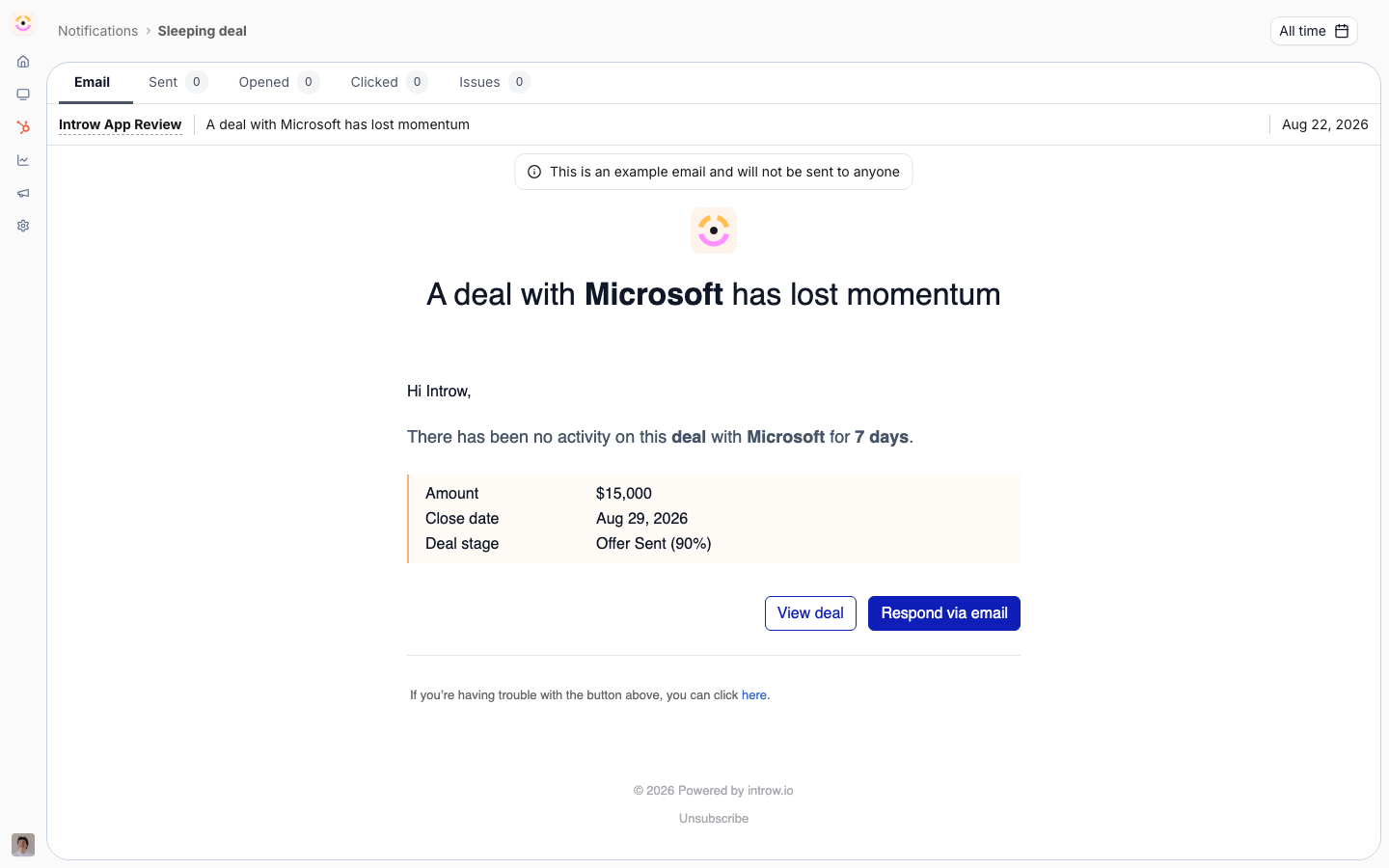
Opening an individual notification gives you one tab bar: **Email** for a full-width preview of the message partners receive, then **Sent**, **Opened**, **Clicked**, and **Issues** carrying their counts, with the date range in the page header so it applies to every tab. There is nothing to configure there: recipients are set once on the default and per segment. Role and user settings scope internal recipients. See [Control who gets notified](/features/engagement/notifications/guides/control-who-gets-notified).
### How granular the catalog is
Two splits are worth knowing about, because they are what most "we get too much" requests turn out to
need:
* **Comments and mentions are separate events.** Turn general comment notifications off and leave
mention notifications on, and a partner or a partner manager hears only when they are actually tagged.
* **CRM-object events split per object type.** New record, record update, and comment each resolve per
mapped object, so deal comments can be on while ticket comments are off, rather than one global
switch. Deals additionally carry sleeping-deal and closed-won events.
Each event's partner setting is a scope rather than a boolean - **All partners**, **Collaborating only**,
or **Disabled** - so narrowing is usually a better first move than switching an event off.
### How a contact's notifications are decided
Every partner contact's notification tab renders the same three-layer cascade so it is obvious which layer owns each event and where to change it:
1. **All partners · Default** - the organisation default, set on [Default settings](https://app.introw.io/settings/segments/default) in the segments area, with a link to edit it. This is the floor, and it is a layer of its own rather than a segment.
2. **Matched override segments** - each segment the contact belongs to that overrides at least one event, named and linked, with the number of events it decides. When several matched segments overlap on the same event, the widest scope wins (see [Layer segments to progressively unlock capabilities](/features/partners/segments/guides/layer-segments-to-progressively-unlock)).
3. **This contact** - the events the contact has opted out of themselves.
Each event row is badged with the layer that decided it. Contact-level toggles are opt-out only: they can turn an available event off, but they cannot re-enable an event a higher layer has locked to off. The rule is enforced when the change is saved rather than only hidden in the interface, so an opt-out recorded against a locked event is stripped before it is stored and no derived surface can claim an opinion the organisation default or a segment owns.
### Delivery and engagement
Turn on **Insights** to see how each notification is performing without leaving the catalog. Each row then shows **Sent**, **Opened**, **Clicked**, **Bounced**, and **Last sent**, scoped to your organisation. Open a notification to drill into the partners behind each number, with **Sent**, **Opened**, **Clicked**, and **Bounced** views and an engagement-over-time chart, so you can see which partners received an email, who read and clicked it, and which addresses bounced.
### Automate it with a workflow
The built-in notifications cover the moments every program shares. A [workflow](/features/automation/workflows/technical) email covers the ones specific to yours, and the two are meant to be used together rather than instead of each other.
**Send an email** reaches **All contacts of the partner**, **The partner champion**, **Contacts in a segment**, and, on the triggers that can answer them, **The contact this is about** and **Whoever the task is assigned to**. **Your partner team** is the one always-internal audience: your own colleagues assigned to this partner, optionally narrowed by the partner team roles they hold, which is how a chase escalates rather than repeating itself. The body is written in the announcement editor, so variables resolve per recipient and buttons point at that partner's own portal.
The difference from a notification is timing you control: a workflow email can sit behind a wait anchored to a due date and behind a fork that checks whether the thing still needs saying. See [Chase a task to its due date and escalate](/features/automation/workflows/guides/chase-a-task-to-its-due-date).
## How-to guides
* [**Control who gets notified**](/features/engagement/notifications/guides/control-who-gets-notified)
Scope each notification to the right partners and teammates using segments, per-channel toggles, and internal role and user settings to cut noise.
* [**Every notification Introw sends**](/features/engagement/notifications/guides/every-notification-introw-sends)
Full reference of automatic emails, chat messages, and nudges Introw sends across the partner lifecycle: triggers, recipients, and deal coaching.
* 
[**Nudge stalled deals automatically**](/features/engagement/notifications/guides/nudge-stalled-deals)
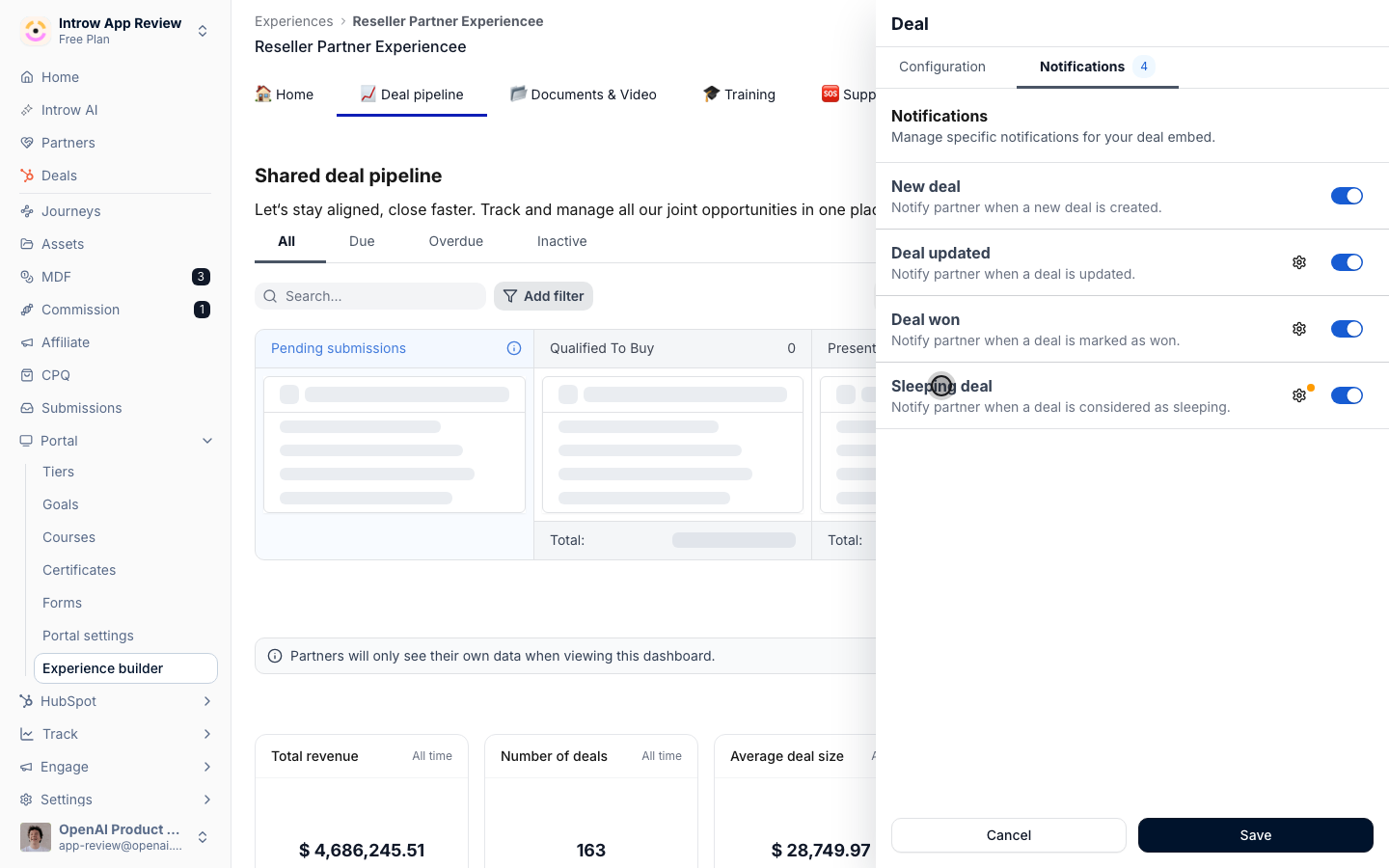
Set up the Sleeping deal notification so partners are automatically reminded when a deal sits too long in a stage, keeping your pipeline moving.
## Troubleshooting
Chat notifications require the Slack or Teams integration to be connected; without it, only email is available. Partners only receive email if they have a valid, verified address. Turning on too many notifications can overwhelm partners, so enable the ones that drive action.
Confirm the address is valid and verified, and see [Troubleshoot partner email delivery](/features/engagement/channels/guides/troubleshoot-partner-email-delivery).
Confirm the Slack or Teams integration is connected and the partner is mapped. See [Channels](/features/engagement/channels).
Check the recipients value on your default, then any segment that overrides that event. See [Control who gets notified](/features/engagement/notifications/guides/control-who-gets-notified).
Open their contact's **Notifications** tab and read the cascade: the default, the override segments they match, and their own opt-outs.
Turn off lower-value types and keep the action-driving ones.
## Before you start
| You need | Why | Fix it |
| ---------------------------------- | -------------------------------- | ---------------------------------------------------------------------------------------------------------------------------------------- |
| Partners synced with valid emails | Email delivery needs an address | [Sync partners](/features/integrations/crm/guides/sync-partners-and-contacts) |
| Slack or Teams, for chat delivery | Only for the chat channel | [Connect Slack](/features/integrations/chat/guides/connect-slack) or [Teams](/features/integrations/chat/guides/connect-microsoft-teams) |
| Permission to manage notifications | The matrix is a settings surface | [Internal roles](/features/access/team-management/guides/create-an-internal-role) |
## How it works
Introw sends a notification whenever something relevant happens across the partner lifecycle. Some are event-driven (a deal moves, a registration is approved, a task is assigned, a course is finished), and some are automatic nudges Introw sends on a schedule (a deal that has gone quiet, a task coming due, a course left incomplete). Deal notifications also carry a coached next step so the partner knows what to do, not just that something changed.
For every notification you control three things: whether it is **on**, which **channels** it goes out on, and **who** receives it. Turn a notification on here; set up where it lands (email, Slack, Teams) under [Channels](/features/engagement/channels); and control the audience with segments and scopes in [Control who gets notified](/features/engagement/notifications/guides/control-who-gets-notified).
```mermaid theme={"theme":{"light":"github-light","dark":"github-dark"}}
flowchart LR
event["Event or scheduled nudge"] --> introw["Introw"]
introw -->|"if the notification is on"| audience["The partners and teammates in scope"]
audience --> channels["Email, Slack, Teams, portal"]
```
## Settings & configuration
Partner notification recipients live in the segments area: one organisation-wide default plus per-segment overrides. **Notification settings** is where you read what your program sends and how each event performs. Notifications are grouped by area so you can scan them by section.
**Notification events** are grouped so you can review or change a whole area at once:
* **Pipeline** - deal and object updates for matched partners, grouped per CRM object you sync (for example new deals, deal updates, closed-won, and the sleeping-deal nudge).
* **Portal activity** - announcements, comments, and mentions.
* **Submissions** - form submission outcomes: accepted, declined, and returned.
* **Tasks** - task assignments and reminder nudges.
* **Learning** - course enrollment, certificates, and goal nudges.
**Recipients** sets who receives each partner event, as one value per event: **All partners**, **Collaborating only** (just the contacts assigned as collaborators on the record, offered only for events attached to a CRM record), or **Disabled**. Set the organisation-wide value on [Default settings](https://app.introw.io/settings/segments/default), and change it for a specific audience on that segment's **Notifications** tab.
**Email and chat are configured separately.** The Recipients value above governs **email**. Which partner events reach a partner's Slack, Teams, or WhatsApp channel is set per platform on that chat integration, on its **Partner channels** tab. Some notifications (task reminder nudges, learning emails, and system messages) are email-only. See [Channels](/features/engagement/channels) for the full setup.
**Automatic deal nudges** remind partners about open deals that have gone quiet; you configure the stages and the number of inactive days that trigger a reminder. See [Nudge stalled deals](/features/engagement/notifications/guides/nudge-stalled-deals).
**Nudges from your own systems.** When the rule you want to nudge on lives outside Introw - your own health score, a certification expiry, an unsigned order form, or an agent's judgment - post a comment over the API instead of configuring a notification. It lands on the record and reaches the partner through these same channels and audience rules. Comments your team marks **Internal** are never delivered to partners at all. See [Nudge partners at scale via the API](/features/developer/api/guides/nudge-partners-at-scale-via-the-api).
Opening an individual notification gives you one tab bar: **Email** for a full-width preview of the message partners receive, then **Sent**, **Opened**, **Clicked**, and **Issues** carrying their counts, with the date range in the page header so it applies to every tab. There is nothing to configure there: recipients are set once on the default and per segment. Role and user settings scope internal recipients. See [Control who gets notified](/features/engagement/notifications/guides/control-who-gets-notified).
### How granular the catalog is
Two splits are worth knowing about, because they are what most "we get too much" requests turn out to
need:
* **Comments and mentions are separate events.** Turn general comment notifications off and leave
mention notifications on, and a partner or a partner manager hears only when they are actually tagged.
* **CRM-object events split per object type.** New record, record update, and comment each resolve per
mapped object, so deal comments can be on while ticket comments are off, rather than one global
switch. Deals additionally carry sleeping-deal and closed-won events.
Each event's partner setting is a scope rather than a boolean - **All partners**, **Collaborating only**,
or **Disabled** - so narrowing is usually a better first move than switching an event off.
### How a contact's notifications are decided
Every partner contact's notification tab renders the same three-layer cascade so it is obvious which layer owns each event and where to change it:
1. **All partners · Default** - the organisation default, set on [Default settings](https://app.introw.io/settings/segments/default) in the segments area, with a link to edit it. This is the floor, and it is a layer of its own rather than a segment.
2. **Matched override segments** - each segment the contact belongs to that overrides at least one event, named and linked, with the number of events it decides. When several matched segments overlap on the same event, the widest scope wins (see [Layer segments to progressively unlock capabilities](/features/partners/segments/guides/layer-segments-to-progressively-unlock)).
3. **This contact** - the events the contact has opted out of themselves.
Each event row is badged with the layer that decided it. Contact-level toggles are opt-out only: they can turn an available event off, but they cannot re-enable an event a higher layer has locked to off. The rule is enforced when the change is saved rather than only hidden in the interface, so an opt-out recorded against a locked event is stripped before it is stored and no derived surface can claim an opinion the organisation default or a segment owns.
### Delivery and engagement
Turn on **Insights** to see how each notification is performing without leaving the catalog. Each row then shows **Sent**, **Opened**, **Clicked**, **Bounced**, and **Last sent**, scoped to your organisation. Open a notification to drill into the partners behind each number, with **Sent**, **Opened**, **Clicked**, and **Bounced** views and an engagement-over-time chart, so you can see which partners received an email, who read and clicked it, and which addresses bounced.
### Automate it with a workflow
The built-in notifications cover the moments every program shares. A [workflow](/features/automation/workflows/technical) email covers the ones specific to yours, and the two are meant to be used together rather than instead of each other.
**Send an email** reaches **All contacts of the partner**, **The partner champion**, **Contacts in a segment**, and, on the triggers that can answer them, **The contact this is about** and **Whoever the task is assigned to**. **Your partner team** is the one always-internal audience: your own colleagues assigned to this partner, optionally narrowed by the partner team roles they hold, which is how a chase escalates rather than repeating itself. The body is written in the announcement editor, so variables resolve per recipient and buttons point at that partner's own portal.
The difference from a notification is timing you control: a workflow email can sit behind a wait anchored to a due date and behind a fork that checks whether the thing still needs saying. See [Chase a task to its due date and escalate](/features/automation/workflows/guides/chase-a-task-to-its-due-date).
## How-to guides
* [**Control who gets notified**](/features/engagement/notifications/guides/control-who-gets-notified)
Scope each notification to the right partners and teammates using segments, per-channel toggles, and internal role and user settings to cut noise.
* [**Every notification Introw sends**](/features/engagement/notifications/guides/every-notification-introw-sends)
Full reference of automatic emails, chat messages, and nudges Introw sends across the partner lifecycle: triggers, recipients, and deal coaching.
* 
[**Nudge stalled deals automatically**](/features/engagement/notifications/guides/nudge-stalled-deals)
Set up the Sleeping deal notification so partners are automatically reminded when a deal sits too long in a stage, keeping your pipeline moving.
## Troubleshooting
Chat notifications require the Slack or Teams integration to be connected; without it, only email is available. Partners only receive email if they have a valid, verified address. Turning on too many notifications can overwhelm partners, so enable the ones that drive action.
Confirm the address is valid and verified, and see [Troubleshoot partner email delivery](/features/engagement/channels/guides/troubleshoot-partner-email-delivery).
Confirm the Slack or Teams integration is connected and the partner is mapped. See [Channels](/features/engagement/channels).
Check the recipients value on your default, then any segment that overrides that event. See [Control who gets notified](/features/engagement/notifications/guides/control-who-gets-notified).
Open their contact's **Notifications** tab and read the cascade: the default, the override segments they match, and their own opt-outs.
Turn off lower-value types and keep the action-driving ones.