> ## Documentation Index
> Fetch the complete documentation index at: https://docs.introw.io/llms.txt
> Use this file to discover all available pages before exploring further.
# Channels
> Set up off-portal delivery for notifications and announcements: email, Slack, and Teams, reply-by-email, and your own sending domain.
export const Rail = ({children}) =>
{children}
;
## Where it lives
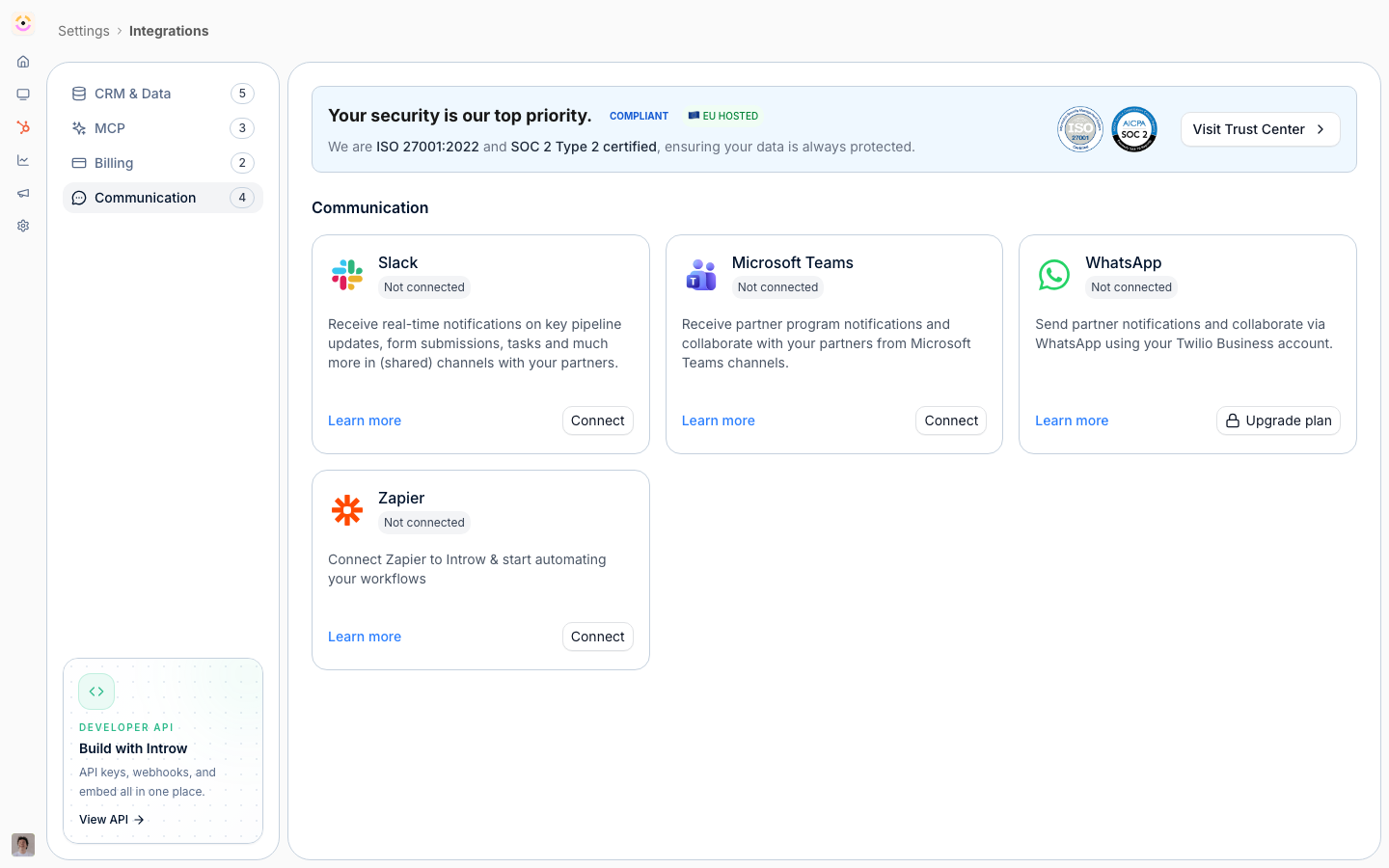
Channels sits under **Settings**, at [Integrations](https://app.introw.io/settings/integrations).
 ## Before you start
| You need | Why | Fix it |
| --------------------------------- | ---------------------------- | ---------------------------------------------------------------------------------------------------------------------------------------- |
| Partners synced with valid emails | Email is the default channel | [Sync partners](/features/integrations/crm/guides/sync-partners-and-contacts) |
| Slack or Teams, with a channel | Only for chat delivery | [Connect Slack](/features/integrations/chat/guides/connect-slack) or [Teams](/features/integrations/chat/guides/connect-microsoft-teams) |
| DNS access for your own domain | Introw generates the records | [Sending domain](/features/portal/email-domain/guides/send-notifications-from-your-own-domain) |
## How it works
Introw delivers every notification and announcement on up to three off-portal channels. **Email** is always available and reaches any partner with a valid address. **Slack** and **Microsoft Teams** become available once you connect that workspace, and Introw then posts updates into the shared channel mapped to each partner and, optionally, into your own internal channels.
Email is two-way. Collaboration emails carry a reply address, so when a partner replies from their inbox, Introw captures the reply, adds it as a comment on the deal or record, and sends it on to everyone collaborating on that thread. Attachments are saved to the record. Email and chat are configured in different places: email recipients on your organisation default and per segment, chat on each chat integration. This page is about connecting and configuring the channels themselves.
```mermaid theme={"theme":{"light":"github-light","dark":"github-dark"}}
flowchart LR
introw["Introw"] --> email["Email"]
introw --> slack["Slack"]
introw --> teams["Microsoft Teams"]
email -->|"partner replies"| record["Comment on the record, shared with all collaborators"]
```
## Settings & configuration
Channel setup spans three places: the **Integrations** area (connect Slack and Teams), **Default settings** in the segments area (who receives each event by email), and each chat integration's **Partner channels** tab (which events reach partner chat channels). Email and chat are configured separately.
### Email
Email delivery is decided by the **recipients** value on each event: **All partners**, **Collaborating only**, or **Disabled**. Set it on [Default settings](https://app.introw.io/settings/segments/default), and override it for one audience on that segment's **Notifications** tab. There is no separate email channel toggle, because email is available for every notification type, so anything not disabled sends. See [Control who gets notified](/features/engagement/notifications/guides/control-who-gets-notified).
**Reply-by-email** is built into collaboration emails (comments, deal and object updates, submission outcomes) as **Respond via email**; a partner's reply threads back onto the record and reaches all collaborators. Commission payout emails accept a reply with an invoice attached.
**Sending domain** controls the address partners see. By default emails send from an Introw address; connect your own authenticated domain so they send as your brand and land in the inbox. See [Send notifications from your own domain](/features/portal/email-domain/guides/send-notifications-from-your-own-domain).
### Slack, Microsoft Teams, and WhatsApp
**Connect the workspace** from **Integrations**. Once connected, the integration gains a **Partner channels** tab listing every partner event, so you choose per platform what reaches partner channels. WhatsApp gets the same panel, since a partner's mapped phone number receives partner notifications the same way a channel does. An organisation running more than one platform configures each separately, and chat cannot be targeted per segment.
**Partner channels** map a shared Slack or Teams channel to each partner, so partner-facing notifications post into the channel that partner is in.
**Internal channels** are your own team channels; point notifications about a partner into them so your team sees partner activity without leaving chat.
## How-to guides
* 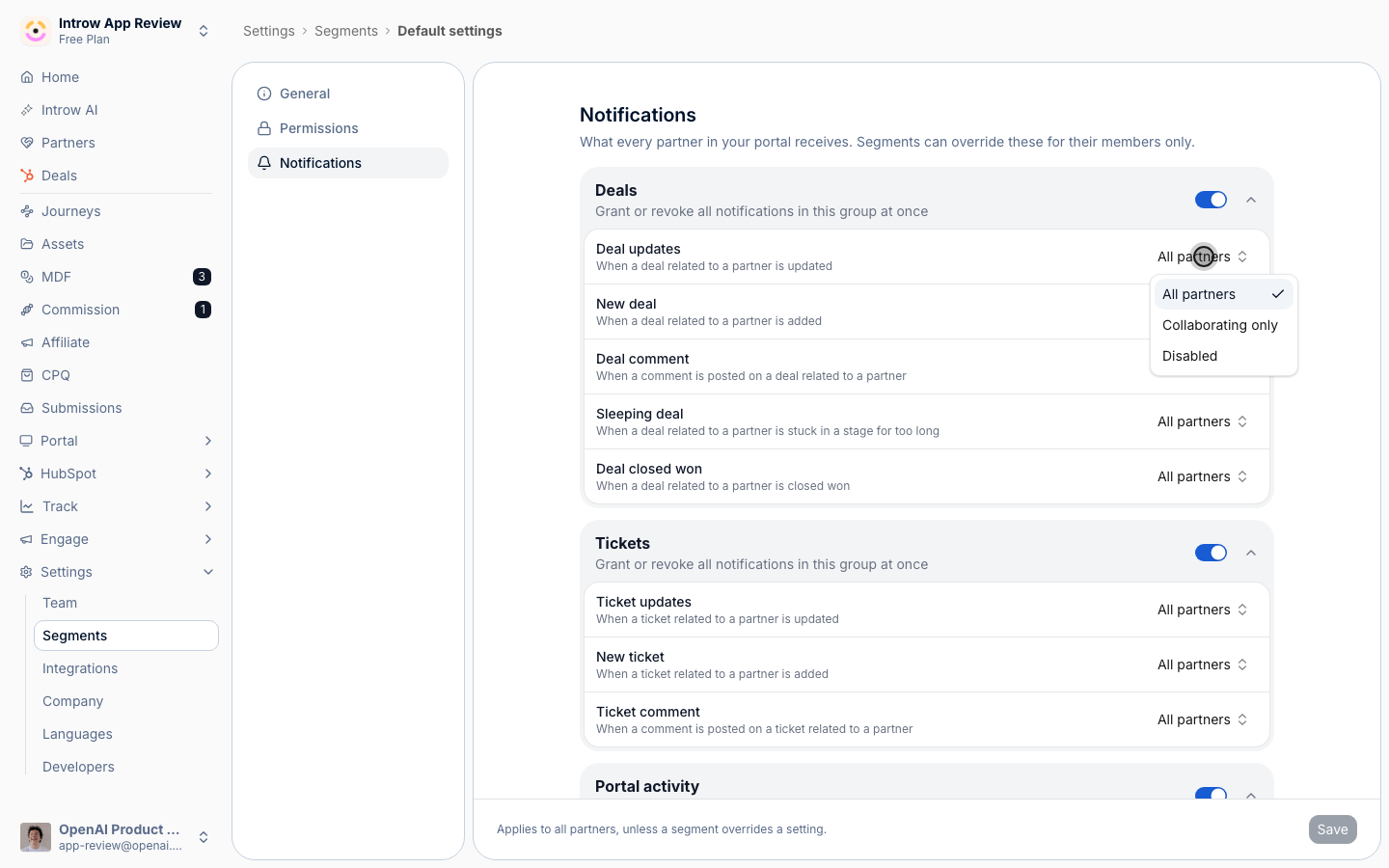
[**Configure partner notifications by email**](/features/engagement/channels/guides/configure-partner-notifications-by-email)
Choose which partner notifications go out by email, scope them to the right partners, and turn on reply-by-email so partners respond from their inbox.
* [**Configure partner notifications in Microsoft Teams**](/features/engagement/channels/guides/configure-partner-notifications-in-microsoft-teams)
Choose which partner events Introw posts to each partner's mapped Microsoft Teams channel, on the Teams integration's Partner channels tab, and how chat differs from email.
* [**Configure partner notifications in Slack**](/features/engagement/channels/guides/configure-partner-notifications-in-slack)
Choose which partner events Introw posts to each partner's mapped Slack channel, on the Slack integration's Partner channels tab, and how chat differs from email.
* 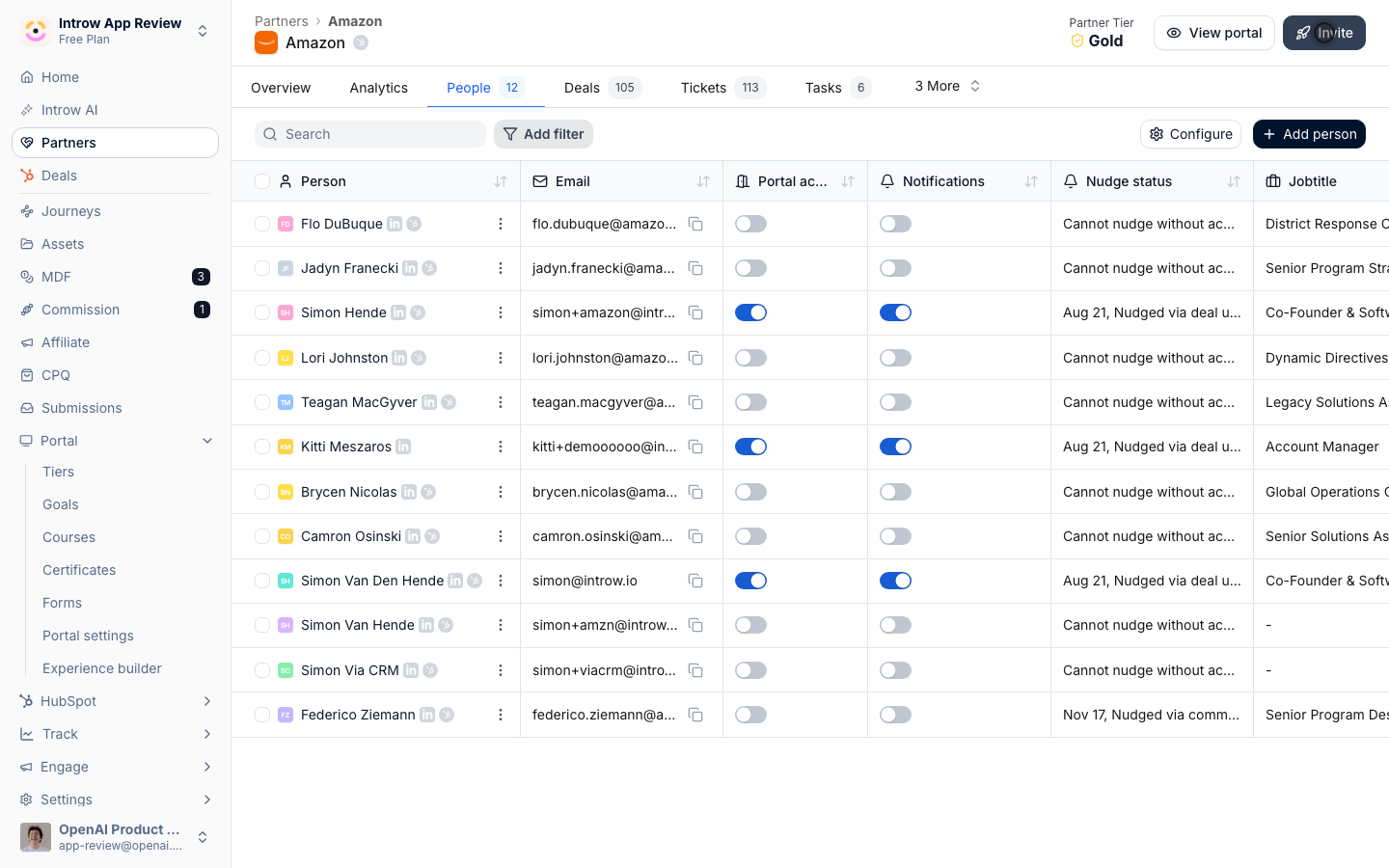
[**Troubleshoot partner email delivery**](/features/engagement/channels/guides/troubleshoot-partner-email-delivery)
Troubleshoot partner email delivery: check the address, notification settings, spam and domain filtering, then resend the missing email or invite.
## Troubleshooting
Chat delivery requires the Slack or Teams integration connected and a channel mapped to the partner; without a mapped channel, chat notifications for that partner do not send. Email is the only channel that reaches partners with no connected workspace. A reply only threads back when the partner replies to the original notification email, not a forwarded copy.
See [Troubleshoot partner email delivery](../guides/troubleshoot-partner-email-delivery).
Confirm the workspace is connected and the partner has a mapped channel.
Confirm the partner replied to the original email and that reply-by-email is on for that notification.
## Before you start
| You need | Why | Fix it |
| --------------------------------- | ---------------------------- | ---------------------------------------------------------------------------------------------------------------------------------------- |
| Partners synced with valid emails | Email is the default channel | [Sync partners](/features/integrations/crm/guides/sync-partners-and-contacts) |
| Slack or Teams, with a channel | Only for chat delivery | [Connect Slack](/features/integrations/chat/guides/connect-slack) or [Teams](/features/integrations/chat/guides/connect-microsoft-teams) |
| DNS access for your own domain | Introw generates the records | [Sending domain](/features/portal/email-domain/guides/send-notifications-from-your-own-domain) |
## How it works
Introw delivers every notification and announcement on up to three off-portal channels. **Email** is always available and reaches any partner with a valid address. **Slack** and **Microsoft Teams** become available once you connect that workspace, and Introw then posts updates into the shared channel mapped to each partner and, optionally, into your own internal channels.
Email is two-way. Collaboration emails carry a reply address, so when a partner replies from their inbox, Introw captures the reply, adds it as a comment on the deal or record, and sends it on to everyone collaborating on that thread. Attachments are saved to the record. Email and chat are configured in different places: email recipients on your organisation default and per segment, chat on each chat integration. This page is about connecting and configuring the channels themselves.
```mermaid theme={"theme":{"light":"github-light","dark":"github-dark"}}
flowchart LR
introw["Introw"] --> email["Email"]
introw --> slack["Slack"]
introw --> teams["Microsoft Teams"]
email -->|"partner replies"| record["Comment on the record, shared with all collaborators"]
```
## Settings & configuration
Channel setup spans three places: the **Integrations** area (connect Slack and Teams), **Default settings** in the segments area (who receives each event by email), and each chat integration's **Partner channels** tab (which events reach partner chat channels). Email and chat are configured separately.
### Email
Email delivery is decided by the **recipients** value on each event: **All partners**, **Collaborating only**, or **Disabled**. Set it on [Default settings](https://app.introw.io/settings/segments/default), and override it for one audience on that segment's **Notifications** tab. There is no separate email channel toggle, because email is available for every notification type, so anything not disabled sends. See [Control who gets notified](/features/engagement/notifications/guides/control-who-gets-notified).
**Reply-by-email** is built into collaboration emails (comments, deal and object updates, submission outcomes) as **Respond via email**; a partner's reply threads back onto the record and reaches all collaborators. Commission payout emails accept a reply with an invoice attached.
**Sending domain** controls the address partners see. By default emails send from an Introw address; connect your own authenticated domain so they send as your brand and land in the inbox. See [Send notifications from your own domain](/features/portal/email-domain/guides/send-notifications-from-your-own-domain).
### Slack, Microsoft Teams, and WhatsApp
**Connect the workspace** from **Integrations**. Once connected, the integration gains a **Partner channels** tab listing every partner event, so you choose per platform what reaches partner channels. WhatsApp gets the same panel, since a partner's mapped phone number receives partner notifications the same way a channel does. An organisation running more than one platform configures each separately, and chat cannot be targeted per segment.
**Partner channels** map a shared Slack or Teams channel to each partner, so partner-facing notifications post into the channel that partner is in.
**Internal channels** are your own team channels; point notifications about a partner into them so your team sees partner activity without leaving chat.
## How-to guides
* 
[**Configure partner notifications by email**](/features/engagement/channels/guides/configure-partner-notifications-by-email)
Choose which partner notifications go out by email, scope them to the right partners, and turn on reply-by-email so partners respond from their inbox.
* [**Configure partner notifications in Microsoft Teams**](/features/engagement/channels/guides/configure-partner-notifications-in-microsoft-teams)
Choose which partner events Introw posts to each partner's mapped Microsoft Teams channel, on the Teams integration's Partner channels tab, and how chat differs from email.
* [**Configure partner notifications in Slack**](/features/engagement/channels/guides/configure-partner-notifications-in-slack)
Choose which partner events Introw posts to each partner's mapped Slack channel, on the Slack integration's Partner channels tab, and how chat differs from email.
* 
[**Troubleshoot partner email delivery**](/features/engagement/channels/guides/troubleshoot-partner-email-delivery)
Troubleshoot partner email delivery: check the address, notification settings, spam and domain filtering, then resend the missing email or invite.
## Troubleshooting
Chat delivery requires the Slack or Teams integration connected and a channel mapped to the partner; without a mapped channel, chat notifications for that partner do not send. Email is the only channel that reaches partners with no connected workspace. A reply only threads back when the partner replies to the original notification email, not a forwarded copy.
See [Troubleshoot partner email delivery](../guides/troubleshoot-partner-email-delivery).
Confirm the workspace is connected and the partner has a mapped channel.
Confirm the partner replied to the original email and that reply-by-email is on for that notification.