> ## Documentation Index
> Fetch the complete documentation index at: https://docs.introw.io/llms.txt
> Use this file to discover all available pages before exploring further.
# Configure partner notifications in Slack
> Choose which partner events Introw posts to each partner's mapped Slack channel, on the Slack integration's Partner channels tab, and how chat differs from email.
## What you'll achieve
The partner events that suit a chat feed delivered to each partner's mapped Slack channel, so partners and your team see high-signal updates without leaving Slack.
## Before you start
Install the Introw app in your workspace, see [Connect Slack](/features/integrations/chat/guides/connect-slack).
Partners need a mapped Slack channel to receive chat notifications, see [Map a partner channel](/features/integrations/chat/guides/configure-the-chat-integration).
## Steps
Go to **Settings → Integrations** and open **Slack**. Which partner events reach partner channels is configured here, on the integration that owns those channels, not on the notifications page.
On the right, select the **Partner channels** tab. **Internal channels** beside it controls what your own team sees, and the two are configured separately.
Turn on the partner events that suit a chat feed. Changes save as you make them. Every event is on unless you switch it off, so start by removing the ones that would be noise in a channel.
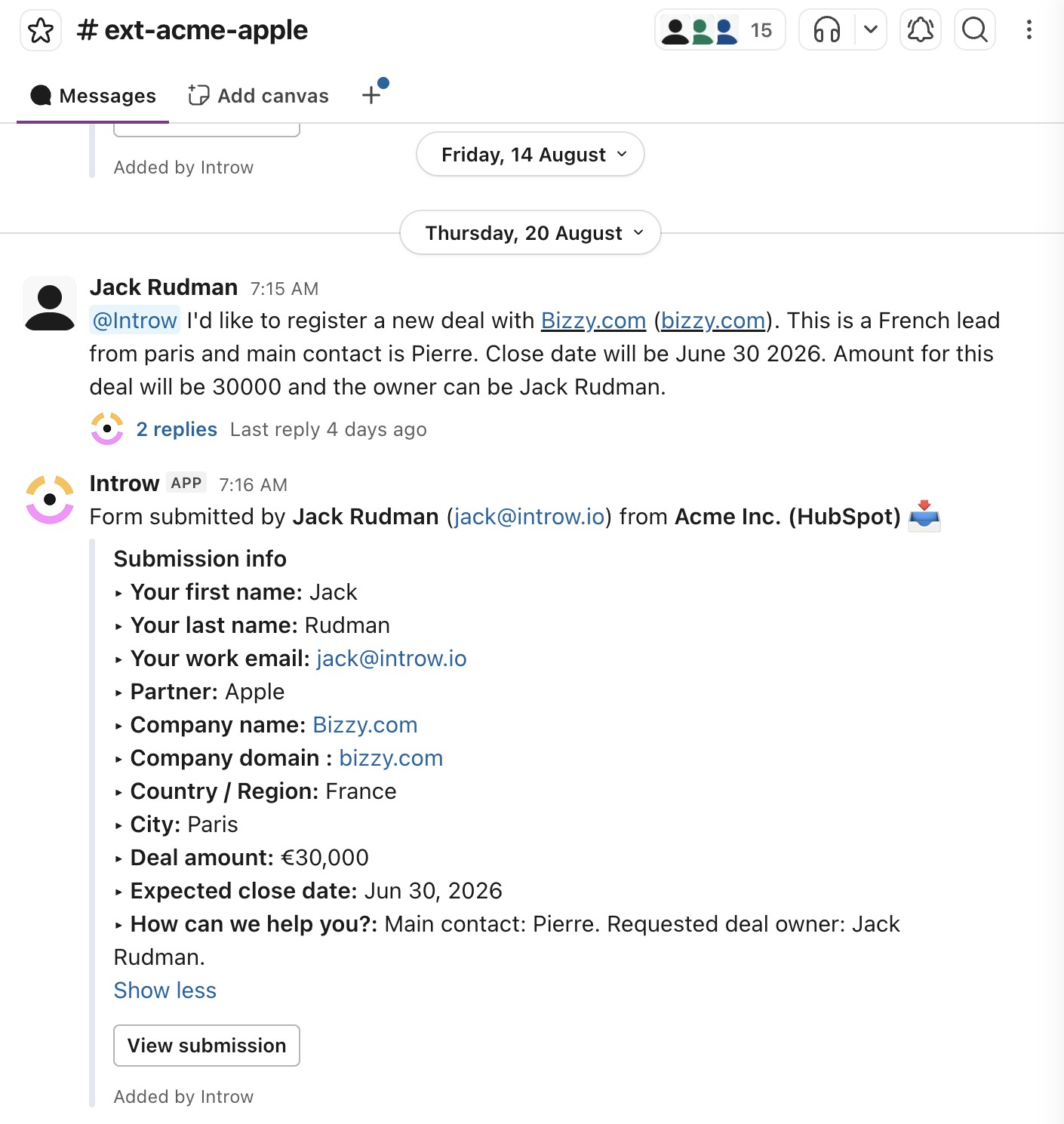
Chat carries deal and object updates, announcements, comments and mentions, form submission outcomes, and task assignments. Task reminder nudges, learning emails, and system messages are email-only, so they never appear here.
A Slack channel belongs to a whole partner organisation, so chat has no per-contact preference and cannot be targeted per segment. It is a switch per event, per platform. Email is the one that runs through the three-layer cascade of organisation default, override segments, and the contact's own opt-outs. See [Control who gets notified](/features/engagement/notifications/guides/control-who-gets-notified) to work out why a specific contact is or is not receiving an email.
Because the configuration lives on the integration, an organisation running Slack **and** Teams configures each one separately. If you only have Slack, this reads exactly like an organisation-wide setting, and it is already correct on the day you add Teams.
## Verify it worked
Trigger a test event for a mapped partner and confirm the message appears in their Slack channel. Switching an event off for chat does not affect its email, and the reverse is also true, so check the channel rather than the notification's email metrics.
 ## Related
Reach every partner in their inbox.
Deliver notifications in Teams instead.
Link your workspace.
Full configuration options for partner notifications.
## Related
Reach every partner in their inbox.
Deliver notifications in Teams instead.
Link your workspace.
Full configuration options for partner notifications.