> ## Documentation Index
> Fetch the complete documentation index at: https://docs.introw.io/llms.txt
> Use this file to discover all available pages before exploring further.
# Connect an MCP client
> Connect any MCP-capable client - Cursor, Gemini, Windsurf, Notion AI, Lovable, Langdock, and more - to Introw with the generic MCP connector.
export const provider_0 = "your assistant"
Beyond the dedicated Claude and ChatGPT connectors, any MCP-capable client can connect to Introw with the generic MCP connector: Cursor, Gemini, Windsurf, Notion AI, Lovable, Langdock, and others. This is the canonical guide for all of them, the setup is the same in Introw (copy one server URL), and the per-client section below covers where each tool adds a remote MCP server. The connection uses the same secure OAuth sign-in and acts only within your own access.
## Why connect {provider_0}
The fastest interface to your partner program is the assistant you already use. Once {provider_0} is
connected to Introw over MCP, your program becomes something you query and act on in plain language -
no extra tab, no portal hunt. The work stays where you already are, every answer is read live from your
CRM source of truth, and {provider_0} acts only within your own access.
Ask questions and take action inside {provider_0}. The portal is optional, so you never break focus to switch tools.
Hand the mechanical work - data pulls, follow-ups, drafting - to {provider_0}, and stay in the loop where judgment matters.
Every answer is read live from your CRM source of truth, so attribution and numbers stay accurate and auditable.
Connect once over OAuth. {provider_0} acts only within your own access, and you can disconnect at any time.
## What you can do from {provider_0}
Connecting {provider_0} turns these agentic use cases into something you run conversationally, in seconds,
without leaving the assistant.
Ask {provider_0} to assemble pipeline, goals, activity, and commissions into a ready-to-edit QBR - 2-4 hours of prep collapsed into \~10 seconds.
Register a deal in about 90 seconds straight from {provider_0}, with clean writeback to your CRM.
Ask "which Gold partners are at risk?" in plain language and get the answer in seconds - no RevOps ticket.
Look up commission status, tier progress, and projections on demand, without a finance request.
Get instant, sourced answers to routine partner and program questions, 24/7 and in any language.
Build live, multi-axis segments on the fly instead of static Gold, Silver, and Bronze tiers.
## Prompts to try in {provider_0}
Once connected, paste one of these into {provider_0} to see it work against your own program:
* "Which Gold partners haven't registered a deal this quarter?"
* "Prepare a QBR for my top partner - pipeline, goals, activity, and commissions."
* "Register a new deal for Acme: \~\$40k, closing next month, sourced by our reseller."
* "What's this partner's commission status and how far are they from the next tier?"
## What you'll achieve
Your MCP-capable client connected to your Introw partner program over OAuth, authenticated as you. The client can read live program data from your CRM source of truth and take the actions your access allows, and the connector page shows the connection as active.
## Before you start
The generic MCP connector requires the MCP connection add-on on your plan. (Claude and ChatGPT have dedicated connectors that do not need this add-on, see their guides.)
Use a client that can add a custom or remote MCP server over OAuth.
Complete the OAuth step while signed in to Introw so the client connects as you.
## Watch it
## Steps
Go to the [MCP connector](https://app.introw.io/settings/integrations/mcp) under Integrations. This generic connector works with any MCP-compatible tool and shows the connection status and quick-setup steps.
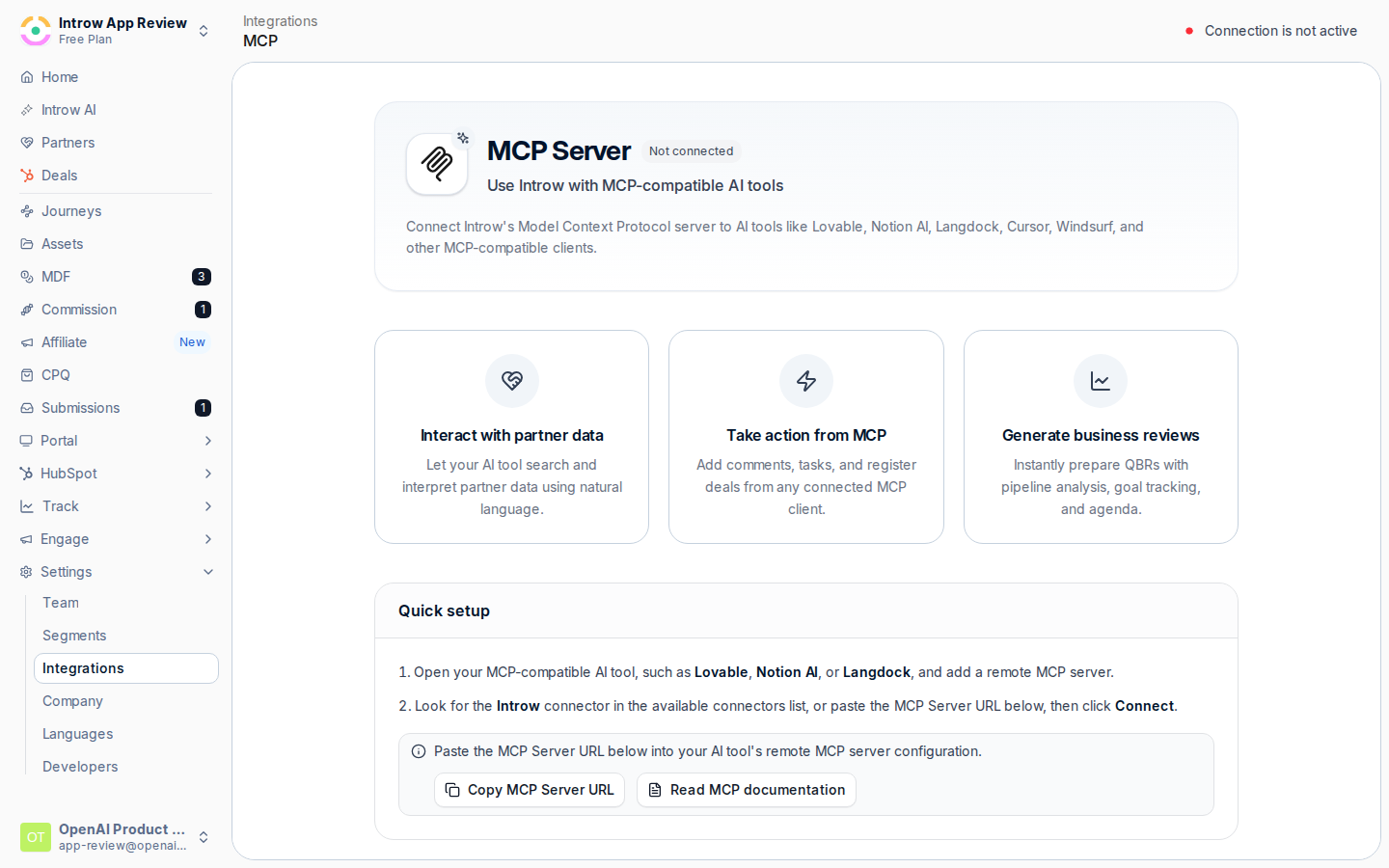 Select **Copy MCP Server URL**. This single address is what every MCP client connects to; copy it from the page rather than typing it.
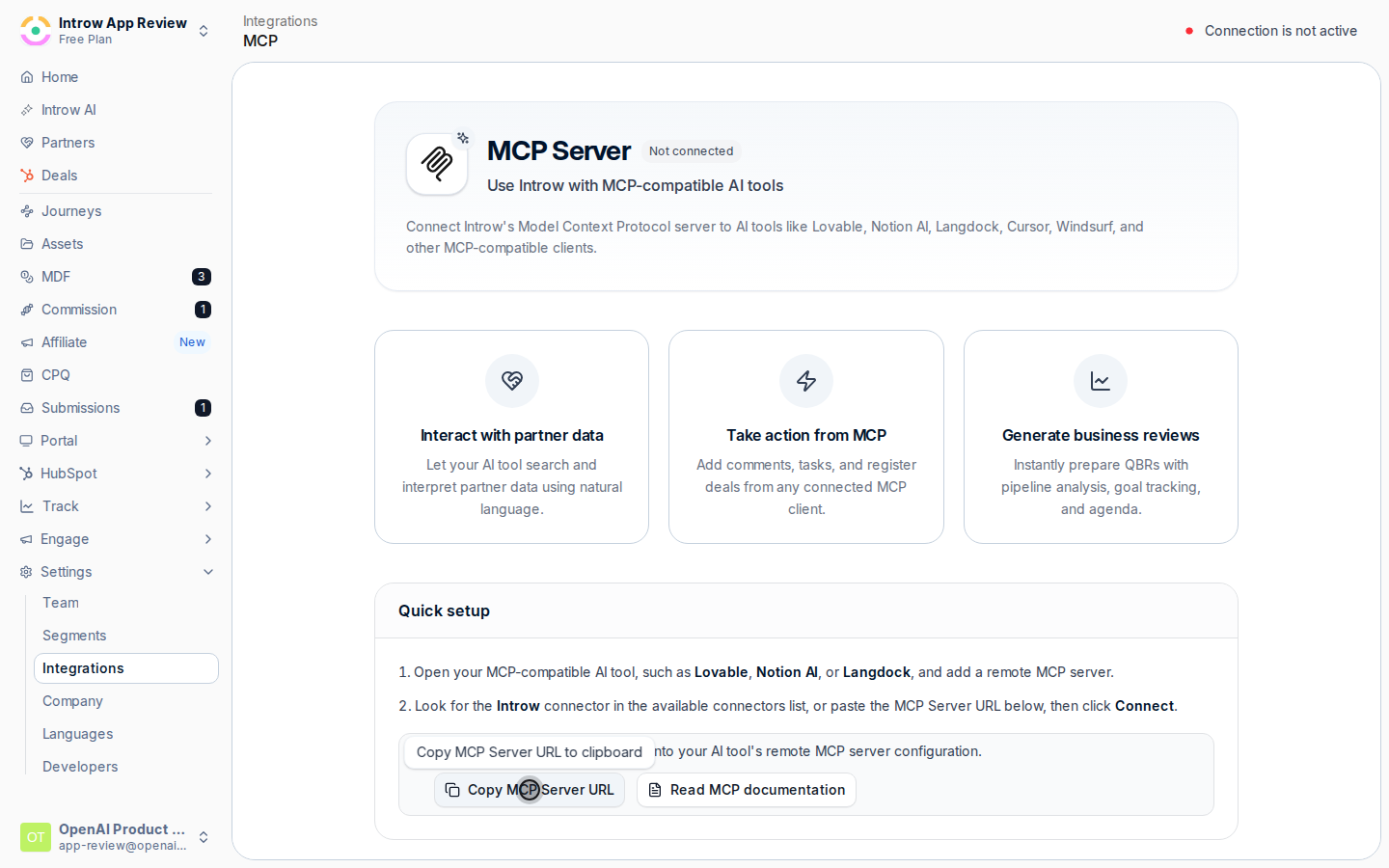 In your client, add a remote (or custom) MCP server and paste the **MCP Server URL** you copied. The exact place this lives differs per client, see the per-client notes below. This points the client at your program.
The client opens an Introw sign-in to authorize the connection. Complete it while signed in to Introw so the client connects as you, scoped to your own access. There is no API key or secret to paste.
## Connect a specific client
The Introw side is identical for every client: copy the **MCP Server URL** above. What differs is where each tool adds a remote MCP server. After adding the URL in any of these, complete the OAuth sign-in to finish.
### Cursor
Add Introw as a custom MCP server in Cursor's MCP settings, paste the **MCP Server URL**, then complete the OAuth sign-in.
### Gemini
In Gemini, add Introw as a remote MCP server using the **MCP Server URL**, then complete the OAuth sign-in.
### Windsurf
In Windsurf, add Introw as a remote MCP server using the **MCP Server URL**, then complete the OAuth sign-in.
### Notion AI
In Notion AI, add Introw as a remote MCP server using the **MCP Server URL**, then complete the OAuth sign-in.
### Lovable
In Lovable, add Introw as a remote MCP server using the **MCP Server URL**, then complete the OAuth sign-in.
### Langdock
In Langdock, add Introw as a remote MCP server using the **MCP Server URL**, then complete the OAuth sign-in.
## Verify it worked
The MCP connector page shows **Connection is active**, and your client can use Introw's tools, asking it about your program returns live data. To revoke access later, select **Disconnect** on the connector page; the client loses access immediately and must reconnect.
## Related
Use the dedicated Claude connector.
Use the dedicated ChatGPT connector.
MCP connectors, plan requirements, and troubleshooting.
In your client, add a remote (or custom) MCP server and paste the **MCP Server URL** you copied. The exact place this lives differs per client, see the per-client notes below. This points the client at your program.
The client opens an Introw sign-in to authorize the connection. Complete it while signed in to Introw so the client connects as you, scoped to your own access. There is no API key or secret to paste.
## Connect a specific client
The Introw side is identical for every client: copy the **MCP Server URL** above. What differs is where each tool adds a remote MCP server. After adding the URL in any of these, complete the OAuth sign-in to finish.
### Cursor
Add Introw as a custom MCP server in Cursor's MCP settings, paste the **MCP Server URL**, then complete the OAuth sign-in.
### Gemini
In Gemini, add Introw as a remote MCP server using the **MCP Server URL**, then complete the OAuth sign-in.
### Windsurf
In Windsurf, add Introw as a remote MCP server using the **MCP Server URL**, then complete the OAuth sign-in.
### Notion AI
In Notion AI, add Introw as a remote MCP server using the **MCP Server URL**, then complete the OAuth sign-in.
### Lovable
In Lovable, add Introw as a remote MCP server using the **MCP Server URL**, then complete the OAuth sign-in.
### Langdock
In Langdock, add Introw as a remote MCP server using the **MCP Server URL**, then complete the OAuth sign-in.
## Verify it worked
The MCP connector page shows **Connection is active**, and your client can use Introw's tools, asking it about your program returns live data. To revoke access later, select **Disconnect** on the connector page; the client loses access immediately and must reconnect.
## Related
Use the dedicated Claude connector.
Use the dedicated ChatGPT connector.
MCP connectors, plan requirements, and troubleshooting.