> ## Documentation Index
> Fetch the complete documentation index at: https://docs.introw.io/llms.txt
> Use this file to discover all available pages before exploring further.
# Embed the partner portal
> Authorize a domain, create a portal-session key, and render the authenticated partner portal inside your own product.
Embedding the portal lets partners get the full Introw experience without leaving your app, which is the surest way to drive adoption. This guide walks the whole three-step embed setup: authorize the domains that may load the portal, create an API key scoped to portal sessions, and use the code samples to create an authenticated session and render the portal in an iframe. By the end, a logged-in user lands straight in the portal with no second sign-in.
## What you'll achieve
The partner portal embedded inside your product, loaded in an authenticated iframe so a user who is already signed in to your app opens directly into their portal, with no extra login. Only the domains you authorize can load it, and the session is minted server-side so your secret never reaches the browser.
## Before you start
Embedding the portal is a paid add-on and must be enabled on your plan.
You need the Integrations permission to manage the allowed domains.
Gather every domain where your product runs (including subdomains) and have a backend you can run server-side code from.
## Watch it
## Steps
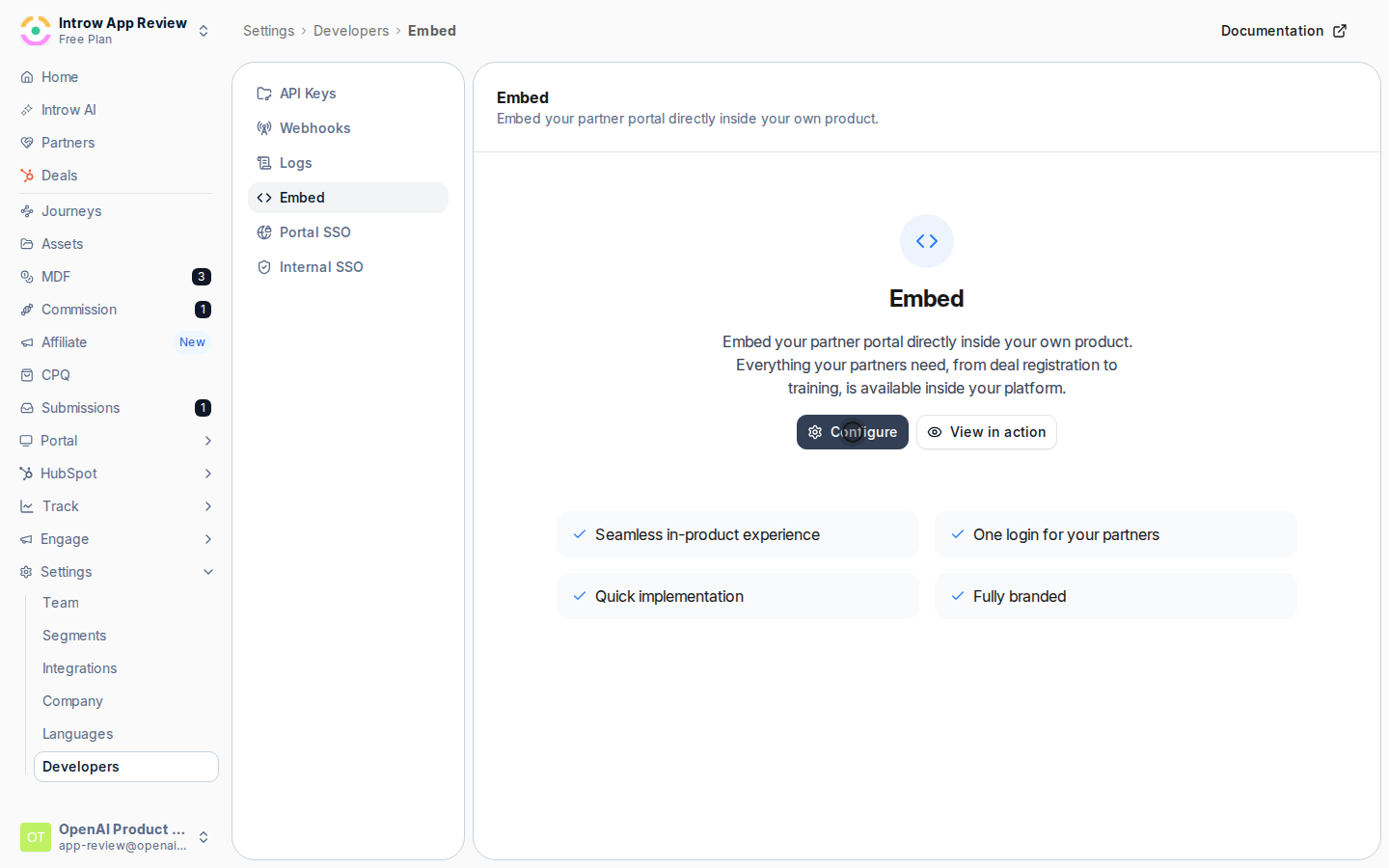
Go to [Embed](https://app.introw.io/settings/developers/embed) under Developers and select **Configure** to open the embed setup. It walks through the three things needed to embed the portal: allowed domains, a portal-session key, and the integration code.
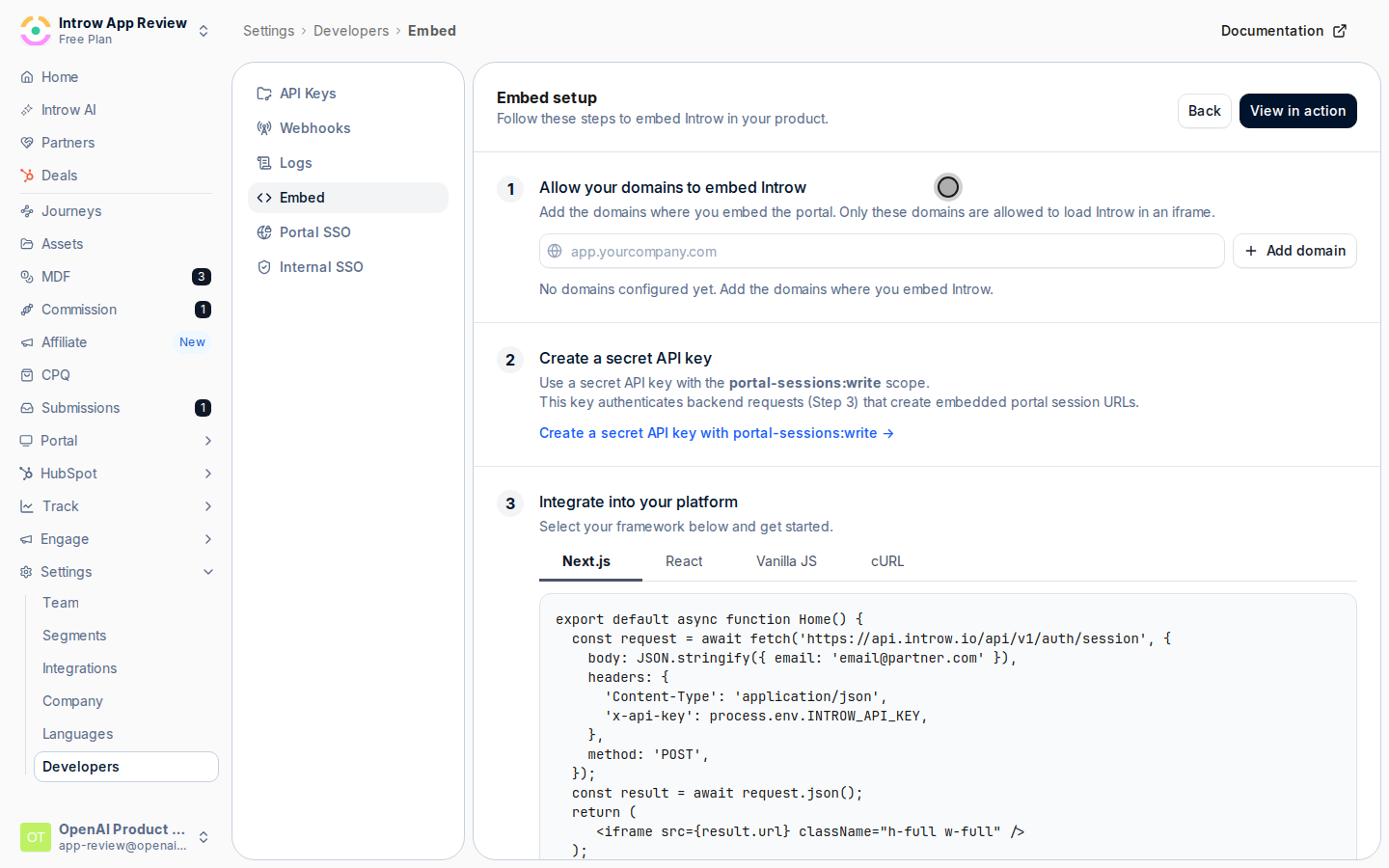
 In **Allow your domains to embed Introw**, add each domain where your product runs (for example `app.yourcompany.com`) and select **Add domain**. The portal only loads inside an iframe on these domains, so anything not on the list is blocked, which is what stops other sites from framing your portal.
* Add every domain and subdomain your product is served from; a domain that is missing here will show a blank or blocked frame.
* Remove a domain from its row when it no longer needs access, so the allow-list stays tight.
In **Allow your domains to embed Introw**, add each domain where your product runs (for example `app.yourcompany.com`) and select **Add domain**. The portal only loads inside an iframe on these domains, so anything not on the list is blocked, which is what stops other sites from framing your portal.
* Add every domain and subdomain your product is served from; a domain that is missing here will show a blank or blocked frame.
* Remove a domain from its row when it no longer needs access, so the allow-list stays tight.
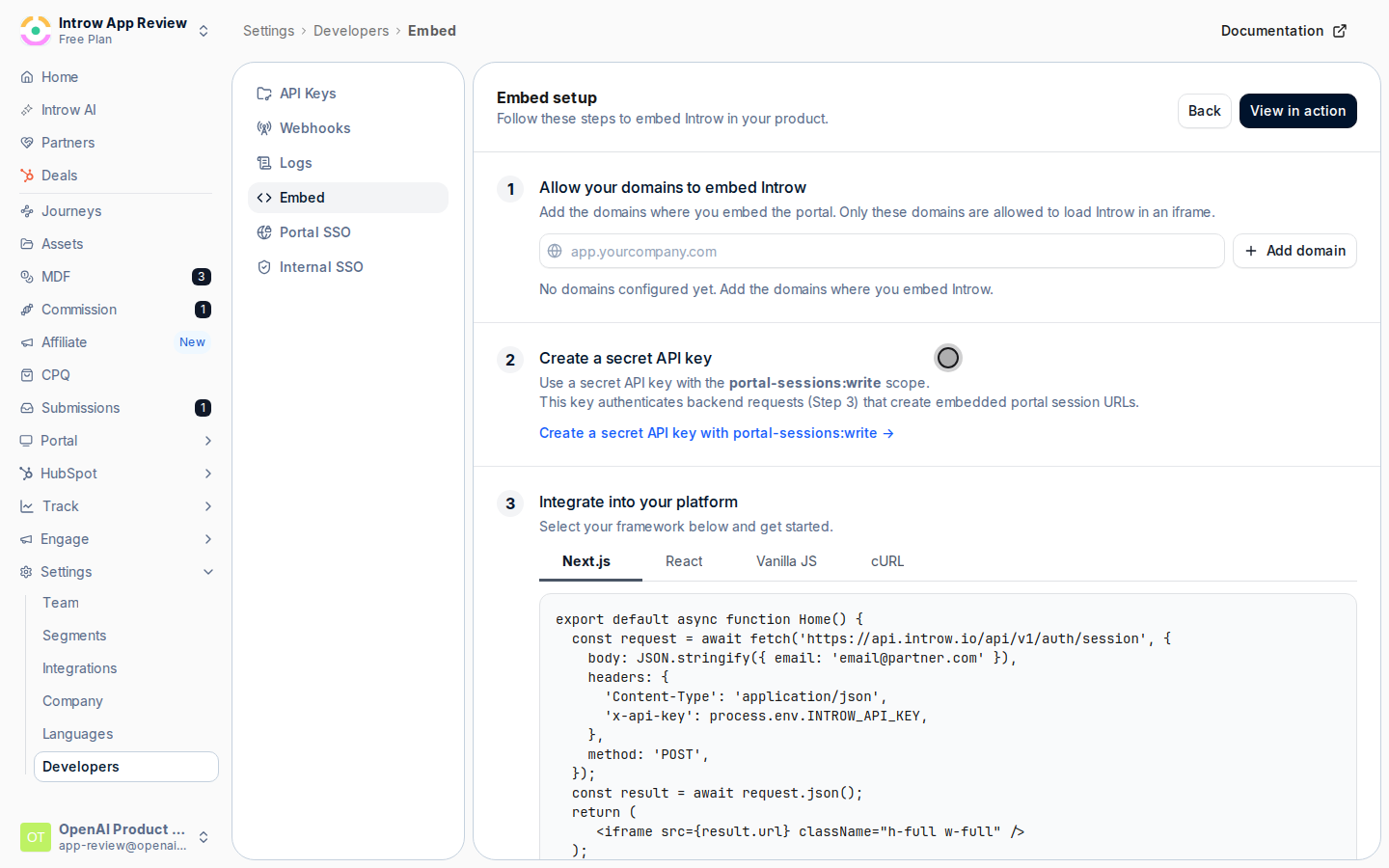
 Create a secret API key with the **Portal sessions** write permission. Your backend uses this key to mint authenticated portal session links (the next step), so it must stay server-side and never be exposed in the browser. Follow [Create and manage API keys](/features/developer/api/guides/create-and-manage-api-keys), granting only the portal sessions scope, and copy the secret when it is shown.
 From your backend, create an authenticated session for the signed-in user by sending their email and your key to the session endpoint, then render the returned URL in an iframe. Pick the sample that matches your stack from the embed setup and drop it in.
* **Session call** - send a `POST` to `https://api.introw.io/api/v1/auth/session` with the `x-api-key` header set to your portal-session key and a JSON body of `{ "email": "partner@example.com" }`. The response contains a `url` for that user's portal session.
* **Keep the key on the server** - in browser frameworks, call the endpoint from your own backend route and proxy the result to the client; the key must never ship to the browser. In Next.js, set `INTROW_API_KEY` in your server environment variables.
* **Render** - load the returned `url` in an `
From your backend, create an authenticated session for the signed-in user by sending their email and your key to the session endpoint, then render the returned URL in an iframe. Pick the sample that matches your stack from the embed setup and drop it in.
* **Session call** - send a `POST` to `https://api.introw.io/api/v1/auth/session` with the `x-api-key` header set to your portal-session key and a JSON body of `{ "email": "partner@example.com" }`. The response contains a `url` for that user's portal session.
* **Keep the key on the server** - in browser frameworks, call the endpoint from your own backend route and proxy the result to the client; the key must never ship to the browser. In Next.js, set `INTROW_API_KEY` in your server environment variables.
* **Render** - load the returned `url` in an `