> ## Documentation Index
> Fetch the complete documentation index at: https://docs.introw.io/llms.txt
> Use this file to discover all available pages before exploring further.
# Govern which products a partner can quote
> Scope a product to the right partners and the right deals using segments and deal filters.
Not every partner should be able to quote every product, and some products only belong on certain
deals. Governing visibility scopes a product by partner segment, by deal criteria, or both, so
partners only ever see and quote the products that fit them and the deal in front of them. This
protects strategic or restricted SKUs and keeps partners on the right catalog without manual policing.
## What you'll achieve
A product that is visible only to the partner segments you choose and only on deals whose CRM
properties match your filters. Partners outside those segments never see it, and it stays hidden on
deals that do not match, so the catalog a partner browses on a deal reflects exactly what you allow
them to sell.
## Before you start
Products only appear in the catalog once they have synced from your CRM. Core fields like name,
SKU, and price are maintained in the CRM, not in Introw.
To restrict by partner, define the segments first in Settings. A segment groups partners (for
example by tier, region, or type) so you can scope the product to them.
To restrict by deal, decide which CRM deal properties should allow the product, for example a
region, deal type, or amount threshold.
## Watch it
## Steps
Go to [CPQ](https://app.introw.io/products) and stay on the Products tab. Click the product you
want to scope to open its detail panel. The panel shows the read-only CRM details at the top,
then the **Segments**, **Deal filters**, and **Discount** sections you control. Changes save
automatically as you make them, so there is no separate Save button.
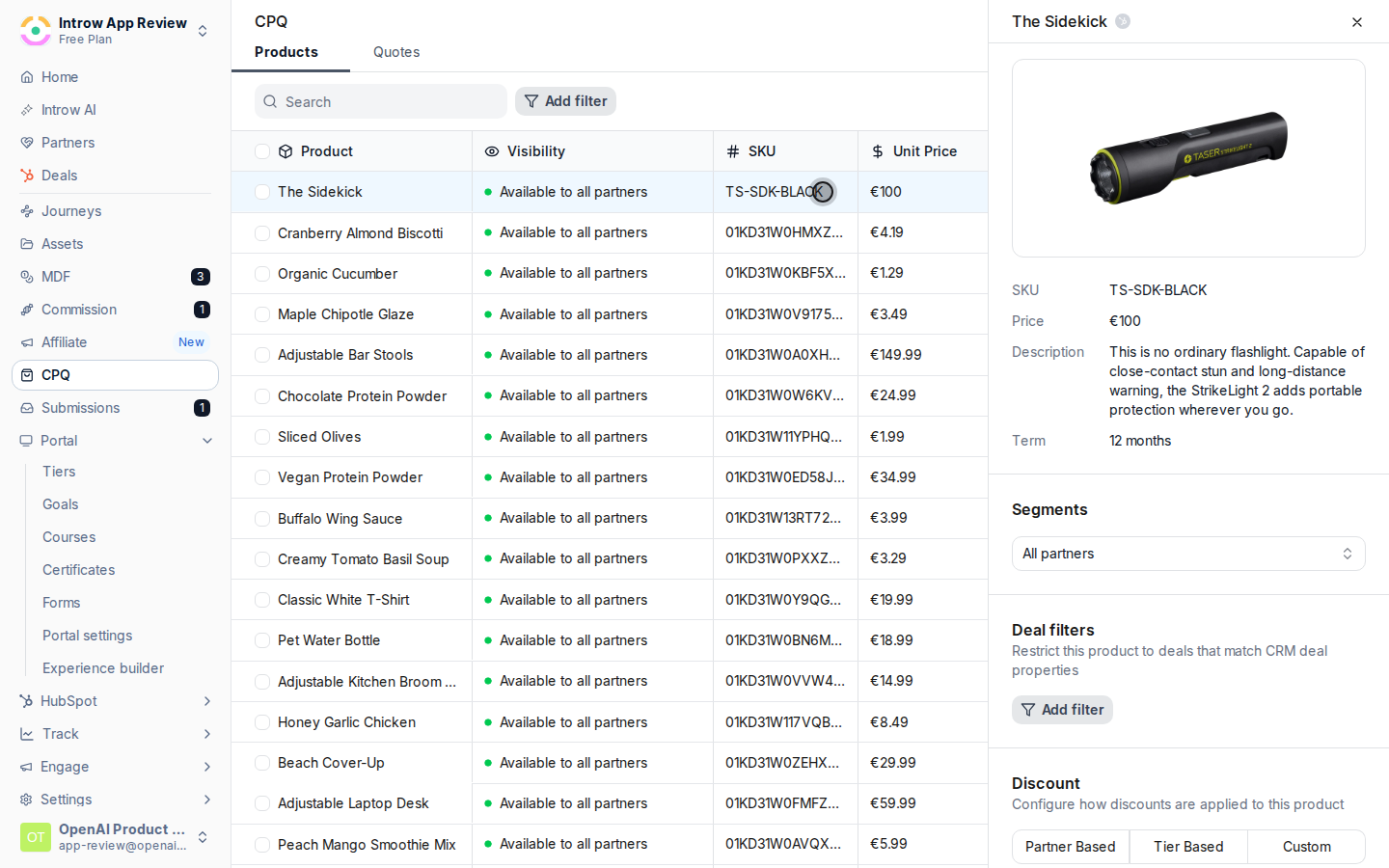 In the **Segments** section, choose the segments allowed to see and quote this product.
* **Segments** - the partner groups that can use the product. Only partners in a selected segment
see it when building a quote, so use this to keep restricted or strategic SKUs with the right
partners. Leave it empty to make the product **Available to all partners**; add one or more
segments to scope it. If your role only manages a subset of partners, segment previews and
counts reflect the partners you manage.
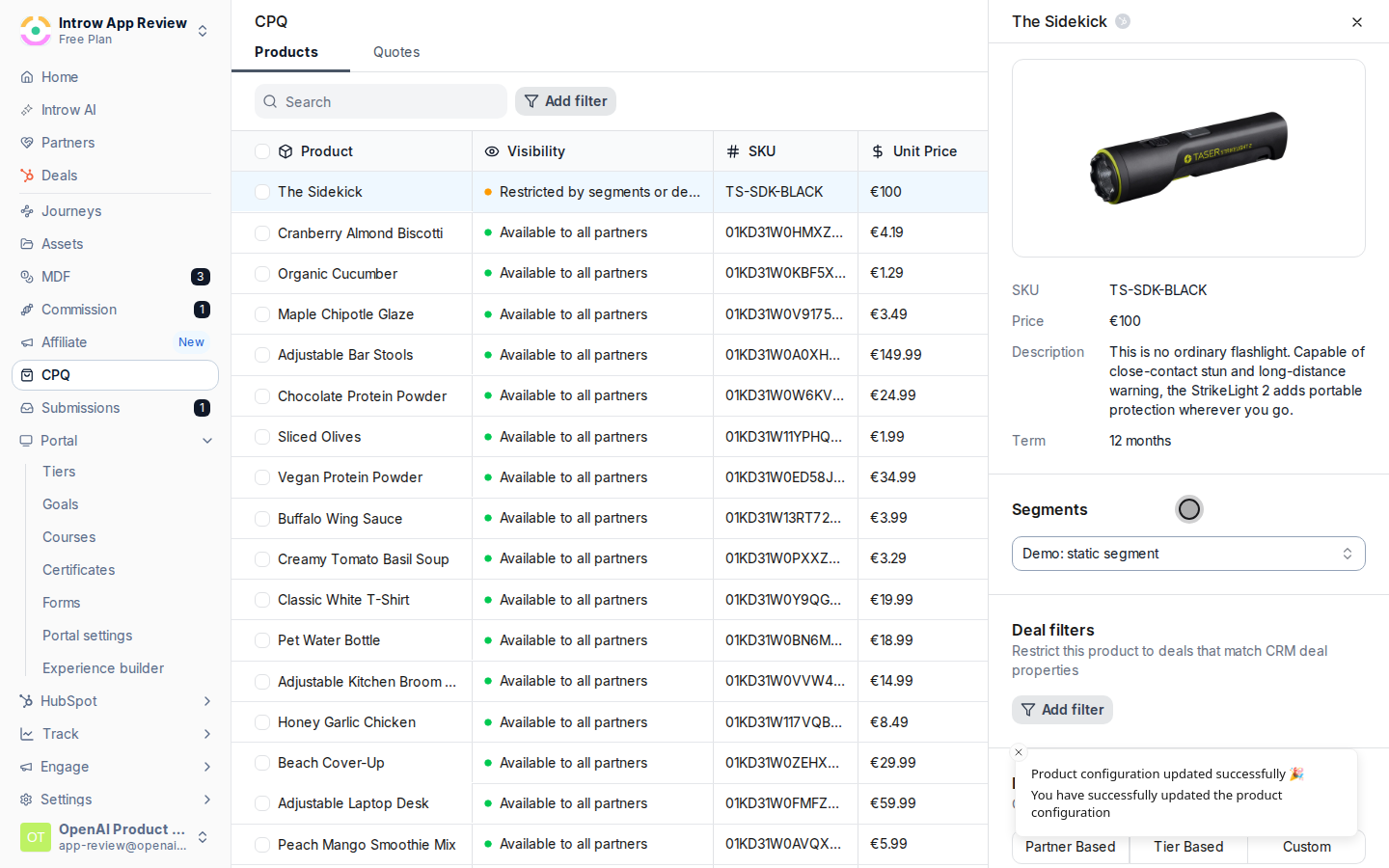
In the **Segments** section, choose the segments allowed to see and quote this product.
* **Segments** - the partner groups that can use the product. Only partners in a selected segment
see it when building a quote, so use this to keep restricted or strategic SKUs with the right
partners. Leave it empty to make the product **Available to all partners**; add one or more
segments to scope it. If your role only manages a subset of partners, segment previews and
counts reflect the partners you manage.
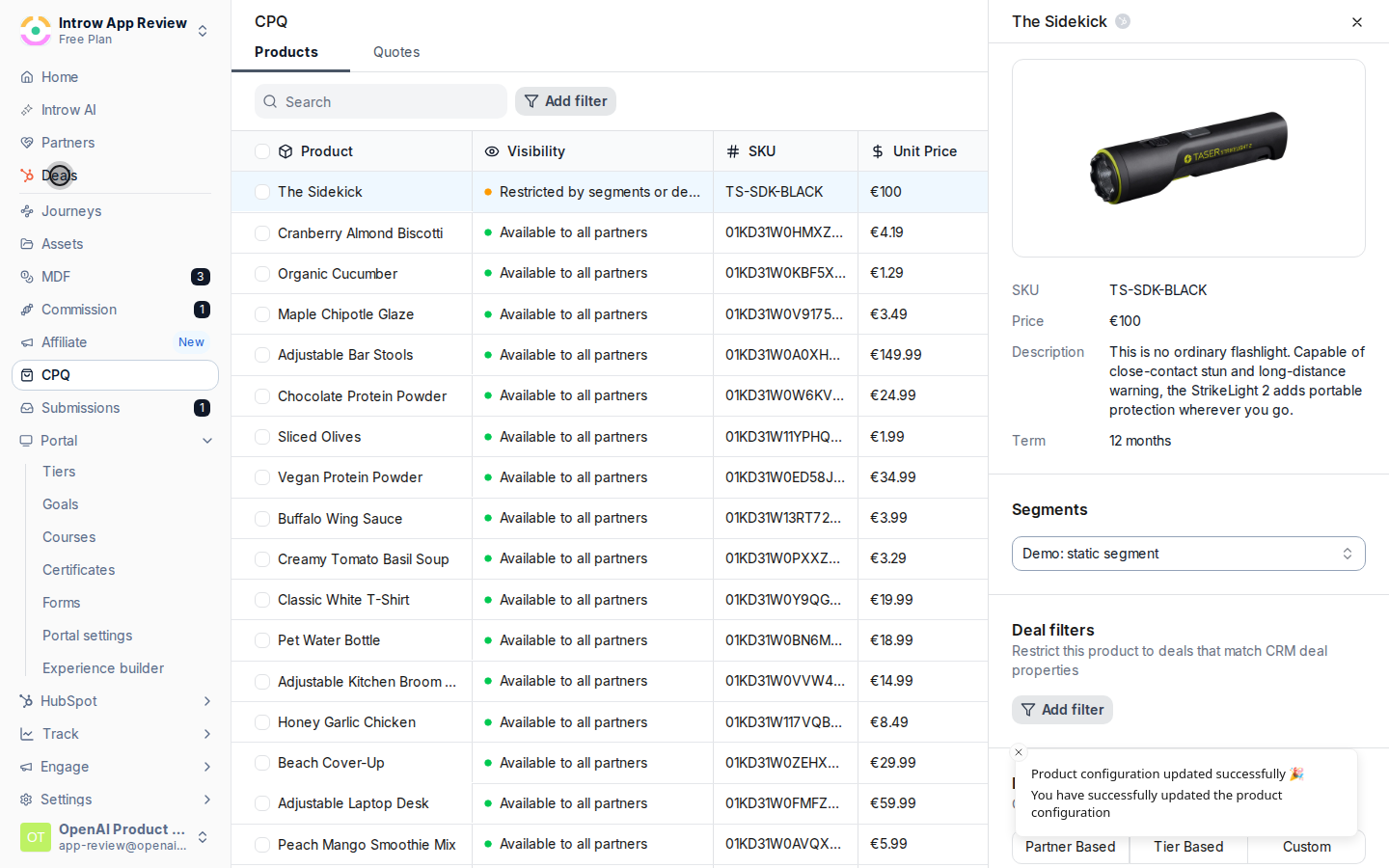
 In the **Deal filters** section, limit the product to deals whose CRM properties match your
criteria. This is independent of segments: a partner in an allowed segment still only sees the
product on deals that pass the filter.
* **Deal filters** - one or more conditions on CRM deal properties (for example region equals
EMEA, or amount is greater than a threshold). The product only appears on deals that match
every condition you add. Leave it empty to allow the product on any deal the partner can
access. Add filters when a product is region-specific, tier-specific, or otherwise only valid
on certain deals.
In the **Deal filters** section, limit the product to deals whose CRM properties match your
criteria. This is independent of segments: a partner in an allowed segment still only sees the
product on deals that pass the filter.
* **Deal filters** - one or more conditions on CRM deal properties (for example region equals
EMEA, or amount is greater than a threshold). The product only appears on deals that match
every condition you add. Leave it empty to allow the product on any deal the partner can
access. Add filters when a product is region-specific, tier-specific, or otherwise only valid
on certain deals.
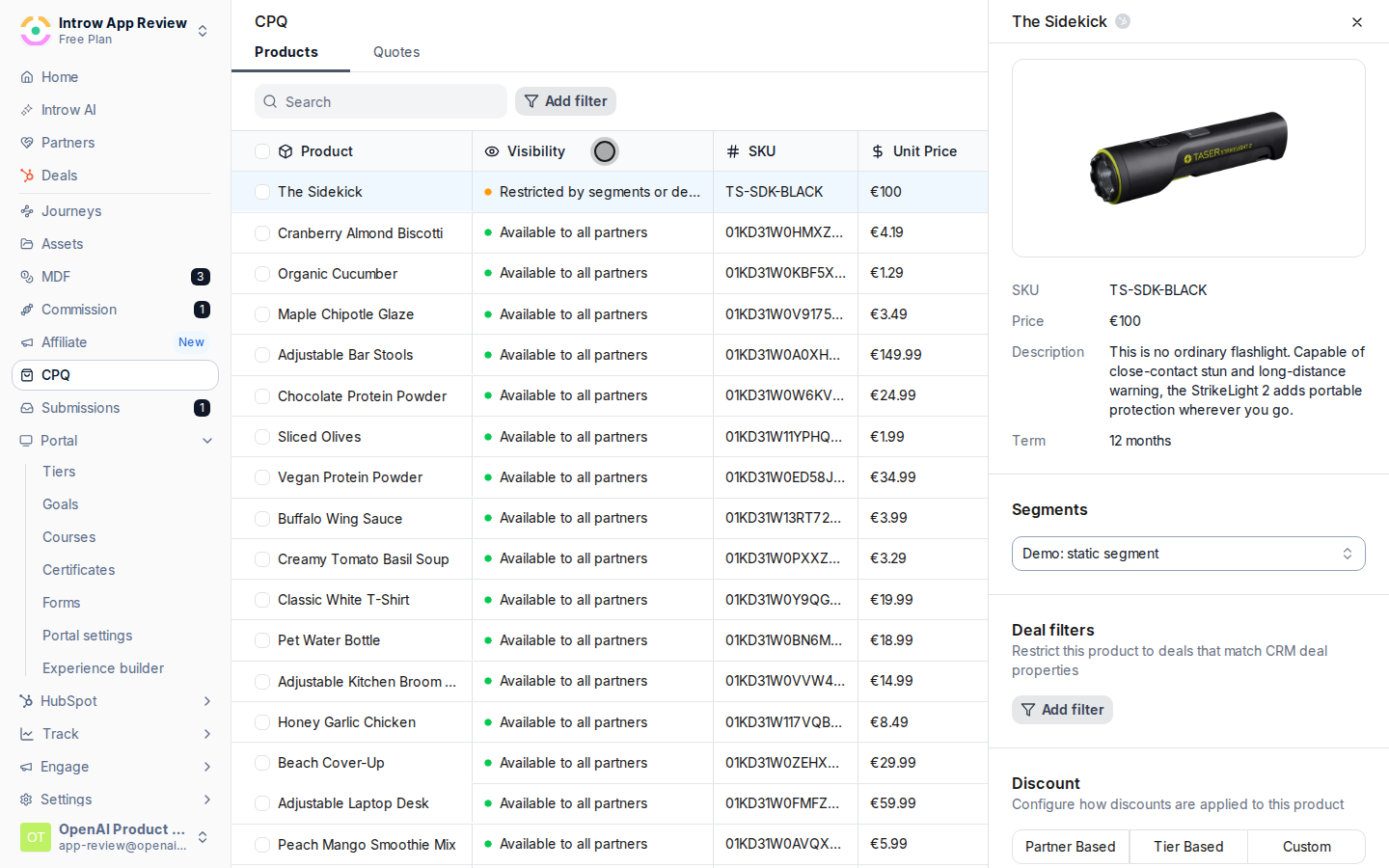
 With segments or deal filters set, the product's **Visibility** in the catalog list changes from
"Available to all partners" to "Restricted by segments or deal filters" (an amber dot). This is
your at-a-glance confirmation that the product is now scoped.
With segments or deal filters set, the product's **Visibility** in the catalog list changes from
"Available to all partners" to "Restricted by segments or deal filters" (an amber dot). This is
your at-a-glance confirmation that the product is now scoped.
 ## Verify it worked
In the Products list, the product's **Visibility** column reads "Restricted by segments or deal
filters". To confirm the partner experience, open a deal as a partner: a partner inside an allowed
segment sees the product in the line-item picker on a matching deal, while a partner outside the
segments, or any partner on a deal that fails the filter, does not see it at all.
## Related
Apply the same visibility to many products at once.
Define the partner segments to scope to.
Full catalog configuration options.
## Verify it worked
In the Products list, the product's **Visibility** column reads "Restricted by segments or deal
filters". To confirm the partner experience, open a deal as a partner: a partner inside an allowed
segment sees the product in the line-item picker on a matching deal, while a partner outside the
segments, or any partner on a deal that fails the filter, does not see it at all.
## Related
Apply the same visibility to many products at once.
Define the partner segments to scope to.
Full catalog configuration options.