> ## Documentation Index
> Fetch the complete documentation index at: https://docs.introw.io/llms.txt
> Use this file to discover all available pages before exploring further.
# Bulk edit product configuration
> Apply the same visibility and discount rule across many products at once.
Setting visibility or discounts product by product does not scale for a big catalog. Bulk edit
applies the same segment access and the same discount rule to many products in one action, so you can
roll out a partner restriction or a tier discount across a whole product line in seconds and keep the
catalog consistent.
## What you'll achieve
Every product you selected ends up with the same segment access and the same discount rule applied at
once. Partners then see a consistent set of products and consistent pricing across that product line,
without you touching each product individually.
## Before you start
Products only appear in the catalog once they have synced from your CRM.
Decide which products should share the same visibility or pricing rule, and which rule that is.
Bulk edit applies one set of values to all selected products, so group products that genuinely
belong together.
For a tier discount, tiers must be defined in Settings. For a partner discount, a numeric or
currency discount property must exist on the partner record in your CRM.
## Watch it
## Steps
Go to [CPQ](https://app.introw.io/products) and stay on the Products tab.
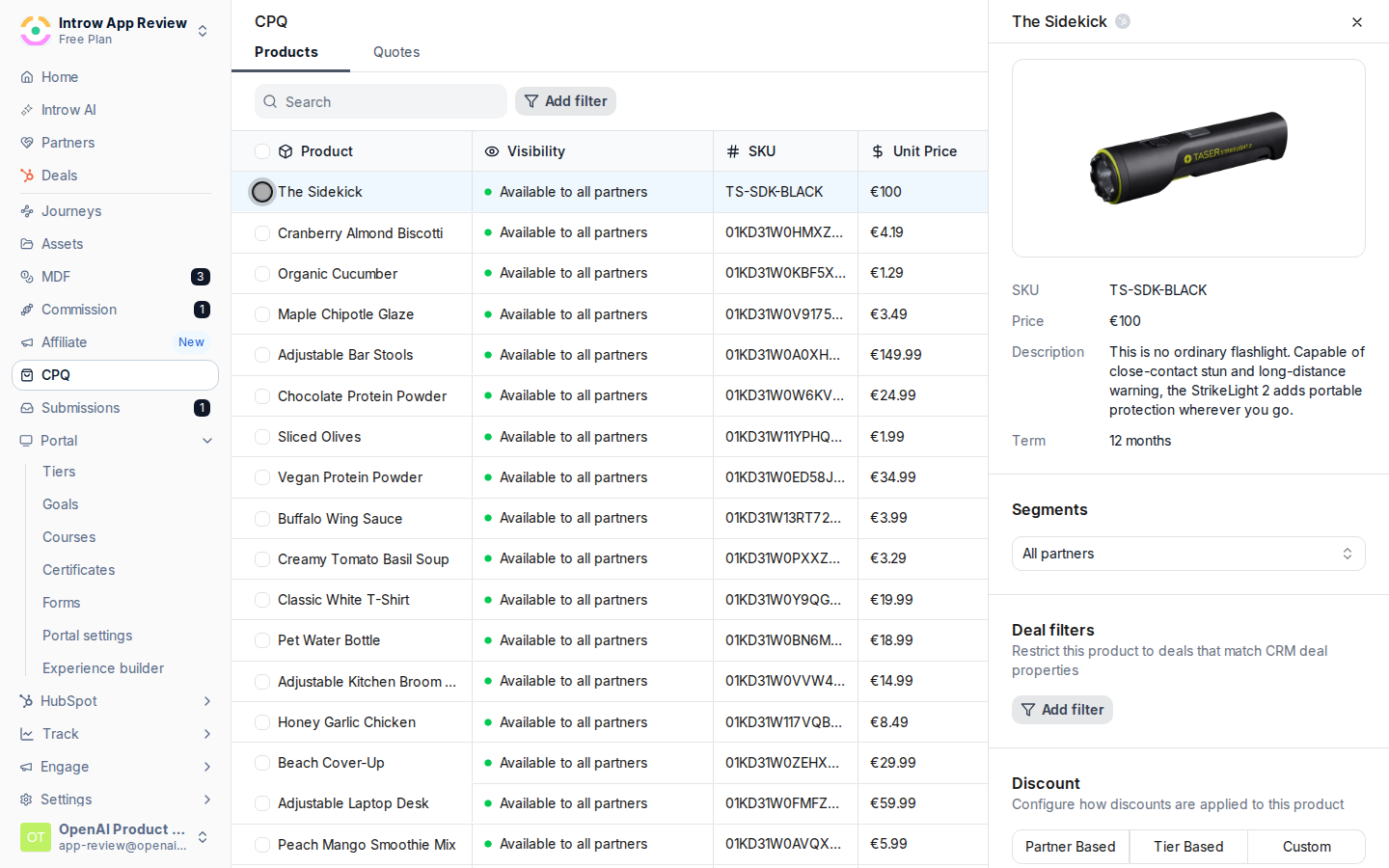
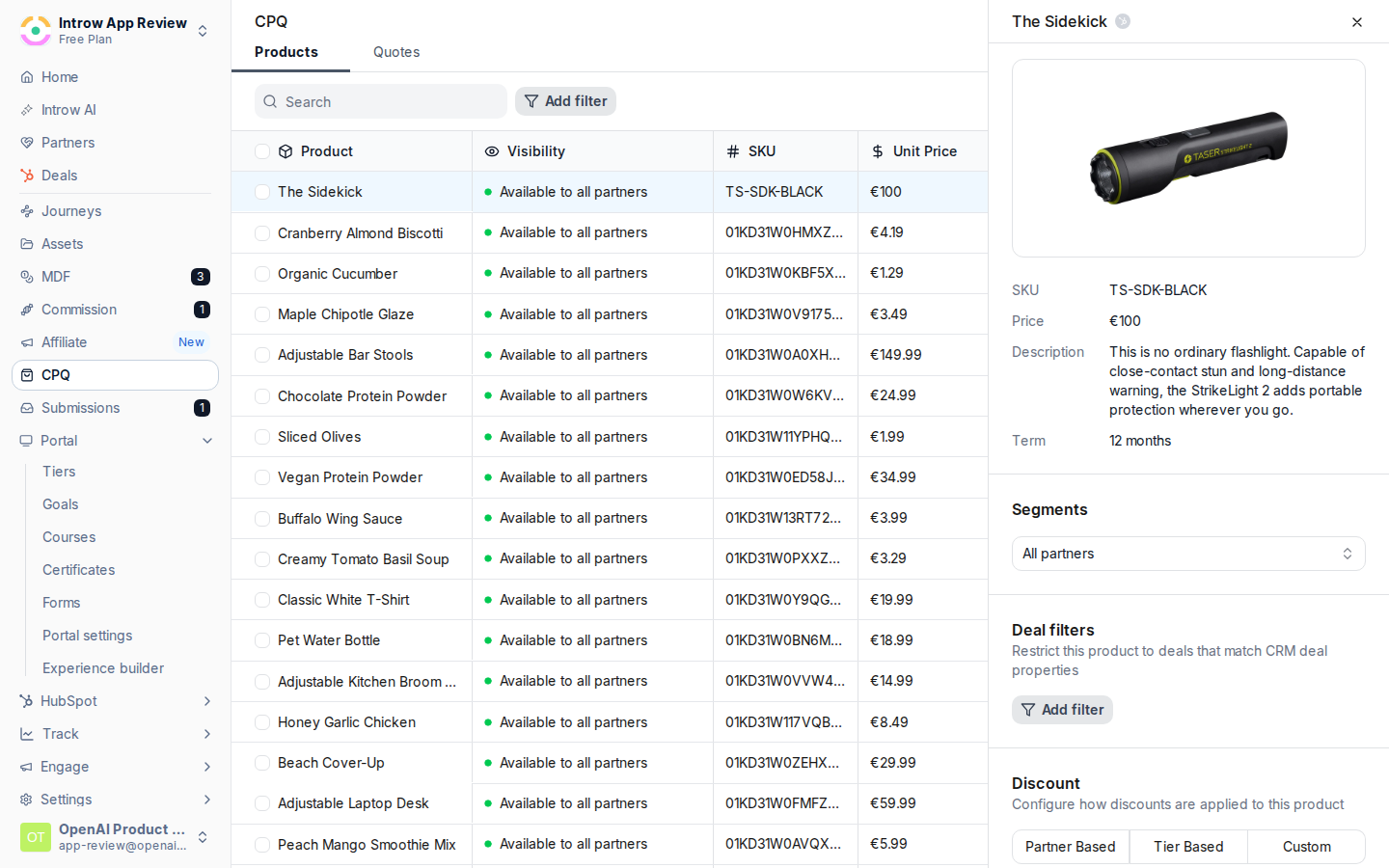 Tick the checkbox on every product that should get the same configuration. Use the column filters
first if you need to narrow a large catalog down to one product line before selecting.
Tick the checkbox on every product that should get the same configuration. Use the column filters
first if you need to narrow a large catalog down to one product line before selecting.
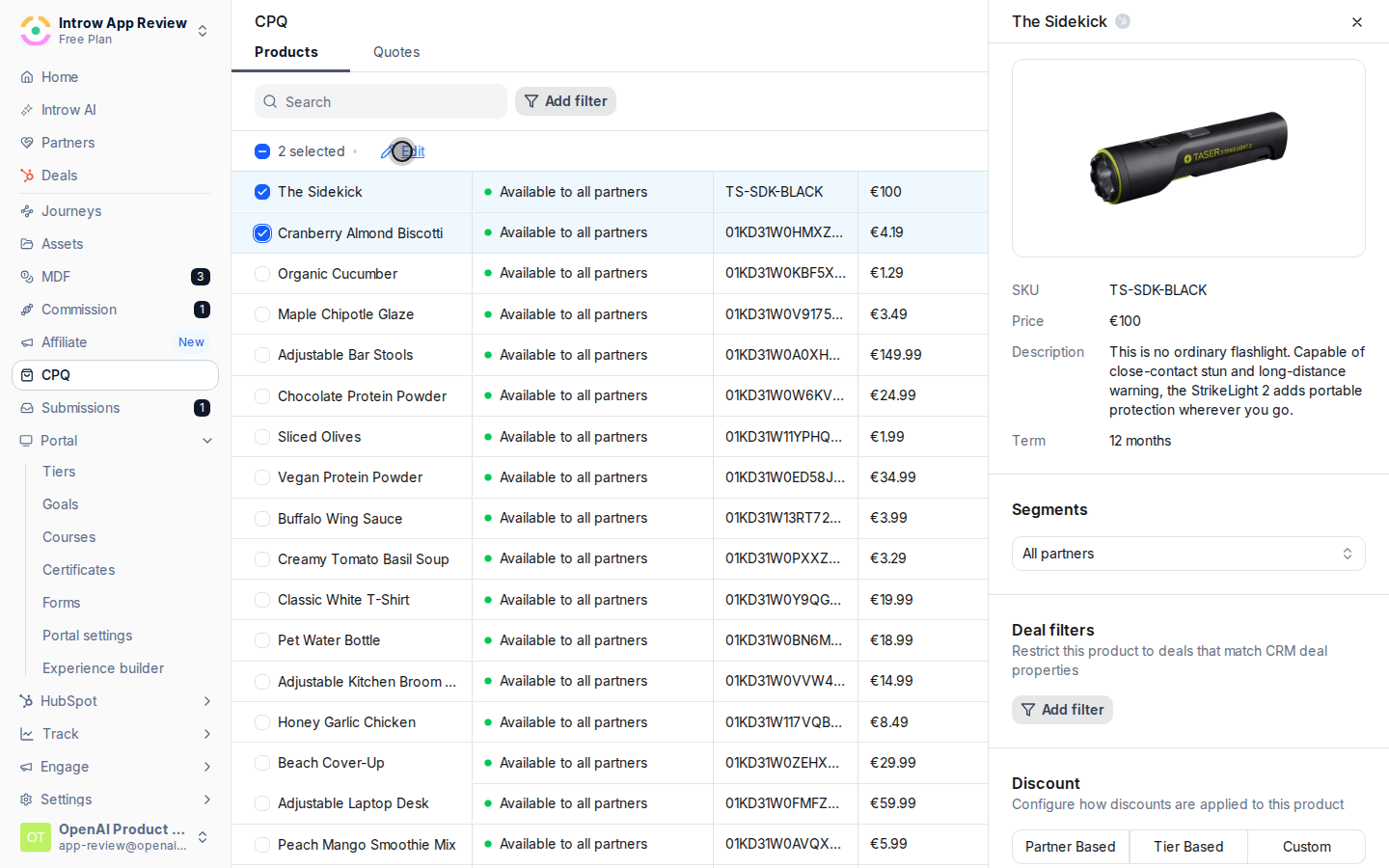
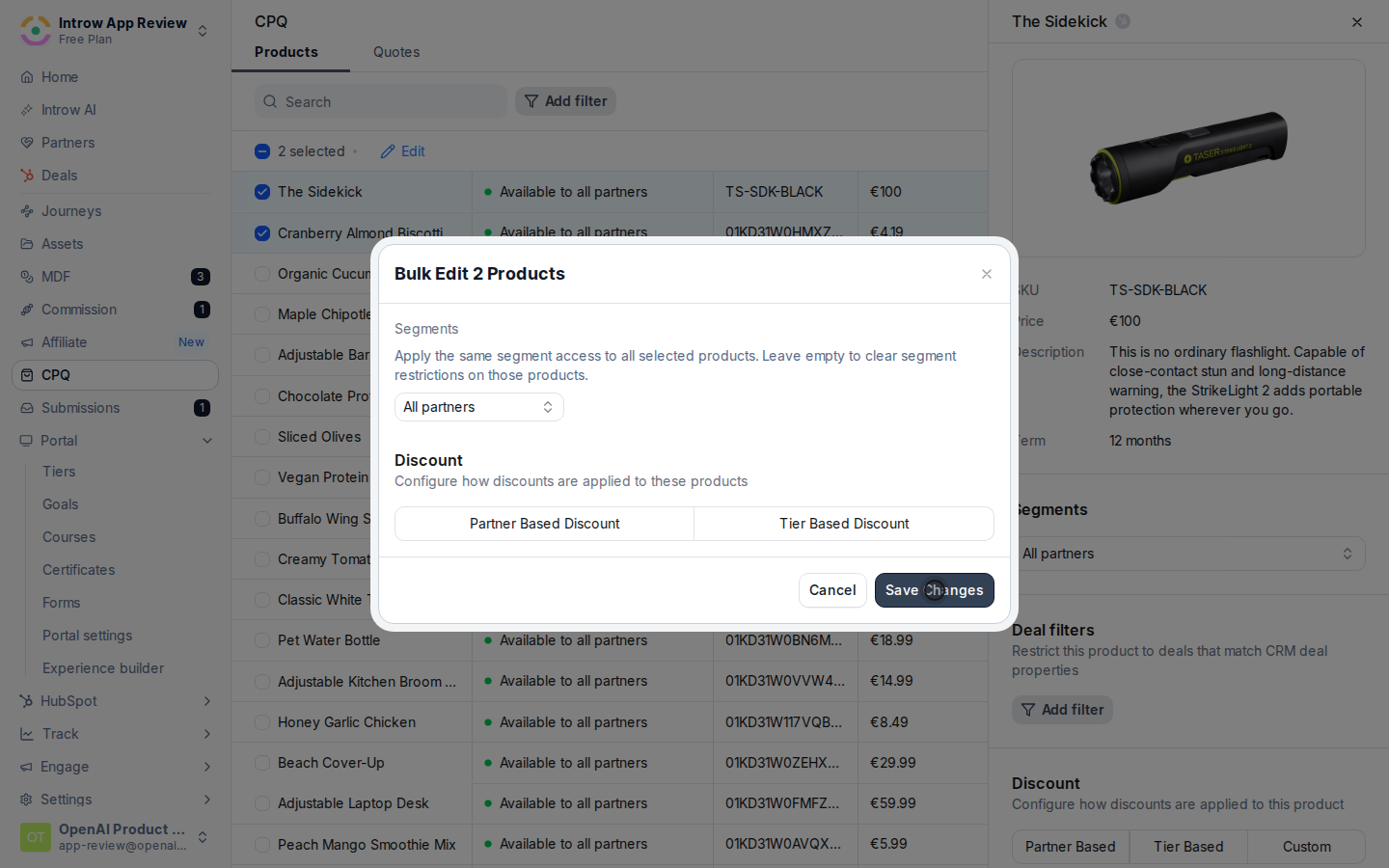
 With products selected, open the bulk edit action. The dialog is titled with the number of
products you are editing, so you can confirm the selection before applying anything.
With products selected, open the bulk edit action. The dialog is titled with the number of
products you are editing, so you can confirm the selection before applying anything.
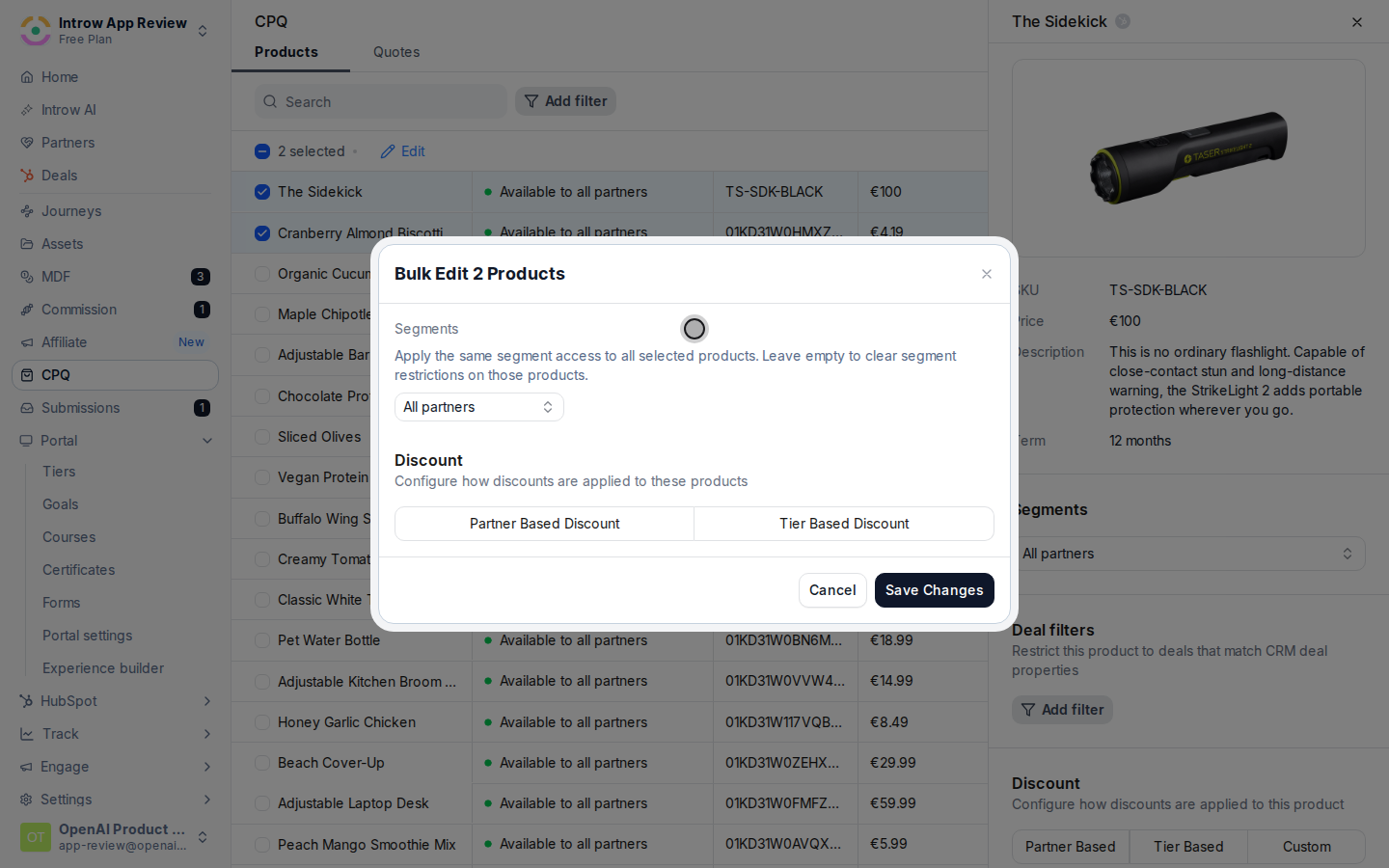
 Fill in the values you want to apply to every selected product:
* **Segments** - the partner segments allowed to see these products. Add segments to restrict the
products to those partners, or leave it empty to clear segment restrictions on all of them
(the empty state reads "All partners"). Because this applies to every selected product, an
empty value will remove any existing segment restriction those products had.
* **Discount** - choose **Partner Based Discount** or **Tier Based Discount** for the whole set,
or leave it unset to leave pricing untouched. Bulk edit covers these two rule types; custom
pricing and deal filters are set per product.
* **Discount property** (Partner Based) - the numeric or currency CRM property on the partner
record whose value becomes each partner's discount percentage.
* **Tier Discounts** (Tier Based) - a percentage per tier (0 to 100) that prices partners by the
tier they belong to. If no tiers exist yet, create them in Settings first.
Fill in the values you want to apply to every selected product:
* **Segments** - the partner segments allowed to see these products. Add segments to restrict the
products to those partners, or leave it empty to clear segment restrictions on all of them
(the empty state reads "All partners"). Because this applies to every selected product, an
empty value will remove any existing segment restriction those products had.
* **Discount** - choose **Partner Based Discount** or **Tier Based Discount** for the whole set,
or leave it unset to leave pricing untouched. Bulk edit covers these two rule types; custom
pricing and deal filters are set per product.
* **Discount property** (Partner Based) - the numeric or currency CRM property on the partner
record whose value becomes each partner's discount percentage.
* **Tier Discounts** (Tier Based) - a percentage per tier (0 to 100) that prices partners by the
tier they belong to. If no tiers exist yet, create them in Settings first.
 Apply the configuration to all selected products. The change is written to every product in the
selection at once.
Apply the configuration to all selected products. The change is written to every product in the
selection at once.
 ## Verify it worked
Reopen any of the products you edited and confirm its **Segments** and **Discount** match what you
applied. In the Products list, each edited product's **Visibility** column reflects the new segment
restriction, and a partner building a quote sees the products and pricing exactly as configured.
## Related
Scope a single product by segment and deal.
Discount partners by tier.
Full catalog configuration options.
## Verify it worked
Reopen any of the products you edited and confirm its **Segments** and **Discount** match what you
applied. In the Products list, each edited product's **Visibility** column reflects the new segment
restriction, and a partner building a quote sees the products and pricing exactly as configured.
## Related
Scope a single product by segment and deal.
Discount partners by tier.
Full catalog configuration options.