> ## Documentation Index
> Fetch the complete documentation index at: https://docs.introw.io/llms.txt
> Use this file to discover all available pages before exploring further.
# Monitor course progress and sync it to your CRM
> Read completion status in the tracking view, drill into individual learners, and surface progress on CRM records.
> For enablement, leadership, and RevOps who need to know who is ready, who is stalled, and who can see it in the CRM.
A training program is only as good as your ability to see whether it is working, and that visibility cannot stop at the LMS. Enablement needs to know who is certified and who stalled; sales and partner managers need that same readiness next to the deals they are working, inside HubSpot or Salesforce. This guide covers both: reading the tracking view and confirming progress lands on your CRM records.
## What you'll achieve
A clear read on a course's progress (enrollments grouped by status, completion metrics over a date range, and per-learner detail) plus confirmation that Course Enrollment records in your CRM stay current with each partner's training.
## Before you start
You need access to the course's tracking view.
To surface progress in your CRM, have a HubSpot or Salesforce integration connected, the Course Enrollment object available, and partners' contacts and companies linked to their CRM records.
## Watch it
## Steps
### Read progress in the tracking view
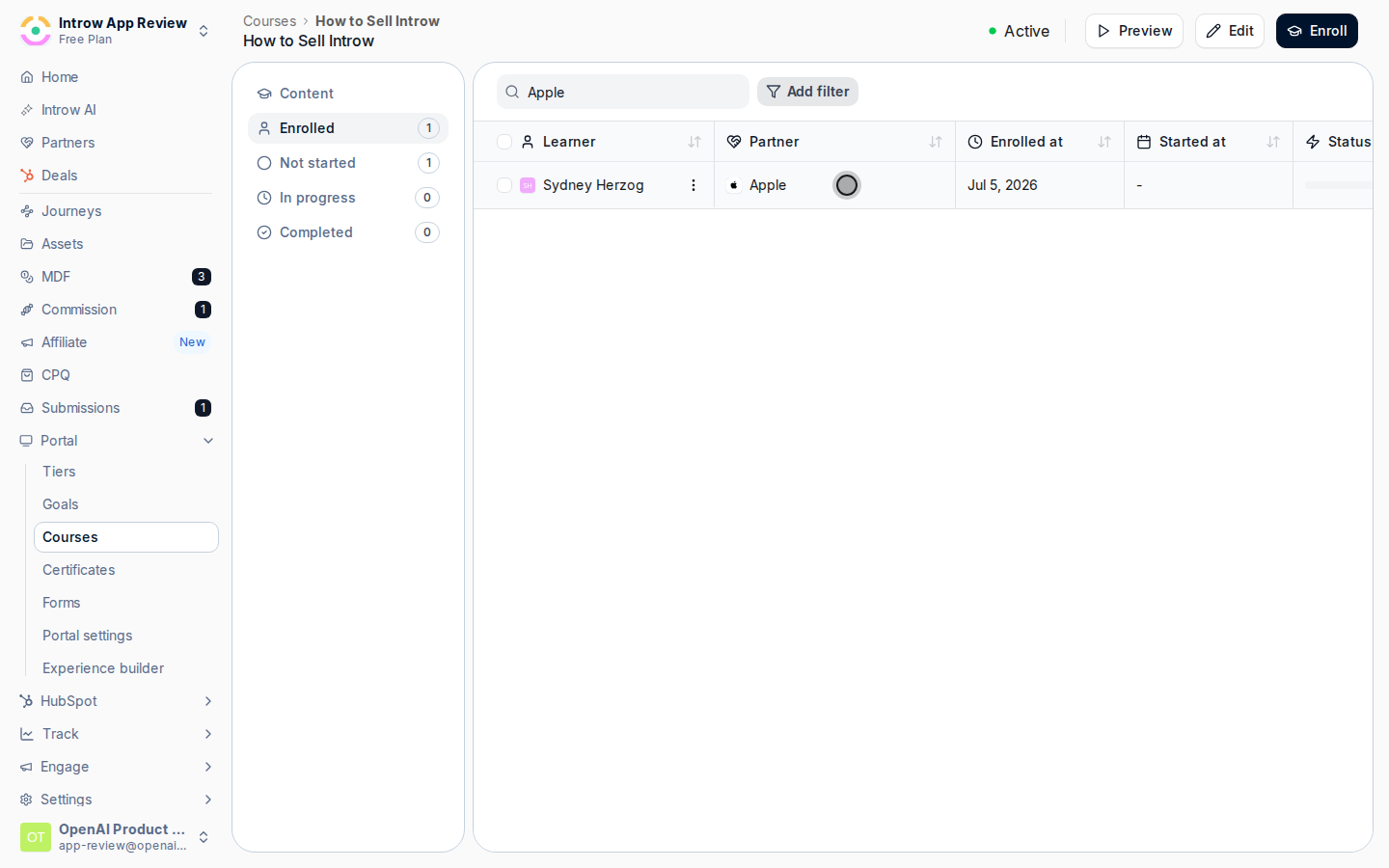
Open the course from [Courses](https://app.introw.io/courses) and go to its tracking view, the home for everything about who is taking it and how far they have gotten.
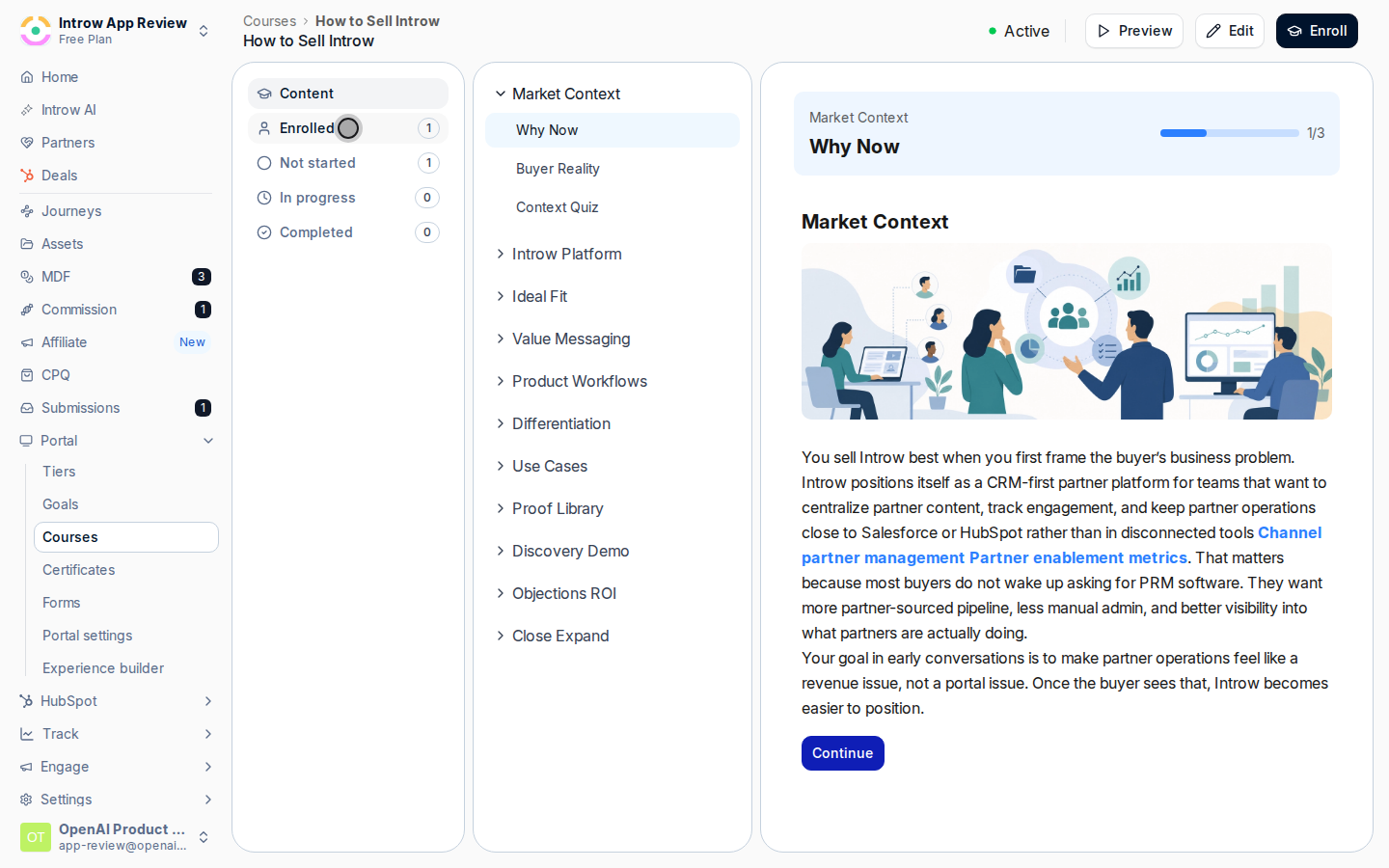
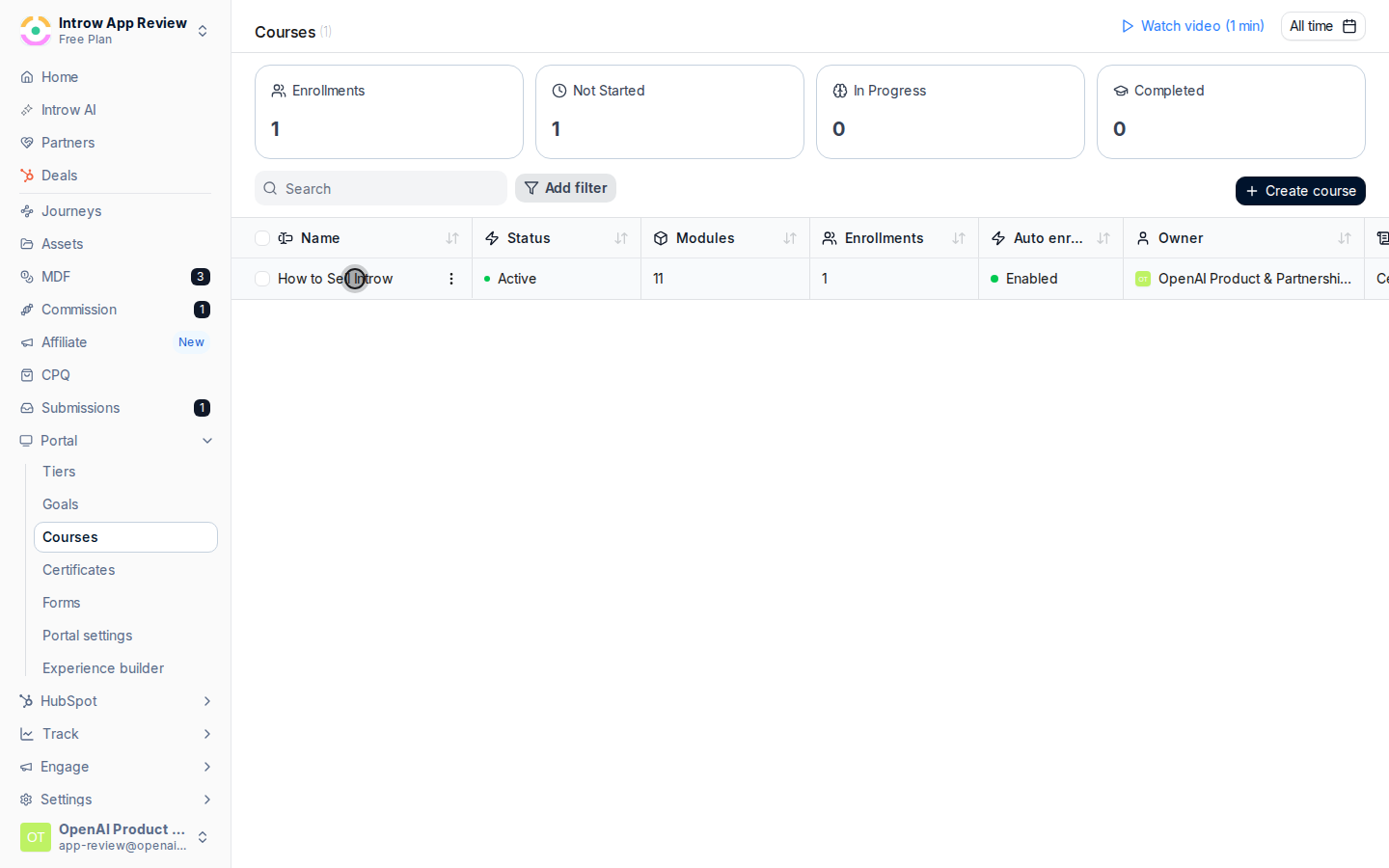 Move between the status tabs to see each group of learners:
* **Enrolled** - everyone in the course, the full population you are tracking.
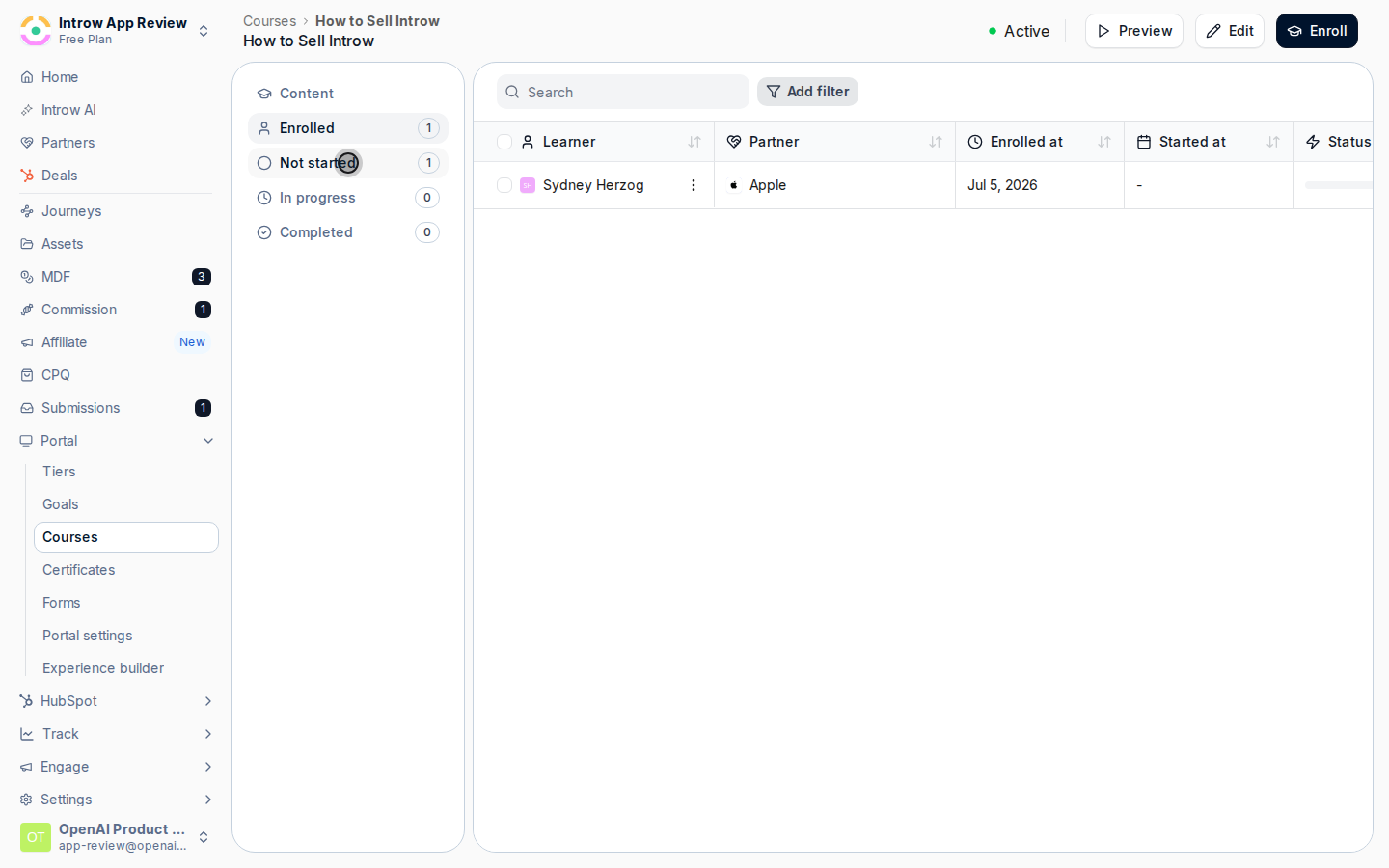
* **Not started** - enrolled partners who have not opened the course yet. This is your first follow-up list.
* **In progress** - partners part way through. Your second follow-up list, and the right place to nudge before a deadline.
* **Completed** - partners who finished (and passed, if a score is set). This is your "ready to sell or deliver" list.
Move between the status tabs to see each group of learners:
* **Enrolled** - everyone in the course, the full population you are tracking.
* **Not started** - enrolled partners who have not opened the course yet. This is your first follow-up list.
* **In progress** - partners part way through. Your second follow-up list, and the right place to nudge before a deadline.
* **Completed** - partners who finished (and passed, if a score is set). This is your "ready to sell or deliver" list.
 Use the date picker to summarize completion over a period - a month, a quarter, a launch window - so you can report on the trend rather than just the current snapshot.
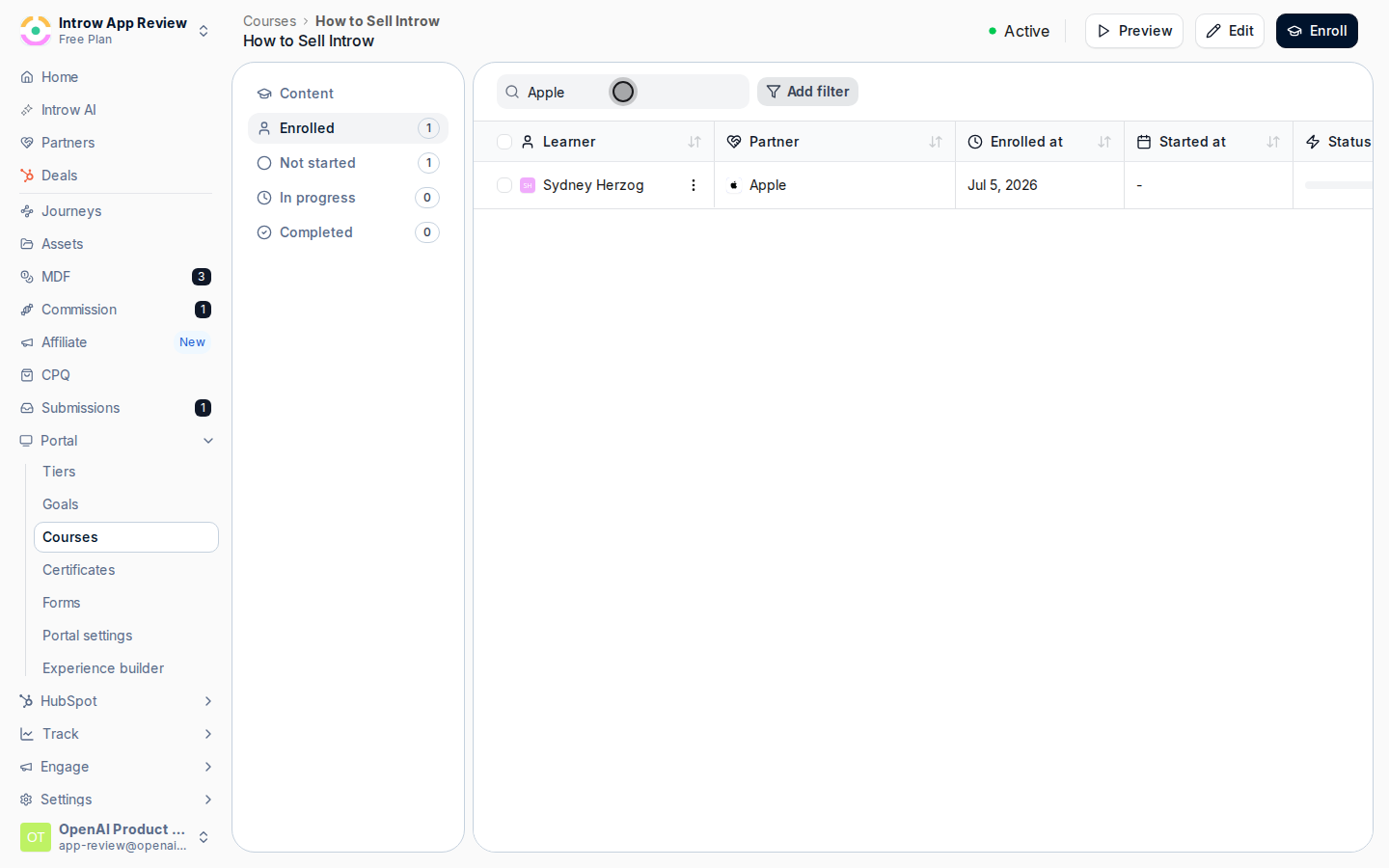
 Open an individual enrollment to see exactly where that partner is, including per-module detail and timestamps, so you know whether they are stuck or simply have not started. From here you can act on stalled learners (see [Nudge incomplete learners](../../enrollments/guides/nudge-incomplete-learners)).
 ### Confirm progress in your CRM
There is nothing to toggle per course. Once a CRM is connected and partners are linked, the enrollment sync runs automatically on a schedule and updates only the enrollments that changed. It is eventually consistent, so allow a short lag after a partner progresses.
### Confirm progress in your CRM
There is nothing to toggle per course. Once a CRM is connected and partners are linked, the enrollment sync runs automatically on a schedule and updates only the enrollments that changed. It is eventually consistent, so allow a short lag after a partner progresses.
 Confirm progress is landing where your revenue teams work, then build reports on the Course Enrollment object (completion, due dates, progress percentage) so readiness shows up alongside pipeline. The object and association differ slightly by CRM:
Open the partner's company or contact and find its associated Course Enrollment records. Build HubSpot lists and reports on the Course Enrollment object so partner readiness sits next to deal and company data.
Open the partner's Account or Contact and find its related Course Enrollment records. Build Salesforce reports and dashboards on the Course Enrollment object so readiness is visible next to opportunities.
## Verify it worked
Each status tab shows the expected learners and the metrics reflect completions in the chosen range. A partner who enrolled or progressed shows an up-to-date Course Enrollment record in the CRM within a sync cycle, with dates and module counts populated.
## Related
Follow up with stalled partners.
Set the deadlines you are tracking against.
Tracking views and the CRM sync.
Confirm progress is landing where your revenue teams work, then build reports on the Course Enrollment object (completion, due dates, progress percentage) so readiness shows up alongside pipeline. The object and association differ slightly by CRM:
Open the partner's company or contact and find its associated Course Enrollment records. Build HubSpot lists and reports on the Course Enrollment object so partner readiness sits next to deal and company data.
Open the partner's Account or Contact and find its related Course Enrollment records. Build Salesforce reports and dashboards on the Course Enrollment object so readiness is visible next to opportunities.
## Verify it worked
Each status tab shows the expected learners and the metrics reflect completions in the chosen range. A partner who enrolled or progressed shows an up-to-date Course Enrollment record in the CRM within a sync cycle, with dates and module counts populated.
## Related
Follow up with stalled partners.
Set the deadlines you are tracking against.
Tracking views and the CRM sync.