> ## Documentation Index
> Fetch the complete documentation index at: https://docs.introw.io/llms.txt
> Use this file to discover all available pages before exploring further.
# Manually enroll partners in a course
> Enroll a hand-picked cohort into a course, with an optional enrollment notification.
> For a fixed cohort - a launch group or a specific partner you want trained now.
Not every enrollment fits a segment rule. Sometimes you need a specific, known set of partners in a course right now: a launch cohort, a single reseller prepping for a deal, or a pilot group for new content. Manual enrollment gives you that direct control, and the notify option lets you decide whether to announce it or stage the course quietly first.
## What you'll achieve
A set of partners enrolled in a course by hand, appearing immediately in the course's tracking view, optionally notified that they have been enrolled.
## Before you start
You need a team role with write access to Courses.
Decide exactly which partners (and partner contacts) should be enrolled.
## Watch it
## Steps
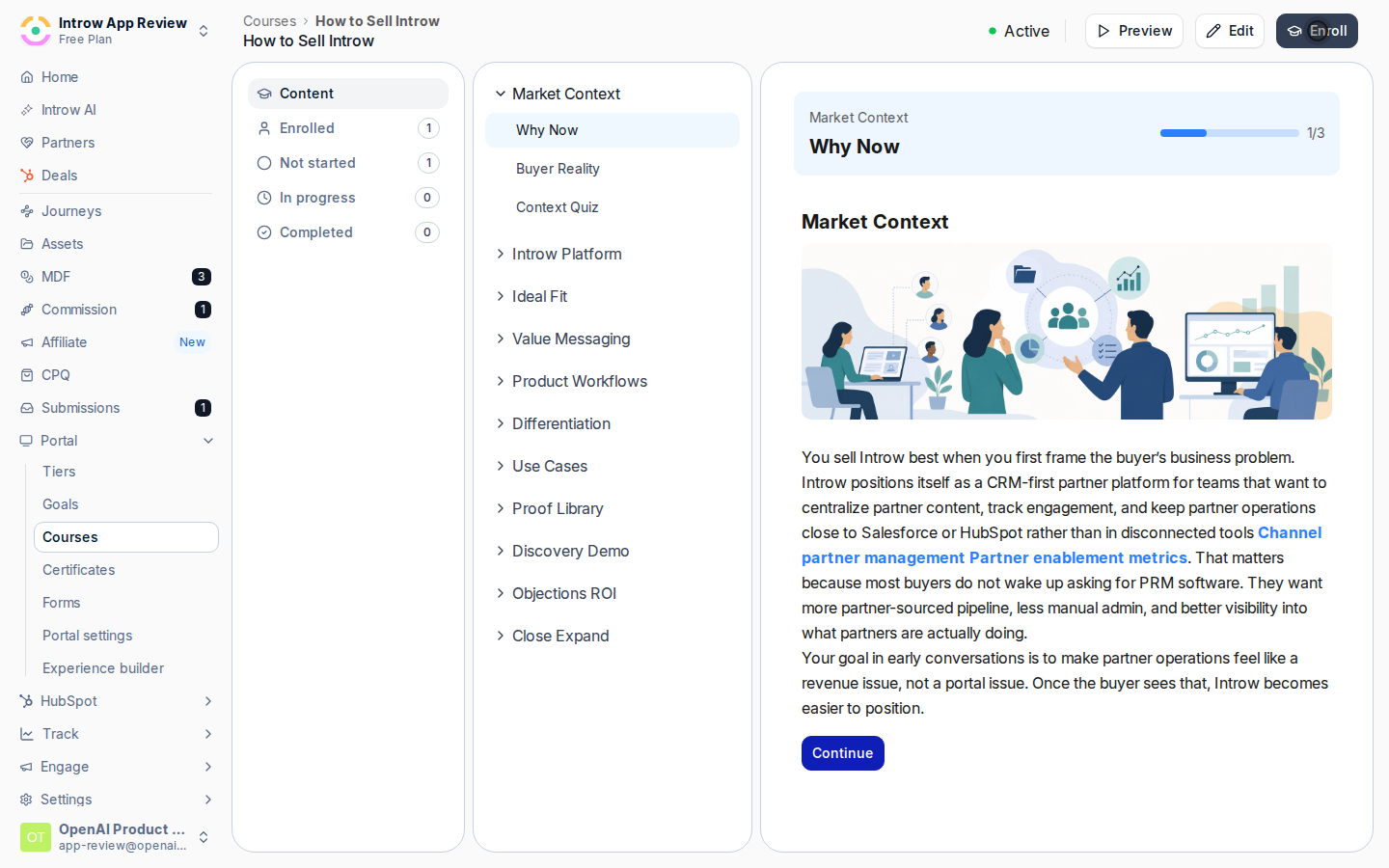
Open the course from [Courses](https://app.introw.io/courses) and select **Enroll**. This opens the enrollment wizard where you pick who to add.
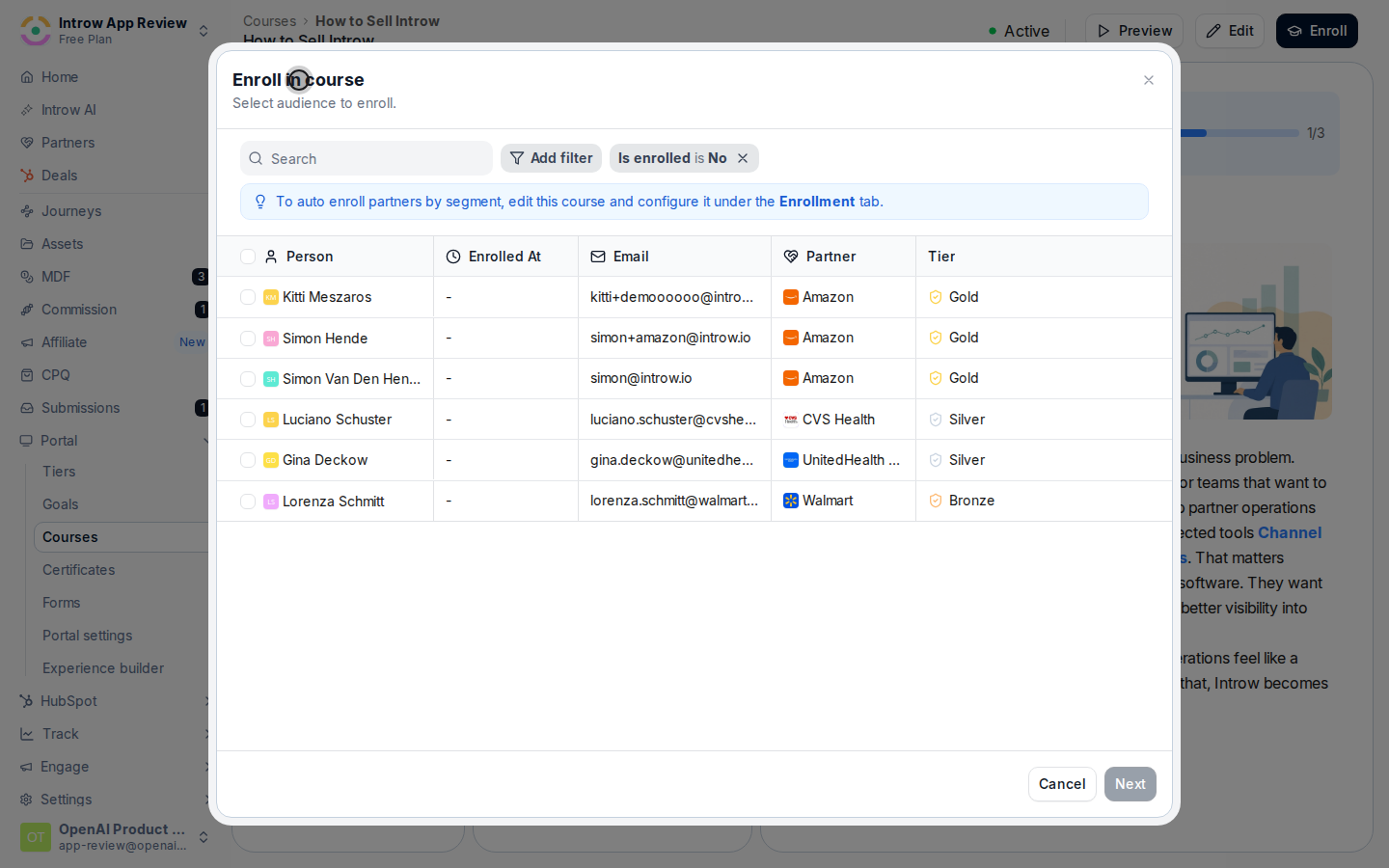
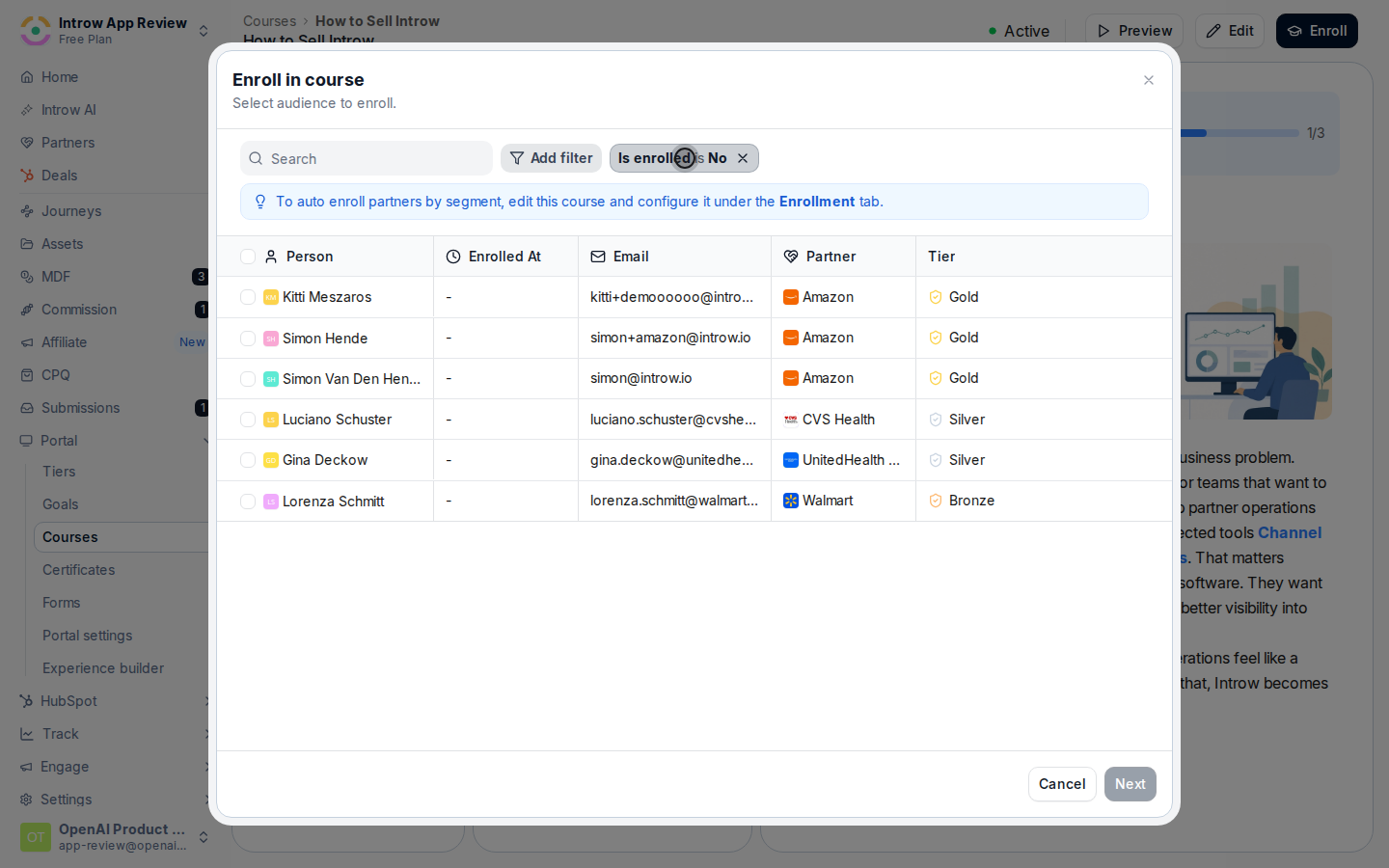
 Choose who to enroll in the audience step:
* **Partners and partner contacts** - search for and select the exact partners (and their contacts) you want in the course. Use the filters to narrow a long list. This is the precise cohort that will be enrolled, so review the selection before continuing.
Choose who to enroll in the audience step:
* **Partners and partner contacts** - search for and select the exact partners (and their contacts) you want in the course. Use the filters to narrow a long list. This is the precise cohort that will be enrolled, so review the selection before continuing.
 Select **Next** to move to the email preview. Review the enrollment email partners will receive so you can check the wording and confirm the audience before anyone is contacted.
 Finish the enrollment with the option that fits how you want partners to find out:
* **Enroll and notify** - enrolls the selected partners and sends each of them the enrollment email. Use this when you want partners to know the course is ready for them.
* **Enroll without email** - enrolls them silently, with no notification. Use this to stage the course before you announce it, or when you will tell partners another way.
Either way, the selected partners are added as enrollments and appear in the course's tracking view immediately. If the course was in **Draft**, its first enrollment flips it to **Active**.
Finish the enrollment with the option that fits how you want partners to find out:
* **Enroll and notify** - enrolls the selected partners and sends each of them the enrollment email. Use this when you want partners to know the course is ready for them.
* **Enroll without email** - enrolls them silently, with no notification. Use this to stage the course before you announce it, or when you will tell partners another way.
Either way, the selected partners are added as enrollments and appear in the course's tracking view immediately. If the course was in **Draft**, its first enrollment flips it to **Active**.
 ## Verify it worked
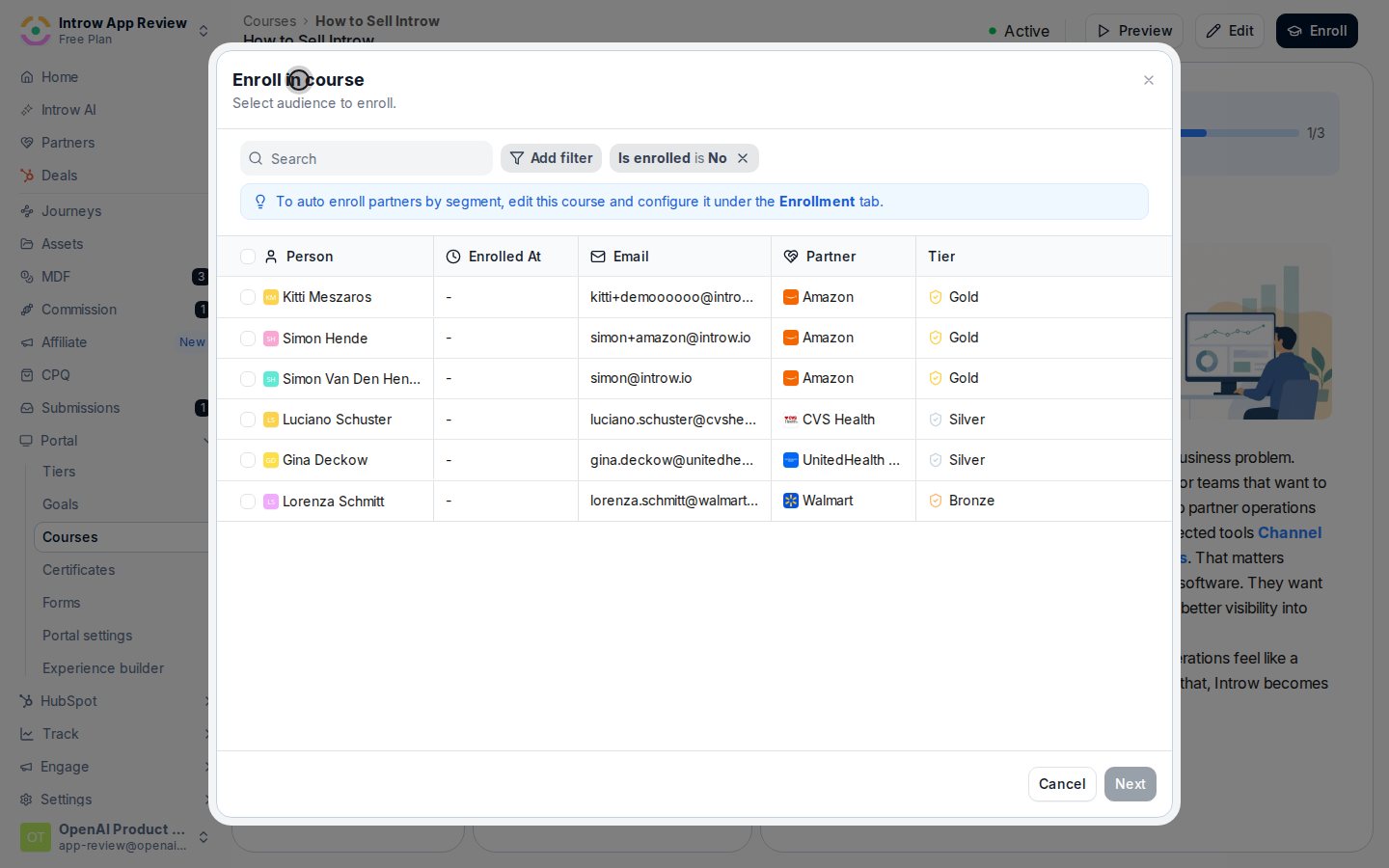
The enrolled partners appear in the course's tracking view, and if you chose **Enroll and notify** they receive an enrollment email.
## Related
Auto-enroll segments and set a deadline.
Remind partners who have not finished.
Manual vs automatic enrollment.
## Verify it worked
The enrolled partners appear in the course's tracking view, and if you chose **Enroll and notify** they receive an enrollment email.
## Related
Auto-enroll segments and set a deadline.
Remind partners who have not finished.
Manual vs automatic enrollment.