> ## Documentation Index
> Fetch the complete documentation index at: https://docs.introw.io/llms.txt
> Use this file to discover all available pages before exploring further.
# Configure enrollment rules for a course
> Auto-enroll the right segments and set a completion deadline so training targets itself and lands on time.
> For ops and enablement teams that want training to target itself as partners join, and to land inside a deadline instead of drifting.
Manually enrolling partners does not scale, and it quietly breaks onboarding: every new partner who joins after you set up a course gets missed. Training with no deadline tends to slip to the bottom of everyone's list. This guide sets both rules on a course at once: auto-enrollment so the right segments are always enrolled, and a due date so completion lands inside a window you can nudge against.
## What you'll achieve
A course that automatically enrolls every partner in the segments you choose (now and as new partners qualify) and carries a completion deadline, either relative to each partner's enrollment date or a fixed calendar date, stamped on every enrollment and synced to your CRM.
## Before you start
You need a team role with write access to Courses.
Have the target segments ready (for example, "New resellers"). Auto-enrollment is driven by segment membership.
## Watch it
## Steps
### Auto-enroll the right segments
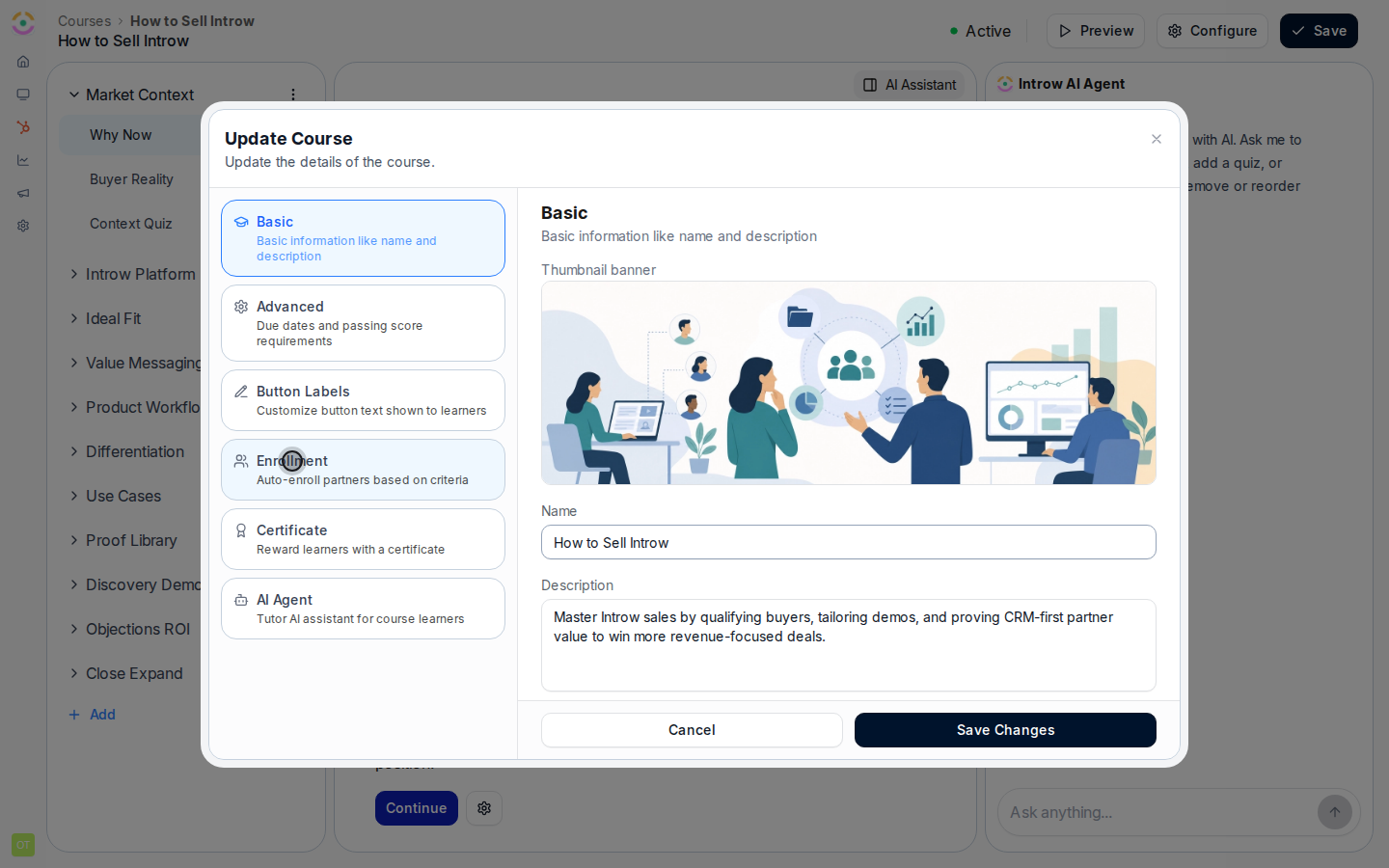
Open the course from [Courses](https://app.introw.io/courses), select **Configure**, and go to the **Enrollment** tab, where automatic enrollment is configured.
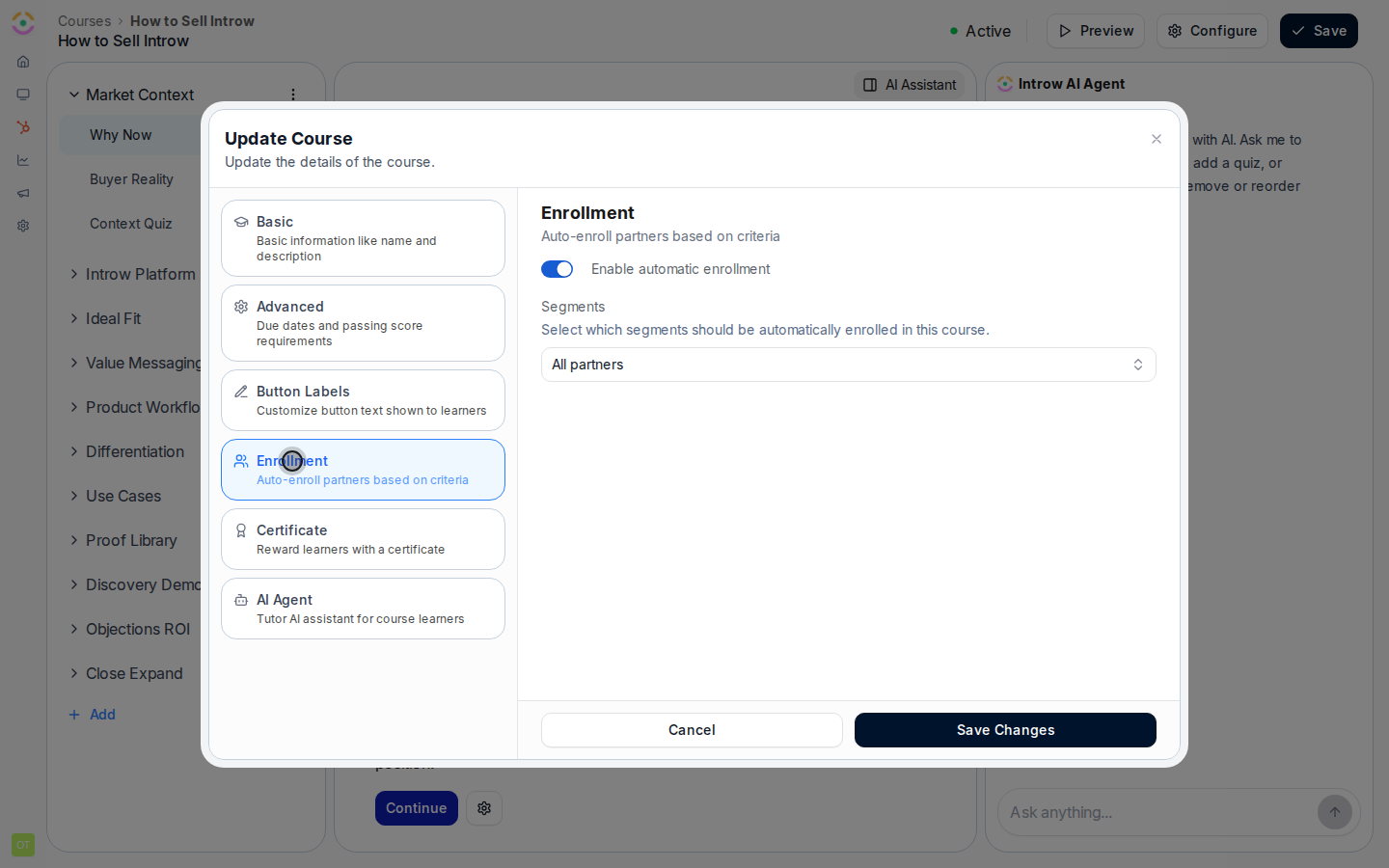
 Set up who gets enrolled:
* **Enable automatic enrollment** - switches the course from manual-only to segment-driven. With it on, Introw keeps the enrollment list in sync with the segments you choose.
* **Segments** - select one or more segments whose partners should take the course. Everyone who matches now is enrolled, and anyone who joins those segments later is enrolled automatically. Before you save, check the reach preview so you know how many partners this will enroll.
One important behavior: removing a partner from a segment, or removing a segment from the course, does not unenroll partners who are already enrolled. Auto-enrollment only ever adds; to take someone out of a course you unenroll them directly. This protects in-progress learners from losing their place.
Set up who gets enrolled:
* **Enable automatic enrollment** - switches the course from manual-only to segment-driven. With it on, Introw keeps the enrollment list in sync with the segments you choose.
* **Segments** - select one or more segments whose partners should take the course. Everyone who matches now is enrolled, and anyone who joins those segments later is enrolled automatically. Before you save, check the reach preview so you know how many partners this will enroll.
One important behavior: removing a partner from a segment, or removing a segment from the course, does not unenroll partners who are already enrolled. Auto-enrollment only ever adds; to take someone out of a course you unenroll them directly. This protects in-progress learners from losing their place.
 ### Set a completion deadline
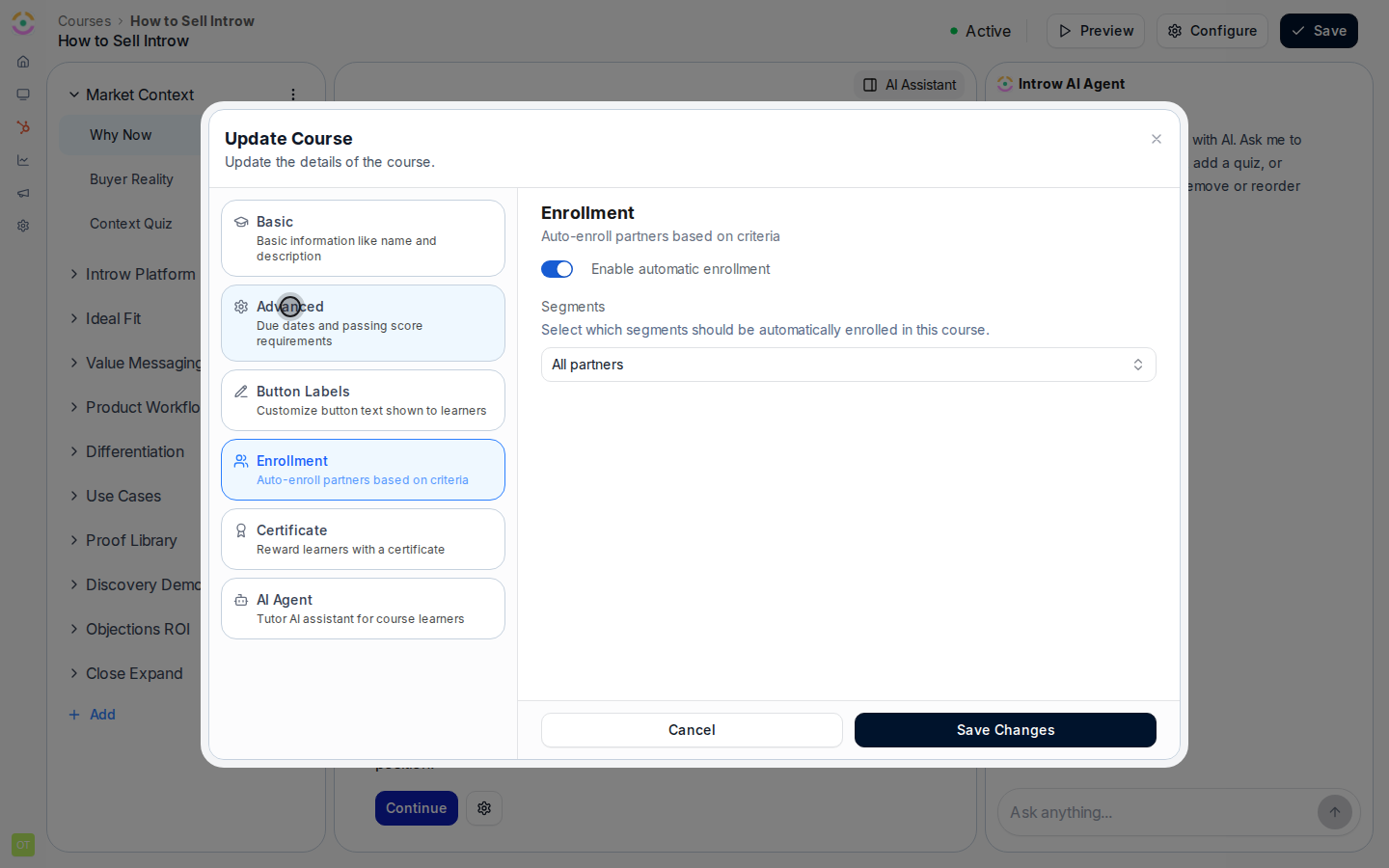
Still in the **Update course** dialog, go to the **Advanced** tab, where course-wide rules like the due date and passing score live.
### Set a completion deadline
Still in the **Update course** dialog, go to the **Advanced** tab, where course-wide rules like the due date and passing score live.
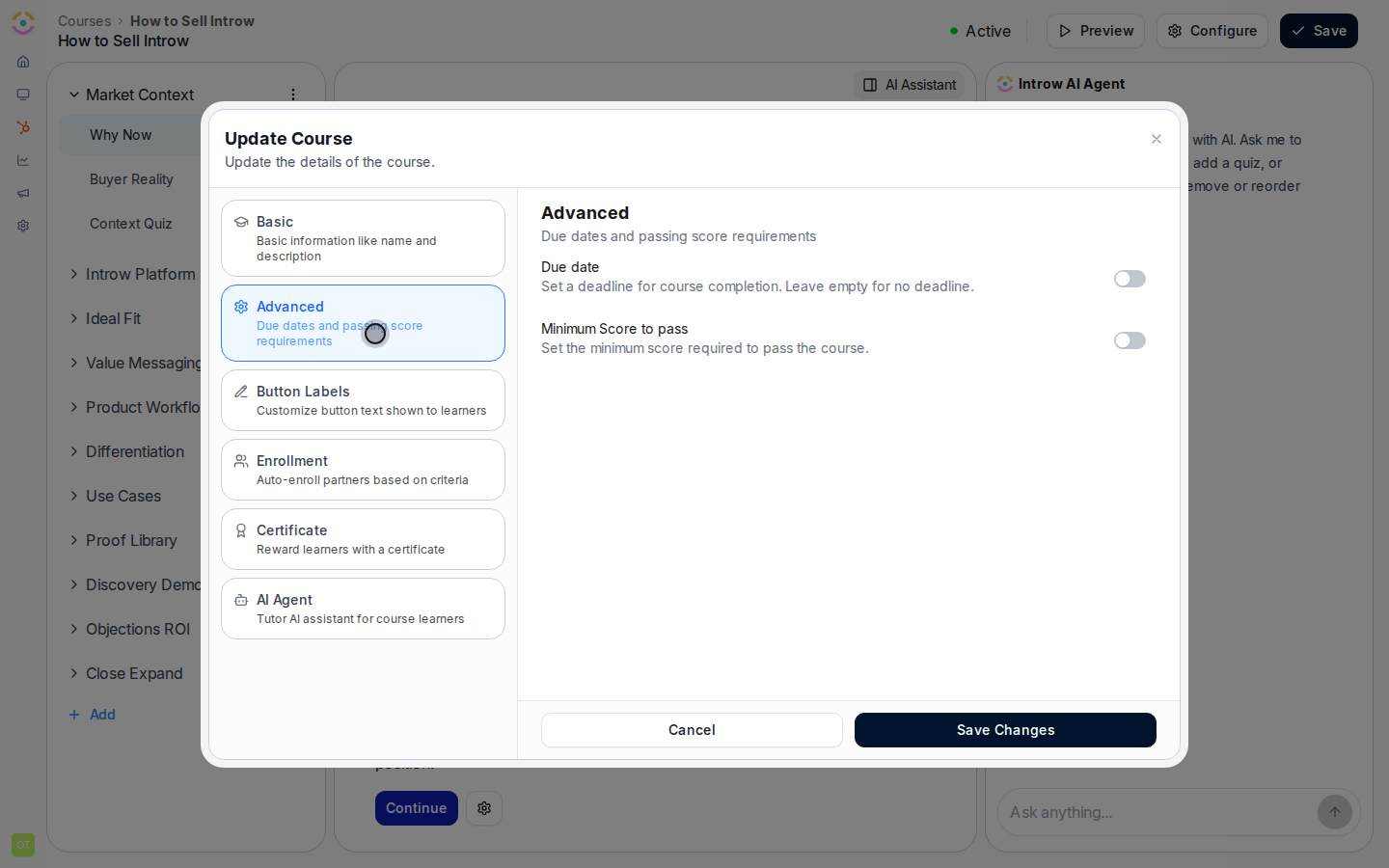
 Turn the due date on, then choose how the deadline is calculated:
* **Relative** - set an amount and unit (**Days**, **Weeks**, **Months**, or **Years**) measured from each partner's enrollment date. Use this so every partner's onboarding runs on the same clock no matter when they join. This pairs naturally with auto-enrollment, where partners enroll on a rolling basis.
* **Fixed date** - pick a single calendar deadline that applies to everyone. Use this when the whole cohort needs to be ready for the same moment, like a product launch or a partner kickoff.
Turn the due date on, then choose how the deadline is calculated:
* **Relative** - set an amount and unit (**Days**, **Weeks**, **Months**, or **Years**) measured from each partner's enrollment date. Use this so every partner's onboarding runs on the same clock no matter when they join. This pairs naturally with auto-enrollment, where partners enroll on a rolling basis.
* **Fixed date** - pick a single calendar deadline that applies to everyone. Use this when the whole cohort needs to be ready for the same moment, like a product launch or a partner kickoff.
 Select **Save Changes**. Matching partners are enrolled right away, future joiners are enrolled automatically, and the due date is stamped on each enrollment and synced to your CRM so deadlines are visible to sales and partner managers too.
## Verify it worked
The **Auto enroll** column on the Courses list shows **Enabled**, partners in the selected segments appear as enrollments, each enrollment shows the computed due date, and the due date appears on the synced Course Enrollment record in your CRM.
## Related
Add a hand-picked cohort on top of the rules.
Remind partners approaching or past the deadline.
Track who is on track against the deadline.
Auto-enrollment, reach previews, and due dates.
Select **Save Changes**. Matching partners are enrolled right away, future joiners are enrolled automatically, and the due date is stamped on each enrollment and synced to your CRM so deadlines are visible to sales and partner managers too.
## Verify it worked
The **Auto enroll** column on the Courses list shows **Enabled**, partners in the selected segments appear as enrollments, each enrollment shows the computed due date, and the due date appears on the synced Course Enrollment record in your CRM.
## Related
Add a hand-picked cohort on top of the rules.
Remind partners approaching or past the deadline.
Track who is on track against the deadline.
Auto-enrollment, reach previews, and due dates.