> ## Documentation Index
> Fetch the complete documentation index at: https://docs.introw.io/llms.txt
> Use this file to discover all available pages before exploring further.
# Build a training curriculum with sequential courses
> Chain courses with dynamic segments so partners unlock the next course automatically when they finish the previous one.
> For enablement teams that want partners to work through training in a fixed order, without enrolling anyone by hand at each step.
A catalog of courses leaves partners to guess where to start and which course comes next.
A sequence fixes that: each partner sees only the course they are ready for, and the next one appears when they finish.
Introw has no "course order" setting, so you build the sequence from two things you already have: dynamic segments and auto-enrollment.
## What you'll achieve
A curriculum of two or more levels, for example Introduction, Basic training, and Advanced training.
New partner contacts enter at level 1, and each contact moves up on their own as they complete a course.
Nobody is enrolled by hand.
## How the sequence works
Courses enroll partners through segments, and dynamic segments update as contacts change.
That lets you define each level by what the contact has already completed:
| Level | Segment condition | Enrolled in |
| - | - | - |
| 1 | Entry criteria, for example **Phase** is Onboarding | Introduction |
| 2 | **Completed course** is Introduction | Basic training |
| 3 | **Completed course** is Basic training | Advanced training |
When a contact finishes a course, they match the next segment and are enrolled in the next course.
Add as many levels as you need with the same pattern.
## Before you start
You need a team role with write access to Courses and access to segment settings.
Decide the order of your courses and who should start at level 1.
Build each level as its own course, not as modules inside one course.
Modules run inside a single course, but only separate courses can unlock one another.
## Watch it
## Steps
### Create the courses
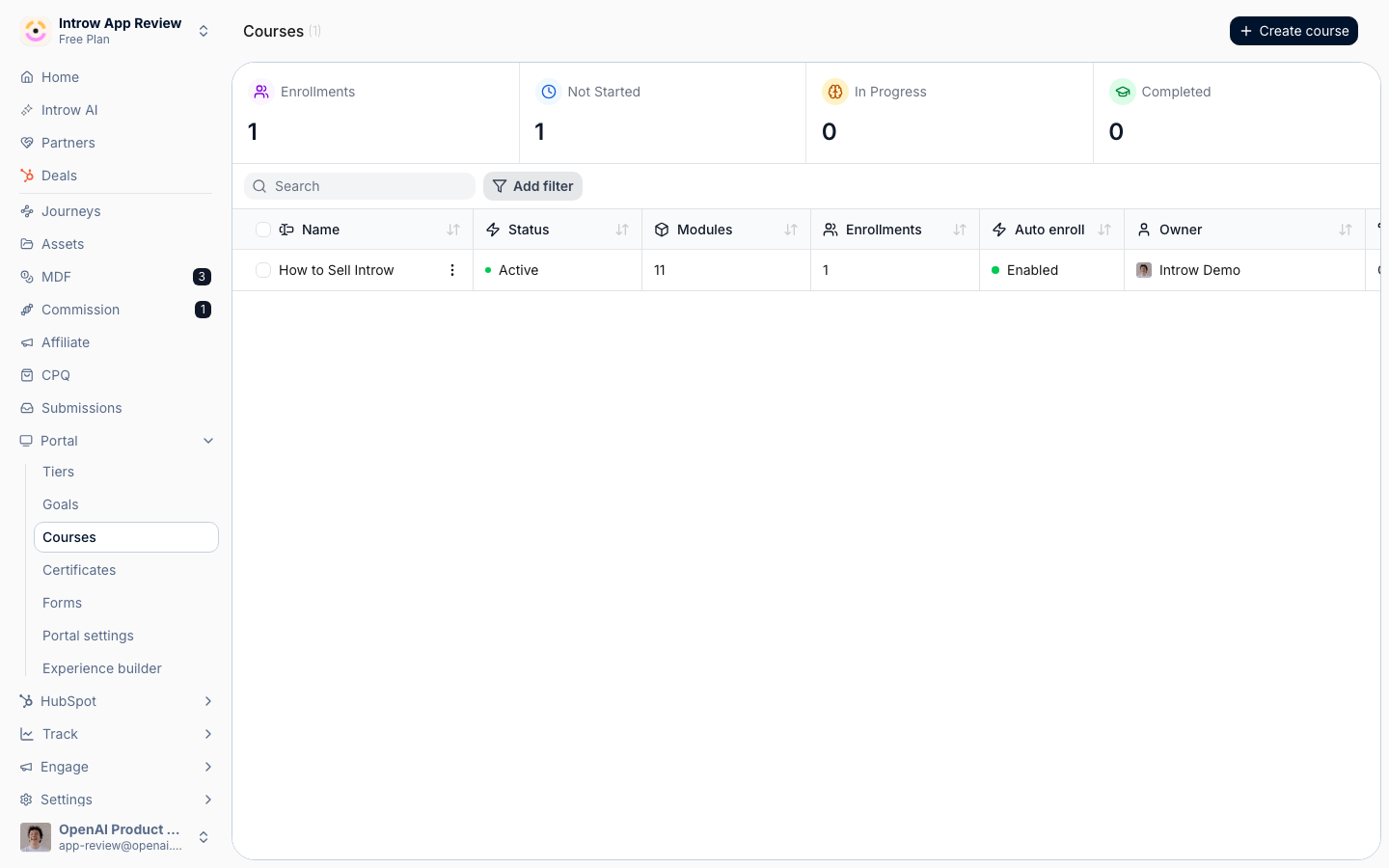
Go to [Courses](https://app.introw.io/courses) and create each course on its own, by [building it manually](../../authoring/guides/build-a-course-manually), [generating it with AI](../../authoring/guides/generate-a-course-with-ai), or [importing a SCORM course](../../authoring/guides/import-a-scorm-course).
Give the courses names you can tell apart in a dropdown, because you pick them by name when you build the segments.
 ### Create one segment per level
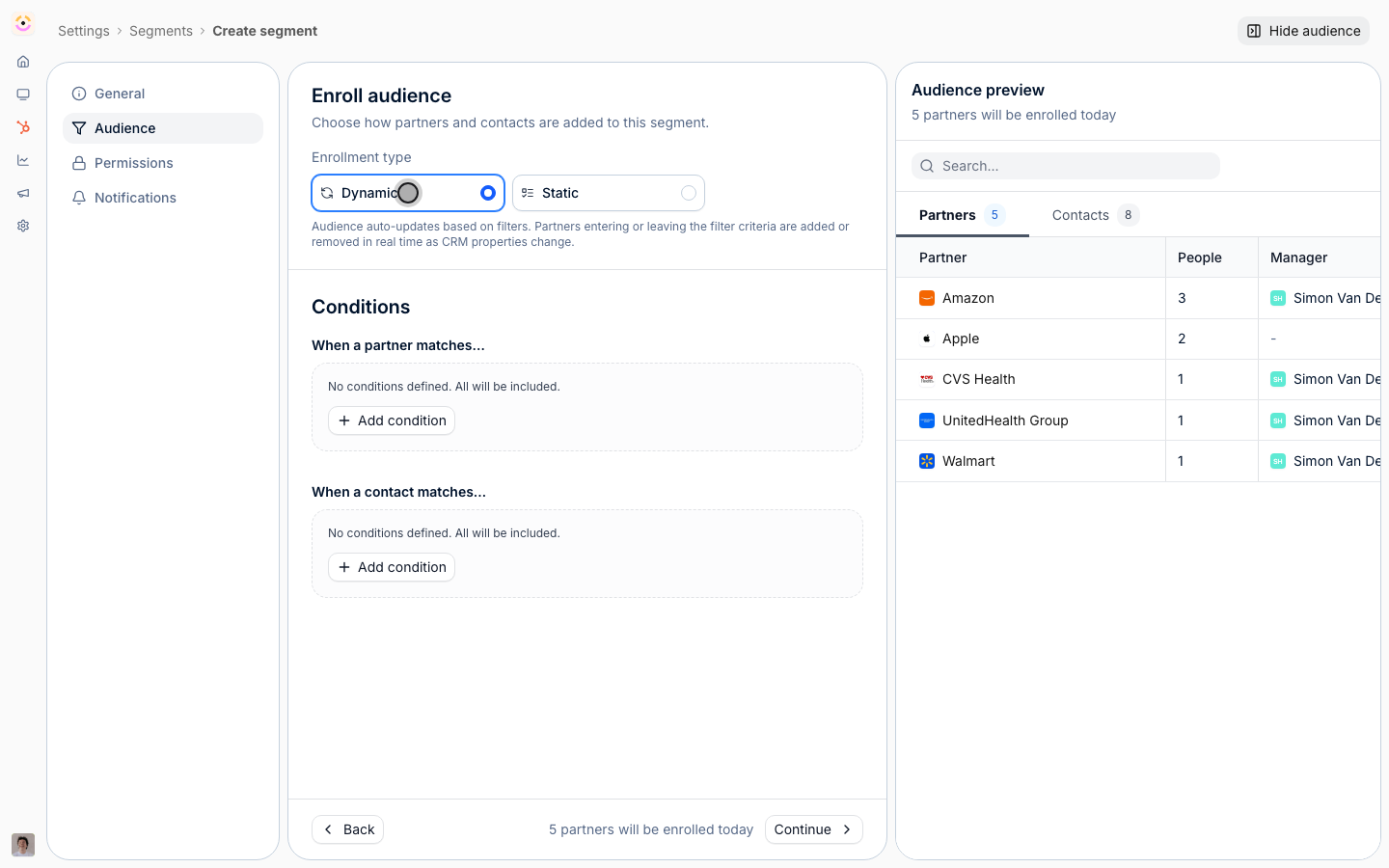
Go to [Segments](https://app.introw.io/settings/segments) and create a partner contact segment with **Dynamic** enrollment.
Set the entry criteria for your first course, for example **Phase** is Onboarding, or a contact role such as Sales rep.
This segment decides who starts the curriculum.
### Create one segment per level
Go to [Segments](https://app.introw.io/settings/segments) and create a partner contact segment with **Dynamic** enrollment.
Set the entry criteria for your first course, for example **Phase** is Onboarding, or a contact role such as Sales rep.
This segment decides who starts the curriculum.
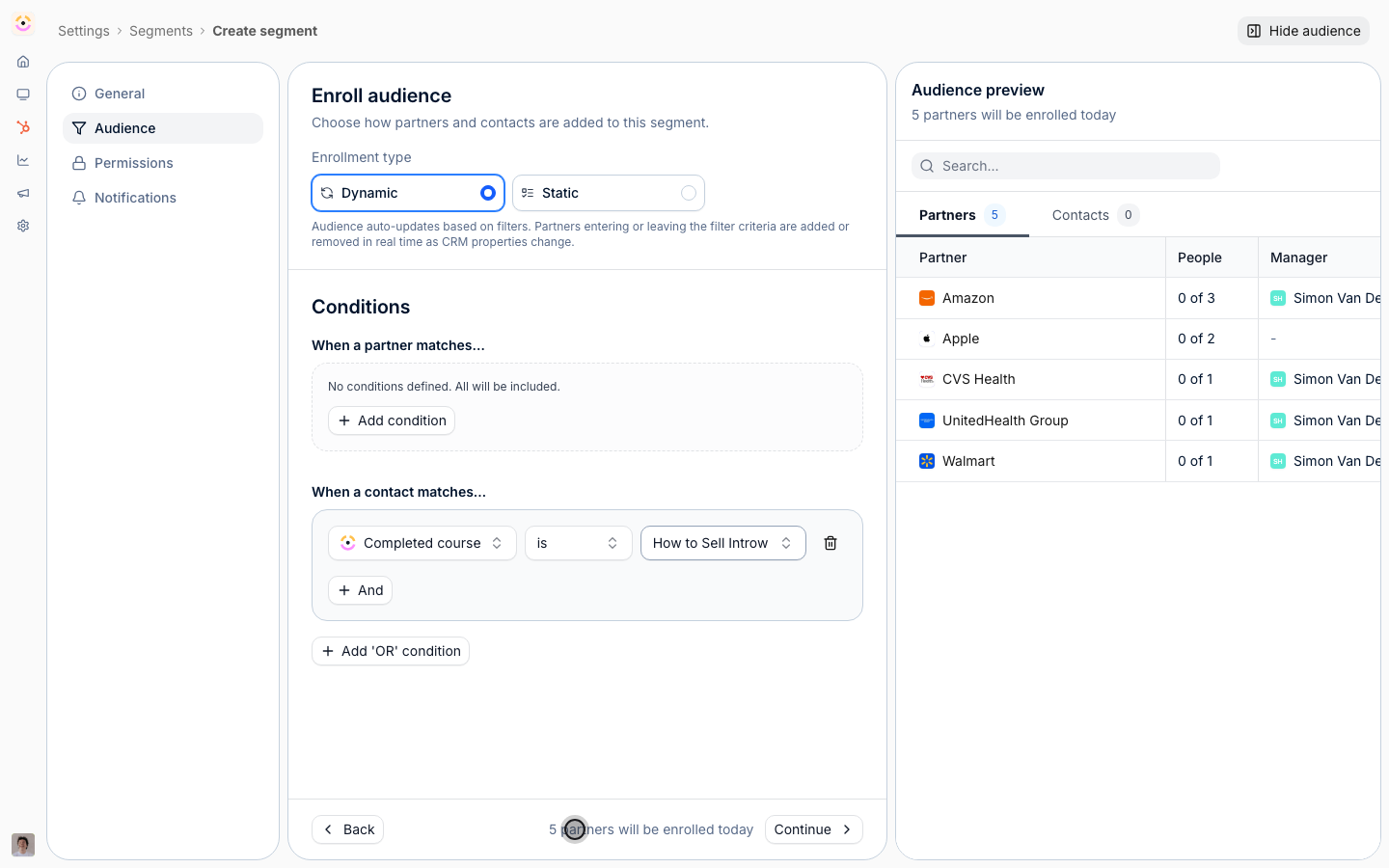
 Create a second dynamic segment with the condition **Completed course** is your level 1 course.
Contacts join it as soon as they complete that course.
Repeat for each level: **Completed course** is the course from the level before.
Check the audience preview on each segment to confirm it matches who you expect.
Create a second dynamic segment with the condition **Completed course** is your level 1 course.
Contacts join it as soon as they complete that course.
Repeat for each level: **Completed course** is the course from the level before.
Check the audience preview on each segment to confirm it matches who you expect.
 If a segment should only include contacts who are also in your target group, add that entry criterion to the level 2 and 3 segments too.
Without it, a contact outside your target group who completes level 1 still moves up.
### Assign each segment to its course
Open a course from [Courses](https://app.introw.io/courses), select **Configure**, and go to the **Enrollment** tab.
Turn on **Enable automatic enrollment**, then select the segment for that level.
Save your changes.
Repeat for every course in the sequence.
See [Configure enrollment rules](./configure-enrollment-rules) for the full set of options, including due dates.
## Verify it worked
Open each course and check its **Enrolled** tab.
The level 1 course lists the contacts in your entry segment, and the later courses start empty.
When a contact completes level 1, they appear on the level 2 course's **Enrolled** tab.
In the partner portal, a contact sees only the course they are ready for, so the path reads as a guided sequence and not a catalog.
## Tips
* **Attach a certificate to each course.**
Partners get recognition at every step, and you can [issue a certificate to a segment](../../certificates/guides/issue-a-certificate-to-a-segment).
* **Add due dates.**
A relative due date on each course keeps partners moving through the levels.
* **Nudge stalled learners.**
Use [nudges](./nudge-incomplete-learners) on the course a contact is stuck on.
* **Reuse the segments.**
The same level segments can unlock portal tabs, asset folders, or deal registration, so completing training can open up access as well as the next course.
* **Auto-enrollment only adds people.**
A contact who leaves a segment stays enrolled in the course they already have.
## Related
Auto-enroll segments and set completion deadlines.
Build the segments each level depends on.
See where each partner is in the curriculum.
Auto-enrollment, reach previews, and due dates.
This documentation is built and hosted on [Mintlify](https://mintlify.com), a developer documentation platform.
If a segment should only include contacts who are also in your target group, add that entry criterion to the level 2 and 3 segments too.
Without it, a contact outside your target group who completes level 1 still moves up.
### Assign each segment to its course
Open a course from [Courses](https://app.introw.io/courses), select **Configure**, and go to the **Enrollment** tab.
Turn on **Enable automatic enrollment**, then select the segment for that level.
Save your changes.
Repeat for every course in the sequence.
See [Configure enrollment rules](./configure-enrollment-rules) for the full set of options, including due dates.
## Verify it worked
Open each course and check its **Enrolled** tab.
The level 1 course lists the contacts in your entry segment, and the later courses start empty.
When a contact completes level 1, they appear on the level 2 course's **Enrolled** tab.
In the partner portal, a contact sees only the course they are ready for, so the path reads as a guided sequence and not a catalog.
## Tips
* **Attach a certificate to each course.**
Partners get recognition at every step, and you can [issue a certificate to a segment](../../certificates/guides/issue-a-certificate-to-a-segment).
* **Add due dates.**
A relative due date on each course keeps partners moving through the levels.
* **Nudge stalled learners.**
Use [nudges](./nudge-incomplete-learners) on the course a contact is stuck on.
* **Reuse the segments.**
The same level segments can unlock portal tabs, asset folders, or deal registration, so completing training can open up access as well as the next course.
* **Auto-enrollment only adds people.**
A contact who leaves a segment stays enrolled in the course they already have.
## Related
Auto-enroll segments and set completion deadlines.
Build the segments each level depends on.
See where each partner is in the curriculum.
Auto-enrollment, reach previews, and due dates.
This documentation is built and hosted on [Mintlify](https://mintlify.com), a developer documentation platform.