> ## Documentation Index
> Fetch the complete documentation index at: https://docs.introw.io/llms.txt
> Use this file to discover all available pages before exploring further.
# Revoke a certificate
> Decertify partners and pull a credential when it no longer applies, keeping your CRM in sync.
> For when a credential must be pulled - a partner left the program, or a certification is no longer valid.
A certification is only trustworthy if it can be taken back when it no longer holds. A partner might leave the program, fail a re-check, or have been certified in error, and in each case you do not want them still showing as qualified to sell or deliver. Revoking pulls the credential and pushes that change through to your CRM, so internal teams stop treating the partner as certified.
## What you'll achieve
A revoked credential: the issued certificate is no longer valid, the partner stops showing as certified, and the change reflects downstream in your CRM.
## Before you start
You need a team role with write access to Certificates.
Identify the partner or partners whose credential you need to pull.
## Watch it
## Steps
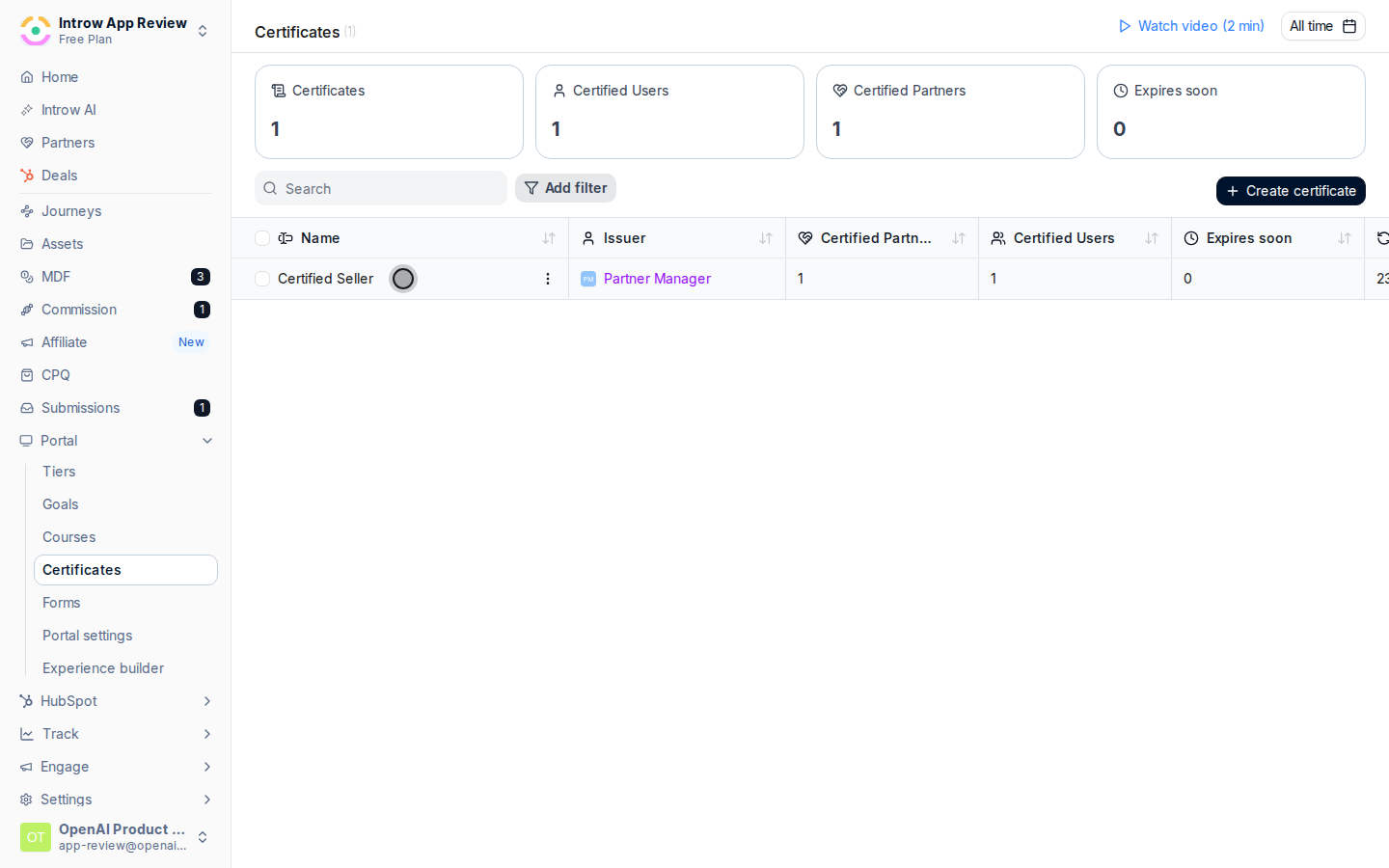
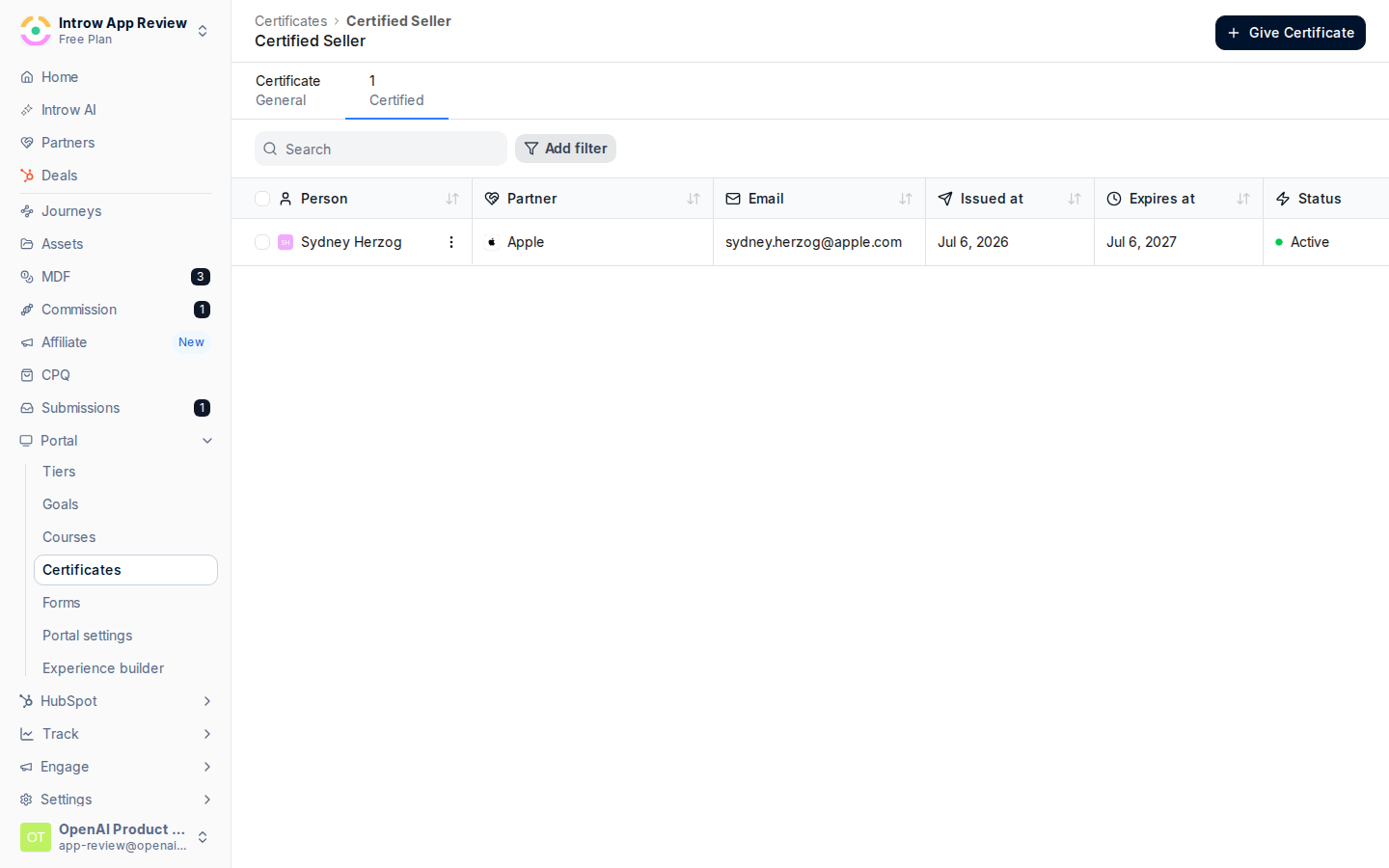
Go to [Certificates](https://app.introw.io/certificates), open the credential, and view its **Certified** list, which shows the partners who currently hold it.
 Choose the issued certificate or certificates you need to pull. You can revoke a single partner or several at once from the certified list.
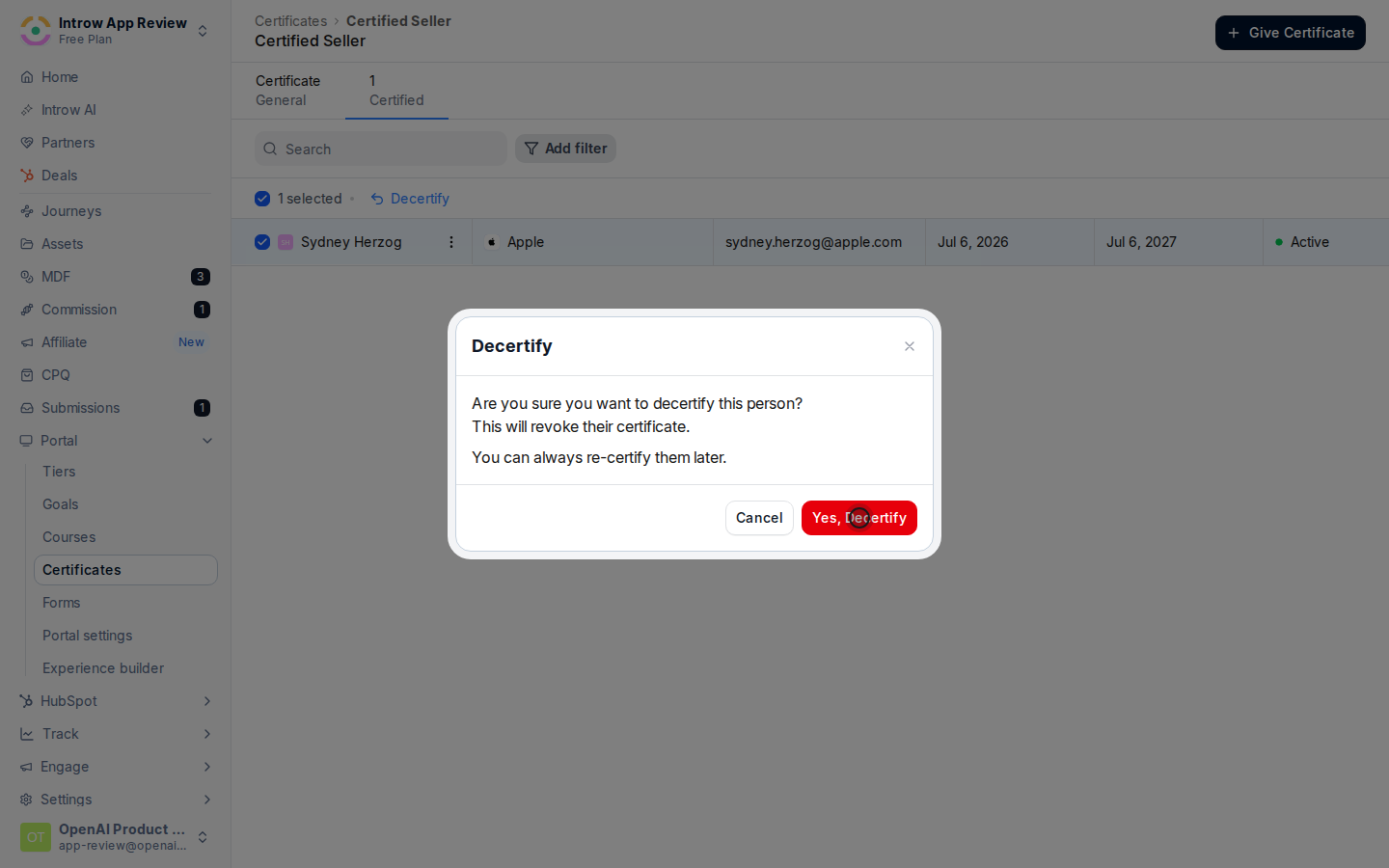
 Confirm to decertify. The selected partners immediately stop showing as certified, and the change syncs to your CRM so downstream teams see it too.
 ## Verify it worked
The selected recipients no longer appear as certified, and the revoked status propagates to the synced CRM certification record.
## Related
Award a credential to individuals or a segment.
Track readiness and CRM sync across courses.
Issuance, validity, and revocation.
## Verify it worked
The selected recipients no longer appear as certified, and the revoked status propagates to the synced CRM certification record.
## Related
Award a credential to individuals or a segment.
Track readiness and CRM sync across courses.
Issuance, validity, and revocation.