> ## Documentation Index
> Fetch the complete documentation index at: https://docs.introw.io/llms.txt
> Use this file to discover all available pages before exploring further.
# Issue a certificate manually
> Award a credential to individual partners or a whole segment at once, with an optional notification.
> For recognizing partners who earned a credential outside a course - for example, after a live enablement session or bootcamp.
Not all certification comes from an online course. Sometimes one partner earns a credential through a one-off review, and sometimes a whole group earns it through a live session or a bootcamp - and awarding it one partner at a time is tedious and error-prone. Manual issuance lets you award the same verifiable credential to specific individuals or an entire segment in a single action, with the same CRM sync as an automatic award.
## What you'll achieve
A certificate awarded by hand to chosen individuals or to every partner in a segment, each with a verifiable certificate page, optionally notifying recipients, and synced to your CRM.
## Before you start
You need a team role with write access to Certificates.
Decide whether you are awarding specific partners or a whole segment (for example, "Bootcamp attendees"), and have the certificate template ready.
## Watch it
## Steps
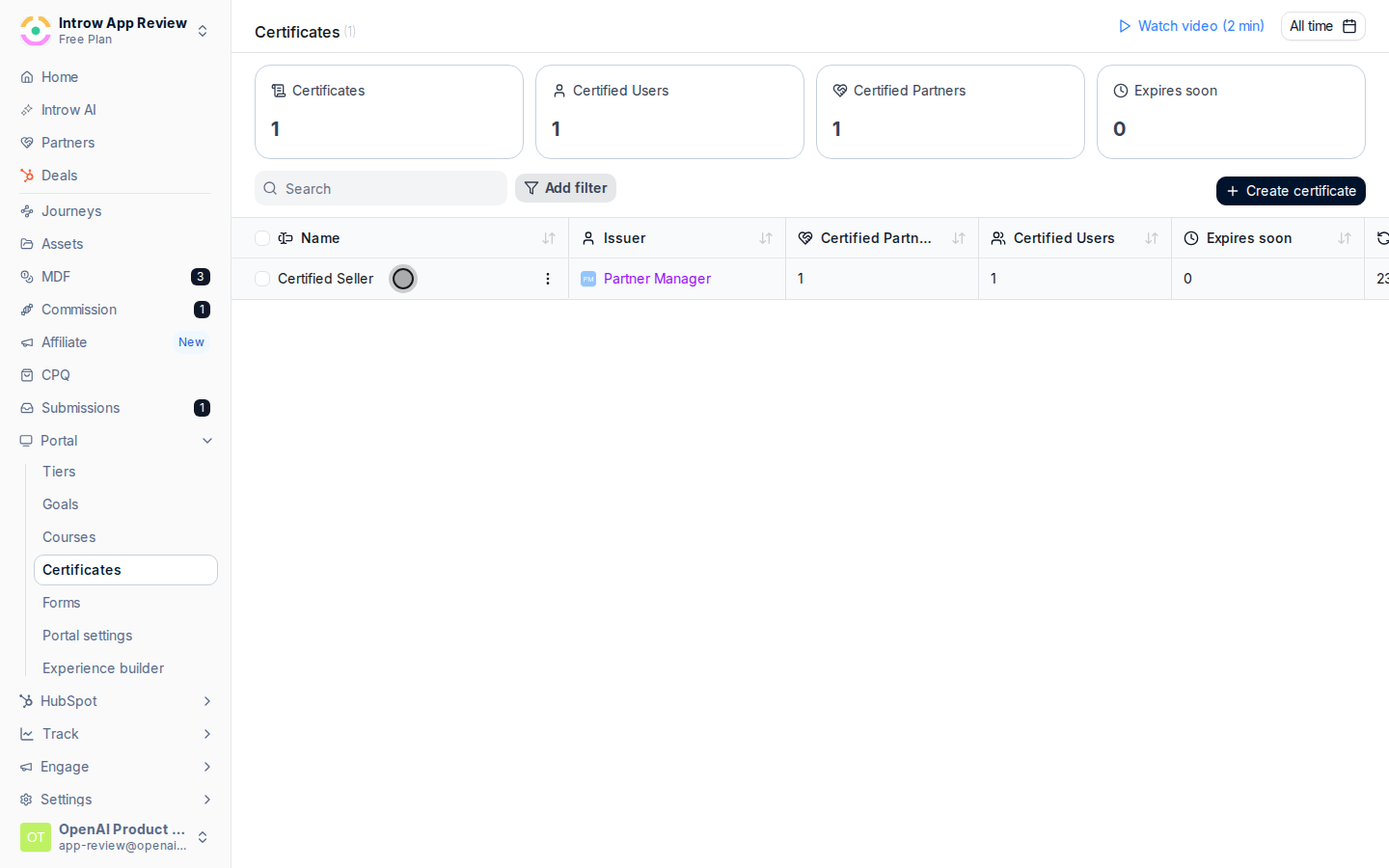
Go to [Certificates](https://app.introw.io/certificates), open the credential you want to award, and select **Give Certificate**. This opens the audience picker for a manual issuance of this template.
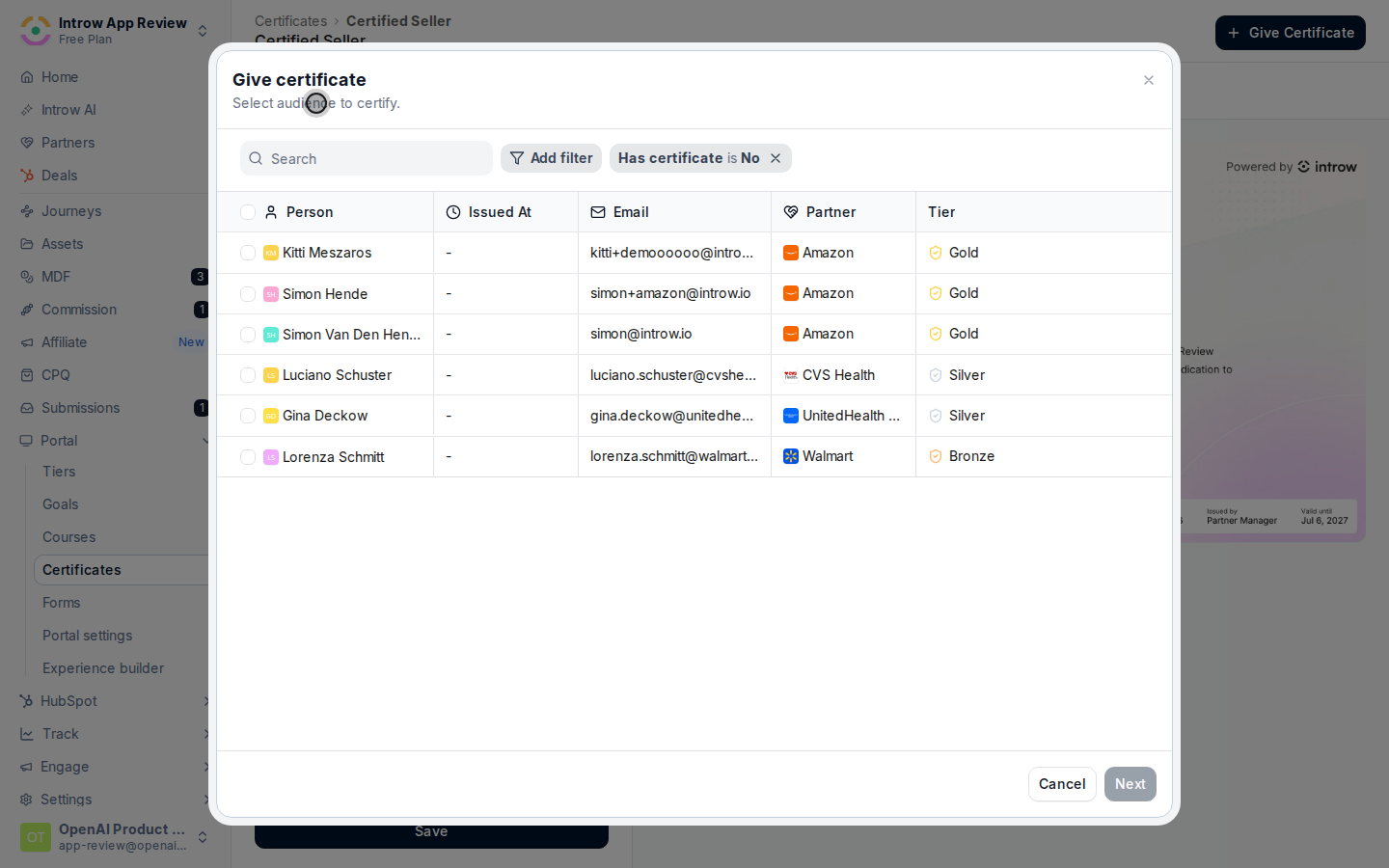
 Pick the recipients in the audience table. You can award the credential two ways:
* **Individual partners** - search the table and select specific partners and contacts. Use this for one-off recognition or to award a few people who finished an offline assessment.
* **A whole segment** - add a **Segment** filter to narrow the table to a segment's members, then select them all. Use this to recognize a whole cohort, such as bootcamp attendees, in one pass. The **Partner** and **Tier** filters narrow the audience the same way.
Pick the recipients in the audience table. You can award the credential two ways:
* **Individual partners** - search the table and select specific partners and contacts. Use this for one-off recognition or to award a few people who finished an offline assessment.
* **A whole segment** - add a **Segment** filter to narrow the table to a segment's members, then select them all. Use this to recognize a whole cohort, such as bootcamp attendees, in one pass. The **Partner** and **Tier** filters narrow the audience the same way.
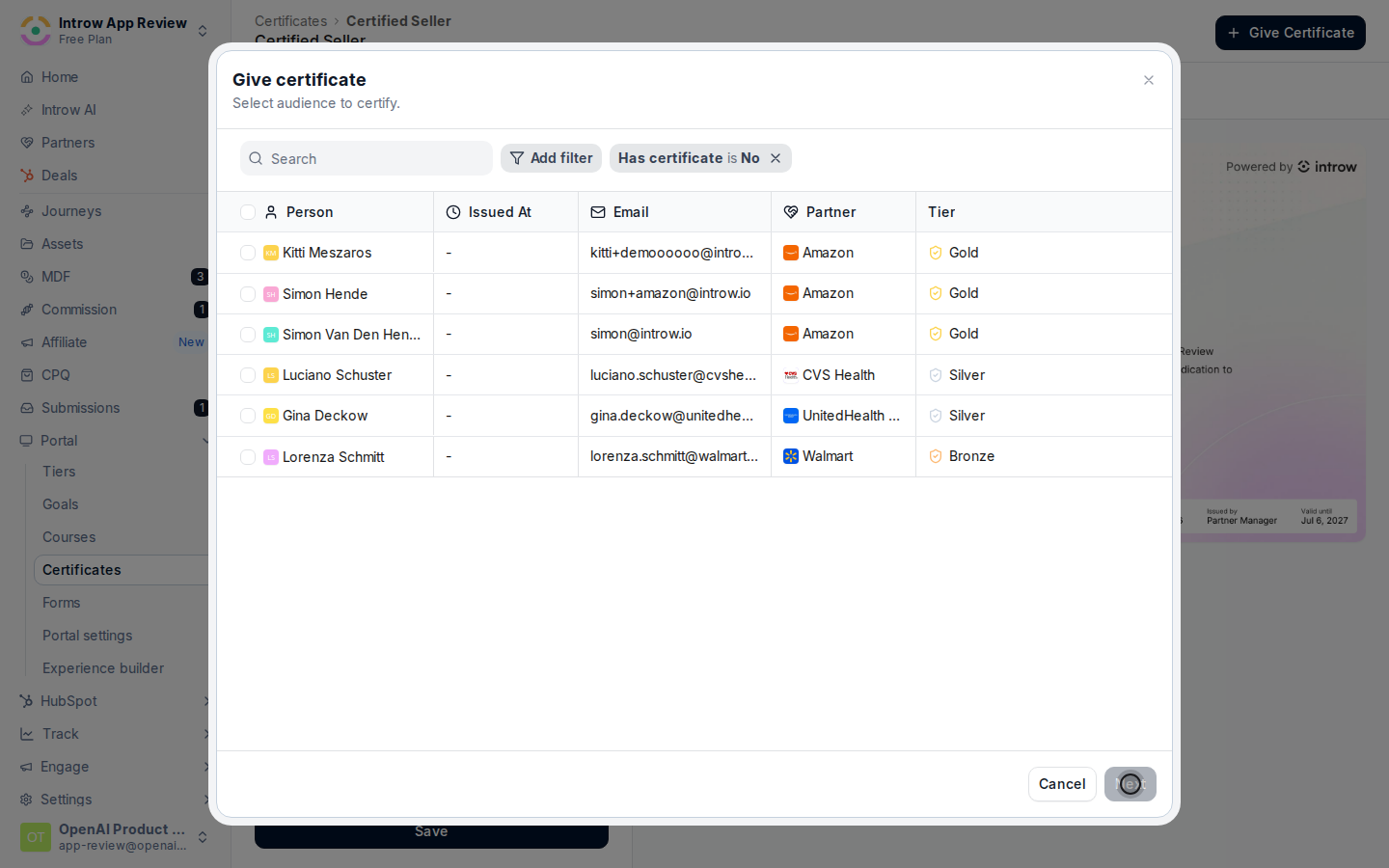
 Select **Next** to preview the certification email, then finish with the option that fits:
* **Issue and notify** - awards the credential and emails each recipient to let them know they have been certified. Review the preview before sending.
* **Issue without email** - awards it silently, for when you will announce the credential another way.
Every selected partner is awarded the credential, each gets a verifiable certificate page, and the issuance syncs to your CRM.
Select **Next** to preview the certification email, then finish with the option that fits:
* **Issue and notify** - awards the credential and emails each recipient to let them know they have been certified. Review the preview before sending.
* **Issue without email** - awards it silently, for when you will announce the credential another way.
Every selected partner is awarded the credential, each gets a verifiable certificate page, and the issuance syncs to your CRM.
 ## Verify it worked
The chosen partners appear as certified on the certificate's certified list, each with a verifiable certificate page, and the issuance syncs to the CRM.
## Related
Award credentials automatically on completion instead.
Pull a credential when it no longer applies.
Issuance, validity, and notifications.
## Verify it worked
The chosen partners appear as certified on the certificate's certified list, each with a verifiable certificate page, and the issuance syncs to the CRM.
## Related
Award credentials automatically on completion instead.
Pull a credential when it no longer applies.
Issuance, validity, and notifications.