> ## Documentation Index
> Fetch the complete documentation index at: https://docs.introw.io/llms.txt
> Use this file to discover all available pages before exploring further.
# Import a SCORM course
> Reuse existing SCORM or Articulate Rise training by importing it into Introw, then make it available to partners.
> For teams that already invested in SCORM training (including Articulate Rise and Google Slides exports) and want to reuse it instead of rebuilding.
Many teams already have polished training built in tools like Articulate Rise, and rebuilding it inside a new platform would throw away real work. Importing SCORM brings that content into Introw as-is: it plays in the built-in player exactly as authored, so partners take it alongside your other courses and progress still tracks back to your CRM.
## What you'll achieve
An Introw course created from a SCORM package you upload, played in the built-in player so it runs exactly as it was authored, and made available so partners can enroll and have their progress tracked.
## Before you start
You need a team role with write access to Courses.
Have a valid SCORM `.zip` ready, including its manifest file. Articulate Rise and Google Slides SCORM exports are supported.
## Watch it
## Steps
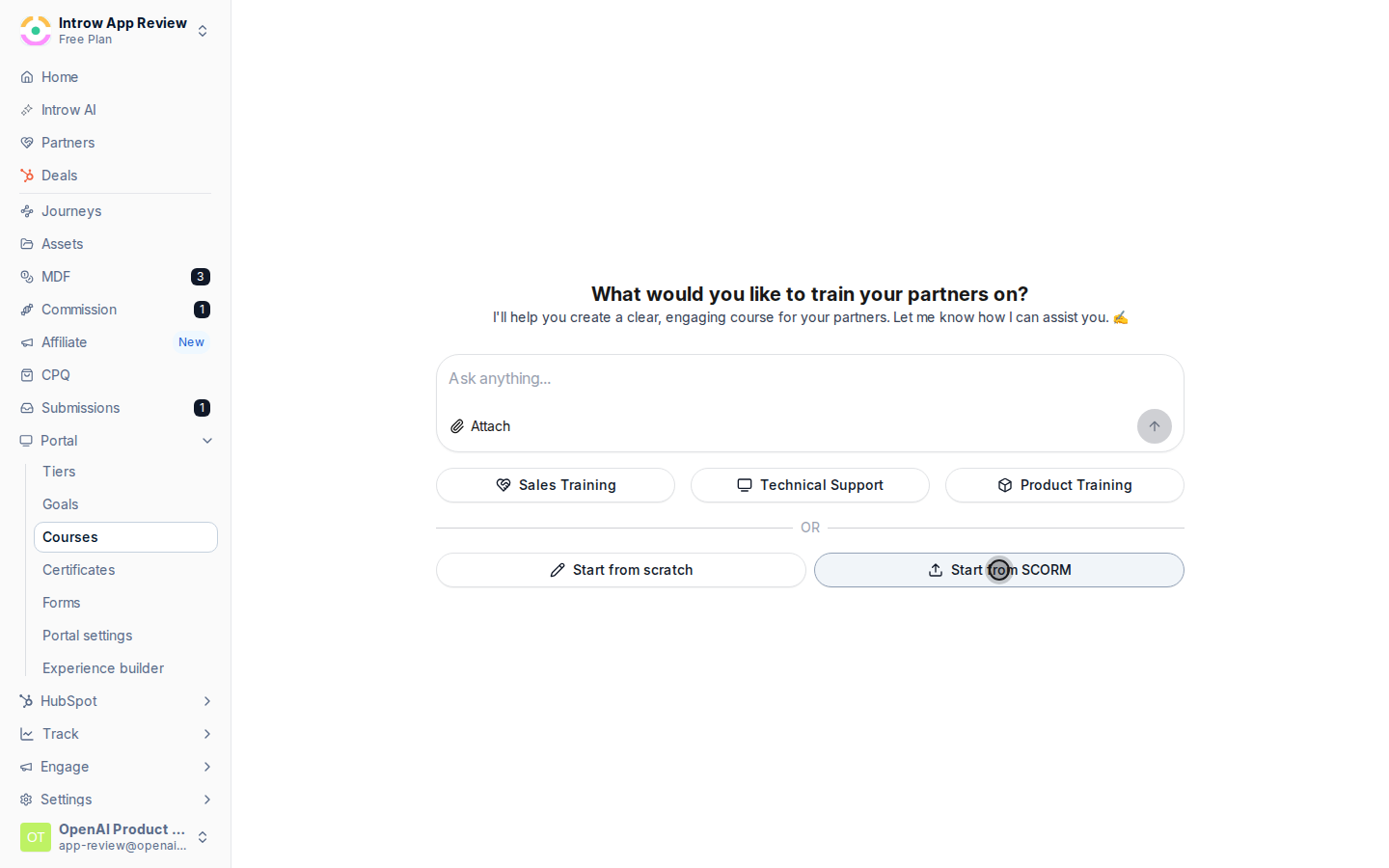
Go to [Courses](https://app.introw.io/courses) and select **Create course**, then choose **Start from SCORM**. This opens the upload for an existing package rather than the AI creator or the empty builder.
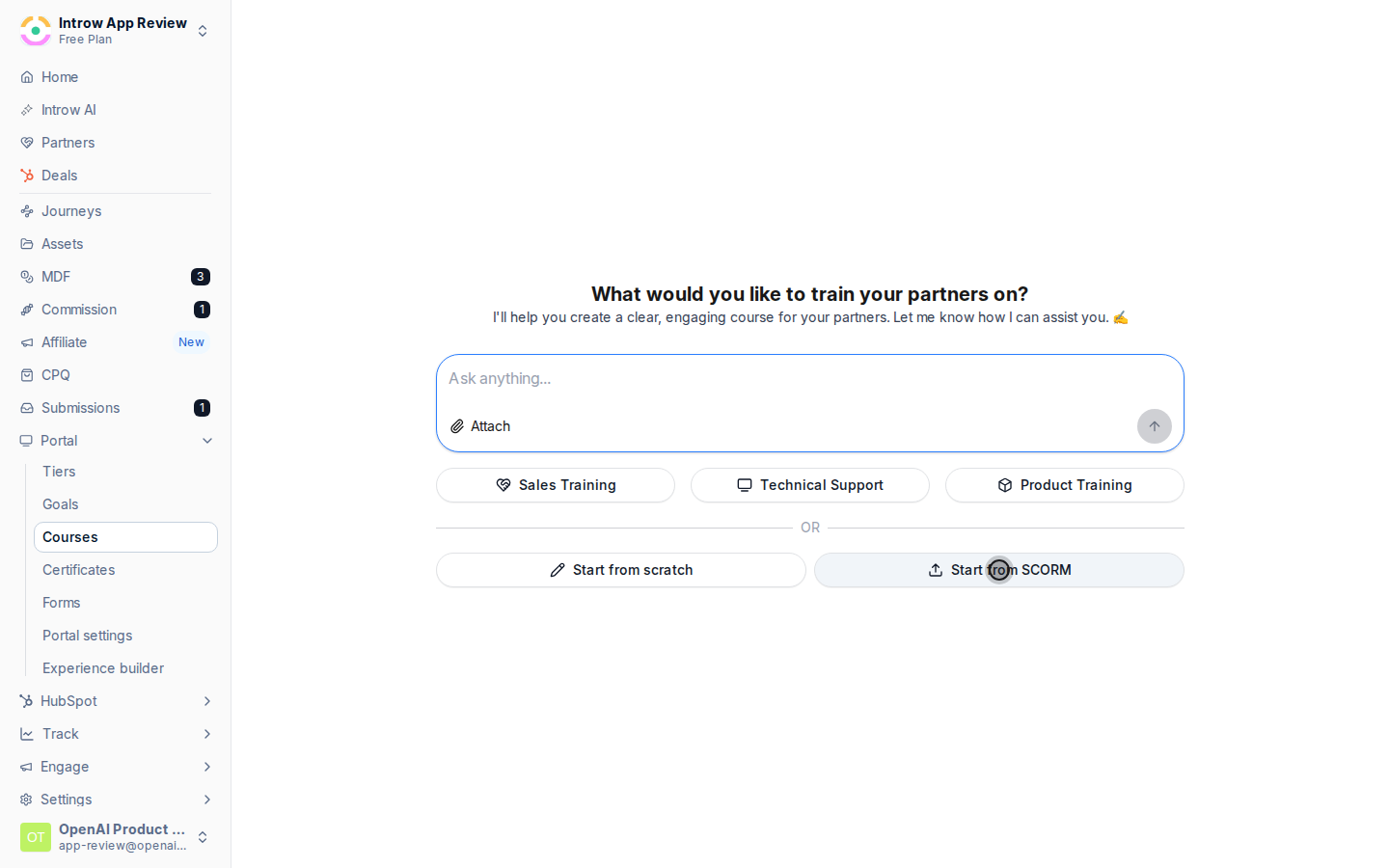 Choose your SCORM `.zip` to upload.
* **Package file** - the exported `.zip` from your authoring tool. Introw reads the manifest and unpacks the content in a background job, so the course shows a **Generating** status and may take a moment to appear while it processes. A larger package takes longer.
Choose your SCORM `.zip` to upload.
* **Package file** - the exported `.zip` from your authoring tool. Introw reads the manifest and unpacks the content in a background job, so the course shows a **Generating** status and may take a moment to appear while it processes. A larger package takes longer.
 When processing finishes, open the course and confirm it launches in the built-in player and plays as authored. Because the content lives in the uploaded package, you edit it in your original authoring tool and re-import rather than editing chapters inside Introw.
Select **Edit** in the course header, then **Configure** to open the **Update course** dialog and set the options that apply around the imported content: the name, description, and banner on the **Basic** tab, a due date or passing requirement on the **Advanced** tab, a certificate on the **Certificate** tab, and auto-enrollment on the **Enrollment** tab. Select **Save Changes**.
Enroll a cohort by hand or turn on automatic enrollment to take the course live. A course stays **Draft** until it has its first enrollment or auto-enrollment is on, at which point it automatically becomes **Active** - there is no separate publish step.
## Verify it worked
The course leaves **Generating** and appears with its imported structure, opening a chapter launches the original package in the built-in player, progress reports back to Introw automatically, and once a partner is enrolled the course status flips to **Active**.
## Related
Auto-enroll segments and set a completion deadline.
Track completion and sync it to your CRM.
SCORM import and playback.
When processing finishes, open the course and confirm it launches in the built-in player and plays as authored. Because the content lives in the uploaded package, you edit it in your original authoring tool and re-import rather than editing chapters inside Introw.
Select **Edit** in the course header, then **Configure** to open the **Update course** dialog and set the options that apply around the imported content: the name, description, and banner on the **Basic** tab, a due date or passing requirement on the **Advanced** tab, a certificate on the **Certificate** tab, and auto-enrollment on the **Enrollment** tab. Select **Save Changes**.
Enroll a cohort by hand or turn on automatic enrollment to take the course live. A course stays **Draft** until it has its first enrollment or auto-enrollment is on, at which point it automatically becomes **Active** - there is no separate publish step.
## Verify it worked
The course leaves **Generating** and appears with its imported structure, opening a chapter launches the original package in the built-in player, progress reports back to Introw automatically, and once a partner is enrolled the course status flips to **Active**.
## Related
Auto-enroll segments and set a completion deadline.
Track completion and sync it to your CRM.
SCORM import and playback.