> ## Documentation Index
> Fetch the complete documentation index at: https://docs.introw.io/llms.txt
> Use this file to discover all available pages before exploring further.
# Share an asset with a trackable link
> Send a single asset to a partner by link, set who can open it, and see whether they viewed it.
> For partner marketing getting content to a partner off-portal and seeing if they read it.
Sometimes a partner just needs one asset, fast, without logging into the portal. A trackable share link lets you send it by email or chat, control who is allowed to open it, and record views so you can tell whether the partner actually opened it, which a plain attachment can never tell you. This guide covers choosing the access level, copying the link, and confirming the view lands.
## What you'll achieve
A shareable link to a single asset, scoped to the right audience, that you can drop into an email or chat. When the partner opens it, the view is recorded against the asset so you can see engagement without chasing for confirmation.
## Before you start
The asset's access level must allow the people you are sharing with. If it is restricted, the recipients need to fall inside the allowed segments. See [Build the asset library](/features/content/asset-library/guides/build-the-asset-library) to set access.
## Watch it
## Steps
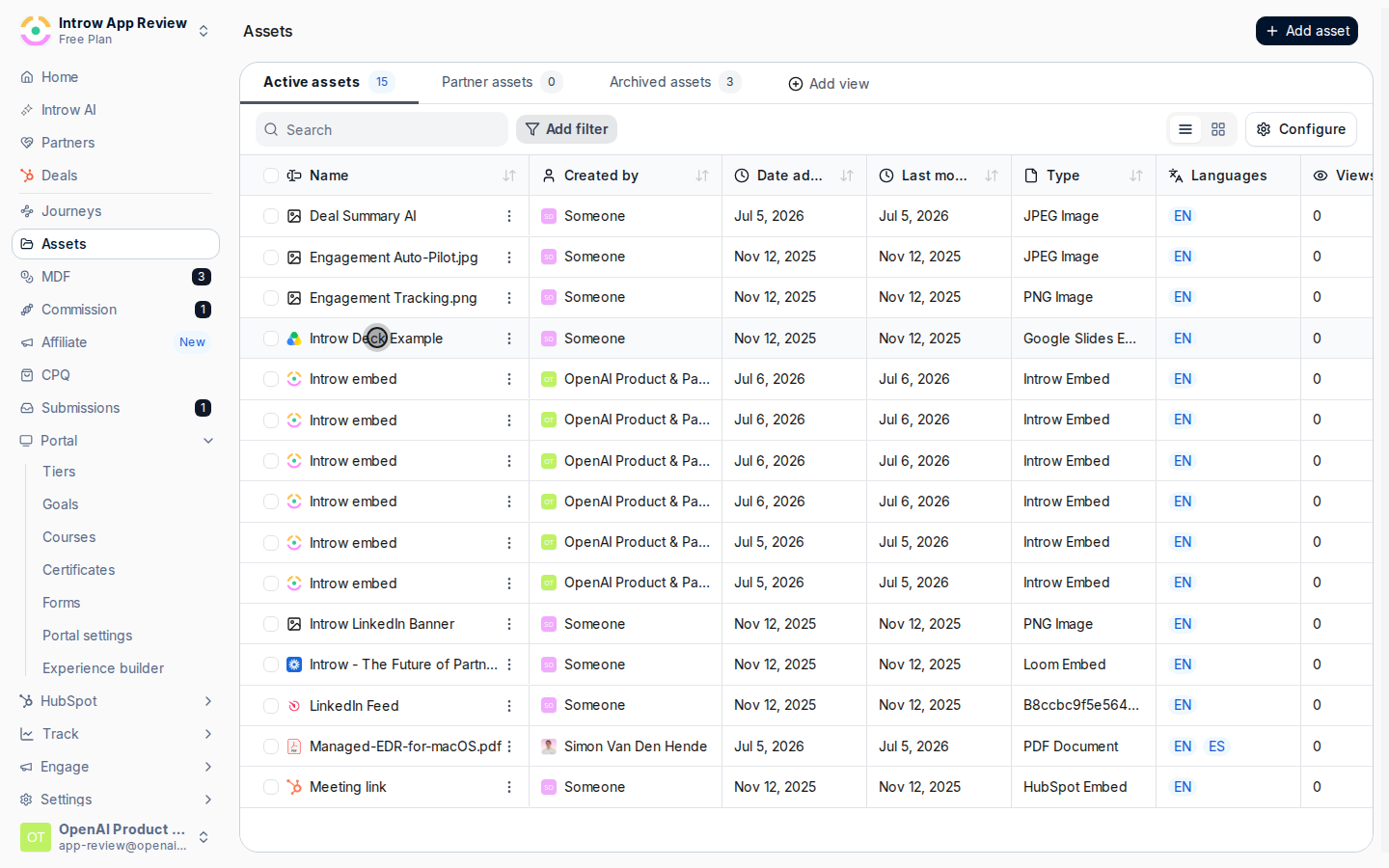
Go to [Assets](https://app.introw.io/assets/library) and open the asset you want to share.
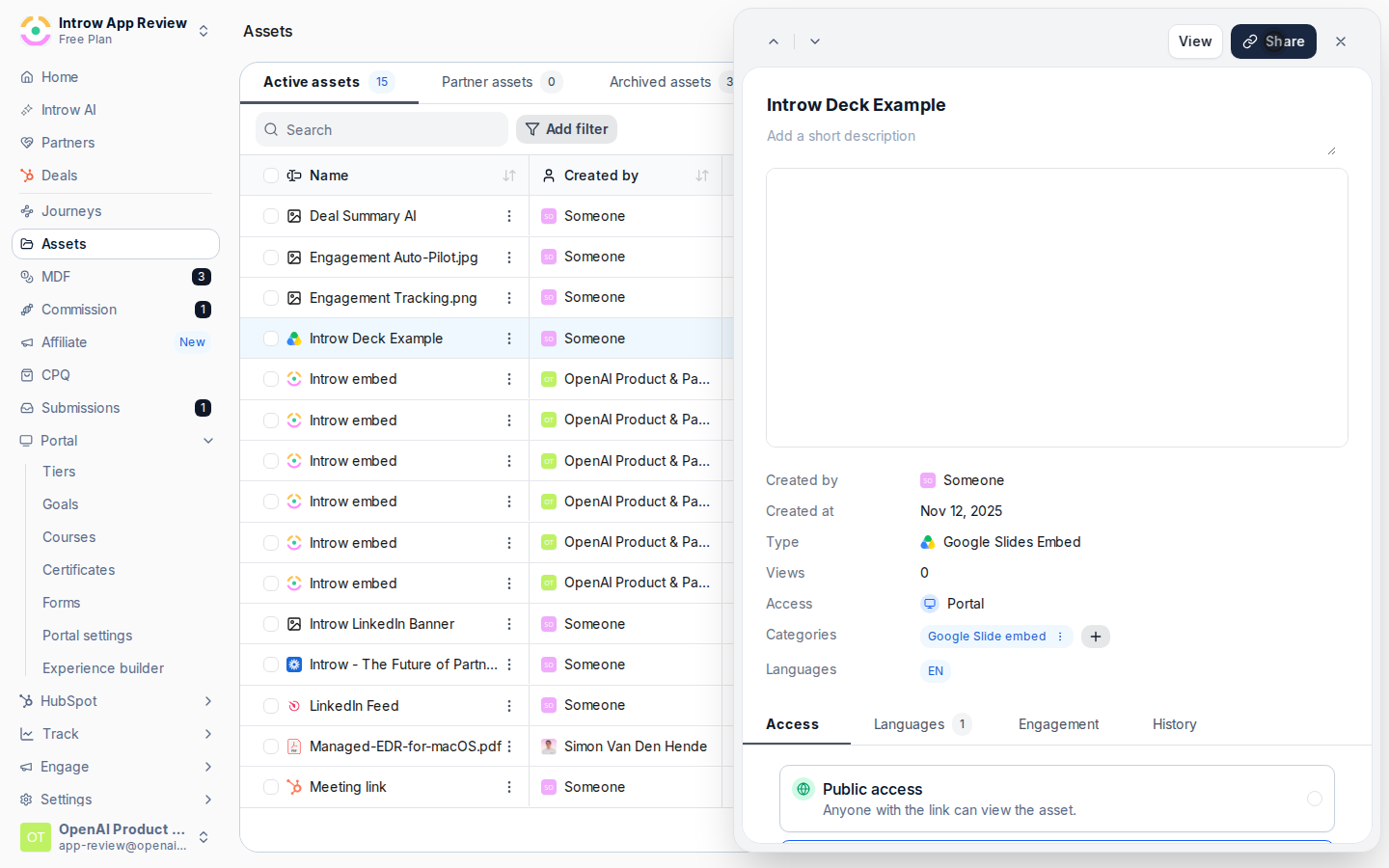
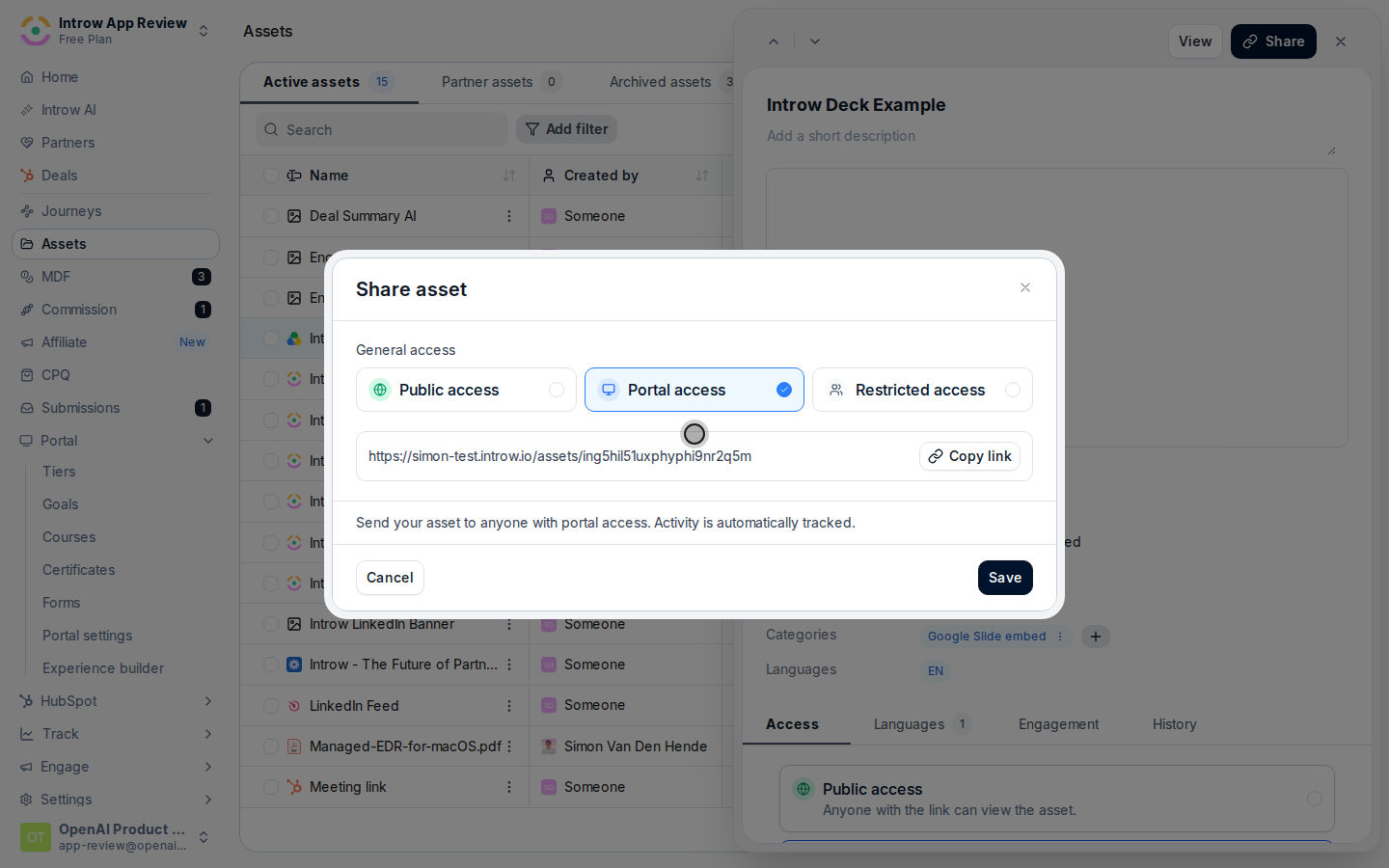
 Use the share action to open the **Share asset** dialog, then set who can open the link under **General access**:
* **Public access** - anyone with the link can view it. Use for openly shareable collateral.
* **Portal access** - only partner users with portal access can view it. Use when the asset is for your partners but not the public.
* **Restricted access** - only a subset of partner users can view it. Choose the **Segments** that should have access. Use this for sensitive material so the link only works for the right partners.
Activity is tracked on the link regardless of which level you choose, so you can measure engagement either way. Save the access change.
Use the share action to open the **Share asset** dialog, then set who can open the link under **General access**:
* **Public access** - anyone with the link can view it. Use for openly shareable collateral.
* **Portal access** - only partner users with portal access can view it. Use when the asset is for your partners but not the public.
* **Restricted access** - only a subset of partner users can view it. Choose the **Segments** that should have access. Use this for sensitive material so the link only works for the right partners.
Activity is tracked on the link regardless of which level you choose, so you can measure engagement either way. Save the access change.
 Copy the general share link from the dialog. This is the single URL you will hand to the partner; it respects the access level you just set.
 Send the link to the partner by email or chat. They open it directly, with no portal login needed when the asset allows it.
## Verify it worked
The link opens the asset for an allowed recipient, and the view appears in the asset's **Engagement** tab against the person who opened it. If a recipient cannot open it, check that the asset's access level includes them.
## Related
See who opened the asset and how often.
Set the access level that controls who can open the link.
Full asset library configuration options.
Send the link to the partner by email or chat. They open it directly, with no portal login needed when the asset allows it.
## Verify it worked
The link opens the asset for an allowed recipient, and the view appears in the asset's **Engagement** tab against the person who opened it. If a recipient cannot open it, check that the asset's access level includes them.
## Related
See who opened the asset and how often.
Set the access level that controls who can open the link.
Full asset library configuration options.