> ## Documentation Index
> Fetch the complete documentation index at: https://docs.introw.io/llms.txt
> Use this file to discover all available pages before exploring further.
# Review asset engagement
> See which assets partners view, how interest trends over time, and which partners and people engage.
> For partner marketing learning which content actually drives partner activity.
Enablement only works if partners use the content, and the only way to know is to measure it. The engagement view shows how often an asset is viewed, how interest trends over a period you choose, and which partners and people are engaging, so you can double down on what works and retire what does not. This guide walks the engagement screen end to end so you can turn content into a measurable program.
## What you'll achieve
A clear read on how an asset is performing: total views, a trend over your chosen date range, and a breakdown of which people and partners viewed it and when. That is enough to decide what to promote, what to refresh, and what to drop.
## Before you start
Engagement appears once the asset has been shared or embedded and viewed. If it is brand new, share it first so views can accrue. See [Share an asset with a link](./share-an-asset-with-a-link).
## Watch it
## Steps
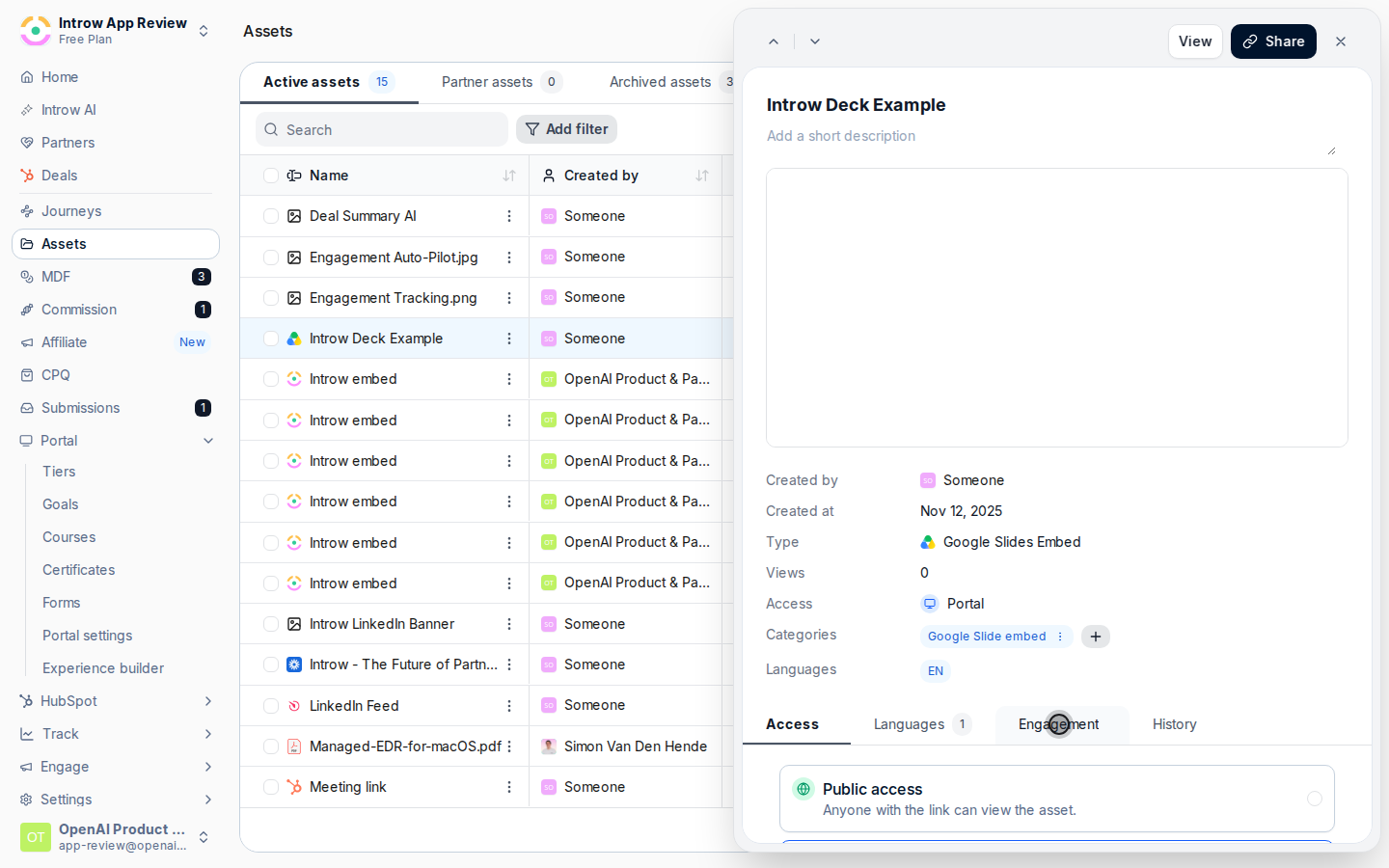
Go to [Assets](https://app.introw.io/assets/library), open an asset, and select its **Engagement** tab.
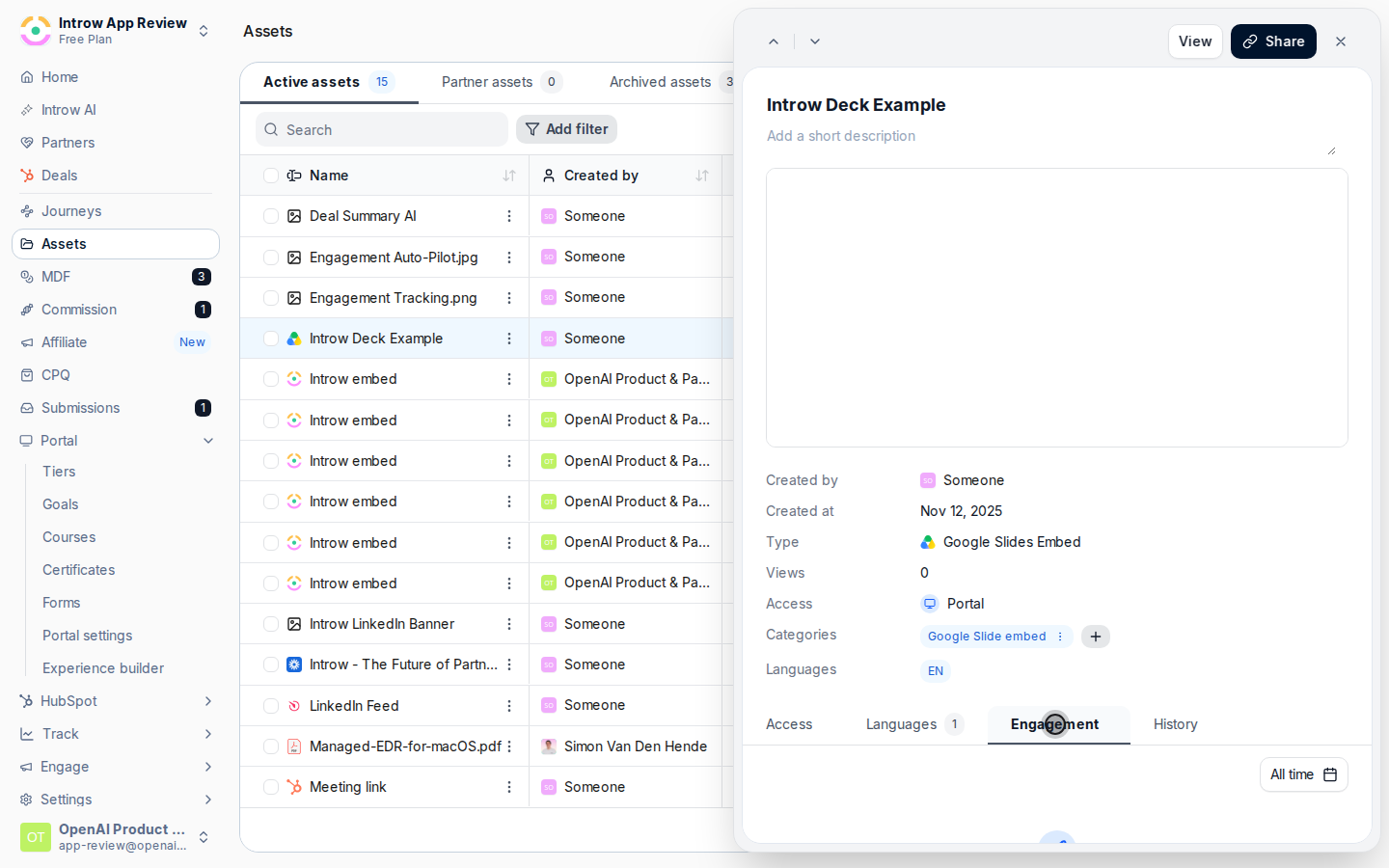
 Use the date range picker to scope the view to the period you care about. Pick a preset for a quick window, or set a custom range to line engagement up with a campaign or quarter. The trend and breakdowns below update to match.
 Review the views-over-time chart to see whether interest is rising, flat, or fading across the selected range. A spike after a send or launch tells you the content landed; a flat line on important collateral is a signal to promote or refresh it.
Switch between the two breakdowns to see who is engaging:
* **People** - individual viewers, with their last viewed date and total views. Use it to spot the specific champions engaging with the asset.
* **Partners** - engagement grouped by partner organisation, with last viewed and total views. Use it to see which partner accounts are actually using the content versus ignoring it.
## Verify it worked
You can see total views, a trend across your chosen range, and per-person and per-partner engagement for the asset. That view is your evidence for which content to invest in and which to retire.
## Related
Drive more tracked views to an asset.
Surface assets in the portal to grow engagement.
Full asset library configuration options.
Review the views-over-time chart to see whether interest is rising, flat, or fading across the selected range. A spike after a send or launch tells you the content landed; a flat line on important collateral is a signal to promote or refresh it.
Switch between the two breakdowns to see who is engaging:
* **People** - individual viewers, with their last viewed date and total views. Use it to spot the specific champions engaging with the asset.
* **Partners** - engagement grouped by partner organisation, with last viewed and total views. Use it to see which partner accounts are actually using the content versus ignoring it.
## Verify it worked
You can see total views, a trend across your chosen range, and per-person and per-partner engagement for the asset. That view is your evidence for which content to invest in and which to retire.
## Related
Drive more tracked views to an asset.
Surface assets in the portal to grow engagement.
Full asset library configuration options.