> ## Documentation Index
> Fetch the complete documentation index at: https://docs.introw.io/llms.txt
> Use this file to discover all available pages before exploring further.
# Configure commission and payout settings
> Set the payout schedule, minimum amount, billing info, and the currency and fiscal year commissions rely on.
Before you run payouts, a handful of settings decide how and when partners get paid and what their statements say. This guide configures them end to end: the payout schedule that sets the rhythm, the minimum amount that avoids tiny payments, the company billing info printed on statements, and the currency and fiscal year that commission amounts and schedules depend on. Set these once and every payout cycle runs predictably on top of them.
## What you'll achieve
A fully configured commissions program: payouts run on a cadence partners can rely on, balances below your minimum roll forward instead of generating trivial payments, statements carry complete and invoice-ready company details, and amounts and fiscal-quarter timing use the right currency and fiscal year.
## Before you start
You need admin access to commission settings and company settings.
Have your company name, address, finance email, and tax or company registration numbers ready for the statement billing info.
## Watch it
## Steps
### Phase 1 - Set the payout schedule and minimum
Go to [Payout settings](https://app.introw.io/commission?section=settings). The **Payout method** is **Manual invoicing**, where you collect partner invoices and pay outside Introw. Stripe payouts show **Coming soon** and are not yet selectable, so leave the method as manual invoicing.
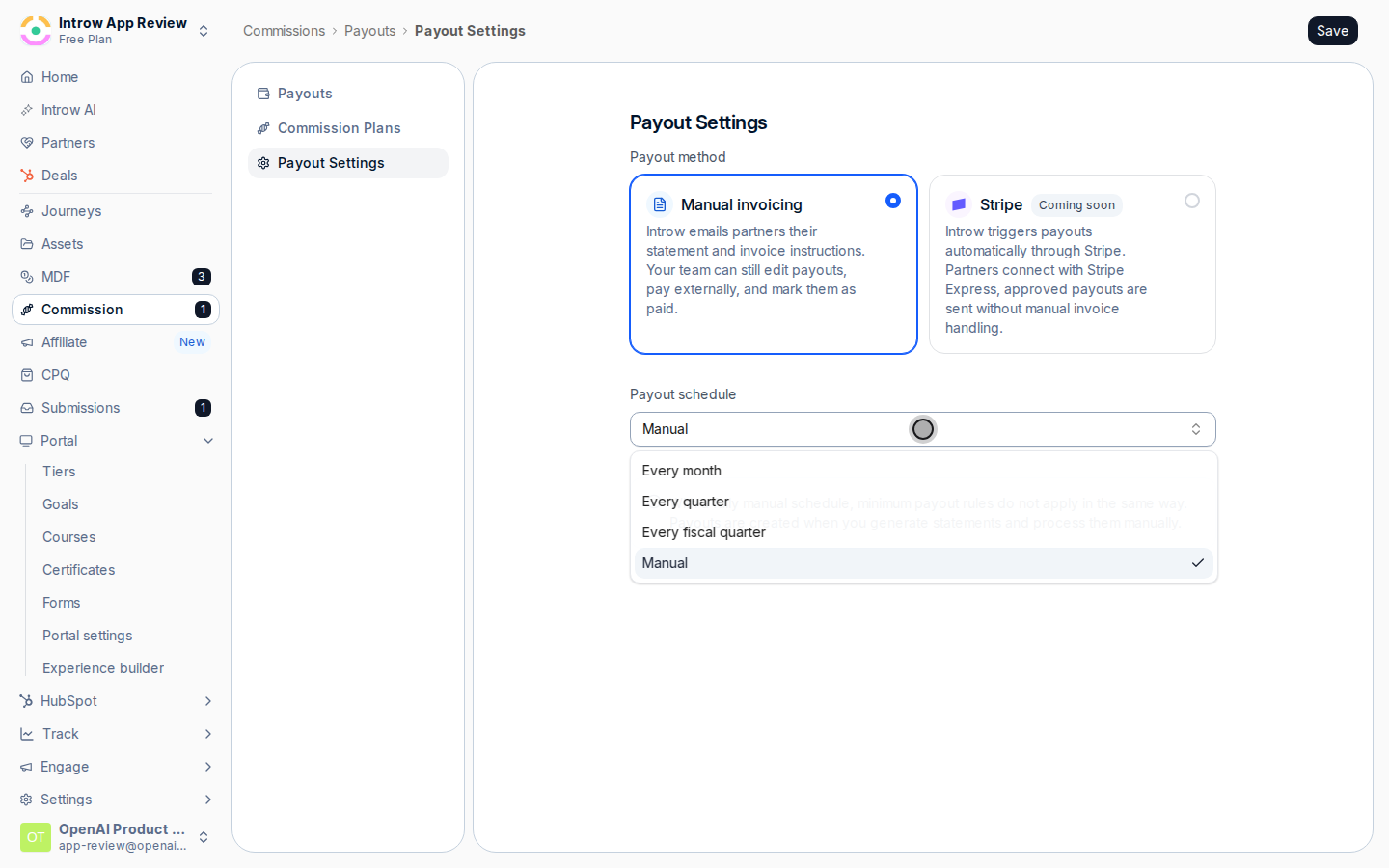
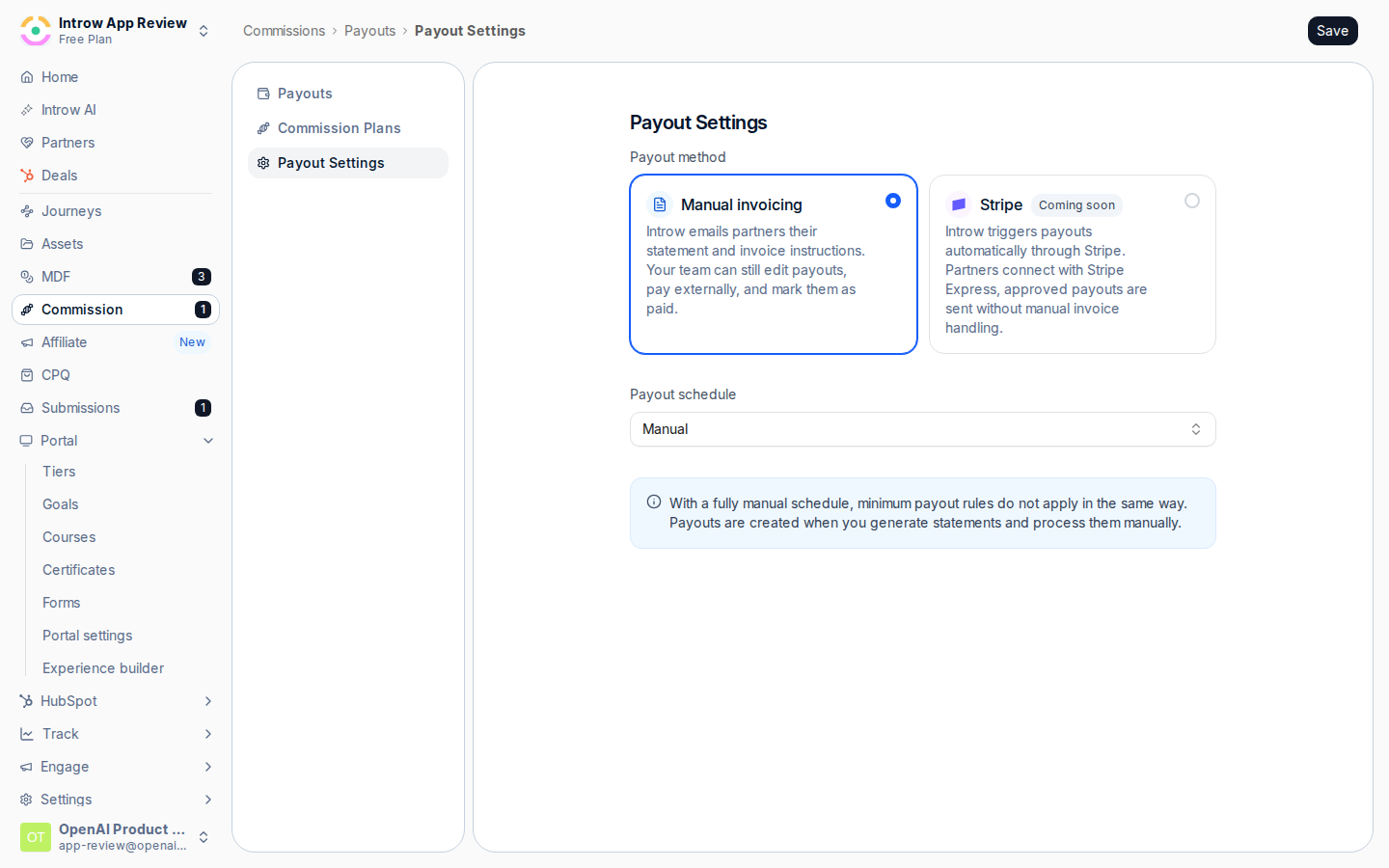 Set **Payout schedule** to the rhythm your program pays on:
* **Every month** or **Every quarter** - pay on a fixed calendar cadence.
* **Every fiscal quarter** - align payouts to your fiscal calendar instead of the calendar year (this relies on your fiscal year start, set later).
* **Manual** - no automatic batches; you create each payout yourself when you are ready.
A non-manual schedule lets Introw create payout batches automatically on the chosen cadence, so payments happen on time without someone remembering to start them.
Set **Payout schedule** to the rhythm your program pays on:
* **Every month** or **Every quarter** - pay on a fixed calendar cadence.
* **Every fiscal quarter** - align payouts to your fiscal calendar instead of the calendar year (this relies on your fiscal year start, set later).
* **Manual** - no automatic batches; you create each payout yourself when you are ready.
A non-manual schedule lets Introw create payout batches automatically on the chosen cadence, so payments happen on time without someone remembering to start them.
 When the schedule is not manual, set **Minimum payout amount** so small balances are not paid until they are worth the admin:
* **Minimum payout amount** - the threshold a balance must reach before it is paid. Balances below it roll forward to a later cycle.
* Basis - choose **Per partner** to apply the minimum to each partner's own balance, or **Organisation total** to apply it across the program.
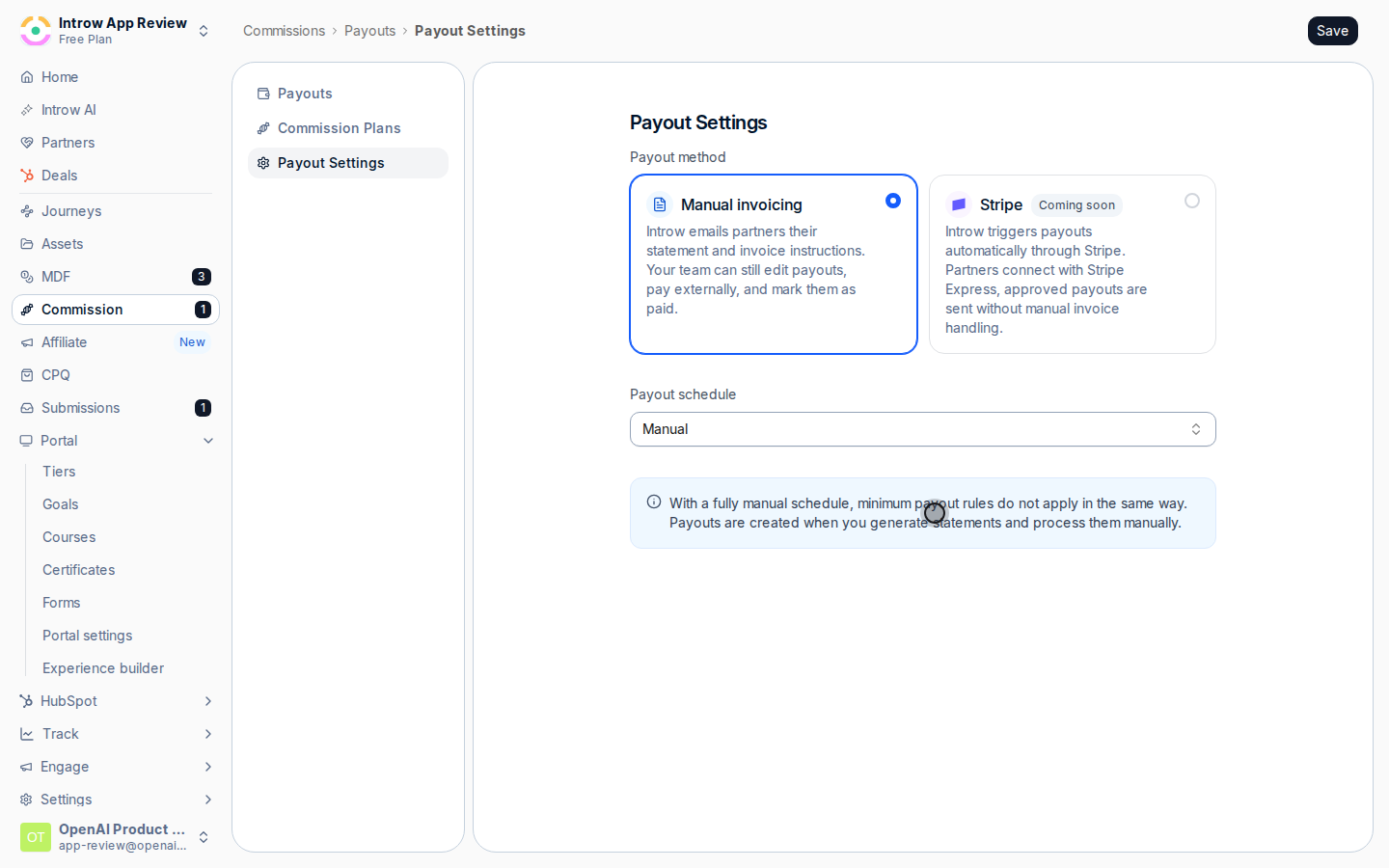
The minimum is hidden and does not apply when the schedule is **Manual**. Choose **Save** to store the settings.
When the schedule is not manual, set **Minimum payout amount** so small balances are not paid until they are worth the admin:
* **Minimum payout amount** - the threshold a balance must reach before it is paid. Balances below it roll forward to a later cycle.
* Basis - choose **Per partner** to apply the minimum to each partner's own balance, or **Organisation total** to apply it across the program.
The minimum is hidden and does not apply when the schedule is **Manual**. Choose **Save** to store the settings.
 ### Phase 2 - Set the currency and fiscal year
Go to [Company settings](https://app.introw.io/settings/company) and confirm the values commissions depend on:
* **Company currency** - your default currency, used to display and convert commission amounts. Set this correctly so payouts and statements show the right currency.
* **Fiscal year start date** - when your fiscal year begins. This drives the **Every fiscal quarter** schedule and the year-to-date analytics on plans, so a wrong start date misaligns fiscal-quarter payouts.
### Phase 3 - Set the commission billing info
Go to [Billing info](https://app.introw.io/settings/company/billing-info) (the **Billing Info** tab in company settings). These details appear on every generated commission statement and tell partners what to put on their invoices.
Fill in the billing fields so statements are complete and invoice-ready:
* **Company Name** - your legal entity name as it should appear on statements.
* **Address Line 1** and **Address Line 2** - your billing address.
* **Postal Code**, **City**, and **Country Code** - the rest of the address.
* **Finance Email Address** - the contact partners use for billing questions.
* **Company Number** and **VAT Number** - your registration and tax numbers, needed for partners to invoice you correctly.
Choose **Save**. Incomplete details produce incomplete statements, so fill in everything your partners need to raise a valid invoice.
## Verify it worked
Payout settings show your chosen schedule and minimum, and on a non-manual schedule Introw begins creating batches on that cadence. Company settings show the right currency and fiscal year start, and a generated commission statement displays your complete billing details, ready for a partner to invoice against.
## Related
Use these settings to run and pay a batch.
Generate a statement that uses this billing info.
Full configuration options.
### Phase 2 - Set the currency and fiscal year
Go to [Company settings](https://app.introw.io/settings/company) and confirm the values commissions depend on:
* **Company currency** - your default currency, used to display and convert commission amounts. Set this correctly so payouts and statements show the right currency.
* **Fiscal year start date** - when your fiscal year begins. This drives the **Every fiscal quarter** schedule and the year-to-date analytics on plans, so a wrong start date misaligns fiscal-quarter payouts.
### Phase 3 - Set the commission billing info
Go to [Billing info](https://app.introw.io/settings/company/billing-info) (the **Billing Info** tab in company settings). These details appear on every generated commission statement and tell partners what to put on their invoices.
Fill in the billing fields so statements are complete and invoice-ready:
* **Company Name** - your legal entity name as it should appear on statements.
* **Address Line 1** and **Address Line 2** - your billing address.
* **Postal Code**, **City**, and **Country Code** - the rest of the address.
* **Finance Email Address** - the contact partners use for billing questions.
* **Company Number** and **VAT Number** - your registration and tax numbers, needed for partners to invoice you correctly.
Choose **Save**. Incomplete details produce incomplete statements, so fill in everything your partners need to raise a valid invoice.
## Verify it worked
Payout settings show your chosen schedule and minimum, and on a non-manual schedule Introw begins creating batches on that cadence. Company settings show the right currency and fiscal year start, and a generated commission statement displays your complete billing details, ready for a partner to invoice against.
## Related
Use these settings to run and pay a batch.
Generate a statement that uses this billing info.
Full configuration options.