> ## Documentation Index
> Fetch the complete documentation index at: https://docs.introw.io/llms.txt
> Use this file to discover all available pages before exploring further.
# Set up payout approvals
> Require sign-off before a partner is paid: choose who approves each payout and in what order, auto-approve small payouts, then approve or decline what is waiting on you.
Without a sign-off rule, whoever runs the payout decides what gets paid, and finance finds out afterwards.
Payout approvals put the rule in Introw: you name who approves, in what order, and which amounts skip review.
Every new payout waits for those people before anyone can pay it, and each approver gets an email when a payout reaches them.
This guide sets the rule up, then walks the approver's side: reviewing the lines, approving or declining, and paying what was approved.
## What you'll achieve
No payout reaches a partner, or your bank, without the approvals you require.
Small payouts under your threshold go straight through, so approvers only see the ones that matter.
Each approver gets one email listing what waits on them and approves from a single screen.
The partner sees a payout only once it is approved, and every decision is logged on the partner with who made it.
## Before you start
Changing approval rules needs the **Payout settings** permission, in the **Commissions** group of your internal role.
**Admin** roles have it, and roles that existed before it arrived have it off, so finance can own the rule without anyone else changing it.
Approving and declining payouts needs write access to **Payouts**. See [Create an internal role](/features/access/team-management/guides/create-an-internal-role).
Approvers can be named people, the partner manager of each partner, or a [partner team role](/features/access/team-management/guides/set-up-partner-team-roles) such as Partner Marketing.
A role resolves per partner, so the right person approves each partner's payout without one rule per partner.
## Watch it
## Steps
### Phase 1 - Set the approval rule
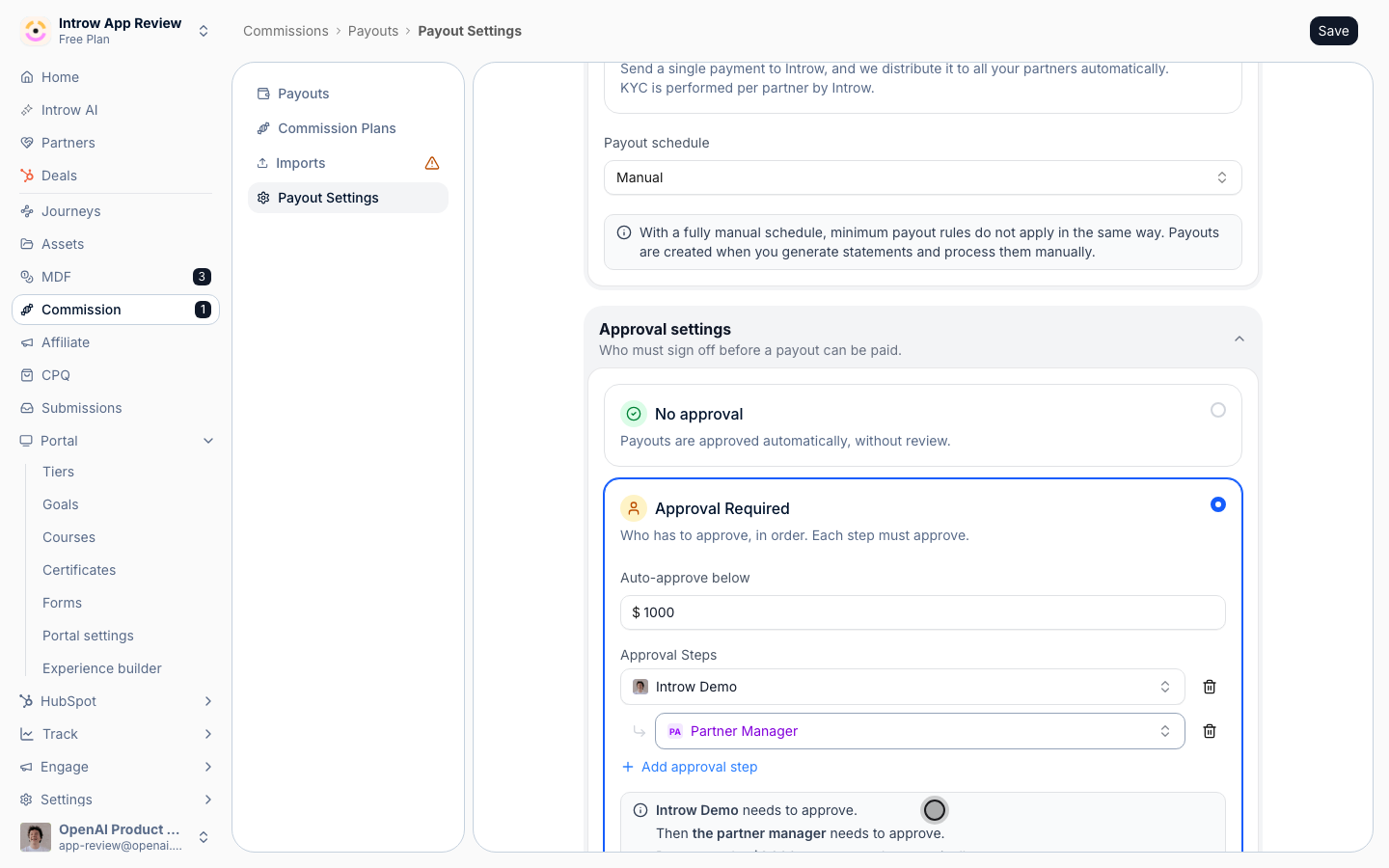
Go to [Payout Settings](https://app.introw.io/commission?section=settings) and find the **Approval settings** card, under **Payment settings**.
Collapse the card and its badge reads **No approval** or **Approval required**, so you can see the current rule at a glance.
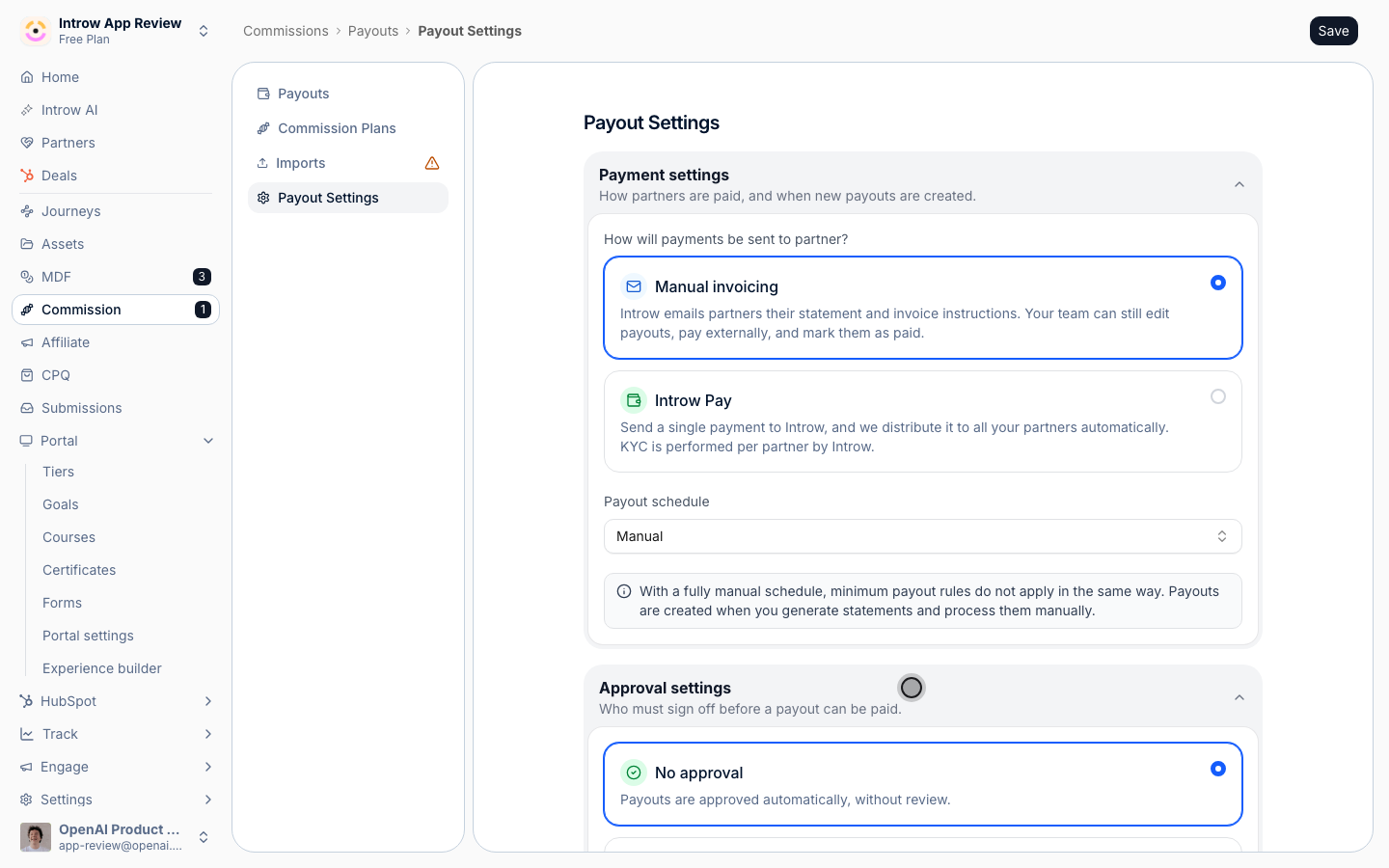 The card offers two options:
* **No approval** - payouts are approved automatically, without review. This is the default.
* **Approval Required** - you list who has to approve, in order, and each step must approve before the next one is asked.
Choose **Approval Required** to open the rule.
The card offers two options:
* **No approval** - payouts are approved automatically, without review. This is the default.
* **Approval Required** - you list who has to approve, in order, and each step must approve before the next one is asked.
Choose **Approval Required** to open the rule.
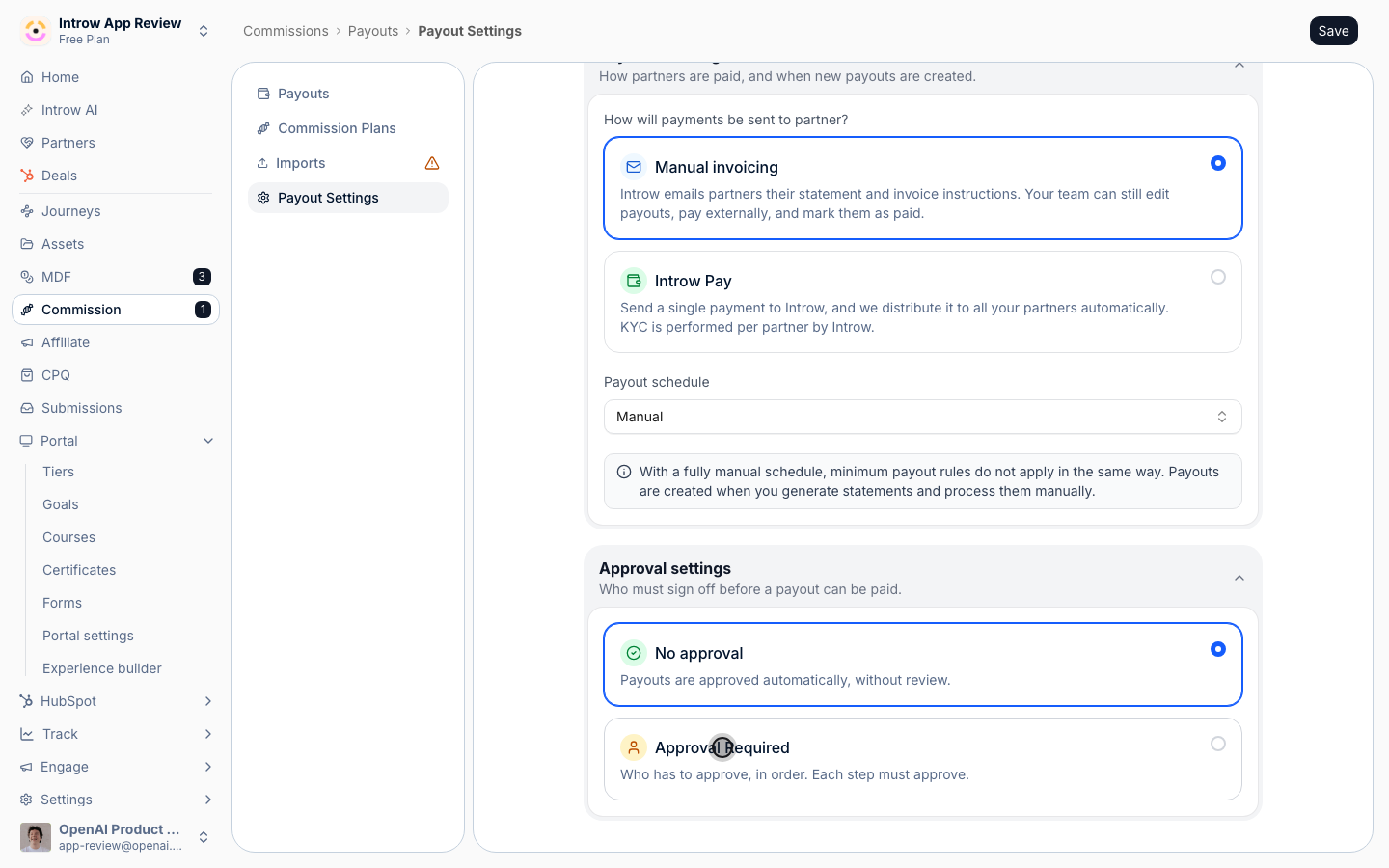 **Auto-approve below** is an amount in your company currency.
A payout under it is approved automatically and skips every step; a payout at or above it waits for your approvers.
Set it to the amount below which a review costs more than it protects, for example 1,000.
Leave it blank to review every payout. When you set it, it must be above zero.
**Auto-approve below** is an amount in your company currency.
A payout under it is approved automatically and skips every step; a payout at or above it waits for your approvers.
Set it to the amount below which a review costs more than it protects, for example 1,000.
Leave it blank to review every payout. When you set it, it must be above zero.
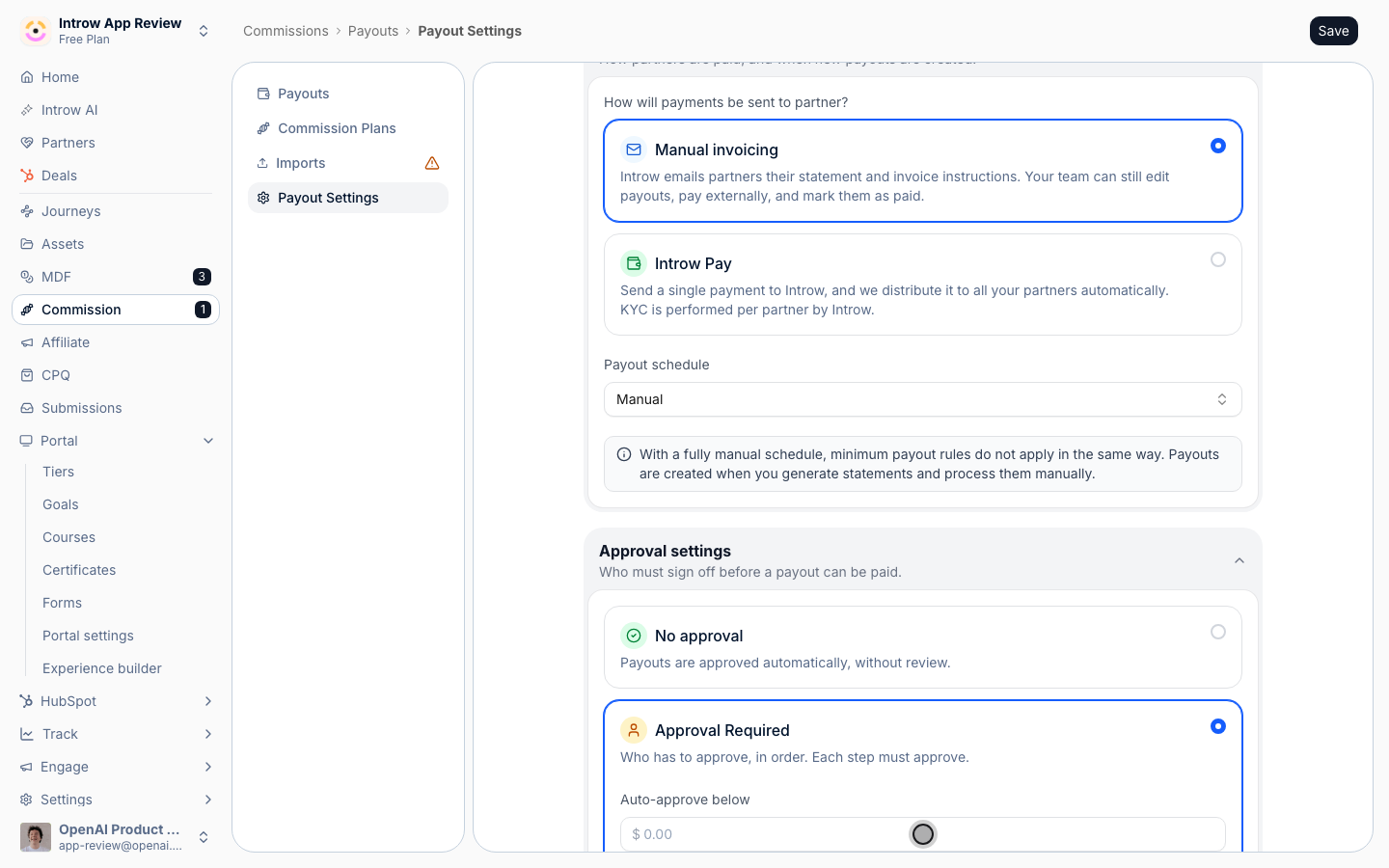 Under **Approval Steps**, open the first step's picker (**Select someone**). It lists, in this order:
* **Partner Manager** - the partner manager of the partner being paid, so each payout goes to the person who owns that partner.
* Your other **partner team roles**, such as Partner Marketing or Partner Enablement - whoever holds that role on the partner.
* Every **user** on your team, by name.
Add one or more. Any one of the people on a step can approve it, so add a backup when the step should not stall during someone's holiday.
A person or role can sit in only one step.
Under **Approval Steps**, open the first step's picker (**Select someone**). It lists, in this order:
* **Partner Manager** - the partner manager of the partner being paid, so each payout goes to the person who owns that partner.
* Your other **partner team roles**, such as Partner Marketing or Partner Enablement - whoever holds that role on the partner.
* Every **user** on your team, by name.
Add one or more. Any one of the people on a step can approve it, so add a backup when the step should not stall during someone's holiday.
A person or role can sit in only one step.
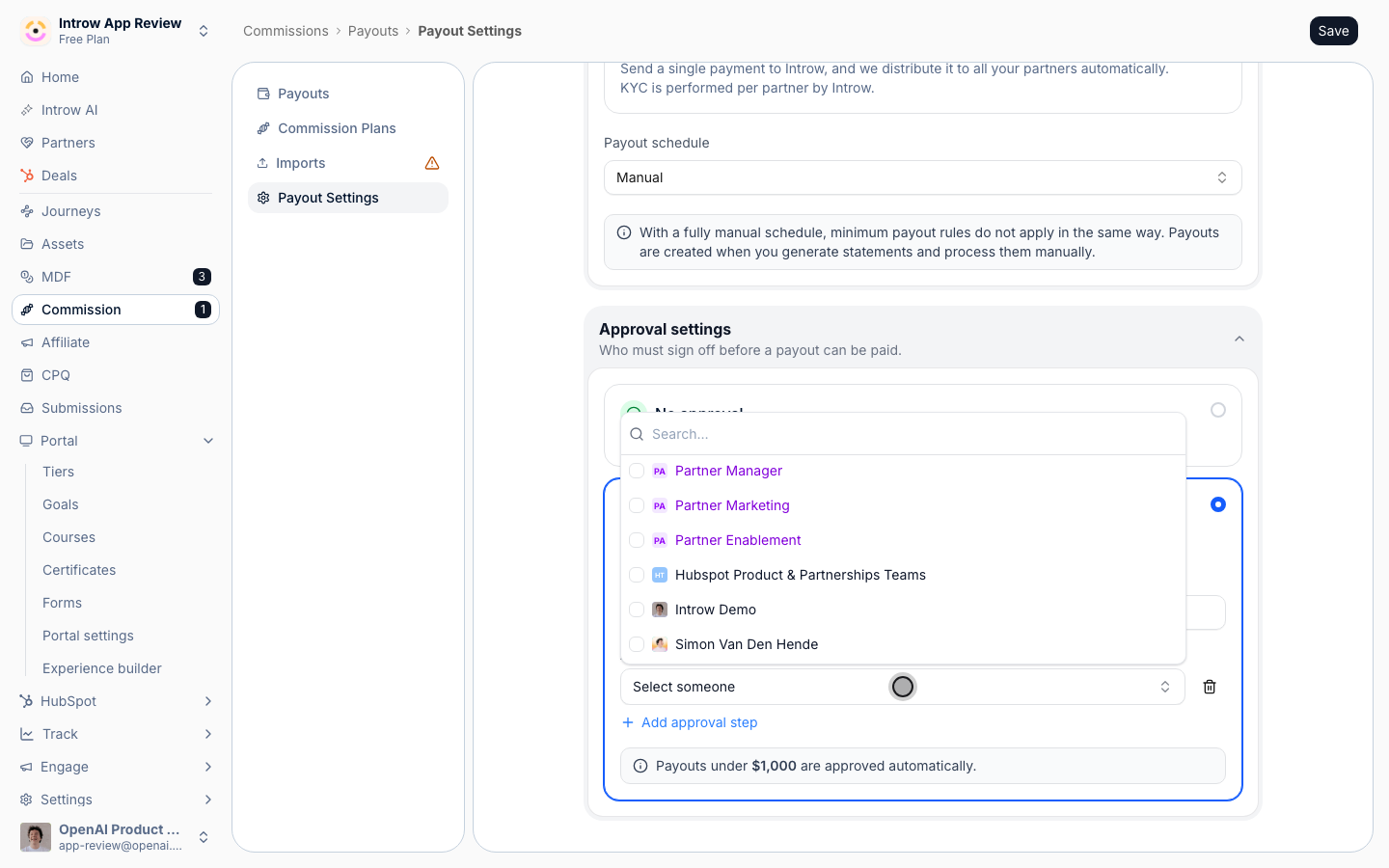 Choose **Add approval step** to add a second step under the first.
Each step waits for the one before it: finance only sees a payout once the partner manager has approved it, for example.
You can chain up to six steps; past that the card reads **Approval is limited to 6 steps**. Remove a step with its bin icon.
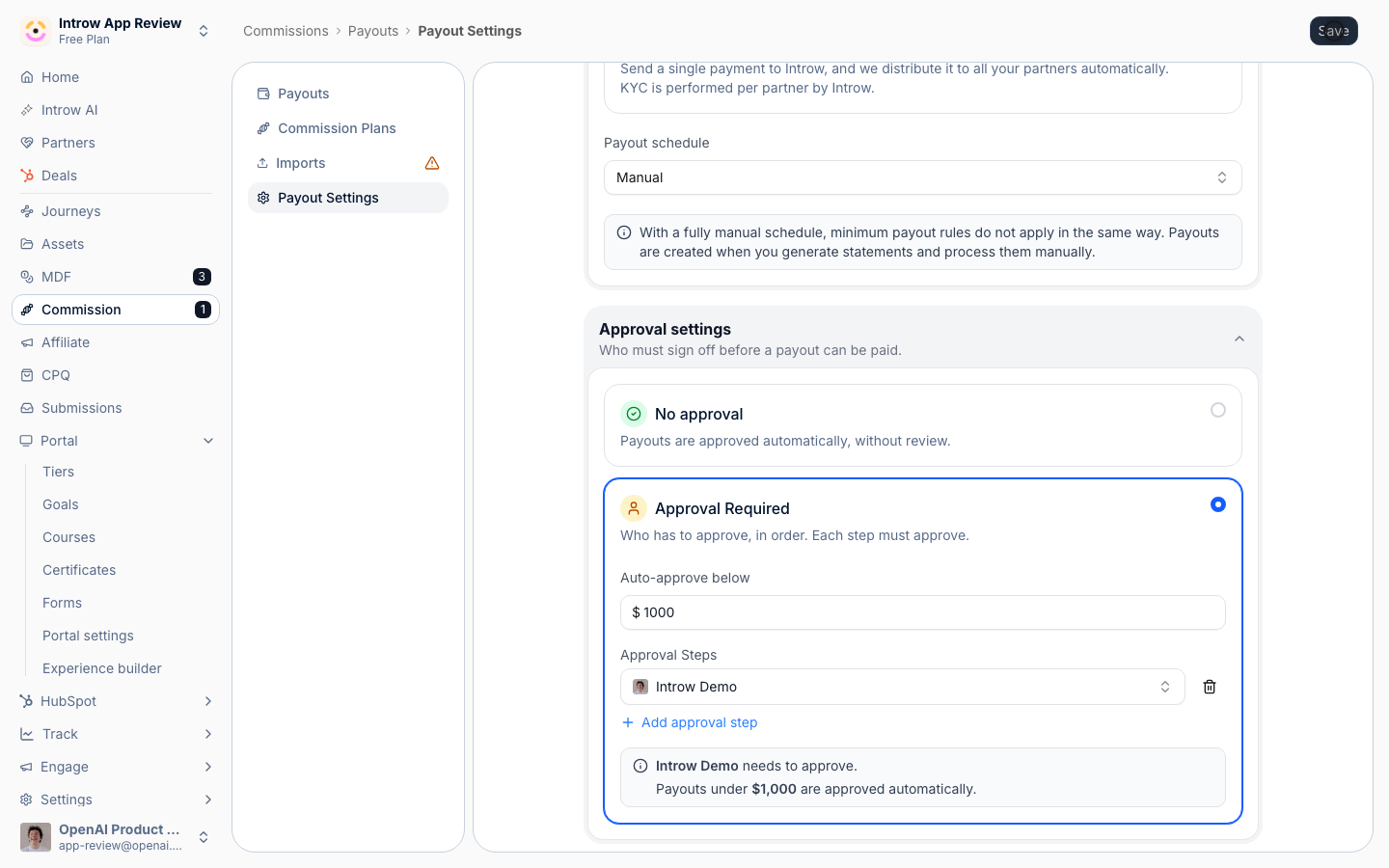
Under the steps, the card reads the rule back in plain words, such as "The partner manager needs to approve. Then Jane Doe needs to approve. Payouts under \$1,000.00 are approved automatically."
Read it before you save: it is exactly what Introw will enforce.
Choose **Add approval step** to add a second step under the first.
Each step waits for the one before it: finance only sees a payout once the partner manager has approved it, for example.
You can chain up to six steps; past that the card reads **Approval is limited to 6 steps**. Remove a step with its bin icon.
Under the steps, the card reads the rule back in plain words, such as "The partner manager needs to approve. Then Jane Doe needs to approve. Payouts under \$1,000.00 are approved automatically."
Read it before you save: it is exactly what Introw will enforce.
 Choose **Save** in the page header. The confirmation reads **Payout settings saved**, and Introw takes you back to **Payouts**.
A step with nobody in it blocks the save with **Add at least one approver to each step**.
From now on, every new payout starts at **Pending approval** unless it is under the auto-approve amount.
Payouts already waiting on approval move to the new rule. When the new rule is stricter, with an extra step or a lower auto-approve amount, payouts that were approved but not yet paid go back for approval too.
Choose **Save** in the page header. The confirmation reads **Payout settings saved**, and Introw takes you back to **Payouts**.
A step with nobody in it blocks the save with **Add at least one approver to each step**.
From now on, every new payout starts at **Pending approval** unless it is under the auto-approve amount.
Payouts already waiting on approval move to the new rule. When the new rule is stricter, with an extra step or a lower auto-approve amount, payouts that were approved but not yet paid go back for approval too.
 ### Phase 2 - Approve or decline payouts
When a payout reaches your step, Introw emails you **You have a payout to approve**, or the number waiting, with a **View payouts** button.
It bundles everything that waits on you into one email, and the button opens Payouts with your review already open.
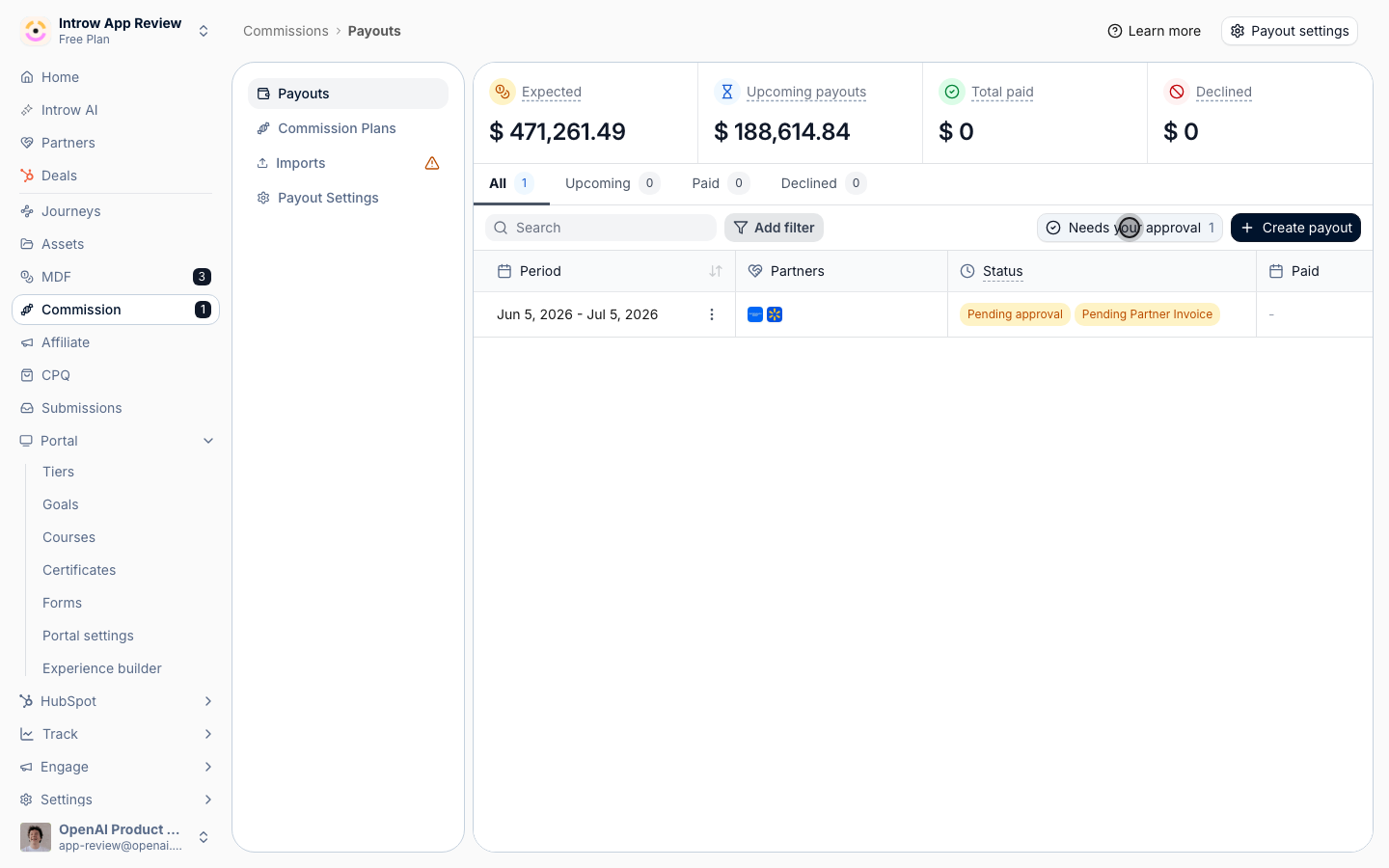
On [Payouts](https://app.introw.io/commission?section=payouts), and inside a batch, **Needs your approval** shows how many payouts wait on you. Choose it to open **Payouts to approve**.
The left side lists each payout with its partner and period. The right side shows the commission lines of the payout you opened, with **Commission item**, **Close date**, **Amount**, **Commission** and **Plan**, and the total.
The list also holds payouts where your step comes later, so you can see what is on its way to you.
### Phase 2 - Approve or decline payouts
When a payout reaches your step, Introw emails you **You have a payout to approve**, or the number waiting, with a **View payouts** button.
It bundles everything that waits on you into one email, and the button opens Payouts with your review already open.
On [Payouts](https://app.introw.io/commission?section=payouts), and inside a batch, **Needs your approval** shows how many payouts wait on you. Choose it to open **Payouts to approve**.
The left side lists each payout with its partner and period. The right side shows the commission lines of the payout you opened, with **Commission item**, **Close date**, **Amount**, **Commission** and **Plan**, and the total.
The list also holds payouts where your step comes later, so you can see what is on its way to you.
 Choose **Approve** to approve the open payout, or tick several and choose **Approve** with the count.
The payout moves to the next step, and once every step has approved it reads **Approved**.
When nothing is left, the dialog reads **All caught up**.
You can also approve inside a batch: select payouts and choose **Approve** in the selection bar, or open a partner's payout and choose **Approve** in its footer. Both open **Approve payout**, where you can add a message.
Choose **Approve** to approve the open payout, or tick several and choose **Approve** with the count.
The payout moves to the next step, and once every step has approved it reads **Approved**.
When nothing is left, the dialog reads **All caught up**.
You can also approve inside a batch: select payouts and choose **Approve** in the selection bar, or open a partner's payout and choose **Approve** in its footer. Both open **Approve payout**, where you can add a message.
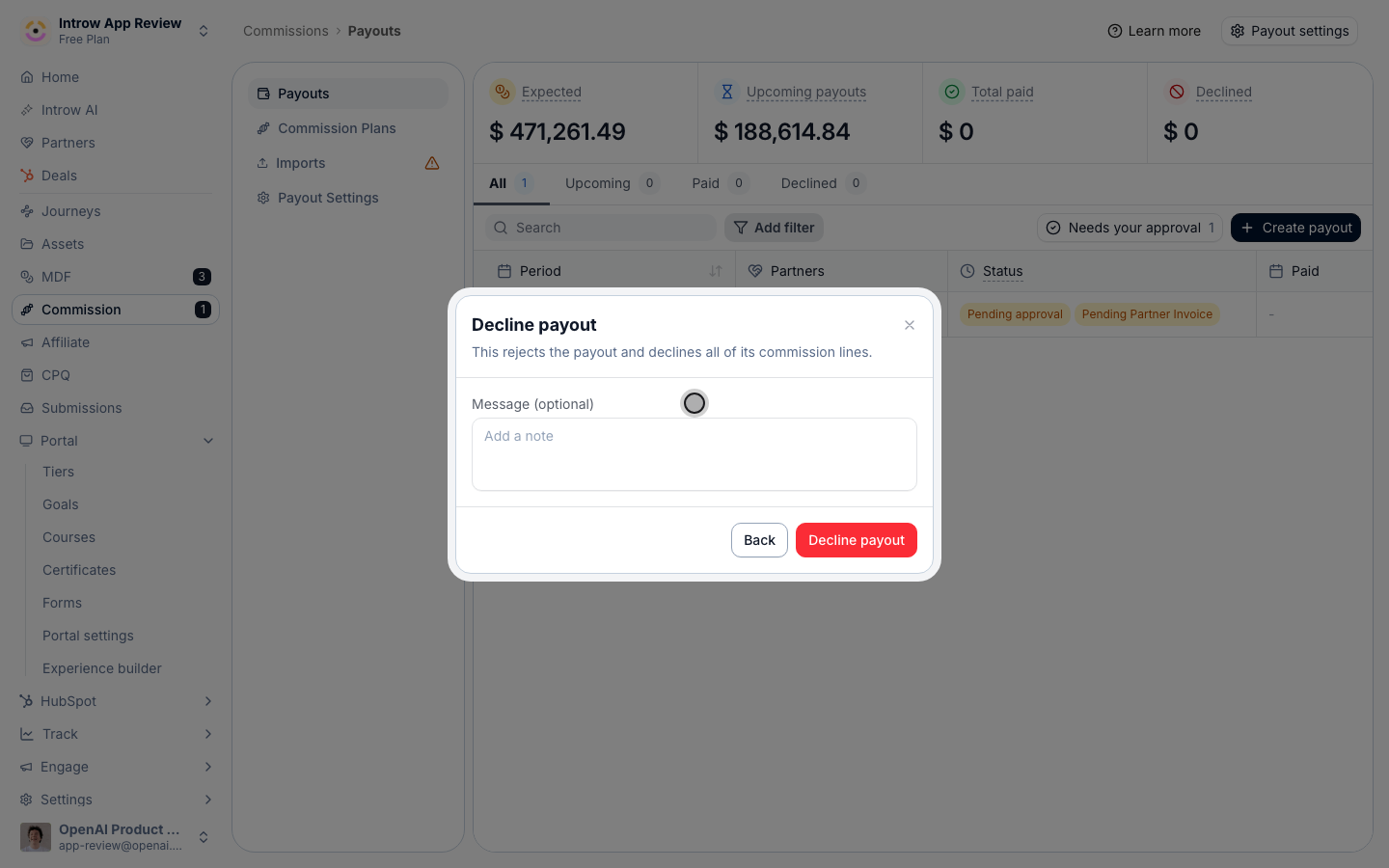
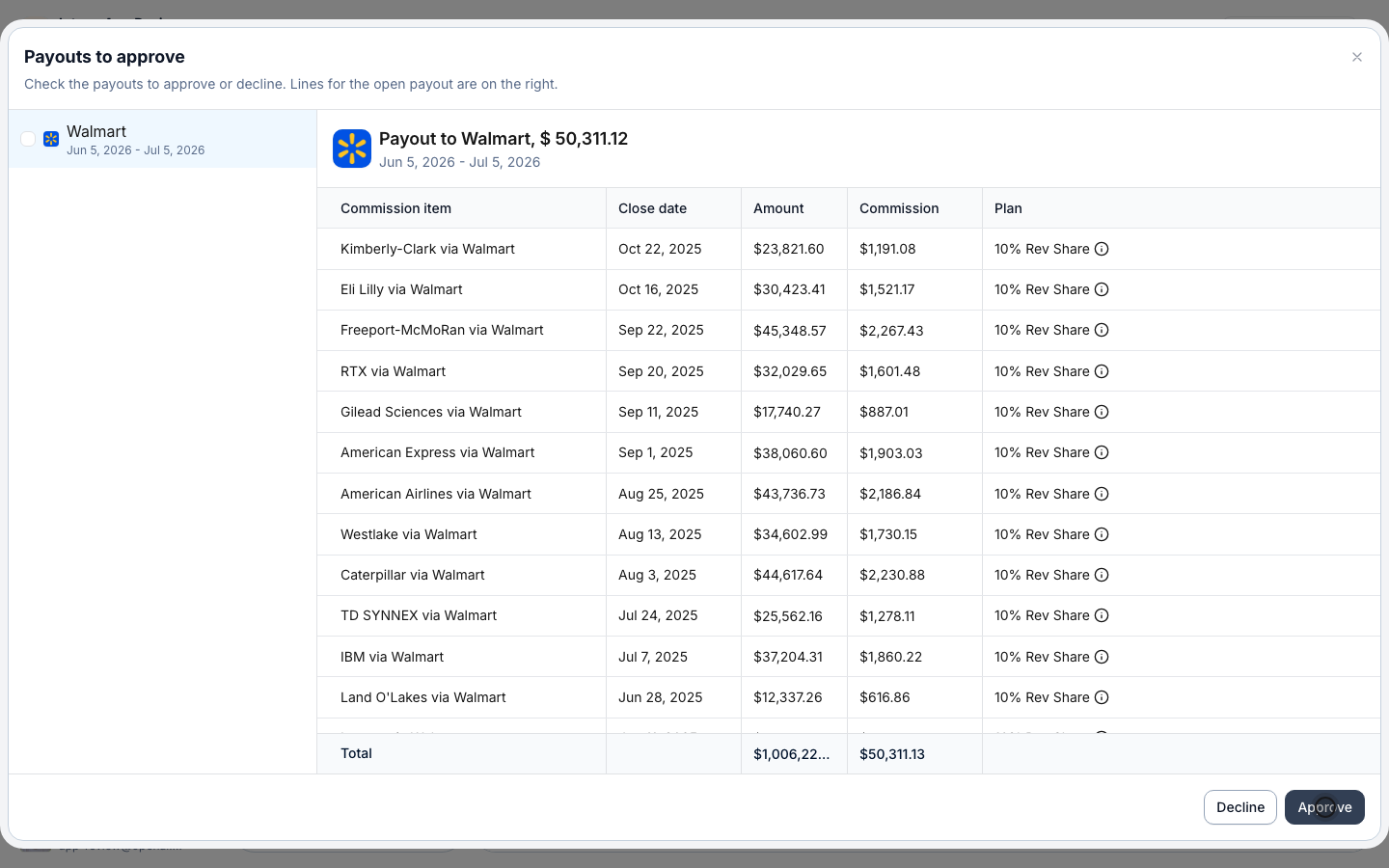 Choose **Decline**, add an optional message, and confirm with **Decline payout**.
This rejects the payout and declines all of its commission lines, so the payout reads **Declined** and the partner is not paid for it.
You can decline a payout you already approved, and an approver on a later step can decline before their step opens.
To undo it, restore the payout or its lines; a restored payout goes back through approval.
Choose **Decline**, add an optional message, and confirm with **Decline payout**.
This rejects the payout and declines all of its commission lines, so the payout reads **Declined** and the partner is not paid for it.
You can decline a payout you already approved, and an approver on a later step can decline before their step opens.
To undo it, restore the payout or its lines; a restored payout goes back through approval.
 ### Phase 3 - Track the approvals and pay
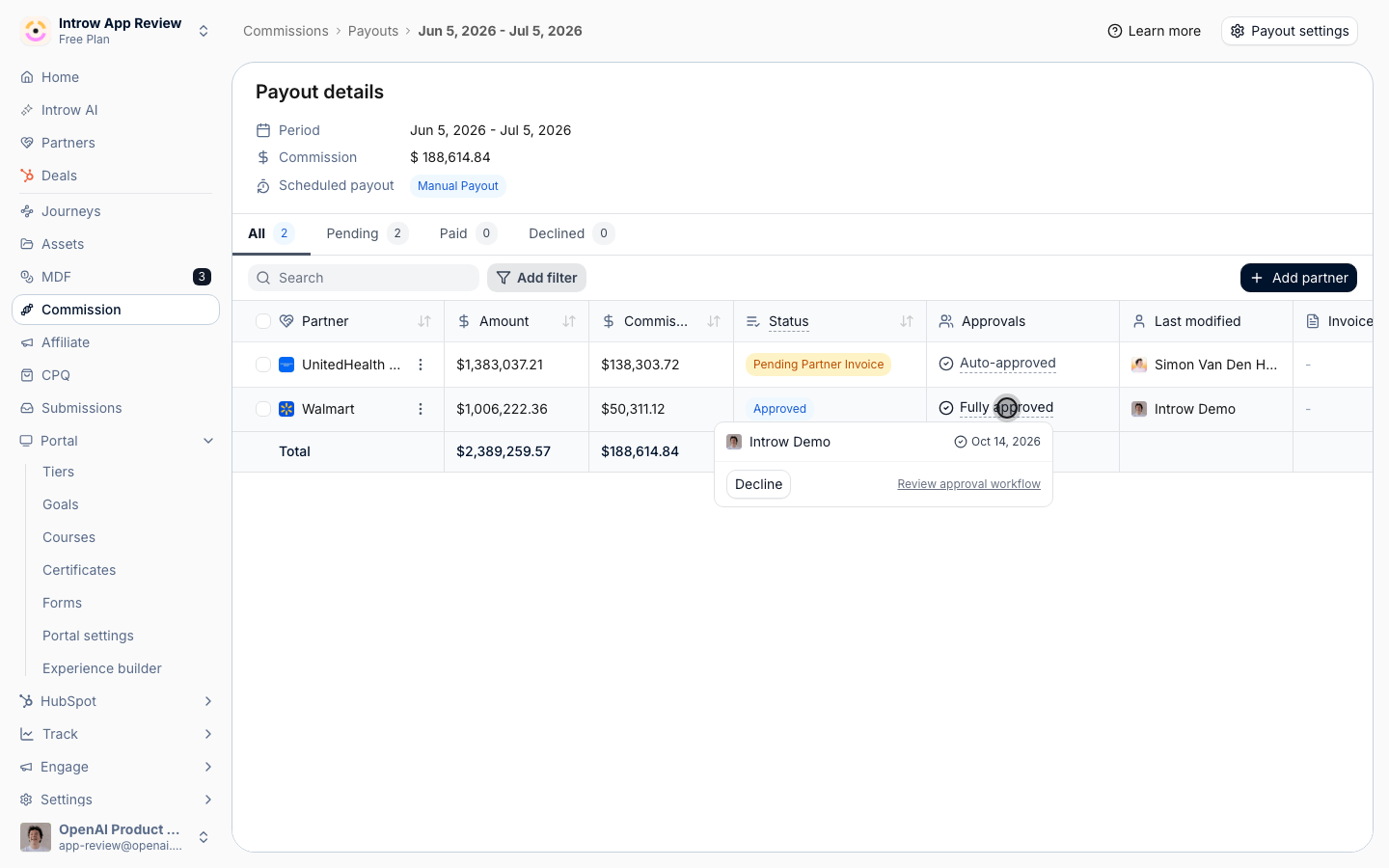
With approval on, a batch gains an **Approvals** column and an **Is approved** filter.
The column reads **1/2 Approvals given**, **Fully approved**, **Auto-approved**, **Declined by you**, or who declined.
Choose it to see every approver with their status: **Pending approval**, **Waiting** for an earlier step, the date they approved, **Declined**, or **Skipped**.
A warning icon marks a role or partner manager with no active person behind it, such as a partner with no partner manager. Assign one, or the step waits.
**Review approval workflow** takes you back to the rule.
### Phase 3 - Track the approvals and pay
With approval on, a batch gains an **Approvals** column and an **Is approved** filter.
The column reads **1/2 Approvals given**, **Fully approved**, **Auto-approved**, **Declined by you**, or who declined.
Choose it to see every approver with their status: **Pending approval**, **Waiting** for an earlier step, the date they approved, **Declined**, or **Skipped**.
A warning icon marks a role or partner manager with no active person behind it, such as a partner with no partner manager. Assign one, or the step waits.
**Review approval workflow** takes you back to the rule.
 On [Introw Pay](/features/commissions/introw-pay/guides/pay-partners-with-introw-pay), **Pay now** only pays approved payouts. The **Pay commissions** dialog says how many are still waiting, such as **2 of 3 are still waiting on approval.**
On manual invoicing, **Send to partner**, **Request partner invoice** and **Mark as paid** appear on a payout once it is approved. Approval moves payouts between stages, so you cannot change the stage of a payout by hand while approval is on.
Once a payment has started on a payout, nobody can approve or decline it any more.
### When a payout changes after review
Approval follows the money on the payout:
* **Editing or adding a commission line** sends the payout back to the first step, and the approvals already given are dropped.
* **Restoring** a declined payout or a declined line sends it back for approval.
* **Declining a line** keeps the approvals already given.
* Any change that takes the payout under the auto-approve amount approves it automatically.
## Verify it worked
**Approval Required** is selected in the **Approval settings** card.
A new payout above your threshold reads **Pending approval** and shows up under **Needs your approval** for the first approver, who also gets the email.
After the last step approves, the payout reads **Approved**, the **Approvals** column reads **Fully approved**, and the payout appears in the partner's portal.
Each approve or decline is logged on the partner's activity for your team only, with who decided and their message.
## Related
Create the batch and move every payout to paid.
Pay every approved payout with one invoice.
The payout method, schedule and minimum on the same page.
Stages, visibility and troubleshooting.
This documentation is built and hosted on [Mintlify](https://mintlify.com), a developer documentation platform.
On [Introw Pay](/features/commissions/introw-pay/guides/pay-partners-with-introw-pay), **Pay now** only pays approved payouts. The **Pay commissions** dialog says how many are still waiting, such as **2 of 3 are still waiting on approval.**
On manual invoicing, **Send to partner**, **Request partner invoice** and **Mark as paid** appear on a payout once it is approved. Approval moves payouts between stages, so you cannot change the stage of a payout by hand while approval is on.
Once a payment has started on a payout, nobody can approve or decline it any more.
### When a payout changes after review
Approval follows the money on the payout:
* **Editing or adding a commission line** sends the payout back to the first step, and the approvals already given are dropped.
* **Restoring** a declined payout or a declined line sends it back for approval.
* **Declining a line** keeps the approvals already given.
* Any change that takes the payout under the auto-approve amount approves it automatically.
## Verify it worked
**Approval Required** is selected in the **Approval settings** card.
A new payout above your threshold reads **Pending approval** and shows up under **Needs your approval** for the first approver, who also gets the email.
After the last step approves, the payout reads **Approved**, the **Approvals** column reads **Fully approved**, and the payout appears in the partner's portal.
Each approve or decline is logged on the partner's activity for your team only, with who decided and their message.
## Related
Create the batch and move every payout to paid.
Pay every approved payout with one invoice.
The payout method, schedule and minimum on the same page.
Stages, visibility and troubleshooting.
This documentation is built and hosted on [Mintlify](https://mintlify.com), a developer documentation platform.