> ## Documentation Index
> Fetch the complete documentation index at: https://docs.introw.io/llms.txt
> Use this file to discover all available pages before exploring further.
# Choose what partners see in the Commissions section
> Add the Commission section to a portal experience, choose which payout and commission item columns partners see and what they are called, add the Payout setup section on Introw Pay, and publish.
> **Use case:** you want partners to read their payouts in your words, see only the fields that mean something to them, and download their statement themselves. For partner managers and partner operations.
Partners check their commission in the portal more than anywhere else, and every column they do not understand becomes an email to you. This guide puts the **Commission** section on a tab, picks the columns partners see per payout and per commission item, renames them to the words your program already uses, and publishes it. On Introw Pay it also adds the **Payout setup** section, so partners set up how they get paid on the same tab they check their money on.
## What you'll achieve
Every partner on the experience opens a Commissions tab that shows their totals, their payouts with only the columns you chose, under the names you chose, and a statement they can download per payout. Opening a payout lists each commission item with the detail columns you kept. On Introw Pay, the same tab shows them how far their payout setup is and what is left to do.
## Before you start
You need a role that can edit experiences. The **Configure** button on the section only shows for it.
The experience is published to the partners who should see it. Changes reach them when you publish again.
The **Payout setup** section only shows partners anything while **Introw Pay** is your payout method. See [Activate Introw Pay](/features/commissions/introw-pay/guides/activate-introw-pay). The **Commission** section works on either payout method.
## Watch it
## Steps
### Phase 1 - Put the Commission section on a tab
Go to [Experience builder](https://app.introw.io/templates) and open the experience your partners use. If one of its tabs already holds a **Commission** section, open that tab and skip to Phase 2.
Choose **Add**, keep **Tab** as the **Type**, and give it a **Name** partners recognise, such as **Payouts** or **Get paid**. A tab of its own makes earnings one click from anywhere in the portal. Choose **Add tab**.
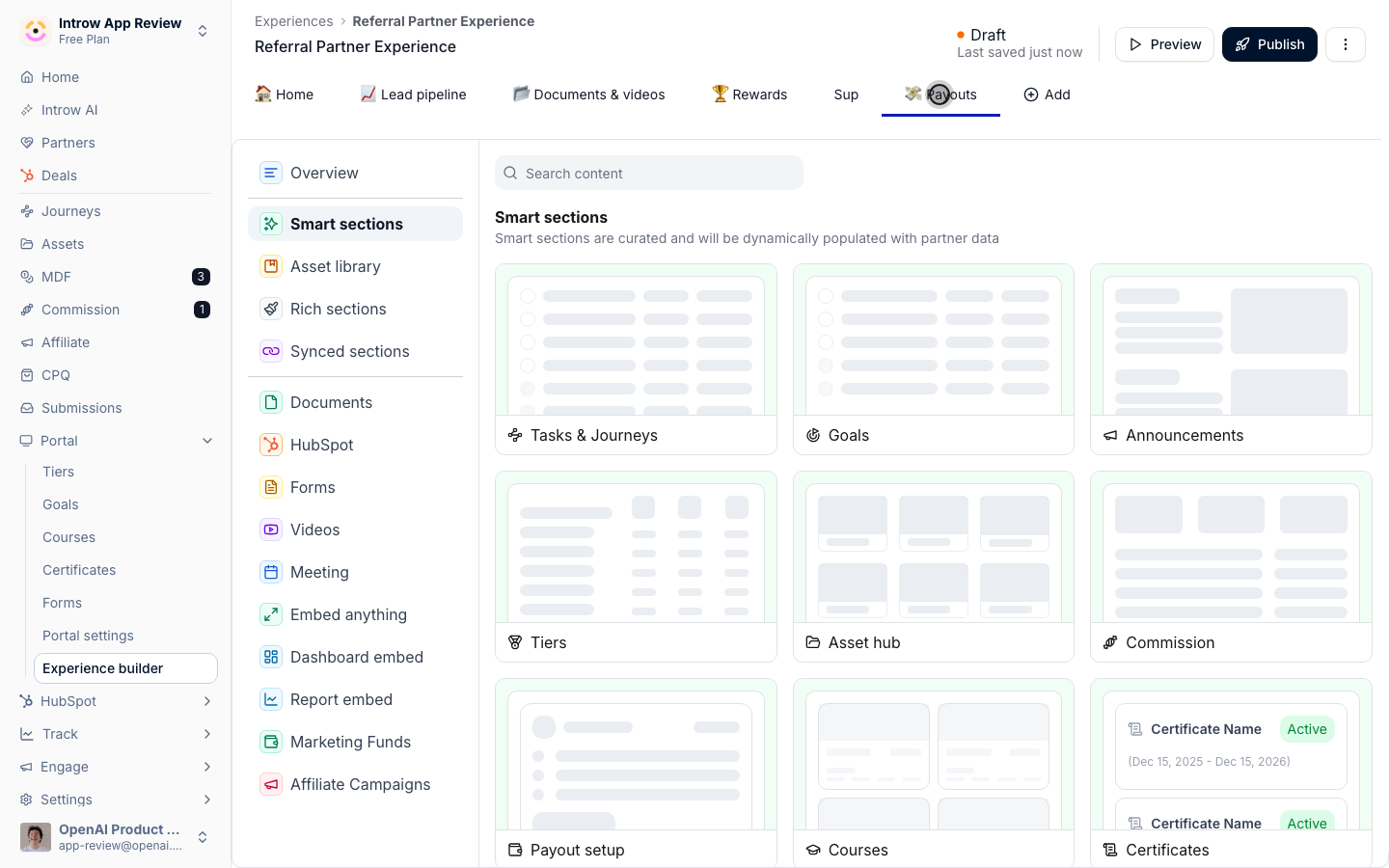
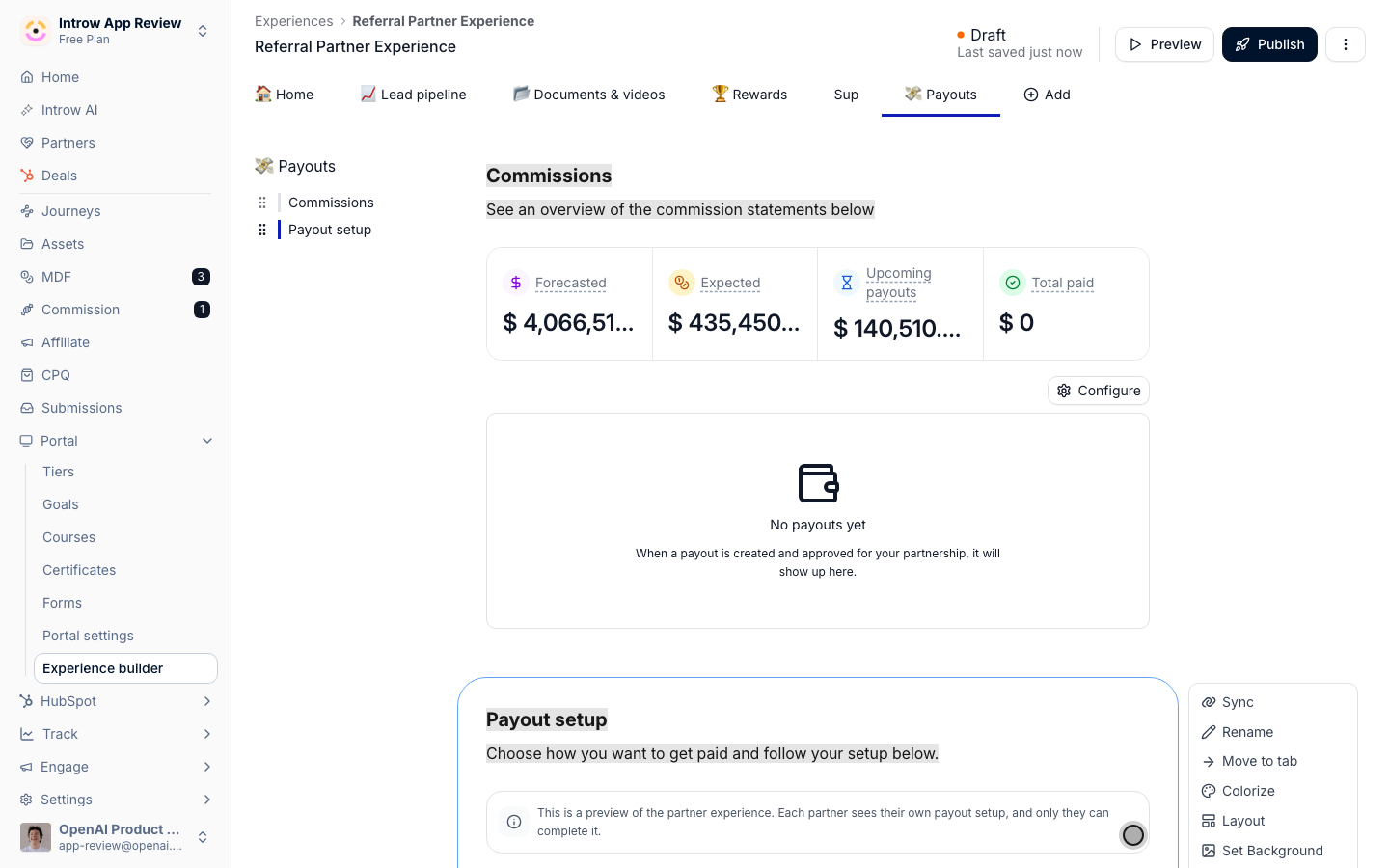
On the empty tab, open **Smart sections** and choose **Commission**. Smart sections fill themselves with each partner's own data, so you add the section once and every partner sees their own figures. It lands with the heading **Commissions** and a line under it that you can rewrite like any other text.
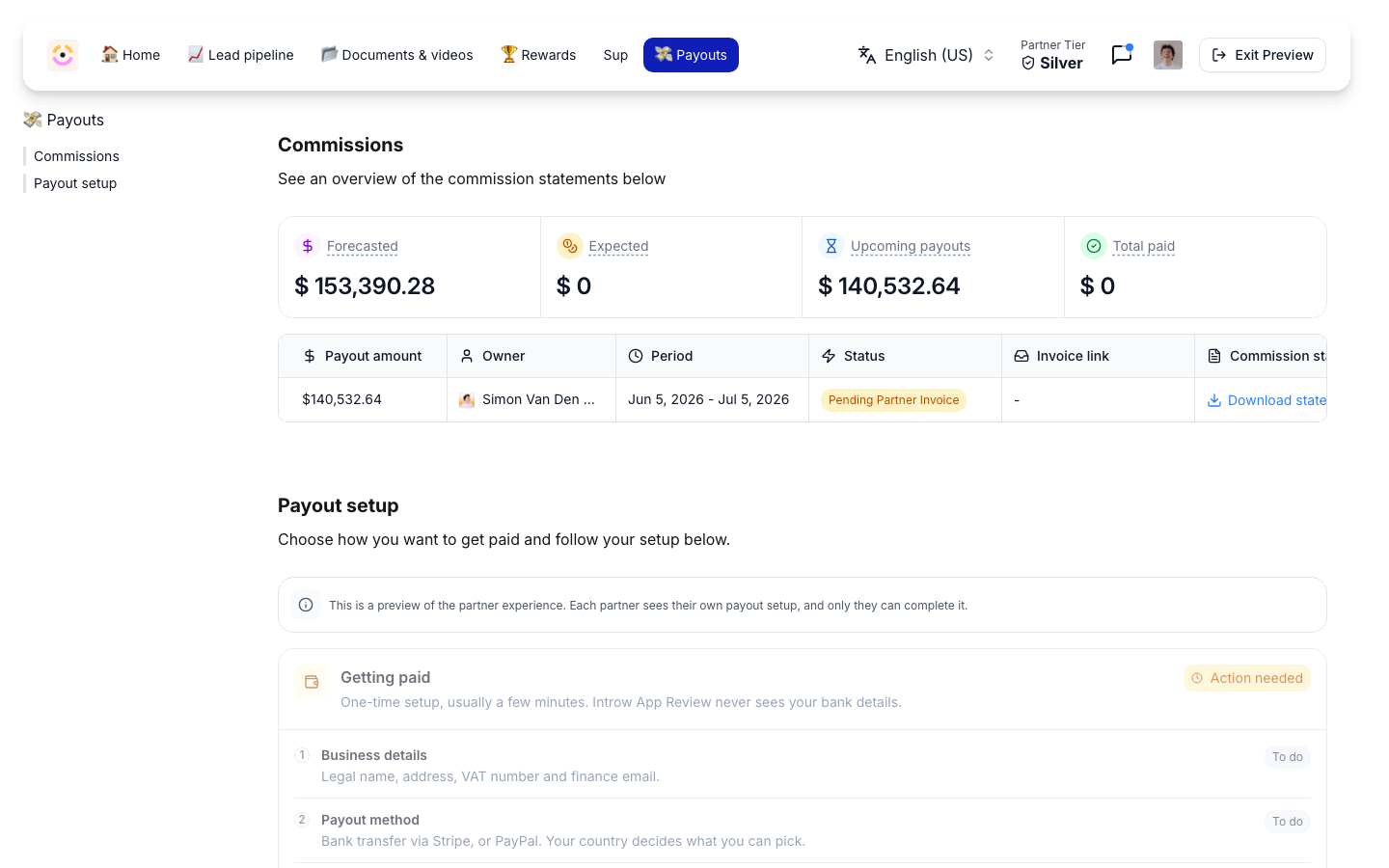
The section shows four totals, **Forecasted**, **Expected**, **Upcoming payouts** and **Total paid**, each of which lists the lines behind it when a partner clicks it. Under them sits a table with one row per payout. In the builder the table reads **No payouts yet**, because an experience has no partner of its own; partners see their payouts once it is published.
 ### Phase 2 - Choose the columns
Choose **Configure** above the payouts table. A side panel opens with two lists, and each list starts with every column the section can show.
### Phase 2 - Choose the columns
Choose **Configure** above the payouts table. A side panel opens with two lists, and each list starts with every column the section can show.
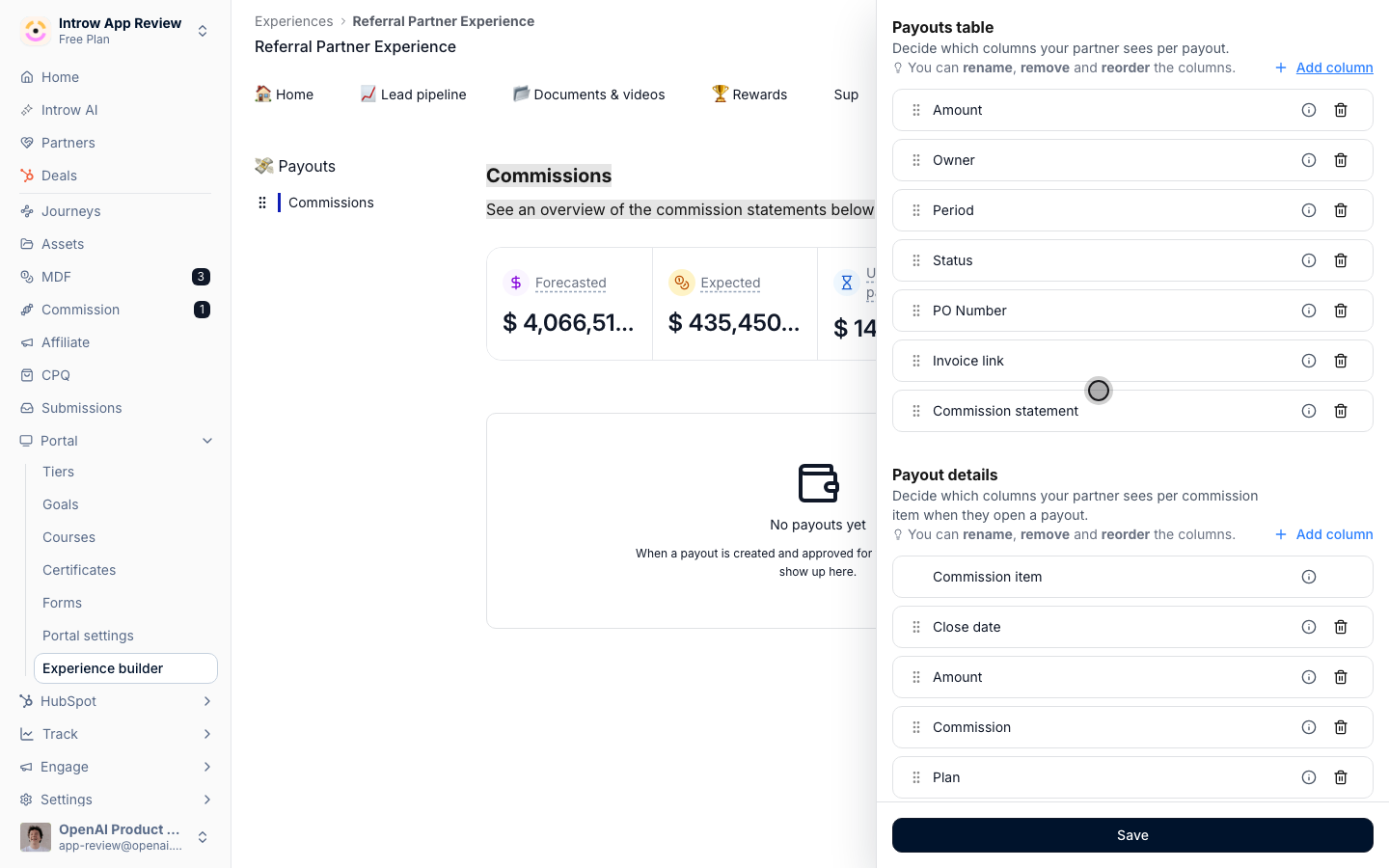 **Payouts table** decides what partners see per payout:
* **Amount** - what the payout pays, in the partner's currency.
* **Owner** - the person on your team the payout came from, with their avatar.
* **Period** - the dates the payout covers.
* **Status** - where the payout stands, from **Pending Partner Invoice** to **Paid**. Partners never see your internal stages.
* **PO Number** - the purchase order number, once you set one. Remove it if your program does not use them.
* **Invoice link** - a **Download invoice** link once the partner has uploaded their invoice.
* **Commission statement** - a **Download statement** link on every payout. The statement is rendered from the payout's current lines when the partner clicks, so the file is never older than the payout. A payout with no commission items on it says **No statement yet**.
To rename a column, type over its label and press Enter; hover the info icon to see its original name. Use the words your partners use: **Payout amount**, **Your contact**, **Statement**. To remove a column, choose its bin icon. To reorder, drag a column by its handle; partners read the table left to right in this order. **Add column** brings back a column you removed. Keep at least one column, or **Save** stays unavailable.
**Payouts table** decides what partners see per payout:
* **Amount** - what the payout pays, in the partner's currency.
* **Owner** - the person on your team the payout came from, with their avatar.
* **Period** - the dates the payout covers.
* **Status** - where the payout stands, from **Pending Partner Invoice** to **Paid**. Partners never see your internal stages.
* **PO Number** - the purchase order number, once you set one. Remove it if your program does not use them.
* **Invoice link** - a **Download invoice** link once the partner has uploaded their invoice.
* **Commission statement** - a **Download statement** link on every payout. The statement is rendered from the payout's current lines when the partner clicks, so the file is never older than the payout. A payout with no commission items on it says **No statement yet**.
To rename a column, type over its label and press Enter; hover the info icon to see its original name. Use the words your partners use: **Payout amount**, **Your contact**, **Statement**. To remove a column, choose its bin icon. To reorder, drag a column by its handle; partners read the table left to right in this order. **Add column** brings back a column you removed. Keep at least one column, or **Save** stays unavailable.
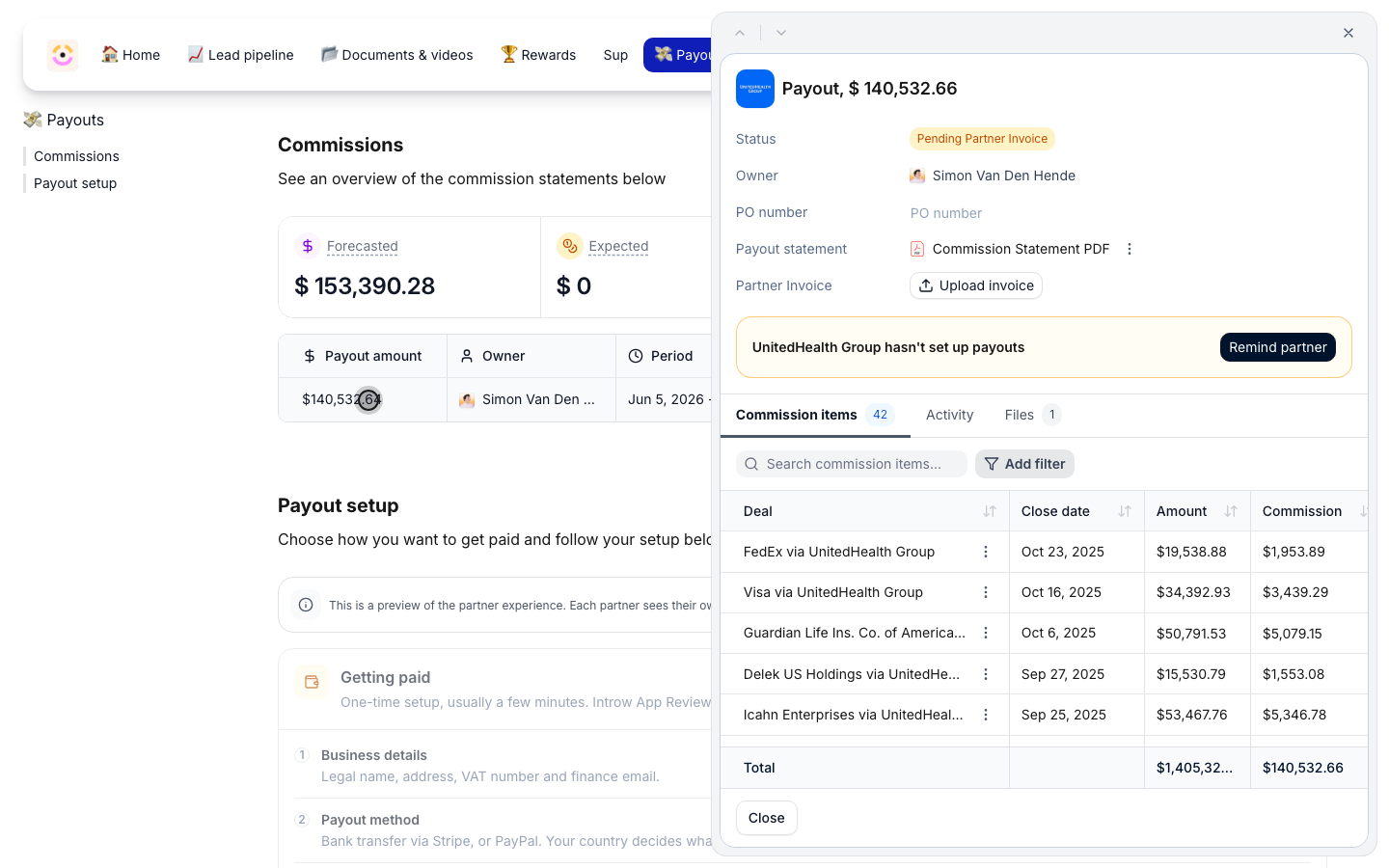
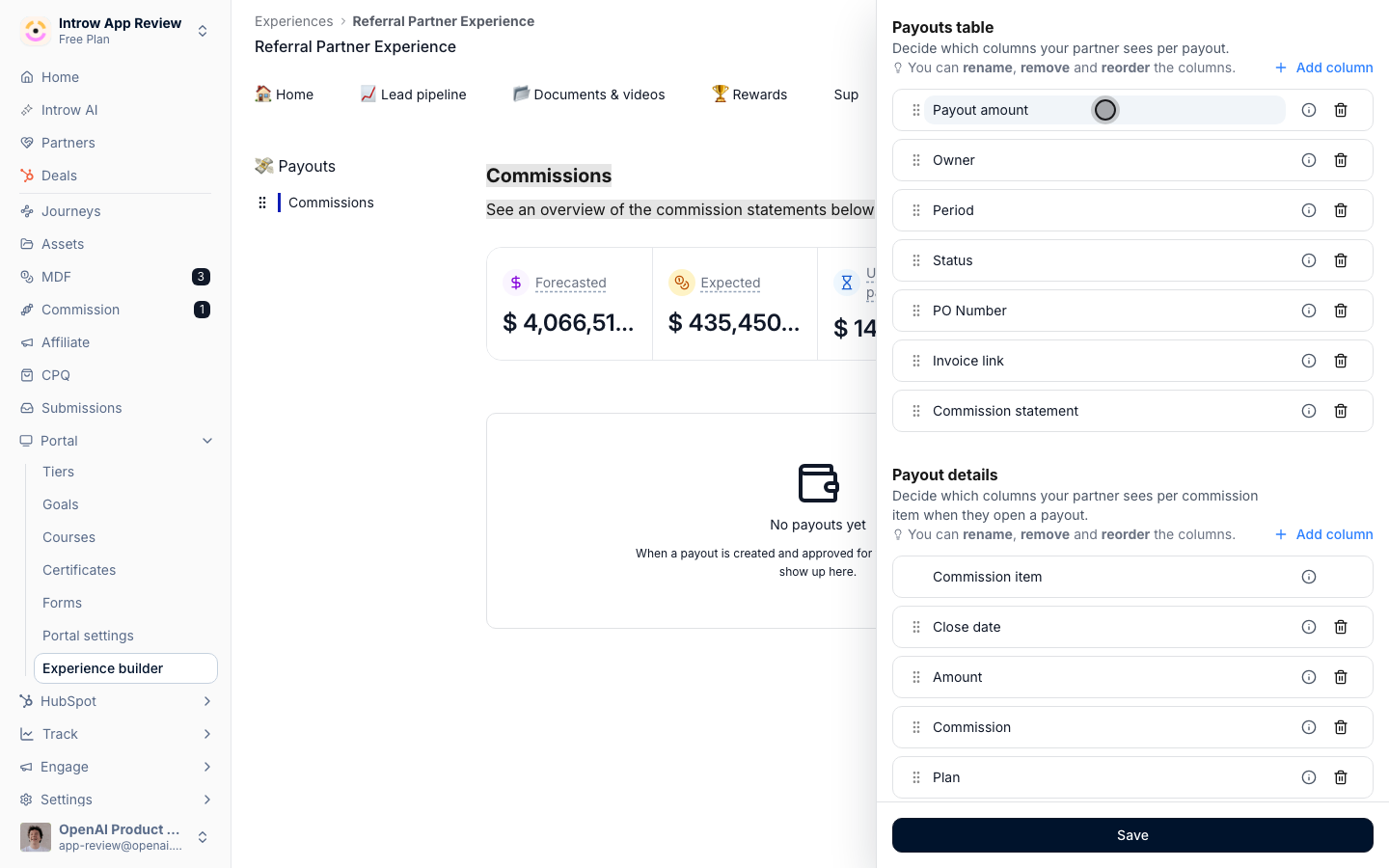 **Payout details** decides what partners see per commission item when they open a payout:
* **Commission item** - the deal, or the description of the line. It always shows, first, because it names each row and carries the **Total** line. You can rename it, to **Deal** for example, but not remove or move it.
* **Close date** - the close date of the deal behind the item, or the date of the line.
* **Amount** - the value the commission was calculated on, such as the deal amount.
* **Commission** - what the partner earns on it.
* **Plan** - the plan and rate it was paid under, or the rate a manual or API line works out to.
Rename, remove, reorder and add work the same way as in the payouts table. Remove **Plan** when your plans carry internal names you would rather partners did not read.
**Payout details** decides what partners see per commission item when they open a payout:
* **Commission item** - the deal, or the description of the line. It always shows, first, because it names each row and carries the **Total** line. You can rename it, to **Deal** for example, but not remove or move it.
* **Close date** - the close date of the deal behind the item, or the date of the line.
* **Amount** - the value the commission was calculated on, such as the deal amount.
* **Commission** - what the partner earns on it.
* **Plan** - the plan and rate it was paid under, or the rate a manual or API line works out to.
Rename, remove, reorder and add work the same way as in the payouts table. Remove **Plan** when your plans carry internal names you would rather partners did not read.
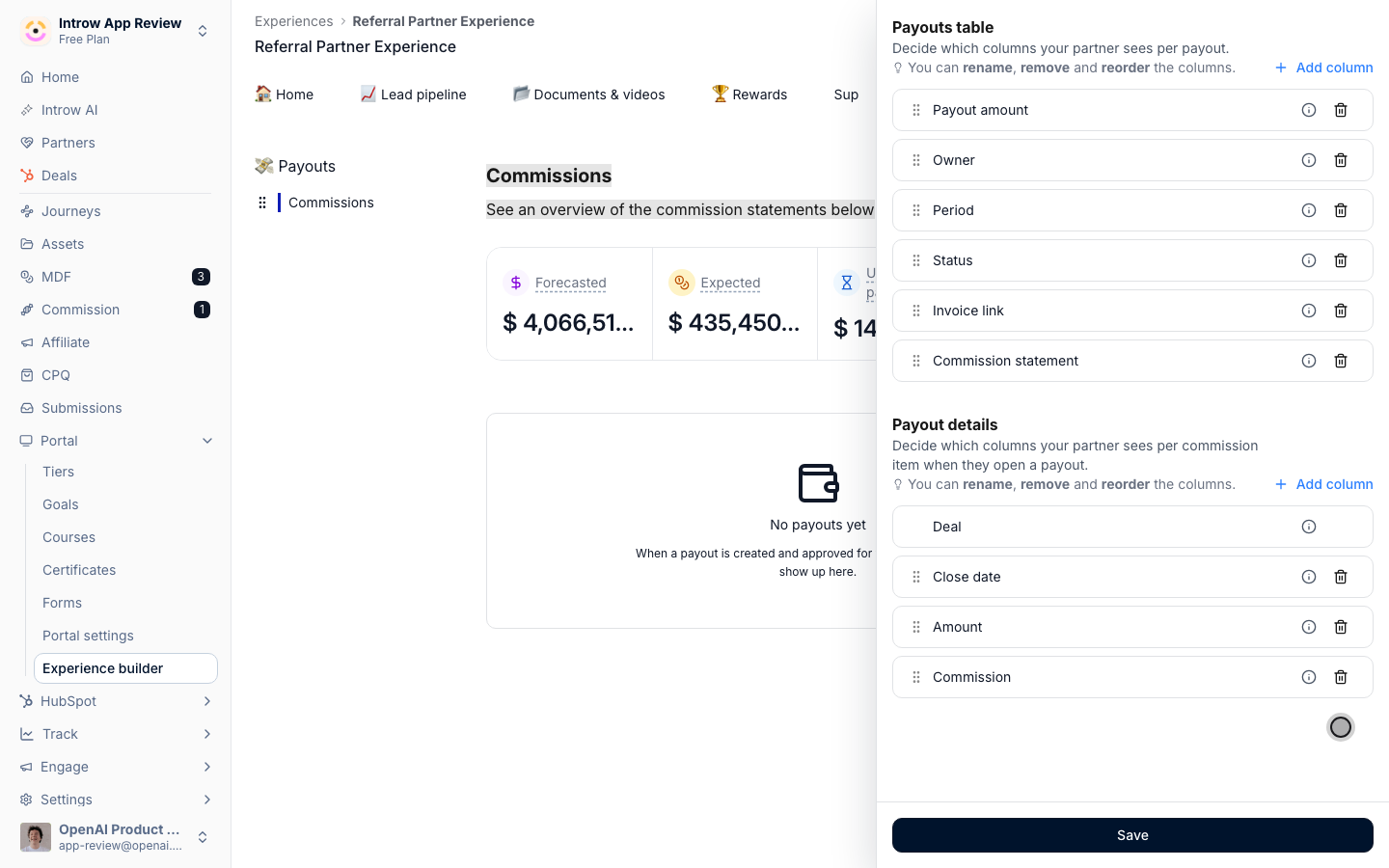 Choose **Save**. The columns are saved on this section only, so another experience, or a second Commission section, can show partners a different set. A section you never configure keeps showing every column in the default order, including **Commission statement**.
Columns are presentation, not permissions: hiding one changes what the table shows. Contacts who only see the deals they collaborate on get a narrower view either way, see [What partners see in the Commissions section](/features/commissions/payouts/technical#what-partners-see-in-the-commissions-section).
### Phase 3 - Add Payout setup and publish
On Introw Pay, hover the Commission section, choose **Add Section**, open **Smart sections** and choose **Payout setup**. It lands under the Commission section with the heading **Payout setup** and the line **Choose how you want to get paid and follow your setup below.**, both of which you can rewrite.
Each partner sees their own card, titled **Getting paid**:
* Until they are set up, it lists the three steps, **Business details**, **Payout method** and **Verification**, each marked **To do**, **In progress** or **Done**, with **Choose payout method** or **Continue setup** under them. When money is waiting it says so first: **Unlock** the amount **from** your company. **Learn more** opens **How payouts work**, which explains the steps, what each payout method costs and how fast it lands, and that your team never sees their bank details.
* When their payout provider needs something only they can give, the card asks for it and keeps their approved commission waiting for them.
* Once they are **Verified**, it shows the account they are paid to, when each step was finished, the payouts **Paid to this account** with **View all payouts**, and **Change payout method** and **Edit business details**.
You never see a partner's card. In the builder and in a portal preview you see the same card greyed out, under **This is a preview of the partner experience**. While you pay by manual invoicing, partners see nothing in this section, and the preview tells you so.
Choose **Save**. The columns are saved on this section only, so another experience, or a second Commission section, can show partners a different set. A section you never configure keeps showing every column in the default order, including **Commission statement**.
Columns are presentation, not permissions: hiding one changes what the table shows. Contacts who only see the deals they collaborate on get a narrower view either way, see [What partners see in the Commissions section](/features/commissions/payouts/technical#what-partners-see-in-the-commissions-section).
### Phase 3 - Add Payout setup and publish
On Introw Pay, hover the Commission section, choose **Add Section**, open **Smart sections** and choose **Payout setup**. It lands under the Commission section with the heading **Payout setup** and the line **Choose how you want to get paid and follow your setup below.**, both of which you can rewrite.
Each partner sees their own card, titled **Getting paid**:
* Until they are set up, it lists the three steps, **Business details**, **Payout method** and **Verification**, each marked **To do**, **In progress** or **Done**, with **Choose payout method** or **Continue setup** under them. When money is waiting it says so first: **Unlock** the amount **from** your company. **Learn more** opens **How payouts work**, which explains the steps, what each payout method costs and how fast it lands, and that your team never sees their bank details.
* When their payout provider needs something only they can give, the card asks for it and keeps their approved commission waiting for them.
* Once they are **Verified**, it shows the account they are paid to, when each step was finished, the payouts **Paid to this account** with **View all payouts**, and **Change payout method** and **Edit business details**.
You never see a partner's card. In the builder and in a portal preview you see the same card greyed out, under **This is a preview of the partner experience**. While you pay by manual invoicing, partners see nothing in this section, and the preview tells you so.
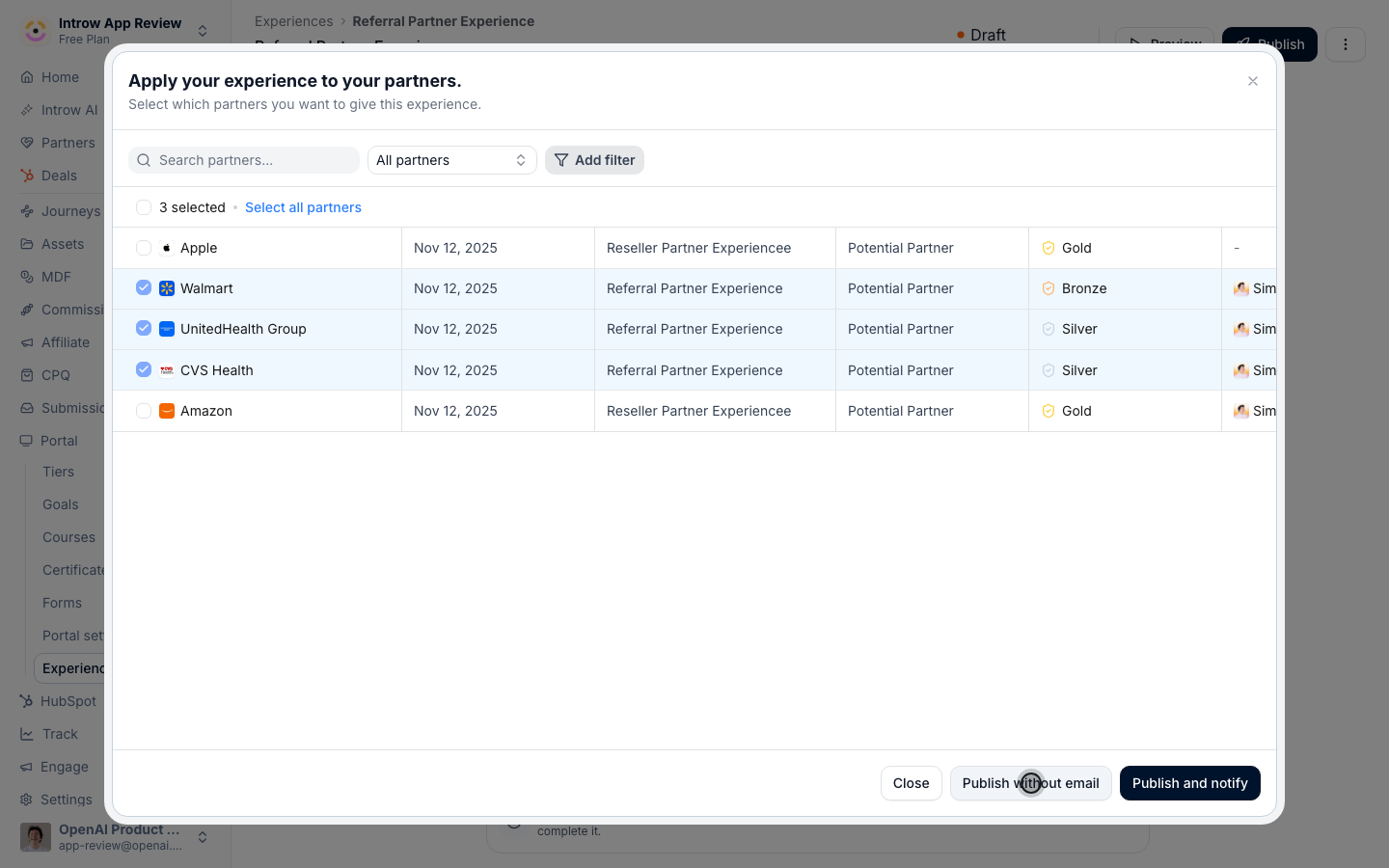
 Choose **Publish**. The partners already on this experience are selected; add any others who should get it. Choose **Publish without email** to update their portals quietly, or **Publish and notify** to tell them. Their Commissions tab changes the moment you publish.
 ## Verify it worked
Open a partner with a payout, choose **View portal**, and open the tab. The payouts table carries your columns under your names, and **Download statement** returns the statement for that payout. Open a payout: each commission item is a row with the detail columns you kept, and a **Total** line under them.
## Verify it worked
Open a partner with a payout, choose **View portal**, and open the tab. The payouts table carries your columns under your names, and **Download statement** returns the statement for that payout. Open a payout: each commission item is a row with the detail columns you kept, and a **Total** line under them.
 ## Related
Stages, statements, and what each partner contact can see.
What partners do in the Payout setup section, and how you remind them.
Build the payouts partners read here.
Tabs, sections and publishing in full.
## Related
Stages, statements, and what each partner contact can see.
What partners do in the Payout setup section, and how you remind them.
Build the payouts partners read here.
Tabs, sections and publishing in full.