> ## Documentation Index
> Fetch the complete documentation index at: https://docs.introw.io/llms.txt
> Use this file to discover all available pages before exploring further.
# Set eligibility conditions
> Define exactly which records earn on a commission plan - stack property filters with And/Or groups, target partner-attributed deals, and use the live data preview to confirm only the right records qualify.
{/* Eligibility conditions are the rules that decide which records a commission plan pays on. They are
the difference between a plan that rewards exactly what your policy intends and one that quietly
over- or under-pays. This guide covers the Conditions step in depth: how the "earned when a record
matches" model works, how to stack filters with And, how to express alternatives with Or groups,
how to target only partner-attributed deals, and how to use the live data preview to confirm the
right records - and only the right records - qualify before you launch. */}
## What you'll achieve
A commission plan whose eligibility rules match your incentive policy precisely: only the records you intend generate commission lines, verified against a live count of qualifying records before the plan goes live, so partners earn on the right deals and finance has nothing to claw back.
## Before you start
Eligibility conditions are the **Conditions** step of the plan wizard. Create or edit a plan and reach that step. The full wizard is covered in [Build and launch a commission plan](/features/commissions/commission-plans/guides/build-and-launch-a-commission-plan).
Conditions filter the object you chose on the **Data source** step (a CRM deal, or a billing object like an invoice or subscription). The available properties come from that object, so set it first.
Write down, in plain language, which records should earn - for example "Closed Won deals over 5,000 in the New Business pipeline, sourced by the partner." You will translate that sentence into conditions.
## Watch it
## Steps
The Conditions step reads **"A commission is earned when a record matches the following."** It starts with **no conditions**, and no conditions means **every record of the object qualifies** - so an empty step pays on everything. Adding conditions narrows that set. Be deliberate: the goal is to add exactly enough rules that only the records your policy intends remain.
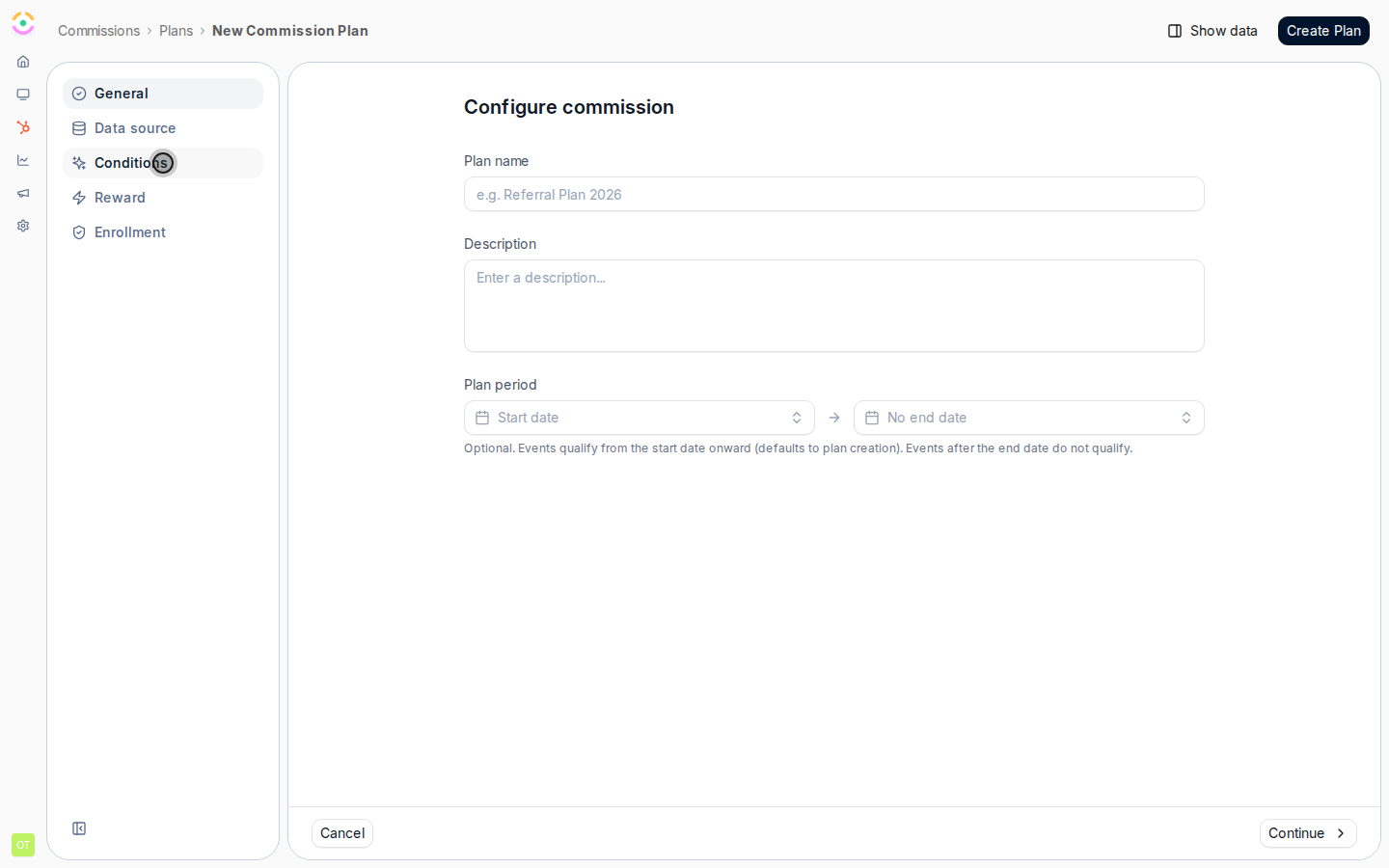 Choose **Add condition** and build a property filter: pick the property, the operator, and the value. Typical first conditions:
* **Deal stage is Closed Won** - only reward deals that actually closed. The most common condition on any plan.
* **Amount is greater than a threshold** - exclude small deals from a bounty, or set a floor for a revenue share.
* **Pipeline / deal type is a specific value** - scope the plan to the pipeline or deal type the incentive covers, so unrelated deals never earn.
Each condition compares one property to a value; the record must satisfy it to stay eligible.
Choose **Add condition** and build a property filter: pick the property, the operator, and the value. Typical first conditions:
* **Deal stage is Closed Won** - only reward deals that actually closed. The most common condition on any plan.
* **Amount is greater than a threshold** - exclude small deals from a bounty, or set a floor for a revenue share.
* **Pipeline / deal type is a specific value** - scope the plan to the pipeline or deal type the incentive covers, so unrelated deals never earn.
Each condition compares one property to a value; the record must satisfy it to stay eligible.
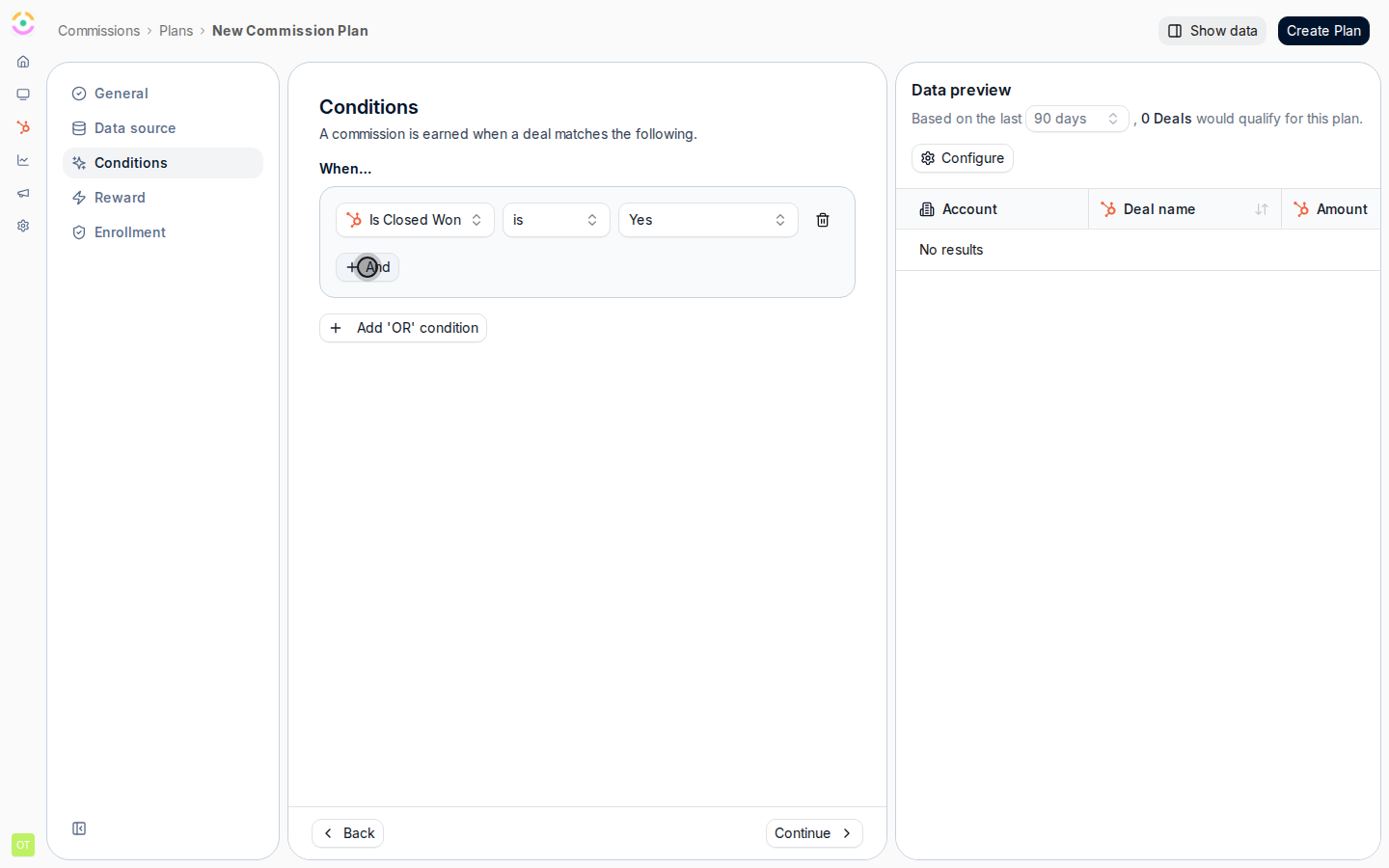 Add more conditions in the same group to require **all** of them - they combine with **And**, so a record must meet every condition to qualify. Use this to express a precise policy, for example *stage is Closed Won* **and** *amount over 5,000* **and** *pipeline is New Business*. Add only the conditions your policy actually needs; every extra And narrows the set further.
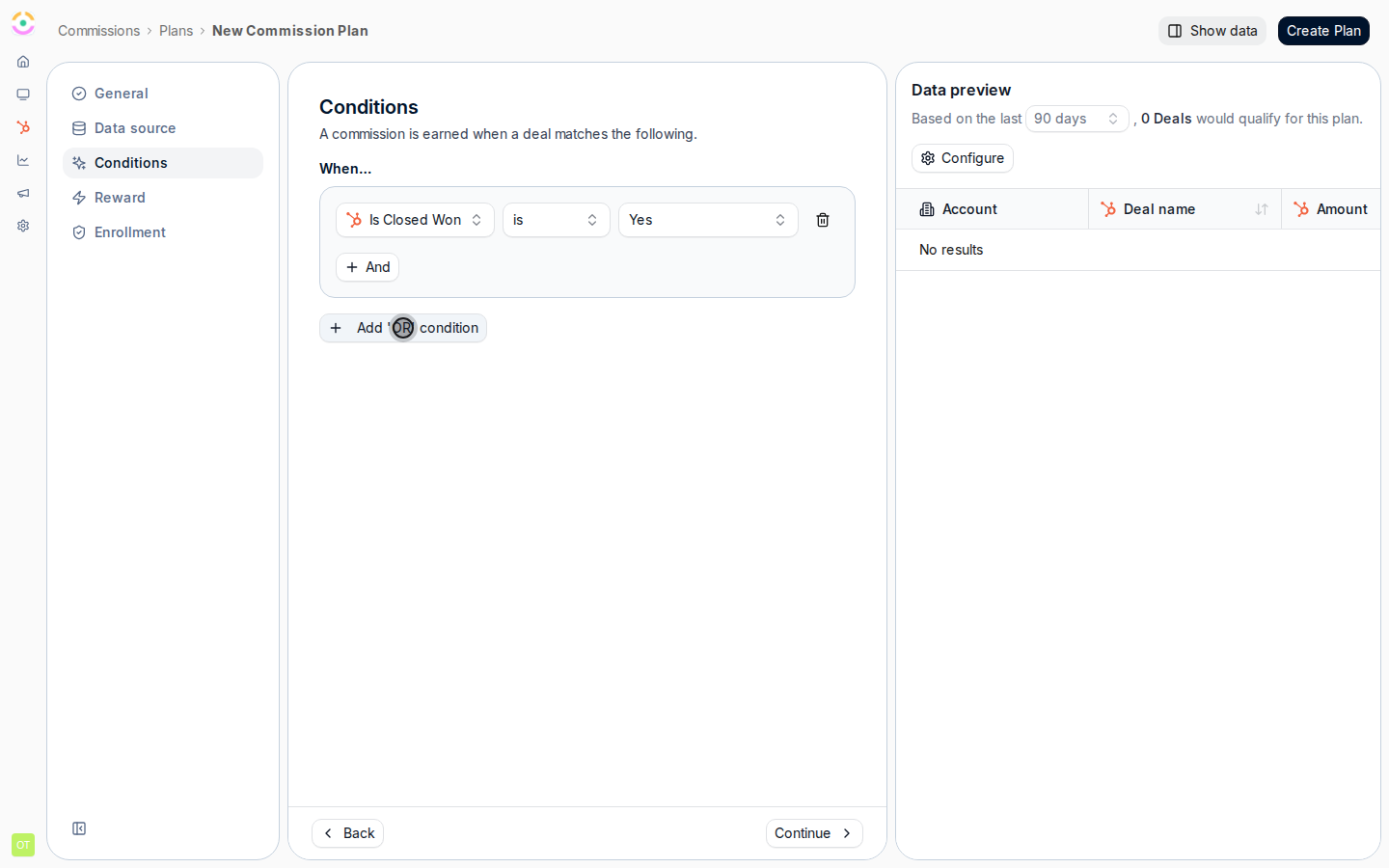
When two different sets of records should both earn, choose **Add 'OR' condition** to start a separate group. A record qualifies if it matches **any** group, so you can express "this set, **or** that set" - for example *New Business deals over 5,000* **or** *Renewal deals over 10,000*. Keep each group internally combined with And, and use Or groups sparingly so the rule stays legible.
Add more conditions in the same group to require **all** of them - they combine with **And**, so a record must meet every condition to qualify. Use this to express a precise policy, for example *stage is Closed Won* **and** *amount over 5,000* **and** *pipeline is New Business*. Add only the conditions your policy actually needs; every extra And narrows the set further.
When two different sets of records should both earn, choose **Add 'OR' condition** to start a separate group. A record qualifies if it matches **any** group, so you can express "this set, **or** that set" - for example *New Business deals over 5,000* **or** *Renewal deals over 10,000*. Keep each group internally combined with And, and use Or groups sparingly so the rule stays legible.
 To make a plan pay only on deals a partner is actually credited on - the step that turns a generic plan into a referral or reseller reward - add a condition that filters on **partner attribution**. This uses the attribution you configured on the deal object, so only deals sourced or influenced by the enrolled partner earn, not every deal the partner merely touched. Layer your other qualifiers (amount, pipeline) on top of it. Attribution itself is set up in [Configure deal attribution](/features/co-selling/shared-pipelines/guides/configure-deal-attribution); using it as a reward filter is covered in [Set up referral rewards](/features/referrals/rewards/guides/set-up-referral-rewards).
Open the **Data preview** (use **Show data** in the header if it is hidden). It reports how many records qualify over a baseline window (**90 days**, **180 days**, or **1 year**) and updates as you edit conditions. Use it as your safety check:
* **Count is zero** - a condition is too strict or a value is wrong (a coded picklist value, a typo). Loosen or fix it.
* **Count looks too high** - a condition is missing or too broad; you are about to pay on records you did not intend. Add or tighten a condition.
* **Count looks right** - spot-check a couple of the previewed records to confirm they are genuinely records that should earn.
Only move on once the preview reflects exactly the records your policy describes.
## Verify it worked
The Conditions step shows your rules, and the data preview count matches the records you expect to reward. After the plan is live, commission lines appear only for records that meet these conditions - and each line traces back to a record that genuinely qualifies. If a line appears for a record that should not earn (or is missing for one that should), revisit the conditions and re-check the preview.
## Related
The full plan wizard this step is part of.
Use an attribution condition to pay only on sourced deals.
Set the partner attribution these conditions can filter on.
Check the lines your conditions generate before payout.
To make a plan pay only on deals a partner is actually credited on - the step that turns a generic plan into a referral or reseller reward - add a condition that filters on **partner attribution**. This uses the attribution you configured on the deal object, so only deals sourced or influenced by the enrolled partner earn, not every deal the partner merely touched. Layer your other qualifiers (amount, pipeline) on top of it. Attribution itself is set up in [Configure deal attribution](/features/co-selling/shared-pipelines/guides/configure-deal-attribution); using it as a reward filter is covered in [Set up referral rewards](/features/referrals/rewards/guides/set-up-referral-rewards).
Open the **Data preview** (use **Show data** in the header if it is hidden). It reports how many records qualify over a baseline window (**90 days**, **180 days**, or **1 year**) and updates as you edit conditions. Use it as your safety check:
* **Count is zero** - a condition is too strict or a value is wrong (a coded picklist value, a typo). Loosen or fix it.
* **Count looks too high** - a condition is missing or too broad; you are about to pay on records you did not intend. Add or tighten a condition.
* **Count looks right** - spot-check a couple of the previewed records to confirm they are genuinely records that should earn.
Only move on once the preview reflects exactly the records your policy describes.
## Verify it worked
The Conditions step shows your rules, and the data preview count matches the records you expect to reward. After the plan is live, commission lines appear only for records that meet these conditions - and each line traces back to a record that genuinely qualifies. If a line appears for a record that should not earn (or is missing for one that should), revisit the conditions and re-check the preview.
## Related
The full plan wizard this step is part of.
Use an attribution condition to pay only on sourced deals.
Set the partner attribution these conditions can filter on.
Check the lines your conditions generate before payout.