> ## Documentation Index
> Fetch the complete documentation index at: https://docs.introw.io/llms.txt
> Use this file to discover all available pages before exploring further.
# Build and launch a commission plan
> Take a commission plan from an empty wizard to live, partner-earning rewards end to end.
A commission plan only rewards partners once five things are in place: where the numbers come from, which records qualify, how much partners earn and how often, and who the plan applies to. This guide walks the whole wizard end to end so qualifying deals start generating commission for the right partners, reconciled to the records your sales and finance teams already trust. Reach for it whenever you launch a new incentive, a referral fee, a revenue share, or a tiered reseller margin.
## What you'll achieve
A live commission plan that reads from your CRM or billing system, filters to the deals you actually want to reward, pays a fixed fee or a percentage on the cadence you choose, and is enrolled to the right partners, so Introw calculates each partner's commission lines automatically and they can watch their earnings build in the portal.
## Before you start
You need write access to commission plans.
Connect the source the plan will read from: your CRM, or a billing integration like Stripe or Chargebee. The plan cannot calculate without one.
Decide which partners the plan applies to. If you want to target by segment or tier, set those up first so you can enroll and rate by them.
## Watch it
## Steps
The plan builder is a five-step wizard: **General**, **Data source**, **Conditions**, **Reward**, and **Enrollment**. Work through them in order; the **Continue** button moves you forward and you can jump back with **Back** or the step list on the left at any time.
### Phase 1 - Create the plan
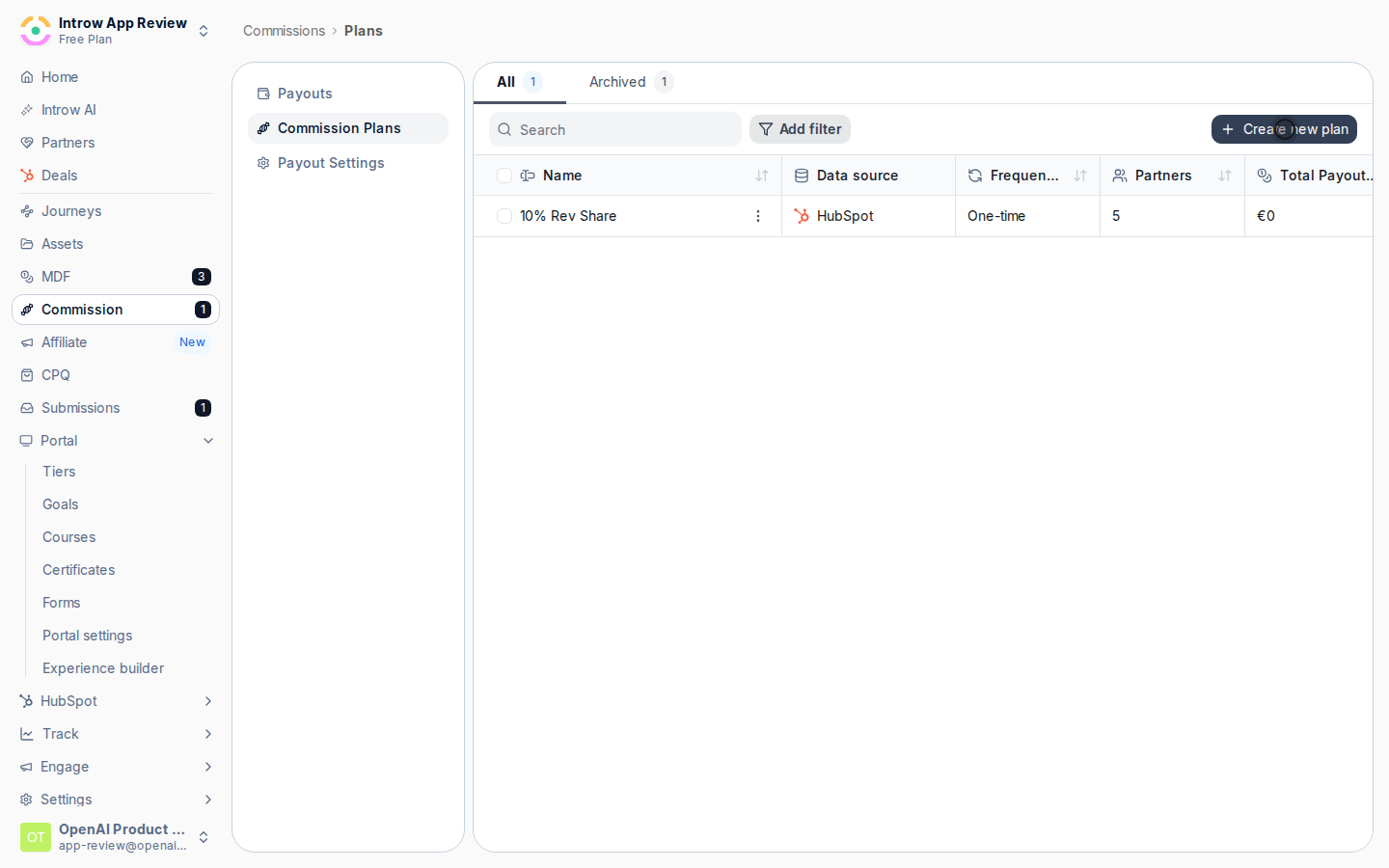
Go to [Commission plans](https://app.introw.io/commission?section=plans) and choose **Create new plan**. You can start from a blank plan or pick one of the starter templates under **Or start from a template**:
* **Fixed Fee** - a one-time flat payout for each qualifying record, good for per-lead or per-deal bounties.
* **Revenue Share** - a one-time percentage of the closed deal value, the most common referral or co-sell reward.
* **Tiered** - a recurring yearly percentage that can step down over time (for example 15% in year one, 10% in year two), suited to reseller or subscription margins.
A template pre-fills the reward shape so you adjust rather than build from scratch; a blank plan starts you on a clean **General** step. Either way you land in the wizard and can change anything later.
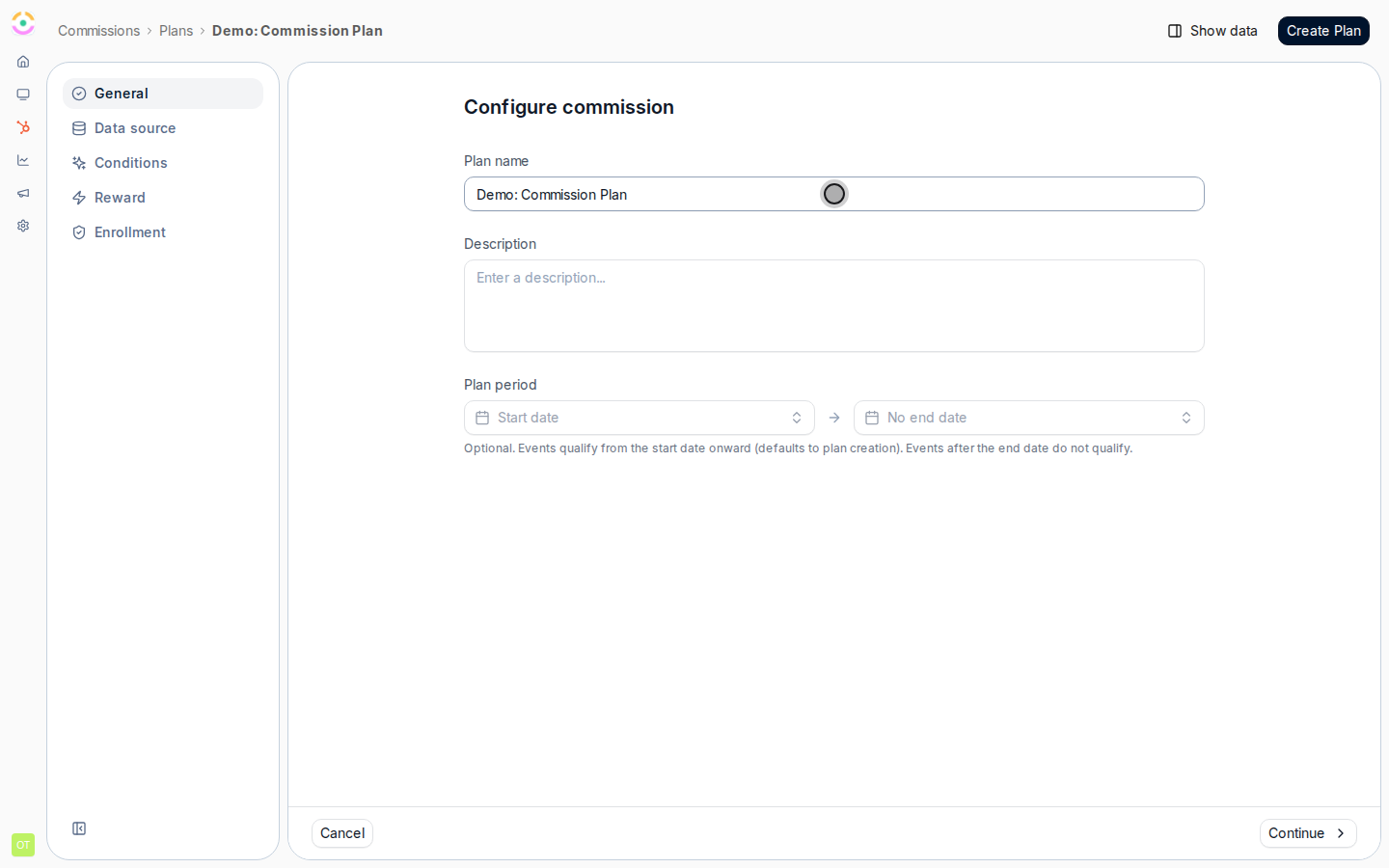
 On the **General** step, describe the plan and bound when it earns:
* **Plan name** - the internal name you and your team recognise the plan by (for example "Referral Plan 2026"). Required.
* **Description** - optional context on what the plan rewards and why; helpful when several plans run at once.
* **Plan period** - the **Start date** and end date that bound which events qualify. Events qualify from the start date onward (it defaults to the plan's creation date if you leave it), and events after the end date do not qualify. Leave the end open with **No end date** for an ongoing plan, or set one for a time-boxed promotion.
Choose **Continue** to move to the data source.
On the **General** step, describe the plan and bound when it earns:
* **Plan name** - the internal name you and your team recognise the plan by (for example "Referral Plan 2026"). Required.
* **Description** - optional context on what the plan rewards and why; helpful when several plans run at once.
* **Plan period** - the **Start date** and end date that bound which events qualify. Events qualify from the start date onward (it defaults to the plan's creation date if you leave it), and events after the end date do not qualify. Leave the end open with **No end date** for an ongoing plan, or set one for a time-boxed promotion.
Choose **Continue** to move to the data source.
 ### Phase 2 - Connect the data source
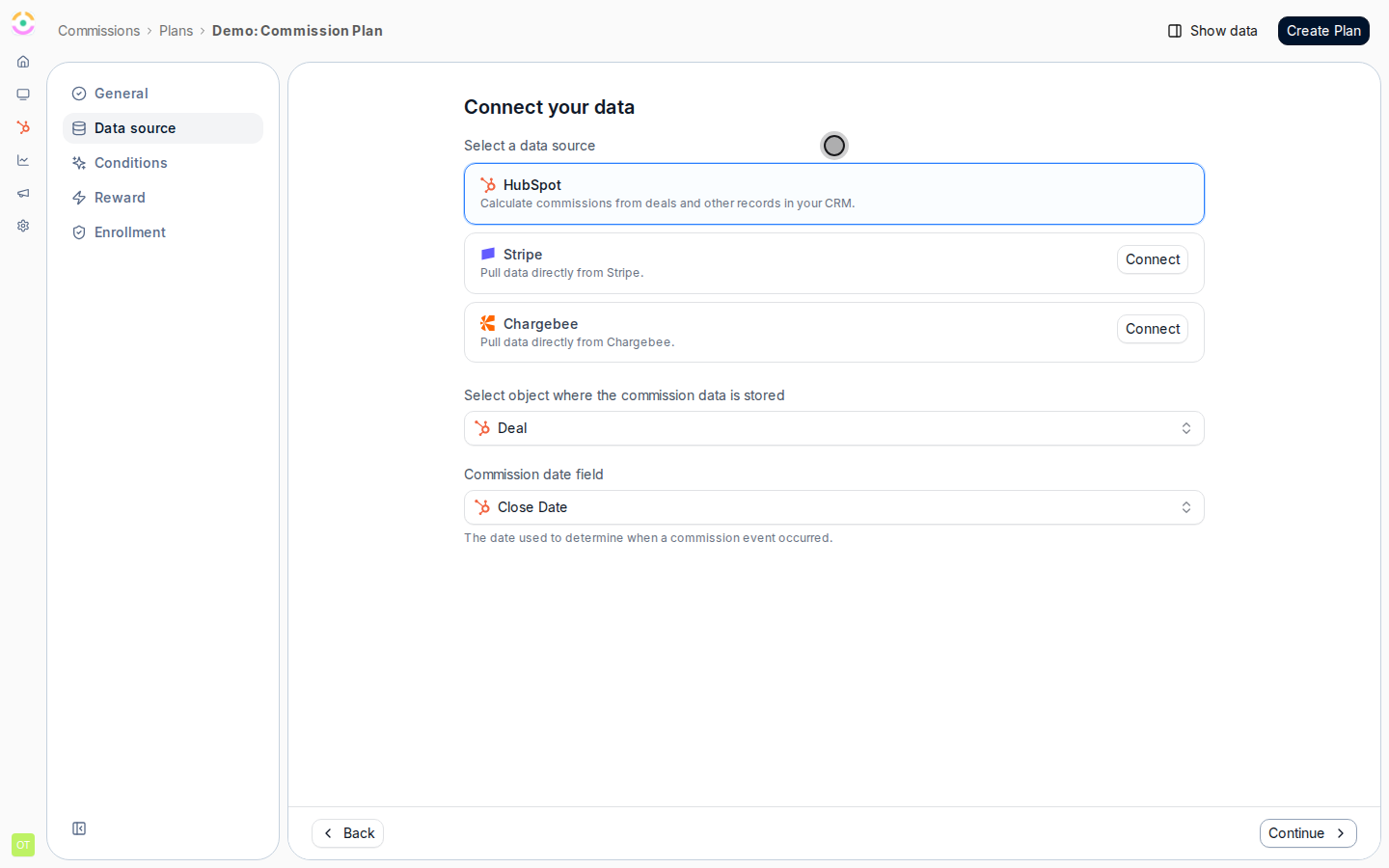
On the **Data source** step, under **Select a data source**, choose the system the plan calculates from. Only connected sources are selectable; a disconnected one shows **Connect** (or **Upgrade plan** if your plan does not include it).
* **Your CRM** (shown as **HubSpot**, **Salesforce**, **Pipedrive**, or **TeamLeader** depending on what you connected) - calculate commissions from deals and other records already in your pipeline. This is the right choice for almost every co-sell, referral, and reseller program because payouts then reconcile to the exact records sales and finance use.
* **Stripe** - pull billing data such as customers, subscriptions, and invoices directly from Stripe. Use this when commissions track recognised or billed revenue rather than a CRM deal.
* **Chargebee** - the same billing-based calculation sourced from Chargebee.
Pick the source that owns the number you want to reward on. The choice drives which objects and properties you can select next.
### Phase 2 - Connect the data source
On the **Data source** step, under **Select a data source**, choose the system the plan calculates from. Only connected sources are selectable; a disconnected one shows **Connect** (or **Upgrade plan** if your plan does not include it).
* **Your CRM** (shown as **HubSpot**, **Salesforce**, **Pipedrive**, or **TeamLeader** depending on what you connected) - calculate commissions from deals and other records already in your pipeline. This is the right choice for almost every co-sell, referral, and reseller program because payouts then reconcile to the exact records sales and finance use.
* **Stripe** - pull billing data such as customers, subscriptions, and invoices directly from Stripe. Use this when commissions track recognised or billed revenue rather than a CRM deal.
* **Chargebee** - the same billing-based calculation sourced from Chargebee.
Pick the source that owns the number you want to reward on. The choice drives which objects and properties you can select next.
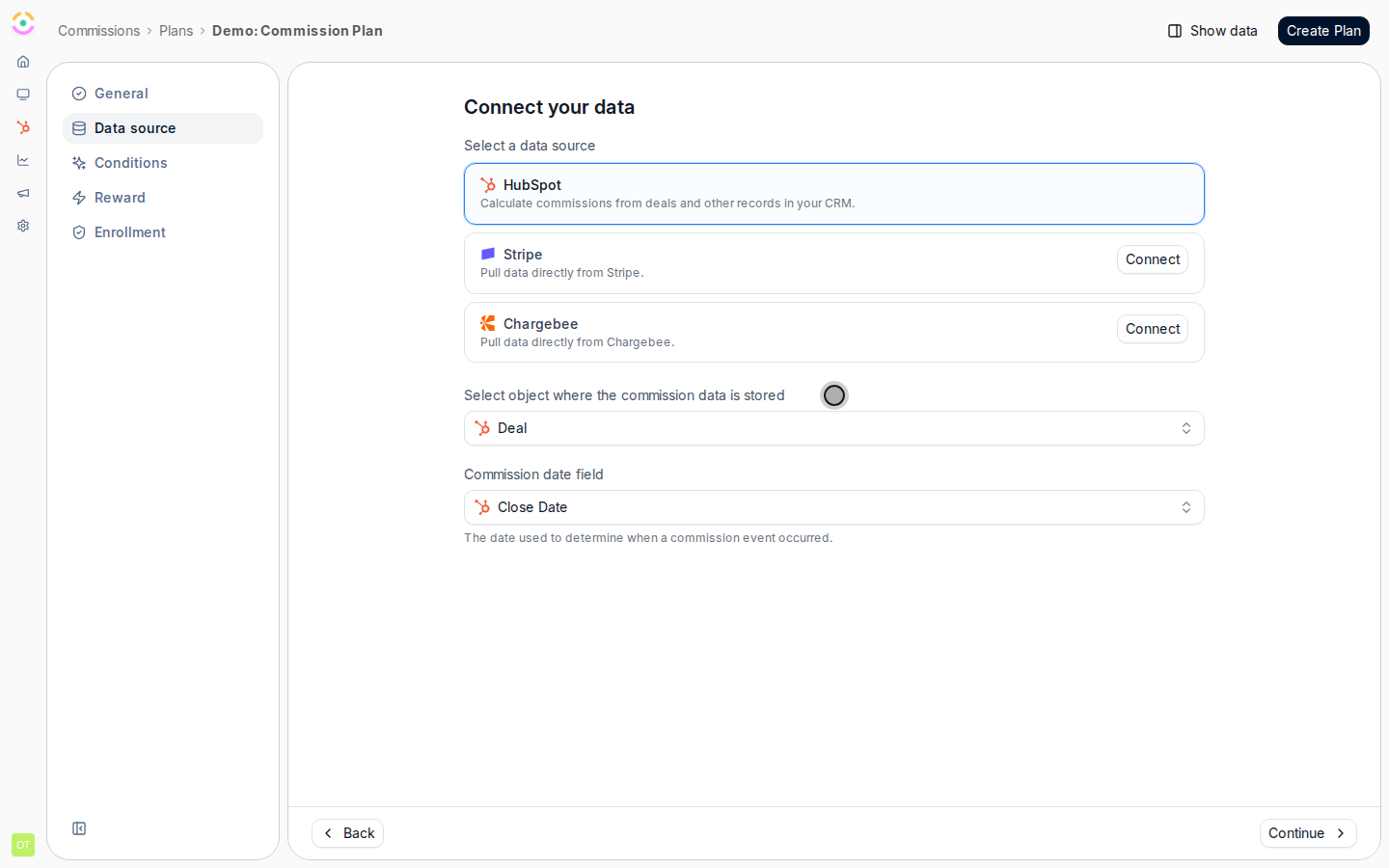
 Tell the plan which records to read and how to time them:
* **Select object where the commission data is stored** - the record type the plan watches. For a CRM source this is typically your deal object; for a billing source it is the billing object (for example **Subscription**, **Invoice**, or **Customer**). Every qualifying record of this type can generate a commission line.
* **Commission date field** - the date Introw uses to decide when a commission event occurred, which determines the period a resulting line falls into. Pick the date that best represents "earned" for your program, such as the close date for deals or the billing date for invoices.
Tell the plan which records to read and how to time them:
* **Select object where the commission data is stored** - the record type the plan watches. For a CRM source this is typically your deal object; for a billing source it is the billing object (for example **Subscription**, **Invoice**, or **Customer**). Every qualifying record of this type can generate a commission line.
* **Commission date field** - the date Introw uses to decide when a commission event occurred, which determines the period a resulting line falls into. Pick the date that best represents "earned" for your program, such as the close date for deals or the billing date for invoices.
 Open the **Data preview** (use **Show data** in the header if the panel is hidden) to sanity-check the source before you go further. It reports how many records would qualify over a baseline window you choose - **90 days**, **180 days**, or **1 year** - so you can confirm the volume looks right. Use **Configure** to pick which properties appear as columns in the preview table. If the count is zero or wildly off, revisit the object and date selections before adding conditions.
 ### Phase 3 - Decide which records qualify
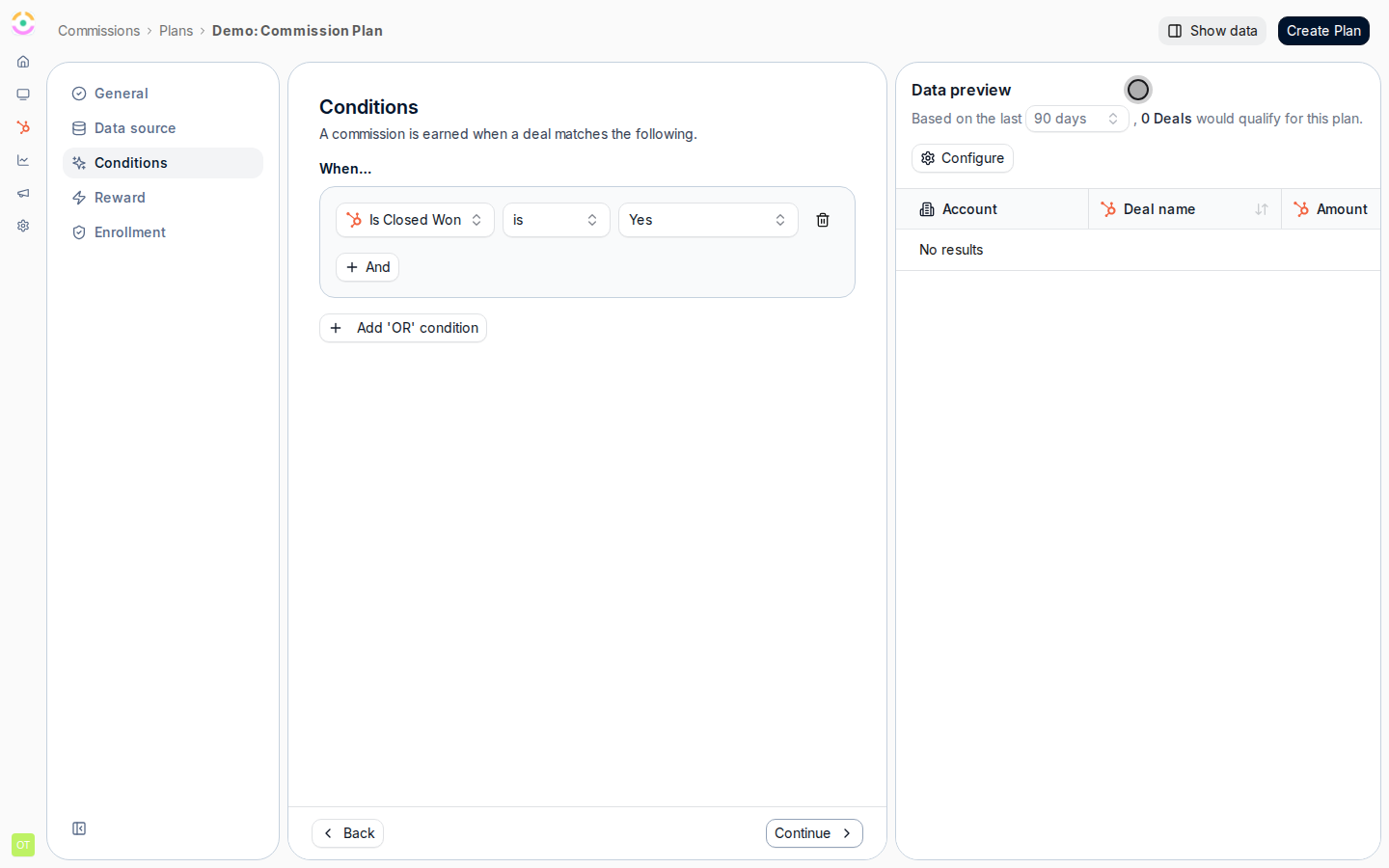
On the **Conditions** step, narrow the source down to only the records that should earn. The step reads "A commission is earned when a record matches the following" and starts with no conditions, which means everything qualifies, so add filters to be deliberate.
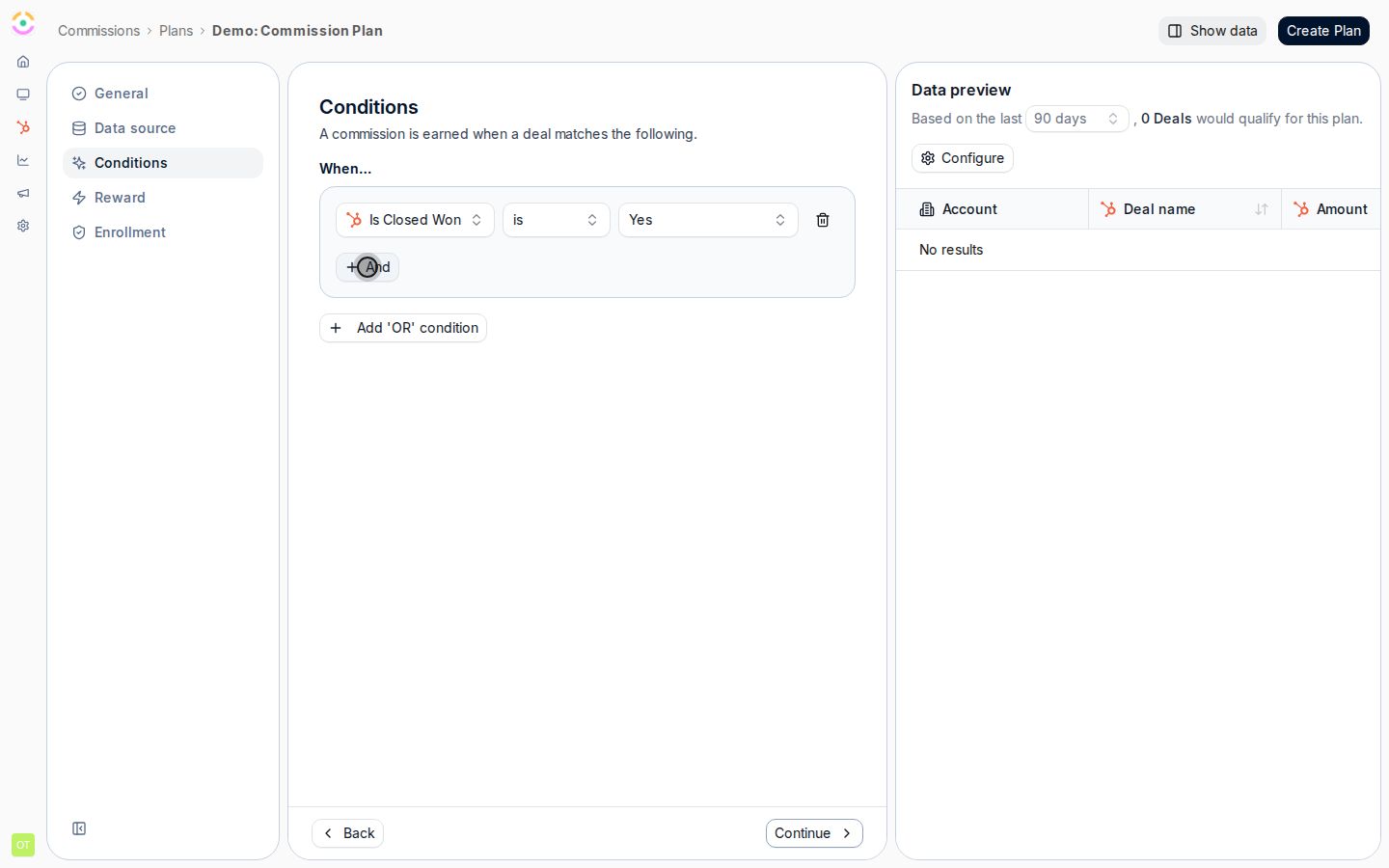
* **Add condition** - add a property filter, such as deal stage is Closed Won or amount is greater than a threshold. Stack several and they combine with **And**, so a record must meet all of them.
* **Add 'OR' condition** - start a separate group that qualifies records meeting a different set of rules, letting you express "this set, or that set" eligibility.
Build the conditions that match your policy exactly. Re-check the **Data preview** count as you go; it updates to reflect only the records that now qualify.
### Phase 3 - Decide which records qualify
On the **Conditions** step, narrow the source down to only the records that should earn. The step reads "A commission is earned when a record matches the following" and starts with no conditions, which means everything qualifies, so add filters to be deliberate.
* **Add condition** - add a property filter, such as deal stage is Closed Won or amount is greater than a threshold. Stack several and they combine with **And**, so a record must meet all of them.
* **Add 'OR' condition** - start a separate group that qualifies records meeting a different set of rules, letting you express "this set, or that set" eligibility.
Build the conditions that match your policy exactly. Re-check the **Data preview** count as you go; it updates to reflect only the records that now qualify.
 ### Phase 4 - Configure the reward
On the **Reward** step, set what a qualifying record pays and how often:
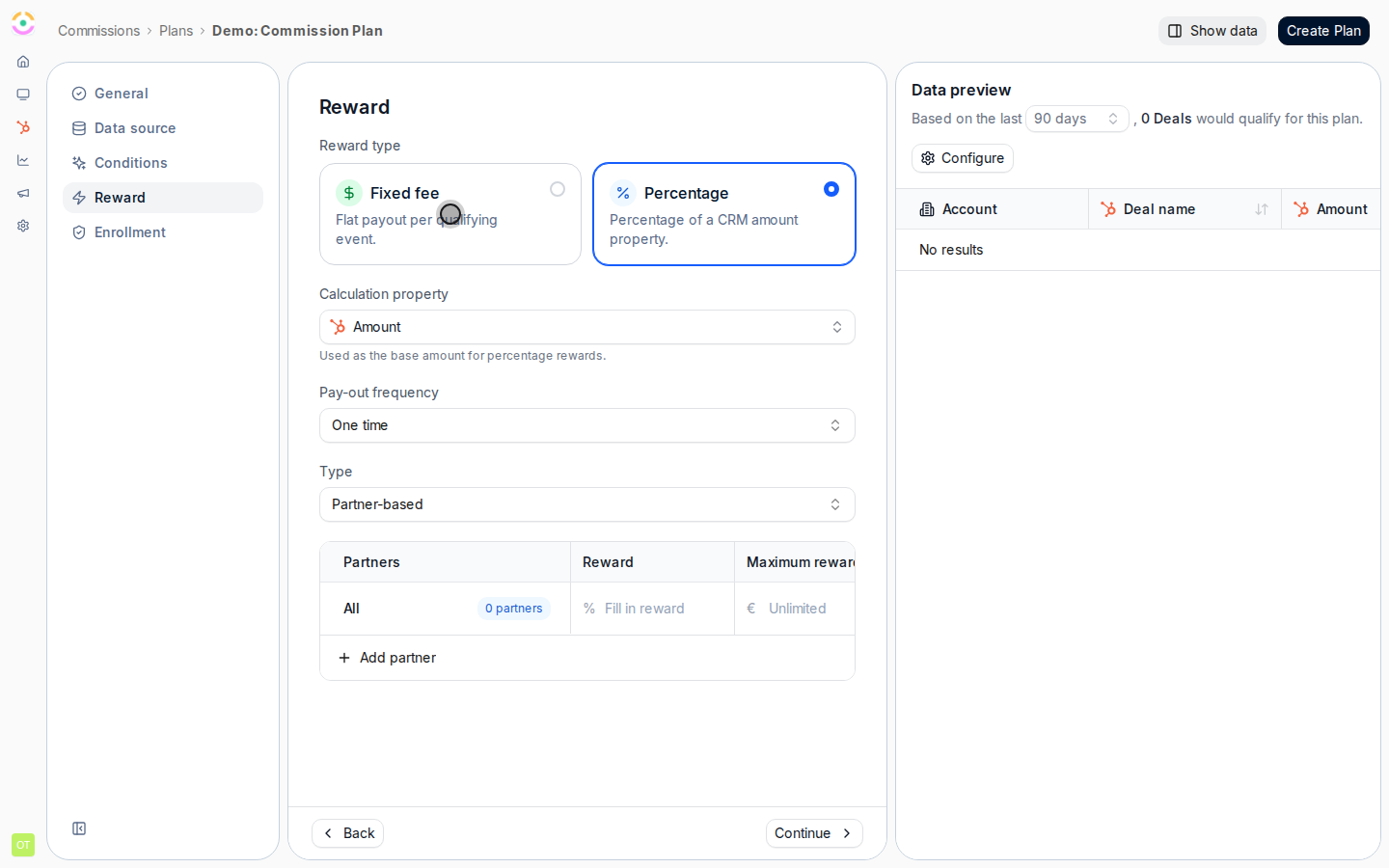
* **Reward type** - choose **Fixed fee** for a flat payout per qualifying event, or **Percentage** for a percentage of a CRM amount property. Fixed fee suits per-lead bounties; percentage suits revenue share and margin.
* **Calculation property** - shown for **Percentage** rewards only: the amount property the percentage is applied to (for example the deal value). This is the base the rate multiplies.
* **Pay-out frequency** - choose **One time** for a single payout per record, or **Every month** or **Every year** for a recurring reward that pays across periods (useful for subscription or retainer commissions). A recurring frequency turns on the period schedule below.
* **Frequency periods** - for recurring rewards, define the **Start** and **End** months or years that the reward runs across, using **Add period** for additional bands. Leave the final period open with **Never ends** for an open-ended tail that keeps paying as long as the record qualifies.
### Phase 4 - Configure the reward
On the **Reward** step, set what a qualifying record pays and how often:
* **Reward type** - choose **Fixed fee** for a flat payout per qualifying event, or **Percentage** for a percentage of a CRM amount property. Fixed fee suits per-lead bounties; percentage suits revenue share and margin.
* **Calculation property** - shown for **Percentage** rewards only: the amount property the percentage is applied to (for example the deal value). This is the base the rate multiplies.
* **Pay-out frequency** - choose **One time** for a single payout per record, or **Every month** or **Every year** for a recurring reward that pays across periods (useful for subscription or retainer commissions). A recurring frequency turns on the period schedule below.
* **Frequency periods** - for recurring rewards, define the **Start** and **End** months or years that the reward runs across, using **Add period** for additional bands. Leave the final period open with **Never ends** for an open-ended tail that keeps paying as long as the record qualifies.
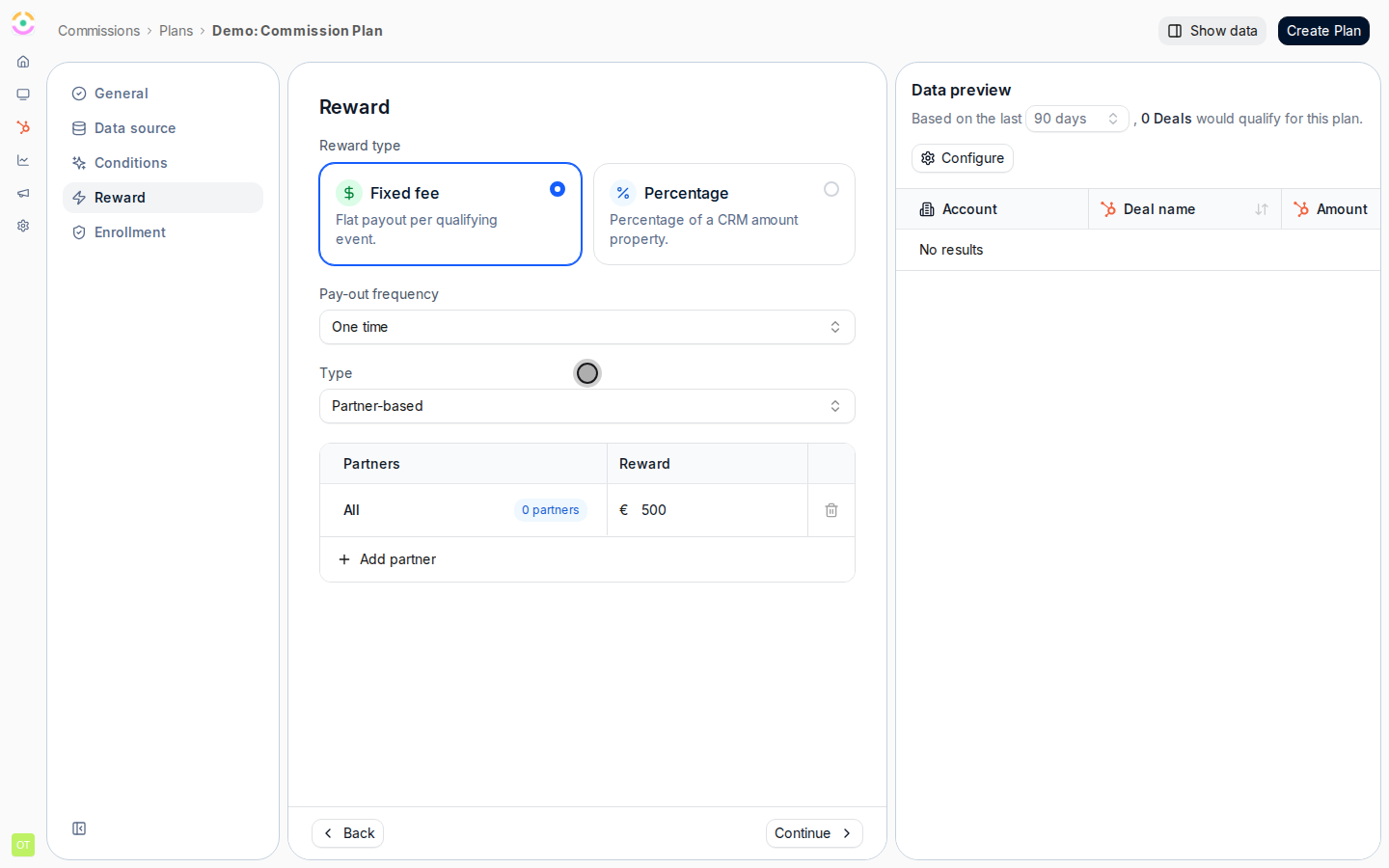
 Use the rates table to set how much partners earn, and whether everyone earns the same:
* **Type** - choose how rates are targeted: **Partner-based**, **Segment-based**, or **Tier-based**. Tier and segment targeting let you reward stronger partners or specific groups differently from the default.
* **Reward** rate - the amount or percentage for each row. The default row labelled **All** applies to every enrolled partner who is not matched by a more specific row.
* Add specific rows with **Add tier**, **Add segment**, or **Add partner** to override the default for those audiences. Partner-specific rates take precedence over tier and segment rates, so use them for genuine exceptions.
* **Maximum reward** - an optional cap per row that limits how much a single rate can pay; leave it **Unlimited** unless you need to bound exposure. Set it deliberately, as a low cap can quietly shrink payouts.
Together these rows let one plan pay a baseline to everyone and richer rates to your best partners or segments.
Use the rates table to set how much partners earn, and whether everyone earns the same:
* **Type** - choose how rates are targeted: **Partner-based**, **Segment-based**, or **Tier-based**. Tier and segment targeting let you reward stronger partners or specific groups differently from the default.
* **Reward** rate - the amount or percentage for each row. The default row labelled **All** applies to every enrolled partner who is not matched by a more specific row.
* Add specific rows with **Add tier**, **Add segment**, or **Add partner** to override the default for those audiences. Partner-specific rates take precedence over tier and segment rates, so use them for genuine exceptions.
* **Maximum reward** - an optional cap per row that limits how much a single rate can pay; leave it **Unlimited** unless you need to bound exposure. Set it deliberately, as a low cap can quietly shrink payouts.
Together these rows let one plan pay a baseline to everyone and richer rates to your best partners or segments.
 ### Phase 5 - Enroll partners and launch
On the **Enrollment** step, choose who the plan applies to. A plan only generates commission for enrolled partners, so this step is what activates it.
* Select partners directly from the list with the checkboxes, or
* Apply filters such as **Phase**, **Tier**, **Experience**, or **Manager** to target a group, or pick a partner **segment** to enroll many at once and keep the audience aligned with that segment.
Enroll exactly the partners who should earn under this plan's rules and rates.
### Phase 5 - Enroll partners and launch
On the **Enrollment** step, choose who the plan applies to. A plan only generates commission for enrolled partners, so this step is what activates it.
* Select partners directly from the list with the checkboxes, or
* Apply filters such as **Phase**, **Tier**, **Experience**, or **Manager** to target a group, or pick a partner **segment** to enroll many at once and keep the audience aligned with that segment.
Enroll exactly the partners who should earn under this plan's rules and rates.
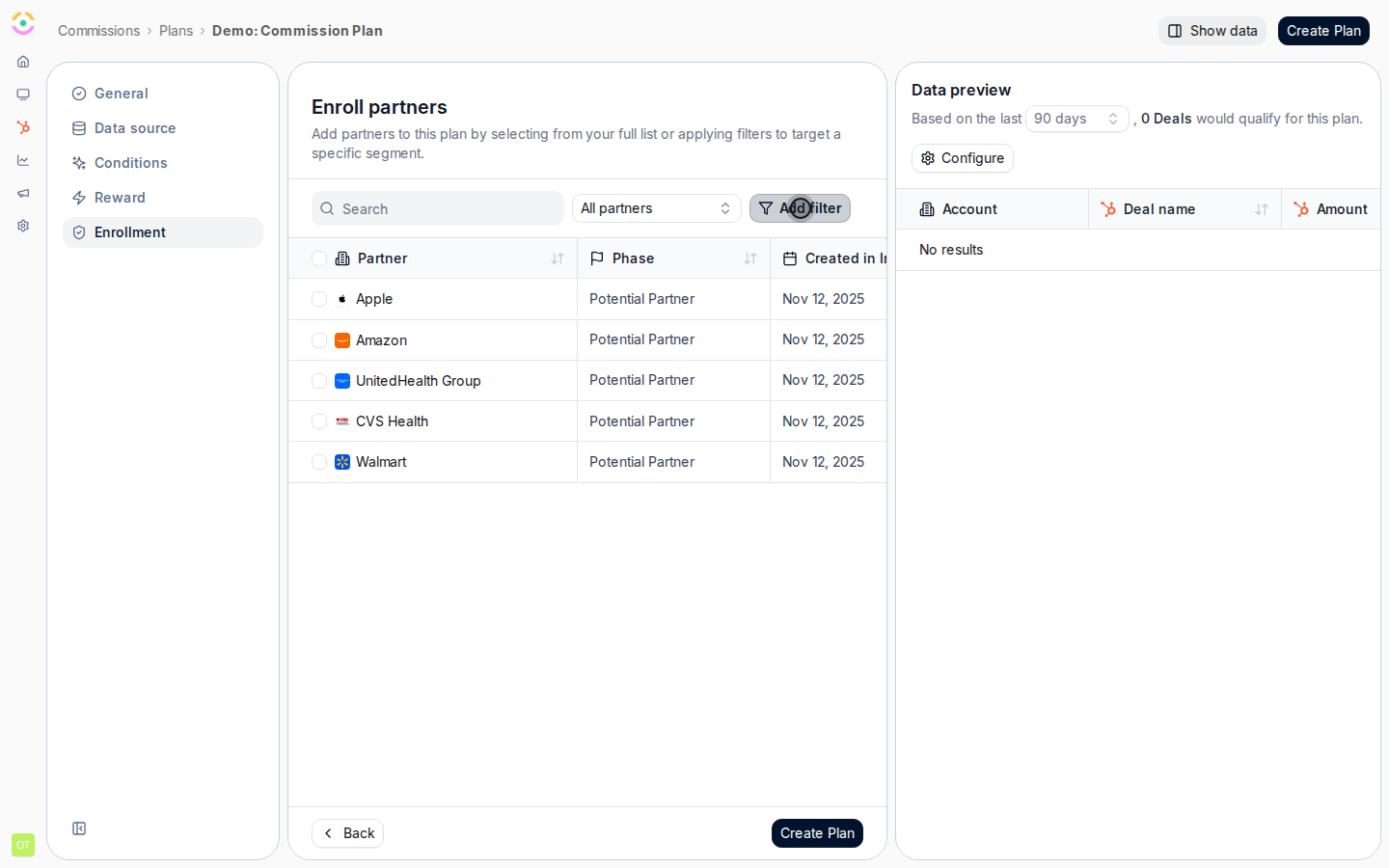 Choose **Create Plan** (or **Save** when editing) to launch it. The plan becomes active for the enrolled partners and Introw begins calculating commission lines for their qualifying records.
If you later edit a live plan, the **Update commission plan** dialog appears. By default already-earned expected commission stays as it is; turn on **Recalculate expected commission** and set the **Since** date if you want the change to reprocess pending lines from that point. Use this deliberately, since it recomputes amounts partners may already be expecting.
Choose **Create Plan** (or **Save** when editing) to launch it. The plan becomes active for the enrolled partners and Introw begins calculating commission lines for their qualifying records.
If you later edit a live plan, the **Update commission plan** dialog appears. By default already-earned expected commission stays as it is; turn on **Recalculate expected commission** and set the **Since** date if you want the change to reprocess pending lines from that point. Use this deliberately, since it recomputes amounts partners may already be expecting.
 ## Verify it worked
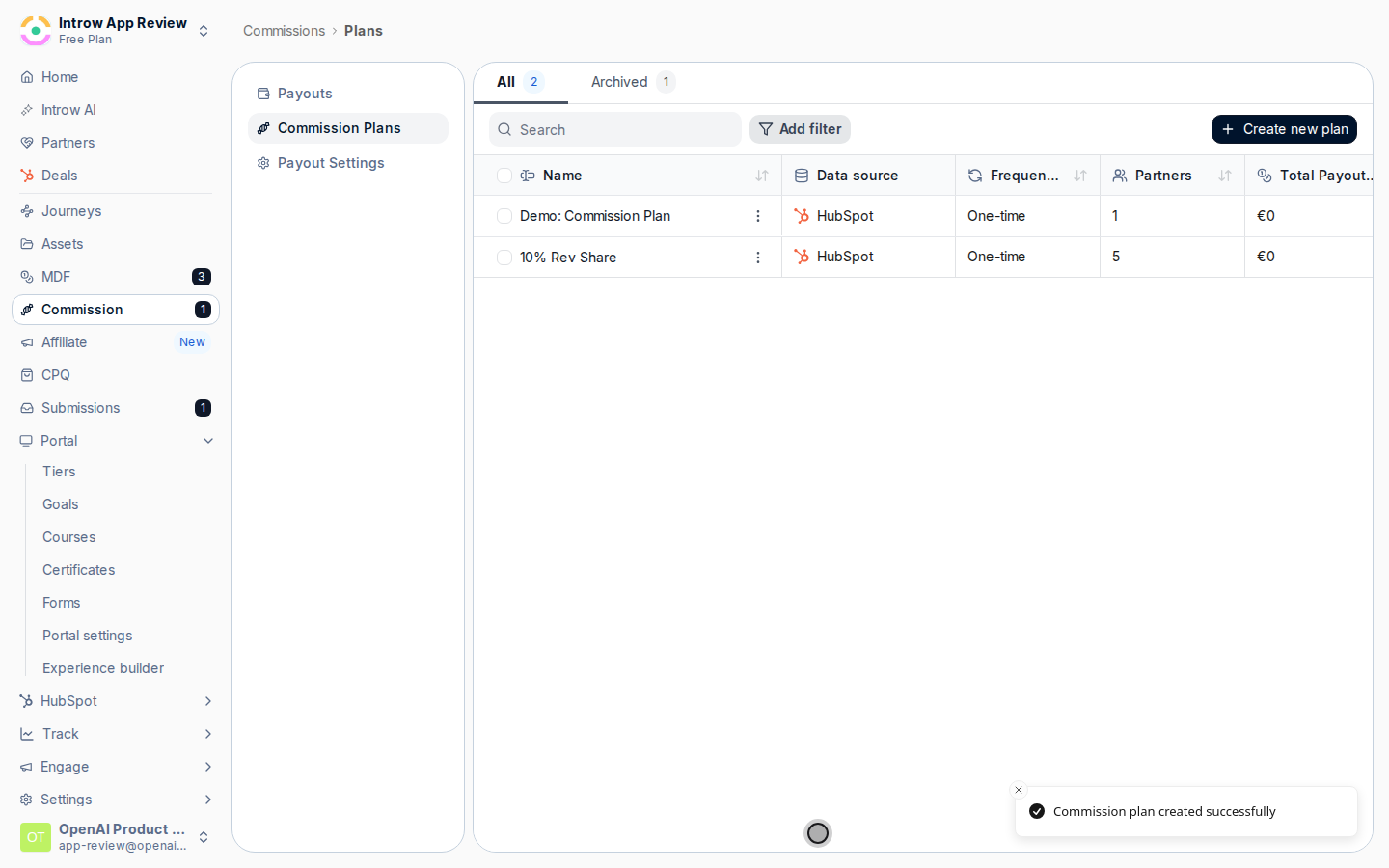
The plan shows as active in the plans list with the partners you enrolled. As qualifying records come in, commission lines appear on the commission dashboard and on each partner's payout panel, traceable back to their source record, and enrolled partners can see their building commission in the portal. If no lines appear, confirm enrolled partners have records that meet the conditions and that the data preview returned matching records.
## What your partners experience
Once the plan is live and you have added a commissions section to their experience, enrolled partners watch their earnings build in real time in the portal: each qualifying deal, the expected amount, and - once you run a payout - a statement they can open. This is what lets a partner self-serve "what am I earning, and when do I get paid?" without asking your team, so the work you do here shows up directly as trust on the partner side.
## Related
Check, decline, postpone, or correct the lines this plan generates.
Turn approved lines into paid partner payouts.
Enroll and rate partners by segment.
Full configuration options.
## Verify it worked
The plan shows as active in the plans list with the partners you enrolled. As qualifying records come in, commission lines appear on the commission dashboard and on each partner's payout panel, traceable back to their source record, and enrolled partners can see their building commission in the portal. If no lines appear, confirm enrolled partners have records that meet the conditions and that the data preview returned matching records.
## What your partners experience
Once the plan is live and you have added a commissions section to their experience, enrolled partners watch their earnings build in real time in the portal: each qualifying deal, the expected amount, and - once you run a payout - a statement they can open. This is what lets a partner self-serve "what am I earning, and when do I get paid?" without asking your team, so the work you do here shows up directly as trust on the partner side.
## Related
Check, decline, postpone, or correct the lines this plan generates.
Turn approved lines into paid partner payouts.
Enroll and rate partners by segment.
Full configuration options.