> ## Documentation Index
> Fetch the complete documentation index at: https://docs.introw.io/llms.txt
> Use this file to discover all available pages before exploring further.
# Let partners update many records at once
> Partners select deals or any other CRM records in the portal's table view, then change one property on all of them or run one of your forms once per record.
A partner with thirty open deals updates them one record at a time, so the quarterly clean-up either takes an afternoon or does not happen.
In the portal's table view, partners now tick the records they mean and act on all of them at once.
They change one property on the whole selection, or run one of your forms once per record, and every write still goes through the rules you set on the view.
## What you'll achieve
A partner selects several records in the table view of a shared pipeline or any CRM section, then either sets one property on all of them, such as a new close date, or presses one of your custom action buttons and submits its form once for every selected record.
Each record is written to your CRM on its own, with your CRM's validation, your form's approval gate and your CRM automation applied per record.
## Before you start
A shared pipeline or another CRM section already on a partner's experience, scoped to their records. See [Set up a shared pipeline](/features/co-selling/shared-pipelines/guides/set-up-a-shared-pipeline) if you do not have one yet.
At least one property the partner may edit, or at least one custom action on the section. With neither, there is nothing to apply to a selection, so no checkboxes appear.
You need edit access to the experience to change the section's configuration and publish it.
## Watch it
## Steps
### Decide what partners can do to a selection
Go to [partner experiences](https://app.introw.io/templates), open the experience, go to the tab with the CRM section, and open the section's configuration. Everything a selection can do comes from this one sheet, so there is no separate bulk setting to turn on.
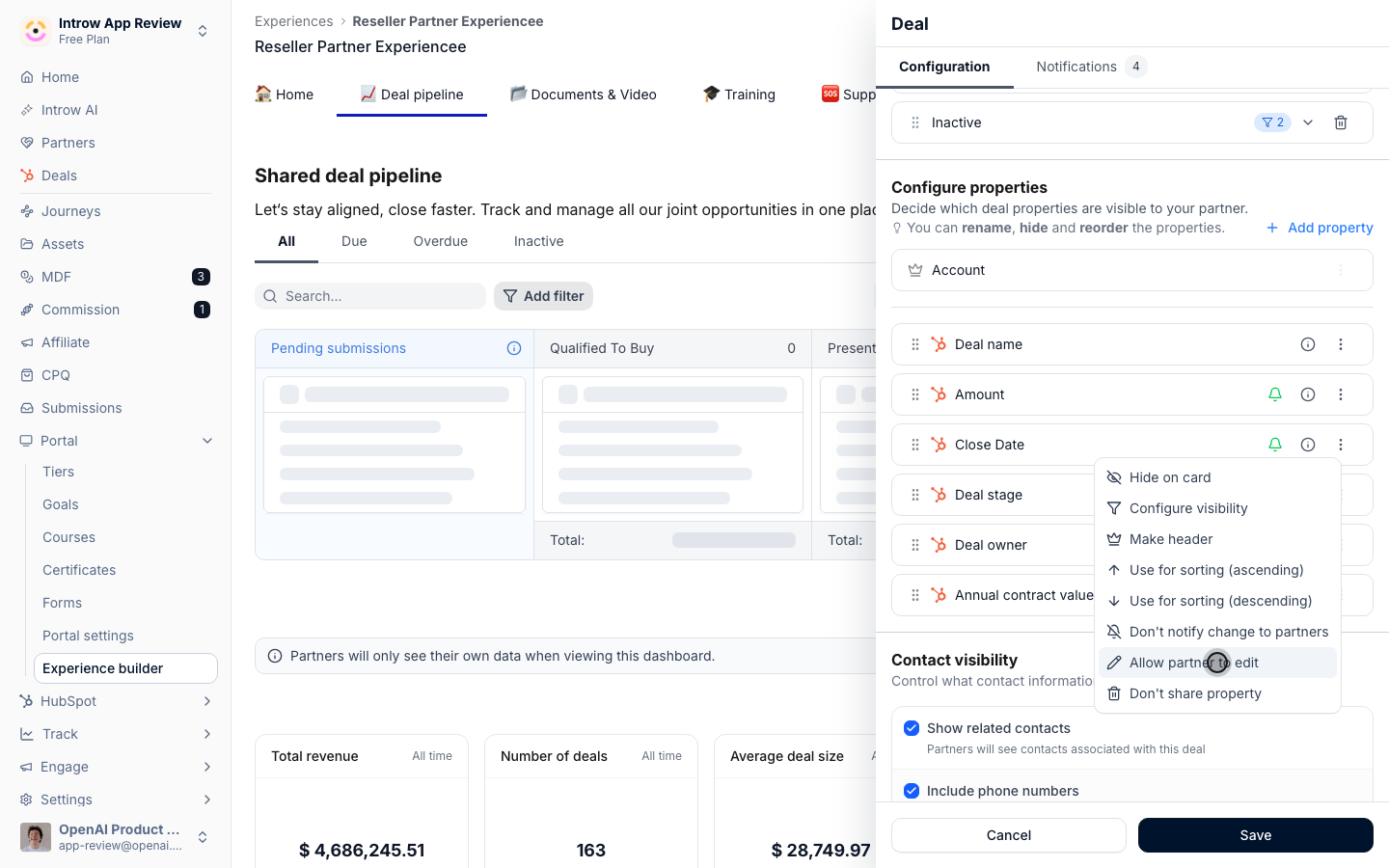
Under the property list, open a property's three-dots menu and choose **Allow partner to edit**. A partner can then change that property on one record or on many.
* **Good candidates** - close date, next step, a forecast category, an amount a partner owns. These are fields where one value applies to many records.
* **Keep read-only** - anything that needs a reason or a review, such as the stage when a lost deal must say why. Route those through a custom action instead.
* **Visibility conditions count** - a property hidden on one of the selected records by **Configure visibility** is not offered for that selection, so a partner never sets a field on a record where it does not show.
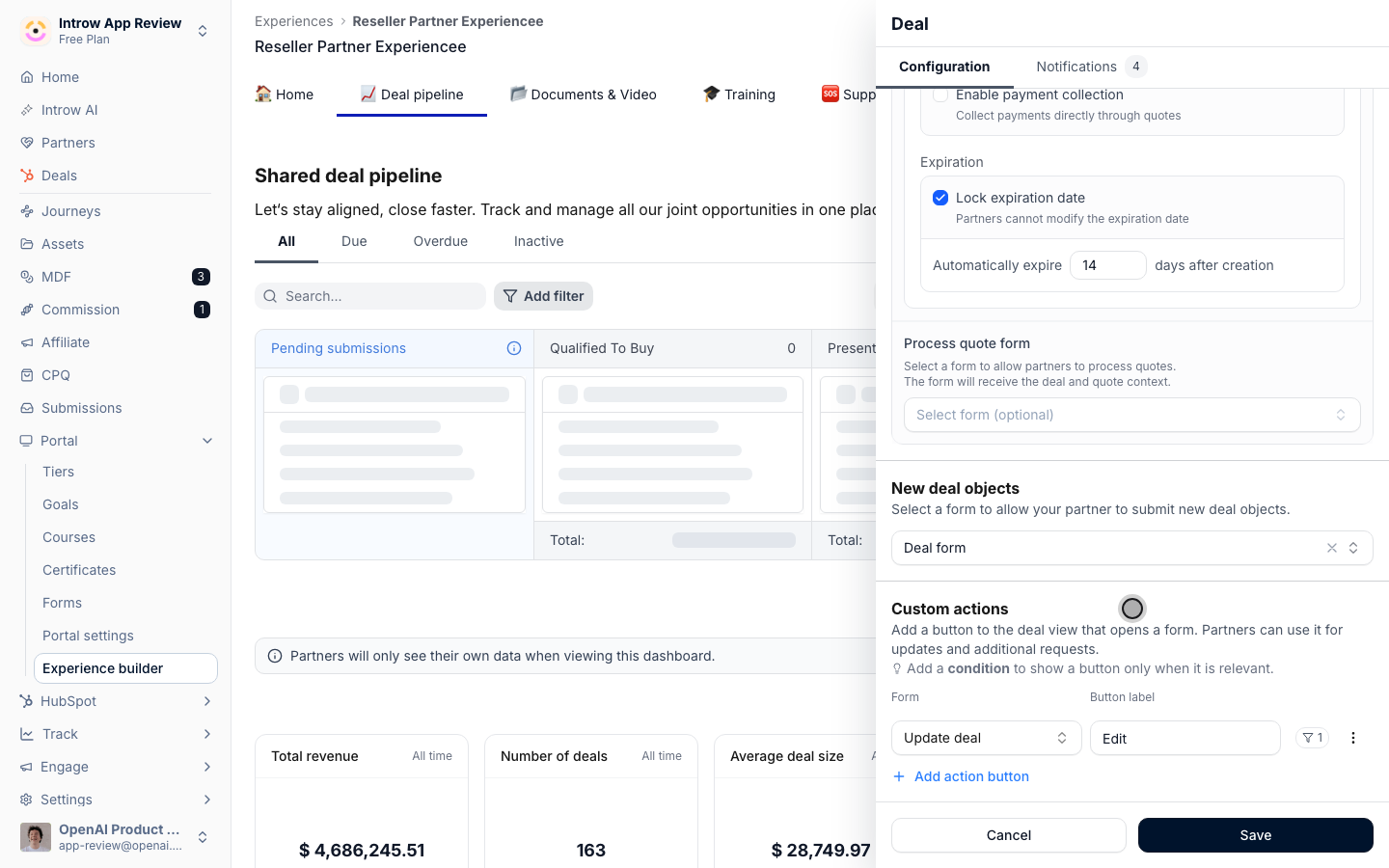
 Under **Custom actions**, choose **Add action button**, pick the form and set the **Button label**. The same button a partner presses on one record appears above the table when they select several.
The form is submitted once per selected record. Each submission has its own record filled in, and goes through the form's approval gate and CRM automation on its own, so an approval step reviews each deal rather than the batch. For the full recipe of stage options, required reasons and write modes, see [Let partners update a deal with guardrails](/features/co-selling/shared-pipelines/guides/let-partners-update-a-deal-with-guardrails).
A form without a record field for this object is submitted once for the whole selection rather than per record, so give the form a CRM object field for the object the section lists.
Under **Custom actions**, choose **Add action button**, pick the form and set the **Button label**. The same button a partner presses on one record appears above the table when they select several.
The form is submitted once per selected record. Each submission has its own record filled in, and goes through the form's approval gate and CRM automation on its own, so an approval step reviews each deal rather than the batch. For the full recipe of stage options, required reasons and write modes, see [Let partners update a deal with guardrails](/features/co-selling/shared-pipelines/guides/let-partners-update-a-deal-with-guardrails).
A form without a record field for this object is submitted once for the whole selection rather than per record, so give the form a CRM object field for the object the section lists.
 Save the configuration and publish the experience, so the change reaches the partners assigned to it.
### Update records in bulk, as a partner
On a pipeline shown as a board, the partner picks **List view** in the switch at the top right. Bulk actions live in the table view only, because that is where records can be ticked. A section with one stage or none is always a table.
Save the configuration and publish the experience, so the change reaches the partners assigned to it.
### Update records in bulk, as a partner
On a pipeline shown as a board, the partner picks **List view** in the switch at the top right. Bulk actions live in the table view only, because that is where records can be ticked. A section with one stage or none is always a table.
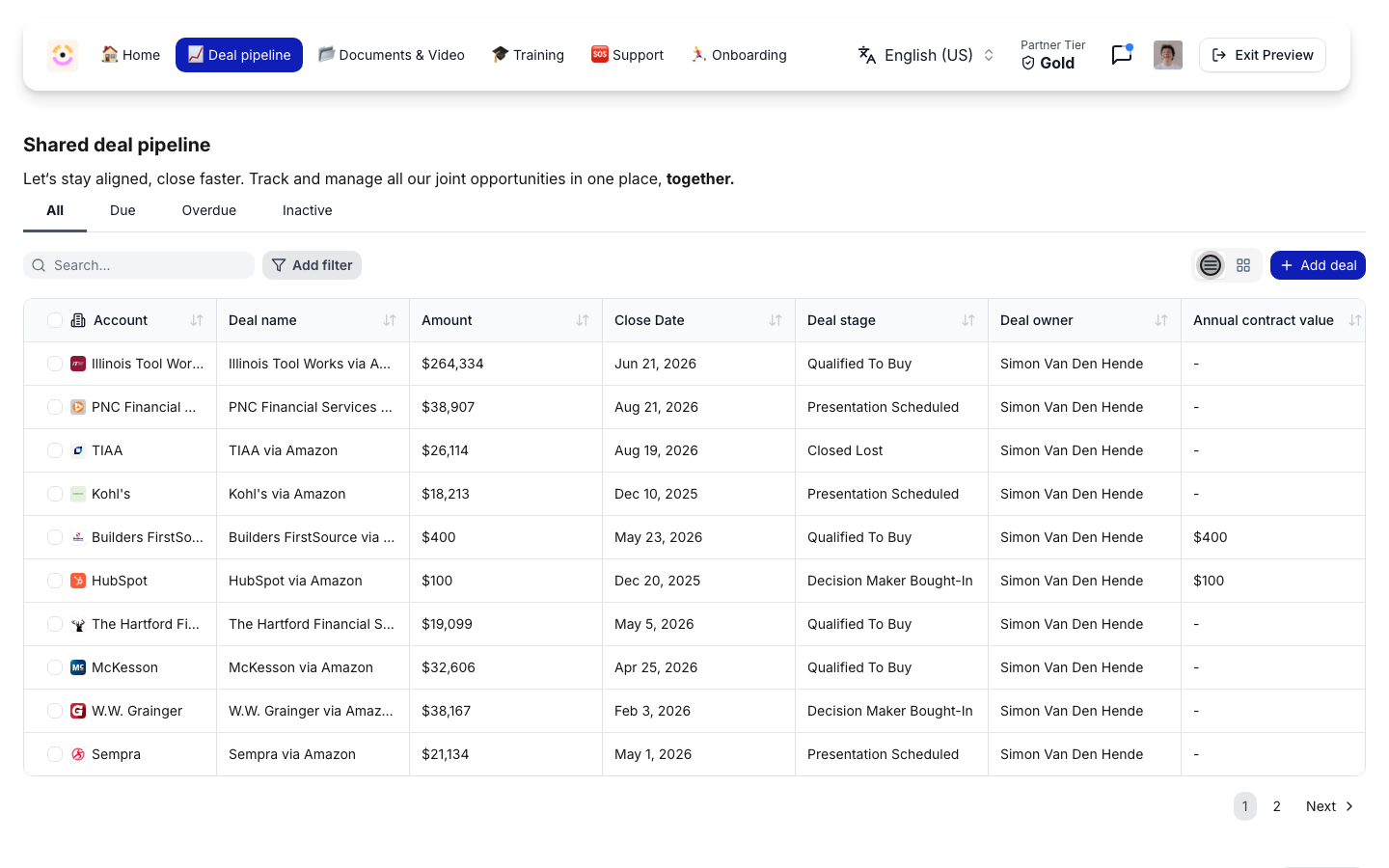 Each row has a checkbox, and the checkbox in the header selects the whole page. The header then reads ` selected`, followed by the actions that apply to every selected record. A submission that is still waiting for its CRM record cannot be selected, and the actions disappear when nothing on the view applies.
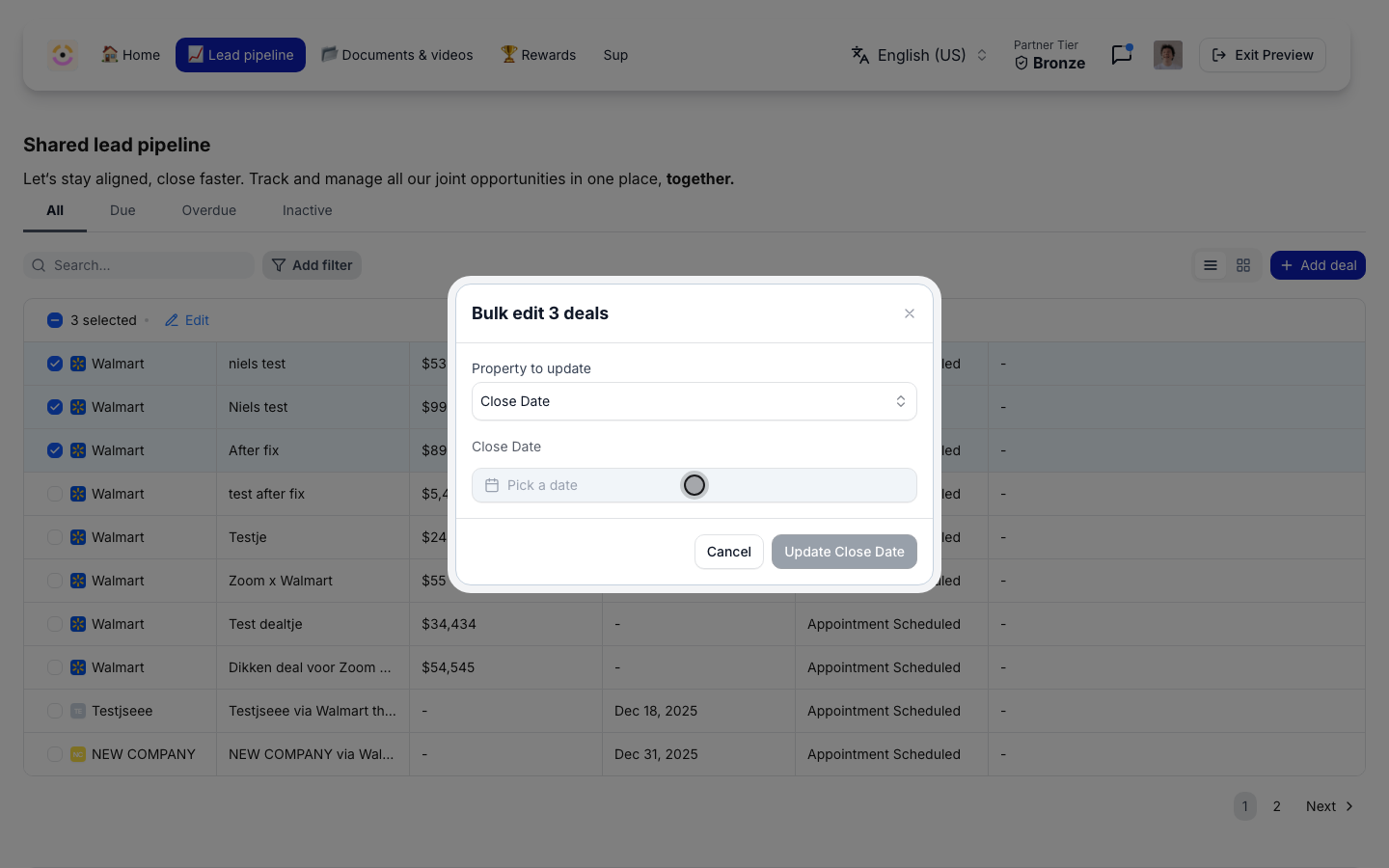
 **Edit** opens **Bulk edit `` deals** (or the name of the object). The partner picks the **Property to update**, enters the value, and presses **Update ``**.
* **Property to update** - only the editable properties that show on every selected record.
* **The value** - the same input as on a single record: a date picker for a date, the stage list for a stage, your CRM's options for a dropdown. Your CRM's validation rules run before anything is written.
* **The outcome** - a toast confirms `Updated deals`. If some records fail, the dialog stays open and reads how many were updated and how many could not be.
**Edit** opens **Bulk edit `` deals** (or the name of the object). The partner picks the **Property to update**, enters the value, and presses **Update ``**.
* **Property to update** - only the editable properties that show on every selected record.
* **The value** - the same input as on a single record: a date picker for a date, the stage list for a stage, your CRM's options for a dropdown. Your CRM's validation rules run before anything is written.
* **The outcome** - a toast confirms `Updated deals`. If some records fail, the dialog stays open and reads how many were updated and how many could not be.
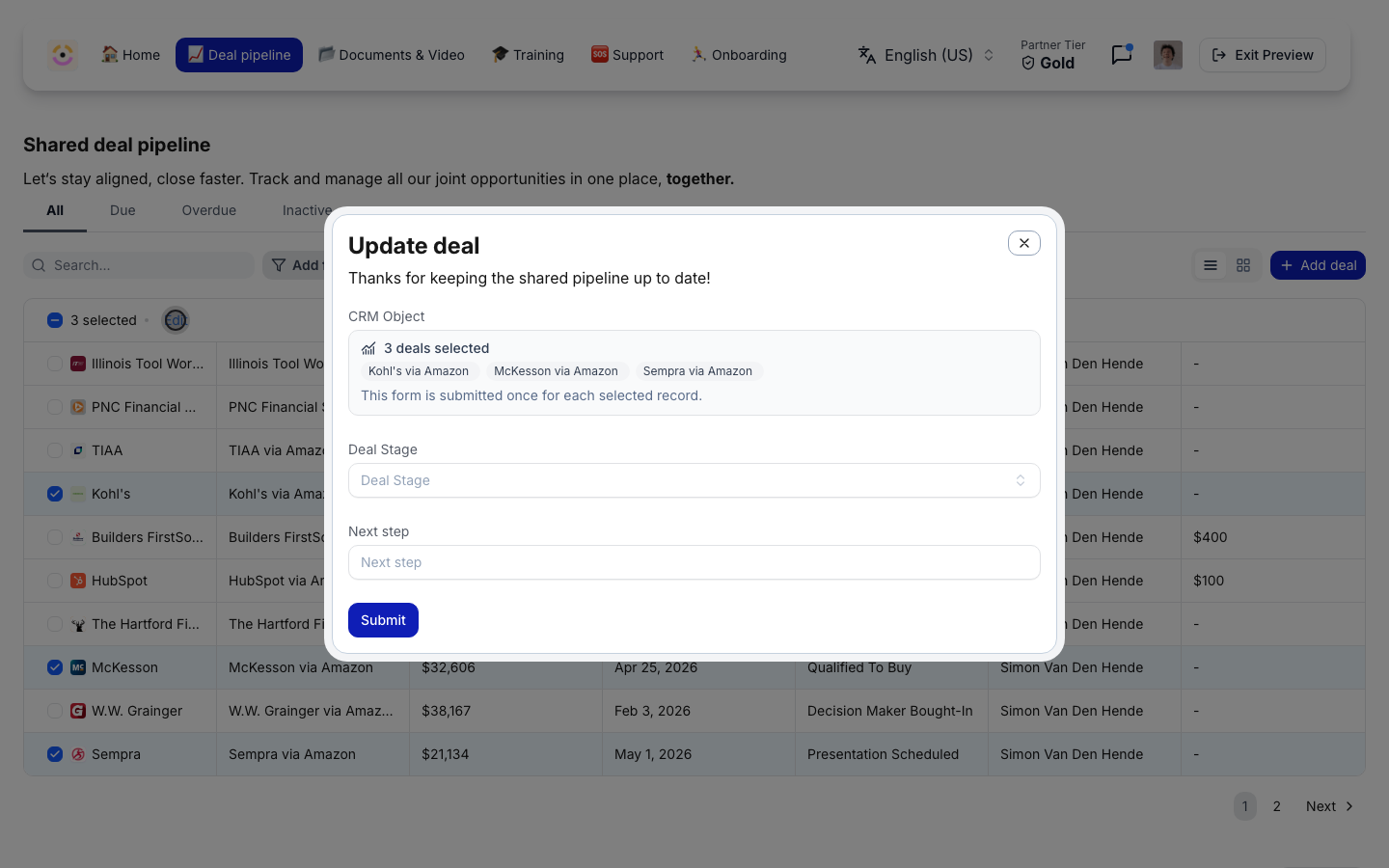
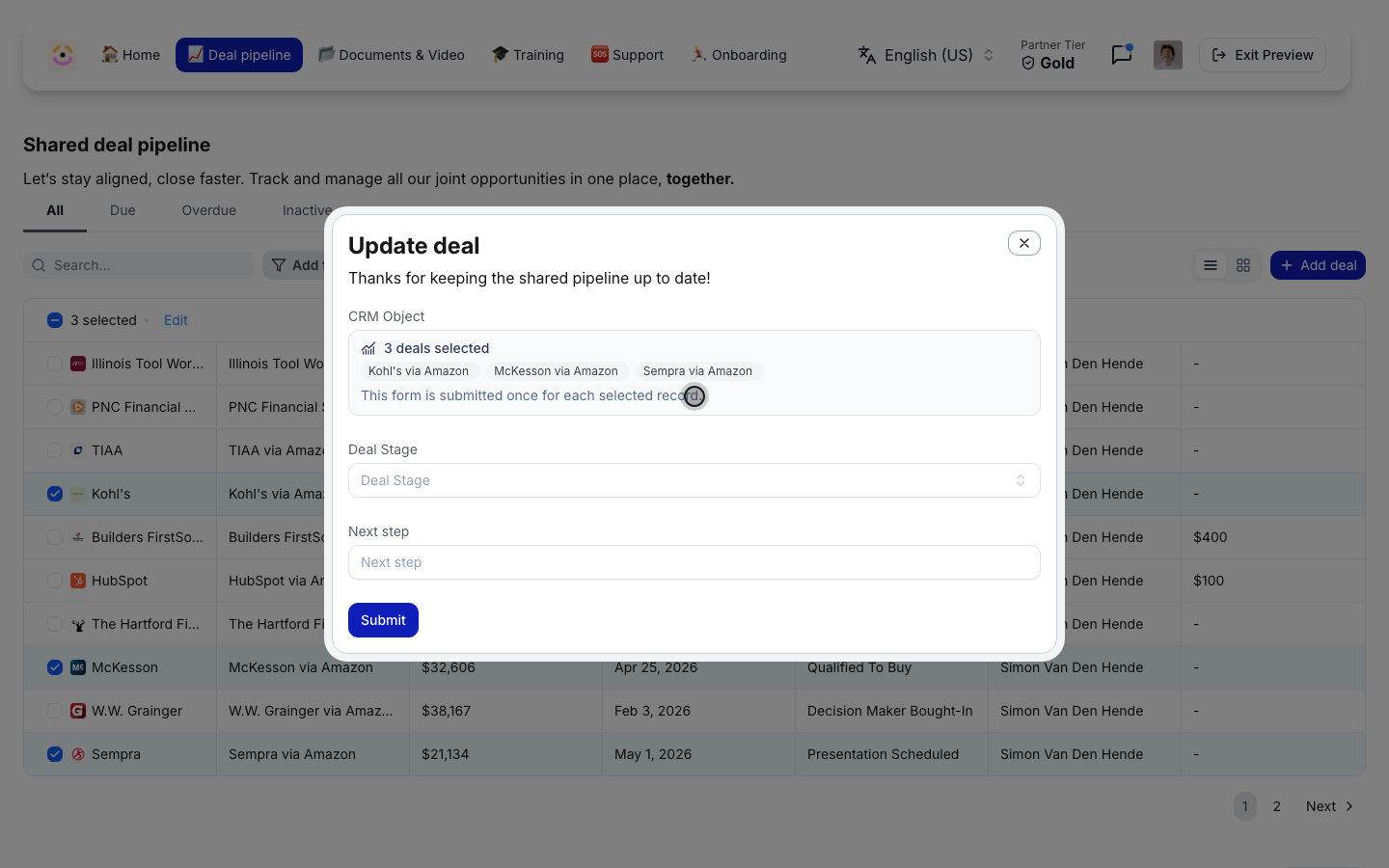
 The custom action's button opens its form. The record field lists the selection under **`` deals selected**, names up to eight of them, and reads **This form is submitted once for each selected record.** The partner answers the form once and presses **Submit**.
A toast confirms `Submitted selected records`. If some submissions fail, the form stays open, says how many landed, and **Submit** again retries only the records that are still missing, so nothing is sent twice.
The custom action's button opens its form. The record field lists the selection under **`` deals selected**, names up to eight of them, and reads **This form is submitted once for each selected record.** The partner answers the form once and presses **Submit**.
A toast confirms `Submitted selected records`. If some submissions fail, the form stays open, says how many landed, and **Submit** again retries only the records that are still missing, so nothing is sent twice.
 ## Verify it worked
* In the portal, preview the experience as a partner, switch the pipeline to **List view** and tick two records: the header reads **2 selected** with **Edit** and your custom actions beside it.
* After a bulk edit, the records show the new value in the portal and in your CRM.
* After a bulk custom action, your submissions list holds one submission per selected record, each linked to its own deal.
## Limits and what to know
* **Up to 100 records per edit.** A larger selection has to be split.
* **One property per edit.** Change two fields by running two edits, or use a custom action whose form sets both.
* **A selection only offers what applies to every record in it.** An editable property hidden on one of the selected records is not offered.
* **The rules still apply per record.** A bulk edit is refused for a property that is not editable on the view, and a bulk custom action runs the same approval gate and automation as a single submission.
## Related
Build the form a custom action opens, with the rules it enforces.
The pipeline view partners select from.
How each submission writes back to the record.
Full configuration options.
## Verify it worked
* In the portal, preview the experience as a partner, switch the pipeline to **List view** and tick two records: the header reads **2 selected** with **Edit** and your custom actions beside it.
* After a bulk edit, the records show the new value in the portal and in your CRM.
* After a bulk custom action, your submissions list holds one submission per selected record, each linked to its own deal.
## Limits and what to know
* **Up to 100 records per edit.** A larger selection has to be split.
* **One property per edit.** Change two fields by running two edits, or use a custom action whose form sets both.
* **A selection only offers what applies to every record in it.** An editable property hidden on one of the selected records is not offered.
* **The rules still apply per record.** A bulk edit is refused for a property that is not editable on the view, and a bulk custom action runs the same approval gate and automation as a single submission.
## Related
Build the form a custom action opens, with the rules it enforces.
The pipeline view partners select from.
How each submission writes back to the record.
Full configuration options.