> ## Documentation Index
> Fetch the complete documentation index at: https://docs.introw.io/llms.txt
> Use this file to discover all available pages before exploring further.
# Personalize workflow steps with variables
> Write a CRM note, task, commission line, email or chat message that fills in the partner, the event and earlier steps per run, with variables you pick where each value belongs.
A workflow step that writes fixed text says the same thing for every partner.
The CRM note reads "Partner finished onboarding", the task says "Call the partner", and whoever opens it has to go and find out which partner, which journey and how much.
Variables fill those specifics in per run.
You type `{` where a value belongs, pick it, and every run writes the real partner name, journey, amount or date in its place.
## What you'll achieve
A saved, rehearsed workflow whose steps write per partner: a commission line described with the partner and the journey they finished, a CRM note that records the amount the previous step booked and a follow-up date, and an email whose subject and body name the partner and the journey.
You also know what happens when a step a variable depends on is removed, and how Introw stops that workflow from going live half-empty.
## Before you start
Workflows are released per organization, and your role needs the **Workflows** permission to build and test.
A role that can only read opens the canvas but cannot type into a step.
See [Create an internal role](/features/access/team-management/guides/create-an-internal-role).
The trigger decides which values a step can use.
A **Journey completed** workflow can name the journey, a **Task assigned** workflow the task and its assignee, a **Certificate issued** workflow the certificate and the contact who earned it.
Pick the trigger first, then write the text.
A step can only use what earlier steps on its own path produced.
Put the commission step above the note that quotes its amount.
## Watch it
## Steps
### Pick the trigger that carries the values
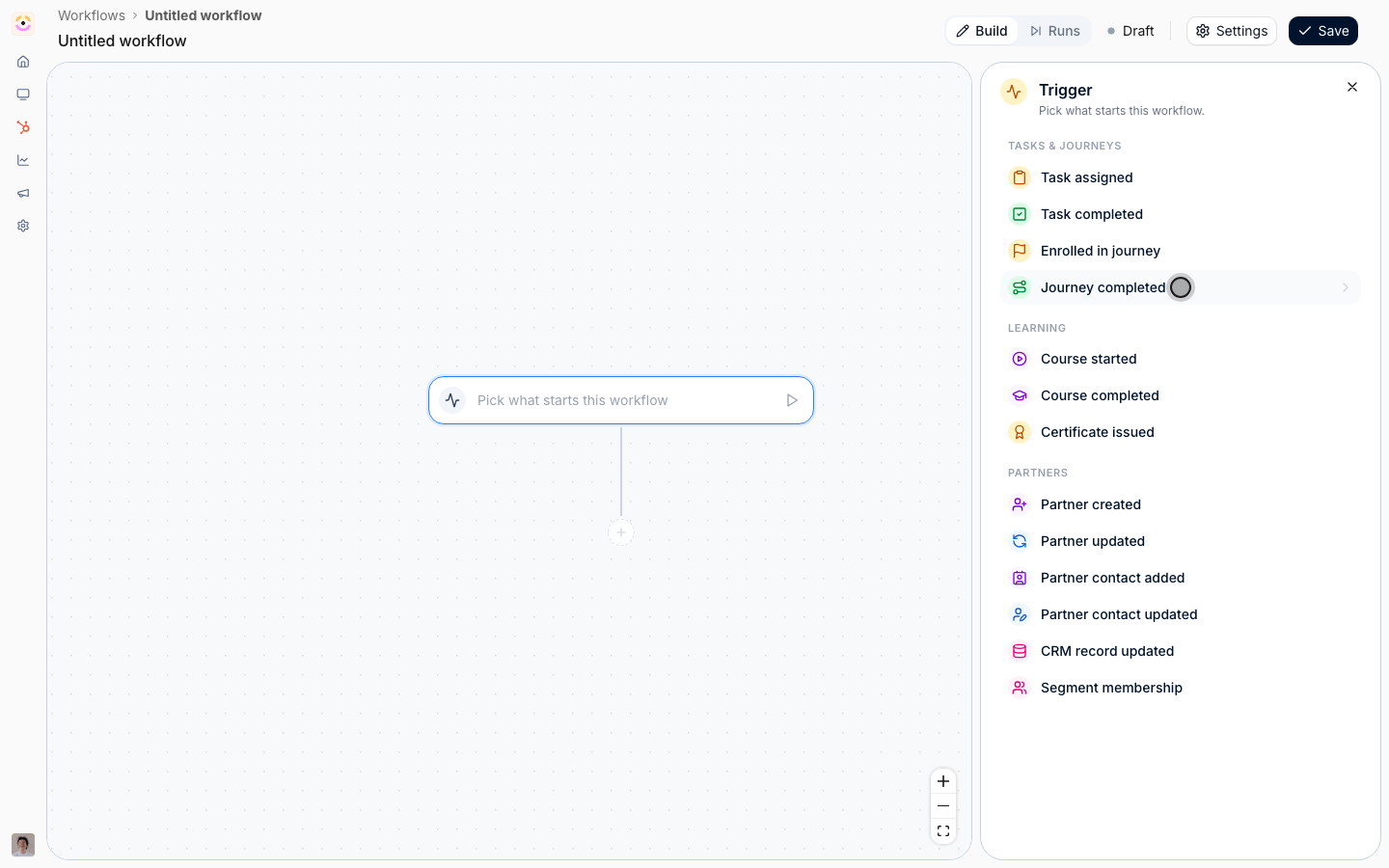
Go to [Workflows](https://app.introw.io/workflows), select **New workflow**, select the trigger node, and choose the event the message is about.
This guide uses **Journey completed**, with **Which journeys count** set to the onboarding journey.
Every trigger carries the partner.
Most carry one more thing, and that is the group you will see under **From trigger** later:
* **Task assigned** and **Task completed** carry the **Task**: its name, status, due date and assignee.
* **Enrolled in journey** and **Journey completed** carry the **Journey** name.
* **Course started** and **Course completed** carry the course, the enrollment's due date and the learner.
* **Certificate issued** carries the certificate, when it was issued, its URL and the contact who earned it.
* **Partner contact added** and **Partner contact updated** carry the **Contact**: name, email, job title and when they were added.
* **Segment membership** carries the **Segment** name.
* **CRM record updated** carries the record: its ID, type and link, and every CRM property on it.
* **Partner created** and **Partner updated** carry the partner only.
 ### Insert a variable
Add an action that writes something a person will read.
Variables work in every text a step writes:
* **Give a task**: the task name and the description.
* **Give commission**: the description the partner sees on their commission tab and payout.
* **Log a CRM note**: the note.
* **Send an email**: the subject and the body.
* **Send a chat message**: the message.
Here, add **Give commission** and set the amount.
Amounts, currencies and pickers take fixed values, so variables only appear in the text fields.
Click into the field, write the fixed part, and type `{` where the value goes.
A list opens in three sections:
* **Always available** holds what every run has: **Organization** (your name, domain, logo, time zone, country, currency and creation date) and **Date**.
* **From trigger** holds what the event carries: **Partner**, the trigger's own group, such as **Journey**, and one group for each partner team role you have set up.
* **From actions** holds what earlier steps on this path produced. It is empty on the first step.
### Insert a variable
Add an action that writes something a person will read.
Variables work in every text a step writes:
* **Give a task**: the task name and the description.
* **Give commission**: the description the partner sees on their commission tab and payout.
* **Log a CRM note**: the note.
* **Send an email**: the subject and the body.
* **Send a chat message**: the message.
Here, add **Give commission** and set the amount.
Amounts, currencies and pickers take fixed values, so variables only appear in the text fields.
Click into the field, write the fixed part, and type `{` where the value goes.
A list opens in three sections:
* **Always available** holds what every run has: **Organization** (your name, domain, logo, time zone, country, currency and creation date) and **Date**.
* **From trigger** holds what the event carries: **Partner**, the trigger's own group, such as **Journey**, and one group for each partner team role you have set up.
* **From actions** holds what earlier steps on this path produced. It is empty on the first step.
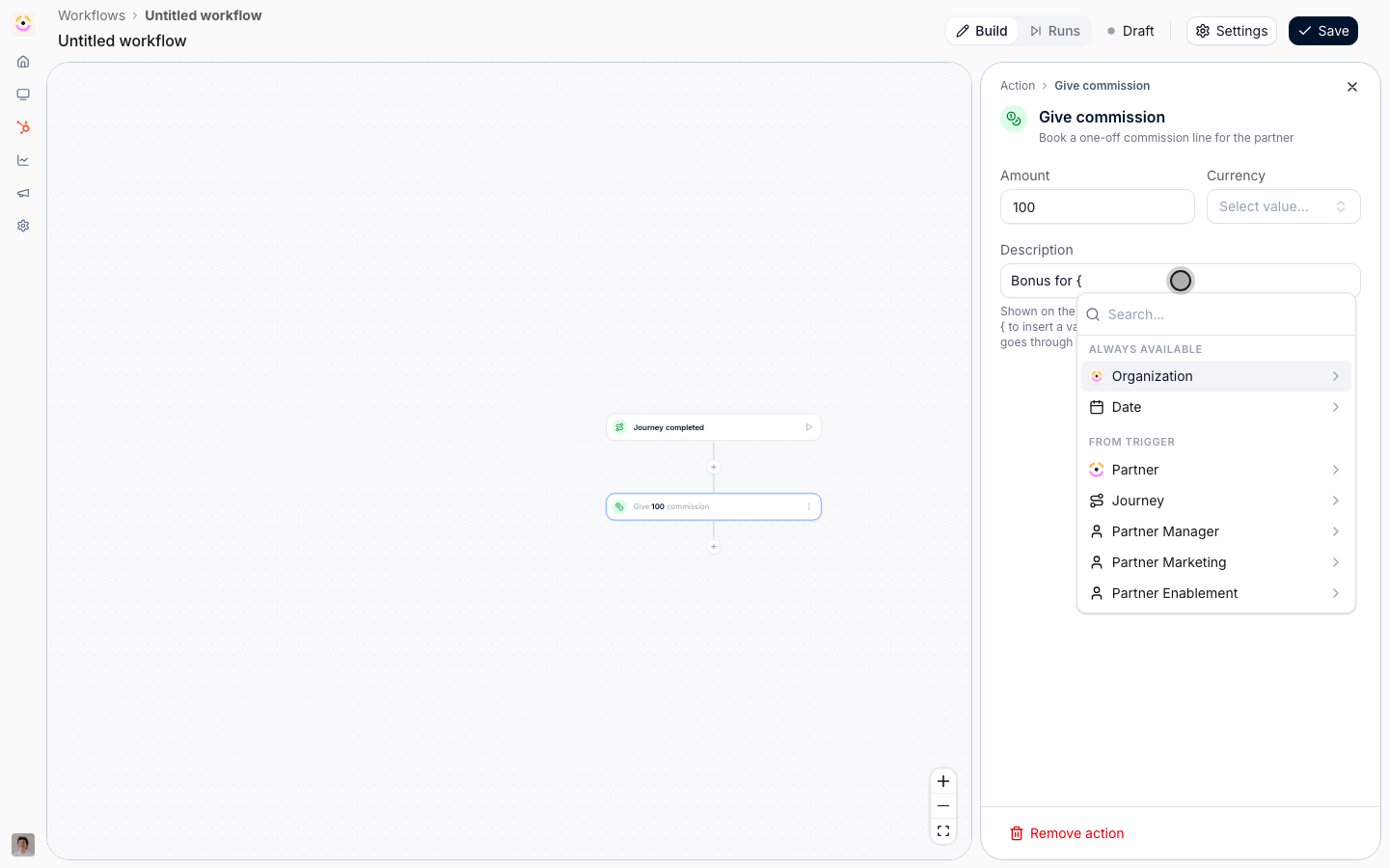 Select a group to open it, then select the field.
**Partner** lists the Introw fields first, the partner name, domain, logo, manager email, phase, tier and categories, then every property on the partner's company or custom partner object in your CRM.
A partner team role group, such as **Partner Manager**, gives the name, email, phone, job title and LinkedIn URL of whoever holds that role on this partner.
Type in **Search** to find a CRM property by name instead of scrolling.
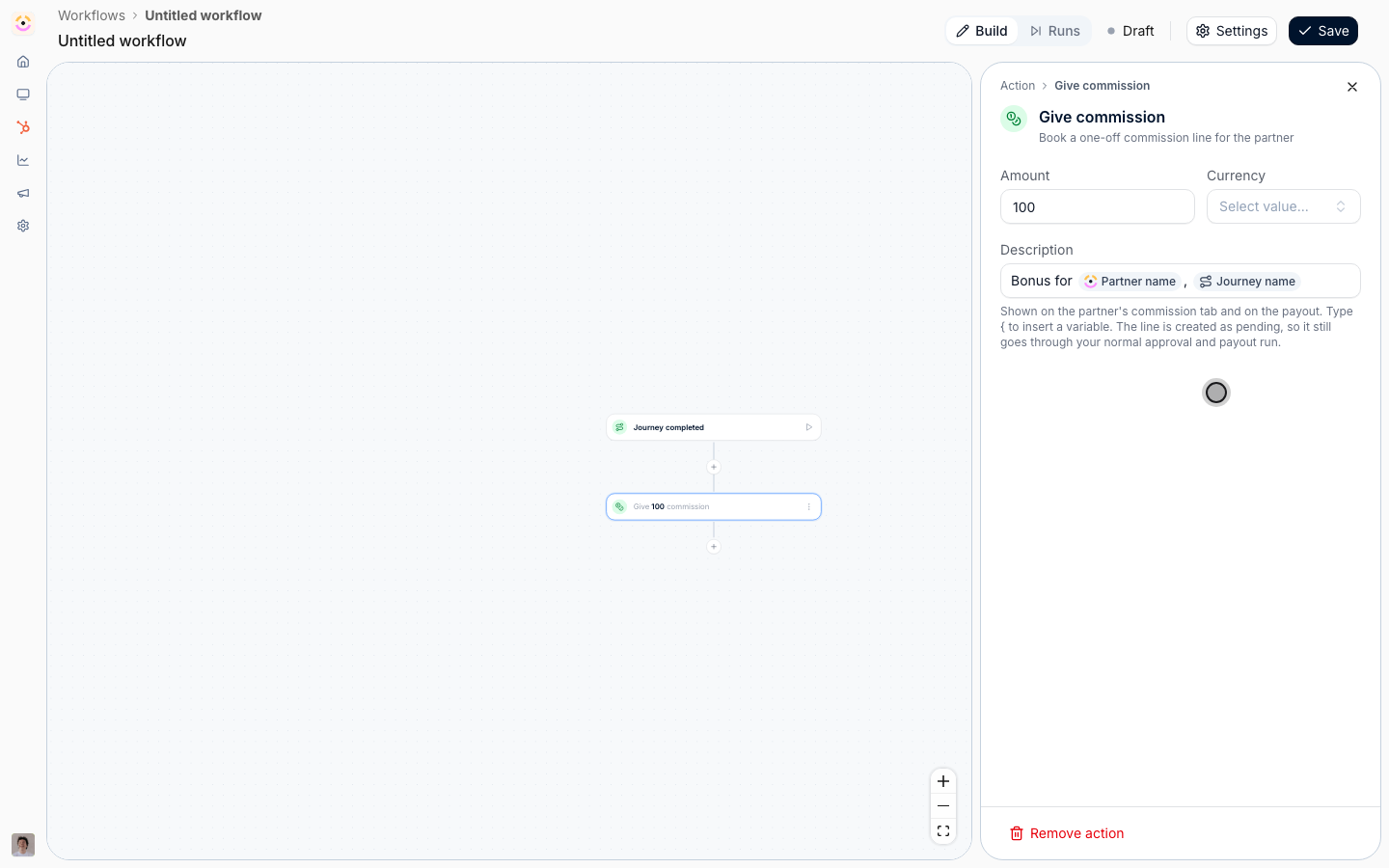
The value lands as a pill.
Everything around it stays fixed text, so you can read at a glance what is written once and what is filled in per run.
Add as many as the text needs: this description reads "Bonus for **Partner name**, **Journey name**".
Select a group to open it, then select the field.
**Partner** lists the Introw fields first, the partner name, domain, logo, manager email, phase, tier and categories, then every property on the partner's company or custom partner object in your CRM.
A partner team role group, such as **Partner Manager**, gives the name, email, phone, job title and LinkedIn URL of whoever holds that role on this partner.
Type in **Search** to find a CRM property by name instead of scrolling.
The value lands as a pill.
Everything around it stays fixed text, so you can read at a glance what is written once and what is filled in per run.
Add as many as the text needs: this description reads "Bonus for **Partner name**, **Journey name**".
 ### Use what an earlier step produced
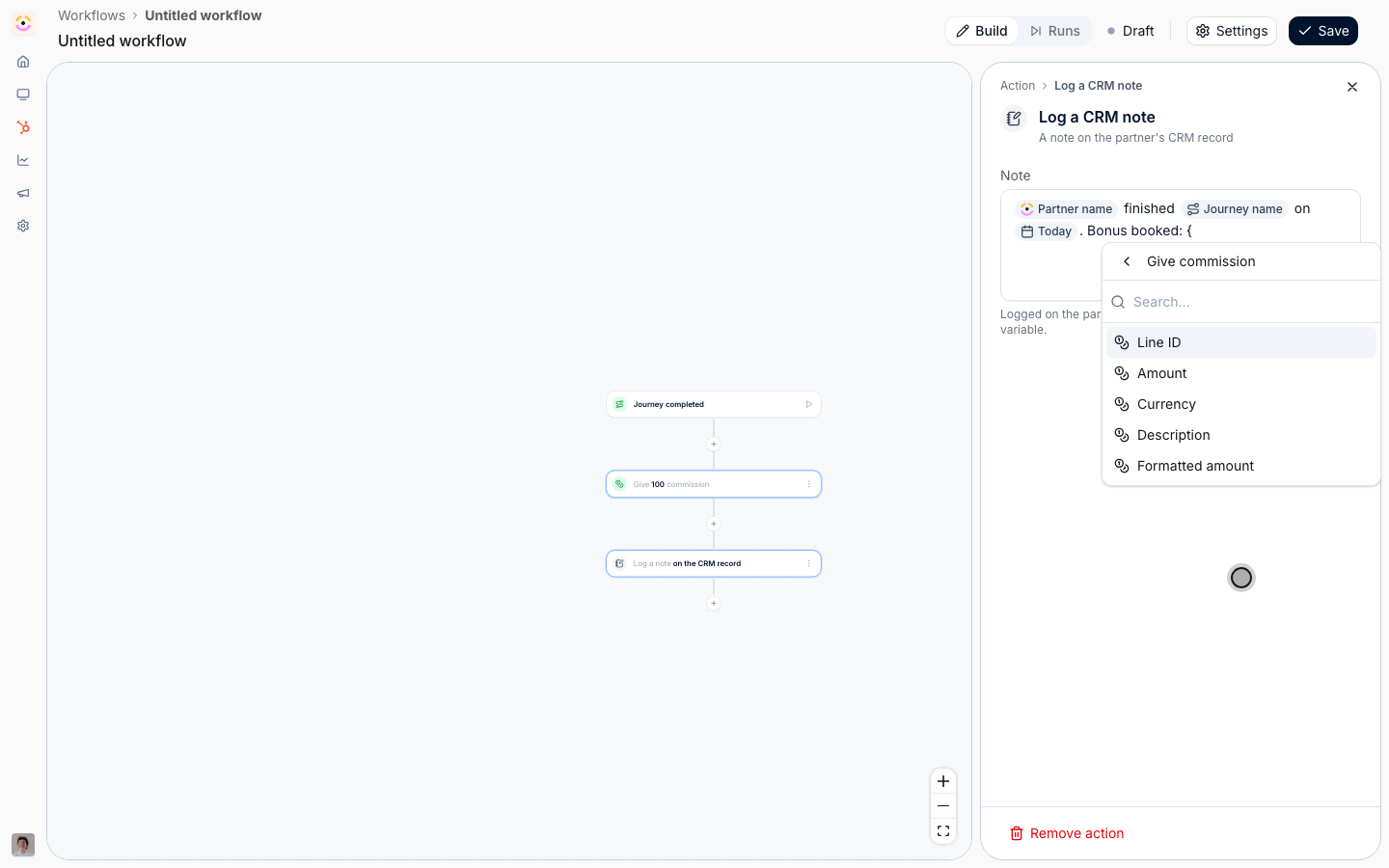
Add **Log a CRM note** below the commission step and start the note the same way, with the partner and the journey.
Then type `{` again and look at **From actions**.
It lists the steps that run before this one, on this path only: a step on the other side of a condition is not offered, because a run never passes through both.
Hover a group in the list, or a pill you already placed, and the step it comes from is outlined on the canvas.
On a long chain with two emails and two tasks, this is how you tell **Send email 1** from **Send email 2** without counting.
### Use what an earlier step produced
Add **Log a CRM note** below the commission step and start the note the same way, with the partner and the journey.
Then type `{` again and look at **From actions**.
It lists the steps that run before this one, on this path only: a step on the other side of a condition is not offered, because a run never passes through both.
Hover a group in the list, or a pill you already placed, and the step it comes from is outlined on the canvas.
On a long chain with two emails and two tasks, this is how you tell **Send email 1** from **Send email 2** without counting.
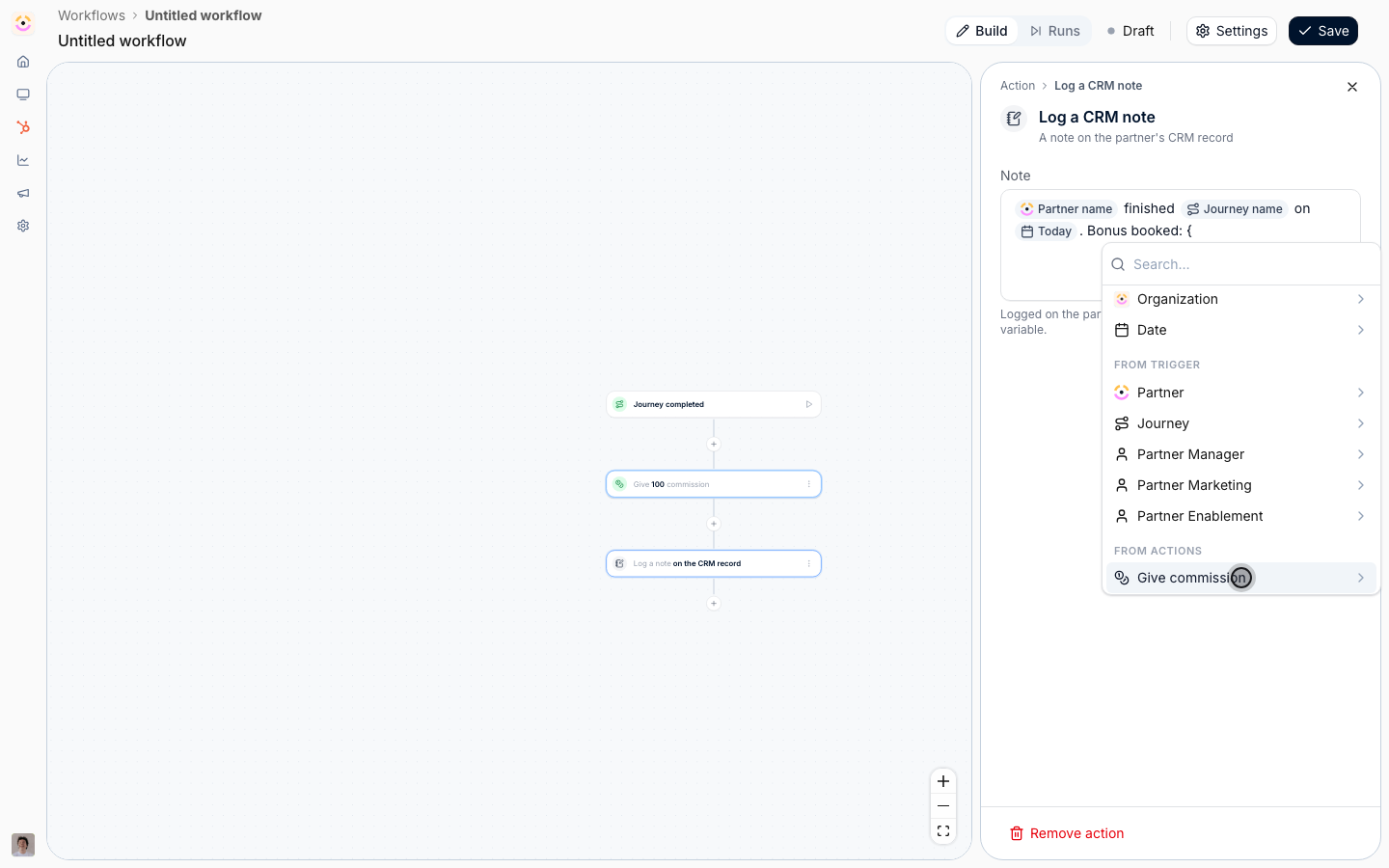 Open the step's group and pick the field.
What each step hands on:
* **Give commission**: **Line ID**, **Amount**, **Currency**, **Description** and **Formatted amount**, which reads the amount in the line's currency.
* **Log a CRM note**: the **Note URL**, so a later email or task can link straight to it.
* **Give a task**: **Task ID**, **Name**, **Assignee name** and **Due date**.
* **Send an email**: when it was queued and sent, and its **Subject**.
* **Enroll in a journey**: **Journey name** and how many tasks it created.
* **Issue a certificate**: the **Certificate URL**.
Use **Formatted amount** here, so the note says the amount the partner will actually see.
Open the step's group and pick the field.
What each step hands on:
* **Give commission**: **Line ID**, **Amount**, **Currency**, **Description** and **Formatted amount**, which reads the amount in the line's currency.
* **Log a CRM note**: the **Note URL**, so a later email or task can link straight to it.
* **Give a task**: **Task ID**, **Name**, **Assignee name** and **Due date**.
* **Send an email**: when it was queued and sent, and its **Subject**.
* **Enroll in a journey**: **Journey name** and how many tasks it created.
* **Issue a certificate**: the **Certificate URL**.
Use **Formatted amount** here, so the note says the amount the partner will actually see.
 ### Add a date
Under **Always available**, open **Date** and pick **Today**.
Choose a **Format** and select **Insert**.
The date is the day the step runs, not the day you wrote it.
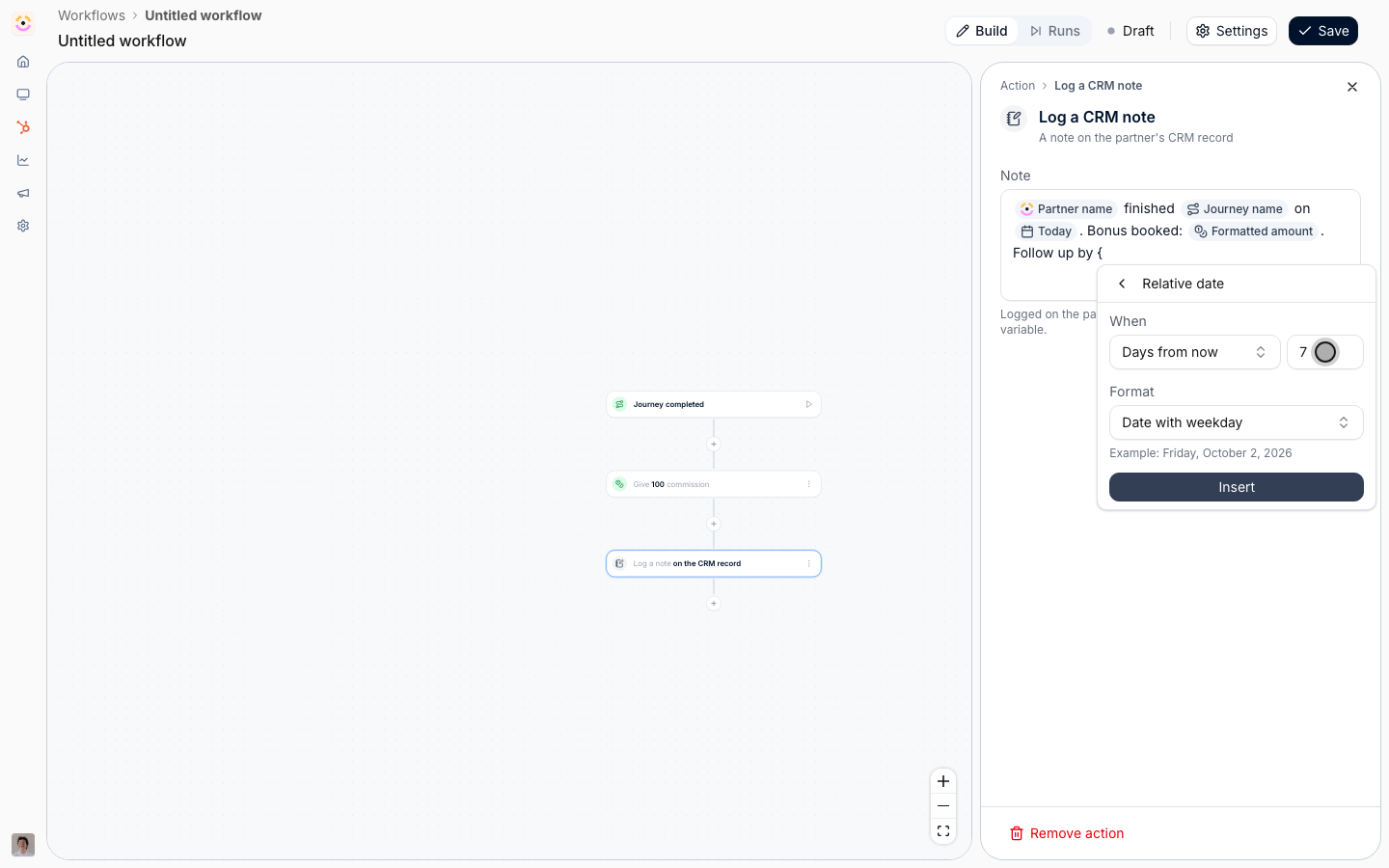
Pick **Relative date** instead for a deadline or a follow-up.
Set **When** to **Days from now**, **Days ago**, **Hours from now**, **Hours ago**, **Minutes from now** or **Minutes ago**, and the number.
Set **Format** to **Date**, **Date with weekday**, **Date with time**, **Date with weekday and time**, **Numeric date** or **ISO timestamp**.
The **Example** line shows what the reader will see, then select **Insert**.
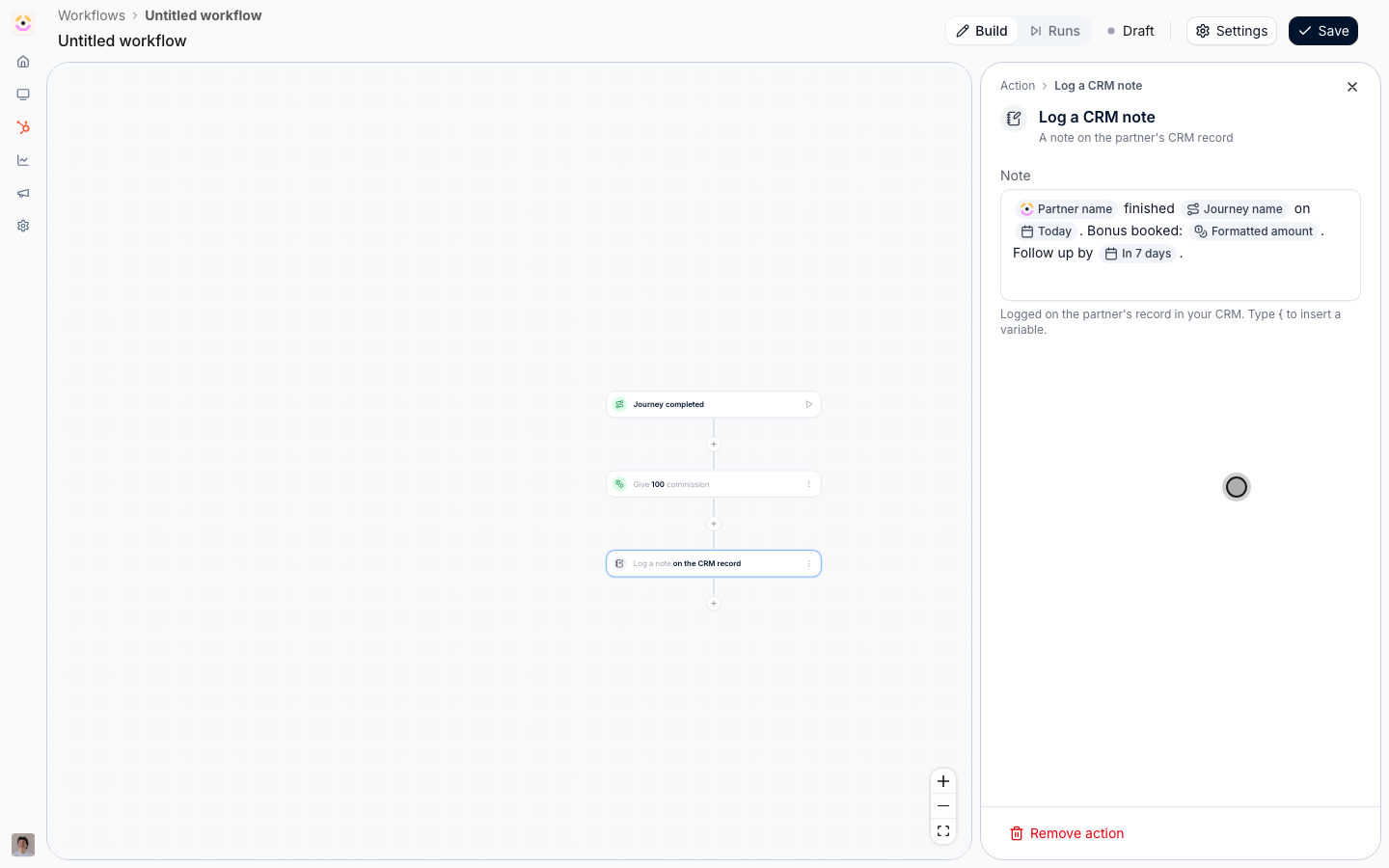
The pill reads the offset, such as **In 7 days**.
### Add a date
Under **Always available**, open **Date** and pick **Today**.
Choose a **Format** and select **Insert**.
The date is the day the step runs, not the day you wrote it.
Pick **Relative date** instead for a deadline or a follow-up.
Set **When** to **Days from now**, **Days ago**, **Hours from now**, **Hours ago**, **Minutes from now** or **Minutes ago**, and the number.
Set **Format** to **Date**, **Date with weekday**, **Date with time**, **Date with weekday and time**, **Numeric date** or **ISO timestamp**.
The **Example** line shows what the reader will see, then select **Insert**.
The pill reads the offset, such as **In 7 days**.
 ### Personalize the email
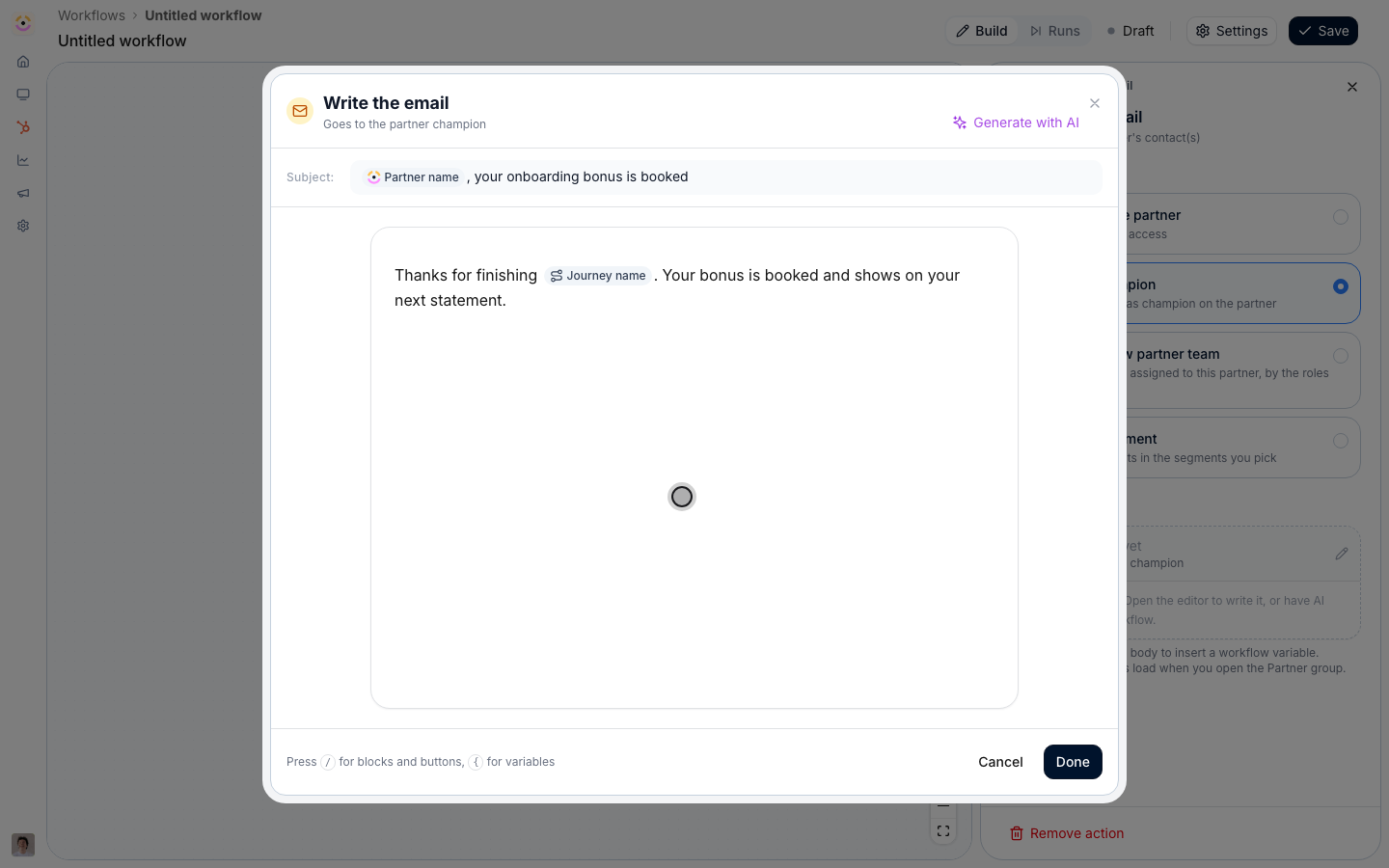
Add **Send an email**, choose who it goes to, and open the email editor.
The **Subject** takes the same list: type `{` and pick **Partner name**, then finish the line.
### Personalize the email
Add **Send an email**, choose who it goes to, and open the email editor.
The **Subject** takes the same list: type `{` and pick **Partner name**, then finish the line.
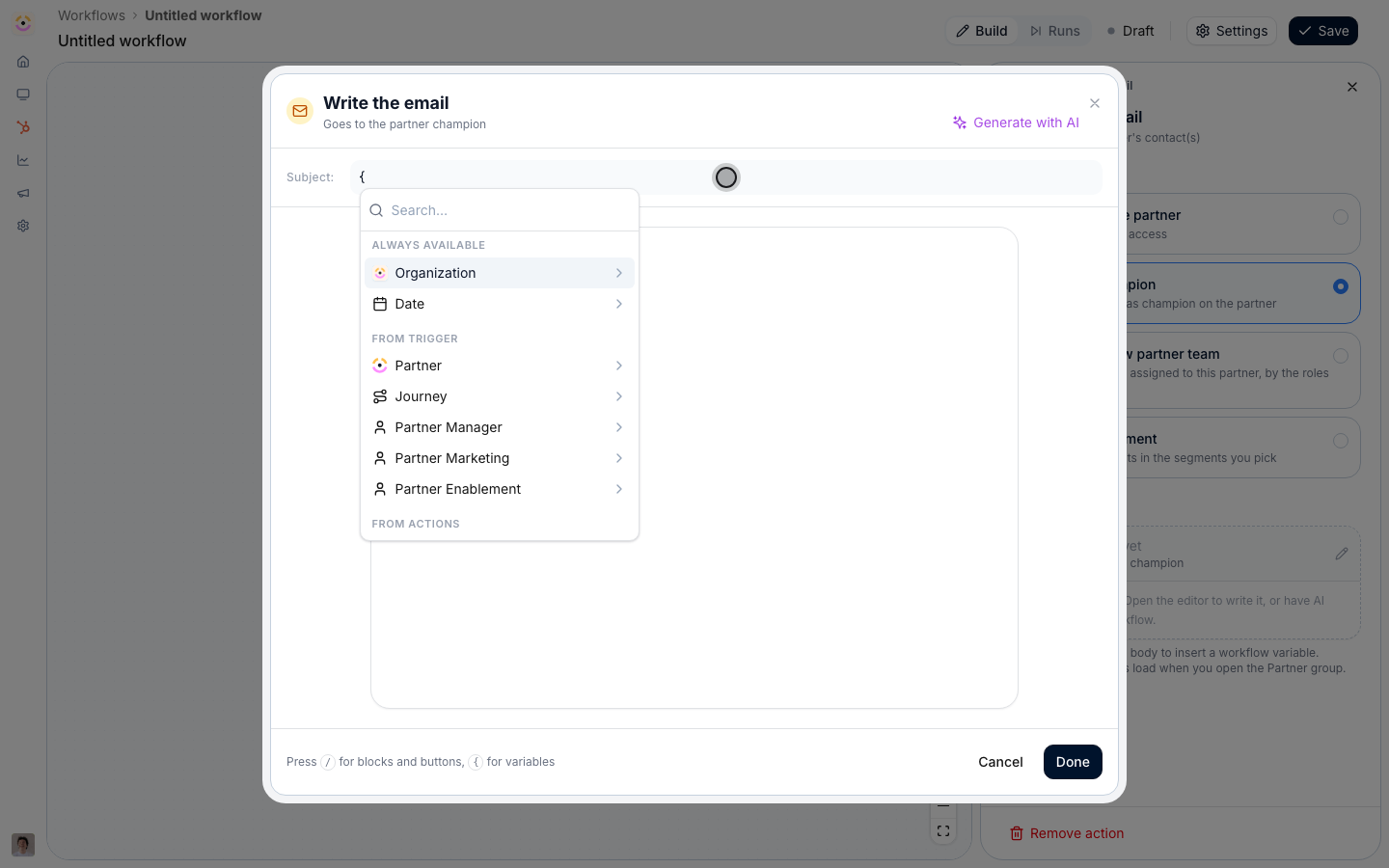 The body is the announcement editor, so `/` inserts blocks and buttons and `{` opens the variable list.
Name the journey the partner finished, and select **Done**.
The body is the announcement editor, so `/` inserts blocks and buttons and `{` opens the variable list.
Name the journey the partner finished, and select **Done**.
 ### Save and rehearse
Open **Settings**, give the workflow a name, and **Save**.
The canvas only commits on **Save**.
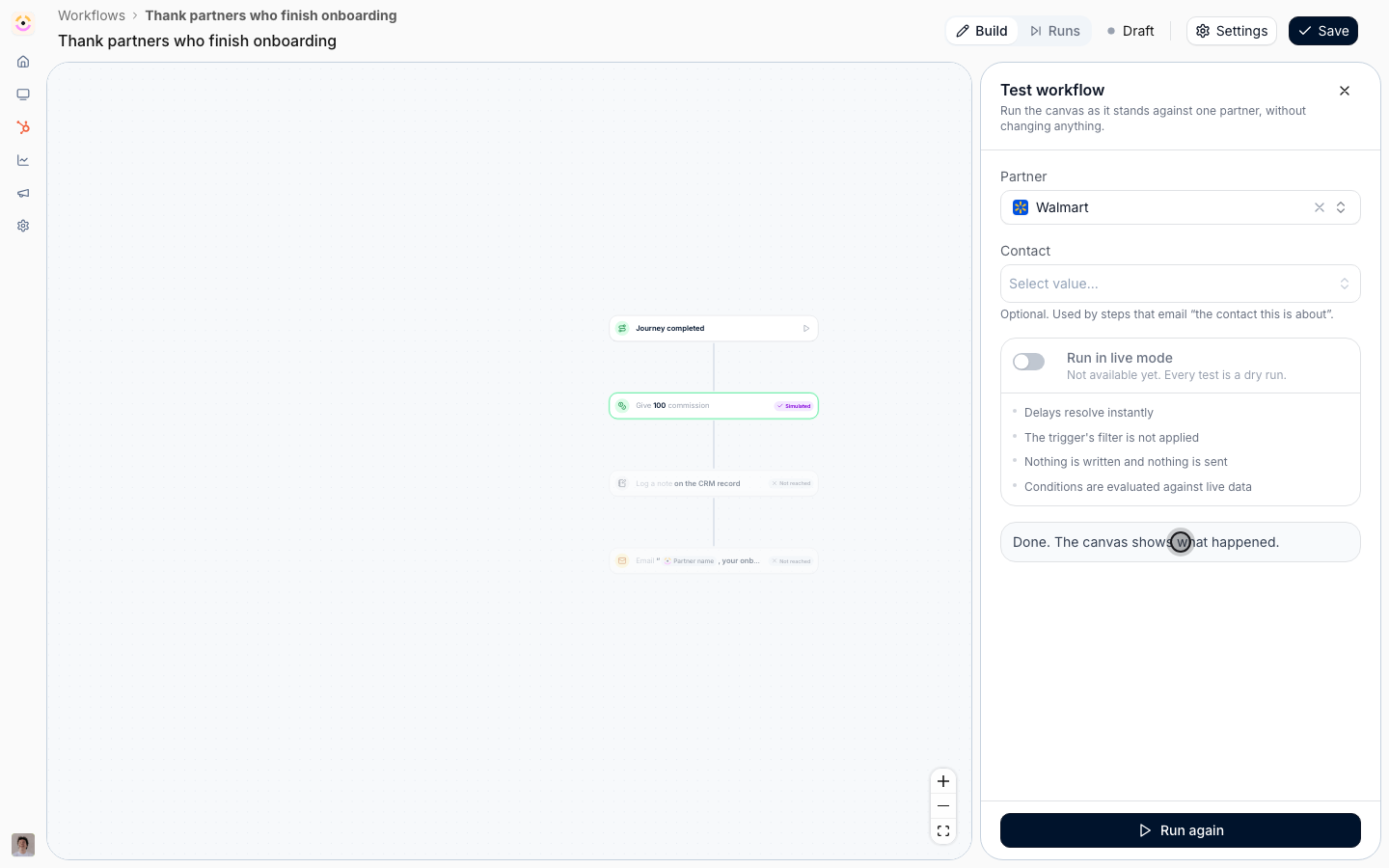
Select the play button on the trigger, pick a partner, and run the test.
A test is a dry run: nothing is booked, logged or sent, and each step the run reached is badged **Simulated**.
See [Test a workflow and read its runs](./test-a-workflow-and-read-its-runs).
### Save and rehearse
Open **Settings**, give the workflow a name, and **Save**.
The canvas only commits on **Save**.
Select the play button on the trigger, pick a partner, and run the test.
A test is a dry run: nothing is booked, logged or sent, and each step the run reached is badged **Simulated**.
See [Test a workflow and read its runs](./test-a-workflow-and-read-its-runs).
 ### Keep every variable reachable
A pill points at a trigger or a step.
Remove that step, or change the trigger to one that does not carry the value, and the pill has nothing to read.
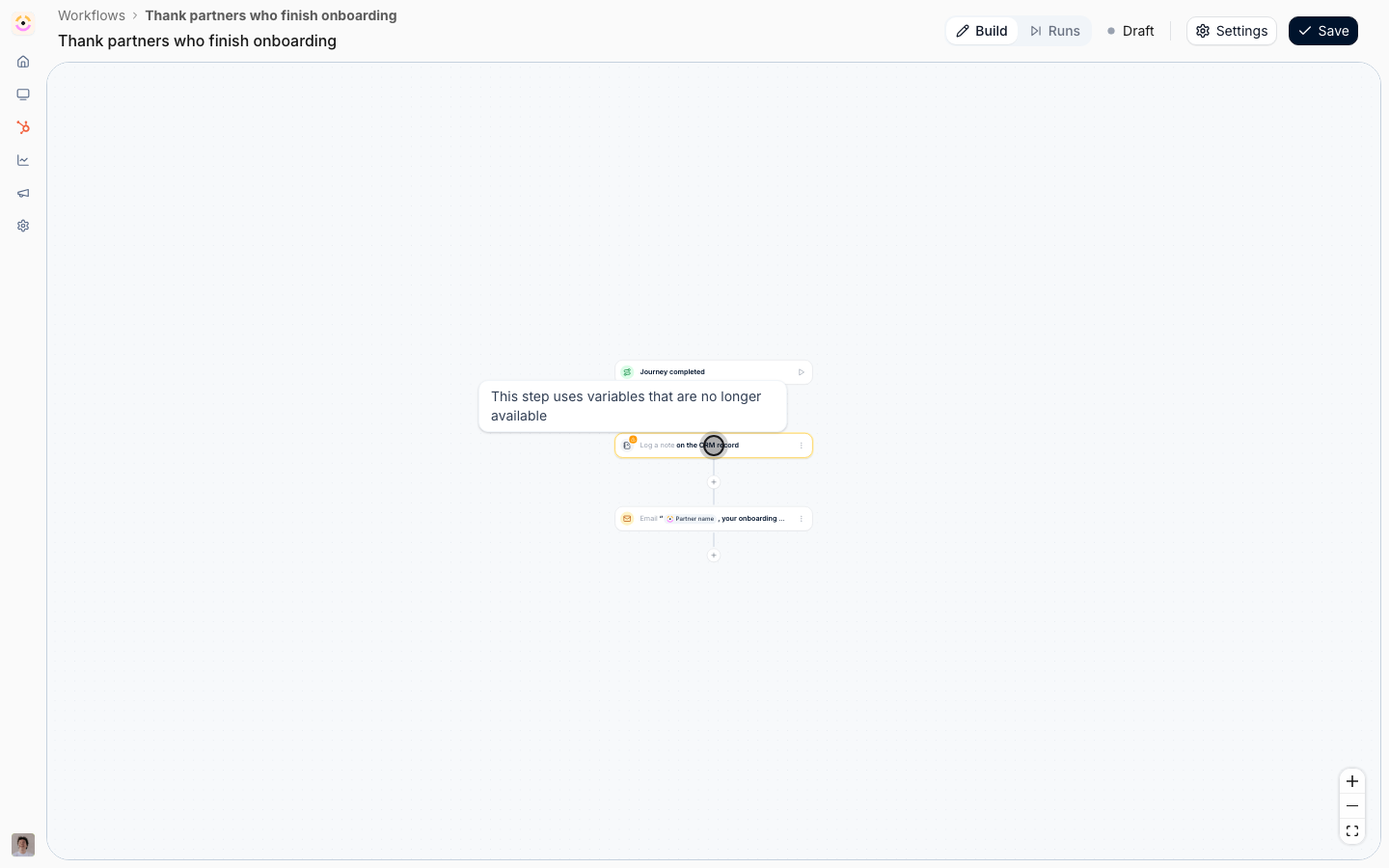
The step that holds it gets a warning badge that reads **This step uses variables that are no longer available**.
### Keep every variable reachable
A pill points at a trigger or a step.
Remove that step, or change the trigger to one that does not carry the value, and the pill has nothing to read.
The step that holds it gets a warning badge that reads **This step uses variables that are no longer available**.
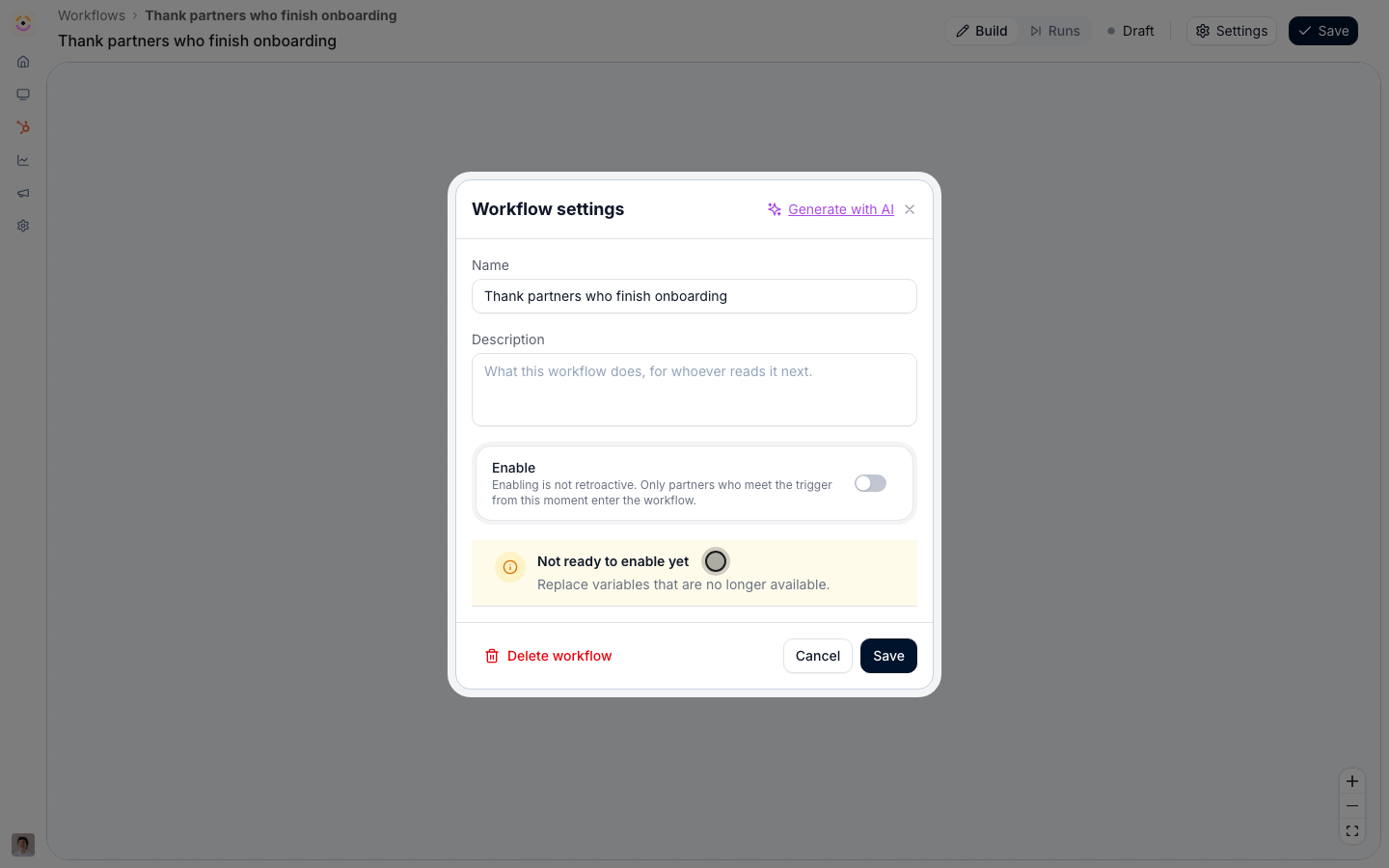
 A workflow in that state cannot be switched on, and an active one cannot be saved in it.
**Settings** lists it under **Not ready to enable yet** as **Replace variables that are no longer available**.
Open the flagged step and replace or remove the pill, or put the step back.
If you have not saved yet, reloading the page brings back the saved canvas.
A workflow in that state cannot be switched on, and an active one cannot be saved in it.
**Settings** lists it under **Not ready to enable yet** as **Replace variables that are no longer available**.
Open the flagged step and replace or remove the pill, or put the step back.
If you have not saved yet, reloading the page brings back the saved canvas.
 ## Verify it worked
The saved workflow shows each step's text with its pills, and the test run badges every step **Simulated**.
Once you enable it, the first real run writes the note on the partner's CRM record with their name, the journey, the booked amount and the dates filled in, and the email arrives with the partner's name in the subject.
Open a run from **Runs** to see which path it took.
## Related
Build, test and enable a workflow from an empty canvas.
Book a bonus, issue a certificate and tell the partner.
Rehearse against a real partner and read every run.
Every trigger, action and the variables each one offers.
## Verify it worked
The saved workflow shows each step's text with its pills, and the test run badges every step **Simulated**.
Once you enable it, the first real run writes the note on the partner's CRM record with their name, the journey, the booked amount and the dates filled in, and the email arrives with the partner's name in the subject.
Open a run from **Runs** to see which path it took.
## Related
Build, test and enable a workflow from an empty canvas.
Book a bonus, issue a certificate and tell the partner.
Rehearse against a real partner and read every run.
Every trigger, action and the variables each one offers.