> ## Documentation Index
> Fetch the complete documentation index at: https://docs.introw.io/llms.txt
> Use this file to discover all available pages before exploring further.
# Launch the partner support agent
> Enable the partner support agent, give it a name, instructions, welcome message, and logo, test it, surface it in the portal, and monitor real conversations.
The partner support agent answers partner questions around the clock, in their language, grounded in your knowledge base and scoped to what each partner can see. Launching it is one job: enable it, shape its identity and instructions, test it against real questions, surface it in the portal, then watch the first conversations to confirm it is helping. Do this when partner questions outpace your team and you want a consistent, on-brand first response instead of a growing inbox.
## What you'll achieve
A live partner support agent: named, branded, instructed within your guardrails, tested, visible to partners in the portal, and producing conversations you can review. Partners get instant, scoped answers; your team only handles what the agent escalates.
## Before you start
The agent answers from your knowledge base, so populate it before launch. See [Fill the knowledge base](/features/ai/knowledge-base/guides/fill-the-knowledge-base). An agent with no knowledge gives thin answers.
The AI Agent module is on by default. You need AI agent write access to configure the agent.
Have the agent name, a logo image (up to 5MB), and a sense of the tone and rules you want before you start writing.
## Watch it
## Steps
### Configure the agent
Go to [Partner Support Agent](https://app.introw.io/ai-agents/partner-support/configure). This is the **Configure & Test** tab, where you set up the agent on the left and chat with it on the right.
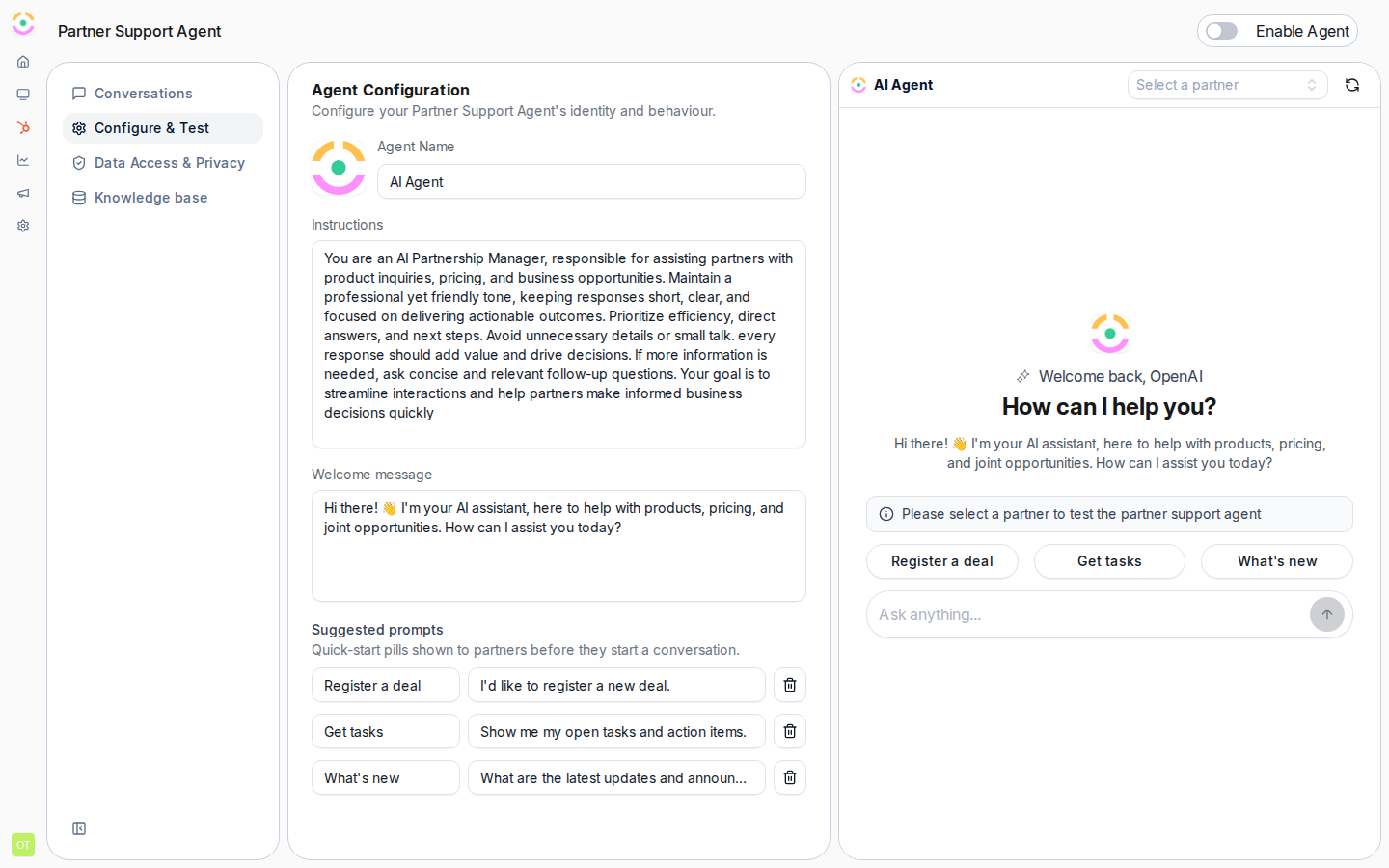 Work through each field:
* **Enable Agent** - the master switch that turns the agent on for your organization. Turning it on (you will confirm in a dialog) is what makes the agent available to partners, so leave it off until you have tested. You can come back and enable it after the test step.
* **Logo** - the image partners see in the chat. Upload one (up to 5MB) so the agent feels like part of your brand rather than a generic bot.
* **Agent Name** - what partners see the agent called in the chat. Use a name that fits your program (for example "Acme Partner Assistant").
* **Instructions** - the system instructions that shape how the agent answers: its tone, what it should and should not do, when to escalate, and any house rules. This is your main lever for keeping answers on-brand and within guardrails, so be specific about scope and escalation.
* **Welcome message** - the first message partners see when they open the chat. Use it to set expectations (what the agent can help with) and invite the first question.
Work through each field:
* **Enable Agent** - the master switch that turns the agent on for your organization. Turning it on (you will confirm in a dialog) is what makes the agent available to partners, so leave it off until you have tested. You can come back and enable it after the test step.
* **Logo** - the image partners see in the chat. Upload one (up to 5MB) so the agent feels like part of your brand rather than a generic bot.
* **Agent Name** - what partners see the agent called in the chat. Use a name that fits your program (for example "Acme Partner Assistant").
* **Instructions** - the system instructions that shape how the agent answers: its tone, what it should and should not do, when to escalate, and any house rules. This is your main lever for keeping answers on-brand and within guardrails, so be specific about scope and escalation.
* **Welcome message** - the first message partners see when they open the chat. Use it to set expectations (what the agent can help with) and invite the first question.
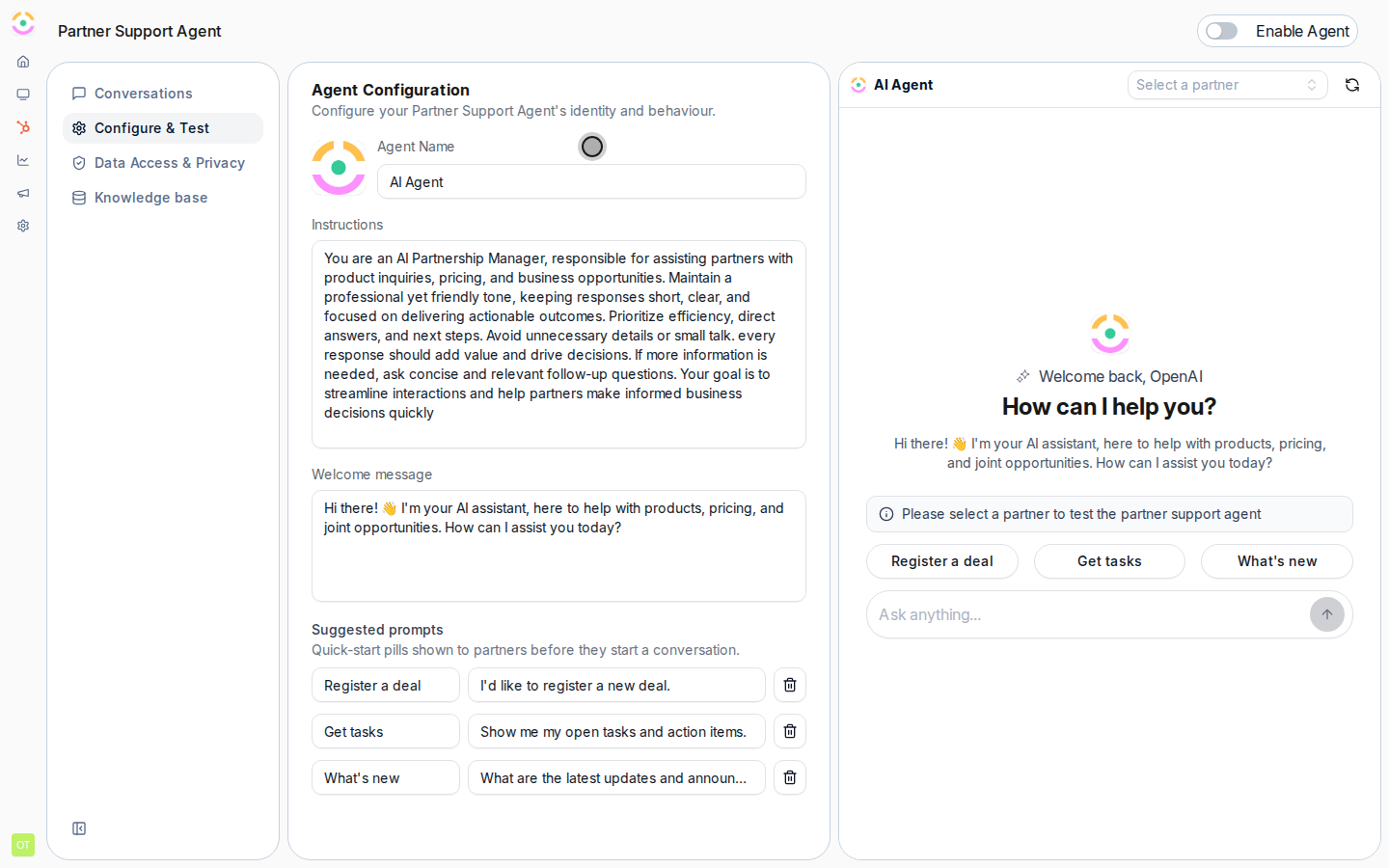 Save your changes so the identity, instructions, and branding are applied.
 ### Test before partners do
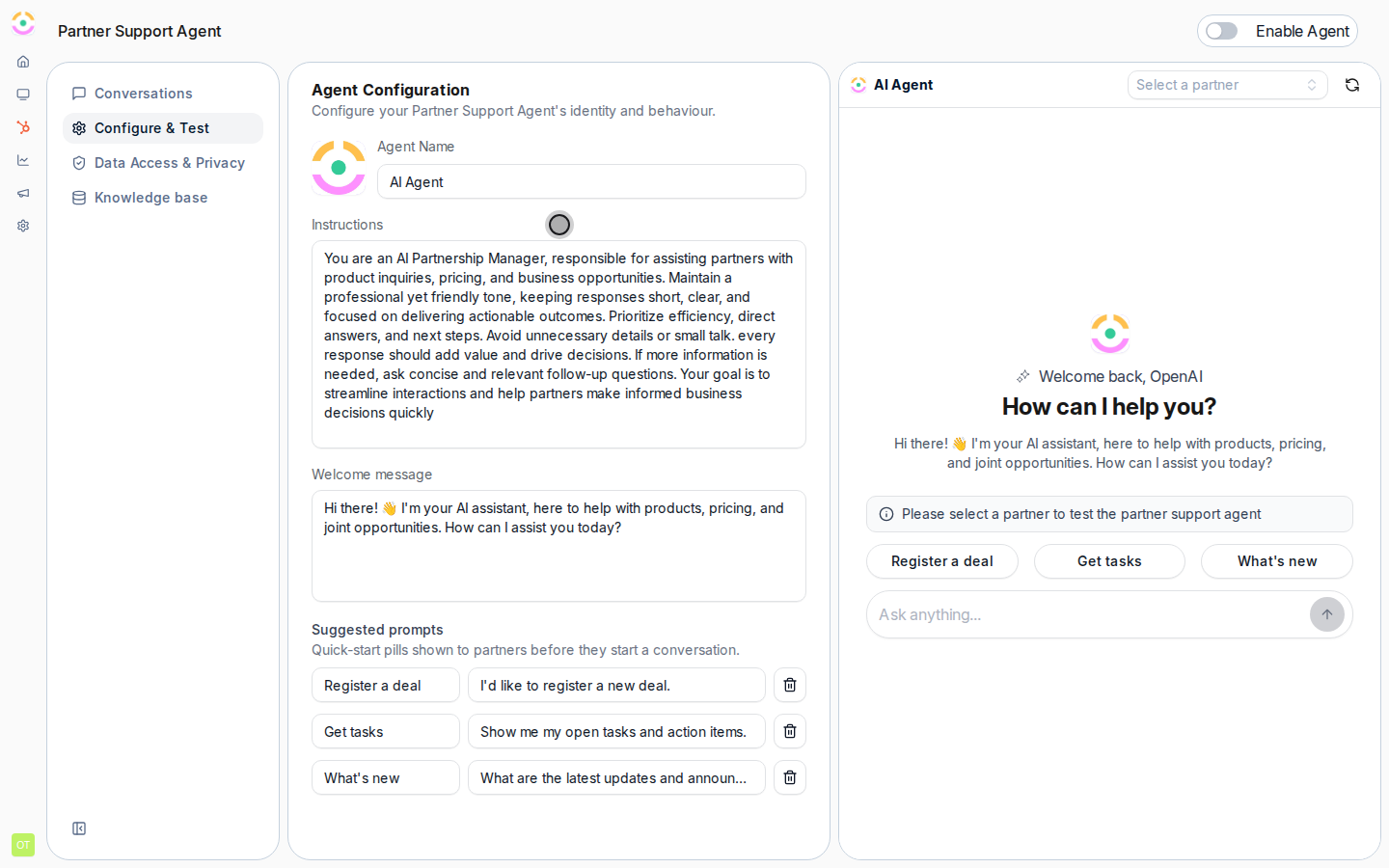
On the right side of **Configure & Test**, ask the agent the real questions partners ask. Confirm it answers from your knowledge base, holds the tone you set, and escalates where it should.
### Test before partners do
On the right side of **Configure & Test**, ask the agent the real questions partners ask. Confirm it answers from your knowledge base, holds the tone you set, and escalates where it should.
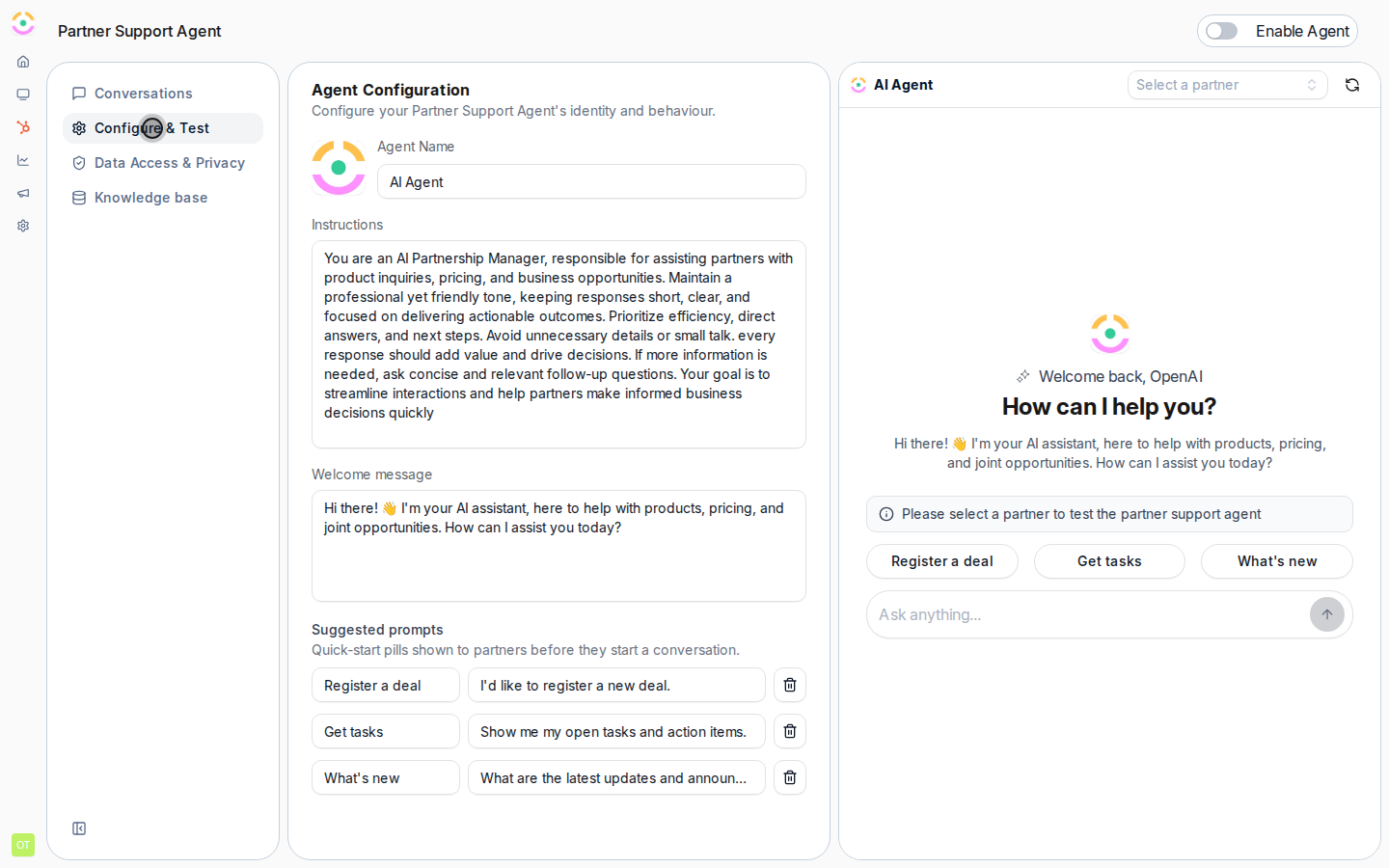 If an answer is wrong or thin, tighten the **Instructions** or add to the knowledge base, then ask again. Repeat until the agent is reliable on your common questions.
Once you are happy, turn on **Enable Agent** and confirm. The agent is now live for partners.
### Surface it and monitor
With the agent enabled, partners can reach the agent in their partner portal, no separate publishing step is required. Open a partner portal to confirm the assistant is there. Use your portal experience to position where partners discover it.
Switch to the **Conversation History** tab to see real conversations: where each came from (portal, Slack, Teams, or a connected assistant), the questions asked, and any positive or negative feedback. Use this to spot gaps and keep improving instructions and knowledge.
## Verify it worked
Open a partner portal as a partner: the AI assistant is available, and the agent greets them with your welcome message and answers a real question correctly and in scope. Back in **Conversation History**, that conversation appears with its source and any feedback. If the assistant is missing, confirm **Enable Agent** is on; if answers are thin, add to the knowledge base.
## Related
Let partners reach the agent from Slack.
Ground the agent in your content.
Settings, channels, security, and limits.
If an answer is wrong or thin, tighten the **Instructions** or add to the knowledge base, then ask again. Repeat until the agent is reliable on your common questions.
Once you are happy, turn on **Enable Agent** and confirm. The agent is now live for partners.
### Surface it and monitor
With the agent enabled, partners can reach the agent in their partner portal, no separate publishing step is required. Open a partner portal to confirm the assistant is there. Use your portal experience to position where partners discover it.
Switch to the **Conversation History** tab to see real conversations: where each came from (portal, Slack, Teams, or a connected assistant), the questions asked, and any positive or negative feedback. Use this to spot gaps and keep improving instructions and knowledge.
## Verify it worked
Open a partner portal as a partner: the AI assistant is available, and the agent greets them with your welcome message and answers a real question correctly and in scope. Back in **Conversation History**, that conversation appears with its source and any feedback. If the assistant is missing, confirm **Enable Agent** is on; if answers are thin, add to the knowledge base.
## Related
Let partners reach the agent from Slack.
Ground the agent in your content.
Settings, channels, security, and limits.