> ## Documentation Index
> Fetch the complete documentation index at: https://docs.introw.io/llms.txt
> Use this file to discover all available pages before exploring further.
# Connect an MCP server
> Give the partner support agent live tools by connecting your own MCP server, so it can fetch real-time data and take actions beyond your static knowledge base.
Websites, snippets, and documents teach the agent what you already know, but some questions need a live answer: an order status, a current entitlement, the latest record in your own system. Connecting an MCP server gives the agent tools it can call in the moment, so it fetches real-time data or takes an action instead of guessing from a static document. Reach for this when partners ask the agent things only your systems can answer right now.
## What you'll achieve
A partner support agent connected to your MCP server, with its tools tested and live. When a partner asks something the server can answer, the agent calls the right tool and responds with real-time data, on top of everything already in the knowledge base, and still scoped to what that partner is allowed to see.
## Before you start
Connecting your own MCP server requires the MCP connection module on your plan. If the **MCP Server** tab shows an upgrade prompt instead of a connection form, the module is not enabled.
You need the HTTPS endpoint of your MCP server and a bearer token it accepts for authentication. The server must be reachable over HTTPS with a valid certificate.
You need AI agent write access to add or remove a connection.
## Watch it
## Steps
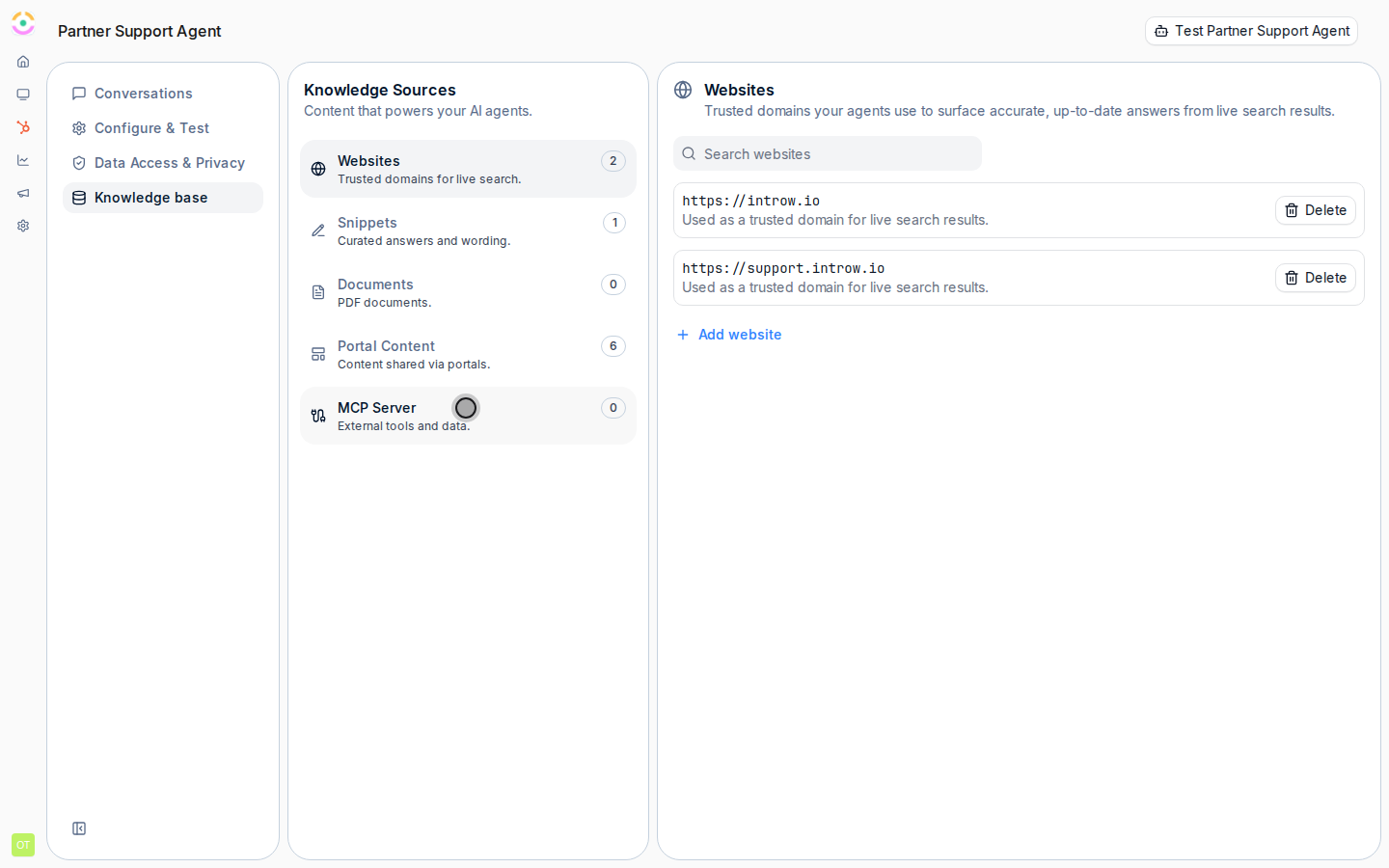
Go to [Knowledge base](https://app.introw.io/ai-agents/knowledge) and switch to the **MCP Server** tab. This is where you connect external tools to the agent. If the tab shows an upgrade prompt, the MCP connection module is not on your plan and you cannot connect a server yet.
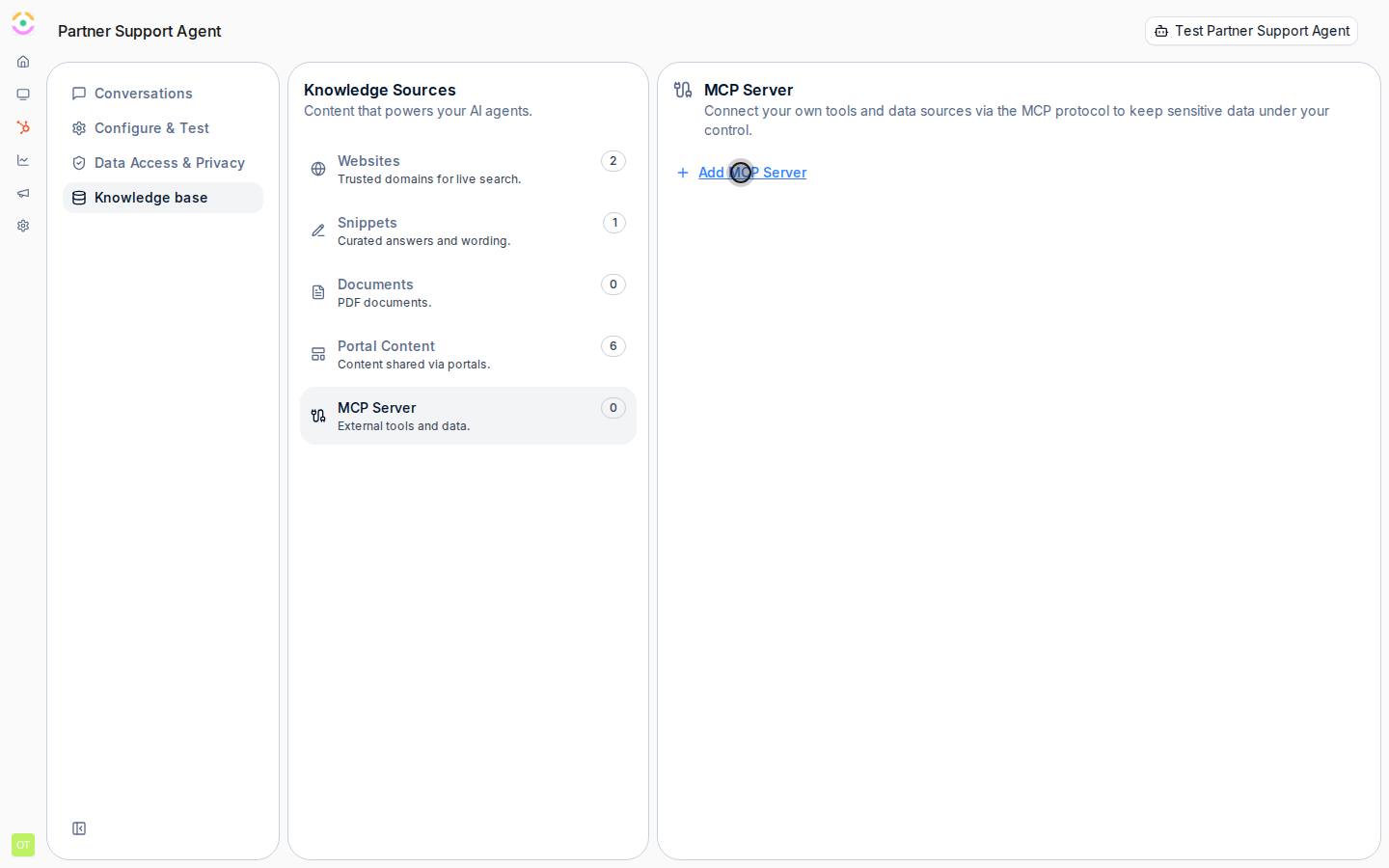
 Select **Add MCP Server** to open the connection dialog. At the top, the authentication method is a choice between **Bearer Token** and **OAuth**:
* **Bearer Token** is the available method, use it. You authenticate the agent to your server with a token your server issues.
* **OAuth** is shown but listed as coming soon, so you cannot complete an OAuth connection today; stay on **Bearer Token**.
Select **Add MCP Server** to open the connection dialog. At the top, the authentication method is a choice between **Bearer Token** and **OAuth**:
* **Bearer Token** is the available method, use it. You authenticate the agent to your server with a token your server issues.
* **OAuth** is shown but listed as coming soon, so you cannot complete an OAuth connection today; stay on **Bearer Token**.
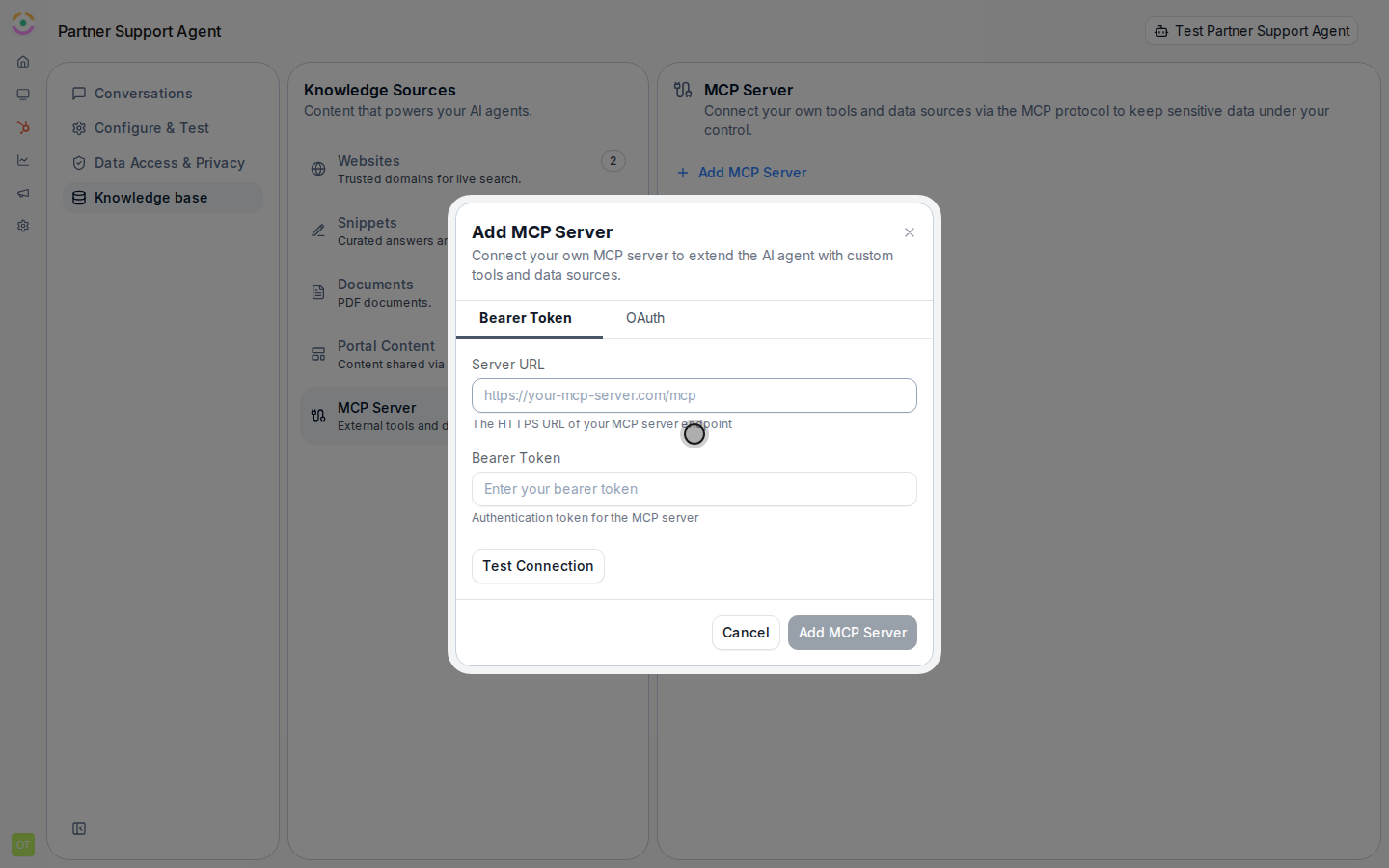
 On the **Bearer Token** tab, fill in both fields:
* **Server URL** - the HTTPS endpoint of your MCP server (for example `https://your-mcp-server.com/mcp`). This is where the agent sends tool calls, so it must be the live, reachable endpoint over HTTPS.
* **Bearer Token** - the authentication token your server accepts. It is sent with every call so your server can verify the request is from Introw and authorize it. Treat it like a secret; it is masked as you type.
On the **Bearer Token** tab, fill in both fields:
* **Server URL** - the HTTPS endpoint of your MCP server (for example `https://your-mcp-server.com/mcp`). This is where the agent sends tool calls, so it must be the live, reachable endpoint over HTTPS.
* **Bearer Token** - the authentication token your server accepts. It is sent with every call so your server can verify the request is from Introw and authorize it. Treat it like a secret; it is masked as you type.
 Select **Test Connection**. Introw connects to the server and lists the tools it exposes. A successful test shows how many tools are available, and **Show available tools** lets you confirm the agent is seeing the right ones. If it fails, the error tells you what to fix (an unreachable URL, a rejected token, or an endpoint that is not a valid MCP server). You must pass this test before you can save, the **Add MCP Server** button stays disabled until the connection succeeds.
Once the test passes, select **Add MCP Server**. The connection is saved and its tools become available to the agent. The connected server now appears in the list on the **MCP Server** tab with its URL and the date it was connected; use **Delete** there to disconnect it, after which the agent loses access to its tools.
## Verify it worked
The connected server shows in the list on the **MCP Server** tab with its URL and connection date. Then open the agent's test panel on **Configure & Test** and ask a question that needs a live answer the server provides, the agent should call the tool and respond with real-time data rather than a static or "I don't know" answer.
## Related
Add websites, snippets, and documents as the agent's static sources.
Turn on and test the agent that uses these tools.
Source types, portal content, the MCP module gate, and limits.
Select **Test Connection**. Introw connects to the server and lists the tools it exposes. A successful test shows how many tools are available, and **Show available tools** lets you confirm the agent is seeing the right ones. If it fails, the error tells you what to fix (an unreachable URL, a rejected token, or an endpoint that is not a valid MCP server). You must pass this test before you can save, the **Add MCP Server** button stays disabled until the connection succeeds.
Once the test passes, select **Add MCP Server**. The connection is saved and its tools become available to the agent. The connected server now appears in the list on the **MCP Server** tab with its URL and the date it was connected; use **Delete** there to disconnect it, after which the agent loses access to its tools.
## Verify it worked
The connected server shows in the list on the **MCP Server** tab with its URL and connection date. Then open the agent's test panel on **Configure & Test** and ask a question that needs a live answer the server provides, the agent should call the tool and respond with real-time data rather than a static or "I don't know" answer.
## Related
Add websites, snippets, and documents as the agent's static sources.
Turn on and test the agent that uses these tools.
Source types, portal content, the MCP module gate, and limits.