> ## Documentation Index
> Fetch the complete documentation index at: https://docs.introw.io/llms.txt
> Use this file to discover all available pages before exploring further.
# Create a vanity link alias
> Give a partner a cleaner, branded referral link with a custom alias that still tracks and attributes conversions.
{/* A partner's default referral link is a random code; a vanity alias replaces it with something
readable and on-brand (for example, their name) while keeping all tracking and attribution
intact. Reach for this when a partner wants a cleaner link for a newsletter, bio, or social post,
or when you want links to look trustworthy to their audience. A link is more likely to be clicked
when it looks legitimate. */}
## What you'll achieve
A partner referral link that resolves through a clean, custom alias you choose, sharing the same destination and the same tracking as the default link, so clicks and conversions still attribute to that partner. A single link can carry both its default code and one or more aliases.
## Before you start
Aliases attach to an existing referral link, so the partner must already be enrolled with a generated link. See [Launch an affiliate campaign](/features/affiliate/campaigns/guides/launch-an-affiliate-campaign).
Decide the alias text (for example, the partner's name). It is normalized to a safe URL slug, and each alias must be unique within the campaign, so have a fallback in mind if your first choice is taken.
## Watch it
## Steps
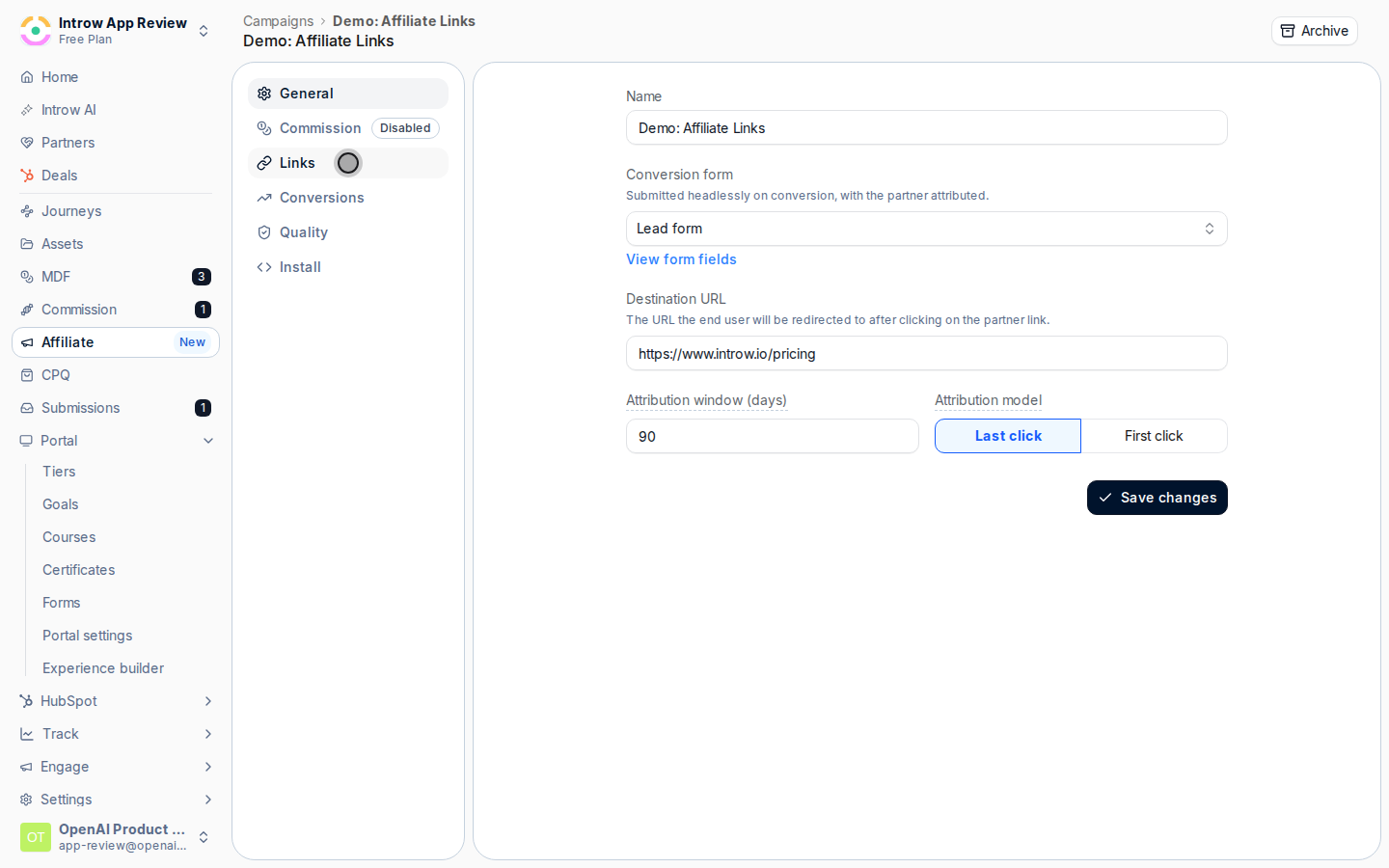
Go to [Affiliate campaigns](https://app.introw.io/campaigns), open the campaign, and select the **Links** tab. This lists one tracked link per enrolled partner.
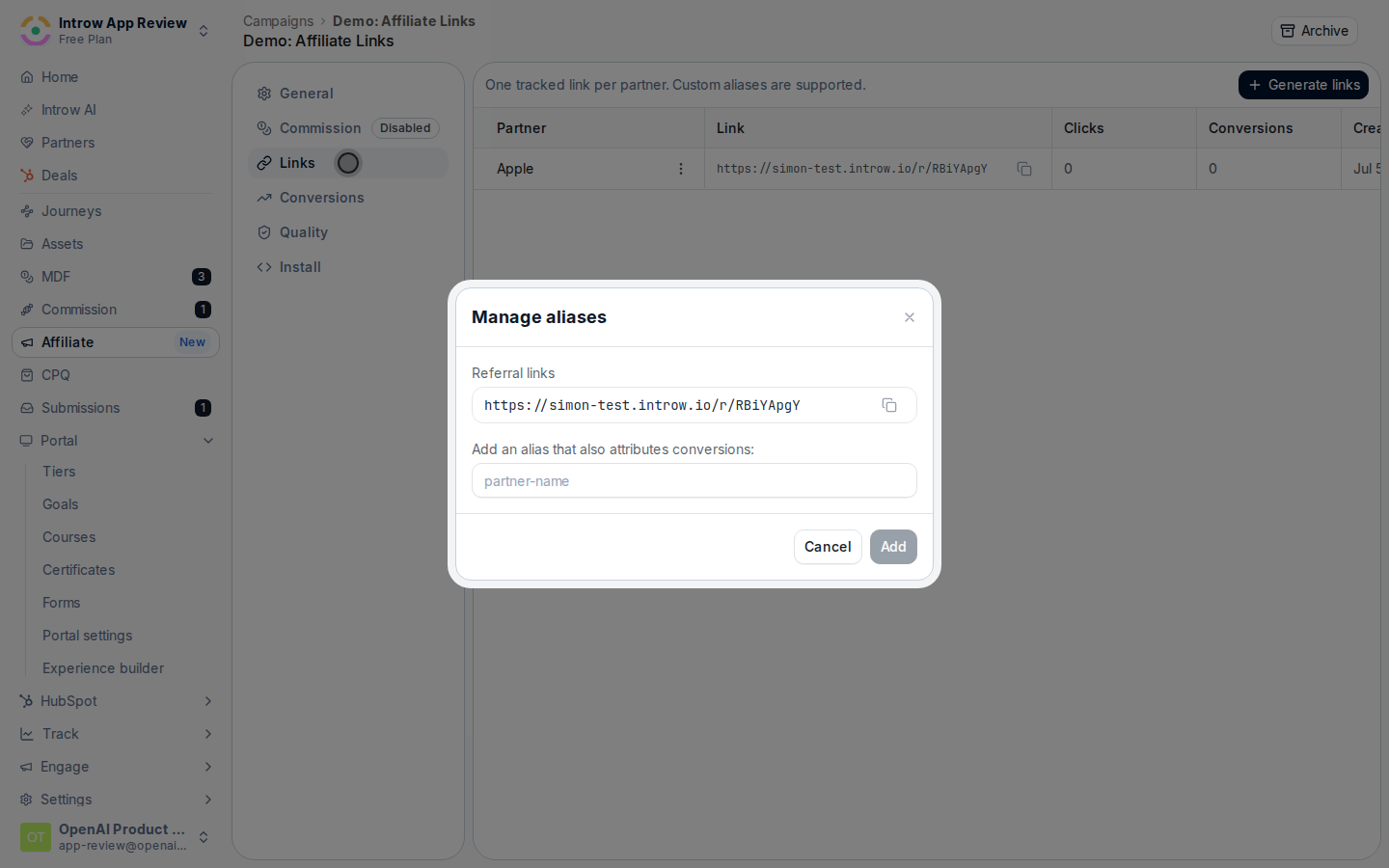
 Find the partner whose link you want to brand, open the row's actions menu, and select **Manage aliases**. The **Manage aliases** dialog shows the partner's **Referral links**: the default link plus any aliases already in place, each with a copy button.
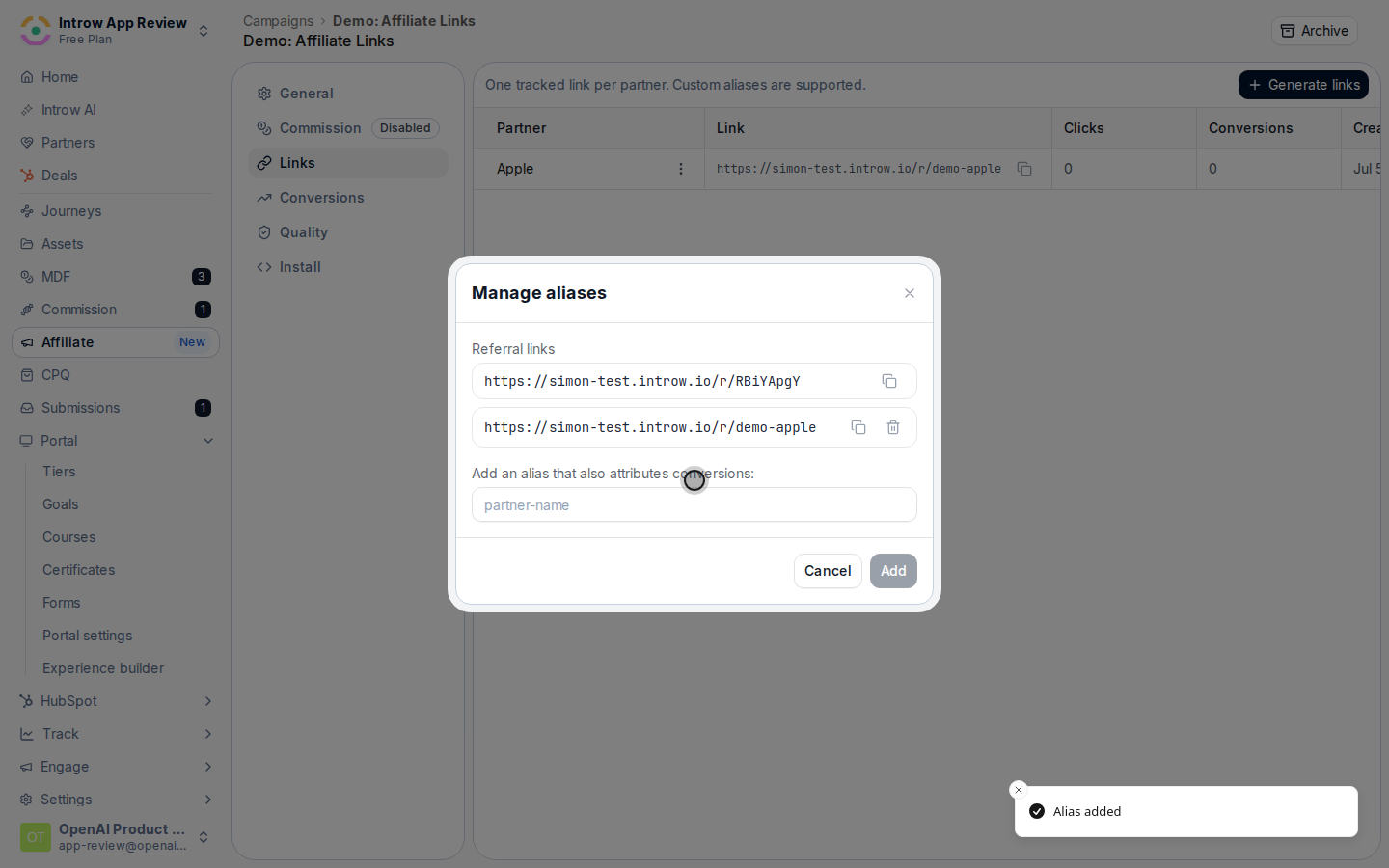
 In **Add an alias that also attributes conversions**, type the custom text for the link (for example, `partner-name`) and select **Add**. The alias is normalized to a clean slug and must be unique on the campaign; if it is already taken, reserved, or invalid, the dialog explains why so you can pick another. The new alias appears in the **Referral links** list with its own copy button.
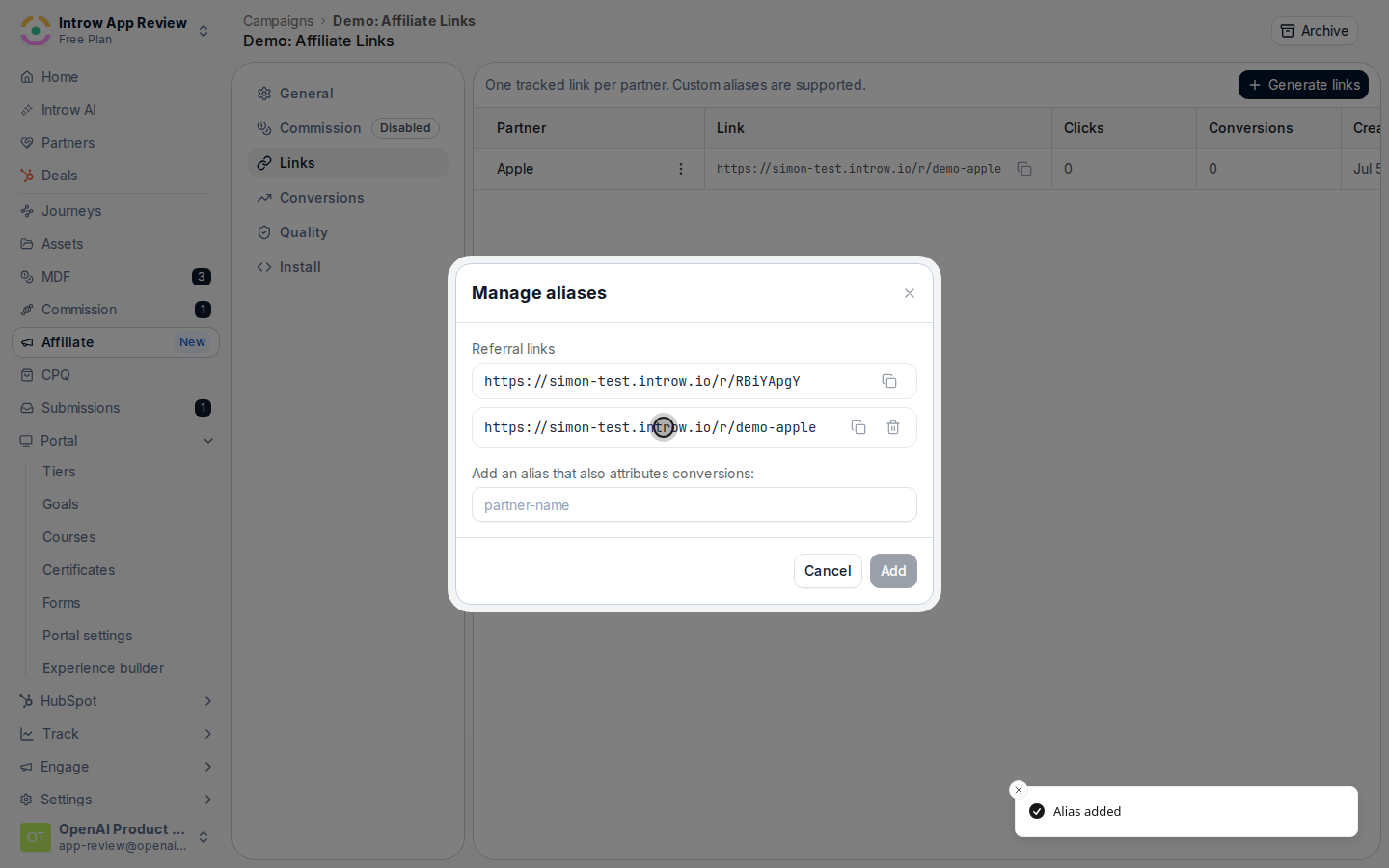
 Copy the aliased link from the list and give it to the partner. It redirects to the same destination as the default link and records clicks and conversions against the same partner. Partners can also add their own alias from the campaign section in their portal, if you have surfaced it.
 ## Verify it worked
The new alias is listed under **Referral links** for that partner, and opening the aliased URL lands on the campaign destination with tracking intact, so a conversion through it attributes to the same partner. Both the default code and the alias keep working.
## Related
Create the campaign and generate links first.
Manage the link's lifecycle.
Full configuration options.
## Verify it worked
The new alias is listed under **Referral links** for that partner, and opening the aliased URL lands on the campaign destination with tracking intact, so a conversion through it attributes to the same partner. Both the default code and the alias keep working.
## Related
Create the campaign and generate links first.
Manage the link's lifecycle.
Full configuration options.