> ## Documentation Index
> Fetch the complete documentation index at: https://docs.introw.io/llms.txt
> Use this file to discover all available pages before exploring further.
# Track HubSpot form conversions
> Attribute affiliate conversions automatically when a tracked visitor submits a HubSpot form.
{/* Many referral conversions are simply a HubSpot form submission. Reach for this method when your
conversion is a HubSpot form and you would rather not write any code: with the tracking snippet
in place, a submission from a tracked visitor is attributed automatically. No embed-code
changes, and it works for both classic and v4 HubSpot forms. */}
## What you'll achieve
A campaign that records a conversion automatically whenever a visitor who arrived from a partner's link submits a HubSpot form, attributing it to that partner with no code and no per-form configuration.
## Before you start
HubSpot tracking is driven by the same snippet as every other method. Install it in the `` of the page that hosts the HubSpot form. See [Set up affiliate conversion tracking](./set-up-affiliate-conversion-tracking).
The site hosting the form must be listed under **Allowed origins** on the campaign's **Install** tab (or allowed origins left empty). Submissions from other origins are rejected.
## Watch it
## Steps
Go to [Affiliate campaigns](https://app.introw.io/campaigns), open your campaign, and select the **Install** tab.
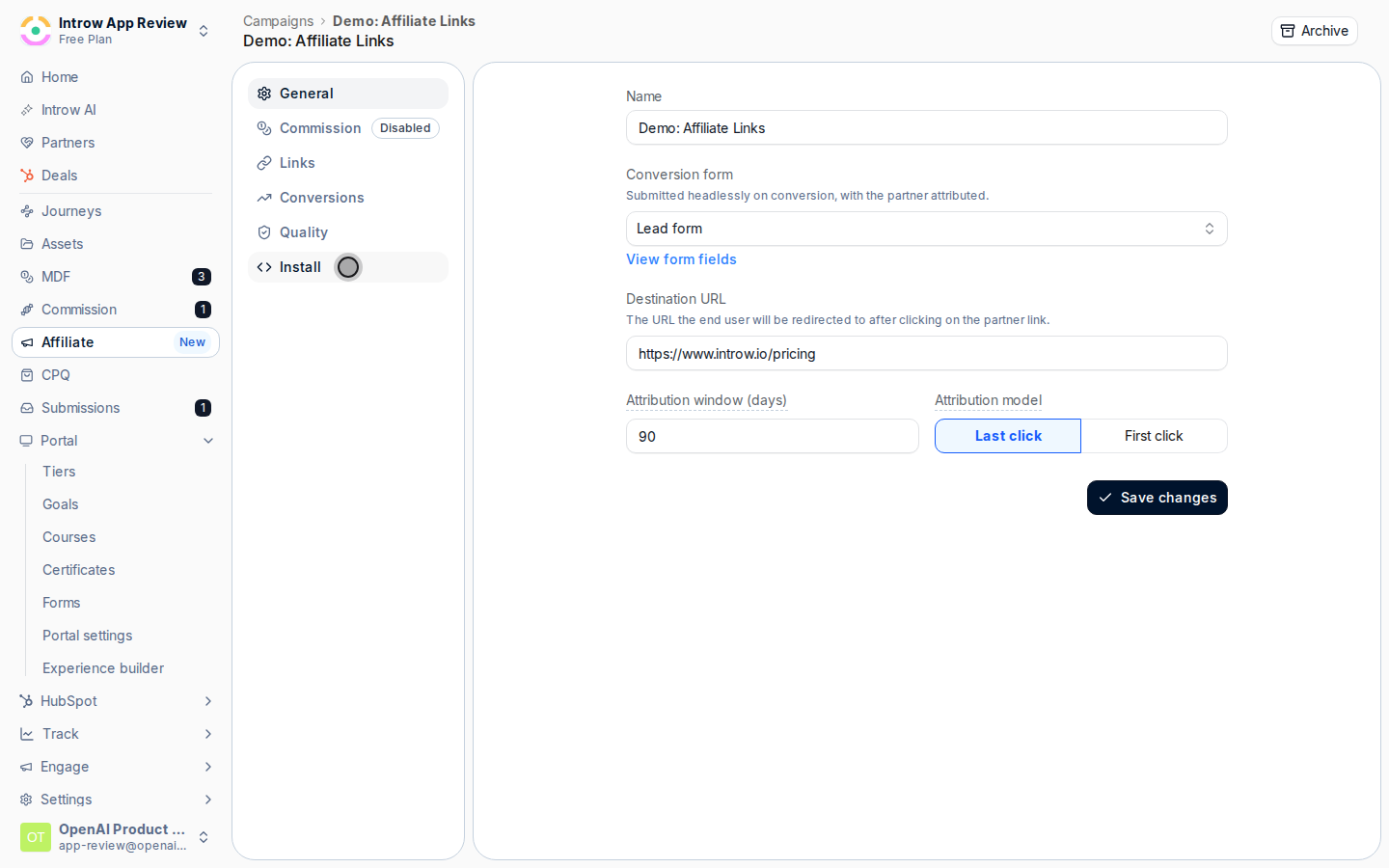 Make sure the tracking snippet is in the `` of the page where the HubSpot form is embedded. The install status pill reads **Installed** when Introw detects it on your destination URL. The snippet both tracks the click and listens for HubSpot form submissions, so no embed-code changes are needed.
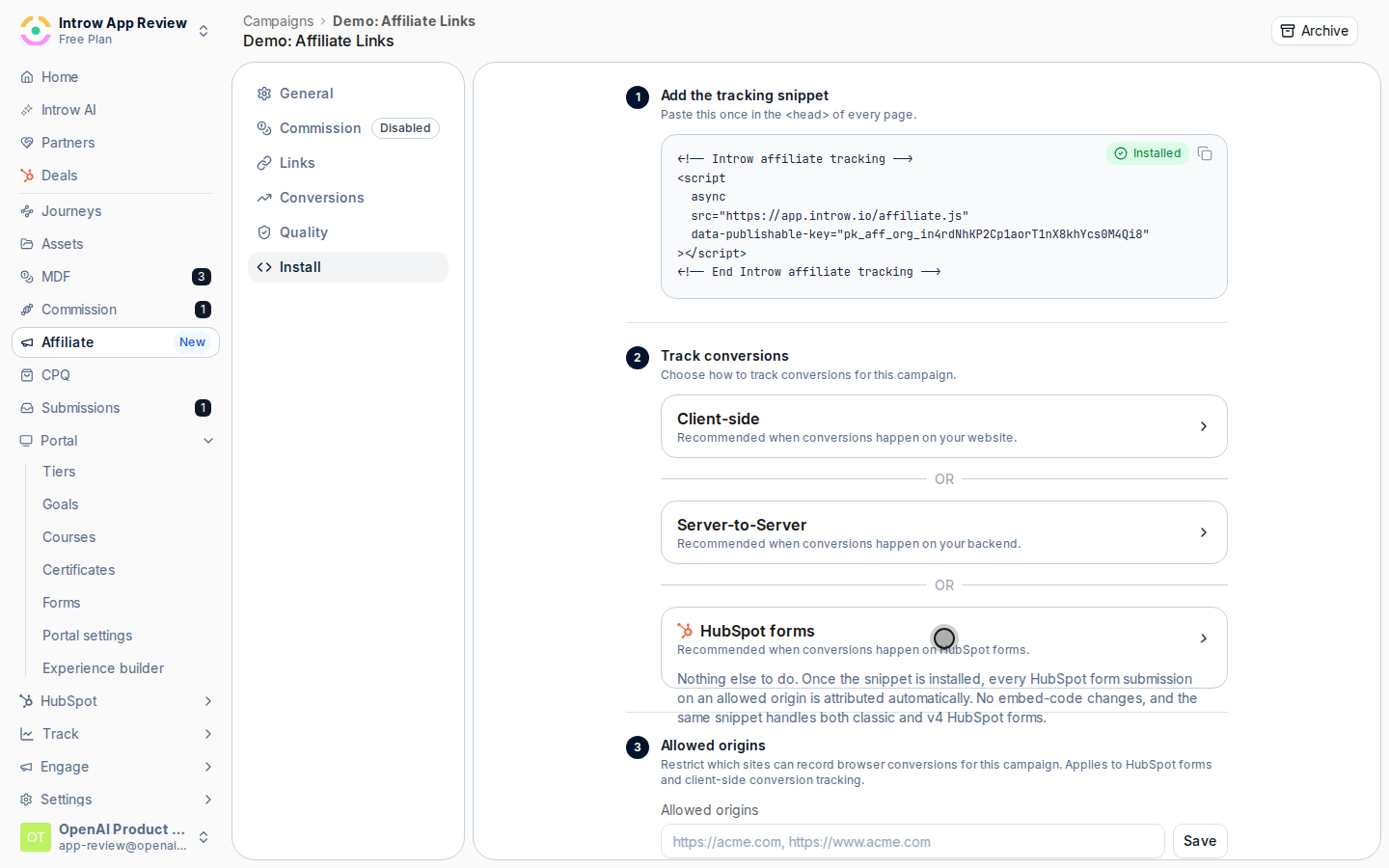
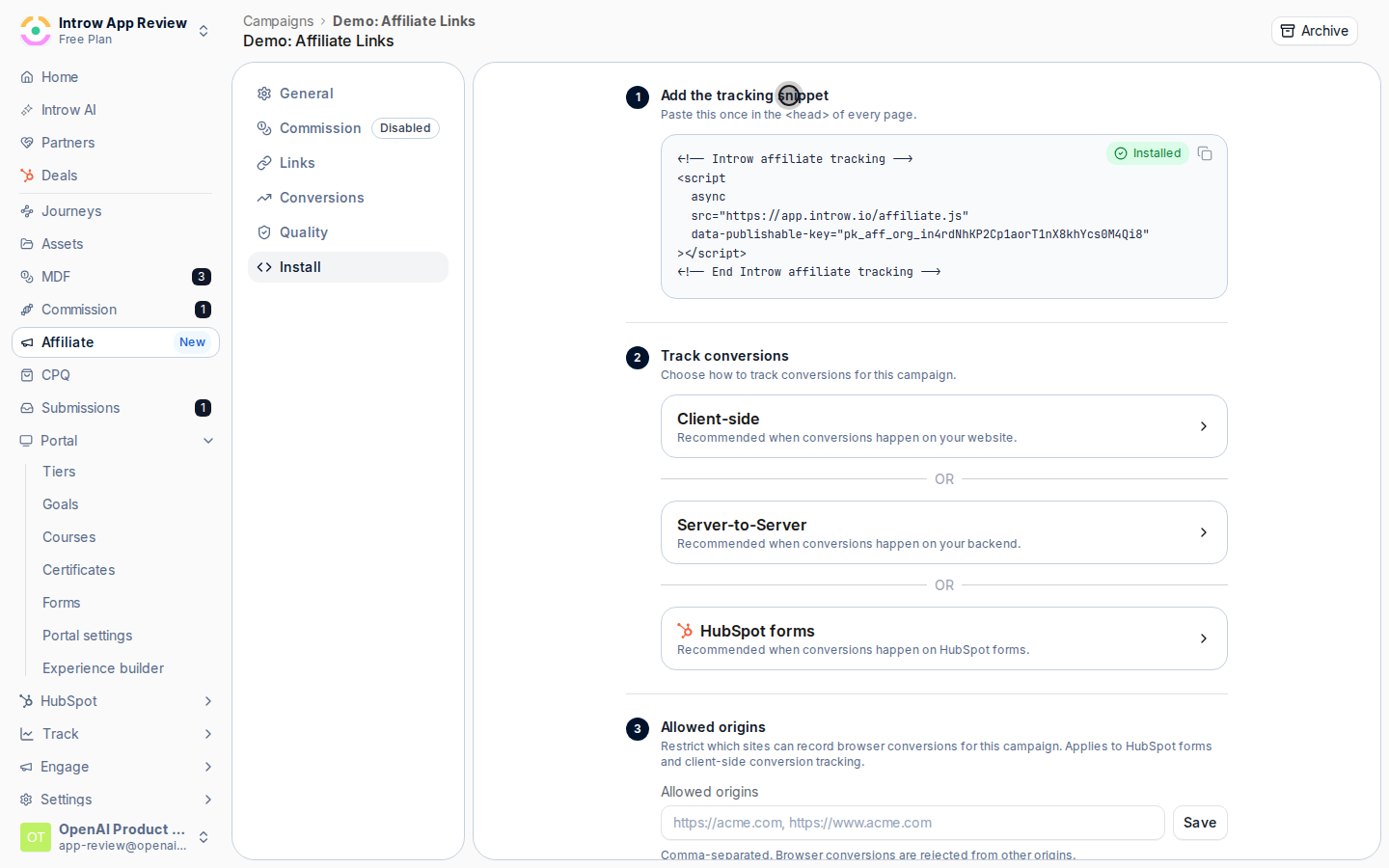 Under **Track conversions**, expand **HubSpot forms**. There is nothing else to set up: once the snippet is installed, every HubSpot form submission on an allowed origin is attributed automatically. The same snippet handles both classic and v4 HubSpot forms.
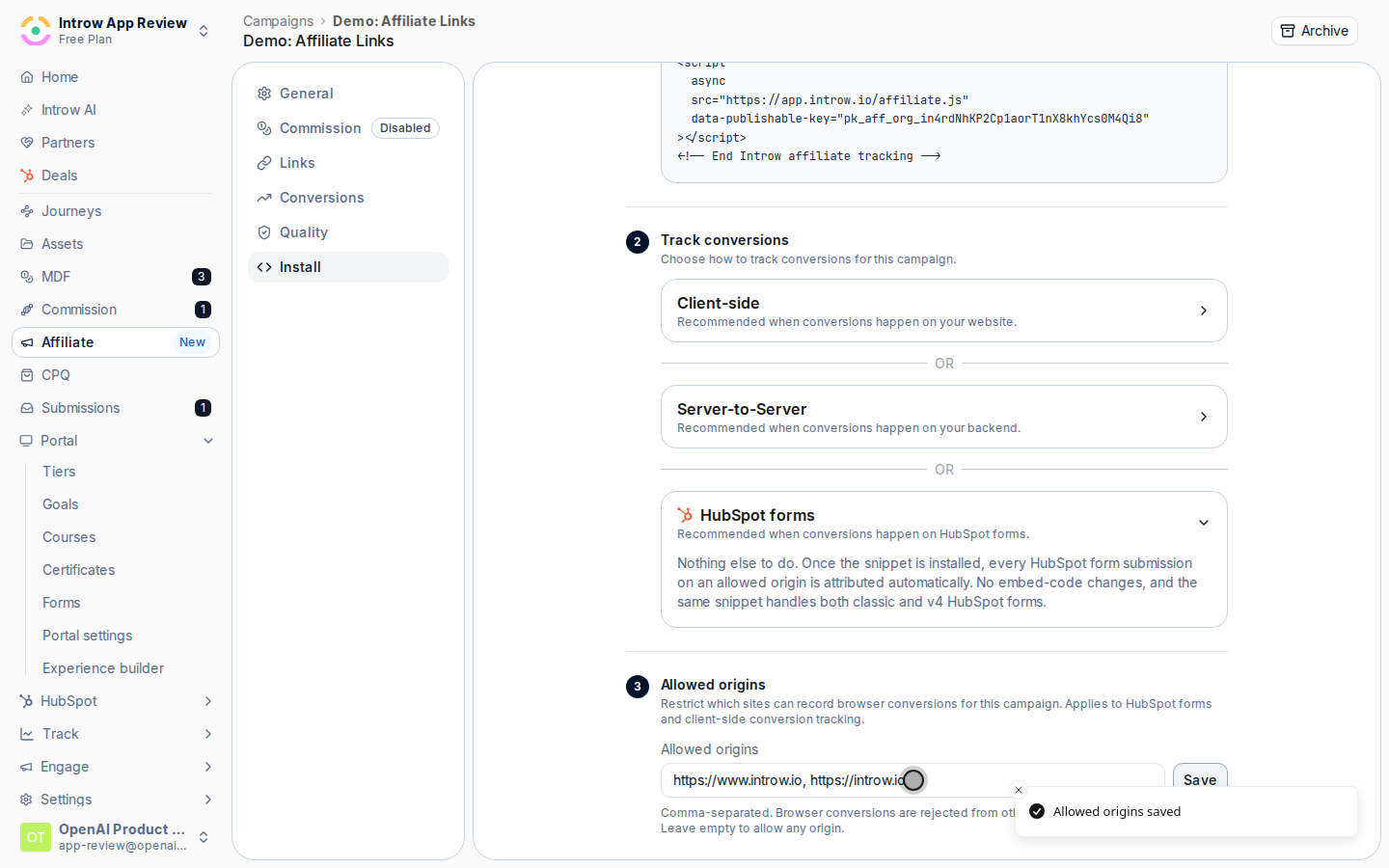
 Under **Allowed origins**, confirm the site hosting the form is listed (comma-separated), so its submissions are accepted. Leave the field empty only if you intend to allow any origin. Select **Save**.
 Click a partner's referral link to set the click cookie, navigate to the page with the HubSpot form, and submit it. The submission must happen inside the campaign's attribution window after the tracked click for it to attribute.
 ## Verify it worked
The test submission appears on the campaign's **Conversions** tab attributed to the partner whose link you clicked, with the email from the form. From then on, real HubSpot form submissions from referred visitors record the same way with no further work.
## Related
Install the snippet and verify conversions.
Use server-to-server tracking instead.
Full configuration options.
## Verify it worked
The test submission appears on the campaign's **Conversions** tab attributed to the partner whose link you clicked, with the email from the form. From then on, real HubSpot form submissions from referred visitors record the same way with no further work.
## Related
Install the snippet and verify conversions.
Use server-to-server tracking instead.
Full configuration options.