> ## Documentation Index
> Fetch the complete documentation index at: https://docs.introw.io/llms.txt
> Use this file to discover all available pages before exploring further.
# Set up affiliate conversion tracking
> Install the tracking snippet, restrict allowed origins, verify a test conversion, and review conversions in Introw.
{/* Conversion tracking is what turns partner clicks into attributed, rewardable conversions.
Reach for this right after you create a campaign and enroll partners: install the snippet once,
lock down which sites can submit conversions, drive a test, then read the results. Done well it
means every genuine conversion lands against the right partner with no manual reconciliation. */}
## What you'll achieve
Affiliate tracking installed on your destination site, browser conversions restricted to your own origins, a verified test conversion attributed to the correct partner, and a clear view of conversions as they arrive with their partner, value, and status. This is the baseline every affiliate campaign needs before partners start driving traffic.
## Before you start
Conversions attribute to a partner's tracked link, so the campaign must already exist with partners enrolled (links generated).
You need to add a small script to the `` of your destination site, or to your tag manager.
## Watch it
## Steps
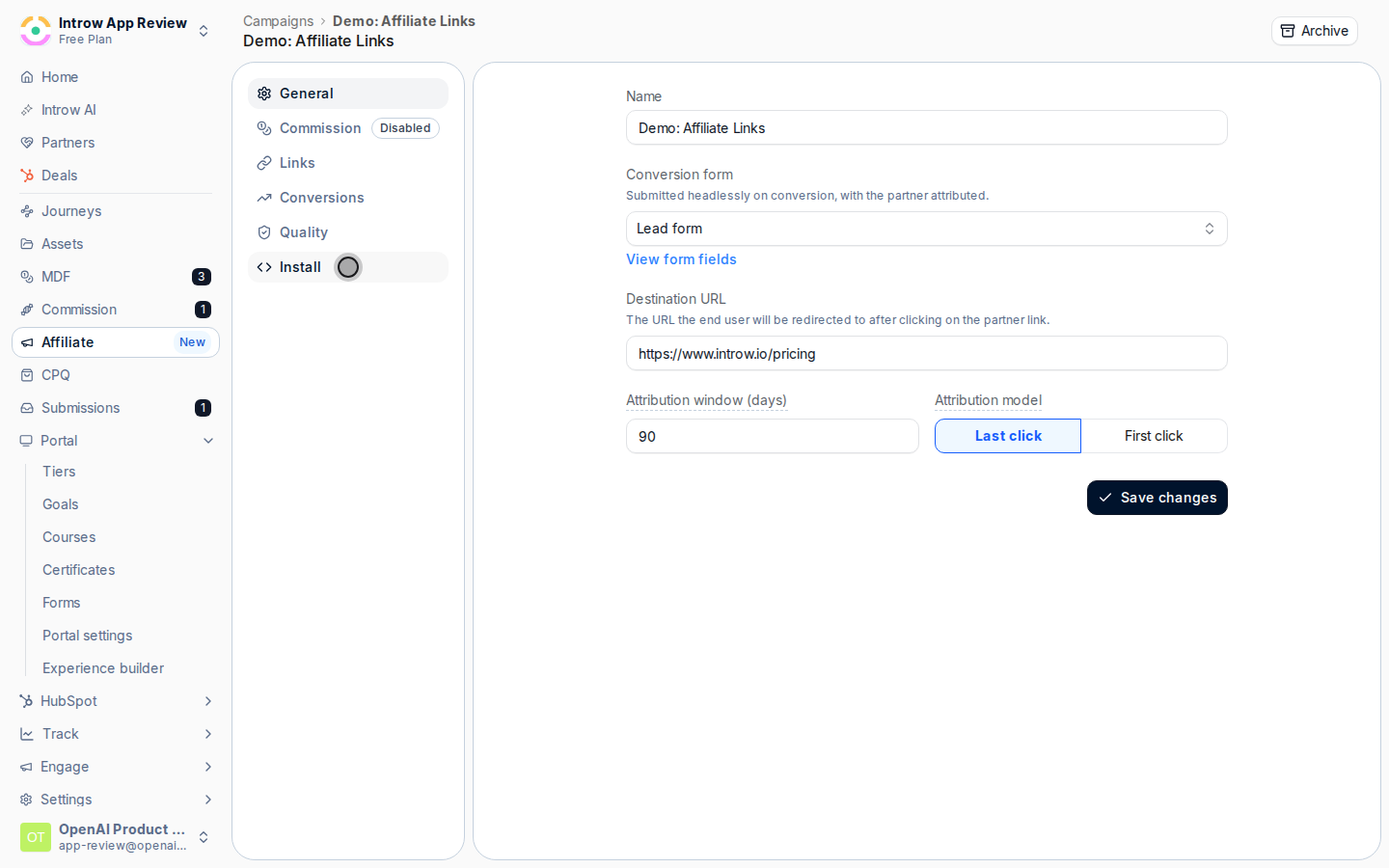
Go to [Affiliate campaigns](https://app.introw.io/campaigns), open your campaign, and select the **Install** tab. Everything needed to record conversions lives here: the snippet, the tracking methods, and the allowed origins.
 Under **Add the tracking snippet**, copy the snippet and paste it once into the `` of every page on your destination site. One snippet covers every campaign in your organization, because the visitor's click cookie, not the snippet, decides which campaign and partner a conversion belongs to. It carries your organization's publishable key:
```html theme={"theme":{"light":"github-light","dark":"github-dark"}}
```
After you deploy, the status pill on this step shows **Installed** when Introw detects the snippet on your destination URL. If it shows **Not installed** or **Couldn't verify**, confirm the snippet is in the page `` and the destination URL is correct in the **General** tab, then select **Re-check**.
Under **Add the tracking snippet**, copy the snippet and paste it once into the `` of every page on your destination site. One snippet covers every campaign in your organization, because the visitor's click cookie, not the snippet, decides which campaign and partner a conversion belongs to. It carries your organization's publishable key:
```html theme={"theme":{"light":"github-light","dark":"github-dark"}}
```
After you deploy, the status pill on this step shows **Installed** when Introw detects the snippet on your destination URL. If it shows **Not installed** or **Couldn't verify**, confirm the snippet is in the page `` and the destination URL is correct in the **General** tab, then select **Re-check**.
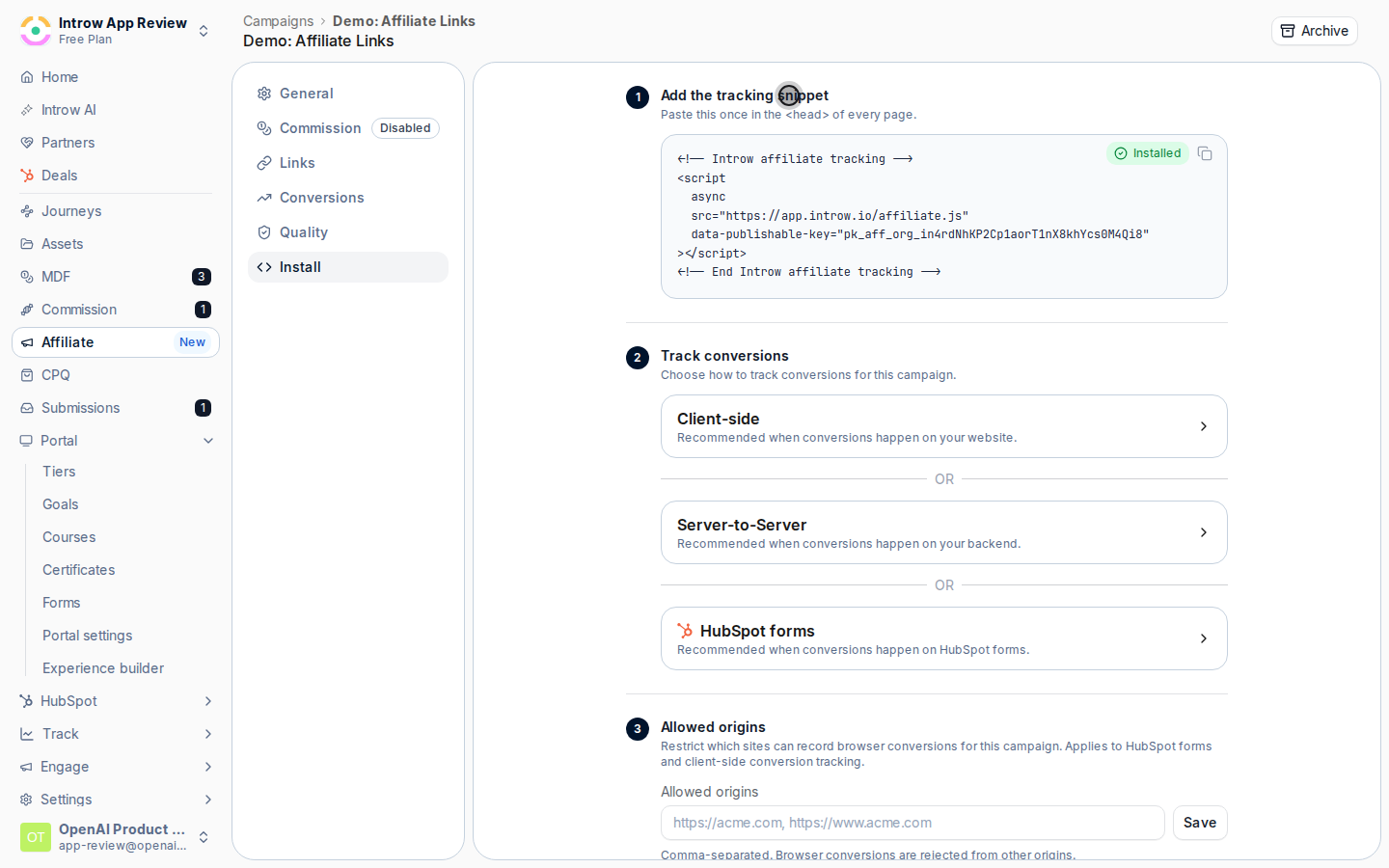 Under **Track conversions**, expand the method that matches where your conversion happens. The snippet enables all three; you only act on the one you need:
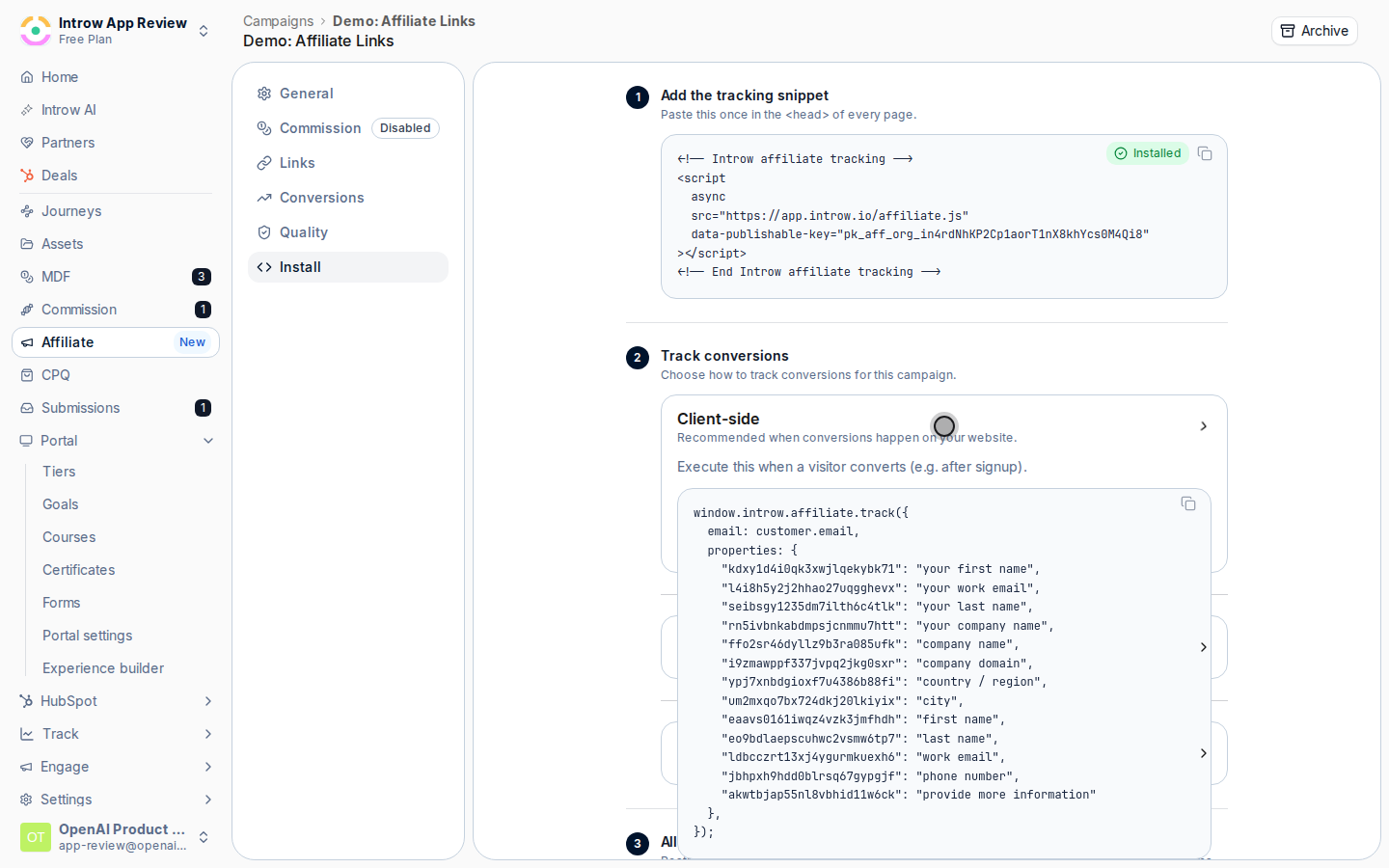
* **Client-side** - recommended when the conversion happens on your own website. Call the browser tracking function the snippet exposes at the moment a visitor converts (for example, right after signup), passing the converter's email. The org key in the snippet is used automatically.
* **Server-to-Server** - recommended when the conversion happens on your backend. Post to the conversions API with a secret API key that has the **affiliate:write** scope. This is the most reliable method because it does not depend on the browser. See [Record conversions via the API](./record-conversions-via-the-api) for the full request.
* **HubSpot forms** - recommended when the conversion is a HubSpot form submission. There is nothing else to configure: once the snippet is installed, every HubSpot form submission on an allowed origin is attributed automatically. See [Track HubSpot form conversions](./track-hubspot-form-conversions) for details.
Under **Track conversions**, expand the method that matches where your conversion happens. The snippet enables all three; you only act on the one you need:
* **Client-side** - recommended when the conversion happens on your own website. Call the browser tracking function the snippet exposes at the moment a visitor converts (for example, right after signup), passing the converter's email. The org key in the snippet is used automatically.
* **Server-to-Server** - recommended when the conversion happens on your backend. Post to the conversions API with a secret API key that has the **affiliate:write** scope. This is the most reliable method because it does not depend on the browser. See [Record conversions via the API](./record-conversions-via-the-api) for the full request.
* **HubSpot forms** - recommended when the conversion is a HubSpot form submission. There is nothing else to configure: once the snippet is installed, every HubSpot form submission on an allowed origin is attributed automatically. See [Track HubSpot form conversions](./track-hubspot-form-conversions) for details.
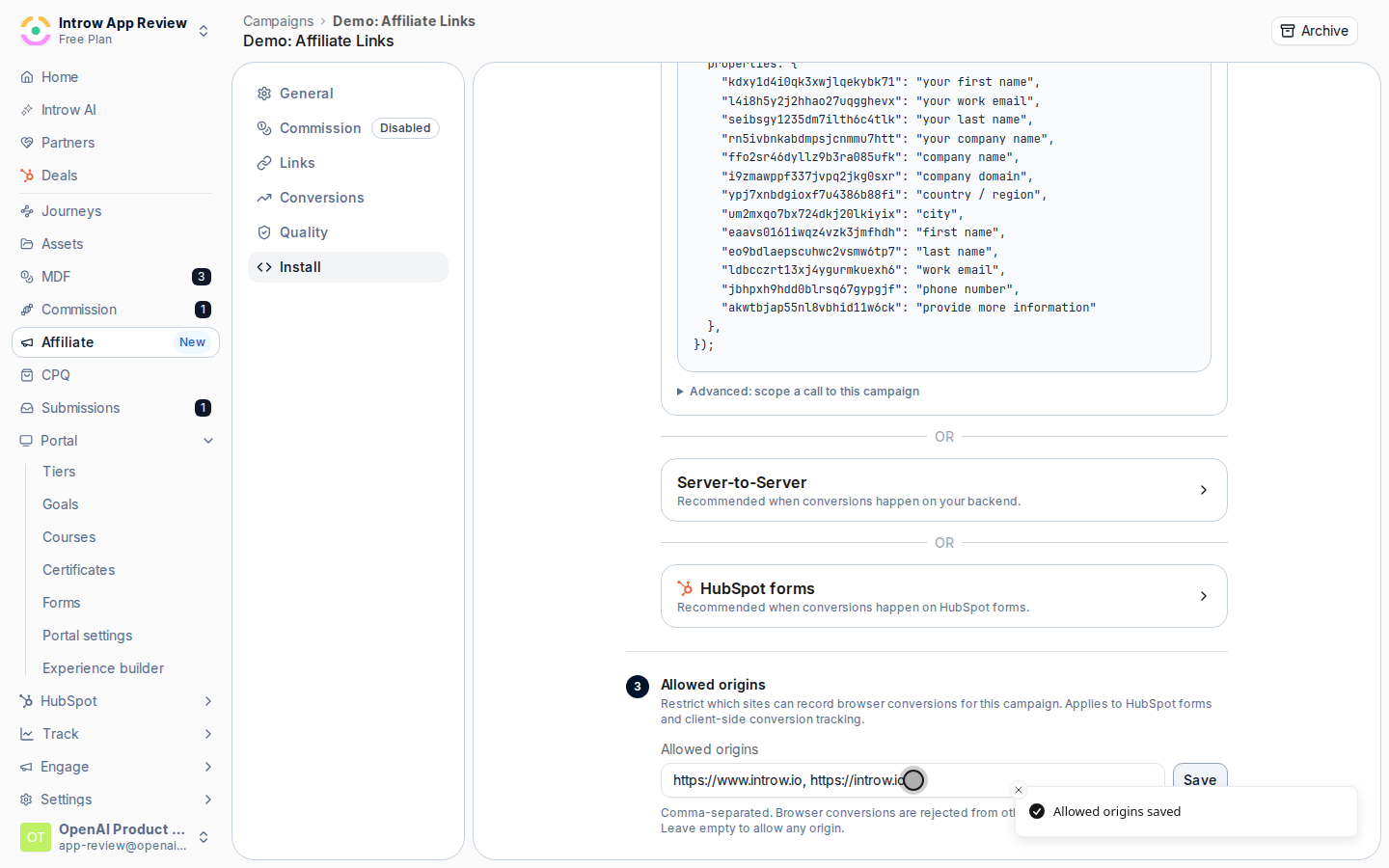
 Under **Allowed origins**, enter the sites permitted to record browser conversions for this campaign, comma-separated (for example, `https://acme.com, https://www.acme.com`). This guards against spoofed conversions and applies to both HubSpot forms and client-side tracking. Browser conversions from any other origin are rejected. Leaving it empty allows any origin, so setting it is strongly recommended. Select **Save**.
 Click a partner's referral link to land on the destination (this sets the click cookie), then complete the conversion action you are tracking. A conversion only attributes if it falls inside the campaign's attribution window after a tracked click, so do the test in one sitting.
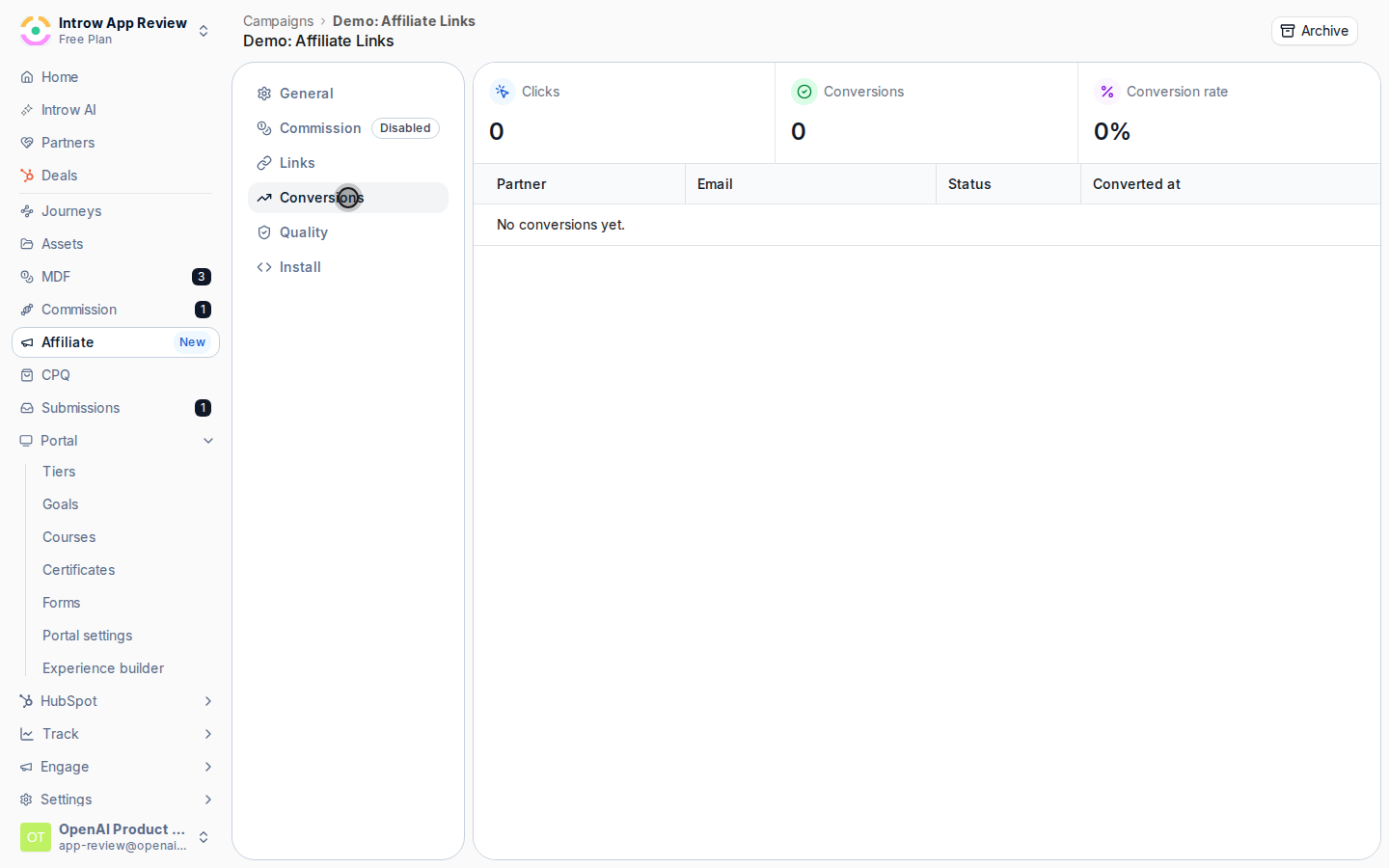 Open the **Conversions** tab. The cards at the top show **Clicks**, **Conversions**, **Conversion rate**, and **Commission** (when commission is configured). The table below lists each conversion with its **Partner**, **Email**, **Status** (Submitted, Pending, or Failed), and **Converted at** time. Confirm your test appears against the right partner. Check this tab regularly to confirm attribution is working and rewards are accruing to the correct partners.
## Verify it worked
Your test conversion shows on the **Conversions** tab attributed to the partner whose link you clicked, with a status of Submitted, and the **Conversions** card increments. The install status pill reads **Installed**. From here, real partner traffic records and attributes the same way, with no manual reconciliation.
## Related
Track conversions server to server.
Capture conversions from HubSpot forms.
Filter out abuse before it accrues commission.
Full configuration options.
Open the **Conversions** tab. The cards at the top show **Clicks**, **Conversions**, **Conversion rate**, and **Commission** (when commission is configured). The table below lists each conversion with its **Partner**, **Email**, **Status** (Submitted, Pending, or Failed), and **Converted at** time. Confirm your test appears against the right partner. Check this tab regularly to confirm attribution is working and rewards are accruing to the correct partners.
## Verify it worked
Your test conversion shows on the **Conversions** tab attributed to the partner whose link you clicked, with a status of Submitted, and the **Conversions** card increments. The install status pill reads **Installed**. From here, real partner traffic records and attributes the same way, with no manual reconciliation.
## Related
Track conversions server to server.
Capture conversions from HubSpot forms.
Filter out abuse before it accrues commission.
Full configuration options.