> ## Documentation Index
> Fetch the complete documentation index at: https://docs.introw.io/llms.txt
> Use this file to discover all available pages before exploring further.
# Set up partner team roles
> Define the roles people hold on a partner, sync them to your CRM as a single owner or a multi-member field, and assign people one at a time or in bulk.
Partner team roles describe who does what on a partner, such as a manager or a technical contact. This guide takes the job end to end: you define the roles, optionally sync each one to a CRM property so ownership stays reflected in your system of record, and then assign people to roles on partners, both one partner at a time and in bulk. The result is a clear ownership structure that also drives scoped access for partner managers.
## What you'll achieve
Named partner team roles exist, each can be kept in sync with a CRM property, and the right people are assigned to those roles on your partners, individually or across many partners at once.
## Before you start
You need Team access to create partner team roles, and access to partners to assign people on a partner's record.
The CRM sync step only appears when a CRM is connected. Without one, you can still define roles and assign people; ownership just will not push to a CRM.
Choose the roles people hold on a partner, for example Manager or Technical contact.
## Watch it
## Steps
### Define the role
Go to [Team](https://app.introw.io/settings/team) and open the **Partner team roles** tab.
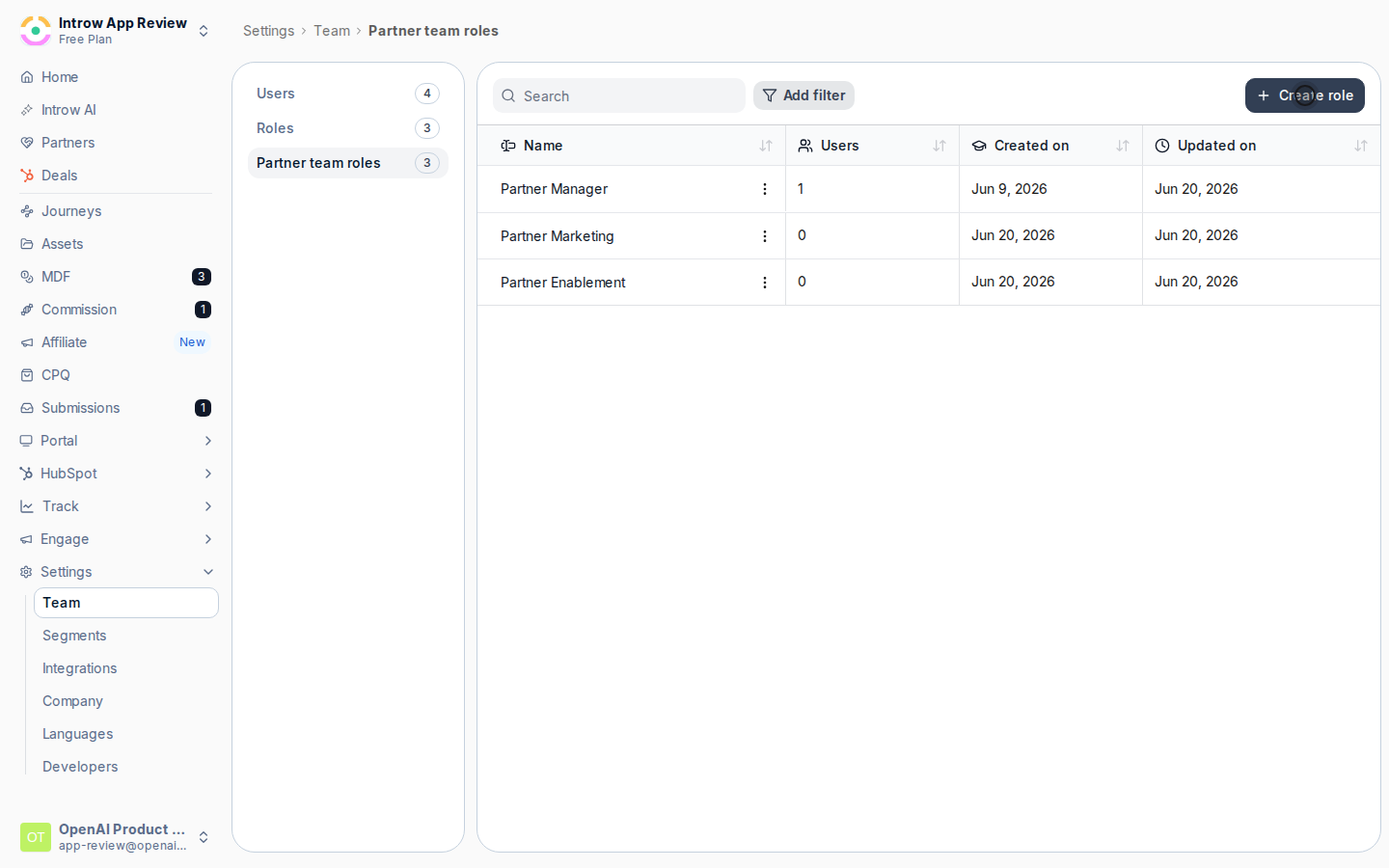
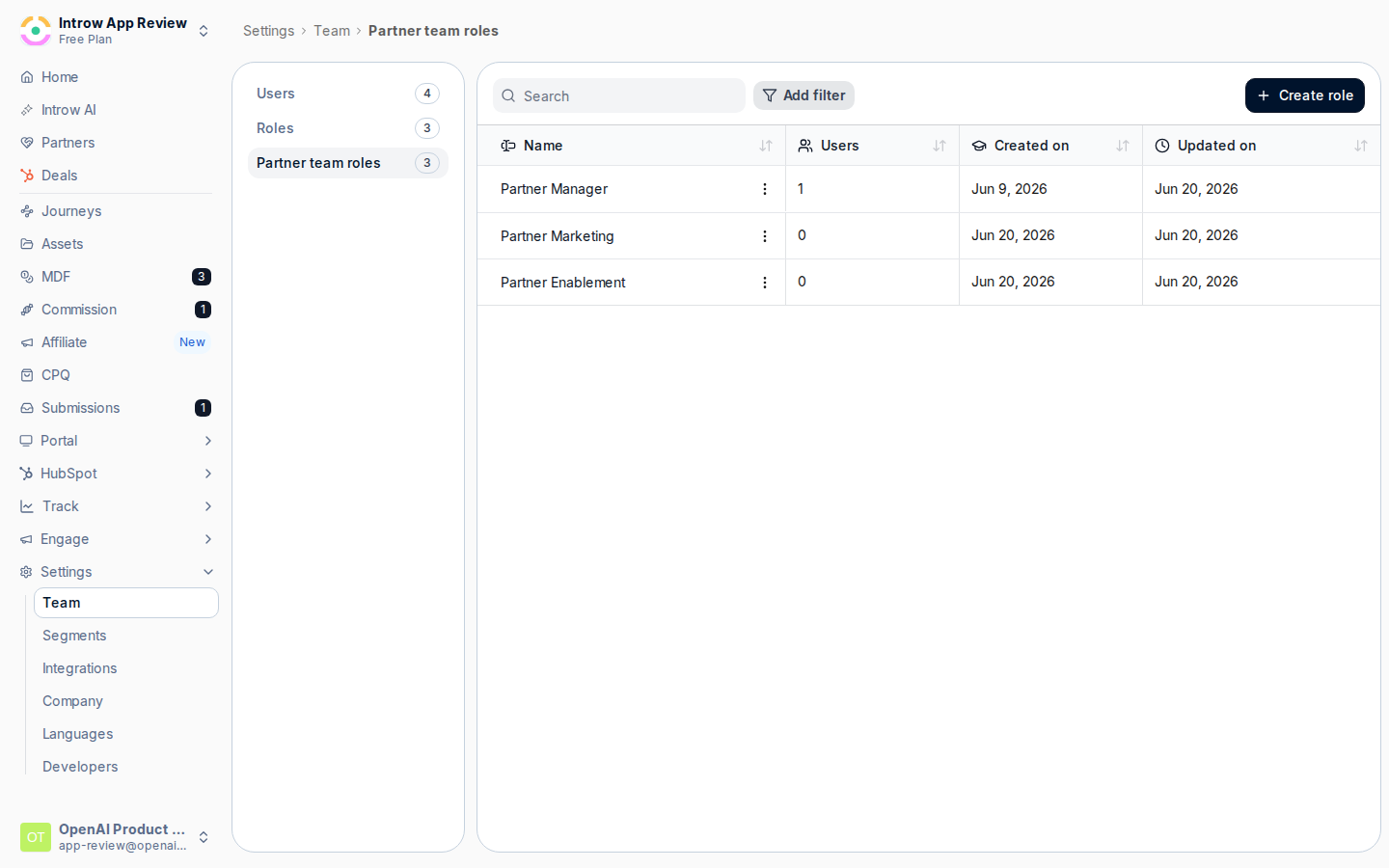 Select **Create partner team role**, enter a **Name** that describes the job on the partner (for example Manager or Technical contact), and select **Create role**. Names must be unique. Repeat for each role your program needs.
 ### Sync the role to your CRM
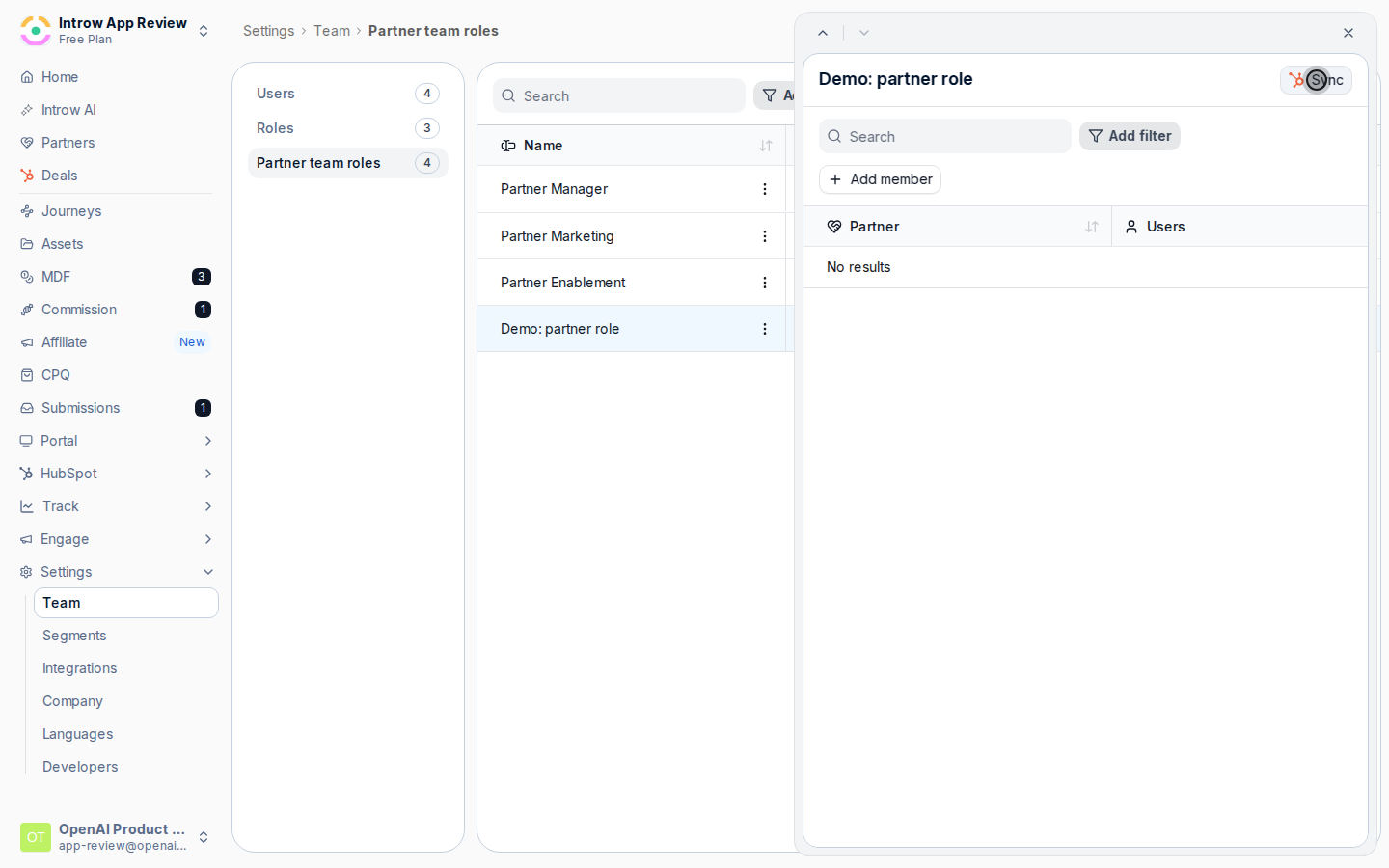
On the **Partner team roles** tab, open the role to show its detail panel, then select the **Sync** button in the panel header (it reads **In Sync** once a mapping exists). This opens the dialog for syncing the role's members between Introw and your CRM.
### Sync the role to your CRM
On the **Partner team roles** tab, open the role to show its detail panel, then select the **Sync** button in the panel header (it reads **In Sync** once a mapping exists). This opens the dialog for syncing the role's members between Introw and your CRM.
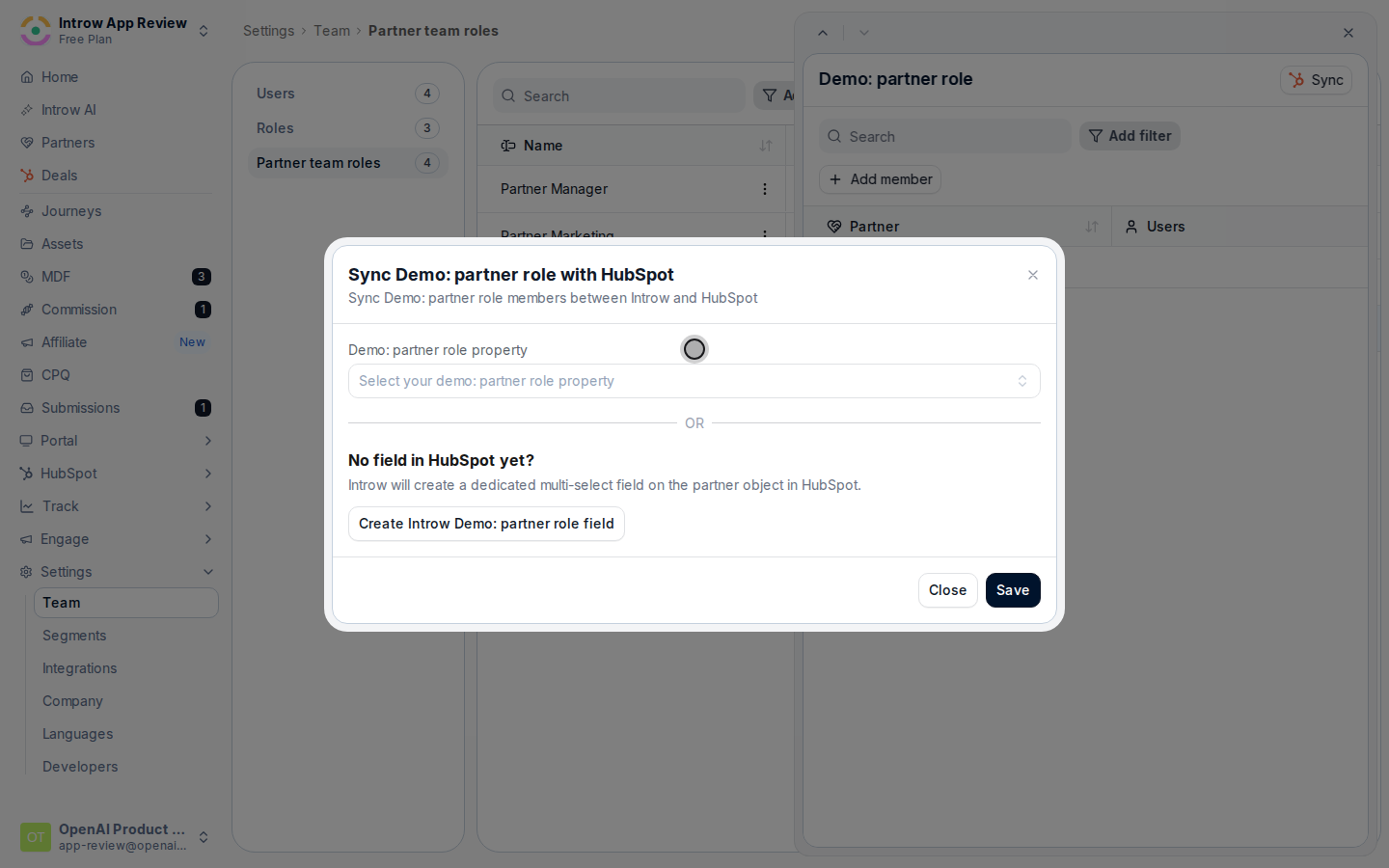
 Decide how members of this role are written back to the partner record in your CRM:
* **Map to an existing property** - in the role's property field, pick a CRM owner or user property that already holds this kind of ownership. Use this when a single owner-style field should reflect the role (a single-owner mapping).
* **Create a dedicated field** - if there is no suitable field yet (HubSpot), use **Create Introw {role} field**. Introw creates a dedicated multi-select property on the partner object, so several people in the role can sync to the same partner (a multi-member mapping).
Select **Save**. Introw then keeps members of this role in sync with that CRM property for your partners.
Decide how members of this role are written back to the partner record in your CRM:
* **Map to an existing property** - in the role's property field, pick a CRM owner or user property that already holds this kind of ownership. Use this when a single owner-style field should reflect the role (a single-owner mapping).
* **Create a dedicated field** - if there is no suitable field yet (HubSpot), use **Create Introw {role} field**. Introw creates a dedicated multi-select property on the partner object, so several people in the role can sync to the same partner (a multi-member mapping).
Select **Save**. Introw then keeps members of this role in sync with that CRM property for your partners.
 ### Assign people to the role
Open a partner's detail page from [Partners](https://app.introw.io/partners) and find the **Team** card. Select **Add**, choose the **Team member** and the **Role**, and select **Add team member**. If the role already holds someone and it allows only one member, you are prompted to replace the existing member. You can later use the row menu on the **Team** card to edit a member's role or remove them.
### Assign people to the role
Open a partner's detail page from [Partners](https://app.introw.io/partners) and find the **Team** card. Select **Add**, choose the **Team member** and the **Role**, and select **Add team member**. If the role already holds someone and it allows only one member, you are prompted to replace the existing member. You can later use the row menu on the **Team** card to edit a member's role or remove them.
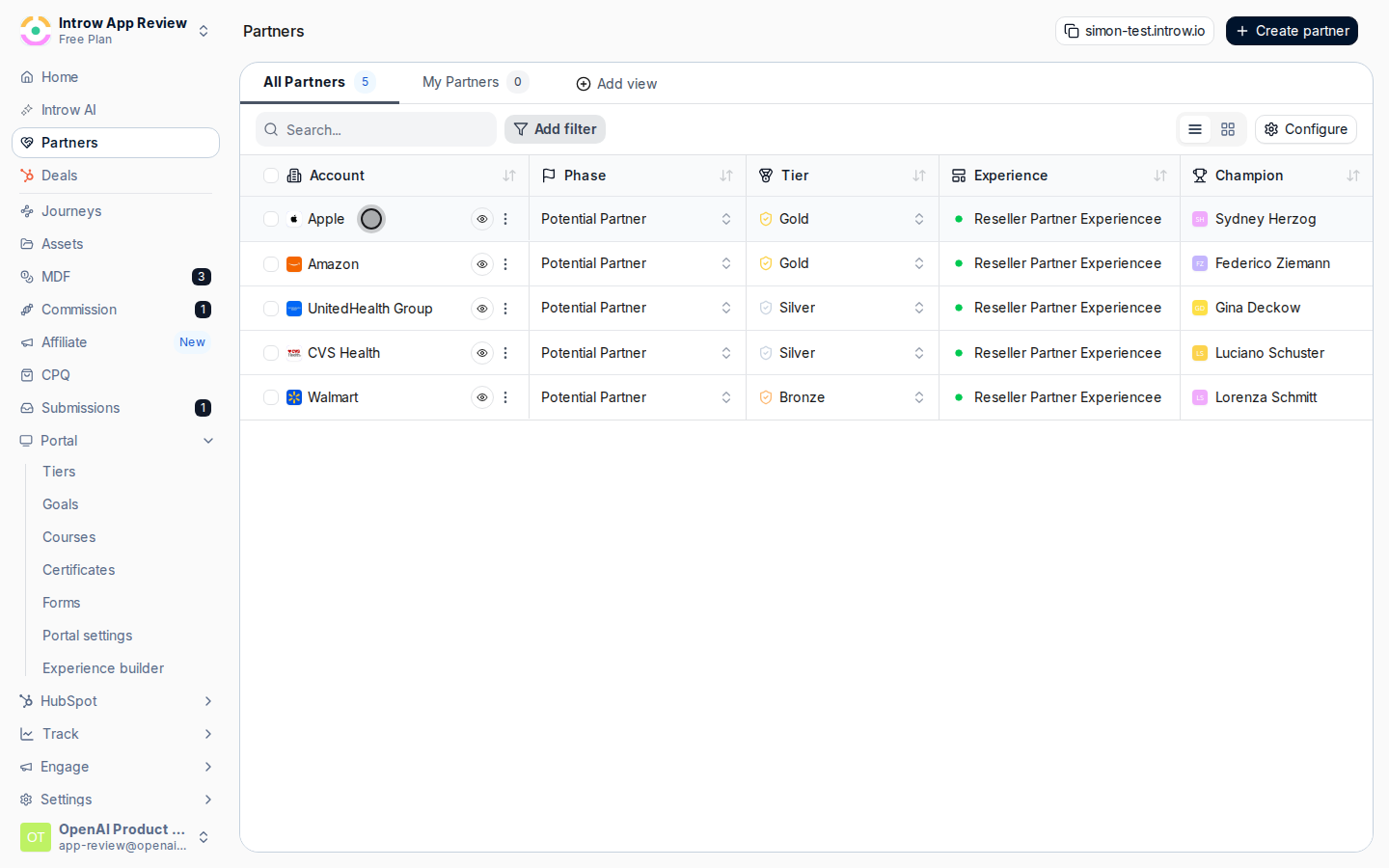 To put one person into a role on many partners at once, go to **Partners**, select the partners you want, and open the bulk editor. Under **Property to update**, choose the partner team role, then pick the **User** to assign and save. As with single assignment, single-member roles prompt you to replace whoever is already there. This is the fast way to seed ownership across a whole segment.
## Verify it worked
The role appears on the **Partner team roles** tab, and assigned people show under each partner's **Team** card in their role. If you mapped the role to your CRM, the assigned members appear on the matching property on the partner record in your CRM.
## Related
Scope a user to only their assigned partners.
Add the people you will assign to partners.
Full configuration options.
To put one person into a role on many partners at once, go to **Partners**, select the partners you want, and open the bulk editor. Under **Property to update**, choose the partner team role, then pick the **User** to assign and save. As with single assignment, single-member roles prompt you to replace whoever is already there. This is the fast way to seed ownership across a whole segment.
## Verify it worked
The role appears on the **Partner team roles** tab, and assigned people show under each partner's **Team** card in their role. If you mapped the role to your CRM, the assigned members appear on the matching property on the partner record in your CRM.
## Related
Scope a user to only their assigned partners.
Add the people you will assign to partners.
Full configuration options.