> ## Documentation Index
> Fetch the complete documentation index at: https://docs.introw.io/llms.txt
> Use this file to discover all available pages before exploring further.
# Access multiple organisations
> Use one Introw login to create, join, and switch between multiple independent organisations, with data kept strictly siloed.
Some teams run more than one Introw organisation: separate legal entities (for example a US and an EU org), an agency managing several client accounts, or a sandbox alongside production. Introw lets a single user profile belong to multiple, independent organisations and switch between them instantly, while each org's data stays strictly siloed. This guide shows how to add a new organisation and move between the ones you can access, all from one login.
## What you'll achieve
One login that can create and switch between multiple Introw organisations, so you never log in and out to move between entities or client accounts, and each organisation's data stays separate and secure.
## Before you start
You switch and add organisations from inside the app, using the organisation you are currently in.
To create one, have its company name, web domain, and the CRM it should connect to ready.
## Watch it
## Steps
Go to [Introw](https://app.introw.io/) and select your organisation avatar (or organisation name) in the top-left of the navigation panel. The menu lists every organisation your profile can access and lets you add a new one.
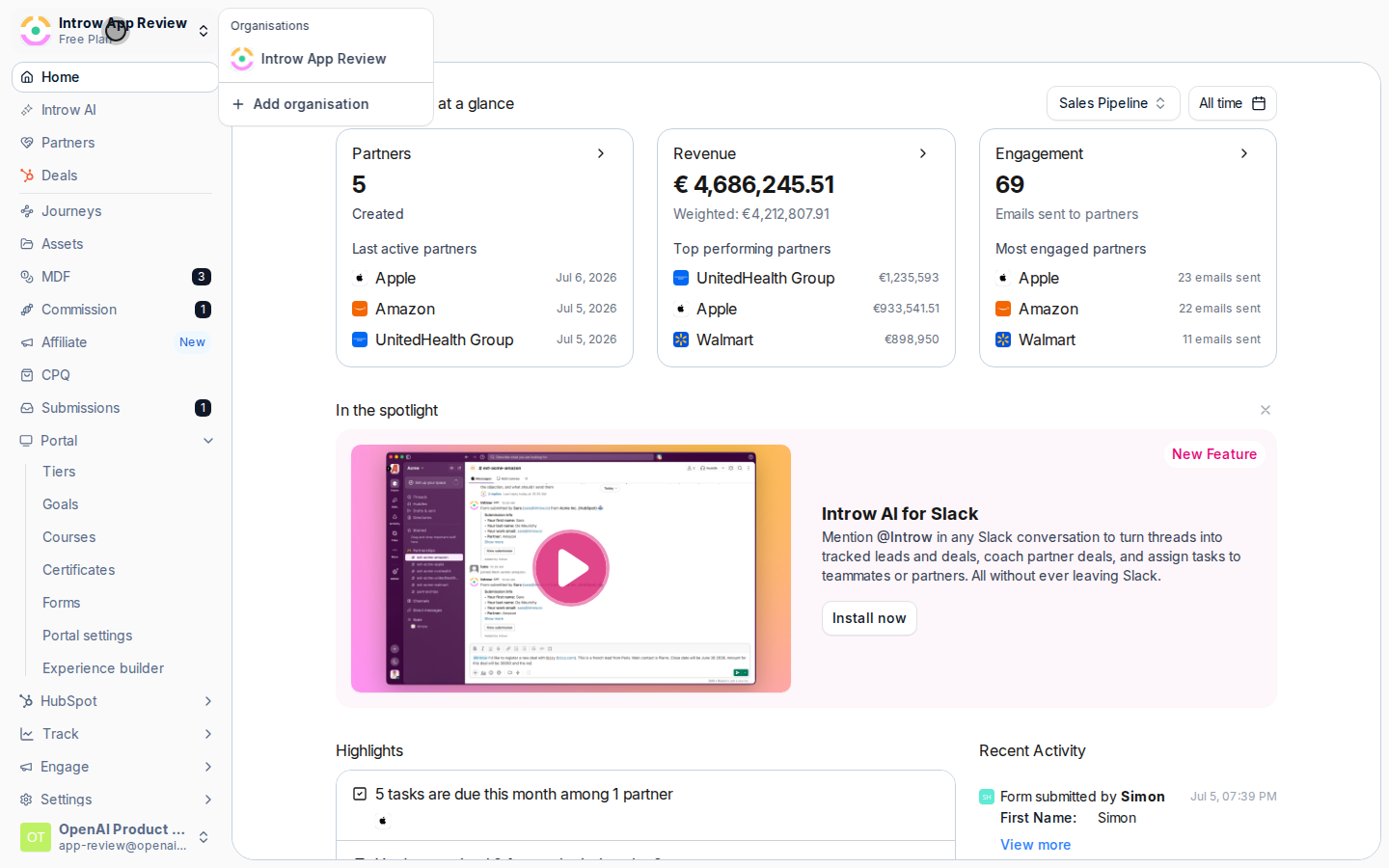 Pick any organisation in the list to switch straight into it, with no second login. Introw loads that organisation's data on its own; nothing is shared across organisations.
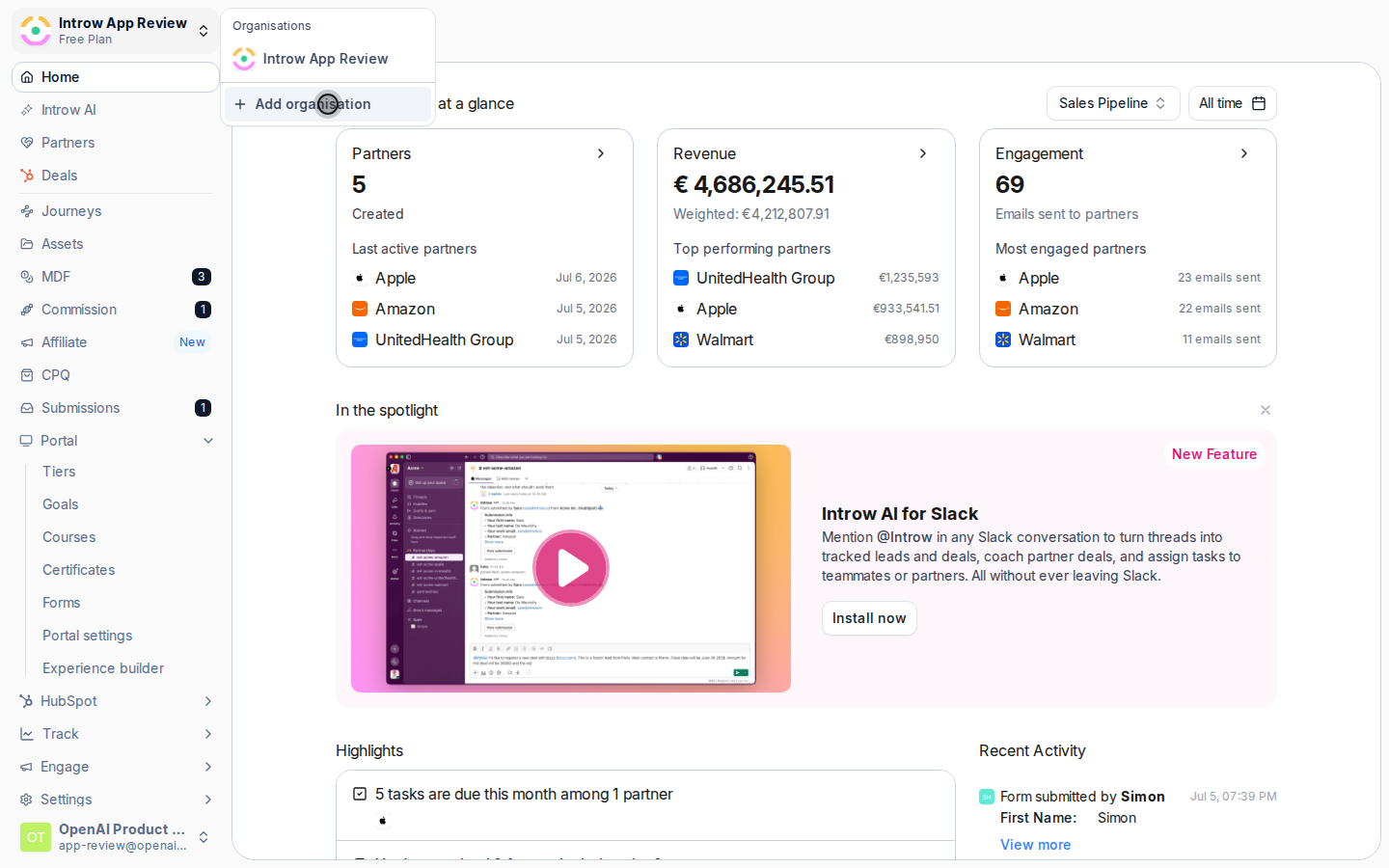
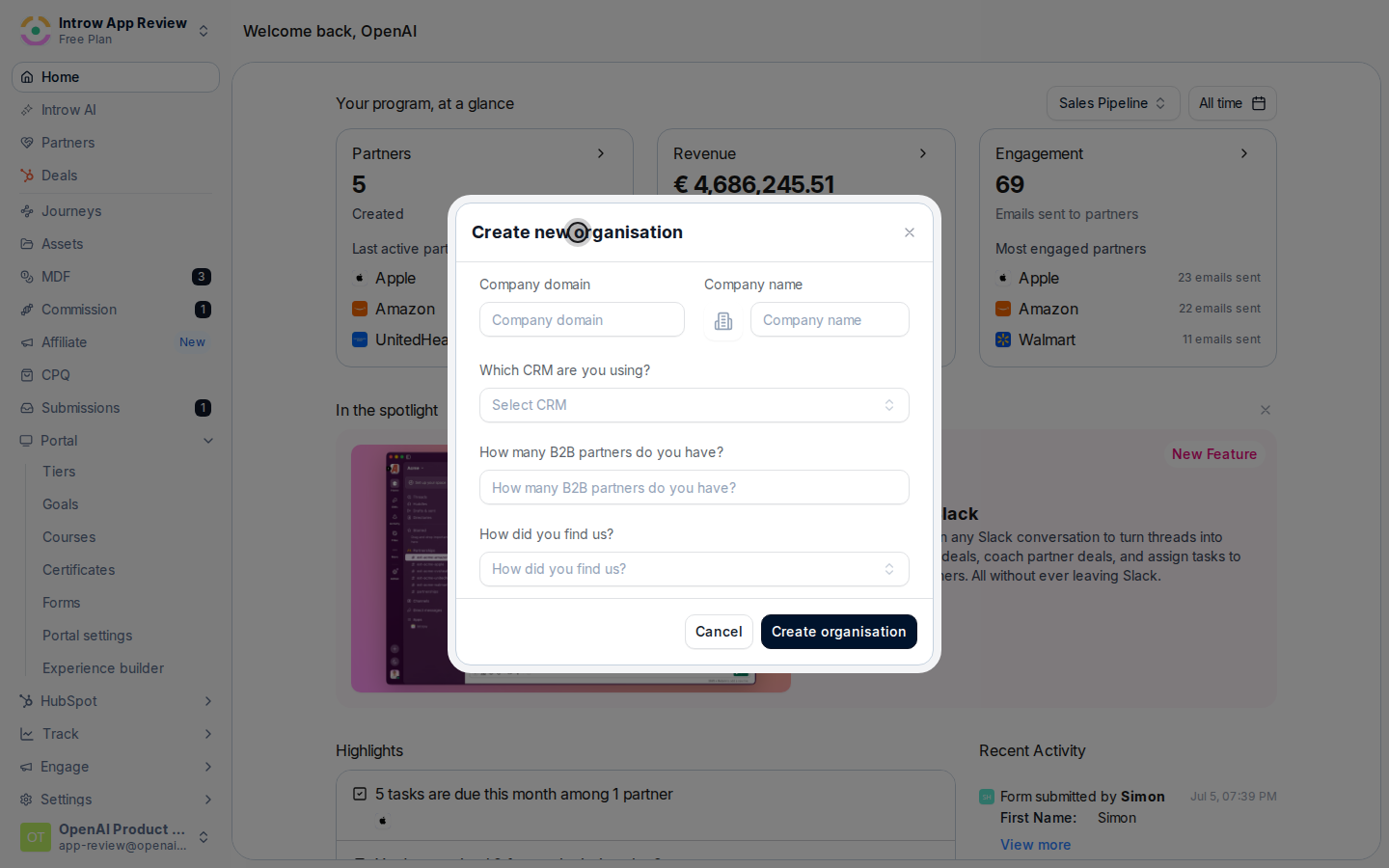
Select **Add organisation** to open the **Create new organisation** screen, which mirrors the initial Introw setup. Provide:
* **Company name** - the name of the new entity or client.
* **Domain** - the web domain for the new organisation.
* **CRM integration** - the CRM (HubSpot, Salesforce, and so on) this organisation connects to.
Pick any organisation in the list to switch straight into it, with no second login. Introw loads that organisation's data on its own; nothing is shared across organisations.
Select **Add organisation** to open the **Create new organisation** screen, which mirrors the initial Introw setup. Provide:
* **Company name** - the name of the new entity or client.
* **Domain** - the web domain for the new organisation.
* **CRM integration** - the CRM (HubSpot, Salesforce, and so on) this organisation connects to.
 Select **Create organisation** and Introw provisions the new account immediately. As the creator you become its **Admin**, so you can invite team members and partners and begin configuring it right away.
 ## Verify it worked
The organisation switcher lists every organisation you belong to, selecting one moves you into it without a fresh login, and a newly created organisation appears in the list with you as its admin, ready to set up. Data never crosses between organisations.
## Related
Add teammates to an organisation you administer.
Control what each teammate can do in an organisation.
Full configuration options.
## Verify it worked
The organisation switcher lists every organisation you belong to, selecting one moves you into it without a fresh login, and a newly created organisation appears in the list with you as its admin, ready to set up. Data never crosses between organisations.
## Related
Add teammates to an organisation you administer.
Control what each teammate can do in an organisation.
Full configuration options.